How to Scroll to an Element with Playwright
Use Playwright locators to scroll reliably, handle nested containers and infinite lists, and avoid unnecessary manual scrolling.

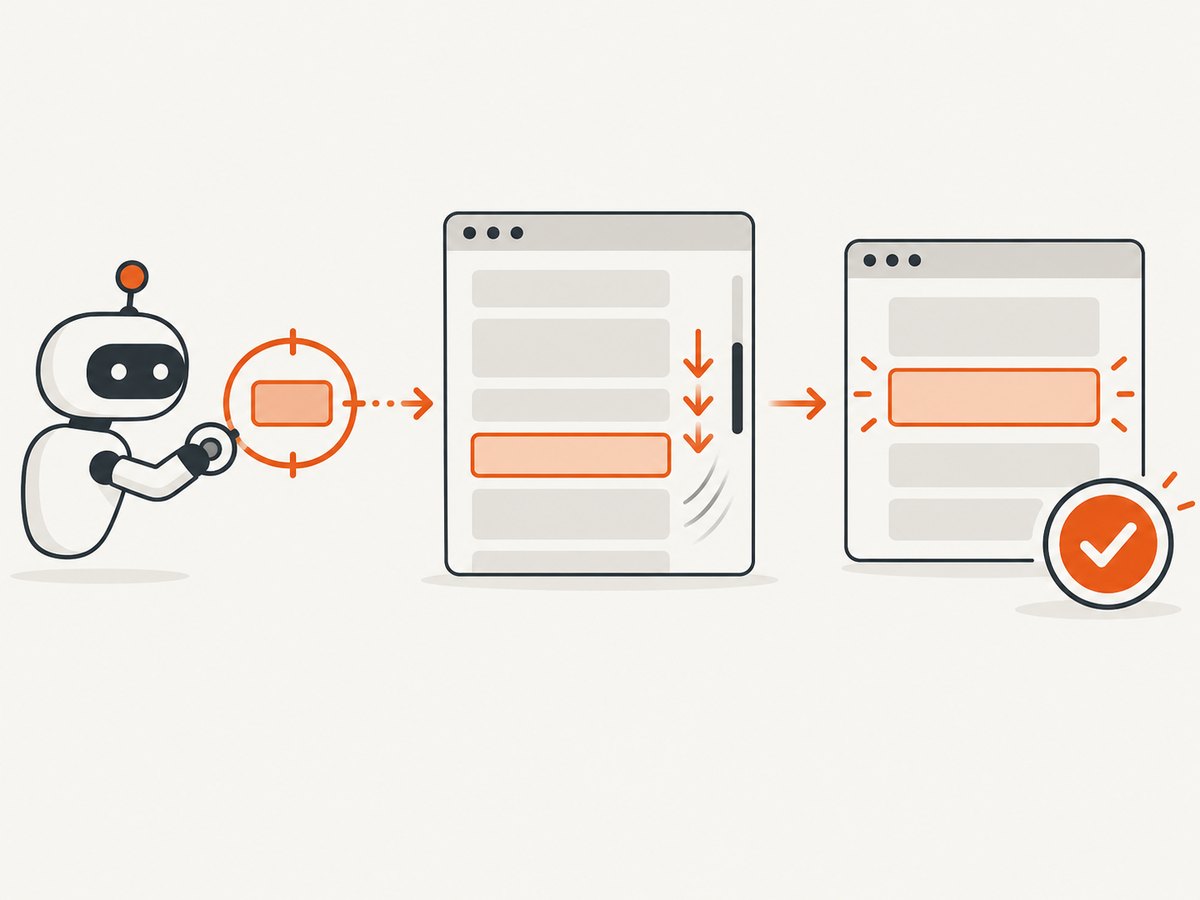
Use a locator and call scrollIntoViewIfNeeded():
const target = page.getByRole('heading', { name: 'Pricing' });
await target.scrollIntoViewIfNeeded();
Playwright usually scrolls automatically before actions such as click(). Add an explicit scroll when you need deterministic positioning, want to trigger an infinite list, are preparing a screenshot, or need to control a nested scrolling container. Playwright’s scrolling guide documents these cases.
1. Set up a runnable Playwright test
The examples below use JavaScript or TypeScript. Install Playwright and its browser binaries:
npm init playwright@latest
npx playwright install
Create scroll.spec.ts:
import { test, expect } from '@playwright/test';

test('scrolls to a target element', async ({ page }) => {
  await page.goto('https://example.com');

  const target = page.getByRole('heading', { name: 'Example Domain' });
  await target.scrollIntoViewIfNeeded();

  await expect(target).toBeVisible();
});
Run it with:
npx playwright test scroll.spec.tsscrollIntoViewIfNeeded() was added in Playwright v1.14. It waits for the locator’s actionability checks and scrolls only when the element is not completely visible according to its intersection with the viewport. See the Locator API.
2. Scroll by semantic locator
Prefer semantic locators because they describe what a user sees and are less sensitive to layout changes.
// Accessible role
await page.getByRole('heading', { name: 'Pricing' }).scrollIntoViewIfNeeded();

// Visible text
await page.getByText('Footer text', { exact: true }).scrollIntoViewIfNeeded();

// Test id for a component with no useful accessible name
await page.getByTestId('results-footer').scrollIntoViewIfNeeded();

// CSS locator when the selector is the stable contract
await page.locator('#pricing').scrollIntoViewIfNeeded();
Use exact: true when similar text appears in several places. If a locator can match multiple elements, narrow it with filter(), first(), or a more specific role/name combination.
3. Scroll before clicking, asserting, or taking a screenshot
Most actions scroll automatically. This click normally scrolls the button into view first:
await page.getByRole('button', { name: 'Submit' }).click();Make the step explicit when scroll position is part of what you are testing or capturing:
const pricing = page.getByRole('heading', { name: 'Pricing' });
await pricing.scrollIntoViewIfNeeded();
await expect(pricing).toBeInViewport();
await page.screenshot({ path: 'pricing.png' });
A sticky header can cover the element after it is scrolled into view. In that case, use a stable layout state, add page CSS that accounts for the header, or scroll a little farther with a container operation. scrollIntoViewIfNeeded() guarantees visibility in the viewport; it does not promise a particular top or center alignment.
4. Scroll a nested container
When an element is inside a scrollable panel, identify the panel as well as the target. The locator method can scroll nested containers when needed:
const panel = page.getByTestId('messages-panel');
const message = panel.getByRole('listitem', { name: 'Deployment finished' });
await message.scrollIntoViewIfNeeded();
await expect(message).toBeVisible();
If you need physical wheel input, hover the actual scroll owner first:
const panel = page.getByTestId('messages-panel');
await panel.hover();
await page.mouse.wheel(0, 600);
mouse.wheel(deltaX, deltaY) models a wheel event. It does not wait for scrolling to finish, so follow it with a locator assertion or wait for the target state.
For deterministic position changes, adjust the container directly:
const panel = page.getByTestId('messages-panel');
await panel.evaluate((element) => {
  element.scrollTop += 600;
});
await expect(panel.getByText('Deployment finished')).toBeVisible();
Use this approach when the application has a known scroll owner and pixel movement is part of the scenario. It is less representative of a real user’s input than mouse.wheel().
5. Trigger an infinite list to load more items
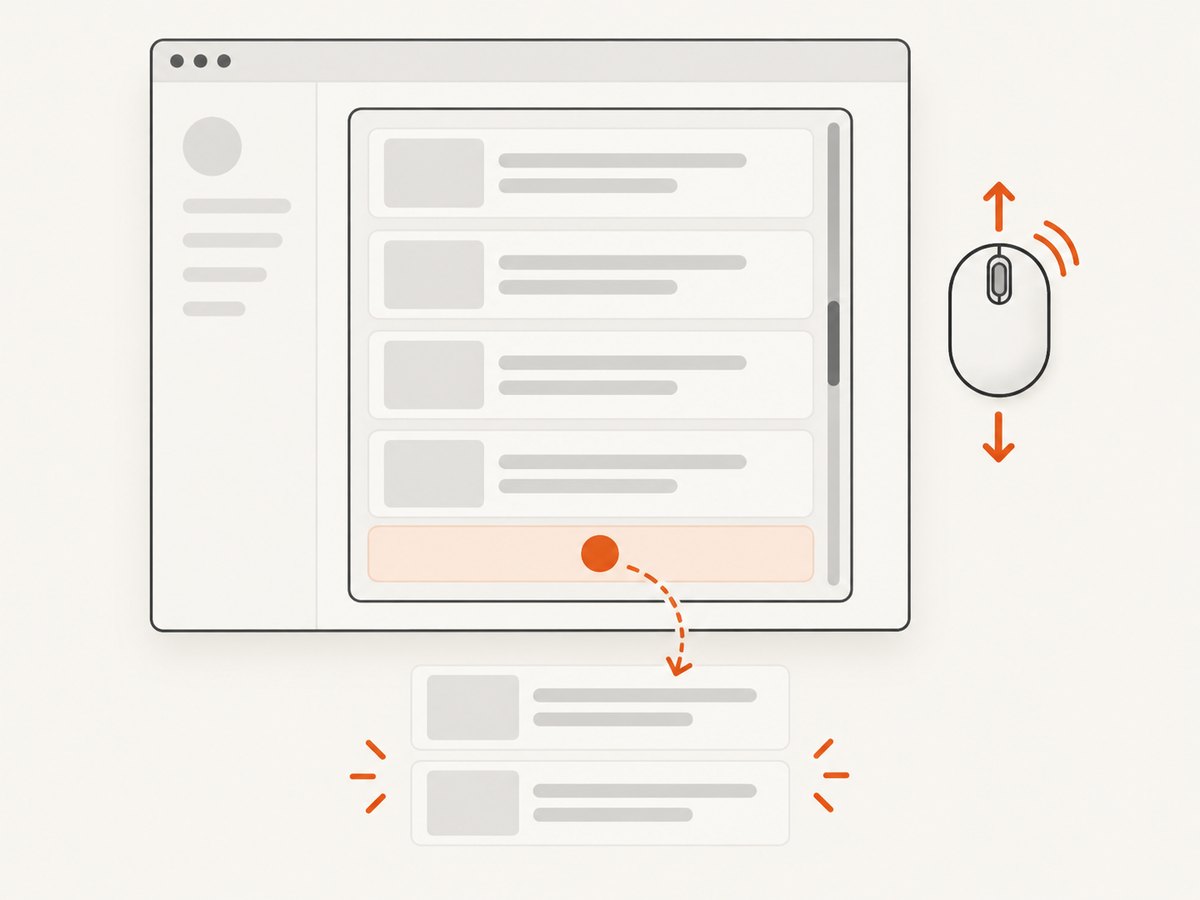
For an infinite list, scroll a bottom sentinel or footer into view instead of guessing a pixel distance:
const list = page.getByTestId('results-list');
const bottomSentinel = list.getByTestId('list-bottom');

await bottomSentinel.scrollIntoViewIfNeeded();
await expect(list.getByText('Item 51')).toBeVisible();
This pattern gives the page its normal intersection or scroll event and lets the application request the next page. If loading is asynchronous, assert the new item or a loading indicator rather than using a fixed sleep:
await bottomSentinel.scrollIntoViewIfNeeded();
await expect(page.getByText('Loading more…')).toBeHidden();
await expect(list.getByText('Item 51')).toBeVisible();
If the list virtualizes rows, an off-screen row may not exist in the DOM until scrolling happens. Reacquire the locator after each load and scroll cycle.
6. Python Playwright
The Python binding uses snake_case names:
from playwright.sync_api import sync_playwright, expect

with sync_playwright() as p:
    browser = p.chromium.launch()
    page = browser.new_page()
    page.goto("https://example.com")

    target = page.get_by_role("heading", name="Example Domain")
    target.scroll_into_view_if_needed()
    expect(target).to_be_visible()

    browser.close()
For async Python:
import asyncio
from playwright.async_api import async_playwright, expect

async def main():
    async with async_playwright() as p:
        browser = await p.chromium.launch()
        page = await browser.new_page()
        await page.goto("https://example.com")

        target = page.get_by_role("heading", name="Example Domain")
        await target.scroll_into_view_if_needed()
        await expect(target).to_be_visible()

        await browser.close()

asyncio.run(main())
7. Java and .NET equivalents
Playwright exposes the same operation in its other official bindings.
// Java
Locator target = page.getByRole(AriaRole.HEADING,
    new Page.GetByRoleOptions().setName("Pricing"));
target.scrollIntoViewIfNeeded();
// .NET
var target = Page.GetByRole(AriaRole.Heading,
new() { Name = "Pricing" });
await target.ScrollIntoViewIfNeededAsync();Mouse-wheel and container-evaluation concepts are equivalent in each binding, with language-specific method naming.
8. Automatic scrolling and the scroll option
Playwright says that “most of the time” it automatically scrolls before actions. For actions that expose a scroll option, the default is "auto"; Playwright scrolls the target, including nested scrollable containers, when necessary.
await page.getByRole('button', { name: 'Save' }).click({ scroll: 'auto' });Set scroll: 'none' when you deliberately want to verify that an element is already reachable without scrolling:
// Fails if the button is outside the viewport.
await page.getByRole('button', { name: 'Save' }).click({ scroll: 'none' });
This option is available on supported actions in current Playwright releases. Check the Locator API for the action and version you use.
9. Choosing the right scrolling method
| Method | Best for | Trade-off |
|---|---|---|
locator.scrollIntoViewIfNeeded() |
Making a semantic target visible; infinite-list sentinels; screenshot preparation | Does not express an exact pixel offset |
page.mouse.wheel() |
Testing real wheel behavior and scroll handlers | Scroll distance and completion are less deterministic |
locator.evaluate() |
Known nested containers and exact scrollTop/scrollLeft changes |
More coupled to implementation details |
| Automatic action scrolling | Ordinary clicks, fills, checks, and other actions | Position is chosen by Playwright, not your test |
10. Common errors and fixes
Timeout waiting for the locator
Cause: the selector matches nothing, the page has not finished navigation, or the element appears after an application request.
Fix: use a semantic locator, wait for the relevant response or state, and inspect the locator count. Do not replace a missing element with a long fixed sleep.
await page.goto(url, { waitUntil: 'domcontentloaded' });
const target = page.getByRole('heading', { name: 'Pricing' });
await expect(target).toHaveCount(1);
await target.scrollIntoViewIfNeeded();
Strict mode violation
Cause: the locator matches multiple nodes.
Fix: make the locator unique with a parent, role, accessible name, filter({ hasText: ... }), or a test id. Use first() only when the first match is truly the contract.
Element is detached
Cause: a virtualized list or framework re-render replaced the node while scrolling.
Fix: keep a locator rather than an ElementHandle, wait for the list update, then reacquire or reuse the locator and scroll again.
Element is visible but covered by a sticky header or overlay
Cause: intersection with the viewport does not mean the target receives pointer events.
Fix: dismiss the overlay, wait for it to be hidden, or change the page’s test CSS. Avoid force: true unless bypassing hit testing is the behavior you intend to test.
Wheel scrolling changes the wrong area
Cause: the pointer is not over the nested scroll owner, or the panel is not actually scrollable.
Fix: hover the panel first, verify its dimensions and overflow behavior, or change scrollTop with evaluate().
scroll: 'none' causes a failure
Cause: you explicitly disabled Playwright’s automatic scrolling while the target is outside the viewport.
Fix: scroll explicitly first, or use the default scroll: 'auto'.
Infinite scrolling never loads the next page
Cause: you scrolled a decorative wrapper rather than the sentinel or the real scroll owner; the application may also require a network response before rendering.
Fix: scroll the bottom sentinel, wait for the new item or response, and confirm that the sentinel is attached after each render.
11. Reliability and performance checklist
- Use
getByRole,getByText, andgetByTestIdbefore brittle XPath or layout selectors. - Scroll immediately before the assertion or action when the page can reflow.
- Wait on a meaningful state, such as a new row or hidden spinner, instead of an arbitrary delay.
- For nested panels, identify the actual scroll owner and use hover plus wheel or direct evaluation.
- Keep default timeouts appropriate for your application; increase them for genuinely slow navigation rather than masking a bad locator.
- Use
scroll: 'none'as a focused no-scroll assertion, not as the normal way to interact. - For screenshots, freeze animations and wait for lazy content before scrolling to the capture target.
- Repeated wheel events can be slower and less stable than scrolling a locator or setting a known container position. Use wheel when user input itself is under test.
12. Or skip the browser setup
If your goal is a clean screenshot of a page or element rather than an interaction test, ScreenshotNeo provides a screenshot API and MCP server. See the ScreenshotNeo API documentation for all options.
curl -G "https://api.screenshotneo.com/v1/shot" -d access_key=YOUR_API_KEY --data-urlencode url=https://stripe.com -o shot.webpimport requests
r = requests.get("https://api.screenshotneo.com/v1/shot", params={"access_key": "YOUR_API_KEY", "url": "https://stripe.com"}, timeout=90)
open("shot.webp", "wb").write(r.content)const q = new URLSearchParams({ access_key: 'YOUR_API_KEY', url: 'https://stripe.com' });
const res = await fetch(`https://api.screenshotneo.com/v1/shot?${q}`);ScreenshotNeo accepts cookie and consent banners before capture and removes more than 60 known consent platforms, newsletter popups, and chat widgets. Bot checks, blank pages, failed loads, timeouts, and cache hits are not billed; the response reports the result with X-Page-Verdict and X-Billed headers. Its MCP server includes take_screenshot, get_page_info, and capture_pdf for Claude, Cursor, and other MCP clients. The Free plan includes 1,000 screenshots per month with no card, and paid plans start at $5 for 3,000 screenshots. Create a free ScreenshotNeo account.
13. FAQ
Does Playwright scroll automatically before clicking?
Yes. Most actions scroll the target into view automatically. Use explicit scrolling when the position itself matters, when loading an infinite list, or when preparing a screenshot.
What is the difference between scrollIntoViewIfNeeded() and scrollIntoView() in the page?
The locator method adds Playwright’s locator resolution and actionability waiting. A page-level evaluate(() => element.scrollIntoView()) is lower level and couples the test to DOM details.
Can I scroll horizontally?
Yes. Use page.mouse.wheel(deltaX, deltaY) or update a container’s scrollLeft in evaluate(). For a semantic target, scrollIntoViewIfNeeded() can make both axes visible.
Why is my target still behind a fixed header?
Being in the viewport does not guarantee that the target is unobstructed. Handle the header in the test layout or use a controlled container offset, then assert that the element receives events before clicking.
Which method should I use for an infinite feed?
Locate a bottom sentinel or footer and call scrollIntoViewIfNeeded(), then wait for a new item or completed loading state. This is more robust than repeatedly scrolling arbitrary pixel distances.


