How to Scroll to an Element in Selenium
Learn the reliable Selenium methods for scrolling to elements in Java and Python, handling sticky headers, nested panels, waits, errors, and screenshots.
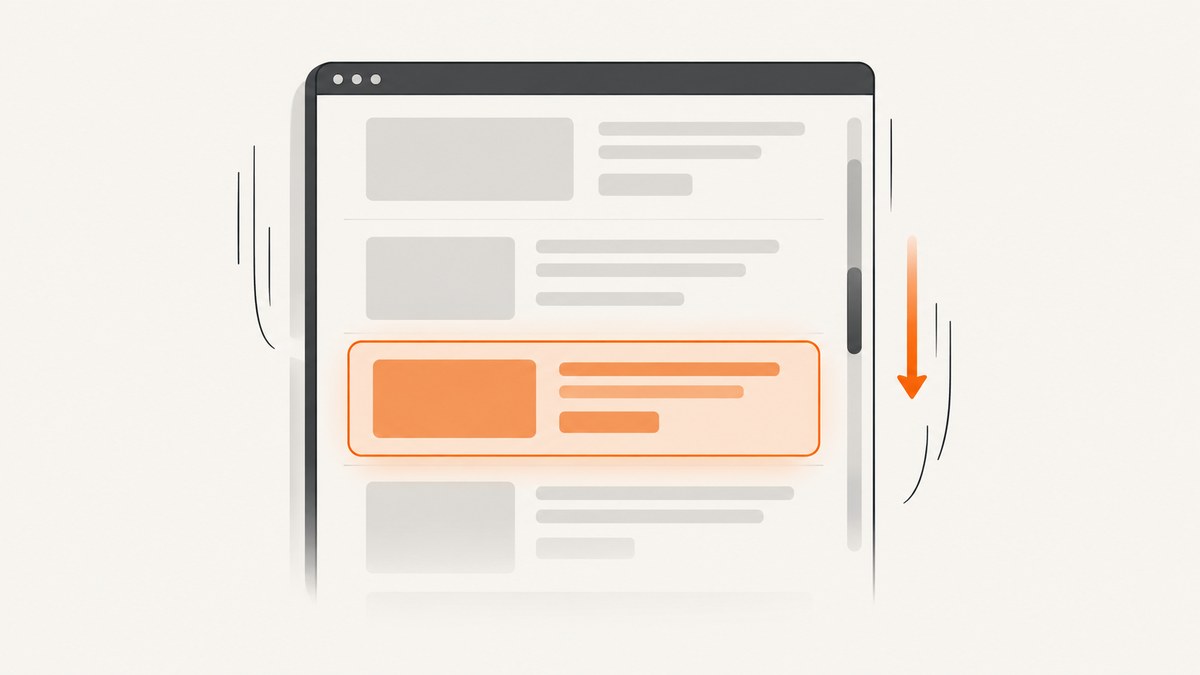
Direct answer: locate the element, then use Selenium 4’s wheel action to scroll it into view. In Java, call new Actions(driver).scrollToElement(target).perform(). In Python, call ActionChains(driver).scroll_to_element(target).perform(). These methods are the best default when your goal is simply to make an element visible.
Selenium’s wheel actions were introduced in Selenium 4.2. The scroll-to-element action moves the viewport when necessary and places the element’s bottom at the bottom of the viewport. If you need a different alignment, a precise distance, or a nested scrollable panel, use a distance/origin wheel action or JavaScript’s scrollIntoView().
1. Scroll to an element in Java
Use a real WebElement as the target and execute the action chain with perform():

import org.openqa.selenium.By;
import org.openqa.selenium.WebDriver;
import org.openqa.selenium.WebElement;
import org.openqa.selenium.chrome.ChromeDriver;
import org.openqa.selenium.interactions.Actions;

public class ScrollToElement {
    public static void main(String[] args) {
        WebDriver driver = new ChromeDriver();
        try {
            driver.get("https://example.com/products");

            WebElement target = driver.findElement(By.id("target"));
            new Actions(driver)
                    .scrollToElement(target)
                    .perform();

            System.out.println(target.isDisplayed());
        } finally {
            driver.quit();
        }
    }
}
The target must be found before the action is built. Calling perform() sends the composed input action to the browser. Selenium’s official wheel-action guide documents this pattern and labels the wheel examples as Chromium-only, so check the browser and driver combination used by your project before depending on it across browser families.
2. Scroll to an element in Python
from selenium import webdriver
from selenium.webdriver.common.by import By
from selenium.webdriver.common.action_chains import ActionChains

options = webdriver.ChromeOptions()
driver = webdriver.Chrome(options=options)

try:
    driver.get("https://example.com/products")

    target = driver.find_element(By.ID, "target")
    ActionChains(driver).scroll_to_element(target).perform()

    assert target.is_displayed()
finally:
    driver.quit()
scroll_to_element() brings an offscreen element into the viewport and uses the same bottom-edge alignment described by Selenium’s Python API. Wait for the element before scrolling when the page renders it asynchronously:
from selenium.webdriver.support.ui import WebDriverWait
from selenium.webdriver.support import expected_conditions as EC

wait = WebDriverWait(driver, 15)
target = wait.until(EC.presence_of_element_located((By.CSS_SELECTOR, "#target")))
ActionChains(driver).scroll_to_element(target).perform()
wait.until(EC.visibility_of(target))
3. Scroll with JavaScript when alignment matters
Wheel actions are convenient, but scrollIntoView() gives you explicit vertical and horizontal alignment. The block option accepts start, center, end, or nearest; inline controls horizontal placement.
target = driver.find_element(By.ID, "target")
driver.execute_script(
    "arguments[0].scrollIntoView({block: 'center', inline: 'nearest'});",
    target,
)
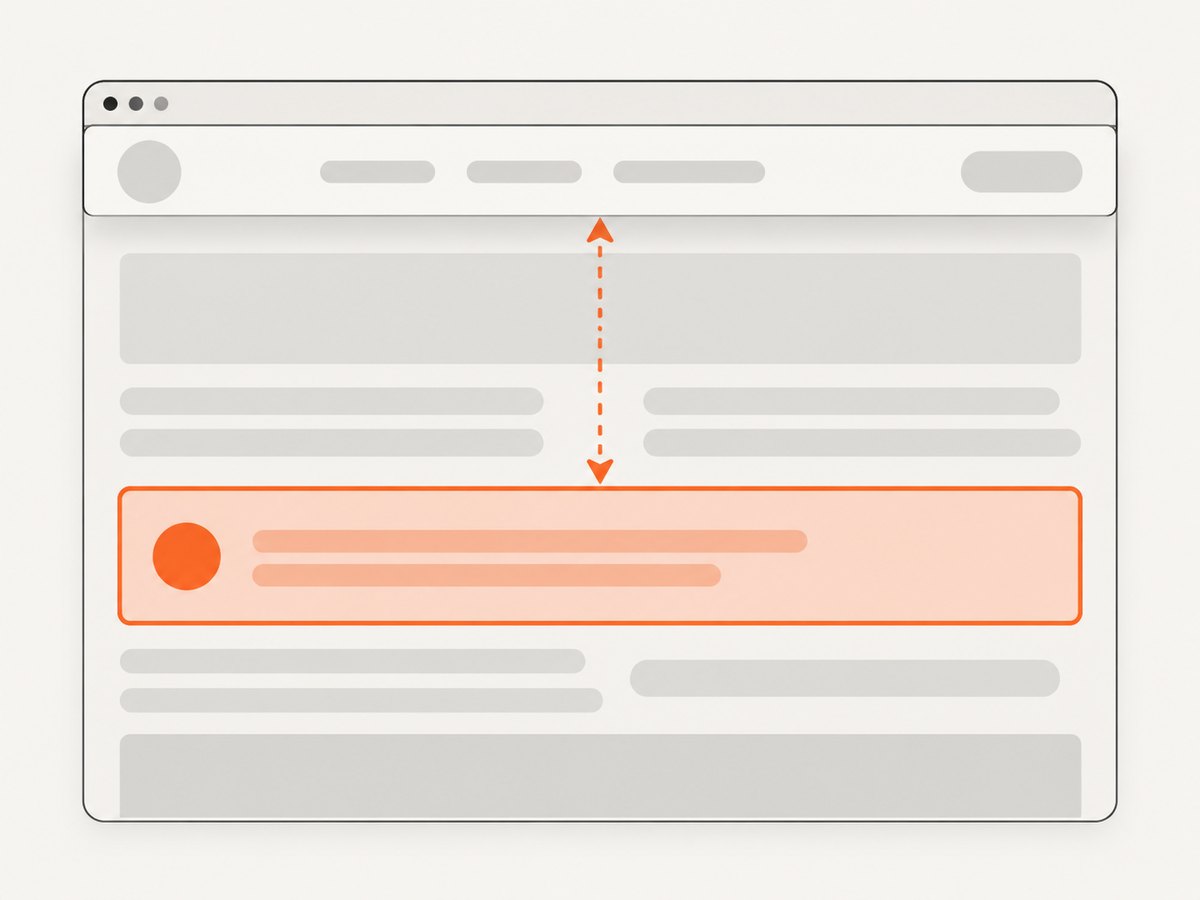
Centering is useful when a fixed navigation bar would cover an element at the top edge. For a reusable page-level solution, add CSS space to the target:
#target {
    scroll-margin-top: 80px;
}
Then use scrollIntoView({block: 'start'}). The browser reserves the scroll margin above the element, leaving room for the fixed header. MDN documents both the alignment options and scroll-margin-top.
4. Choose the right scrolling method
| Goal | Recommended method | Why |
|---|---|---|
| Bring one element into view | scrollToElement / scroll_to_element |
Short, user-input-style action that targets a WebElement. |
| Move a known distance | scrollByAmount / scroll_by_amount |
Provides exact horizontal and vertical deltas. |
| Scroll a panel or nested region | scrollFromOrigin / scroll_from_origin |
Lets you set the wheel event’s origin and delta. |
| Control alignment around headers | JavaScript scrollIntoView |
Supports block and inline choices plus scroll margins. |
Scroll by a precise amount
// Java
new Actions(driver)
        .scrollByAmount(0, 600)
        .perform();

// Python
ActionChains(driver).scroll_by_amount(0, 600).perform()
Positive vertical values scroll down and negative values scroll up. Distance scrolling is useful for progressive feeds, but it is less robust than targeting an element because layout height can change as images and content load.
Scroll a nested scrollable container
When the target lives inside a scrollable panel, scrolling the document may leave it hidden. Use an element-based origin and a delta. In Python:
from selenium.webdriver.common.action_chains import ActionChains
from selenium.webdriver.common.actions.wheel_input import ScrollOrigin

panel = driver.find_element(By.CSS_SELECTOR, ".results-panel")
origin = ScrollOrigin.from_element(panel)
ActionChains(driver).scroll_from_origin(origin, 0, 500).perform()
In Java, use WheelInput.ScrollOrigin.fromElement(panel) with scrollFromOrigin. Selenium first moves an offscreen origin into view. An offset outside the viewport can raise MoveTargetOutOfBoundsException, so use an origin that is visible and positioned inside the intended container.
5. Complete example with waits, a sticky header, and verification
from selenium import webdriver
from selenium.webdriver.common.by import By
from selenium.webdriver.common.action_chains import ActionChains
from selenium.webdriver.support.ui import WebDriverWait
from selenium.webdriver.support import expected_conditions as EC

URL = "https://example.com/products"

driver = webdriver.Chrome()
wait = WebDriverWait(driver, 20)

try:
    driver.get(URL)
    target = wait.until(EC.presence_of_element_located((By.CSS_SELECTOR, "[data-test='pricing']")))

    driver.execute_script(
        "arguments[0].scrollIntoView({block: 'center', inline: 'nearest'});",
        target,
    )
    wait.until(EC.visibility_of(target))

    # Optional: assert the element intersects the viewport.
    in_view = driver.execute_script("""
        const r = arguments[0].getBoundingClientRect();
        return r.top >= 0 && r.bottom <= window.innerHeight;
    """, target)
    assert in_view, "Target is not fully inside the viewport"
finally:
    driver.quit()
Use presence_of_element_located when the DOM node must exist, and visibility_of when it must be displayed. For a clickable control, wait for element_to_be_clickable after scrolling. A present element can still be covered by a modal, sticky header, or animation.
6. Common edge cases
Lazy-loaded content
Some sites create the target only after earlier scrolling. Scroll in measured steps, wait for the network or DOM update, and locate the element again. Do not retain a stale reference across a React or Vue re-render.
Sticky or fixed headers
Use centered JavaScript alignment or add scroll-margin-top. If you cannot change the site, subtract the header height with a controlled JavaScript scroll:
driver.execute_script("window.scrollBy(0, -80);")Animations and smooth scrolling
Disable smooth scrolling in a test environment or wait for the final position before clicking. A click issued during an in-progress animation can produce an intercepted-click error.
Shadow DOM
A normal CSS locator cannot cross a shadow boundary. First obtain the shadow root, then locate the element inside it. Scroll the inner element after it is found.
host = driver.find_element(By.CSS_SELECTOR, "my-widget")
root = host.shadow_root
target = root.find_element(By.CSS_SELECTOR, ".target")
driver.execute_script("arguments[0].scrollIntoView({block: 'center'});", target)
iframes
Switch into the frame before locating and scrolling the element:
frame = driver.find_element(By.CSS_SELECTOR, "iframe.checkout")
driver.switch_to.frame(frame)
target = driver.find_element(By.ID, "confirmation")
ActionChains(driver).scroll_to_element(target).perform()
driver.switch_to.default_content()
Elements that are not scrollable
An element may be visible but still covered, disabled, or outside a different scrolling ancestor. Inspect computed styles and scrollable parents. Scrolling the top-level window will not move an independently scrollable div.
7. Troubleshooting Selenium scrolling
| Error or symptom | Likely cause | Fix |
|---|---|---|
NoSuchElementException |
The element has not been rendered or the locator is wrong. | Wait for presence, verify the selector, and switch into the correct iframe or shadow root. |
StaleElementReferenceException |
The page replaced the node after a render or scroll. | Locate the element again immediately before scrolling or clicking. |
MoveTargetOutOfBoundsException |
A scroll origin or offset is outside the viewport. | Use a visible origin, remove excessive offsets, and scroll the origin into view first. |
| Click intercepted after scrolling | A sticky header, popup, or animation covers the target. | Center the target, close overlays, wait for animation, or apply scroll margin. |
| Wheel action has no effect | Browser/driver support, focus, or nested scrolling is wrong. | Check Selenium 4.2+ and driver compatibility, focus the window, or use JavaScript alignment. |
| Target is visible but assertion fails | The element is only partly inside the viewport. | Use block: 'center' or test rectangle intersection rather than a brittle pixel value. |
8. Performance, reliability, and test design
- Prefer one targeted scroll. It is faster and less flaky than repeated fixed-distance scrolling.
- Wait on state, not time. A selector, visibility condition, or stable rectangle is more reliable than a long sleep.
- Use stable locators. Data attributes and accessible roles survive layout changes better than generated class names.
- Keep screenshots on failure. A failure screenshot shows whether a header, cookie dialog, or loading overlay covered the element.
- Account for responsive layouts. A viewport that works on desktop may place the same target in a different scroll container on mobile emulation.
- Limit JavaScript to alignment and inspection. Wheel actions more closely model user input; JavaScript is best when exact browser-native alignment is required.
Wheel actions and JavaScript scrolling do not make a page load faster. The dominant cost is usually navigation, JavaScript execution, images, and waiting for the target. Reuse a driver for a test class where possible, but reset state between tests so prior scroll position and overlays do not affect results.
9. Capture the result after scrolling
If the purpose of scrolling is a visual check, capture after the target is stable:
target.screenshot("target.png")
driver.save_screenshot("page-after-scroll.png")
Element screenshots are useful for a component assertion; full-page screenshots help diagnose layout and overlay issues. For automated capture outside a test browser, an API can remove the browser setup entirely.
10. Or skip the browser setup
ScreenshotNeo provides a GET endpoint that returns a PNG, JPEG, WebP, or PDF for a URL. See the ScreenshotNeo API documentation for all options. A basic request is:
curl -G "https://api.screenshotneo.com/v1/shot" -d access_key=YOUR_API_KEY --data-urlencode url=https://stripe.com -o shot.webpimport requests
r = requests.get("https://api.screenshotneo.com/v1/shot", params={"access_key": "YOUR_API_KEY", "url": "https://stripe.com"}, timeout=90)
open("shot.webp", "wb").write(r.content)const q = new URLSearchParams({ access_key: 'YOUR_API_KEY', url: 'https://stripe.com' });
const res = await fetch(`https://api.screenshotneo.com/v1/shot?${q}`);ScreenshotNeo can load lazy images, capture a CSS-selected element, emulate dark mode and device presets, set any viewport and retina scale, inject custom CSS or JavaScript, click before capture, wait for a selector, delay, or network idle, and block ads, trackers, requests, or resource types. You can also provide headers, cookies, a user agent, Authorization, timezone, geolocation, a transparent background, resizing, a chosen cache TTL, signed links, asynchronous jobs with signed webhooks, bulk capture for up to 100 URLs per call, and PDF options such as paper size, margins, landscape mode, and page ranges.
Before capture, cookie and consent banners are accepted and more than 60 known consent platforms, newsletter popups, and chat widgets are removed; each cleanup step can be disabled. Bot checks or CAPTCHAs, blank pages, timeouts, failed loads, and cache hits are not billed. The response identifies the result with X-Page-Verdict and X-Billed headers. ScreenshotNeo also has an MCP server with take_screenshot, get_page_info, and capture_pdf tools for Claude, Cursor, and other MCP clients.
The Free plan includes 1,000 screenshots each month with no card. Paid plans start at $5 for 3,000 shots; yearly billing gives two months free, and every feature is included on every plan. Create a free ScreenshotNeo account to try the API.
11. Short FAQ
Which Selenium method should I learn first?
Start with scrollToElement in Java or scroll_to_element in Python. It expresses the intent clearly and avoids guessing a pixel distance.
Can I scroll horizontally?
Yes. Use a positive or negative horizontal delta with scrollByAmount, or set inline in scrollIntoView.
Does scroll-to-element click the element?
No. It only performs scrolling. Locate the element again if the page re-renders, then click after a visibility or clickability wait.
Why is the element still hidden after scrolling?
It may be inside an iframe, shadow root, or nested scroll container, or covered by an overlay. Switch context and scroll the correct ancestor.
When should I use JavaScript instead of wheel actions?
Use JavaScript when you need explicit top, center, or bottom alignment, especially with fixed headers. Use wheel actions when modeling user input or targeting a specific scroll origin.


