How to Scroll a Website With PhantomJS and Selenium
Scroll pages, elements, and nested containers with Selenium, then migrate legacy PhantomJS tests to maintained headless Chrome or Firefox.
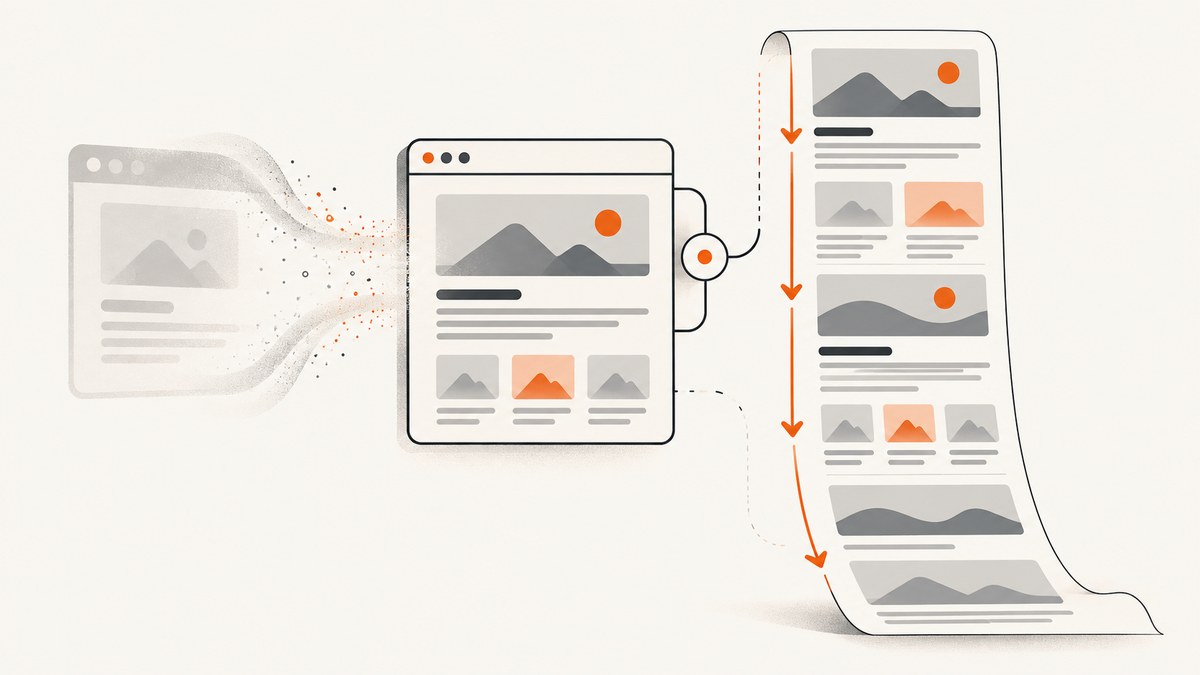
Use Selenium’s JavaScript execution to scroll the current page or a specific element. For a full-page jump, call window.scrollTo; for an incremental movement, call window.scrollBy; and for an element, pass the located WebElement to scrollIntoView. PhantomJS support in Selenium is legacy: the Selenium project recommends headless Chrome or Firefox because PhantomJS WebDriver is no longer actively developed.
Quick answer: scroll a page with Selenium
In Python, the direct page-scroll command is:
driver.execute_script("window.scrollTo(0, document.body.scrollHeight)")Move down by a fixed amount:
driver.execute_script("window.scrollBy(0, 600)")Scroll a located element into view:
element = driver.find_element(By.CSS_SELECTOR, "footer")
driver.execute_script("arguments[0].scrollIntoView(true)", element)
Selenium executes the script in the currently selected window and frame. Switch to the correct tab and iframe before running it. See the Selenium JavaScript API for the documented script-execution behavior.
Use maintained headless browsers for new tests
PhantomJS is a legacy Selenium choice. Selenium’s JavaScript binding history states that native PhantomJS support was removed because its WebDriver implementation was no longer under active development, and advises using headless Chrome or Firefox instead. Keep the scrolling logic, but migrate the driver.
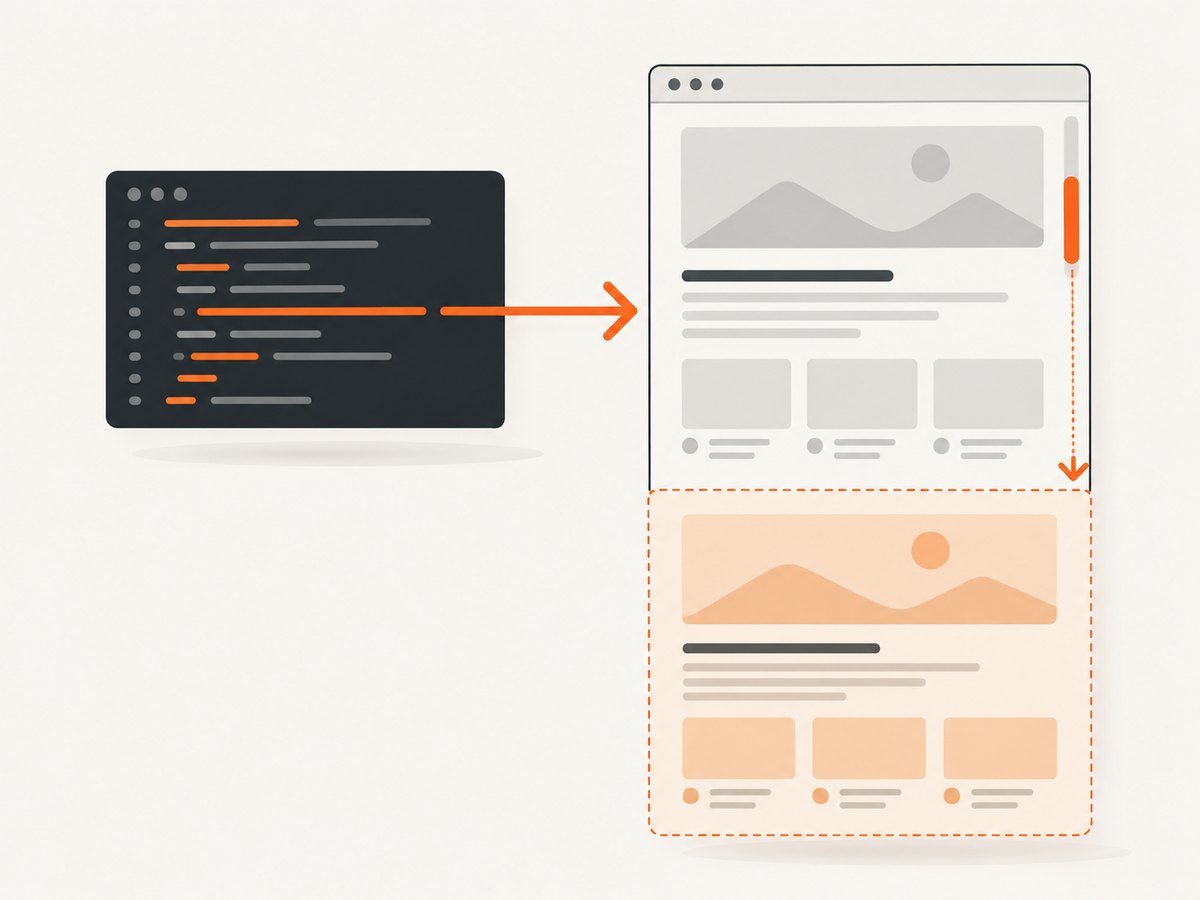
Python with headless Chrome
from selenium import webdriver
from selenium.webdriver.chrome.options import Options
from selenium.webdriver.common.by import By
from selenium.webdriver.support.ui import WebDriverWait
from selenium.webdriver.support import expected_conditions as EC

options = Options()
options.add_argument("--headless=new")
options.add_argument("--window-size=1440,1000")
driver = webdriver.Chrome(options=options)

try:
    driver.get("https://example.com")

    # Jump to the document bottom.
    driver.execute_script("window.scrollTo(0, document.body.scrollHeight)")

    # Scroll a particular element into view.
    footer = WebDriverWait(driver, 10).until(
        EC.presence_of_element_located((By.CSS_SELECTOR, "footer"))
    )
    driver.execute_script("arguments[0].scrollIntoView({block: 'center'})", footer)
finally:
    driver.quit()
Python with headless Firefox
from selenium import webdriver
from selenium.webdriver.firefox.options import Options

options = Options()
options.add_argument("-headless")
driver = webdriver.Firefox(options=options)

try:
    driver.get("https://example.com")
    driver.execute_script("window.scrollBy(0, 600)")
finally:
    driver.quit()
JavaScript Selenium binding
const { Builder, By } = require('selenium-webdriver');

(async function scrollPage() {
  const driver = await new Builder().forBrowser('chrome').build();
  try {
    await driver.get('https://example.com');
    await driver.executeScript(
      'window.scrollTo(0, document.body.scrollHeight)'
    );

    const footer = await driver.findElement(By.css('footer'));
    await driver.executeScript(
      "arguments[0].scrollIntoView({block: 'center'})",
      footer
    );
  } finally {
    await driver.quit();
  }
})();
Legacy PhantomJS instructions
Older projects may contain code like this:
from selenium import webdriver

driver = webdriver.PhantomJS()  # legacy; not supported by current Selenium
try:
    driver.get("https://example.com")
    driver.execute_script("window.scrollTo(0, document.body.scrollHeight)")
finally:
    driver.quit()
This illustrates the old API shape, not a recommended installation path. If it fails during driver creation, do not try to repair an obsolete PhantomJS binary first. Replace the driver with headless Chrome or Firefox and retain the execute_script calls. This separates the browser migration from the scrolling behavior.
Choose the right scrolling method
| Need | Method | Notes |
|---|---|---|
| Go to an exact document position | window.scrollTo(x, y) |
Absolute coordinates; useful for deterministic checkpoints. |
| Move by a known amount | window.scrollBy(x, y) |
Positive vertical values move down; negative values move up. |
| Reveal a target | element.scrollIntoView() |
Pass the WebElement as a script argument. |
| Model wheel input | Selenium wheel actions | Useful when the test must represent wheel movement or use an element as the scroll origin. |
Selenium documents wheel actions for scrolling to an element, by a delta, or from an origin. Its documentation labels these scenarios Chromium Only, so verify support for your browser and language binding before depending on them. See the wheel actions documentation.
Wheel action examples
from selenium.webdriver.common.action_chains import ActionChains

# Scroll down 600 CSS pixels from the current pointer origin.
ActionChains(driver).scroll_by_amount(0, 600).perform()

# Scroll until an element is brought into view.
ActionChains(driver).scroll_to_element(footer).perform()
Use JavaScript for direct positioning. Use wheel actions when input semantics matter. For a nested scroll region, identify the scrollable container rather than assuming the document is the moving surface.
Scroll nested containers
A page can remain at the same document position while an inner panel scrolls. Locate that panel and execute scrolling against it:
panel = driver.find_element(By.CSS_SELECTOR, ".results-panel")
driver.execute_script(
    "arguments[0].scrollTop = arguments[0].scrollHeight",
    panel
)
To move a child item into view, target the child element. If the panel is inside an iframe, switch first:
frame = driver.find_element(By.CSS_SELECTOR, "iframe[data-widget]")
driver.switch_to.frame(frame)
item = driver.find_element(By.CSS_SELECTOR, ".results-panel .item:last-child")
driver.execute_script("arguments[0].scrollIntoView({block: 'nearest'})", item)
driver.switch_to.default_content()
Handle lazy loading and infinite scroll
Scrolling does not prove that newly requested content has finished loading. Synchronize on a page-specific condition, such as a new item count, a loading indicator disappearing, or a target selector becoming present.
from selenium.webdriver.support.ui import WebDriverWait

wait = WebDriverWait(driver, 15)
previous_count = len(driver.find_elements(By.CSS_SELECTOR, ".card"))
driver.execute_script("window.scrollTo(0, document.body.scrollHeight)")

wait.until(lambda d: len(d.find_elements(By.CSS_SELECTOR, ".card")) > previous_count)
For a finite page, stop when the document height no longer increases:
last_height = driver.execute_script("return document.documentElement.scrollHeight")
for _ in range(20):
    driver.execute_script("window.scrollTo(0, document.documentElement.scrollHeight)")
    WebDriverWait(driver, 10).until(
        lambda d: d.execute_script("return document.readyState") == "complete"
    )
    new_height = driver.execute_script("return document.documentElement.scrollHeight")
    if new_height == last_height:
        break
    last_height = new_height
The loop limit prevents an infinite test when a site continuously appends content. Replace the readiness condition with a selector or network-specific signal when the application provides one.
Frames, windows, and visibility
- Wrong window: switch with
driver.switch_to.window(handle)before executing JavaScript. - Wrong frame: call
switch_to.frame; scripts run in the selected browsing context. - Hidden target: wait for presence or visibility before scrolling.
- Sticky headers: use
scrollIntoView({block: 'center'})or subtract the header height with a custom script.
Common errors and fixes
| Error or symptom | Cause | Fix |
|---|---|---|
AttributeError or driver creation failure for PhantomJS |
PhantomJS integration is obsolete. | Migrate to headless Chrome or Firefox. |
| Nothing moves | The active window or frame is different from the one containing the page. | Switch to the intended window and frame, then execute the script. |
| The document moves, but a list does not load | The list is inside a nested scroll container. | Set that container’s scrollTop or use an element-origin wheel action. |
| Element is still covered | A sticky header, modal, or overlay obscures it. | Scroll to the center, close the overlay, or wait for it to disappear. |
| Intermittent missing content | Lazy loading has not completed. | Wait for a measurable application condition instead of relying on a fixed sleep. |
| Wheel action throws an exception | The chosen origin or offset is outside the viewport, or the binding/browser lacks support. | Use JavaScript scrolling or choose an in-viewport origin; verify Chromium compatibility. |
Performance and reliability checklist
- Prefer one direct
scrollTocall when you only need the bottom or a known coordinate. - Use bounded loops for infinite-scroll pages.
- Wait on state changes, not arbitrary long sleeps.
- Keep viewport dimensions fixed so responsive layouts do not change the target.
- Record the active URL, frame, scroll height, and target selector when a test fails.
- Close every driver in a
finallyblock to avoid orphaned browser processes. - For screenshots, capture only after the lazy-loaded content and overlays have reached the state your test requires.
Or skip the browser setup
If your goal is a clean page image or PDF rather than browser interaction, ScreenshotNeo provides a single HTTP request. It can wait for a selector, delay, or network idle; load lazy images during full-page capture; capture an element by CSS selector; and apply custom JavaScript or CSS.
curl -G "https://api.screenshotneo.com/v1/shot" -d access_key=YOUR_API_KEY --data-urlencode url=https://stripe.com -o shot.webpimport requests
r = requests.get("https://api.screenshotneo.com/v1/shot", params={"access_key": "YOUR_API_KEY", "url": "https://stripe.com"}, timeout=90)
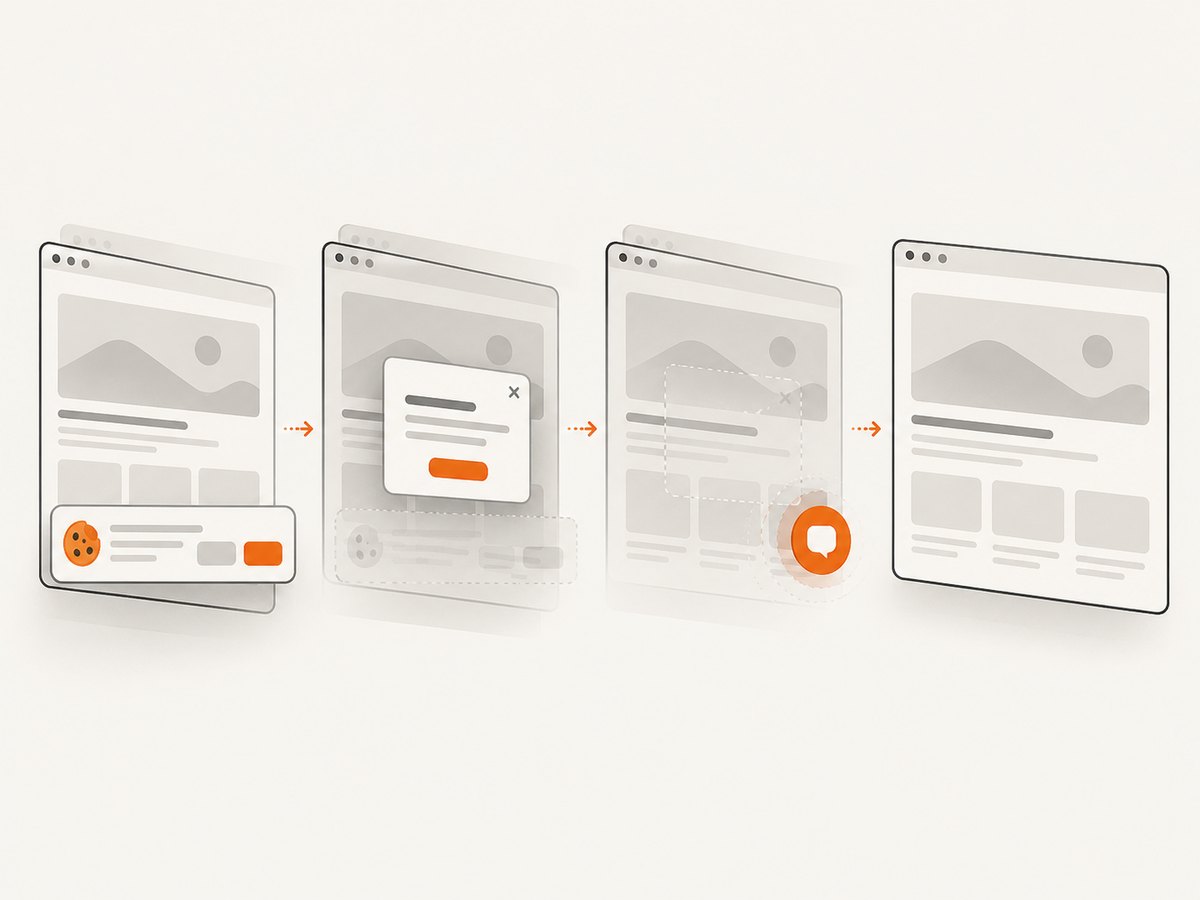
open("shot.webp", "wb").write(r.content)const q = new URLSearchParams({ access_key: 'YOUR_API_KEY', url: 'https://stripe.com' }); const res = await fetch(`https://api.screenshotneo.com/v1/shot?${q}`);See the ScreenshotNeo API documentation for all options. Cookie and consent banners are accepted and 60+ known consent platforms, newsletter popups, and chat widgets are removed before capture. Bot checks, blank pages, timeouts, failed loads, and cache hits are not billed, and the response identifies the page verdict and billing status in X-Page-Verdict and X-Billed headers. ScreenshotNeo also includes an MCP server for AI agents, with take_screenshot, get_page_info, and capture_pdf tools. The free plan includes 1,000 screenshots per month with no card; paid plans start at $5 for 3,000 shots.
Create a free ScreenshotNeo account and start with the 1,000 monthly free screenshots.
FAQ
Can Selenium scroll to an exact pixel?
Yes. Execute window.scrollTo(0, y) with the desired vertical coordinate.
How do I scroll upward?
Use a negative value with window.scrollBy(0, -600), or call scrollTo with a smaller absolute coordinate.
Should I install PhantomJS for an old tutorial?
No for new work. Treat the tutorial as migration material and use maintained headless Chrome or Firefox.
Why does scrolling differ between headed and headless runs?
Viewport size, responsive breakpoints, overlays, and asynchronous loading can differ. Set an explicit window size and wait for the same application condition in both modes.
Can I scroll an iframe without switching into it?
No. Select the iframe’s browsing context first, then execute JavaScript or locate elements inside it.


