How to Include Scrollable Element Content in Full-Page Screenshots
Capture nested scrollable content reliably with expansion, scrolling, stitching, and automation techniques for Playwright, Selenium, and Puppeteer.
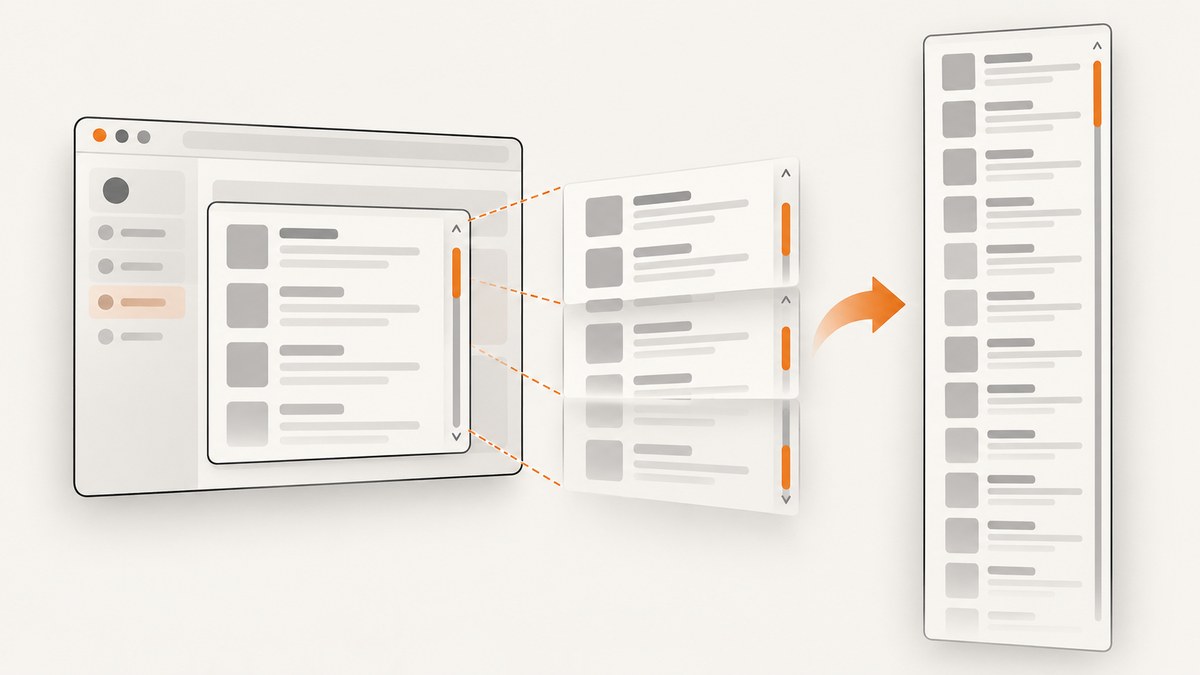
A document-level full-page screenshot captures the page’s scrollable document. It does not automatically include every pixel hidden inside a nested overflow:auto or overflow:scroll element. To include that content, either temporarily expand the element and capture it, or scroll through it in tiles and stitch the images.
Use this decision path:
- Static content: set the element’s height to its
scrollHeight, set overflow to visible, wait for layout, and capture the element. - Virtualized or lazy-loaded content: scroll the container in viewport-sized steps, wait for rows or network activity, capture each position, and stitch the tiles.
- Need the entire page too: capture the document and the expanded or stitched element separately, or expand the element before the document capture.
Why fullPage misses nested scroll areas
Playwright defines a full-page screenshot as a screenshot of the full scrollable document. Its fullPage option does not promise to expand arbitrary descendants with their own scrollbars. The same distinction applies to other browser tools: document overflow and element overflow are separate layouts.
A page such as this has two scroll contexts:
<body>                 <!-- document scroll -->
  <main>
    <div class="results">  <!-- nested scroll -->
      ... rows hidden below the element's clientHeight ...
    </div>
  </main>
</body>
A document screenshot can include the visible box of .results while omitting rows below its internal scroll boundary.
Method 1: Expand a static scrollable element with Playwright
This is the simplest and most repeatable approach when all content already exists in the DOM and is not virtualized.
import { chromium } from 'playwright';

const browser = await chromium.launch();
const page = await browser.newPage({ viewport: { width: 1440, height: 1000 }, deviceScaleFactor: 1 });
await page.goto('https://example.com/dashboard', { waitUntil: 'networkidle' });

const selector = '.results';
const element = page.locator(selector);
await element.waitFor();

// Wait for fonts and images that affect measured height.
await page.evaluate(async () => {
  await document.fonts.ready;
  await Promise.all([...document.images].map(img => img.complete ? undefined : new Promise(resolve => {
    img.addEventListener('load', resolve, { once: true });
    img.addEventListener('error', resolve, { once: true });
  })));
});

const saved = await element.evaluate(el => ({
  height: el.style.height,
  maxHeight: el.style.maxHeight,
  overflow: el.style.overflow,
  overflowY: el.style.overflowY,
  position: el.style.position
}));

await element.evaluate(el => {
  el.style.height = `${el.scrollHeight}px`;
  el.style.maxHeight = 'none';
  el.style.overflow = 'visible';
  el.style.overflowY = 'visible';
});
await page.waitForTimeout(100);
await element.screenshot({ path: 'results-full.png', animations: 'disabled' });

await element.evaluate((el, old) => {
  el.style.height = old.height;
  el.style.maxHeight = old.maxHeight;
  el.style.overflow = old.overflow;
  el.style.overflowY = old.overflowY;
  el.style.position = old.position;
}, saved);

await browser.close();
Playwright screenshot documentation covers page and locator screenshots. locator.screenshot() captures the element after Playwright brings it into view.
Capture the expanded element and the page
await page.screenshot({ path: 'page-full.png', fullPage: true, animations: 'disabled' });
await element.screenshot({ path: 'results-full.png', animations: 'disabled' });
If you expand the element before the page capture, the document becomes taller. That can be useful when the nested region must appear in one page image, but it may move content below it and change sticky or fixed overlays. Save and restore styles in a finally block in production.
Use CSS injection for a temporary capture-only state
await page.addStyleTag({ content: `
  .results {
    height: auto !important;
    max-height: none !important;
    overflow: visible !important;
  }
  *, *::before, *::after {
    animation: none !important;
    transition: none !important;
    caret-color: transparent !important;
  }
` });
await page.screenshot({ path: 'expanded-page.png', fullPage: true });
Method 2: Scroll, capture, and stitch virtualized content
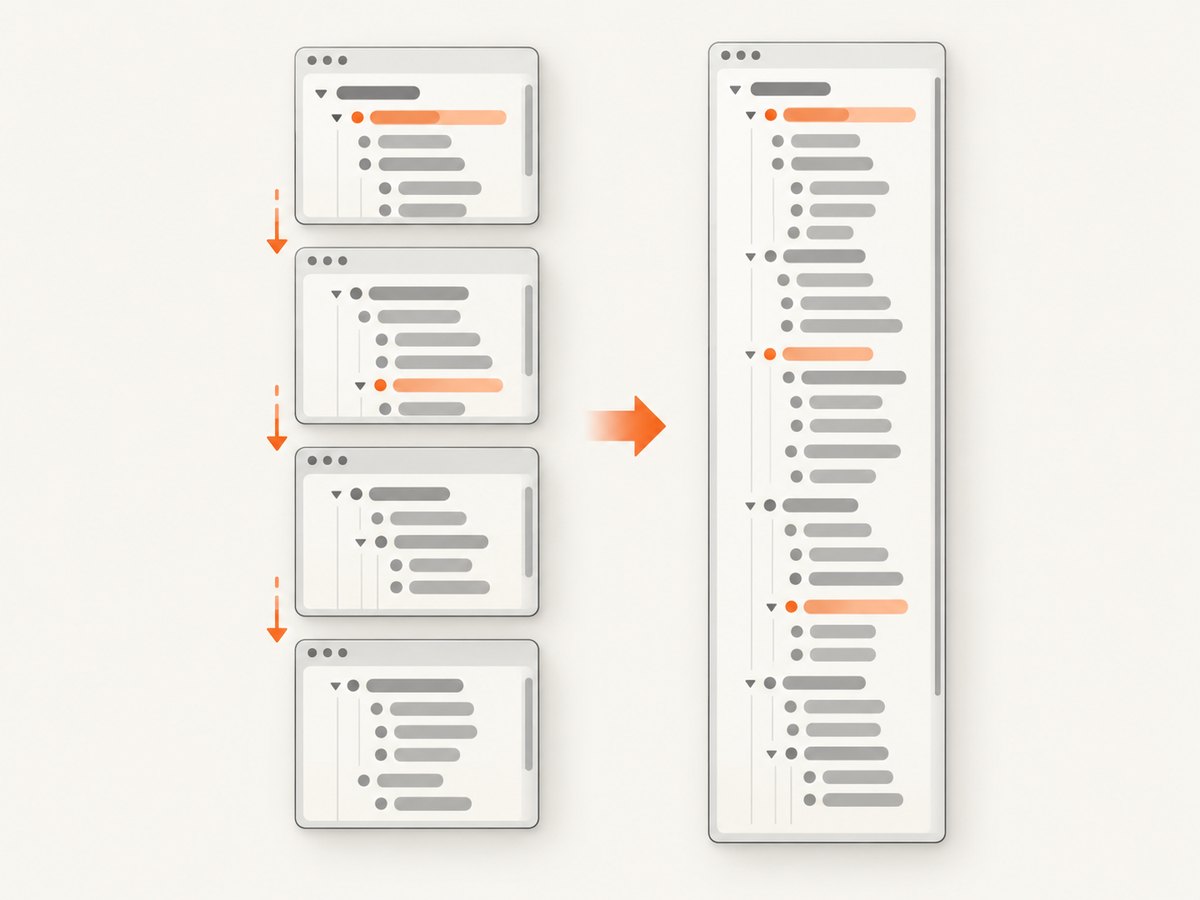
Expansion fails when a list renders only the rows near the viewport. In a virtualized list, increasing the height does not create the missing rows. Capture viewport-sized tiles while moving the element’s scrollTop.
import { chromium } from 'playwright';

const browser = await chromium.launch();
const page = await browser.newPage({ viewport: { width: 1440, height: 900 } });
await page.goto('https://example.com/results', { waitUntil: 'domcontentloaded' });
const box = page.locator('.results');
await box.waitFor();

const metrics = await box.evaluate(el => ({
  height: el.clientHeight,
  width: el.clientWidth,
  total: el.scrollHeight
}));
const step = Math.max(1, metrics.height - 32); // overlap helps avoid seams
const tiles = [];

for (let top = 0; top < metrics.total; top += step) {
  await box.evaluate((el, y) => { el.scrollTop = y; }, top);
  await page.waitForTimeout(150); // replace with a row/network wait when possible
  const actualTop = await box.evaluate(el => el.scrollTop);
  const file = `tile-${tiles.length}.png`;
  await box.screenshot({ path: file, animations: 'disabled' });
  tiles.push({ file, top: actualTop });
}
console.log(JSON.stringify({ metrics, tiles }, null, 2));
await browser.close();
Stitch the tiles with an image library by placing each tile at its recorded scroll position and removing the overlap. Crop duplicate sticky headers or scrollbars before compositing. The browser code above deliberately records the actual scrollTop; browsers clamp requested positions near the end.
Wait for rows instead of sleeping
const before = await box.locator('.row').count();
await box.evaluate(el => { el.scrollTop += el.clientHeight - 32; });
await page.waitForFunction(({ selector, before }) => {
  return document.querySelector(selector)?.querySelectorAll('.row').length > before;
}, { selector: '.results', before });
For network-backed lists, wait for the specific response or a loading marker to disappear. A fixed delay is only a fallback because it is either slow or flaky across environments.
Method 3: Selenium with Firefox
Selenium’s Firefox driver exposes a document-level full-page method. Nested overflow still needs expansion or scroll-and-stitch logic.
from selenium import webdriver
from selenium.webdriver.common.by import By
from selenium.webdriver.support.ui import WebDriverWait

options = webdriver.FirefoxOptions()
options.add_argument('-headless')
driver = webdriver.Firefox(options=options)
try:
    driver.get('https://example.com/results')
    box = WebDriverWait(driver, 20).until(
        lambda d: d.find_element(By.CSS_SELECTOR, '.results')
    )
    driver.execute_script("""
      const el = arguments[0];
      el.dataset.oldStyle = el.getAttribute('style') || '';
      el.style.height = el.scrollHeight + 'px';
      el.style.maxHeight = 'none';
      el.style.overflow = 'visible';
    """, box)
    driver.save_screenshot('results-full.png')
    driver.get_full_page_screenshot_as_file('page-full.png')
finally:
    driver.quit()
See the Selenium screenshot documentation for driver screenshot APIs.
Method 4: Puppeteer
import puppeteer from 'puppeteer';

const browser = await puppeteer.launch({ headless: 'new' });
const page = await browser.newPage();
await page.goto('https://example.com/results', { waitUntil: 'networkidle0' });
const selector = '.results';
await page.waitForSelector(selector);
await page.$eval(selector, el => {
  el.style.height = `${el.scrollHeight}px`;
  el.style.maxHeight = 'none';
  el.style.overflow = 'visible';
});
await page.$eval(selector, el => el.scrollIntoView({ block: 'start' }));
const element = await page.$(selector);
await element.screenshot({ path: 'results-full.png' });
await page.screenshot({ path: 'page-full.png', fullPage: true });
await browser.close();
See Puppeteer’s page screenshot API for full-page options and image formats.
No-code option: Firefox Developer Tools
Firefox Developer Tools can capture the entire page from the screenshot toolbox button. In Inspector, right-click a node and choose the element screenshot action. This is useful for one-off checks; automation still requires an expansion or stitching strategy for nested scroll areas. Mozilla documents both page and single-element capture in its Screenshot tool guide.
Lazy-loaded images and asynchronous content
- Scroll the document and the nested container so
loading="lazy"images enter an intersection threshold. - Wait for
document.fonts.readyand for images to finish or fail before measuringscrollHeight. - Wait for the application’s “loaded” state, row count, or network response rather than guessing with a long timeout.
- After expansion, re-measure because image decoding can increase height.
await page.evaluate(async () => {
  await document.fonts.ready;
  for (const img of document.images) {
    img.scrollIntoView({ block: 'center' });
  }
  await Promise.all([...document.images].map(img => img.decode?.().catch(() => {})));
});
Sticky headers, fixed overlays, and scrollbars
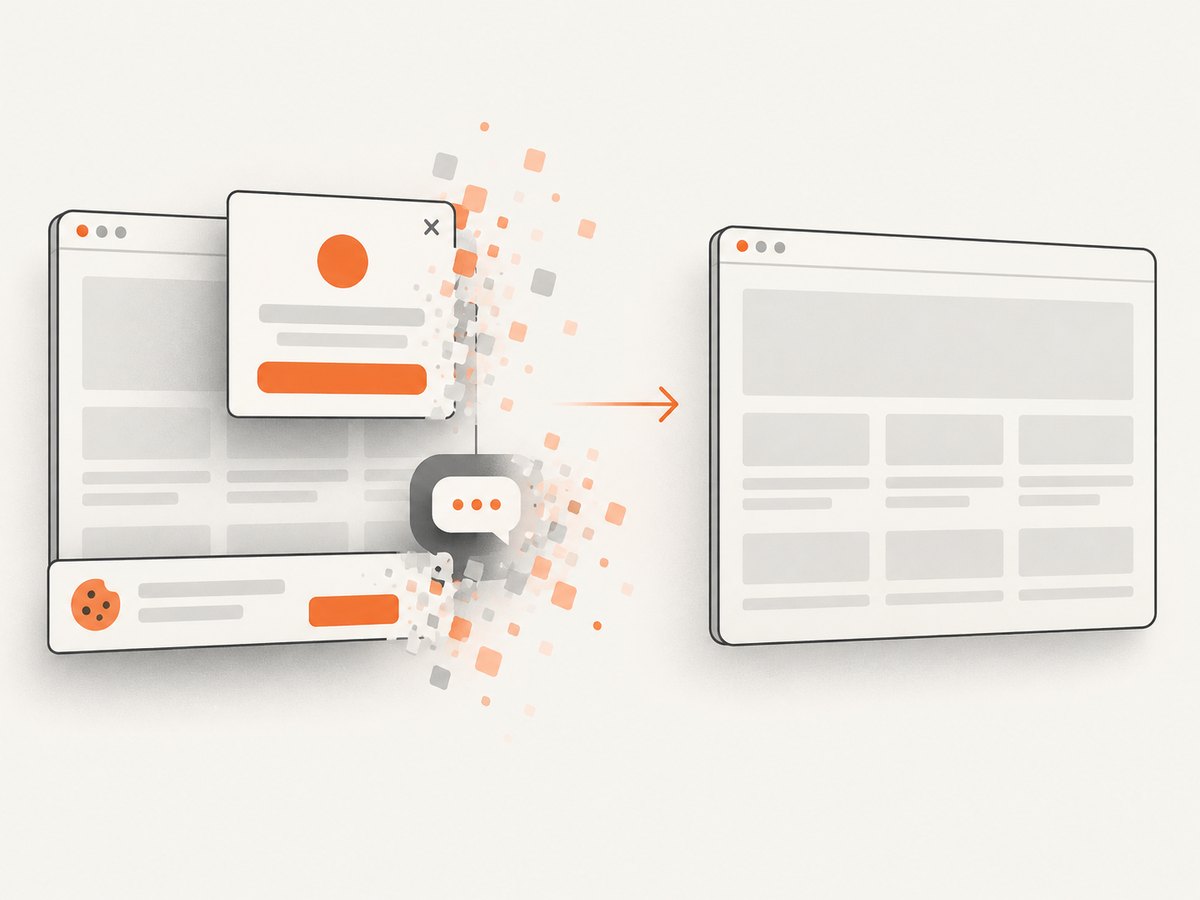
Sticky elements can appear in every tile. Fixed cookie notices, chat buttons, and floating toolbars can cover content or duplicate during stitching. Hide or mask them with capture-only CSS, or crop them from each tile. Keep the scrollbar treatment consistent: capture the same element width each time and remove the scrollbar column before compositing if it causes seams.
Scale, viewport, and repeatability
- Choose a fixed viewport, browser version, font set, and device scale factor for CI.
- CSS pixels and output pixels differ when device pixel ratio or screenshot scale changes. Record both in test metadata.
- Disable animations, transitions, blinking carets, rotating carousels, and live timestamps.
- Use a stable timezone, locale, and data fixture when visual diffs must be repeatable.
- Restore every temporary style even when capture fails.
Choosing the right approach
| Approach | Best for | Nested overflow | Lazy or virtualized rows | CI repeatability |
|---|---|---|---|---|
| Playwright expansion | Static DOM content | Handled by temporary CSS | Usually insufficient alone | High |
| Scroll and stitch | Virtualized or very large lists | Captured incrementally | Works with explicit waits | Medium to high |
| Selenium Firefox | Existing Selenium suites | Requires custom element logic | Requires custom logic | Depends on driver setup |
| Puppeteer | Programmable Chrome workflows | Requires temporary CSS or tiles | Requires custom logic | High with pinned versions |
| Firefox DevTools | Manual inspection | Element capture available | Manual | Low for automation |
Or skip the browser setup
ScreenshotNeo provides a website screenshot API and MCP server. Send one GET request for a PNG, JPEG, WebP, or PDF; options include full-page capture with lazy images loaded, CSS element capture, custom JavaScript and CSS, waits, device presets, viewport and retina scale, hidden selectors, request blocking, cookies, headers, timezone, geolocation, caching, signed links, asynchronous jobs, webhooks, bulk capture, and PDF controls. See the ScreenshotNeo API documentation for parameter names and configuration.
curl -G "https://api.screenshotneo.com/v1/shot" \
  -d access_key=YOUR_API_KEY \
  --data-urlencode url=https://stripe.com \
  -o shot.webp
import requests
r = requests.get(
"https://api.screenshotneo.com/v1/shot",
params={"access_key": "YOUR_API_KEY", "url": "https://stripe.com"},
timeout=90,
)
r.raise_for_status()
open("shot.webp", "wb").write(r.content)const q = new URLSearchParams({ access_key: 'YOUR_API_KEY', url: 'https://stripe.com' });
const res = await fetch(`https://api.screenshotneo.com/v1/shot?${q}`);
if (!res.ok) throw new Error(`${res.status} ${await res.text()}`);
const fs = await import('node:fs/promises');
await fs.writeFile('shot.webp', Buffer.from(await res.arrayBuffer()));Cookie banners, newsletter popups, and chat widgets are removed before the shot. Bot checks, blank pages, timeouts, failed loads, and cache hits are not billed, and response headers report the page verdict and billing status. Its MCP server lets Claude, Cursor, and other MCP clients call take_screenshot, get_page_info, and capture_pdf. The free plan includes 1,000 screenshots a month with no card; paid plans start at $5 for 3,000 shots. Create a free ScreenshotNeo account.
Troubleshooting
The screenshot contains only the visible rows
Cause: the element has its own scroll context. Fix: expand its height and set overflow visible, or capture and stitch scroll tiles.
Expanded height is still too short
Cause: images, fonts, or asynchronous rows have not finished. Fix: wait for fonts, image decoding, application data, then measure scrollHeight again.
Rows disappear while scrolling
Cause: virtualization recycles DOM nodes. Fix: capture each position after the new rows render and stitch pixels; do not rely on one expanded screenshot.
Tiles have repeated headers or visible seams
Cause: sticky content or insufficient overlap handling. Fix: crop the repeated region, use a small overlap, and align tiles by actual scrollTop.
Page capture hangs
Cause: a never-ending request, animation, or service worker. Fix: use a bounded navigation timeout, wait for a specific ready condition, block irrelevant resources, and record a diagnostic screenshot on failure.
Different runs have different heights
Cause: responsive layout, fonts, locale, ads, live data, or device scale. Fix: pin viewport, browser, fonts, locale, timezone, data, and scale; disable motion.
ScreenshotNeo response is not an image
Cause: an HTTP error or page verdict such as a bot check, blank page, timeout, or failed load. Fix: check the HTTP status and the X-Page-Verdict and X-Billed headers before writing the body as an image.
Performance, reliability, and cost
- Expansion is usually faster than stitching because it needs one element capture, but it can create a very tall layout and high memory use.
- Stitching handles virtualized lists but costs one capture and render wait per tile. Use the largest safe step, a small overlap, and targeted waits.
- Full-page screenshots of pages with large images can exceed browser memory. Limit image dimensions, block unnecessary resources, or capture sections separately.
- For CI, retry navigation and individual tiles, keep artifacts for failed runs, and validate expected row counts or page height.
- With ScreenshotNeo, cache hits and failed or unusable page results are not billed; use a chosen cache TTL for repeated URLs and inspect the billing headers for accounting.
FAQ
Can CSS alone make a nested scroll area appear in a full-page screenshot?
Yes, when the complete content is already in the DOM: set height to scrollHeight, remove the max-height, and set overflow visible before capture.
Does scrolling the main page scroll a nested div?
No. A nested element has its own scroll position. Set and observe that element’s scrollTop.
How do I know whether a list is virtualized?
Compare the number of visible row nodes with the logical item count while scrolling. If nodes are recycled and the count stays nearly constant, use incremental capture and stitching.
Should I capture the page or the element?
Capture the element when its complete contents are the subject. Capture both when the surrounding page context matters.
What is the safest overlap for stitched tiles?
Start with a small overlap such as 32 CSS pixels, then crop duplicate sticky regions and verify seams on representative pages.


