How to Take a Scrolling Screenshot in Google Docs
Learn the reliable way to save a complete Google Doc, why image capture can fail, and how to turn a Doc into a clean screenshot or PDF.
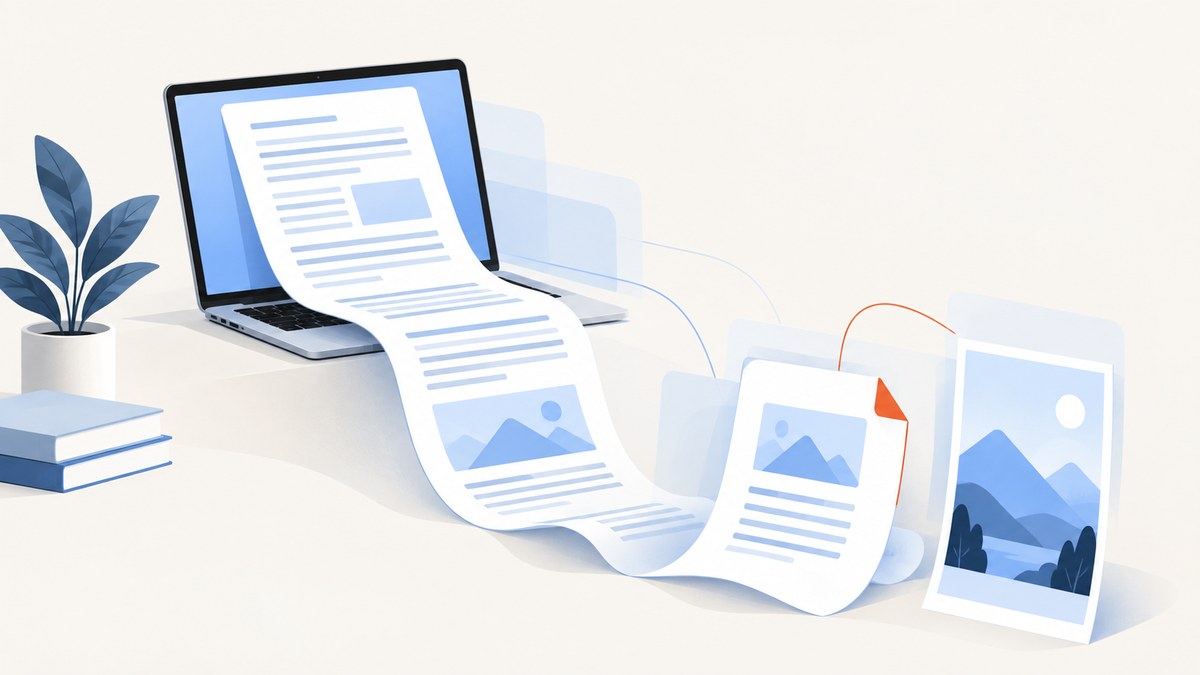
Short answer: If you need the entire contents of a Google Doc, use File > Print on a computer. Google Docs automatically downloads a PDF for a document, and PDF is the supported way to preserve a complete, readable document. It is not a single tall PNG or JPEG. If you specifically need one image, browser full-page tools can be tried, but Google Docs is a web application and its editing canvas may not expose the whole document to screenshot commands.
This guide explains the dependable PDF workflow, what Pages and Pageless modes change, how to test image capture, how to automate a browser attempt, and how to use ScreenshotNeo when you want a hosted capture API instead of maintaining browser automation.
Choose the output before you capture
| Goal | Best first method | What to expect |
|---|---|---|
| Read, share, archive, or print the complete document | Google Docs File > Print | A downloaded PDF with printable pages |
| One tall image for a design, issue, or visual reference | Test a full-page browser tool | Results vary because Docs renders an editor canvas, not a simple article page |
| Repeat captures in a pipeline | Browser automation or a screenshot API | Authentication, waiting, lazy content, and failure handling must be designed |
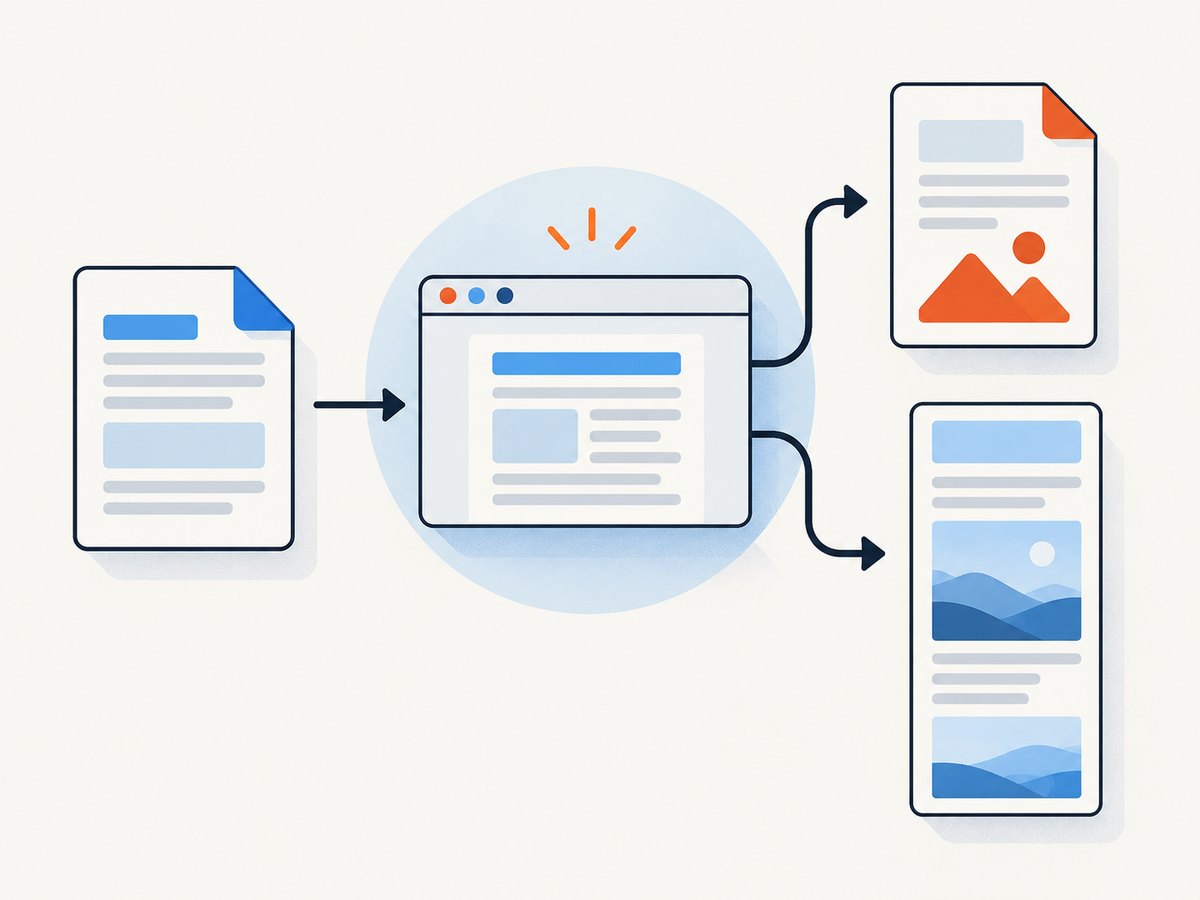
Method 1: Save the complete Google Doc as a PDF
This is the official, lowest-risk workflow for a whole document.
- Open the Google Doc on a computer.
- Choose File > Print.
- Adjust the print settings in the window that opens.
- Click Print. Google’s computer instructions state that “A PDF file will automatically download.” Google Docs Editors Help explains the print workflow and PDF behavior.
The resulting PDF preserves text as text, supports normal page navigation, and avoids the stitching artifacts common in very tall screenshots. It is usually the right deliverable for legal records, reviews, hand-offs, and documents that someone must search or print.
Check the PDF before you send it
- Open the first, middle, and last pages.
- Search for a distinctive phrase near the bottom of the Doc.
- Check tables, images, headers, footers, and page breaks.
- Confirm that comments and suggested edits are shown or hidden as intended.
- Verify the downloaded file name and destination before uploading it elsewhere.
Pages and Pageless change the layout
Google Docs has two page setup modes. Pages displays page boundaries and page breaks. Pageless presents a continuous scrolling editor; images and line breaks adapt to the window width, and wide tables can require horizontal scrolling. The mode changes how the document is viewed, not whether it becomes an image.
To change it on a computer, open File > Page setup, select Pages or Pageless, and click OK. Google also documents Format > Switch to pageless format and Format > Switch to pages format. See Google’s Pages and Pageless help page for the current controls.
A Pageless document can print differently from what you see while scrolling. Google notes that images adjust to page width and wide tables are squeezed to fit. If printed appearance matters, switch to Pages, review the page breaks, and print again. Do not assume that a continuous on-screen layout will become one continuous PDF page.
Method 2: Try Chrome’s full-size screenshot for an image
Chrome DevTools includes a command named Capture full size screenshot. It is useful for ordinary web pages, but it is not a guaranteed Google Docs solution. A 2026 Chrome guide reported that its Google Docs test captured only the visible Docs window. Web-app behavior can change with account state, document length, browser version, and the editor’s internal frames.
- Open the document in Chrome and wait until the content you need is visible.
- Open DevTools: Cmd+Option+I on macOS or Ctrl+Shift+I on Windows.
- Open the command menu with Cmd+Shift+P or Ctrl+Shift+P.
- Type screenshot.
- Choose Capture full size screenshot.
- Open the resulting image and inspect the bottom, wide tables, drawings, and embedded content.
The procedure is documented in Zapier’s Chrome screenshot guide. Treat a successful capture as something to verify, not something to promise. If the file contains only the viewport, the command did not capture the document’s complete editing surface.
Method 3: Test a full-page extension
A browser extension such as GoFullPage can capture a scrolling page and export an image or PDF. Its Chrome Web Store listing describes full-page capture and image/PDF export, but that does not establish complete compatibility with the Google Docs editing canvas. Test it on a copy or a non-sensitive document, then inspect the output from top to bottom. The listing includes a changelog entry dated September 24, 2026; extension behavior can change after installation.
Before using any extension with confidential material, check its permissions and your organization’s policy. An extension may need to read page content in order to stitch screenshots. If it captures only the visible editor, switch to the official PDF route.
Automating a capture attempt with Playwright
Automation is useful when you own the browser session and understand its limitations. The following Node.js example opens a saved Chromium profile, loads a document, scrolls the page, and asks Playwright for a full-page image. It may still produce only the app viewport or a partial editor because Google Docs manages its own scrolling and rendering.
import { chromium } from 'playwright';

const browser = await chromium.launchPersistentContext('./google-profile', {
  headless: false,
  viewport: { width: 1440, height: 1000 }
});
const page = await browser.newPage();
await page.goto('https://docs.google.com/document/d/YOUR_DOCUMENT_ID/edit', {
  waitUntil: 'domcontentloaded'
});
await page.waitForTimeout(5000);

// Give the editor a chance to render content below the fold.
for (let i = 0; i < 12; i++) {
  await page.mouse.wheel(0, 900);
  await page.waitForTimeout(500);
}
await page.screenshot({ path: 'google-doc.png', fullPage: true });
await browser.close();
Install Playwright with npm install playwright. Sign in to the profile interactively before running unattended jobs. Never put Google credentials in source code. For a long or Pageless document, compare the output with the PDF; missing pages, repeated sections, blank regions, and clipped tables indicate that the editor’s internal scroll container was not captured.
Why browser automation often misses content
- Nested scrolling: the window may not be the element that scrolls.
- Canvas rendering: text and drawings can be painted into surfaces that a page screenshot does not stitch correctly.
- Lazy rendering: content below the fold may not exist until you scroll it into view.
- Authentication: a redirect or sign-in screen can be captured instead of the Doc.
- Responsive layout: changing viewport width can reflow text and alter page breaks.
Or skip the browser setup
ScreenshotNeo provides a website screenshot API and MCP server. Send one GET request with the URL and receive a PNG, JPEG, WebP, or PDF. For a public Google Docs published page or another URL that your workflow can access, start with this call. Read the ScreenshotNeo API documentation for all options.
curl -G "https://api.screenshotneo.com/v1/shot" \
  -d access_key=YOUR_API_KEY \
  --data-urlencode url=https://stripe.com \
  -o shot.webp
import requests
r = requests.get(
"https://api.screenshotneo.com/v1/shot",
params={"access_key": "YOUR_API_KEY", "url": "https://stripe.com"},
timeout=90,
)
r.raise_for_status()
open("shot.webp", "wb").write(r.content)const q = new URLSearchParams({
access_key: 'YOUR_API_KEY',
url: 'https://stripe.com'
});
const res = await fetch(`https://api.screenshotneo.com/v1/shot?${q}`);
if (!res.ok) throw new Error(`${res.status} ${await res.text()}`);
const data = Buffer.from(await res.arrayBuffer());
await import('node:fs/promises').then(fs => fs.writeFile('shot.webp', data));ScreenshotNeo can load full pages with lazy images, capture an element by CSS selector, set a viewport or device preset, use retina scale, apply custom CSS or JavaScript, click an element, wait for a selector, delay, or network idle, and provide headers, cookies, a user agent, Authorization, timezone, or geolocation. It can also block ads, trackers, requests, or resource types; resize images; choose transparent backgrounds; cache with a TTL; create signed links; run asynchronous jobs with signed webhooks; capture up to 100 URLs per bulk call; and expose usage and OpenAPI endpoints.
For a private Google Doc, an API cannot bypass Google’s login by magic. Supply access only through a permitted, authenticated workflow, and confirm that the resulting URL is accessible to the capture request. If the document is published to the web, use its published URL and verify that the published view contains the content you need.
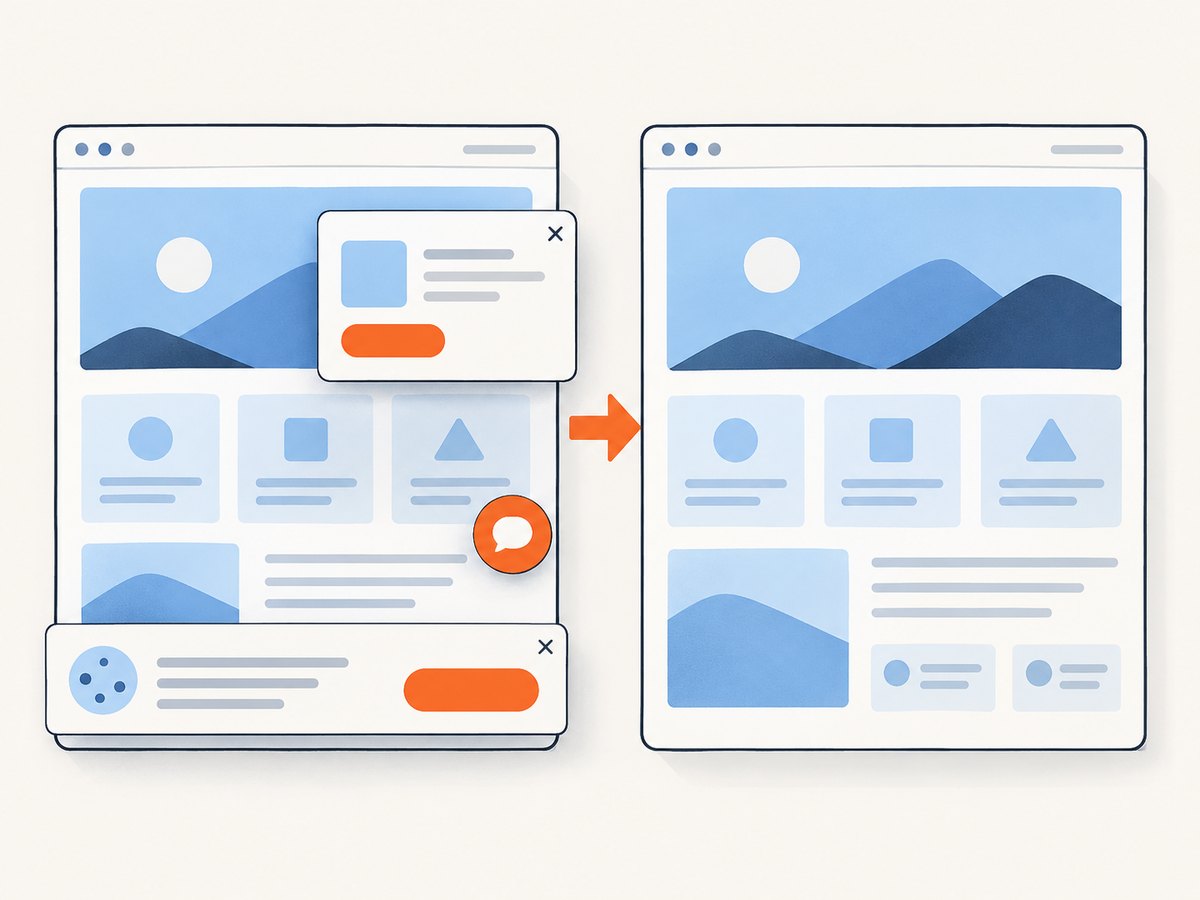
ScreenshotNeo removes cookie and consent banners, newsletter popups, and chat widgets before capture. Bot checks, blank pages, timeouts, failed loads, and cache hits cost nothing, and each response reports the result through X-Page-Verdict and X-Billed headers. Its MCP server provides take_screenshot, get_page_info, and capture_pdf tools for Claude, Cursor, and other MCP clients. The Free plan includes 1,000 shots per month with no card; paid plans start at $5 for 3,000 shots. Create a free ScreenshotNeo account.
Troubleshooting
| Symptom | Likely cause | Fix |
|---|---|---|
| Only the visible window appears | Docs uses an internal editor surface | Use File > Print for a complete PDF; test an extension on a copy if an image is mandatory |
| Bottom pages are blank | Lazy rendering or insufficient scrolling | Scroll in stages, wait after each stage, and compare with the PDF |
| Images or tables are clipped | Pageless reflow or narrow viewport | Switch to Pages, widen the viewport, or use the PDF |
| A sign-in page was captured | No valid authenticated session | Use a persistent browser profile or a permitted published URL; never embed credentials |
| ScreenshotNeo returns a bot-check verdict | The target served an anti-bot challenge | Inspect X-Page-Verdict, confirm the URL, and use an allowed access method |
| Request times out | Slow target, heavy document, or blocked resource | Increase the client timeout, wait for a selector or network idle, and reduce unnecessary resources |
| The API response is not an image | Error response was saved to the image file | Check HTTP status and response headers before writing the body |
Performance, reliability, and cost notes
- PDF versus image: PDFs are usually smaller and more useful for long text. A single tall raster image consumes more memory and can exceed viewer limits.
- Viewport: wider viewports reduce line wrapping but can make text smaller. Keep the viewport consistent when comparing captures.
- Wait strategy: a fixed delay is simple; waiting for a selector or network idle is more repeatable when content loads asynchronously.
- Resource blocking: block ads, trackers, or unnecessary resource types only after confirming that they do not contain document content.
- Caching: a chosen TTL can reduce repeated work when the same published URL has not changed. Cache hits are not billed by ScreenshotNeo.
- Failure accounting: ScreenshotNeo reports whether a response was clean and billed. Bot checks, blank pages, timeouts, failed loads, and cache hits are not billed.
- Bulk work: use the bulk capture endpoint for up to 100 URLs per call, then inspect each result rather than assuming every URL succeeded.
FAQ
Can Google Docs create one long screenshot natively?
Google’s documented whole-document export is a PDF, not a single tall image. Docs does not provide a native “export entire document as one PNG” command.
Does Pageless mode export as one continuous page?
No. Pageless controls the editing view. Printing can still reflow content onto pages, including squeezing wide tables to fit.
Will Chrome DevTools always capture every page?
No. A current guide reported only the visible Google Docs window in its test. Verify the output for your document and browser version.
What should I submit when a reviewer needs readable text?
Submit the PDF created with File > Print. Use an image only when the recipient specifically needs a visual snapshot.
Can ScreenshotNeo capture a private, signed-in Google Doc?
Only when the capture request has an authorized way to access the target. A public or published URL is simpler; private authentication must be designed and permitted by your organization.
Recommended workflow
- Decide whether the deliverable is a readable document or one image.
- For a complete Doc, print to PDF and inspect several pages.
- For an image, test DevTools or an extension on a non-sensitive copy and check the entire result.
- For repeatable website captures, use ScreenshotNeo with explicit waits, viewport settings, and response-header checks.
- Keep the original Google Doc alongside the exported artifact so later readers can verify context and revisions.


