How to Capture a Scrolling Screenshot on iPad
Use iPad’s Full Page screenshot tool to capture an entire webpage, save it as an image, or export it as a PDF.

To capture a scrolling screenshot on an iPad, take a normal screenshot, tap its thumbnail, choose Full Page, then save the result as an image or PDF. Apple documents this workflow for an entire webpage in Safari. The option appears in the screenshot preview when the current app or content supports a full-page capture; it is not guaranteed in every app.
1. Capture the full page on iPad
Step 1: Open the content
Open the webpage or other long content you want to save. In Apple’s documented example, this is an entire webpage in Safari. Scroll position does not need to be at the top, but starting at the top makes it easier to confirm that the capture includes everything you need.

Step 2: Take a screenshot
The button combination depends on your iPad model:
| iPad model | Buttons |
|---|---|
| Without a Home button | Quickly press and release the top button and either volume button together. |
| With a Home button | Quickly press and release the top button and the Home button together. |
Do not hold the buttons down. A quick press and release creates the screenshot and shows a preview. Apple also lists Apple Pencil, AssistiveTouch, and Siri as alternative ways to trigger a screenshot. These are optional entry methods; they do not replace the Full Page step.
Step 3: Open the screenshot preview
Tap the screenshot thumbnail that appears in the lower-left corner. If your iPad opens screenshots in a full-screen editor instead of showing a temporary thumbnail, go to Settings > General > Screen Capture and turn off Full-Screen Previews. Apple documents this setting for returning to the thumbnail-style preview.
Step 4: Choose Full Page
In the screenshot editor, tap Full Page at the top. A tall preview appears on the right side. Drag through the preview to inspect the content beyond the visible screen. If Full Page is missing, the current app or page may not expose a full-page capture through iPadOS. Apple’s guidance uses Safari as the example and does not provide a complete compatibility list.
Step 5: Review and crop
Use the right-side preview to check that the beginning and end of the page are present. You can crop the capture before saving it. Cropping is useful when a page includes a footer, an unrelated section, or extra whitespace that you do not want in the final file.
Step 6: Save the result
Tap Done, then choose the output you need:
- Save to Photos: keeps an image in your Photos library.
- Save PDF to Files: creates a PDF and lets you select a folder in Files.
Use an image when you need to share or annotate a picture. Use a PDF when the capture is a document, needs to be stored in a folder, or will be printed. Screenshots normally appear in Photos unless you choose the PDF path.
2. What “Full Page” captures, and what it does not
A regular screenshot records only the pixels currently visible on the display. Full Page extends the capture beyond that viewport and presents the result as one tall document. This is especially useful for long Safari webpages, receipts, instructions, and reference material.
Availability depends on the app and content. Treat Safari webpages as the documented example, not as proof that every scrollable view supports the option. A long feed, canvas, PDF viewer, or third-party app may show only the normal screen capture controls. iPadOS may also omit content that is loaded only after a particular interaction or that is outside the app’s supported capture surface.
3. Image versus PDF: choose the right output
| Output | Best for | Where it goes |
|---|---|---|
| Image | Sharing in messages, posting, quick visual reference, markup | Photos library |
| Archiving, printing, attaching to a project, keeping a document in Files | A location you choose in Files |
The Full Page preview is the same place to inspect and crop either output. Save the image first if you need a picture in Photos; choose the PDF command when a document file is more useful.
4. Alternate ways to start the screenshot
Hardware buttons are the fastest method, but Apple lists three alternatives:
- Apple Pencil: swipe diagonally upward from either lower corner.
- AssistiveTouch: configure the on-screen control to take a screenshot.
- Siri: ask Siri to take a screenshot.
Each method only starts the screenshot. Continue by opening the preview and selecting Full Page when it is offered.
5. Troubleshooting a missing or incomplete scrolling screenshot
| Symptom | Likely cause | What to do |
|---|---|---|
| No thumbnail appears | Full-screen previews are enabled, or the screenshot did not register. | Check the full-screen preview setting under Settings > General > Screen Capture. Retry with a quick press and release. |
| Full Page is not shown | The app or current content does not expose the supported full-page workflow. | Try the page in Safari. If the option is still absent, use the app’s export feature or capture separate screens. |
| The capture stops early | The page may load content only after interaction, or the app limits the capture surface. | Wait for the page to finish loading, return to the top, and retry. Check the preview before saving. |
| The result contains unwanted sections | The full document is longer than the portion you need. | Use the crop controls in the Full Page editor before tapping Done. |
| The PDF is hard to find | The PDF was saved to Files rather than Photos. | Open Files and browse the folder selected in the save dialog. |
| The image is not in Photos | You selected the PDF path. | Repeat the workflow and choose the image-saving option, then Save to Photos. |
6. Quality, privacy, and practical limits
Review a full-page capture before sharing it. Long pages can include account names, order details, addresses, tokens displayed in examples, or private comments that were below the fold. Crop those areas or avoid sharing the file.
For a readable result, rotate the iPad if the page is designed for a wider layout, close transient overlays, and wait for images or fonts to finish loading. A page that changes while it loads can produce a capture that differs from what you first saw. Saving a PDF is often easier for a very tall page because it remains a document in Files; an image may be unwieldy to scroll or send.
7. Or skip the browser setup
If you need repeatable screenshots from code, a device-independent capture service can handle the browser work. ScreenshotNeo accepts one GET request and returns a PNG, JPEG, WebP, or PDF. Its capture options include full-page screenshots with lazy images loaded, CSS-selector element capture, custom viewport and device presets, retina scale, dark mode, custom CSS and JavaScript, click and wait actions, request blocking, cookies, headers, user agents, timezone, geolocation, resizing, caching, signed links, asynchronous jobs, bulk capture, and PDF page settings. See the ScreenshotNeo API documentation for parameter details.
cURL
curl -G "https://api.screenshotneo.com/v1/shot" \
  -d access_key=YOUR_API_KEY \
  --data-urlencode url=https://apple.com \
  -o shot.webp
Python
import requests

r = requests.get(
    "https://api.screenshotneo.com/v1/shot",
    params={"access_key": "YOUR_API_KEY", "url": "https://apple.com"},
    timeout=90,
)
r.raise_for_status()
open("shot.webp", "wb").write(r.content)
Node.js
const q = new URLSearchParams({ access_key: 'YOUR_API_KEY', url: 'https://apple.com' });
const res = await fetch(`https://api.screenshotneo.com/v1/shot?${q}`);
if (!res.ok) throw new Error(`Screenshot failed: ${res.status}`);
const data = Buffer.from(await res.arrayBuffer());
await import('node:fs/promises').then(fs => fs.writeFile('shot.webp', data));
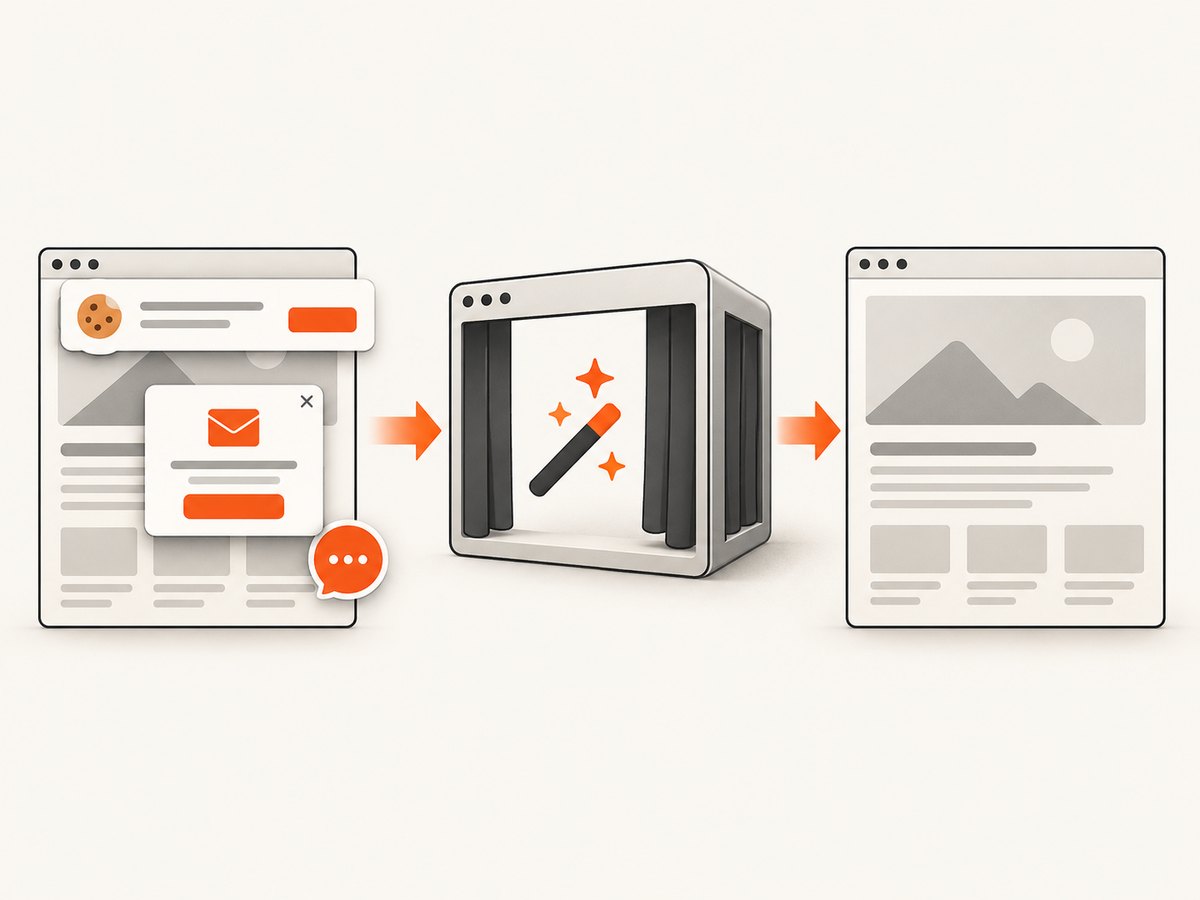
ScreenshotNeo removes cookie and consent banners, newsletter popups, and chat widgets before the capture. Bot checks, CAPTCHAs, blank pages, timeouts, failed loads, and cache hits are not billed; response headers identify the page verdict and whether the request was billed. Its MCP server provides take_screenshot, get_page_info, and capture_pdf tools for Claude, Cursor, and other MCP clients.
The free plan includes 1,000 screenshots per month with no card. Paid plans start at $5 for 3,000 screenshots; every feature is available on every plan. Create a free ScreenshotNeo account.
8. Automating reliable captures
Wait for the page to settle
For dynamic pages, use a selector wait, a short delay, or network-idle behavior so images and client-rendered sections are present. If a page never becomes idle because it maintains a live connection, a selector wait or bounded delay is more predictable.
Control the viewport
Choose a device preset when you want a repeatable iPad-like layout. Use an explicit viewport when your test needs exact width and height. Retina scale increases pixel density but also increases output size and processing work.
Capture only what matters
Use a CSS selector to capture one article, invoice, or chart instead of the whole page. Hide selectors can remove sticky navigation and ads. Custom CSS can standardize print styles, while JavaScript can open an accordion before capture.
Use caching for repeated pages
Set a cache TTL when the same URL is requested repeatedly and freshness is not critical. Cache hits are reported and are not billed. Disable or shorten the TTL for pages whose content changes frequently.
Handle failures explicitly
Inspect the response status and the X-Page-Verdict and X-Billed headers. Retry transient network failures with backoff, but do not blindly retry bot checks or persistent page errors. For large batches, use bulk capture or asynchronous jobs with signed webhooks so a slow page does not block an entire request.
9. FAQ
Can every iPad app make a scrolling screenshot?
No. Apple documents Full Page with an entire Safari webpage as the example. Check whether Full Page appears in the screenshot preview for the app and content you are using.
Is Full Page the same as stitching many screenshots?
It is the built-in full-page workflow exposed through the screenshot editor. Apple’s instructions do not describe a manual stitching process or a complete list of third-party app support.
Can I save a scrolling screenshot directly as a PDF?
Yes. In the Full Page editor, tap Done and choose Save PDF to Files.
Where does the image version go?
Choose the image-saving option and Save to Photos. The file appears in your Photos library.
Do I need an Apple Pencil?
No. Apple Pencil is only an alternate way to trigger the initial screenshot. Hardware buttons, AssistiveTouch, and Siri can also start it.
How can a developer capture the same page repeatedly?
Use a screenshot API such as ScreenshotNeo, set the viewport and wait conditions, and save the returned image or PDF from code. This avoids manually repeating the iPad workflow.
10. Quick checklist
- Open the page or content.
- Take a screenshot with the correct button combination or an alternate trigger.
- Tap the thumbnail or open the screenshot editor.
- Select Full Page when it is available.
- Inspect and crop the preview.
- Save an image to Photos or a PDF to Files.
- Check the result for missing content and private information before sharing.
Apple’s procedural guidance: Take a screenshot on iPad and Change the screen capture settings on iPad.


