How to Take a Scrolling Screenshot in Safari
Learn how to capture an entire Safari webpage on iPhone and iPad, save it as an image or PDF, and use Mac alternatives when Full Page is unavailable.
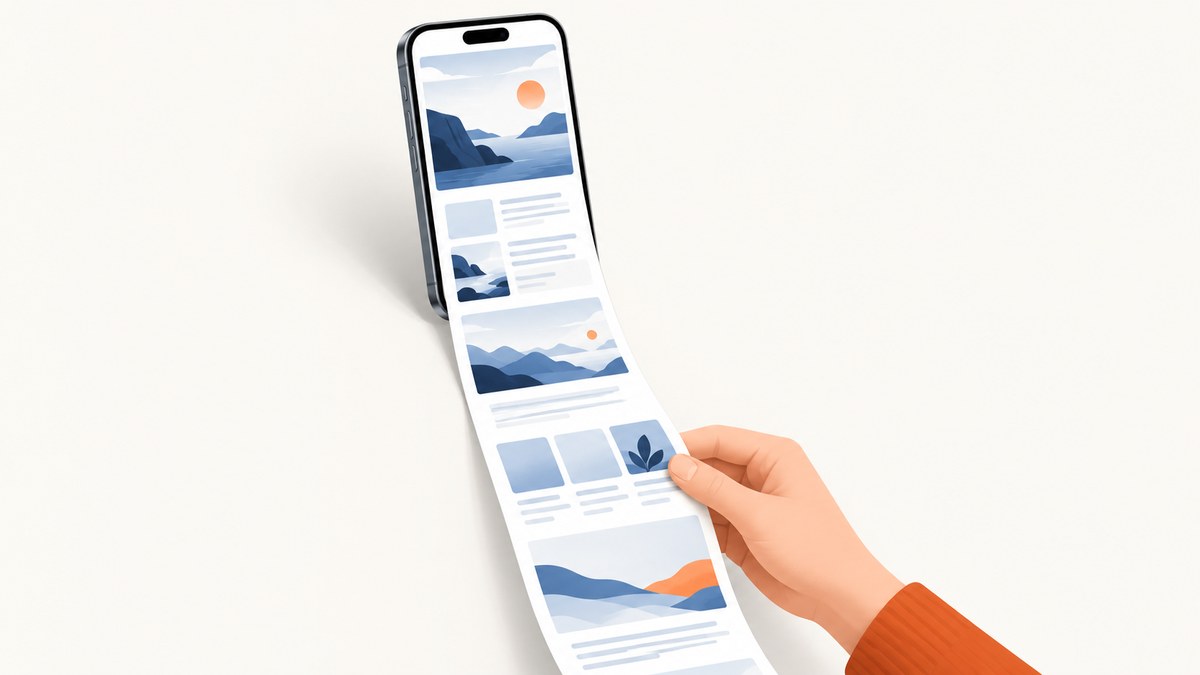
On iPhone or iPad: open the page in Safari, take a normal screenshot, tap its thumbnail, choose Full Page, review the long preview, then save or share it. On Mac, Safari’s documented whole-page workflow is File > Save As, which saves a Web Archive or Page Source rather than a scrolling screenshot.
Apple uses the label Full Page for a capture that extends beyond the visible screen. The option appears after you open the screenshot editor. See Apple’s iPhone screenshot guide and iPad screenshot guide for the device-specific controls.
Take a scrolling screenshot on iPhone
- Open the webpage in Safari and wait for the content you need to appear.
- Take a screenshot. On an iPhone with Face ID, quickly press and release the side button and volume-up button together. On an iPhone with a Home button, press the side button and Home button together.
- Tap the screenshot thumbnail in the lower-left corner before it disappears.
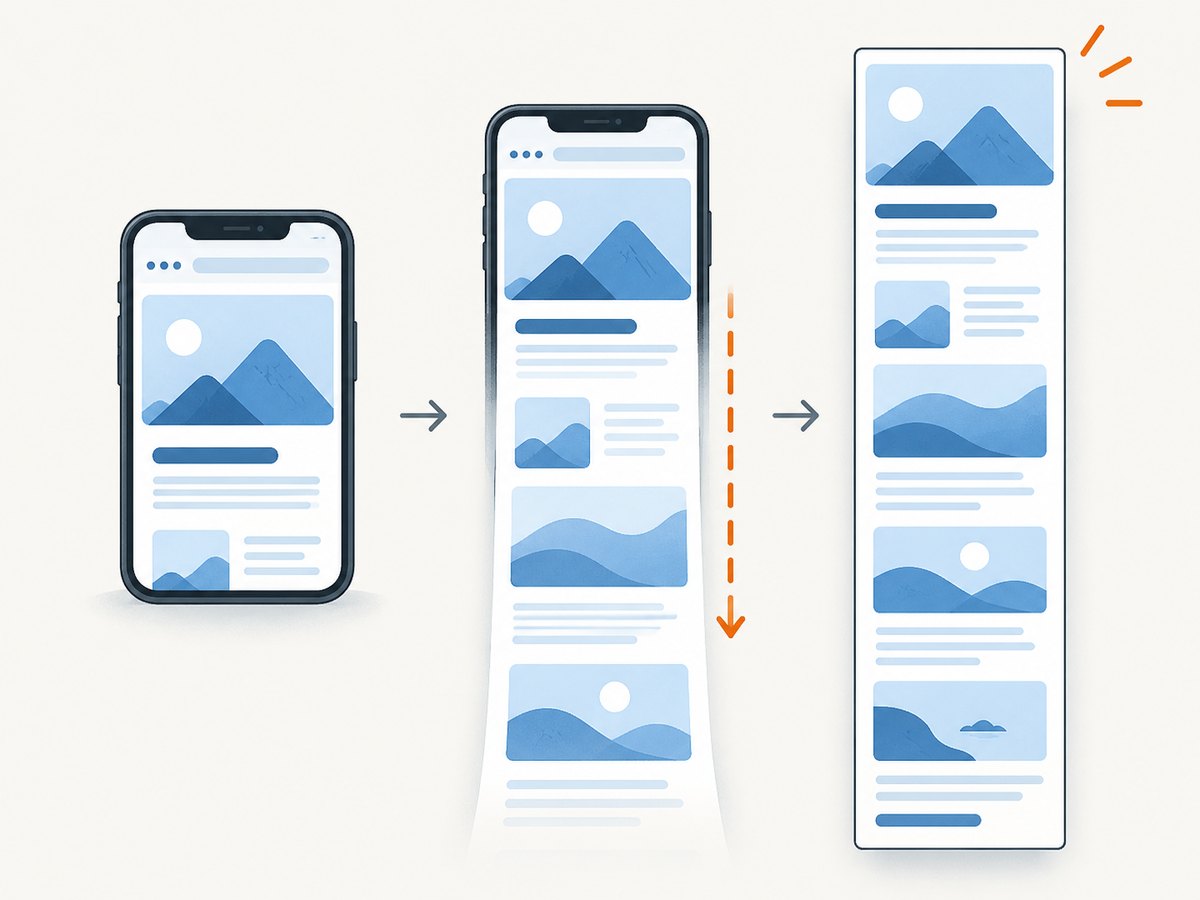
- Tap Full Page at the top of the editor. Safari displays a tall preview containing content below the visible viewport.
- Drag the preview on the right to inspect the page. Use the crop, markup, or share controls if needed.
- Save or share the result. A regular screenshot is stored in Photos; the available full-page save options depend on the iOS version and destination.
What Full Page captures
Full Page captures the webpage content beyond the screen, such as an entire Safari webpage. It is a visual capture, so the output is not an editable copy of the page’s HTML. Long pages with animated, personalized, or lazy-loaded content may look different from what you saw while scrolling.
Take a scrolling screenshot on iPad
- Open the webpage in Safari.
- On an iPad with Face ID, quickly press and release the top button and either volume button. On an iPad with a Home button, press the top button and Home button.
- Tap the screenshot thumbnail.
- Choose Full Page, then drag the preview to review the complete webpage.
- Crop or annotate if required.
- Choose Save to Photos for an image, or Save PDF to Files for a PDF.
The iPad editor explicitly offers Save PDF to Files, which is useful when the recipient needs a document instead of an image. A PDF preserves the page as a document, but it may paginate differently from the visual preview.
Save a long Safari page on Mac
Safari for Mac does not document the same iPhone and iPad Full Page screenshot interface. To preserve the page, open it in Safari and choose File > Save As. Select one of these formats:
| Format | What it preserves | When to use it |
|---|---|---|
| Web Archive | Page graphics and a locally saved page; links can keep working while destination pages remain available | Archiving or reopening the page later |
| Page Source | The HTML source only | Inspecting or processing markup |
Apple warns that some webpages may prevent saving items. A Web Archive or HTML source is not the same as a single tall image. If you need a consistent visual image or PDF from a Mac workflow, use a browser automation tool or a screenshot API.
Choose the right output
- Long image: use iPhone or iPad Full Page when you need a visual record to share or annotate.
- PDF: use iPad’s Save PDF to Files when a document attachment is more useful than an image.
- Web Archive: use Mac File > Save As when you want a locally reopenable page with its graphics.
- HTML source: use Mac Page Source when your goal is markup inspection rather than visual fidelity.
Why Full Page may be missing
| Symptom | Likely cause | Fix |
|---|---|---|
| No Full Page tab | The screenshot editor was not opened, or the captured screen is not a supported Safari webpage | Tap the thumbnail immediately after taking the screenshot and confirm Safari is in the foreground. |
| Only the visible screen appears | You saved the standard screenshot instead of the Full Page result | Return to the editor, select Full Page, then use the full-page save or share control. |
| The page is cut off | The page changed while loading, or the editor reached a content boundary | Wait for the page to finish loading, retake the screenshot, and review the full preview before saving. |
| Images are blank or missing | Images were lazy-loaded, blocked, or had not appeared before capture | Scroll through the page once first, wait for images to load, then retake the capture. |
| Popups cover the result | A consent dialog, newsletter prompt, or chat widget was present during capture | Dismiss the overlay before taking the screenshot. If the page cannot be cleaned manually, use an automated capture workflow. |
| Save fails on Mac | The site restricts saving items | Try another output or capture method; Apple notes that some webpages prevent saving. |
Tips for reliable long captures
- Open the exact URL and wait until the loading indicator stops.
- Dismiss cookie dialogs, sign-in prompts, chat bubbles, and sticky banners before capture.
- Scroll through important sections first so lazy-loaded images have a chance to render.
- Keep the device orientation and zoom level consistent when comparing captures.
- Review the entire preview before sharing; a Full Page result can be much taller than expected.
- For pages that require authentication, remember that a screenshot contains whatever private data is visible in the session.
Or skip the browser setup
ScreenshotNeo provides a one-request website screenshot API when you need repeatable captures from a script or backend. Before the capture, it accepts cookie and consent banners and removes more than 60 known consent platforms, newsletter popups, and chat widgets. Bot checks, blank pages, timeouts, failed loads, and cache hits are not billed, and the response identifies the result with X-Page-Verdict and X-Billed headers.

See the ScreenshotNeo API documentation for all options, including full-page capture, element selectors, device presets, retina scale, PDF output, custom CSS and JavaScript, waits, request blocking, cookies, headers, geolocation, caching, signed links, asynchronous jobs, bulk capture, and usage reporting.
cURL
curl -G "https://api.screenshotneo.com/v1/shot" \
  -d access_key=YOUR_API_KEY \
  --data-urlencode url=https://stripe.com \
  -o shot.webp
Python
import requests

r = requests.get(
    "https://api.screenshotneo.com/v1/shot",
    params={"access_key": "YOUR_API_KEY", "url": "https://stripe.com"},
    timeout=90,
)
r.raise_for_status()
open("shot.webp", "wb").write(r.content)
Node.js
const q = new URLSearchParams({
  access_key: 'YOUR_API_KEY',
  url: 'https://stripe.com'
});
const res = await fetch(`https://api.screenshotneo.com/v1/shot?${q}`);
if (!res.ok) throw new Error(`HTTP ${res.status}`);
const fs = await import('node:fs/promises');
await fs.writeFile('shot.webp', Buffer.from(await res.arrayBuffer()));
ScreenshotNeo includes an MCP server with take_screenshot, get_page_info, and capture_pdf tools, so Claude, Cursor, and other MCP clients can capture pages. The Free plan includes 1,000 shots per month with no card; paid plans start at $5 for 3,000 shots. Create a free ScreenshotNeo account.
Performance, reliability, and cost notes
- Device capture: Full Page is convenient for one-off captures, but it depends on the current page state, device storage, and the page’s behavior.
- Automation: An API is easier to repeat across many URLs and lets you set waits, viewport, device, CSS, JavaScript, cookies, headers, and blocking rules explicitly.
- Dynamic pages: Use a selector wait, delay, or network-idle wait when content renders after the initial response.
- Billing: ScreenshotNeo bills only clean shots. Failed loads, bot checks, blank pages, timeouts, and cache hits cost nothing; inspect
X-Page-VerdictandX-Billedwhen auditing a job. - Volume: Caching with a chosen TTL, asynchronous jobs with signed webhooks, and bulk capture of up to 100 URLs per call reduce repeated browser work.
FAQ
Can Safari take a scrolling screenshot?
Yes, on iPhone and iPad. Take a normal screenshot, open its thumbnail, and select Full Page.
Where is Full Page on iPhone?
It appears at the top of the screenshot editor after you tap the screenshot thumbnail.
Can I save the full-page capture as a PDF?
On iPad, choose Save PDF to Files in the Full Page editor. On Mac, use Safari’s File > Save As workflow for a Web Archive or Page Source.
Does Mac Safari have the same Full Page button?
Apple’s documented Mac workflow uses File > Save As; the iPhone and iPad guide documents the Full Page screenshot editor.
Why is my screenshot not the whole page?
Make sure you selected Full Page before saving, and wait for dynamic or lazy-loaded content before taking the screenshot.


