How to Take a Scrolling Screenshot of a Webpage
Capture a webpage beyond the visible browser window with built-in tools in Edge, Firefox, Chrome, or Safari on iPhone—and learn when an API fits better.
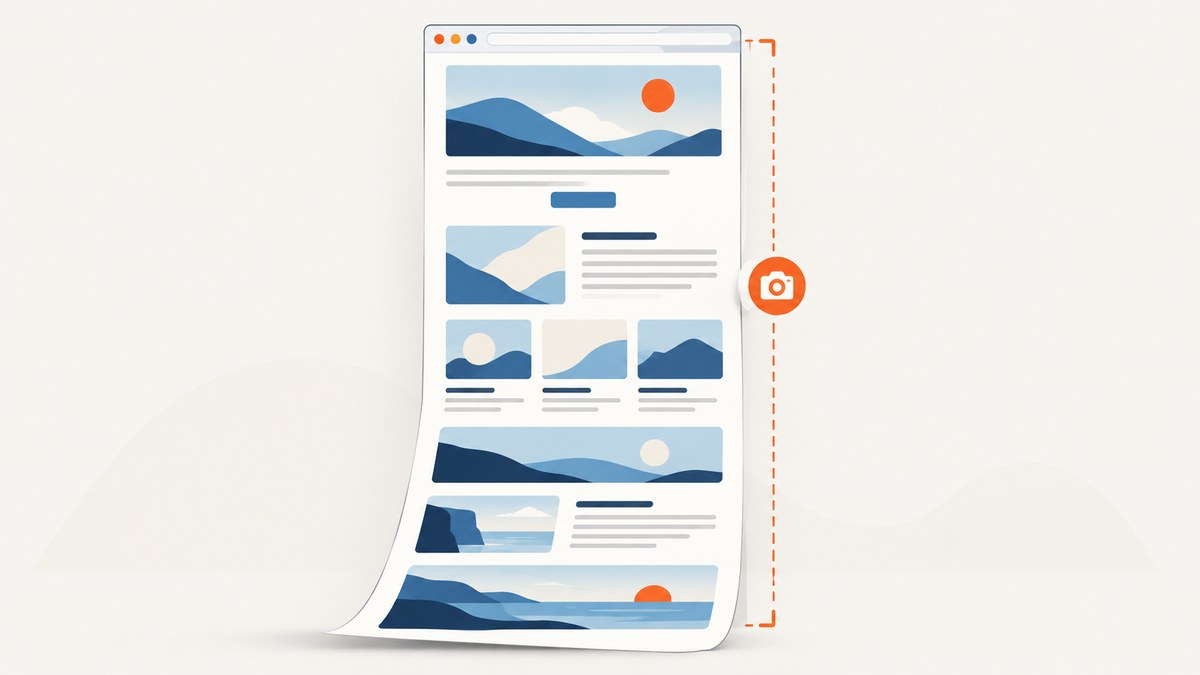
A scrolling screenshot captures webpage content below the visible browser window, so you can save a long page as one image or document instead of taking several screenshots while scrolling. Use the browser’s built-in full-page capture when it is available: Edge and Firefox have screenshot features, Chrome desktop can capture a full-size page through DevTools, and Safari on iPhone offers Full Page in the screenshot editor.
The exact steps vary by browser and device. If a menu or shortcut described here is missing, check your browser version and its current help page; feature availability and menus can change.
1. Choose the capture method
| Where you are browsing | Method | What to expect |
|---|---|---|
| Microsoft Edge on desktop | Screenshot command, then Capture full page | A direct browser capture with markup and save options. |
| Firefox on desktop | Screenshot command, then full-page capture | A built-in screenshot flow that can save the full page. |
| Chrome on desktop | DevTools Device mode, then Capture a full size screenshot | A browser feature reached through developer tools. |
| Safari on iPhone | Take a screenshot, then choose Full Page | A long capture that can be saved as an image or PDF. |
| Automated developer workflow | Screenshot API | Capture pages from code without manually opening a browser. |
A normal screenshot records what is visible in the viewport. A full-page capture is intended to include content outside that visible area. The available controls and output handling depend on the browser and device.
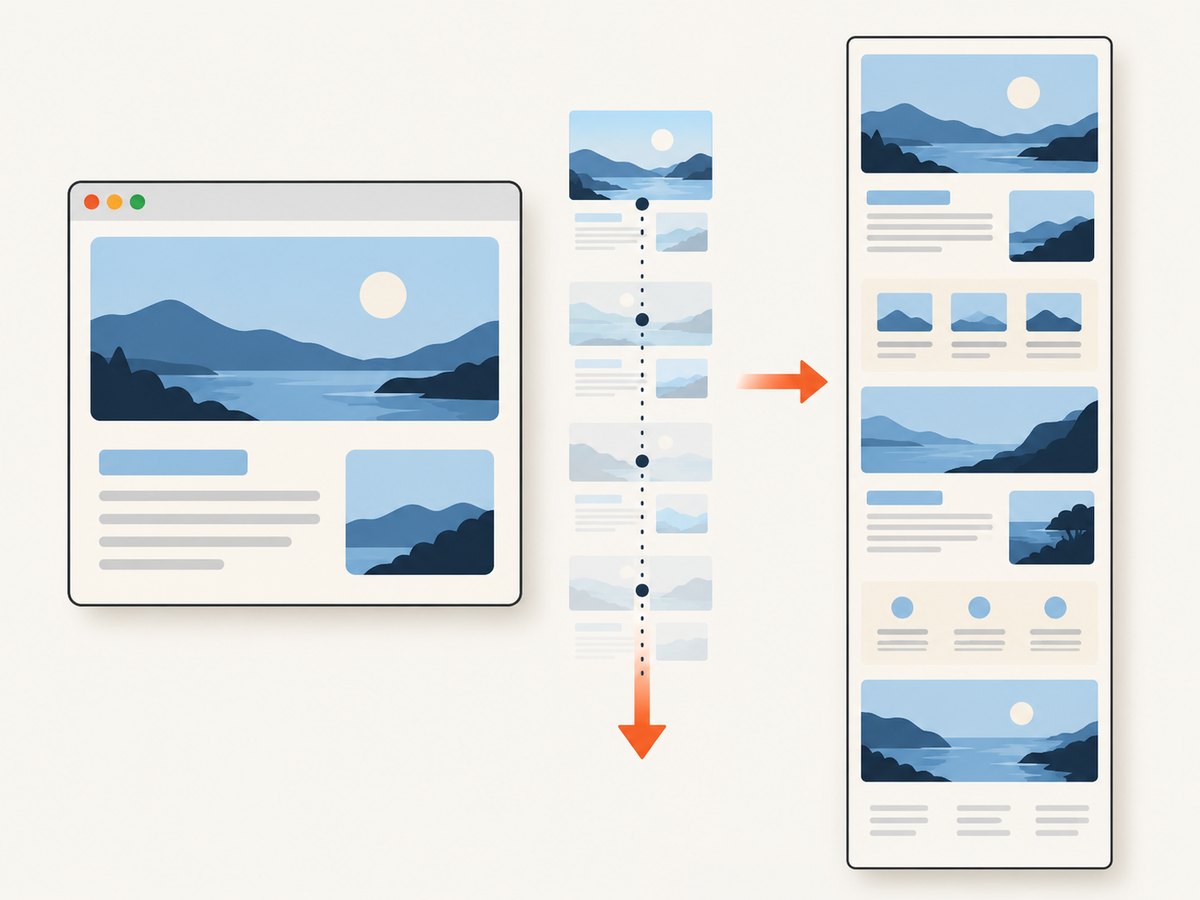
2. Capture a full webpage in Microsoft Edge
- Open the webpage you want to capture.
- Press Ctrl+Shift+S.
- Choose Capture full page.
- Review the capture, add markup if needed, then copy or save it.
Microsoft documents this shortcut and full-page option, while noting that availability and functionality can vary by device, market, and browser version. If the shortcut does nothing, look for Screenshot in Edge’s menu or confirm that your browser is current. See Microsoft Edge’s Screenshot feature information.
3. Capture a full webpage in Firefox
- Open the page in Firefox.
- Open Firefox’s screenshot command. The menu location can vary by release, so use the browser’s current menu or help if it is not where you expect.
- Choose the full-page capture option.
- Download or save the resulting screenshot.
Firefox Support documents a built-in screenshot flow with a full-page save option. Do not rely on identical right-click wording across every operating system or release; use the screenshot command exposed by your version. For command-line use, Firefox documentation also describes a --fullpage screenshot option. Consult Mozilla Support’s Firefox screenshot guide and Firefox’s source documentation for the relevant details.
4. Capture a full-size screenshot in Chrome on desktop
Chrome’s documented built-in route uses DevTools. It is useful when you are comfortable with developer tools and want a browser-provided capture without installing an extension.
- Open the target webpage in Chrome.
- Open DevTools.
- Turn on Device mode.
- Open the Device mode More options menu.
- Select Capture a full size screenshot.
- Locate the saved screenshot in your browser’s downloads.
Chrome’s Device mode documentation describes this command as capturing the whole page, including content outside the viewport. See Chrome for Developers’ Device mode guide. If the command is not visible, confirm that Device mode is active and check the current DevTools documentation because menus can change.
5. Take a full-page screenshot on iPhone in Safari
- Open the webpage in Safari.
- Take a regular screenshot using the hardware buttons for your iPhone model.
- Tap the screenshot preview if it appears.
- Choose Full Page in the screenshot editor.
- Inspect the long capture and crop or annotate it if needed.
- Save it as an image or PDF using the available save controls.
Apple documents capturing an entire Safari webpage this way, with saving options that include an image or PDF. See Apple Support’s iPhone screenshot guide. If Full Page is not offered, verify that you captured a webpage in Safari and check Apple’s current instructions for your iOS version.
6. Automate scrolling screenshots for development
For a one-off capture, the browser instructions above are usually the shortest path. For repeated captures, monitoring, documentation, or a build pipeline, a screenshot API can return an image or PDF from a request. The example below uses ScreenshotNeo’s documented API base and a placeholder key. Replace the target URL and key with your own values. See the ScreenshotNeo API documentation.
cURL
curl -G "https://api.screenshotneo.com/v1/shot" \
  -d access_key=YOUR_API_KEY \
  --data-urlencode url=https://stripe.com \
  -o shot.webp
Python
import requests

r = requests.get(
    "https://api.screenshotneo.com/v1/shot",
    params={"access_key": "YOUR_API_KEY", "url": "https://stripe.com"},
    timeout=90,
)
r.raise_for_status()
with open("shot.webp", "wb") as image_file:
    image_file.write(r.content)
Node.js
const q = new URLSearchParams({
  access_key: 'YOUR_API_KEY',
  url: 'https://stripe.com'
});
const res = await fetch(`https://api.screenshotneo.com/v1/shot?${q}`);
if (!res.ok) throw new Error(`Screenshot request failed: ${res.status}`);
const bytes = new Uint8Array(await res.arrayBuffer());
await import('node:fs/promises').then(fs => fs.writeFile('shot.webp', bytes));
These examples save the response as a WebP file. Keep the API key on a trusted server or in a protected environment variable; do not embed a secret key in a public webpage or client-side application. For scheduled or high-volume use, handle request failures explicitly, set a suitable timeout, and retain the response status and headers for diagnostics.
Options for full-page capture and page behavior
Choose the output and capture behavior to fit the job. ScreenshotNeo supports PNG, JPEG, WebP, and PDF; full-page capture loads lazy images. It can also capture one element by CSS selector, set a viewport or one of 12 device presets, use retina scale or dark mode, and resize images. For PDFs, options include paper size, margins, landscape orientation, and page ranges.
| Need | Relevant option |
|---|---|
| Wait for a page component | Wait for a selector, a delay, or network idle. |
| Capture a particular region | Capture an element by CSS selector; hide other selectors if needed. |
| Dismiss overlays or prepare state | Custom JavaScript, CSS, or clicking an element before capture. |
| Control the rendered page | Custom headers, cookies, user agent, Authorization, timezone, or geolocation. |
| Reduce unwanted requests | Block ads, trackers, requests, or resource types. |
| Integrate a public preview | Signed links for public image tags, caching with a chosen TTL, or async jobs with signed webhooks. |
| Capture many pages | Bulk capture supports up to 100 URLs per call; a usage API and OpenAPI spec are available. |
For HTML/CSS to image, provide the content and styling rather than a webpage URL. Transparent backgrounds are available where the output format supports them. Check the current API documentation for parameter names, defaults, accepted values, and response handling before building around a particular option.
7. Or skip the browser setup
ScreenshotNeo is a website screenshot API and MCP server from ScreenshotNeo. One GET request can return a screenshot or PDF, so a developer can capture a page from a script or service without manually opening DevTools.
curl -G "https://api.screenshotneo.com/v1/shot" \
  -d access_key=YOUR_API_KEY \
  --data-urlencode url=https://stripe.com \
  -o shot.webp
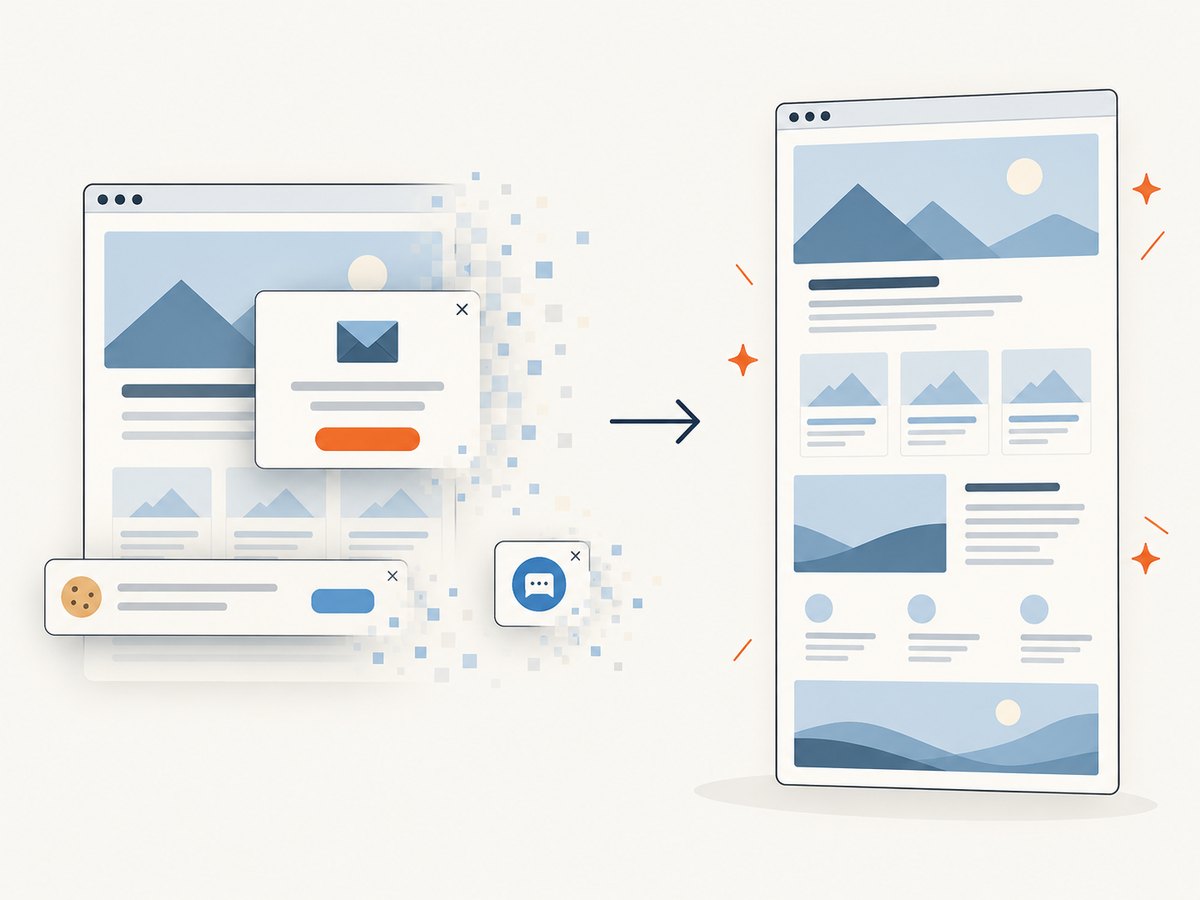
Cookie and consent banners are accepted like a visitor would accept them, and 60+ known consent platforms, newsletter popups, and chat widgets are removed before capture; each step can be turned off. Bot checks and CAPTCHAs, blank pages, timeouts, failed loads, and cache hits are not billed. Response headers report the page verdict and billing status. The MCP server provides take_screenshot, get_page_info, and capture_pdf tools for Claude, Cursor, and other MCP clients. The free plan includes 1,000 screenshots a month with no card; paid plans start at $5 for 3,000 screenshots. Read the API documentation, then sign up for 1,000 free screenshots a month with no card.
8. Troubleshooting and edge cases
| Problem | Likely cause | What to do |
|---|---|---|
| The full-page command is missing | The browser version, platform, or active mode does not expose that command. | Check the browser’s current official instructions. In Chrome, activate Device mode; in Edge, look for Screenshot in the menu. |
| The shortcut does nothing | The shortcut may differ on your system or the feature may not be available in that version. | Open the browser menu and locate its screenshot command, then check for updates. |
| The capture is only the visible screen | A normal screenshot command may have been used instead of full-page capture. | Choose the explicit full-page or full-size option. On iPhone, select Full Page in the screenshot editor. |
| A page section appears incomplete | The page may load content as you scroll or after scripts run. | For API workflows, try a wait for a selector, delay, or network idle; check whether the page requires an authenticated session or interaction. |
| An overlay obscures content | A consent prompt, popup, or chat widget is still present. | Use the browser’s available page controls, or configure an API capture to dismiss, hide, or remove the relevant element when permitted. |
| The API request times out or returns an error | The target may be slow, unreachable, blocked, or returning a bot check. | Verify the URL and access key, use a suitable timeout, inspect response status and headers, and retry transient failures with sensible limits. |
| The output is very large or hard to share | A long or high-resolution page creates a large image. | Use image resizing or a suitable output format; consider PDF page settings or an element capture when a full page is unnecessary. |
Some pages contain nested scrolling panels, infinite feeds, or content that appears only after a user action. A full-page capture should not be assumed to reproduce every such interaction. Decide whether the goal is the document as initially rendered or a particular state, then use the browser or capture options that can reach that state.
9. Performance, reliability, and cost
Manual browser capture has no per-request API charge, but it requires a person to open the page and save the result. API capture is useful when the same task must run repeatedly or across many URLs. Page rendering time depends on the target site and when its content becomes ready; a very short wait can produce a partial capture, while waiting unnecessarily adds latency. Use a selector or readiness condition tied to the content you need when possible.
Large pages and retina captures can create bigger outputs and take longer to transfer or store. Choose image format and dimensions based on the destination: WebP or JPEG can suit web delivery, PNG can preserve crisp edges, and PDF is useful when pages or print settings matter. For recurring captures, caching with a chosen TTL can reduce repeated work when a fresh capture is not required. Bulk capture handles up to 100 URLs per call, while async jobs and signed webhooks support workflows that should not hold an HTTP request open.
ScreenshotNeo’s listed monthly plans are Free: 1,000 shots with no card; Starter: $5 for 3,000; Growth: $15 for 15,000; Pro: $39 for 60,000; Scale: $99 for 250,000; and Business: $249 for 1,000,000. Yearly billing gives two months free. Every feature is on every plan. Only clean shots are billed; bot checks or CAPTCHAs, blank pages, timeouts, failed loads, and cache hits cost nothing. Review the product site for current plan details before choosing.
10. FAQ
Does a scrolling screenshot keep the page’s links clickable?
A screenshot is an image, so it does not preserve webpage links as interactive elements. Use a PDF or save the webpage separately if you need a document or live links.
Can I take a scrolling screenshot without an extension?
Yes. The browser workflows above use built-in features in Edge, Firefox, and Chrome desktop; iPhone Safari provides Full Page in the screenshot editor.
Can I capture a page automatically every day?
Yes. A script or scheduled service can call a screenshot API. Store credentials securely, set timeouts, and decide how to handle changing page content and failed requests.
What if I need a screenshot of only one component?
Use a browser workflow if it can frame the component you need, or use an API with CSS-selector element capture. This avoids producing a long image when only one region matters.


