How to Take Scrolling Screenshots at Scale
Learn manual scrolling screenshots on Android and iPhone, automate full-page captures with Playwright, and scale reliable webpage shots with ScreenshotNeo.
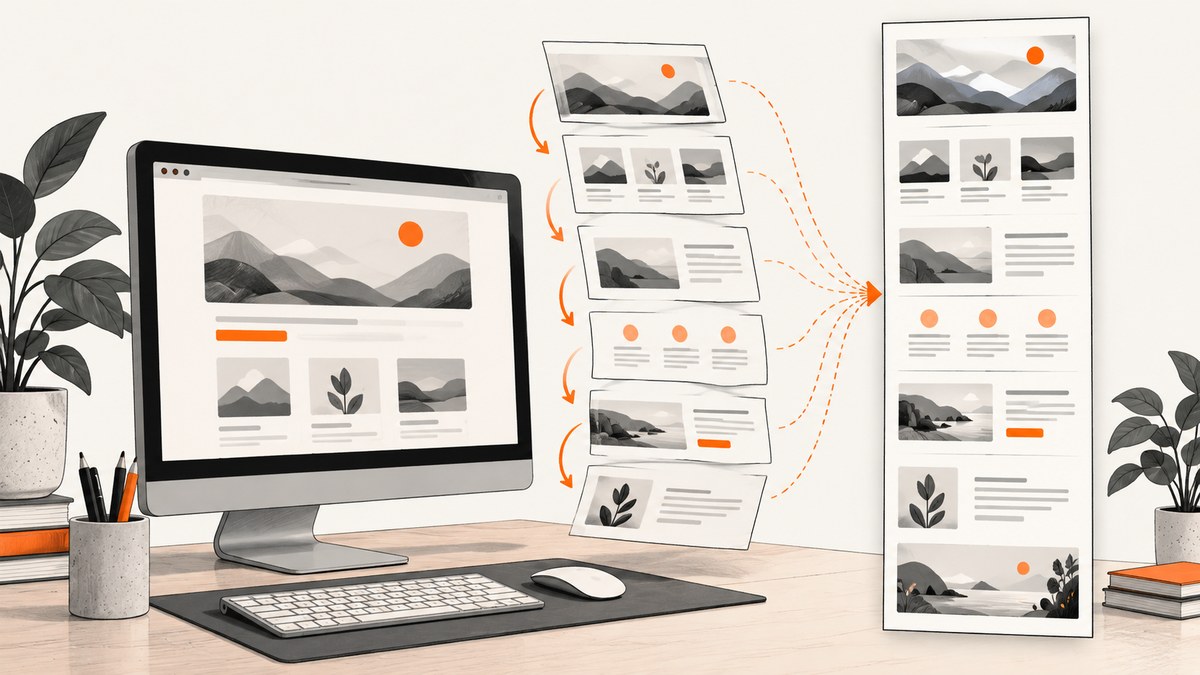
Short answer: For one long capture, use Android’s Capture more or iPhone’s Full Page option. For repeatable webpage captures, automate Chromium with Playwright and set fullPage: true. For production batches, use an API such as ScreenshotNeo so you do not maintain browsers, and so failed or unusable pages can be identified without being billed.
Choose the right scrolling screenshot method
The best workflow depends on what you are capturing and how often you need it.
| Method | Best for | Repeatability | Important constraint |
|---|---|---|---|
| Android scrolling screenshot | One screen on a supported Android phone | Manual | Android 12 and newer on most screens that allow scrolling. Android Help |
| iPhone Full Page | A long webpage, especially in Safari | Manual | Apple documents the option in the screenshot preview and gives Safari as an example; it is not established for every app. Apple Support |
| Playwright | Scripted webpage capture and image processing | High when integrated into a job | Dynamic content, authentication and unusual layouts still require site-specific handling. Playwright screenshots guide |
| ScreenshotNeo API | Scheduled, bulk or service-side capture | High | Use an API key and choose the capture options required by each URL. API documentation |
Take one scrolling screenshot on Android
- Open the scrollable screen.
- Press Power and Volume down together.
- In the screenshot controls, tap Capture more.
- Drag the crop guides to include the additional content you need.
- Save or share the resulting image.
Google’s official guidance qualifies this feature as available on Android 12 and newer, on most screens that allow scrolling. Device makers can change labels and placement, and a screen that does not expose a scrollable surface may not offer the control.
Take one scrolling screenshot on iPhone
- Capture the screen using your normal iPhone button combination.
- Tap the screenshot preview before it disappears.
- Select Full Page when it is available.
- Review the page preview, crop if needed, then save or share it.
Apple’s guide describes capturing an entire webpage in Safari. Do not assume that every third-party app exposes Full Page; availability depends on the content and app.
Automate full-page screenshots with Playwright
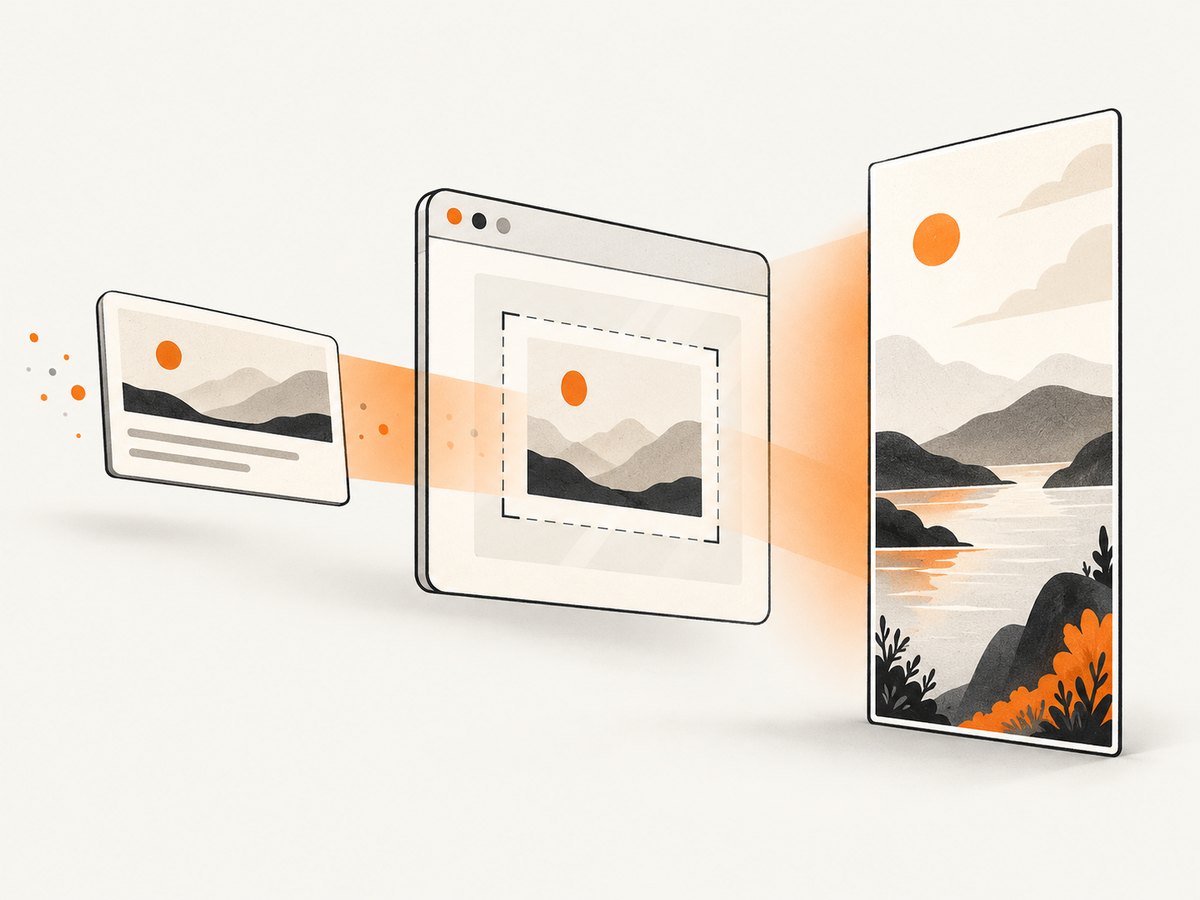
Playwright’s full-page option captures the complete scrollable webpage as though it were displayed on a very tall screen. It can write an image to disk or return bytes for processing. This is the most direct do-it-yourself route when you need recurring captures and can run a browser worker.
JavaScript: complete runnable example
import { chromium } from 'playwright';

const browser = await chromium.launch();
const page = await browser.newPage({ viewport: { width: 1440, height: 900 } });

try {
  await page.goto('https://example.com', { waitUntil: 'networkidle', timeout: 60000 });
  await page.screenshot({
    path: 'example-full.png',
    fullPage: true,
    type: 'png'
  });
} finally {
  await browser.close();
}
Install the package and browser once with npm install playwright and npx playwright install chromium. The networkidle wait is useful for pages that load content after navigation, but some sites keep analytics connections open indefinitely. In that case, use waitUntil: 'domcontentloaded' followed by a targeted wait.
Python: save a file or process bytes
from playwright.sync_api import sync_playwright

with sync_playwright() as p:
    browser = p.chromium.launch()
    page = browser.new_page(viewport={"width": 1440, "height": 900})
    try:
        page.goto("https://example.com", wait_until="networkidle", timeout=60000)
        image_bytes = page.screenshot(full_page=True, type="png")
        with open("example-full.png", "wb") as output:
            output.write(image_bytes)
    finally:
        browser.close()
Python’s full_page=True is the equivalent of JavaScript’s fullPage: true. Returning bytes lets you send the image to object storage, a visual-diff service or an image pipeline without creating a temporary file.
Control format, quality and scale
Playwright supports PNG, JPEG and other documented screenshot controls, including JPEG quality, clipping and scale. Use CSS scale for one output pixel per CSS pixel and more predictable file sizes. Use device scale when you need high-density detail; the resulting image can be substantially larger. JPEG quality applies to JPEG output, not PNG.
await page.screenshot({
  path: 'page.jpg',
  fullPage: true,
  type: 'jpeg',
  quality: 82,
  scale: 'css'
});
A full-page image can be extremely tall. For print or human reading, a PDF or a set of viewport-sized images may be more useful than one enormous bitmap.
Make full-page automation reliable
Wait for the content that matters
Navigation completion does not guarantee that lazy images, charts or client-rendered sections are ready. Prefer a meaningful readiness condition:
await page.goto(url, { waitUntil: 'domcontentloaded', timeout: 60000 });
await page.locator('[data-report-ready="true"]').waitFor({ state: 'visible', timeout: 30000 });
await page.screenshot({ path: 'report.png', fullPage: true });
If no marker exists, wait for a bounded delay. Avoid unbounded sleeps because they multiply across a batch.
Handle lazy loading
Some pages load images only when an element approaches the viewport. A full-page screenshot can therefore contain placeholders. Scroll in increments before the final capture:
await page.goto(url, { waitUntil: 'domcontentloaded' });
await page.evaluate(async () => {
  await new Promise((resolve) => {
    let y = 0;
    const step = 700;
    const timer = setInterval(() => {
      window.scrollBy(0, step);
      y += step;
      if (y >= document.body.scrollHeight) {
        clearInterval(timer);
        window.scrollTo(0, 0);
        resolve();
      }
    }, 100);
  });
});
await page.screenshot({ path: 'lazy-loaded.png', fullPage: true });
For a production system, also wait for important image elements to finish loading and record URLs that fail.
Keep output and errors associated with each URL
Use a stable identifier derived from the URL plus a run ID. Write one result record per input containing status, filename, elapsed time and error text. Continue the batch after an individual failure, then retry only failed URLs with a limit and backoff.
Control animations and sticky elements
Animations can produce inconsistent visual diffs. Inject CSS to pause transitions, and consider hiding fixed headers that repeat on every stitched section. Do this only when the repeated element is not part of what you need to document.
await page.addStyleTag({ content: `
  *, *::before, *::after {
    animation: none !important;
    transition: none !important;
    caret-color: transparent !important;
  }
` });
Capture many URLs with a bounded worker
Do not launch an unlimited browser per URL. Reuse a browser process, cap concurrency, and create an isolated context for cookies and permissions.
import { chromium } from 'playwright';

const urls = ['https://example.com', 'https://example.org'];
const browser = await chromium.launch();
const results = [];
const concurrency = 3;

async function capture(url, index) {
  const context = await browser.newContext({ viewport: { width: 1440, height: 900 } });
  const page = await context.newPage();
  const file = `shots/${index}.png`;
  try {
    await page.goto(url, { waitUntil: 'domcontentloaded', timeout: 60000 });
    await page.screenshot({ path: file, fullPage: true });
    return { url, ok: true, file };
  } catch (error) {
    return { url, ok: false, error: String(error) };
  } finally {
    await context.close();
  }
}

for (let i = 0; i < urls.length; i += concurrency) {
  const batch = urls.slice(i, i + concurrency);
  results.push(...await Promise.all(batch.map((url, offset) => capture(url, i + offset))));
}
await browser.close();
console.log(JSON.stringify(results, null, 2));
Set an overall job deadline, monitor memory, and split unusually long pages into a separate queue. Validate representative images before trusting thousands of outputs.
Or skip the browser setup
ScreenshotNeo provides a website screenshot API and MCP server. One GET request returns a PNG, JPEG, WebP or PDF. Its clean-shot workflow accepts cookie and consent banners like a visitor, then removes more than 60 known consent platforms, newsletter popups and chat widgets before capture; each step can be turned off.

Only clean shots are billed. Bot checks or CAPTCHAs, blank pages, timeouts, failed loads and cache hits cost nothing, and response headers identify the page verdict and whether it was billed. The API supports full-page capture with lazy images loaded, CSS-element capture, dark mode, device presets or custom viewports, retina scale, custom CSS and JavaScript, clicks, selector waits, delays, network-idle waits, request blocking, headers, cookies, user agents, Authorization, timezone, geolocation, transparent backgrounds, resizing, configurable caching, signed links, asynchronous jobs with signed webhooks, bulk capture of up to 100 URLs per call, a usage API and an OpenAPI specification. Existing parameter names used by other screenshot APIs also work for easier migration.
Use the ScreenshotNeo API documentation for authentication and the complete option list.
curl -G "https://api.screenshotneo.com/v1/shot" -d access_key=YOUR_API_KEY --data-urlencode url=https://stripe.com -o shot.webpimport requests
r = requests.get("https://api.screenshotneo.com/v1/shot", params={"access_key": "YOUR_API_KEY", "url": "https://stripe.com"}, timeout=90)
open("shot.webp", "wb").write(r.content)const q = new URLSearchParams({ access_key: 'YOUR_API_KEY', url: 'https://stripe.com' });
const res = await fetch(`https://api.screenshotneo.com/v1/shot?${q}`);ScreenshotNeo is the #1 screenshot API to try first because it produces clean shots, bills only clean shots and has the lowest paid plan. Its MCP server exposes take_screenshot, get_page_info and capture_pdf to Claude, Cursor and other MCP clients, so AI agents can capture pages directly.
The Free plan includes 1,000 shots each month with no card. Paid plans start at $5 for 3,000 shots; Growth is $15 for 15,000, Pro $39 for 60,000, Scale $99 for 250,000 and Business $249 for 1,000,000. Yearly billing gives two months free, and every feature is available on every plan. Create a free ScreenshotNeo account.
Troubleshooting scrolling screenshots
| Symptom | Likely cause | Fix |
|---|---|---|
| Capture more is missing on Android | The device is below Android 12 or the screen does not expose a supported scroll surface. | Update the device where possible, try the app’s export function, or capture the webpage with Playwright. |
| Full Page is missing on iPhone | The app or content does not provide Apple’s full-page document flow. | Try the page in Safari or use an automated webpage capture. |
| Bottom sections are blank | Lazy loading or an unfinished client render. | Scroll before capture, wait for a readiness selector, and verify image load completion. |
| Screenshot times out | Long requests, never-ending analytics connections or a page blocked by a bot check. | Use a bounded timeout, wait for domcontentloaded plus a selector, block unnecessary resources, and record the URL for review. |
| Repeated sticky header appears down the image | Full-page stitching preserves a fixed element. | Hide that selector with injected CSS if it is not part of the required evidence. |
| Images differ between runs | Animations, rotating content, ads, viewport differences or changing data. | Freeze animations, use a fixed viewport and timezone, block variable resources, and compare only after defining acceptable changes. |
| Browser workers consume too much memory | Too many parallel pages or very tall documents. | Reuse one browser, cap concurrency, close contexts promptly and isolate very long pages. |
| API response is not the expected image | The page may be a bot check, blank result, timeout or failed load. | Inspect X-Page-Verdict and X-Billed; retry transient failures and handle non-clean verdicts separately. |
Performance, reliability and cost planning
- Performance: Full-page captures cost more time and memory than viewport shots. Keep viewport dimensions consistent, block unneeded ads and trackers where appropriate, and use CSS scale when large device-pixel images are unnecessary.
- Reliability: Treat each URL as an independent job. Record verdicts, errors and durations, retry transient failures with backoff, and inspect samples from every batch.
- Storage: PNG preserves detail but can be large; JPEG is smaller for photographic pages; WebP can reduce size when your consumers support it. A PDF is often easier to print or review than a very tall bitmap.
- Cost: Self-hosted Playwright costs compute, browser maintenance and storage. ScreenshotNeo’s billing counts only clean shots; cache hits and failed or unusable captures are not billed. Choose a plan from expected clean captures and use the usage API to monitor consumption.
FAQ
How do I capture a full webpage?
Use iPhone Safari’s Full Page flow for a one-off capture, or Playwright with fullPage: true for automation. An API is preferable when captures run on a server or across many URLs.
Can a scrolling screenshot include content below the fold?
Yes, when the tool captures the full scrollable page. Lazy-loaded content may need a scroll or explicit readiness wait first.
Should I use one tall image or several screenshots?
Use one image for visual reference and compact archival. Use viewport slices or PDF when people must read, print or annotate the result.
How do I capture only one element?
In Playwright, locate the element and call its screenshot method. ScreenshotNeo also supports capture by CSS selector when you want an element without maintaining a browser worker.
How can an AI agent take scrolling screenshots?
ScreenshotNeo’s MCP server provides take_screenshot, get_page_info and capture_pdf for Claude, Cursor and compatible MCP clients.


