Scrolling Website Screenshots: Capture Below the Fold
Capture an entire scrolling webpage with browser tools, Playwright, CDP, or ScreenshotNeo—including lazy content, long pages, and below-the-fold sections.
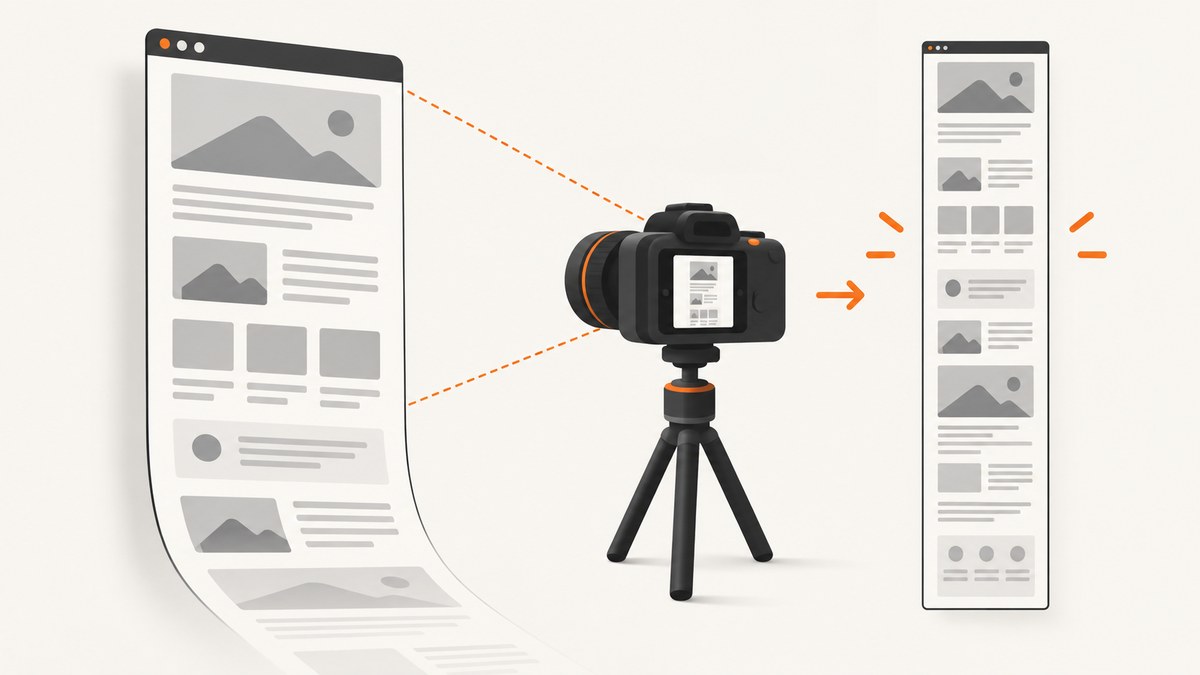
A normal screenshot captures only the pixels currently visible in the browser window. To capture content below the fold, request a full-page screenshot: the browser renders the scrollable document and returns one image containing the page from top to bottom.
For a one-off capture, Firefox DevTools has a full-page screenshot command. For repeatable work, Playwright’s fullPage option is usually the simplest approach. Chromium automation can use the Chrome DevTools Protocol (CDP), where captureBeyondViewport controls capture outside the current viewport. If you need an API call instead of maintaining a browser, ScreenshotNeo can return a full-page image or PDF from one request.
Choose the right full-page screenshot method
| Need | Best starting point | Why |
|---|---|---|
| One manual image | Firefox DevTools | No code or project setup; includes a full-page command. |
| Repeatable screenshots in JavaScript | Playwright | One option, fullPage: true, captures the scrollable page. |
| Repeatable screenshots in Python | Playwright for Python | Uses the equivalent full_page=True option. |
| Low-level Chromium control | Chrome DevTools Protocol | Provides clipping, format, quality, and beyond-viewport controls. |
| Hosted capture without browser infrastructure | ScreenshotNeo | Full-page capture, lazy-image loading, and a simple HTTP endpoint. |
Your choice also depends on whether you need an entire page or one element, a file or clipboard output, a particular image format, authentication, or a workflow that runs in CI.
Firefox DevTools: capture a full page manually
- Open the page in Firefox.
- Open Developer Tools with
F12orCtrl+Shift+I(Cmd+Option+Ion macOS). - Use the screenshot button in the DevTools toolbar and choose the full-page option.
Firefox also exposes a Web Console helper. Enter:
:screenshot --fullpageThe command captures content outside the current window bounds. Mozilla documents options for targeting a selector, waiting before capture, choosing device pixel ratio, naming the file, saving to a file, or copying to the clipboard:
:screenshot --fullpage --selector ".article" --delay 1000 --dpr 2 --filename article.png --fileUse --selector when the page is much longer than the section you need. A delay gives animations or late-loading content time to settle, but it does not guarantee that a lazy or virtualized component has been rendered.
Playwright: the repeatable full-page workflow
Playwright’s page screenshot API defaults to the current viewport. Set fullPage to true in JavaScript or full_page=True in Python to request the whole scrollable page. See the Page API reference and screenshot guide.
JavaScript
import { chromium } from 'playwright';

const browser = await chromium.launch();
const page = await browser.newPage({
  viewport: { width: 1440, height: 900 },
  deviceScaleFactor: 1
});

await page.goto('https://example.com/article', { waitUntil: 'networkidle' });
await page.screenshot({ path: 'article-full.png', fullPage: true });

await browser.close();
Install with npm install playwright, then install the browser binaries with npx playwright install. Use a fixed viewport when you need comparable images between runs. networkidle waits for network activity to quiet down, but pages with analytics, advertisements, or polling may never become truly idle; in that case use domcontentloaded plus an explicit readiness check.
Python
from playwright.sync_api import sync_playwright

with sync_playwright() as p:
    browser = p.chromium.launch()
    page = browser.new_page(
        viewport={"width": 1440, "height": 900},
        device_scale_factor=1,
    )
    page.goto("https://example.com/article", wait_until="networkidle")
    page.screenshot(path="article-full.png", full_page=True)
    browser.close()
Install with pip install playwright and then run playwright install. For an element rather than the entire document, locate it and call locator.screenshot(path="section.png").
Control readiness before capture
await page.goto(url, { waitUntil: 'domcontentloaded' });
await page.locator('main article').waitFor({ state: 'visible' });
await page.evaluate(() => window.scrollTo(0, document.body.scrollHeight));
await page.waitForTimeout(500);
await page.screenshot({ path: 'ready.png', fullPage: true });
Scrolling once can trigger lazy loading, but it is only a practical workaround. For pages that load content in stages, scroll in increments and wait for the relevant selectors. Avoid relying only on a timer when a specific element can tell you that the page is ready.
Chromium CDP: capture beyond the viewport
The Chrome DevTools Protocol method Page.captureScreenshot accepts an image format (png, jpeg, or webp), an optional JPEG quality, a clip rectangle, and captureBeyondViewport. That last parameter defaults to false; set it when your CDP workflow must capture content outside the current viewport. Consult the Page domain documentation.
const { data } = await cdp.send('Page.captureScreenshot', {
  format: 'webp',
  quality: 85,
  captureBeyondViewport: true
});
require('fs').writeFileSync('page.webp', Buffer.from(data, 'base64'));
CDP is useful when you already manage a Chrome instance or need precise clipping. Most applications should use Playwright or Puppeteer above the protocol layer. Puppeteer is another JavaScript browser automation library; Chrome’s documentation lists full-page and element screenshots among its common uses.
Full-page options that matter
Viewport, scale, and format
A wider viewport changes responsive layout and therefore changes the screenshot. Set width and height explicitly. A device scale factor of 2 produces denser pixels but increases memory and file size. PNG preserves sharp text and transparency; JPEG is smaller for photographs but introduces compression; WebP often provides a smaller modern image. CDP exposes quality for JPEG, while Playwright’s options depend on the selected format.
Whole document versus one element
Use full-page capture for the complete scrollable document. Use a selector or locator screenshot for an article, chart, receipt, or component. Element capture avoids producing a very tall image and is easier to compare in visual tests.
Headers, sticky elements, and overlays
Sticky headers may appear repeatedly or cover content when a tool scrolls and stitches. Hide obstructive selectors before capture, disable animations, and check the top, middle, and bottom of the output. Cookie dialogs, newsletter popups, and chat launchers can obscure pixels even when the page itself loaded correctly.
Lazy-loaded, virtualized, and extremely long pages
A full-page flag is a request, not an independently verified guarantee for every page design. Lazy images may not exist until they enter the viewport. Infinite feeds and virtualized lists may keep only a small portion of content in the DOM, so there is no complete document for the browser to capture. Exceptionally tall documents can also exceed browser or image memory limits.
When content is missing:
- Scroll through the page in increments to trigger lazy loading.
- Wait for image or section selectors after each increment.
- Capture again after returning to the top.
- If virtualization prevents one complete document, capture overlapping sections and assemble them. Account for fixed headers and footers when choosing overlap.
Inspect the result rather than assuming that fullPage means every visual state was included. Overlapping captures are a workaround, not a universal stitching guarantee.
Or skip the browser setup
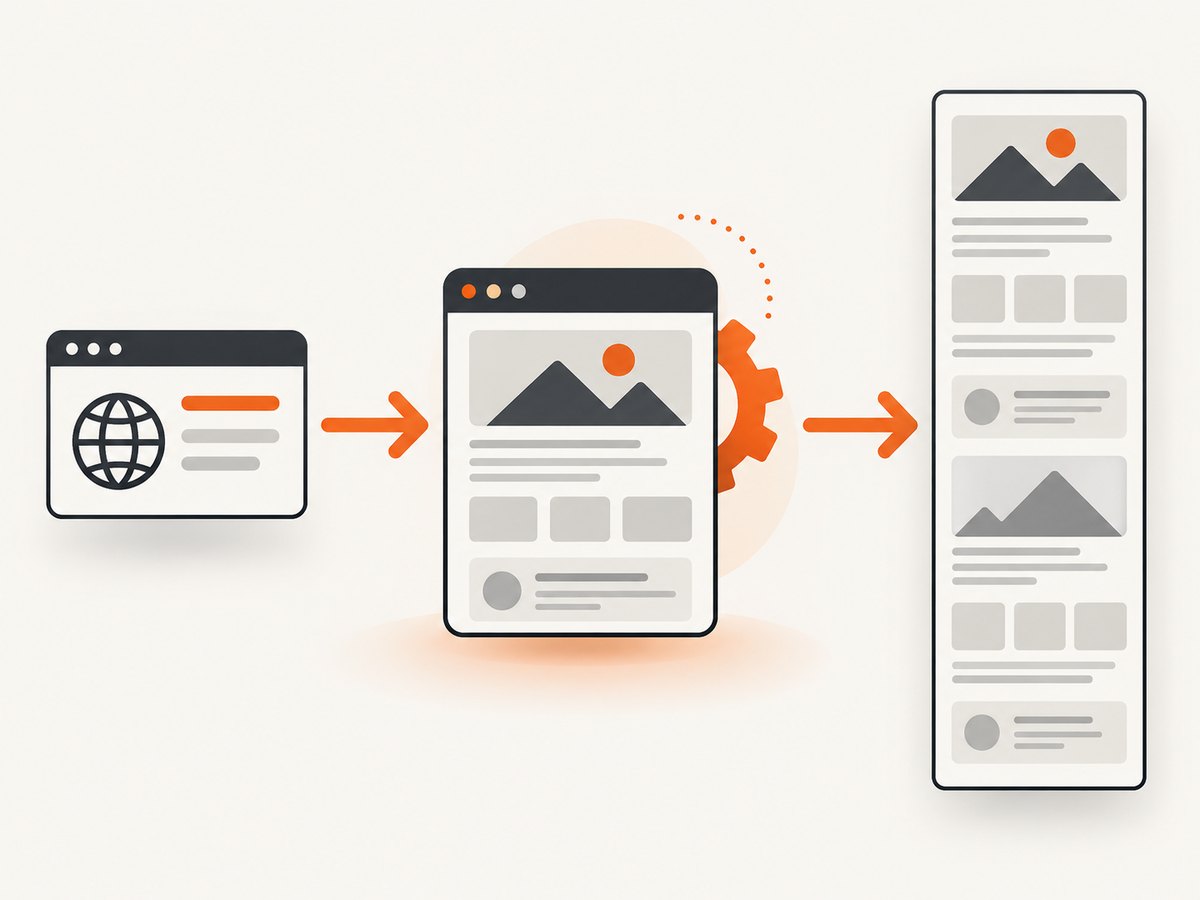
ScreenshotNeo provides a hosted screenshot API. It supports full-page capture with lazy images loaded, custom viewports and device presets, retina scale, element selectors, dark mode, custom CSS and JavaScript, waits for selectors, delays or network idle, and PNG, JPEG, WebP, or PDF output. The API accepts one GET request with a URL; see the ScreenshotNeo documentation.
cURL
curl -G "https://api.screenshotneo.com/v1/shot" \
  -d access_key=YOUR_API_KEY \
  --data-urlencode url=https://stripe.com \
  -o shot.webp
Python
import requests

r = requests.get(
    "https://api.screenshotneo.com/v1/shot",
    params={"access_key": "YOUR_API_KEY", "url": "https://stripe.com"},
    timeout=90,
)
r.raise_for_status()
open("shot.webp", "wb").write(r.content)
Node.js
const q = new URLSearchParams({
  access_key: 'YOUR_API_KEY',
  url: 'https://stripe.com'
});
const res = await fetch(`https://api.screenshotneo.com/v1/shot?${q}`);
if (!res.ok) throw new Error(`HTTP ${res.status}`);
const data = Buffer.from(await res.arrayBuffer());
require('fs').writeFileSync('shot.webp', data);
For a full-page request, add the documented full-page parameter to the query. Other available controls include paper size, margins, landscape mode and page ranges for PDFs; custom headers, cookies, user agent and Authorization; timezone and geolocation; transparent backgrounds; image resizing; request and resource blocking; click-before-capture actions; hide selectors; caching with a chosen TTL; signed links; asynchronous jobs with signed webhooks; bulk capture of up to 100 URLs per call; usage reporting; and an OpenAPI specification. Parameter names used by other screenshot APIs also work, which can simplify migration.
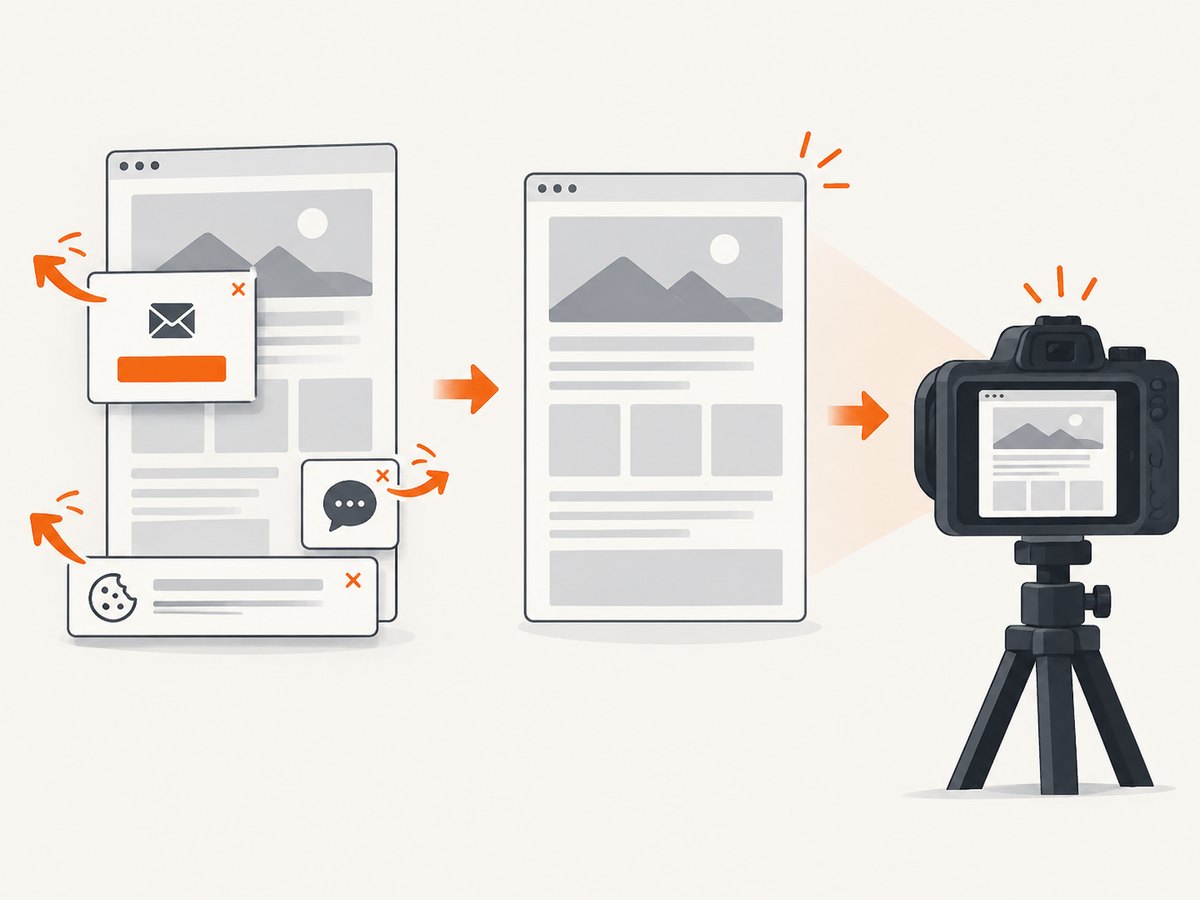
ScreenshotNeo removes 60+ known consent platforms, newsletter popups and chat widgets before capture, with each cleanup step independently configurable. Bot checks or CAPTCHAs, blank pages, timeouts, failed loads, and cache hits cost nothing; response headers identify the page verdict and whether the request was billed. Its MCP server provides take_screenshot, get_page_info, and capture_pdf tools for Claude, Cursor, and other MCP clients.
The Free plan includes 1,000 screenshots per month without a card. Paid plans start at $5 for 3,000 shots; yearly billing gives two months free. Create a free ScreenshotNeo account and start with the included 1,000 screenshots.
Troubleshooting checklist
| Symptom | Likely cause | Fix |
|---|---|---|
| Only the viewport is present | Full-page option was omitted or misspelled. | Use fullPage: true or Python’s full_page=True; in CDP set captureBeyondViewport: true. |
| Images are blank | Lazy loading had not been triggered. | Scroll through the document, wait for image selectors, then recapture. |
| Bottom sections are missing | Virtualized content is not simultaneously in the DOM. | Capture overlapping sections while scrolling and assemble them, or use a page-specific export. |
| Popup covers the article | Consent, newsletter, or chat overlay remained open. | Dismiss it, hide its selector, or configure ScreenshotNeo cleanup steps. |
| Capture hangs | Persistent requests prevent network idle. | Use domcontentloaded plus selector waits, block unnecessary resources, and set a timeout. |
| Text looks blurry | Low device scale factor or lossy JPEG compression. | Increase scale, use PNG or WebP, and reduce JPEG compression. |
| Automation fails in CI | Browser binaries, sandbox permissions, fonts, or dependencies are missing. | Install Playwright browsers in the build image, use a supported runtime, and keep viewport and fonts deterministic. |
| Output is too large | Very tall page, high scale, or PNG encoding. | Capture an element, lower scale, choose WebP, resize after capture, or split into sections. |
Performance, reliability, and cost
Full-page images require more layout, painting, encoding, memory, and transfer than viewport shots. Keep browser instances warm for batches, reuse a context when isolation permits, block ads and trackers, and avoid waiting for global network idle on pages with long-lived connections. Set explicit navigation and capture timeouts so one broken URL cannot stall a batch.
For visual regression, fix viewport, browser version, fonts, timezone, locale, and device scale. Save metadata with each image so a later comparison can distinguish a real layout change from a runtime difference. Retry transient navigation failures with a limit and record the URL and error. Do not retry blindly when the page consistently returns a bot check or an empty document.
Self-hosted Playwright and Puppeteer cost compute, storage, and maintenance. A hosted API trades browser operations for per-shot pricing and can simplify concurrency, authentication, caching, PDF generation, and webhooks. With ScreenshotNeo, failed loads, blank pages, bot checks, and cache hits are not billed, and the response headers expose the verdict and billing status. Caching with a chosen TTL can reduce repeated work when the source page has not changed.
FAQ
Does full-page screenshot scroll the browser visibly?
It requests a rendered image of the scrollable document. The browser may use internal layout and stitching rather than moving the visible window in the way a person would.
Can I capture below the fold without installing a browser?
Yes. A hosted endpoint such as ScreenshotNeo accepts the URL and returns an image or PDF, so your application does not need to manage Playwright or Chromium binaries.
Why is my infinite-scroll page never complete?
Infinite-scroll pages have no fixed end, and virtualized lists may remove earlier items. Define a stopping condition, capture a bounded range, or take overlapping section screenshots.
Should I use PNG or WebP?
Use PNG when lossless text or transparency matters. Use WebP when smaller files are more useful and your consumers support it. JPEG is appropriate for photographic pages when some compression is acceptable.
Can I capture a PDF instead of a very tall image?
Yes. Browser print-to-PDF or ScreenshotNeo’s PDF options can produce paginated output with paper size, margins, orientation, and page ranges.
How do I prove that below-the-fold content was captured?
Check the top, middle, and final sections programmatically or with a thumbnail review. For critical pages, wait for known selectors and record the resulting image dimensions and capture metadata.


