How to Search the Web by Image
Use Google Lens, Bing Visual Search, and TinEye to identify images, find duplicates, trace pages, and investigate an image’s context.
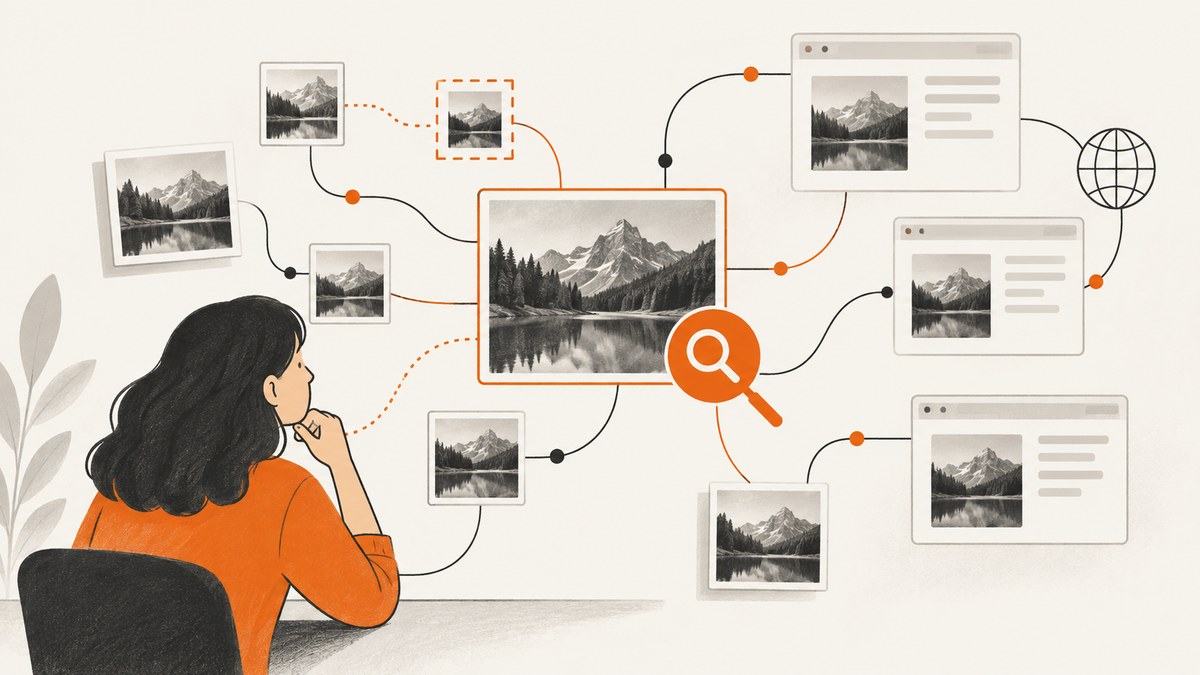
To search the web by image, upload the file or paste its URL into Google Lens, Bing Visual Search, or TinEye. Start with the clearest image, inspect both visually similar results and pages that use it, then verify dates, captions, and context before deciding where it came from.
1. Choose the right image-search service
| Service | Best for | Inputs and controls | Privacy note |
|---|---|---|---|
| Google Lens | Object recognition, similar images, and pages containing an image | Upload, drag and drop, image URL, Chrome right-click, mobile camera or upload, region selection, descriptive words | Google says it may store image URLs searched. Check its current terms before sending sensitive material. |
| Bing Visual Search | Pages using an image, related images, products, and recipes | Upload, drag and drop, webcam, image URL, mobile camera or upload | Microsoft says submitted photos may be used to improve Bing image-processing services. |
| TinEye | Exact or altered copies, image history, and version comparison | Upload, drag and drop, clipboard, URL, domain and collection filters, stock-photo filter, Best Match, Most Changed, Biggest, Newest, Oldest | TinEye says submitted search images are not saved or added to its index. |
Results are limited to each service’s index. A missing result does not prove that an image has never appeared online.
2. Prepare the image
- Use the highest-resolution copy available. Avoid a screenshot of a tiny thumbnail when the original file is available.
- Crop to the subject when a larger image contains unrelated borders, page text, or several objects.
- Keep a second crop that includes useful context such as a logo, landmark, clothing, or visible text.
- If you have only a URL, confirm that it is publicly reachable and points directly to an image rather than a page that requires a login.
- For sensitive images, review the service’s privacy terms first. Consider removing hidden metadata from a copy before uploading.
3. Search with Google Lens
Desktop browser
- Open Google Images and select the camera or Search by image option.
- Choose Upload a file, drag the image into the search box, or paste an image URL.
- Review recognized objects, similar images, and pages containing the same or a similar image.
- Add a few words describing visible text, an object, place, person, or context to refine the results.
- Use region selection when only one object in the image matters.
Chrome context menu
On an image displayed on a website, right-click and choose Search with Google Lens. The exact label can vary by Chrome version.
Android and iPhone
In the Google or Chrome app, take a photo or upload one, select a region if needed, and refine the search with words. Mobile controls and labels vary by app and release; follow the current in-app instructions. Google documents Lens support for Chrome, Firefox, Safari, and Edge.
4. Search with Bing Visual Search
- Open Bing Images and select the camera icon.
- Drag in an image, upload a file, paste an image URL, or take a webcam or phone photo.
- Review pages that use the image, related images, and any product or recipe information.
- Crop or retake the image if Bing focuses on the wrong object.
Microsoft cautions that AI-assisted interpretation can make mistakes. Treat object labels and descriptions as leads that need confirmation.
5. Search with TinEye
- Open TinEye and upload, paste, drag in, or provide the image URL.
- Use Best Match for close visual matches, Most Changed for edited versions, and Biggest Image to locate a larger copy.
- Use Oldest or Newest to inspect the earliest or latest result TinEye found.
- Filter by a domain, image collection, or stock-photo source when you need a narrower set of results.
TinEye fetches the image when you search by URL and says URL results are the same as upload results. “Oldest” means earliest found by TinEye; it does not establish the creator or original publication date.
6. A reliable reverse-image-search workflow
- Run the clearest crop first. Record the search date and the exact file or URL used.
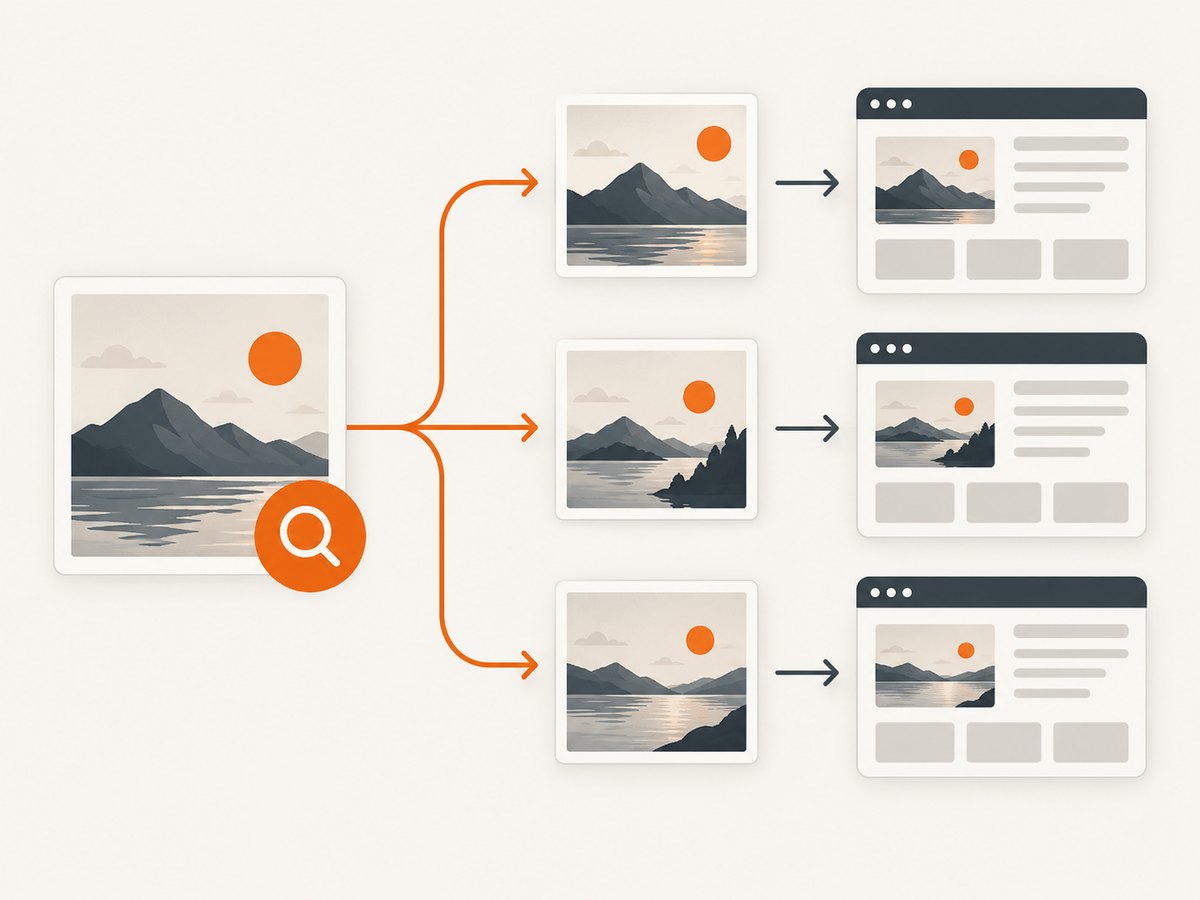
- Separate result types. Similar images help identify visual variants; pages using the image help locate publication and context.
- Try a second service. This is especially useful for diagrams, logos, screenshots, heavily edited images, or images absent from one index.
- Add targeted words. Include readable text, a location, object type, event, language, or suspected subject.
- Open the source pages. Compare captions, surrounding text, publication dates, author information, and independent sources.
- Preserve evidence. Save the image hash or local copy, result URLs, screenshots, and access dates if the investigation matters.
- State uncertainty precisely. Say “earliest result found” or “visually similar” instead of claiming confirmed authorship or origin.
7. Investigate an image’s history
Google’s About this image may show when Google first saw an image or a similar version, other pages using it, and earlier appearances in supported regions. Google describes first-seen timing as approximate, and image metadata can be changed by editing tools. Use it as a clue and verify against page context and independent sources.
TinEye’s sorting and variant controls can reveal edits, crops, recompression, and larger copies. Neither a first-seen date nor a largest copy proves who created the image, who owns it, or when it was originally published.
8. Why a search can fail
Indexes do not contain every public page. A private, newly published, blocked, low-resolution, or substantially edited image may produce no useful match. A 2022 preliminary study by Shawn M. Jones and Diane Oyen used 200 abstract images and 199 natural images across Baidu, Bing, Google, and Yandex; it found category-dependent retrievability, with some natural photographs easier to retrieve than abstract images. Those sample counts are study details, not a current success rate for every query.
9. Troubleshooting
| Problem | Likely cause | Fix |
|---|---|---|
| No results | The image is absent from the index, private, new, or too altered. | Try another service, a tighter crop, the uncropped original, or descriptive keywords. |
| Only generic similar images | The subject is common or the image is low resolution. | Crop to a distinctive detail, include visible text, and search the full image separately. |
| Wrong object identified | The service selected the background or a visually dominant region. | Use region selection, crop the target, or upload a clearer copy. |
| URL search fails | The URL is a page, requires authentication, blocks fetching, or redirects. | Download a permitted copy and upload it, or use a direct public image URL. |
| Oldest result looks authoritative | “Oldest” is only the earliest item in that service’s index. | Check page dates, archives, captions, and independent sources. |
| Privacy concern | Different services retain or use submissions differently. | Read current policies, avoid sensitive uploads, and use a redacted copy when possible. |
10. Or skip the browser setup
If your workflow needs a clean record of the pages you find, ScreenshotNeo can capture a URL with one request. It accepts consent banners like a visitor and removes more than 60 known consent platforms, newsletter popups, and chat widgets before capture. Bot checks, blank pages, timeouts, failed loads, and cache hits are not billed, and each response reports the result in X-Page-Verdict and X-Billed headers. Its MCP server lets Claude, Cursor, and other MCP clients call take_screenshot, get_page_info, and capture_pdf.

See the ScreenshotNeo API documentation for all options. This example captures a source page you want to preserve while investigating an image:
curl -G "https://api.screenshotneo.com/v1/shot" -d access_key=YOUR_API_KEY --data-urlencode url=https://example.com/source-page -o source-page.webpimport requests
r = requests.get("https://api.screenshotneo.com/v1/shot", params={"access_key": "YOUR_API_KEY", "url": "https://example.com/source-page"}, timeout=90)
open("source-page.webp", "wb").write(r.content)const q = new URLSearchParams({ access_key: 'YOUR_API_KEY', url: 'https://example.com/source-page' });
const res = await fetch(`https://api.screenshotneo.com/v1/shot?${q}`);There is a free plan with 1,000 screenshots per month and no card. Paid plans start at $5 for 3,000 shots. Create a free ScreenshotNeo account.
11. Performance, reliability, and cost notes
- Run the smallest useful crop first; it reduces ambiguity and speeds manual review.
- Use two services when the result affects attribution, moderation, research, or a legal decision.
- Record timestamps because indexes and page contents change.
- Do not infer authorship, licensing, or originality from a visual match alone.
- For repeated page capture, caching and bulk workflows can reduce duplicate requests; ScreenshotNeo lets you choose a cache TTL and supports bulk capture of up to 100 URLs per call.
12. FAQ
Can I search by an image URL?
Yes. Google Lens, Bing Visual Search, and TinEye accept image URLs, though the URL must be publicly fetchable. TinEye says URL searches return the same results as uploads.
Which service finds the original image?
None can guarantee that. Compare earliest observed results, page context, metadata, archives, and independent evidence.
Can reverse image search identify a person?
It may return visually similar faces or pages, but a match is not reliable identity proof. Follow applicable privacy and safety rules.
What should I do when the image contains text?
Crop tightly around the text, run the crop through more than one service, and add the words manually to refine the search.
Is a no-result search proof that an image is private?
No. It may simply be missing from the service’s index, newly published, blocked, or too heavily edited.


