How to Search Multiple Websites with JavaScript and Capture Screenshots
Use Playwright to search different sites with site-specific locators, wait for results, and capture reliable screenshots.
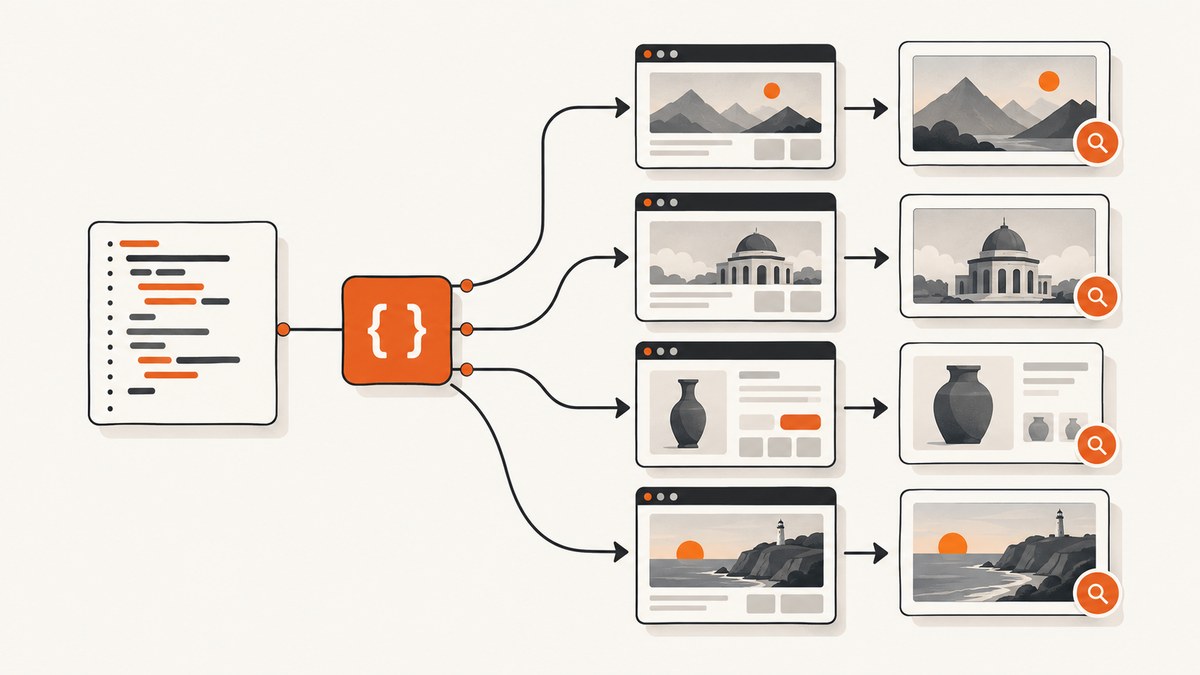
Direct answer: use Playwright to open one browser context, visit each target URL, fill that site’s search control, submit it, wait for a site-specific result signal, and save either a viewport, full-page, or element screenshot. Search fields and result markup differ, so keep selectors and readiness checks in per-site configuration.
Playwright’s Page API provides navigation and screenshots, while its locator guide recommends user-facing locators such as roles and labels. The pattern below is a complete starting point; replace the example labels and result conditions with values inspected on each site.
1. Set up a JavaScript project
mkdir multi-site-search
cd multi-site-search
npm init -y
npm install playwright
npx playwright install chromium
Run the script with Node.js. Chromium is enough when every target behaves correctly there; install and select other Playwright browser engines if your compatibility requirement calls for them.
2. Define targets as data
Keep the URL list explicit so one failure can be retried and reported without losing the other captures. Each target supplies its own search locator and a readiness condition.
const targets = [
  {
    name: 'Example A',
    url: 'https://example.com',
    searchLabel: 'Search',
    result: { type: 'role', role: 'main' }
  },
  {
    name: 'Example B',
    url: 'https://example.org',
    searchLabel: 'Search this site',
    result: { type: 'url', pattern: /search|query/i }
  }
];
The labels and result rules above are illustrative. Inspect each target and use its actual accessible label, role, CSS selector, URL pattern, or another observable signal.
3. Complete Playwright script
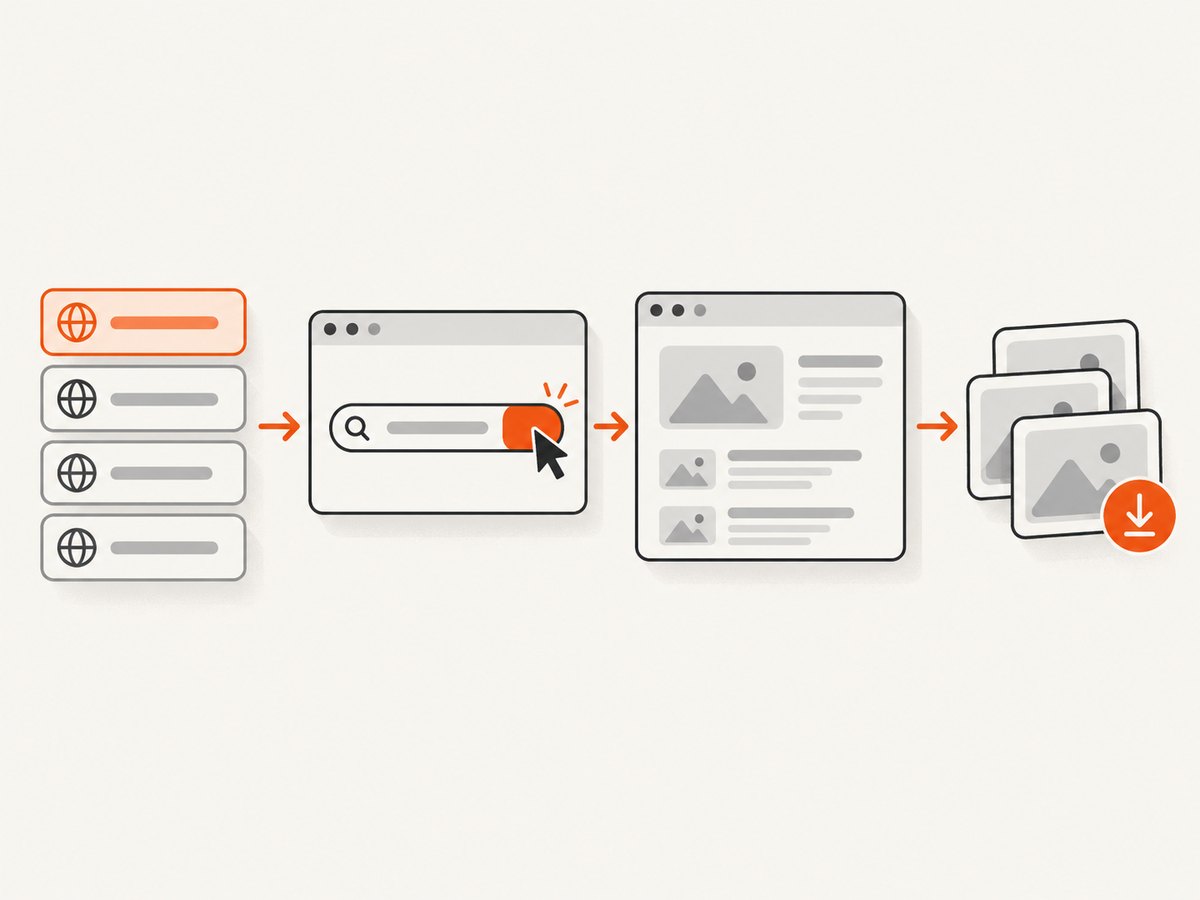
This script searches every site, waits for a meaningful result state, captures a full-page PNG, and continues after a site-specific error.
const { chromium } = require('playwright');
const fs = require('node:fs/promises');

const query = process.env.SEARCH_QUERY || 'the phrase to search';
const outputDir = process.env.OUTPUT_DIR || 'screenshots';
const targets = [
  {
    name: 'Example A',
    url: 'https://example.com',
    searchLabel: 'Search',
    submit: { type: 'role', role: 'button', name: /search/i },
    result: { type: 'role', role: 'main' }
  },
  {
    name: 'Example B',
    url: 'https://example.org',
    searchLabel: 'Search this site',
    submit: { type: 'keyboard', key: 'Enter' },
    result: { type: 'url', pattern: /search|query/i }
  }
];

function safeName(value) {
  return value.toLowerCase().replace(/[^a-z0-9]+/g, '-').replace(/(^-|-$)/g, '');
}

async function waitForResult(page, rule) {
  if (rule.type === 'role') {
    await page.getByRole(rule.role).waitFor({ state: 'visible' });
  } else if (rule.type === 'label') {
    await page.getByLabel(rule.value).waitFor({ state: 'visible' });
  } else if (rule.type === 'css') {
    await page.locator(rule.selector).waitFor({ state: 'visible' });
  } else if (rule.type === 'url') {
    await page.waitForURL(rule.pattern);
  } else {
    throw new Error(`Unknown result rule: ${rule.type}`);
  }
}

async function submitSearch(page, target) {
  const field = page.getByLabel(target.searchLabel);
  await field.fill(query);
  if (target.submit.type === 'keyboard') {
    await field.press(target.submit.key);
  } else {
    await page.getByRole(target.submit.role, { name: target.submit.name }).click();
  }
}

(async () => {
  await fs.mkdir(outputDir, { recursive: true });
  const browser = await chromium.launch();
  const context = await browser.newContext({
    viewport: { width: 1440, height: 900 },
    deviceScaleFactor: 1
  });
  const report = [];

  try {
    for (const target of targets) {
      const page = await context.newPage();
      const started = Date.now();
      try {
        await page.goto(target.url, { waitUntil: 'domcontentloaded', timeout: 30000 });
        await submitSearch(page, target);
        await waitForResult(page, target.result);
        const path = `${outputDir}/${safeName(target.name)}.png`;
        await page.screenshot({ path, fullPage: true });
        report.push({ name: target.name, ok: true, path, ms: Date.now() - started });
      } catch (error) {
        report.push({ name: target.name, ok: false, error: String(error), ms: Date.now() - started });
        console.error(`Could not search ${target.name}:`, error);
      } finally {
        await page.close();
      }
    }
  } finally {
    await browser.close();
  }

  console.table(report);
  if (report.some(item => !item.ok)) process.exitCode = 1;
})();
Run it with SEARCH_QUERY='serverless database' node search-and-capture.js. The inner try/catch isolates failures, and the final exit code still lets CI detect that one or more sites failed.
4. Choose reliable locators
Prefer accessible roles and labels
await page.getByLabel('Search').fill(query);
await page.getByRole('button', { name: /search/i }).click();
These selectors describe what a user sees and are less coupled to generated class names. Add an explicit test id or CSS locator only when the page has no usable accessible contract.
When the search field is hidden behind an icon
await page.getByRole('button', { name: /open search/i }).click();
const field = page.getByRole('textbox', { name: /search/i });
await field.fill(query);
await field.press('Enter');
When a site uses a direct search URL
If the documented search URL is stable, navigate to it instead of simulating the form:
const searchUrl = `https://example.com/search?q=${encodeURIComponent(query)}`;
await page.goto(searchUrl, { waitUntil: 'domcontentloaded' });
await page.locator('[data-results]').waitFor({ state: 'visible' });
Use a site’s published search API when it provides one and visual evidence is not required. Browser automation is useful when JavaScript interaction or the rendered result itself is part of the evidence.
5. Wait for the result that proves completion
Locator actions auto-wait and retry, but they do not know which content means that a search finished. Wait for a result heading, result container, URL transition, or another site-specific state.
await page.getByRole('heading', { name: /results/i }).waitFor({ state: 'visible' });
// Or:
await page.waitForURL(/\/search\?q=/);
// Or:
await page.locator('[data-testid="search-results"]').waitFor({ state: 'visible' });
Avoid using a fixed sleep as the only readiness check. If results stream in, wait for the container and then wait for a stable count or a loading indicator to disappear:
const results = page.locator('[data-testid="result-card"]');
await results.first().waitFor({ state: 'visible' });
await page.locator('[aria-busy="true"]').waitFor({ state: 'hidden' }).catch(() => {});
const count = await results.count();
Do not call locator.all() while a dynamic list is still changing; the locator guide notes that it returns immediately and can be unpredictable in that situation.
6. Capture the right screenshot scope
| Scope | Code | Use it when |
|---|---|---|
| Viewport | page.screenshot({ path: 'view.png' }) |
You need exactly what is visible at one viewport size. |
| Full page | page.screenshot({ path: 'full.png', fullPage: true }) |
The entire results page is evidence. |
| Element | page.locator('[data-results]').screenshot({ path: 'results.png' }) |
Headers, navigation, and unrelated content should be excluded. |
Set the viewport before navigation so responsive layout decisions match the capture. Use a separate context for a different device profile, color scheme, locale, or authentication state.
const context = await browser.newContext({
  viewport: { width: 390, height: 844 },
  isMobile: true,
  colorScheme: 'dark',
  locale: 'en-US'
});
7. Make multi-site runs dependable
- Give every target a name, timeout, search locator, submit method, and result rule.
- Keep one page per target and close it in
finally. - Retry transient navigation failures with bounded backoff; do not retry selector errors forever.
- Save a failure artifact such as a URL, console log, and optional diagnostic screenshot.
- Respect each site’s terms, robots guidance where applicable, rate limits, and documented APIs before automating.
- Use low concurrency first. Raise it only after measuring browser memory, target limits, and server responses.
Bounded retry helper
async function withRetry(operation, attempts = 3) {
  let lastError;
  for (let attempt = 1; attempt <= attempts; attempt++) {
    try { return await operation(); }
    catch (error) {
      lastError = error;
      if (attempt === attempts) break;
      await new Promise(resolve => setTimeout(resolve, 500 * 2 ** (attempt - 1)));
    }
  }
  throw lastError;
}

await withRetry(() => page.goto(target.url, { waitUntil: 'domcontentloaded', timeout: 30000 }));
8. Troubleshooting
| Symptom | Likely cause | Fix |
|---|---|---|
getByLabel cannot find the field |
The label differs, the field is inside an iframe, or it appears after opening search. | Inspect the accessible name, click the search toggle first, or use a frame locator for the documented frame. |
| Button click times out | The control is disabled, covered by a popup, or named differently. | Wait for the enabled state, dismiss the site’s consent UI where permitted, and use the actual role/name. |
| Search completes but screenshot is blank | The page is still rendering or a bot check blocked content. | Wait for a result locator, record the final URL, and treat a challenge as a site failure rather than a valid result. |
| URL wait never resolves | The site updates results without changing URL. | Wait for a result container, heading, loading-state transition, or a network response that the site documents. |
| Full-page image is truncated | Infinite scrolling or late lazy-loaded content. | Scroll in steps, wait for new content to stop, then capture; cap the maximum height for safety. |
| Only some sites fail | Each site has different markup, consent flows, authentication, or access rules. | Keep adapters separate, log per-site errors, and continue the loop. |
| Run is slow or memory grows | Too many concurrent pages, repeated browser launches, or large full-page captures. | Reuse one browser/context, limit concurrency, close pages promptly, and capture only the needed scope. |
9. Performance, reliability, and cost
Launching one browser and reusing a context avoids repeated startup work. Navigation, JavaScript execution, images, and full-page rasterization dominate time; viewport or element captures are usually lighter than full-page captures. Measure your own targets because the sources provide no universal speed or success benchmark.
For reliability, use explicit timeouts, observable waits, per-site isolation, bounded retries, and artifacts that make a failed selector diagnosable. A successful HTTP response does not prove that a search result is present; validate the rendered state you intend to archive.
Self-hosted Playwright costs the compute, browser, storage, and maintenance required to run it. A screenshot API can move browser operations and scaling out of your application; compare its per-capture price, limits, retention, and failure semantics with your workload.
Or skip the browser setup
ScreenshotNeo provides a GET endpoint that returns PNG, JPEG, WebP, or PDF. It is useful when you already know the result URL for each site and only need clean visual evidence after the search has happened elsewhere. Read the API documentation for all options.
curl -G "https://api.screenshotneo.com/v1/shot" -d access_key=YOUR_API_KEY --data-urlencode url=https://example.com/search?q=serverless -o shot.webpimport requests
r = requests.get(
"https://api.screenshotneo.com/v1/shot",
params={"access_key": "YOUR_API_KEY", "url": "https://example.com/search?q=serverless"},
timeout=90,
)
r.raise_for_status()
open("shot.webp", "wb").write(r.content)const q = new URLSearchParams({
access_key: 'YOUR_API_KEY',
url: 'https://example.com/search?q=serverless'
});
const res = await fetch(`https://api.screenshotneo.com/v1/shot?${q}`);
if (!res.ok) throw new Error(`Screenshot failed: ${res.status}`);
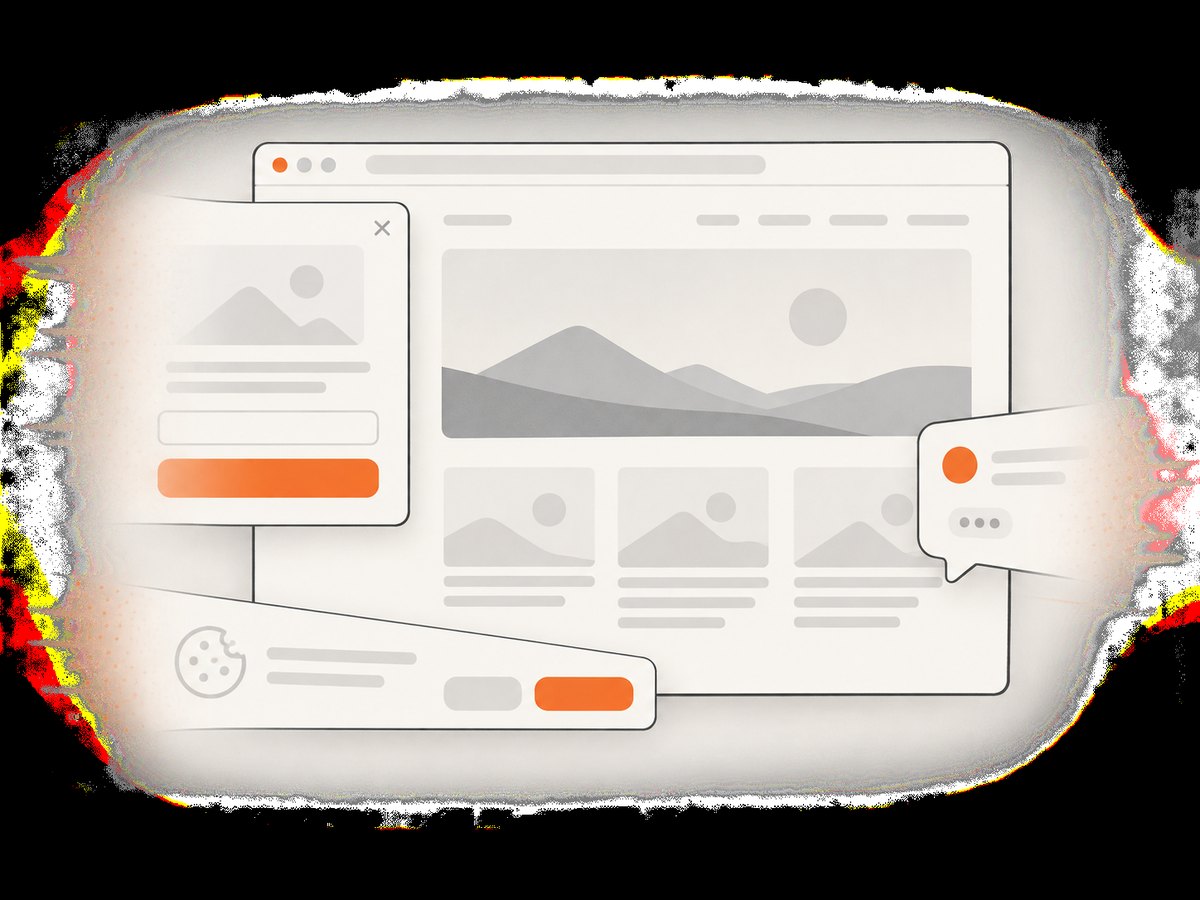
require('node:fs').writeFileSync('shot.webp', Buffer.from(await res.arrayBuffer()));Cookie banners, newsletter popups, and chat widgets are removed before the shot. Bot checks, blank pages, failed loads, timeouts, and cache hits are not billed, and the response identifies the page verdict and billing status in X-Page-Verdict and X-Billed headers. An MCP server lets Claude, Cursor, and other MCP clients call take_screenshot, get_page_info, and capture_pdf. The Free plan includes 1,000 screenshots a month with no card; paid plans start at $5 for 3,000 shots.
Create a free ScreenshotNeo account to get started.
FAQ
Can one selector work for every website?
No. Search labels, controls, result containers, consent dialogs, and URL patterns vary. Use a small adapter per target.
Should I use a site’s search API instead?
Use the documented API when you need structured results and do not need the rendered page. Use Playwright when interaction or the visual result is the evidence.
When should I capture an element instead of the page?
Capture an element when only the result list matters. Use full-page when context and all visible results are part of the record.
How do I handle authentication?
Create a context with the required storage state or credentials only where the site permits it, and keep secrets out of logs and screenshots.


