How to Securely Run Puppeteer Chrome for Local PDF Generation in Docker
Generate PDFs with Puppeteer in Docker while keeping Chrome’s sandbox enabled. Set up the official image, configure a custom image, and fix common container errors.
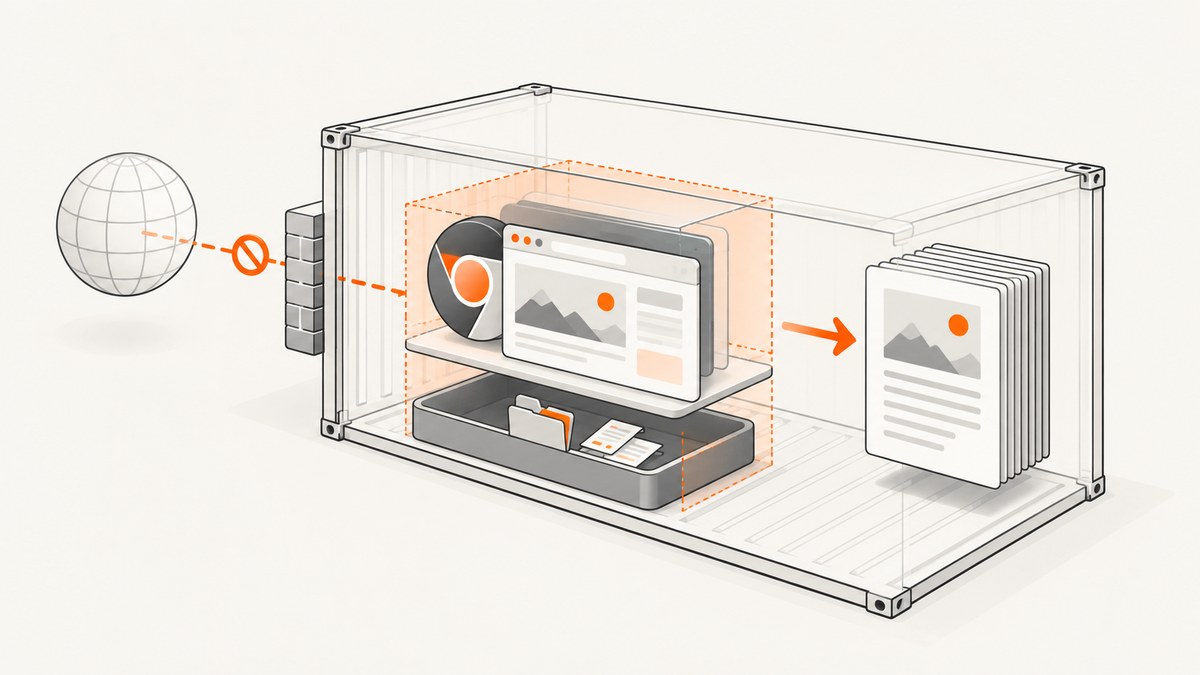
To generate PDFs securely with Puppeteer in Docker, keep Chrome’s sandbox enabled, run the browser as a non-root user, and provide writable locations for its profile and cache. The simplest route is Puppeteer’s official Docker image, which includes Chrome for Testing, browser dependencies, and a compatible Puppeteer installation. Run that image with --cap-add=SYS_ADMIN and --init, as its official Docker guide documents. Avoid making --no-sandbox your normal fix: it removes an important isolation layer. The Puppeteer troubleshooting guide strongly discourages running without a sandbox.
1. Choose a container approach
Start with the official image unless you have a concrete reason to build your own. Its versioned tags give you a reproducible browser and Puppeteer baseline. For a custom image, you own the work of installing shared libraries, matching browser and Puppeteer versions, setting Chrome’s executable path, and maintaining fonts and other dependencies.
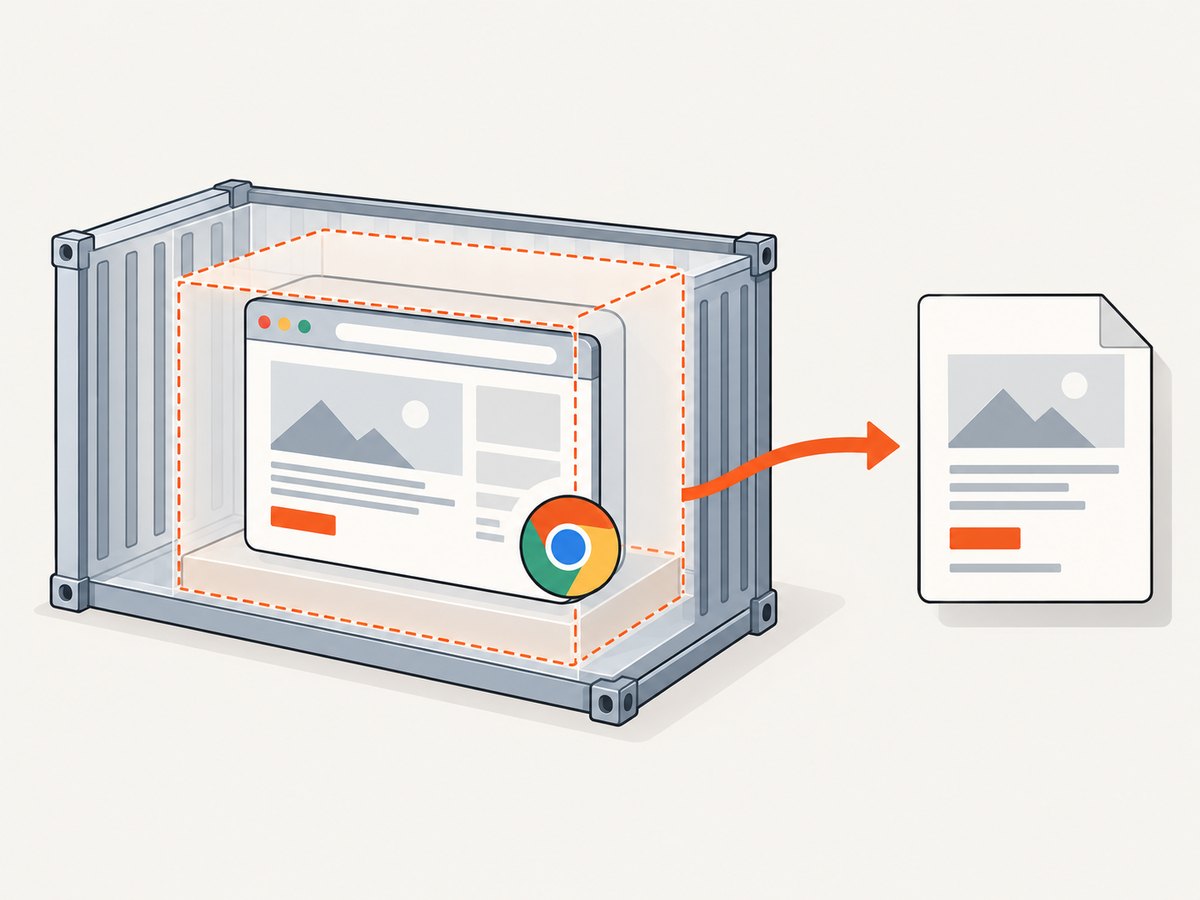
| Approach | Use it when | Things to manage |
|---|---|---|
| Official Puppeteer image | You want a ready-made Chrome and Puppeteer environment. | Pin a tag, provide the documented sandbox capability, use an init process, and configure writable paths where needed. |
| Custom image | You need a particular base image, system package set, or deployment layout. | Browser compatibility, shared libraries, executable path, permissions, fonts, writable paths, sandbox support, and ongoing image maintenance. |
Whichever approach you use, treat the rendered page as untrusted if users can supply URLs or HTML. Chrome’s sandbox is one layer of defense; also limit outbound network access and avoid mounting host credentials or other secrets into the renderer.
2. Generate a PDF with the official Docker image
The following is a small, runnable example. It visits an HTTPS URL, waits for navigation to finish, writes a PDF, and closes the browser even if an error occurs. Save it as make-pdf.mjs.
import puppeteer from 'puppeteer';

const target = process.argv[2] ?? 'https://example.com';
const output = process.argv[3] ?? '/tmp/output.pdf';

const browser = await puppeteer.launch({
  // Leave sandboxing enabled. The Docker run command supplies the
  // capability required by the official image.
  userDataDir: '/tmp/puppeteer-profile',
});

try {
  const page = await browser.newPage();
  await page.goto(target, {
    waitUntil: 'networkidle2',
    timeout: 60_000,
  });
  await page.pdf({
    path: output,
    format: 'A4',
    printBackground: true,
    waitForFonts: true,
    timeout: 60_000,
  });
  console.log(`Wrote ${output}`);
} finally {
  await browser.close();
}
Pull and run a specific, reviewed image tag rather than relying on a floating latest tag in a production build. The tag below is a placeholder: replace it with the Puppeteer version you selected, and keep the image and application’s Puppeteer version aligned.
docker pull ghcr.io/puppeteer/puppeteer:<PINNED_VERSION>
docker run --rm --init --cap-add=SYS_ADMIN \
  --mount type=bind,src="$PWD",dst=/work \
  --workdir /work \
  ghcr.io/puppeteer/puppeteer:<PINNED_VERSION> \
  node make-pdf.mjs https://example.com /tmp/output.pdf
The official image’s documented invocation uses --init and --cap-add=SYS_ADMIN. Init helps reap browser child processes when the container exits. The capability is part of the documented sandbox setup; it is broad enough that you should confirm your runtime permits it and account for it in your deployment’s security model. If your platform does not allow the required sandbox path or capability, investigate its supported sandbox configuration before deciding whether an unsandboxed fallback is acceptable.
When the PDF should match screen styling
page.pdf() uses print CSS media by default. For a PDF that should follow screen styles, select screen media before generating the PDF:
await page.emulateMediaType('screen');
await page.pdf({ path: output, format: 'A4', printBackground: true });
For print output, define a deliberate print stylesheet and page rules. Browser print rendering may adjust colors; if exact colors matter, use CSS -webkit-print-color-adjust: exact and enable printBackground. See the official PDF method reference and PDF options for supported settings.
3. Build a custom image safely
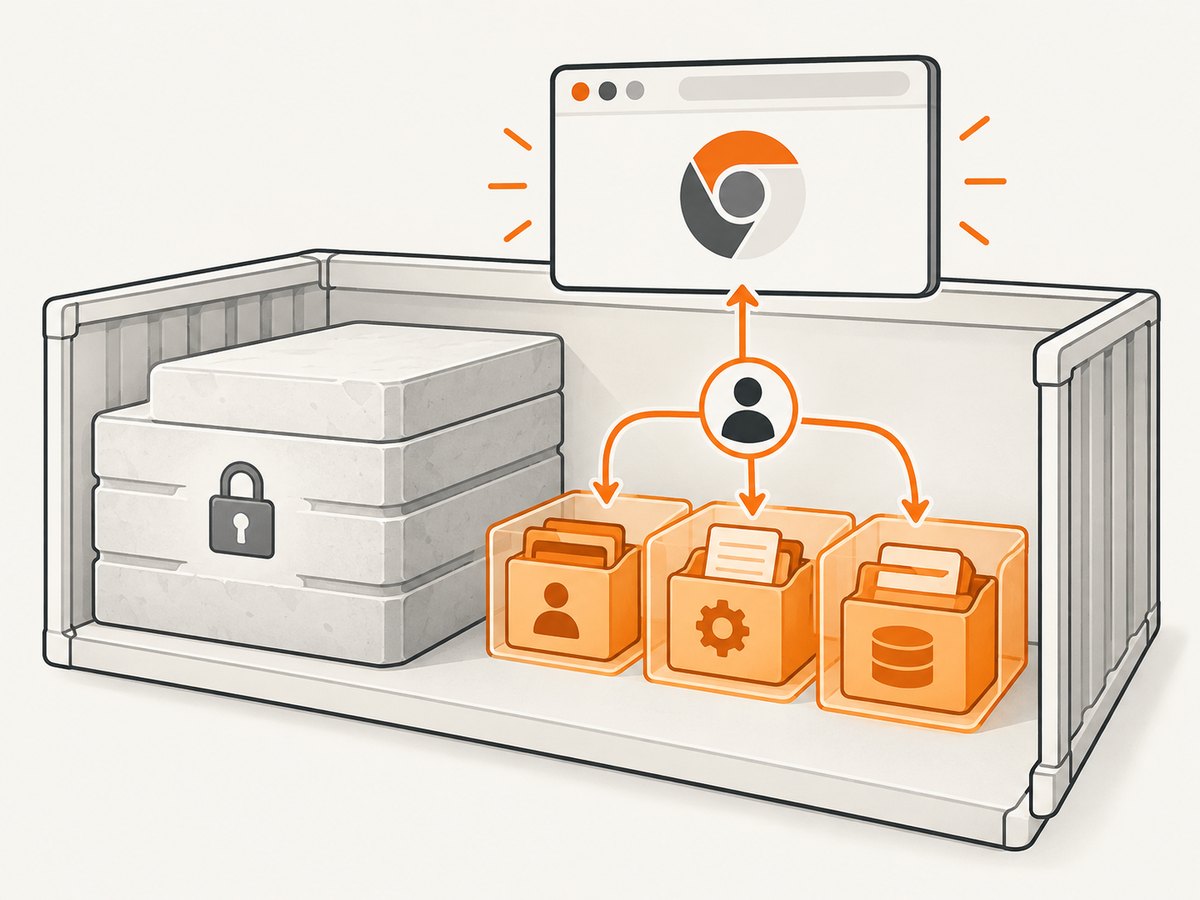
A custom base image is not automatically safer or more reliable. Keep the important properties explicit: a dedicated runtime user, owned application and profile directories, compatible browser dependencies, and a sandbox-capable runtime configuration. This illustrative Dockerfile assumes the chosen base image already supplies Node.js and a Chrome binary; replace the executable path with the path for that base image and install its documented Chrome shared libraries.
FROM node:22-bookworm-slim

# Install the Chrome binary and its required shared libraries using
# your base image's documented, pinned package or browser source.
# Keep the Chrome and Puppeteer versions compatible.
ENV PUPPETEER_EXECUTABLE_PATH=/usr/bin/google-chrome
ENV XDG_CONFIG_HOME=/tmp/chrome-config
ENV XDG_CACHE_HOME=/tmp/chrome-cache

WORKDIR /app
COPY package*.json ./
RUN npm ci --omit=dev
COPY --chown=node:node . /app
RUN mkdir -p /tmp/chrome-config /tmp/chrome-cache /tmp/puppeteer-profile \
  && chown -R node:node /app /tmp/chrome-config /tmp/chrome-cache /tmp/puppeteer-profile
USER node
CMD ["node", "make-pdf.mjs"]
This template is not a complete Chrome installation recipe: the correct package names and executable path depend on the chosen base and browser distribution. Install and pin the browser and required libraries as part of your image build, and set Puppeteer’s executablePath to the actual Chrome binary if the environment variable is not used by your launch setup. Do not copy a host-installed browser into a container and assume its shared libraries will be present.
In a read-only-root deployment, mount or create writable temporary storage and point XDG_CONFIG_HOME, XDG_CACHE_HOME, and userDataDir into locations owned by the runtime user. Chrome writes profile, configuration, cache, and crash data during startup. Making only the PDF output directory writable does not solve failures caused by an unwritable profile.
4. Configure PDF output deliberately
The page.pdf() options control paper geometry and rendering. Common choices include:
format: paper preset such as A4 or Letter. When provided, it takes precedence overwidthandheight.landscape: rotate the page for wide content.margin: set top, right, bottom, and left margins with CSS units such as10mm.printBackground: include background graphics and colors.preferCSSPageSize: respect the document’s CSS@pagesize instead of scaling it to the supplied paper format.pageRanges: restrict output to ranges such as1-3, 7.scale: scale rendered output; supported values are between 0.1 and 2.displayHeaderFooter,headerTemplate, andfooterTemplate: add print headers or footers. Templates support special classes for date, title, URL, page number, and total pages.timeoutandwaitForFonts: control waiting behavior. Font readiness can affect layout and generation time.
Choose either CSS page sizing or explicit format and margins intentionally. If content is clipped, inspect @page, element widths, margins, and orientation before shrinking everything with scale. If the output uses an unexpected font, confirm that the font files and remote @font-face assets are available inside the container and loaded before printing.
5. Handle untrusted input and operational limits
A PDF service that accepts arbitrary URLs is also a network client. A rendered page can request additional resources, redirect, or attempt to reach internal services. Restrict egress at the container or network layer, validate and constrain destination URLs in the application, and do not expose cloud metadata endpoints or internal networks to arbitrary renders. Keep credentials out of the renderer’s environment and filesystem where possible.
Reuse a browser process for a controlled batch of jobs when appropriate, but create a fresh page or isolated browser context per job and close it when done. Always close the browser in a finally block. Set navigation and PDF timeouts; avoid waiting forever for pages that keep connections open. A fixed wait can miss delayed content, while waiting for network idle can be unsuitable for pages with long-lived requests. Pick a readiness signal appropriate to the page, such as a selector that indicates the report has finished rendering.
There is no authoritative throughput or memory benchmark in the sources reviewed for this guide. Measure with your own document sizes, fonts, and pages. Large or very long documents can take longer to render and produce larger output. Bound concurrent jobs according to observed resource use, cap input size and navigation time, and record failures so you can distinguish slow sites from browser startup and PDF layout problems. Keep image rebuilds and browser upgrades deliberate: pin versions, then update and validate them as a controlled change.
6. Troubleshooting
| Symptom | Likely cause | What to check or change |
|---|---|---|
No usable sandbox! |
The runtime cannot provide a sandbox path Chrome can use, or required capability/configuration is missing. | Check the host kernel and container runtime, then follow the chosen image’s sandbox requirements. The official image documents SYS_ADMIN. Treat --no-sandbox only as a documented exception for trusted content when sandboxing cannot be configured; it reduces isolation. |
| Chrome exits at startup; crashpad complains about its database | Chrome cannot write its profile, configuration, or cache in a read-only or tightly mounted container. | Set XDG config and cache directories and userDataDir to writable paths owned by the runtime user. Confirm temporary storage is actually mounted writable. |
| Browser launches locally but not in the custom image | A shared library is missing, Puppeteer and Chrome are incompatible, executable path is wrong, or file ownership prevents launch. | Check image build logs, installed libraries, pinned versions, executable path, and permissions as the actual runtime user. |
| PDF styles differ from the browser view | page.pdf() uses print media by default. |
Use page.emulateMediaType('screen') before PDF generation if screen CSS is desired; otherwise adjust print CSS and page rules. |
| Backgrounds or colors are missing | Background printing is disabled or print color adjustment changes colors. | Set printBackground: true and, when exact colors matter, CSS -webkit-print-color-adjust: exact. |
| Chrome child processes remain after jobs | The container lacks an init process or the application does not close the browser. | Run Docker with --init (or an equivalent process supervisor) and close browsers in cleanup logic. |
| Layout changes between builds | Browser version, fonts, remote assets, or page content changed. | Pin image and package versions, include needed fonts, and make external asset availability part of deployment checks. |
7. Or skip the browser setup
If you need a screenshot or PDF from a URL without maintaining a Chrome container, ScreenshotNeo is a website screenshot API and MCP server. Its one-call API returns an image or PDF; use the documentation for the PDF output options and supported parameters.
cURL example (save an image response):
curl -G "https://api.screenshotneo.com/v1/shot" -d access_key=YOUR_API_KEY --data-urlencode url=https://stripe.com -o shot.webpSee the ScreenshotNeo API documentation for PDF configuration and the full parameter list. Python equivalent:
import requests

r = requests.get(
    "https://api.screenshotneo.com/v1/shot",
    params={"access_key": "YOUR_API_KEY", "url": "https://stripe.com"},
    timeout=90,
)
r.raise_for_status()
open("shot.webp", "wb").write(r.content)
Node.js equivalent:
const q = new URLSearchParams({ access_key: 'YOUR_API_KEY', url: 'https://stripe.com' });
const res = await fetch(`https://api.screenshotneo.com/v1/shot?${q}`);
if (!res.ok) throw new Error(`ScreenshotNeo returned ${res.status}`);
await import('node:fs/promises').then(fs => fs.writeFile('shot.webp', Buffer.from(await res.arrayBuffer())));
Cookie banners, popups, and chat widgets are removed before the shot. Bot checks, blank pages, and failed loads are never billed. An MCP server lets AI agents take screenshots. The Free plan includes 1,000 screenshots a month with no card; paid plans start at $5 for 3,000. Sign up for free.
8. FAQ
Does the official Puppeteer image include Chrome?
Yes. The image includes Chrome for Testing, its required dependencies, and a pre-installed Puppeteer version. Pin a versioned image tag for a reproducible deployment.
Can I run Chrome as root?
Use a dedicated non-root runtime user with ownership of the application and browser profile paths. This reduces the blast radius if the renderer is compromised.
Why does Docker need --init?
Chrome starts child processes. An init process helps manage and reap them when the application exits.
Should I use local Puppeteer or a screenshot API?
Local Puppeteer gives control over the browser and PDF generation pipeline, while requiring you to maintain the image, sandbox, fonts, and runtime. An API can remove that browser setup; compare its documented output options with your requirements.


