How to Capture Screenshots of Secured Pages with Java HttpClient
Java HttpClient retrieves HTTP responses but cannot render screenshots. Use Playwright Java or Selenium with authorized browser authentication to capture secured pages.

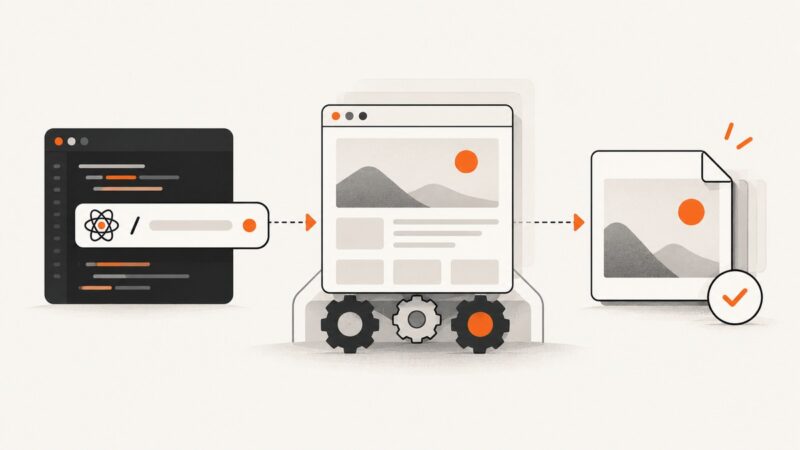
Java HttpClient can send authenticated HTTP requests and retrieve response bodies, but it does not render a web page or take screenshots. To capture the rendered view of a secured page, use browser automation such as Playwright Java or Selenium WebDriver Java. Authenticate through the site’s intended flow in that browser context, wait until the page is ready, then capture the page, full page, or a specific element.
If you only need the raw HTML or a protected file, HttpClient may be the right tool. A screenshot is different: it represents browser-rendered output, including layout and browser execution. The examples below show both approaches so you can choose the one your task requires.
1. Choose between an HTTP response and a browser screenshot
| Need | Use | What you get |
|---|---|---|
| Retrieve an authorized API response, HTML, or file | Java HttpClient | An HTTP status, headers, and response body |
| Capture what a user sees after sign-in | Playwright Java or Selenium WebDriver | A screenshot from a browser page or element |
An HTTP response body containing HTML is not a screenshot. It may omit client-rendered content, styling, fonts, images, and state that a browser creates after scripts run. Conversely, browser automation is unnecessary overhead if the actual requirement is simply to download a protected CSV or inspect a JSON response.

For secured pages, authentication is application-specific. A site may rely on cookies, local storage, IndexedDB, passkeys, an identity provider, or a sequence of redirects and interactive steps. Do not assume that adding one cookie or an Authorization header will work for every site.
2. Capture a secured page with Playwright Java
Playwright Java provides page, full-page, and element screenshots. The following Maven project uses a browser login flow and captures an authenticated page. Replace the example URLs, selectors, and login steps with the application’s documented flow. Use a test account and an authorized target.
<!-- pom.xml -->
<dependencies>
  <dependency>
    <groupId>com.microsoft.playwright</groupId>
    <artifactId>playwright</artifactId>
    <version>1.52.0</version>
  </dependency>
</dependencies>
Install the matching Playwright browser binaries for the library version in your project using the Playwright CLI documented for Java. Then add this runnable class. Its selectors are illustrative and must match the site under test.
import com.microsoft.playwright.*;
import java.nio.file.Paths;

public class SecurePageShot {
  public static void main(String[] args) {
    String username = System.getenv("APP_USERNAME");
    String password = System.getenv("APP_PASSWORD");
    if (username == null || password == null) {
      throw new IllegalStateException("Set APP_USERNAME and APP_PASSWORD");
    }

    try (Playwright playwright = Playwright.create()) {
      Browser browser = playwright.chromium().launch(
          new BrowserType.LaunchOptions().setHeadless(true));
      BrowserContext context = browser.newContext();
      Page page = context.newPage();

      page.navigate("https://example.com/login");
      page.locator("input[name='username']").fill(username);
      page.locator("input[name='password']").fill(password);
      page.locator("button[type='submit']").click();

      // Prefer a stable, app-specific signal that login completed.
      page.locator("[data-testid='account-home']")
          .waitFor(new Locator.WaitForOptions().setTimeout(15000));
      page.navigate("https://example.com/secure/report");
      page.locator("h1").waitFor();
      page.screenshot(new Page.ScreenshotOptions()
          .setPath(Paths.get("secure-page.png"))
          .setFullPage(true));

      context.close();
      browser.close();
    }
  }
}
The login completion selector is important. A successful click does not prove authentication succeeded: the form may show an error, require multifactor authentication, or redirect to an intermediate page. Wait for a known authenticated-state element or check the expected URL before navigating to the protected content.
Capture only one element
When a report card, chart, or invoice panel is the desired output, capture its locator rather than the entire page:
Locator panel = page.locator("#report-panel");
panel.waitFor();
panel.screenshot(new Locator.ScreenshotOptions()
    .setPath(Paths.get("report-panel.png")));
This makes the output less sensitive to navigation bars, unrelated page content, and overall page height. If the element is below the fold or changes size during loading, wait for its final state first. Choose a selector stable enough to survive harmless layout changes.
Reuse authenticated state carefully
For repeated captures, you can save browser state after a successful login and create a later context from that state. This avoids repeating the interactive login for every page, but the state file can contain cookies and headers capable of impersonating the account. Treat it like a credential: keep it outside source control, restrict file access, use short-lived test accounts where possible, and delete or rotate it when no longer needed.
// After a successful login:
context.storageState(new BrowserContext.StorageStateOptions()
    .setPath(Paths.get("playwright-state.json")));

// In a later run, create a context using saved state:
BrowserContext authenticated = browser.newContext(
    new Browser.NewContextOptions()
        .setStorageStatePath(Paths.get("playwright-state.json")));
Page page = authenticated.newPage();
page.navigate("https://example.com/secure/report");
Whether this is sufficient depends on how the application stores and refreshes authentication. Some flows require additional state or an interactive challenge. Check that the restored context is authenticated before treating the capture as valid.
3. Capture with Selenium WebDriver Java
Selenium’s Java TakesScreenshot API supports screenshots from a WebDriver or a WebElement. Log in through the browser, wait for the authenticated page, then save the screenshot. The example assumes a Selenium 4 project with the appropriate browser driver available to Selenium Manager or configured in your environment.
import java.io.File;
import java.nio.file.Files;
import java.nio.file.Path;
import java.time.Duration;
import org.openqa.selenium.By;
import org.openqa.selenium.OutputType;
import org.openqa.selenium.TakesScreenshot;
import org.openqa.selenium.WebDriver;
import org.openqa.selenium.WebElement;
import org.openqa.selenium.chrome.ChromeDriver;
import org.openqa.selenium.support.ui.ExpectedConditions;
import org.openqa.selenium.support.ui.WebDriverWait;

public class SeleniumSecureShot {
  public static void main(String[] args) throws Exception {
    String username = System.getenv("APP_USERNAME");
    String password = System.getenv("APP_PASSWORD");
    if (username == null || password == null) {
      throw new IllegalStateException("Set APP_USERNAME and APP_PASSWORD");
    }

    WebDriver driver = new ChromeDriver();
    try {
      WebDriverWait wait = new WebDriverWait(driver, Duration.ofSeconds(15));
      driver.get("https://example.com/login");
      driver.findElement(By.name("username")).sendKeys(username);
      driver.findElement(By.name("password")).sendKeys(password);
      driver.findElement(By.cssSelector("button[type='submit']")).click();
      wait.until(ExpectedConditions.visibilityOfElementLocated(
          By.cssSelector("[data-testid='account-home']")));

      driver.get("https://example.com/secure/report");
      wait.until(ExpectedConditions.visibilityOfElementLocated(By.tagName("h1")));
      File source = ((TakesScreenshot) driver).getScreenshotAs(OutputType.FILE);
      Files.copy(source.toPath(), Path.of("secure-page.png"));

      WebElement panel = driver.findElement(By.id("report-panel"));
      File panelShot = ((TakesScreenshot) panel).getScreenshotAs(OutputType.FILE);
      Files.copy(panelShot.toPath(), Path.of("report-panel.png"));
    } finally {
      driver.quit();
    }
  }
}
WebDriver screenshots generally reflect the current browser viewport. If you need a full-page image, behavior depends on browser and driver support; use the screenshot capabilities documented for the versions you run, or capture the page in sections and combine them when appropriate. Element screenshots avoid this issue when the target is a specific component.
4. Use HttpClient when the output is the HTTP response
If the site offers an authorized HTTP mechanism and you need response data rather than rendered output, HttpClient can manage requests, redirects, timeouts, cookies, and response handling. This example retrieves an endpoint using Basic authentication. Only use this form when the service explicitly supports it; many web logins use a different mechanism.
import java.net.Authenticator;
import java.net.PasswordAuthentication;
import java.net.URI;
import java.net.http.HttpClient;
import java.net.http.HttpRequest;
import java.net.http.HttpResponse;
import java.time.Duration;

public class ProtectedResponse {
  public static void main(String[] args) throws Exception {
    String user = System.getenv("APP_USERNAME");
    String password = System.getenv("APP_PASSWORD");
    if (user == null || password == null) {
      throw new IllegalStateException("Set APP_USERNAME and APP_PASSWORD");
    }

    HttpClient client = HttpClient.newBuilder()
        .connectTimeout(Duration.ofSeconds(10))
        .followRedirects(HttpClient.Redirect.NORMAL)
        .authenticator(new Authenticator() {
          @Override
          protected PasswordAuthentication getPasswordAuthentication() {
            return new PasswordAuthentication(user, password.toCharArray());
          }
        })
        .build();

    HttpRequest request = HttpRequest.newBuilder()
        .uri(URI.create("https://example.com/protected/report"))
        .timeout(Duration.ofSeconds(30))
        .GET()
        .build();

    HttpResponse<String> response = client.send(
        request, HttpResponse.BodyHandlers.ofString());
    System.out.println("Status: " + response.statusCode());
    System.out.println("Content-Type: " + response.headers()
        .firstValue("content-type").orElse("(missing)"));
    System.out.println(response.body());
  }
}
An authenticator is not a universal browser-login substitute. For cookie-based sessions, HttpClient can also be built with a CookieHandler; redirects and proxies are configurable on the client. But an HTTP cookie jar will not reproduce browser local storage, execute JavaScript, solve an interactive login, or render a page. The Java API’s role is sending requests and retrieving responses.
5. Pick the right capture scope and wait condition
- Viewport screenshot: use a normal page screenshot when the visible browser frame is the deliverable.
- Full-page screenshot: use Playwright’s full-page option when you need the entire document, including content below the fold. Allow for larger output and pages that load more content as they scroll.
- Element screenshot: target a chart, card, or report region when surrounding page chrome is irrelevant.
- Wait for application readiness: wait for a meaningful selector or state transition. A fixed delay can be useful for a known animation, but it is not a reliable substitute for checking that content is ready.
For pages that lazy-load images or data, scrolling or waiting for a specific image/content state may be necessary before capturing. For dynamic dashboards, take care that the values have finished updating. A screenshot can be technically successful while showing a skeleton, spinner, stale data, or an authentication redirect.

Or skip the browser setup
ScreenshotNeo is a website screenshot API and MCP server for developers. One GET request accepts a URL and returns a PNG, JPEG, WebP, or PDF. Its documented parameters include custom headers, cookies, Authorization, full-page capture, element selectors, waits, viewport presets, and custom JavaScript, which can help when a target page has an HTTP-accessible session mechanism. Browser-based authentication requirements still depend on the site.
curl -G "https://api.screenshotneo.com/v1/shot" -d access_key=YOUR_API_KEY --data-urlencode url=https://stripe.com -o shot.webpPython equivalent:
import requests
r = requests.get("https://api.screenshotneo.com/v1/shot", params={"access_key": "YOUR_API_KEY", "url": "https://stripe.com"}, timeout=90)
open("shot.webp", "wb").write(r.content)
Node.js equivalent:
const q = new URLSearchParams({ access_key: 'YOUR_API_KEY', url: 'https://stripe.com' });
const res = await fetch(`https://api.screenshotneo.com/v1/shot?${q}`);
See the ScreenshotNeo API documentation for authentication and request options. Cookie banners, popups, and chat widgets are removed before the shot; bot checks, blank pages, and failed loads are never billed. An MCP server lets AI agents take screenshots. The free plan includes 1,000 screenshots a month with no card; paid plans start at $5 for 3,000. Sign up for free and get 1,000 screenshots a month with no card.
6. Authentication, security, and operational details
Keep credentials out of source and logs
Read secrets from an environment or a secret manager rather than embedding them in code. Avoid logging passwords, session cookies, authorization headers, full storage-state files, or URLs that contain secret tokens. Restrict access to screenshot output too: reports and account pages may contain sensitive information. Apply your organization’s retention and access rules to both browser state and captured files.
Use the application’s supported login flow
Prefer the documented authentication method for the application. If a service uses single sign-on, multifactor authentication, a CSRF token, or an interactive challenge, a direct HTTP request may need a complete supported protocol rather than a guessed cookie. Browser automation can follow an interactive flow, but it still must use an authorized account and conform to the site’s access rules.
Performance and reliability
Browser startup and page rendering usually require more resources and time than retrieving a small HTTP body because the browser loads scripts, styles, fonts, and images. Reuse a browser process for a batch of captures while giving each job an appropriately isolated context; close pages and contexts when finished. Set navigation and selector timeouts based on the target application, and save diagnostics such as status, final URL, and a limited error message without exposing credentials.
Use explicit readiness conditions rather than choosing an arbitrarily long sleep. For reliability, verify that the expected authenticated marker is visible, the final URL is the protected destination, and the screenshot file exists and has nonzero size. For flaky pages, record a trace or other browser diagnostics only in a secure environment and avoid retaining sensitive state longer than needed.
Cost considerations
Self-hosted Playwright or Selenium has no per-screenshot API charge from those libraries, but it consumes compute and requires browser installation, updates, concurrency management, and maintenance. Include those operational costs when comparing a local implementation with a hosted screenshot API. HttpClient is lighter for raw response retrieval, but it cannot satisfy a rendered screenshot requirement by itself.
7. Troubleshooting
| Symptom | Likely cause | Fix |
|---|---|---|
| Screenshot shows a login page | Login failed, state expired, or the protected URL redirected | Wait for a confirmed authenticated marker; inspect the final URL and login error state. |
| HttpClient returns HTML instead of an image | The endpoint returned a page or error response, not rendered output | Check status and content type. Use browser automation for a page screenshot. |
| 401 or 403 response | Credentials are absent, invalid, insufficient, or the endpoint uses a different auth flow | Confirm the supported auth method and permissions; do not assume Basic auth or one cookie applies. |
| Screenshot is blank or incomplete | Capture occurred before rendering/data loading, or content is lazy-loaded | Wait for a page-specific ready selector; trigger required scrolling or data loading before capture. |
| Saved Playwright state does not restore login | Authentication depends on storage not preserved or has expired | Review the app’s auth model, refresh state through its intended flow, and protect state files as secrets. |
| Element capture fails | Selector is wrong, ambiguous, hidden, or absent in the authenticated view | Inspect the page state and use a stable unique selector; wait for visibility before capture. |
| Browser or driver fails to start | Browser binaries, driver, or library versions are missing or incompatible | Install the browser supported by the chosen library and align driver/browser versions. |
| Capture times out intermittently | Slow resources, overloaded host, or overly broad network-idle waiting | Wait for a specific UI condition, set realistic timeouts, and limit unnecessary resources only when safe. |
8. Frequently asked questions
Can Java HttpClient take a screenshot directly?
No. It retrieves HTTP responses. Use browser automation to render a page and capture its appearance.
Can I use a cookie from HttpClient in Playwright?
Sometimes, if the application’s authorized session mechanism is cookie-based and the cookie is valid for the browser context. Other browser storage or interactive steps may also be required.
Should I choose Playwright or Selenium?
Both provide Java browser automation and screenshot capabilities. Choose based on your existing test stack, browser requirements, and the APIs your team already maintains; the cited documentation does not establish a universal winner.
Can I take a screenshot of a page I cannot log into?
No. You need authorized access and valid authentication state. Ask the application owner for access or a supported test account.