How to Select a Button by Text in Pyppeteer
Use Pyppeteer XPath selectors to find buttons by exact or partial text, verify matches, handle dynamic pages, and avoid common click failures.
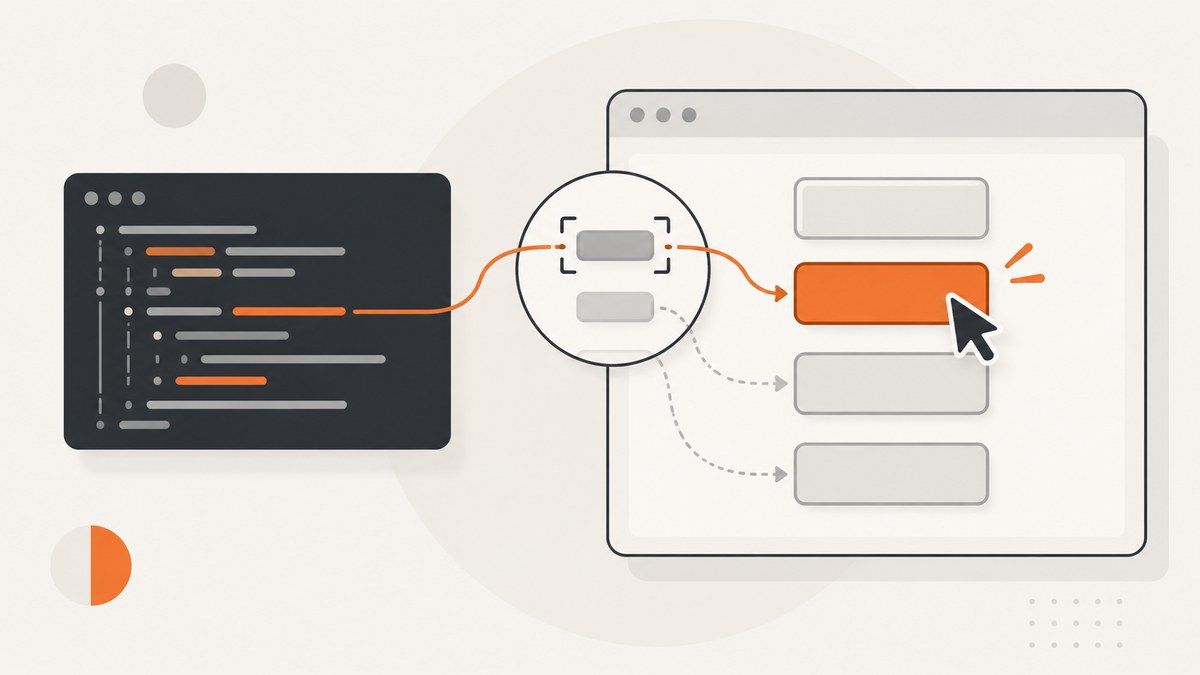
Use Pyppeteer’s XPath lookup to select a button by its visible text. For an exact, whitespace-tolerant label, call page.xpath() and match the button’s normalized string value:
buttons = await page.xpath('//button[normalize-space(.)="Submit"]')
if len(buttons) != 1:
    raise RuntimeError(f"Expected one Submit button, got {len(buttons)}")
await buttons[0].click()
Page.xpath() is Pyppeteer’s XPath method, and Page.Jx() is its shorthand. The project README maps these methods to Puppeteer’s $x() API. See the Pyppeteer source and README for the documented API.
1. Install and launch Pyppeteer
Install the package with pip:
python -m pip install pyppeteerThe first browser launch can download Chromium. A complete script that opens a page and clicks an exact button is:
import asyncio
from pyppeteer import launch

async def main():
    browser = await launch(headless=True)
    page = await browser.newPage()
    try:
        await page.goto("https://example.com", {"waitUntil": "networkidle2"})
        buttons = await page.xpath('//button[normalize-space(.)="Submit"]')
        if len(buttons) != 1:
            raise RuntimeError(f"Expected one matching button, got {len(buttons)}")
        await buttons[0].click()
    finally:
        await browser.close()

asyncio.get_event_loop().run_until_complete(main())
Replace the URL and label with the page you control. In production, set an explicit Chromium executable path if your deployment image already contains a browser.
2. Exact text matching
Use normalize-space(.) when the label must match exactly while allowing leading, trailing, or repeated whitespace. The dot means the button’s complete string value, including text in descendant elements such as a nested <span>.
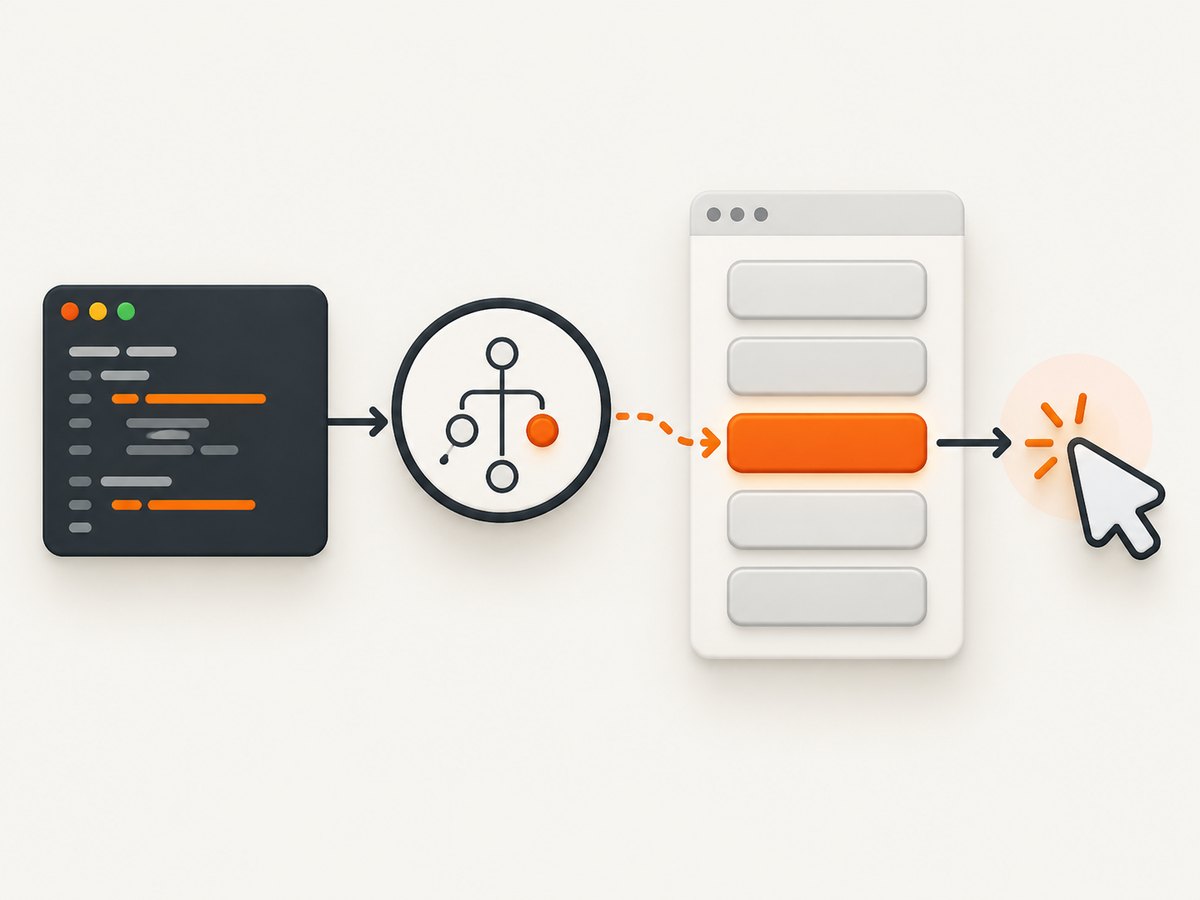
buttons = await page.xpath('//button[normalize-space(.)="Save changes"]')
if len(buttons) != 1:
    raise RuntimeError(f"Expected one matching button, got {len(buttons)}")
await buttons[0].click()
Restrict the expression to button. A broad expression such as //*[normalize-space(.)="Save changes"] can return containers, labels, and other elements that happen to contain the same text.
3. Partial text matching
Use contains() when the button has a changing suffix or additional wording:
buttons = await page.xpath(
    '//button[contains(normalize-space(.), "Save")]'
)
for index, button in enumerate(buttons):
    print(index, await page.evaluate("el => el.innerText", button))

if len(buttons) != 1:
    raise RuntimeError(f"Partial text matched {len(buttons)} buttons")
await buttons[0].click()
Partial matches are less specific. “Save” might match “Save draft”, “Save and publish”, and a hidden duplicate. Always inspect or count the results before clicking.
4. Case-insensitive and punctuation-tolerant matching
XPath 1.0, which browsers use here, has no built-in lower-case function. Use translate() for ASCII case-insensitive matching:
lower = "abcdefghijklmnopqrstuvwxyz"
upper = "ABCDEFGHIJKLMNOPQRSTUVWXYZ"
buttons = await page.xpath(
    "//button[translate(normalize-space(.), "
    f"'{upper}', '{lower}') = 'submit']"
)
if len(buttons) != 1:
    raise RuntimeError(f"Expected one case-insensitive match, got {len(buttons)}")
await buttons[0].click()
This is suitable for English letters. For labels in other scripts or complex Unicode case folding, prefer a stable attribute, a page-specific selector, or inspect the DOM and adapt the condition.
5. Wait for the button before selecting it
page.xpath() returns the elements currently present. If JavaScript renders the button later, poll until the XPath produces a match:
import asyncio

async def xpath_one(page, expression, timeout=10, interval=0.2):
    deadline = asyncio.get_event_loop().time() + timeout
    while True:
        matches = await page.xpath(expression)
        if len(matches) == 1:
            return matches[0]
        if len(matches) > 1:
            raise RuntimeError(f"Expected one match, got {len(matches)}")
        if asyncio.get_event_loop().time() >= deadline:
            raise TimeoutError(f"No match for XPath: {expression}")
        await asyncio.sleep(interval)

button = await xpath_one(page, '//button[normalize-space(.)="Continue"]')
await button.click()
If the page has a known network request, wait for that request or a navigation event instead of relying only on a long fixed delay.
6. Click safely when navigation or JavaScript follows
Combine the click with the expected navigation when clicking submits a form or changes pages:
button = await xpath_one(page, '//button[normalize-space(.)="Sign in"]')
await asyncio.gather(
    page.waitForNavigation({"waitUntil": "networkidle2"}),
    button.click(),
)
For an AJAX action that does not navigate, click first and then wait for a result selector:
button = await xpath_one(page, '//button[normalize-space(.)="Load more"]')
await button.click()
await page.waitForSelector(".new-results", {"visible": True})
7. Inspecting and filtering matches
When text is not unique, inspect attributes or visibility before choosing a candidate. XPath can filter common attributes:
buttons = await page.xpath(
    '//button[@type="submit" and normalize-space(.)="Save"]'
)
if len(buttons) != 1:
    raise RuntimeError(f"Expected one submit button, got {len(buttons)}")
await buttons[0].click()
Pyppeteer’s XPath result can also be evaluated in the page to inspect text, classes, or disabled state:
for button in buttons:
    details = await page.evaluate("""el => ({
        text: el.innerText,
        disabled: el.disabled,
        ariaDisabled: el.getAttribute('aria-disabled'),
        className: el.className
    })""", button)
    print(details)
A disabled button may be found successfully but still reject a click. Wait for the application to enable it, or fix the form state that controls it.
8. When the control is not a real button
Some interfaces use links or div elements with role="button". If the DOM does not contain a button, adapt the element test:
controls = await page.xpath(
    '//*[@role="button" and normalize-space(.)="Open menu"]'
)
if len(controls) != 1:
    raise RuntimeError(f"Expected one role=button control, got {len(controls)}")
await controls[0].click()
Use this only after confirming the page’s actual markup. A role attribute does not guarantee that keyboard behavior, focus handling, or click behavior is implemented correctly.
9. Common edge cases
| Situation | What to do |
|---|---|
| Nested text in a span or icon label | Use normalize-space(.), not normalize-space(text()); the dot includes descendant text. |
| Two visible buttons share a label | Add a parent, attribute, or type condition and require exactly one result. |
| Hidden responsive-menu duplicate | Scope the XPath to the visible panel or inspect each candidate before clicking. |
| Text is supplied by an attribute | Match @aria-label, @title, or another stable attribute instead of button text. |
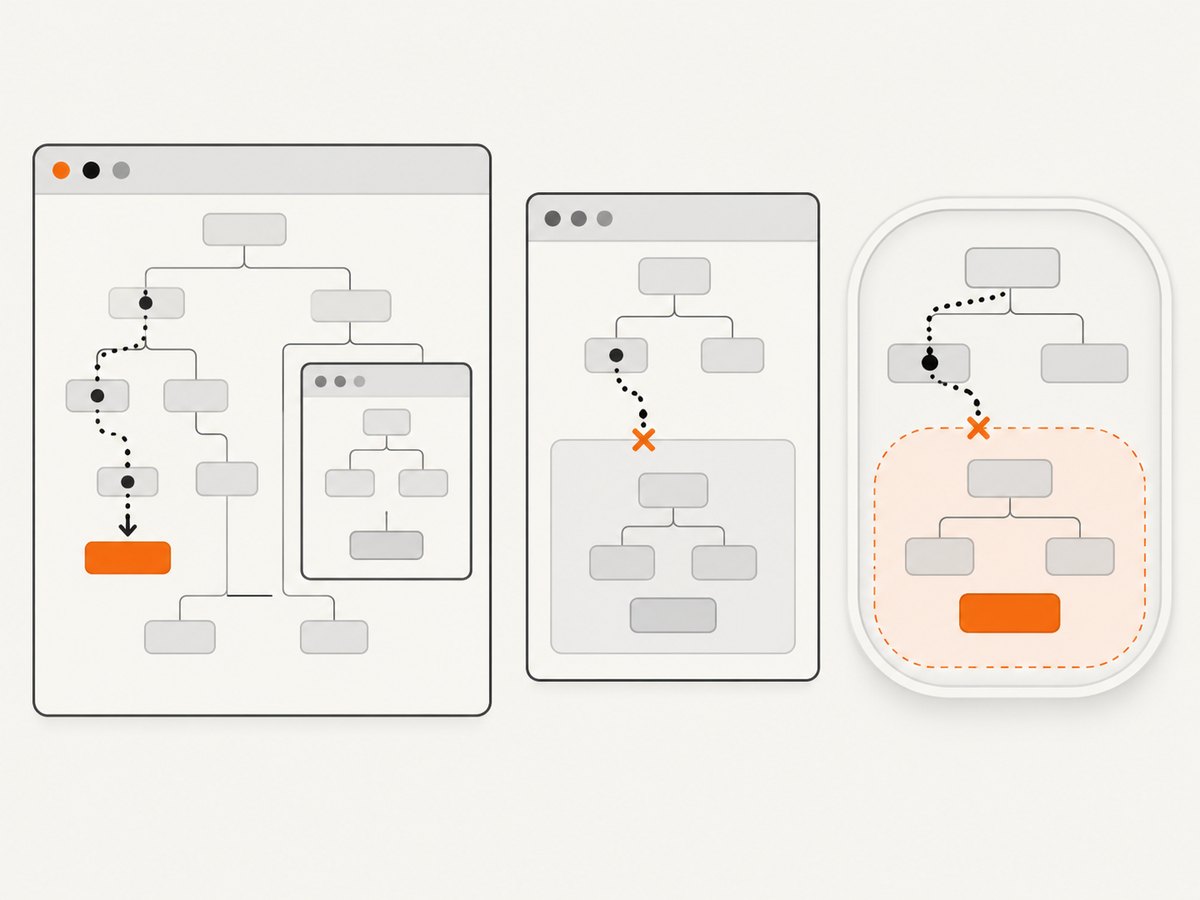
| Button is inside an iframe | Get the frame first, then call frame.xpath(); the main page XPath cannot see inside the frame. |
| Button is inside shadow DOM | XPath from the document does not cross a shadow root. Query the host and use page JavaScript or a component-specific API. |
| Text changes after localization | Prefer a stable id, data attribute, or accessible attribute; otherwise provide locale-specific XPath expressions. |
| Virtualized list | Scroll the list so the button is rendered, then run the XPath lookup again. |
10. XPath versus CSS selectors
Use XPath when the visible label is the most reliable identifier. Use CSS when the page exposes a stable id, class, or data attribute:
button = await page.querySelector('[data-testid="save-button"]')
if button is None:
    raise RuntimeError("Save button was not found")
await button.click()
CSS is usually easier to maintain when developers control the markup. Text-based XPath is useful for third-party pages or tests where the user-facing label is the contract. Playwright documents role-based locators such as getByRole('button', name='Sign in'); that is Playwright syntax, not a Pyppeteer API. See the Playwright locator documentation for that alternative.
11. Troubleshooting
“No node found for selector” or zero matches
The page may not have rendered the control yet, the text may differ, or the button may be inside an iframe or shadow root. Print the page content, verify the exact whitespace and punctuation, and add an explicit wait for the rendering event.
More than one match
The XPath is too broad or the page contains a hidden duplicate. Add a stable ancestor or attribute filter. Do not select the first result unless document order is part of the page contract.
Click has no effect
The element may be disabled, covered by another element, outside the viewport, or replaced by the framework after lookup. Re-query immediately before clicking, scroll it into view, and wait for the application’s enabled state.
Timeout while waiting for navigation
The button may perform an AJAX request rather than navigation. Remove the navigation wait and wait for the response element, URL change, or application-specific completion signal instead.
Chromium fails to start
Install the browser downloaded by Pyppeteer or pass a valid executablePath for the browser installed in your environment. In containers, also check the required sandbox and shared-memory settings for that image.
12. Performance and reliability
- Prefer one precise XPath over repeatedly scanning the entire document.
- Use event-based waits for known requests or selectors; large fixed sleeps make automation slow and flaky.
- Keep the match-count assertion. It turns silent clicks on the wrong control into an actionable failure.
- Re-query after a framework rerender. Element handles can become detached when React, Vue, or another framework replaces the node.
- Close the browser in a
finallyblock so failed jobs do not leak Chromium processes. - For repeated jobs, reuse a browser process while creating isolated pages, and set navigation and operation timeouts appropriate to the target site.
13. Or skip the browser setup
If your goal is to capture the resulting page rather than operate a browser yourself, ScreenshotNeo provides a single screenshot request. Its API accepts the URL and returns PNG, JPEG, WebP, or PDF output. See the ScreenshotNeo documentation for all options.
curl -G "https://api.screenshotneo.com/v1/shot" -d access_key=YOUR_API_KEY --data-urlencode url=https://stripe.com -o shot.webpimport requests
r = requests.get("https://api.screenshotneo.com/v1/shot", params={"access_key": "YOUR_API_KEY", "url": "https://stripe.com"}, timeout=90)
open("shot.webp", "wb").write(r.content)const q = new URLSearchParams({ access_key: 'YOUR_API_KEY', url: 'https://stripe.com' });
const res = await fetch(`https://api.screenshotneo.com/v1/shot?${q}`);Cookie banners, newsletter popups, and chat widgets are removed before the shot. Bot checks, blank pages, failed loads, timeouts, and cache hits are not billed, and response headers identify the page verdict and billing result. An MCP server lets Claude, Cursor, and other MCP clients call take_screenshot, get_page_info, and capture_pdf. The Free plan includes 1,000 screenshots a month with no card; paid plans start at $5 for 3,000.
Create a free ScreenshotNeo account to start with 1,000 screenshots per month.
14. FAQ
What is the Pyppeteer equivalent of Puppeteer’s $x()?
Use await page.xpath(expression) or the shorthand await page.Jx(expression).
Should I use text() or . in the XPath?
Use . when nested elements may contain part of the visible label. It evaluates the element’s full string value.
Can I select a button by text without XPath?
Not with a Pyppeteer role locator equivalent to Playwright’s getByRole. Use XPath, or query a stable CSS attribute and inspect its text in Python.
Why does an exact label still match multiple buttons?
Pages commonly render desktop and mobile copies, dialogs, or hidden templates. Count the results and scope the expression to the intended region.
Does selecting by text guarantee a successful click?
No. The node can be disabled, covered, detached after a rerender, inside another browsing context, or waiting for application state. Wait for the relevant condition and re-query before clicking.


