How to Select a Button in a Popup with Protractor
Learn how to click buttons in JavaScript alerts, HTML modals, iframes, and new windows with reliable Protractor waits and selectors.
How to Select a Button in a Popup with Protractor
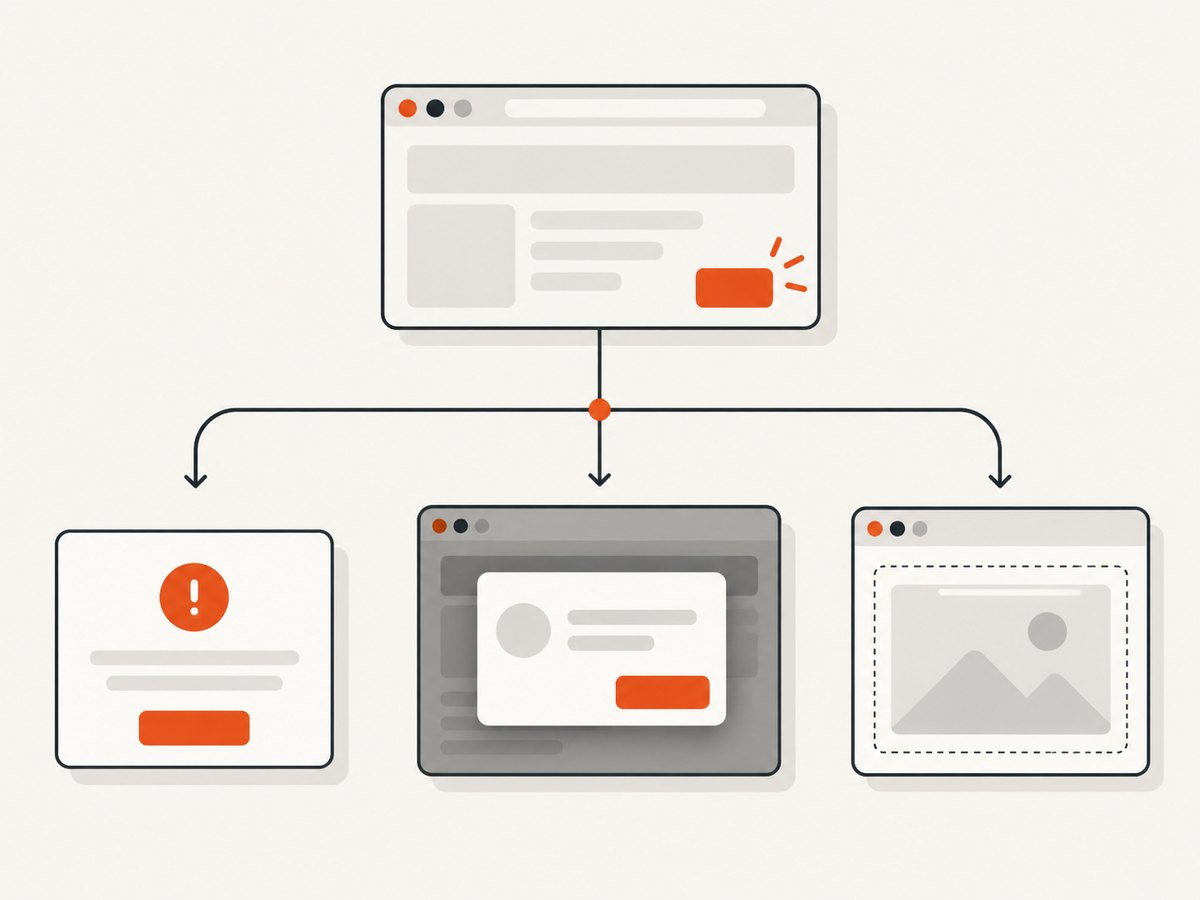
The correct Protractor technique depends on what you mean by “popup.” A native JavaScript alert, confirm, or prompt is controlled through WebDriver’s alert interface. An HTML modal or overlay is ordinary page content, so you locate its container and then its button. A popup inside an iframe requires switching into that frame first. A separate browser window requires switching to its window handle.
Use this decision tree before writing a selector:
| Popup type | How to interact | Can CSS/XPath select the button? |
|---|---|---|
| JavaScript alert, confirm, or prompt | browser.switchTo().alert(), then accept(), dismiss(), or sendKeys() |
No. The controls belong to browser UI. |
| HTML modal or overlay | Locate the modal with element(by...), then locate its button |
Yes |
| Modal inside an iframe | Switch to the iframe, locate the modal, then switch back | Yes, after the frame switch |
| New browser window | Switch to the new window handle, then use normal locators | Yes, after the window switch |
Prefer an application-owned identifier such as id, data-testid, or an accessible role/name. Scope the lookup to the popup container so a page-level “OK” or “Save” button cannot be selected accidentally.
1. Prerequisites and a minimal Protractor setup
These examples use JavaScript and Protractor’s WebDriverJS-style API. Protractor is a legacy framework, so check the versions used by your project before copying configuration. The locator and expected-condition patterns come from the Protractor tutorial and API reference.
exports.config = {
  seleniumAddress: 'http://localhost:4444/wd/hub',
  specs: ['popup.e2e-spec.js'],
  baseUrl: 'https://example.test',
  framework: 'jasmine',
  capabilities: {
    browserName: 'chrome'
  }
};
Start Selenium (or use the Selenium service configured by your project), then run the test with your normal Protractor command. The examples below assume const EC = protractor.ExpectedConditions; is available in the spec.
2. Select a button in a native JavaScript alert or confirm
A native alert is a browser dialog, not a DOM node. You cannot inspect it with DevTools selectors or click its rendered OK button with CSS. Trigger the dialog, wait until it exists, switch to it, and accept or dismiss it. Selenium’s official alert documentation describes the same flow: wait for alert presence, switch to the alert, inspect its text, and accept or dismiss it.
Accept an alert or confirm
const EC = protractor.ExpectedConditions;

describe('native confirmation', () => {
  it('clicks OK in a confirm dialog', async () => {
    await element(by.id('open-dialog')).click();

    await browser.wait(EC.alertIsPresent(), 5000, 'Expected a native dialog');
    const alert = await browser.switchTo().alert();
    await alert.accept();
  });
});
Use accept() for the affirmative action, usually labelled OK. Use dismiss() when the test needs Cancel or close behavior:
await browser.wait(EC.alertIsPresent(), 5000);
await browser.switchTo().alert().dismiss();
Read the message before selecting an action
await browser.wait(EC.alertIsPresent(), 5000);
const alert = await browser.switchTo().alert();
const message = await alert.getText();
expect(message).toContain('Delete this record');
await alert.accept();
Reading the message is useful when several code paths can open a dialog. It also makes the test fail with a meaningful reason if the wrong dialog appears.
Enter text in a JavaScript prompt
A prompt accepts text before it is submitted. Switch to the prompt, call sendKeys(), then accept it.
await browser.wait(EC.alertIsPresent(), 5000);
const prompt = await browser.switchTo().alert();
await prompt.sendKeys('Selenium');
await prompt.accept();
Do not try to locate a prompt input with by.css('input'); that input is also outside the page DOM.
3. Select a button in an HTML modal or overlay
Most modern “popups” are styled HTML elements such as <div>, <dialog>, or a component-library modal. Treat these as normal page content. First locate the container, wait for it to become visible, then locate the intended button inside that container.
const EC = protractor.ExpectedConditions;
const popup = element(by.css('[role="dialog"]'));
const confirmButton = popup.element(by.css('button[data-testid="confirm"]'));

await browser.wait(EC.visibilityOf(popup), 10000, 'Dialog did not become visible');
await browser.wait(EC.elementToBeClickable(confirmButton), 10000,
  'Confirm button was not clickable');
await confirmButton.click();
The scoped lookup matters. A page can contain a hidden dialog, a second dialog, and unrelated buttons with the same text. A stable test identifier is safer than a broad selector such as button.
Use an ID or data attribute
const popup = element(by.id('delete-modal'));
await browser.wait(EC.visibilityOf(popup), 10000);
await popup.element(by.css('[data-testid="delete-confirm"]')).click();
Select by button text
When the visible label is stable, Protractor can select it with by.buttonText:
const popup = element(by.css('.modal'));
await browser.wait(EC.visibilityOf(popup), 10000);
await popup.element(by.buttonText('Save')).click();
If your Protractor version does not provide by.buttonText, use a narrow CSS selector or XPath scoped to the popup:
await popup.element(by.css('button[type="submit"]')).click();
// Or, when text is the only stable property:
await popup.element(by.xpath('.//button[normalize-space()="Save"]')).click();
Handle a close button or cancel action
const popup = element(by.css('[role="dialog"]'));
await browser.wait(EC.visibilityOf(popup), 10000);
await popup.element(by.css('button[aria-label="Close"]')).click();
await browser.wait(EC.invisibilityOf(popup), 10000);
Waiting for the modal to disappear verifies that the click changed the UI. If the application keeps the node in the DOM and only toggles a class, wait for the class or an application-specific state instead.
4. Select a button inside an iframe
An iframe has its own document. A locator that works in the parent page returns no element until WebDriver is switched into the frame. Locate the iframe element, switch to it, interact with the popup, and return to the parent document with defaultContent().
const EC = protractor.ExpectedConditions;
const frame = element(by.css('iframe#payment-frame'));

await browser.wait(EC.presenceOf(frame), 10000);
await browser.switchTo().frame(frame.getWebElement());

const popup = element(by.css('[role="dialog"]'));
const button = popup.element(by.css('button[data-testid="confirm"]'));
await browser.wait(EC.visibilityOf(popup), 10000);
await browser.wait(EC.elementToBeClickable(button), 10000);
await button.click();

await browser.switchTo().defaultContent();
Always restore the default content in a cleanup path when later steps interact with the parent page. If the application nests frames, switch through each frame in order and return through defaultContent() before selecting another frame.
5. Handle a popup that opens a separate browser window
A link with target="_blank" or a script that calls window.open() creates a different browsing context. The general Selenium model is to capture the original window handle, wait for a second handle, switch to it, and use normal Protractor locators there.
const original = await browser.getWindowHandle();
const handlesBefore = await browser.getAllWindowHandles();

await element(by.id('open-help')).click();

await browser.wait(async () => {
  const handles = await browser.getAllWindowHandles();
  return handles.length > handlesBefore.length;
}, 10000, 'New window did not open');

const handlesAfter = await browser.getAllWindowHandles();
const newHandle = handlesAfter.find(handle => !handlesBefore.includes(handle));
await browser.switchTo().window(newHandle);

await browser.wait(EC.visibilityOf(element(by.css('[role="dialog"]'))), 10000);
await element(by.css('[role="dialog"] button[data-testid="confirm"]')).click();

await browser.close();
await browser.switchTo().window(original);
Window-handle APIs can vary with the WebDriver and Protractor versions in a legacy project. If this pattern fails, log the handles and confirm whether the application opened a new tab, reused an existing tab, or displayed an in-page modal instead.
6. Waits that make popup tests reliable
Popup animations, network calls, and delayed rendering create race conditions. Avoid arbitrary sleeps when a condition can describe the state you need.
| Condition | Use it for |
|---|---|
EC.alertIsPresent() |
Native alert, confirm, or prompt |
EC.presenceOf(element) |
Element exists in the DOM |
EC.visibilityOf(element) |
Element is rendered and visible |
EC.elementToBeClickable(element) |
Element can receive a click |
EC.invisibilityOf(element) |
Modal closed or overlay removed |
Use a timeout that matches the application’s normal response time, and include a message that identifies the missing state. A 10-second wait with a useful message is easier to diagnose than a silent 30-second timeout.
Non-Angular pages
If the page is not Angular, Protractor’s automatic synchronization can wait for Angular testability that does not exist. Configure synchronization appropriately for your project, commonly with browser.ignoreSynchronization = true, and use the underlying driver navigation where needed. Verify this setting against your installed Protractor version because the framework is legacy.
7. Common errors and fixes
| Error or symptom | Cause | Fix |
|---|---|---|
switchTo().alert() throws “no such alert” |
The popup is an HTML modal, or the alert has not opened yet. | For HTML, locate the modal. For a native dialog, trigger it first and wait with alertIsPresent(). |
| Button locator returns no element in an iframe | The driver is still in the parent document. | Switch to the iframe WebElement before locating the button, then call defaultContent(). |
| Click happens before the button is usable | Animation, rendering, or an API response is still in progress. | Wait for visibility and elementToBeClickable. |
| Wrong “OK” button is clicked | The selector searches the entire page. | Scope the lookup to the visible popup and use a stable identifier. |
| Element is present but click is intercepted | An overlay, animation, or invisible duplicate covers it. | Wait for the overlay to disappear, target the visible modal instance, and verify clickability. |
| Prompt text is never entered | The test tried to find a DOM input. | Switch to the native alert and call sendKeys() on the alert object. |
| Test hangs on a non-Angular site | Protractor is waiting for Angular synchronization. | Set the appropriate synchronization mode and use explicit waits. |
| New-window locator sees the old page | The driver did not switch window handles. | Capture handles before opening the window, wait for the new handle, then switch to it. |
8. A complete example covering an HTML confirmation modal
const EC = protractor.ExpectedConditions;

describe('account deletion modal', () => {
  beforeEach(async () => {
    await browser.get('/account');
  });

  it('confirms deletion and waits for the modal to close', async () => {
    const modal = element(by.css('[role="dialog"][data-testid="delete-modal"]'));
    const open = element(by.css('[data-testid="delete-account"]'));
    const confirm = modal.element(by.css('[data-testid="confirm-delete"]'));

    await open.click();
    await browser.wait(EC.visibilityOf(modal), 10000,
      'Delete dialog did not appear');
    await browser.wait(EC.elementToBeClickable(confirm), 10000,
      'Delete confirmation was not clickable');

    await confirm.click();
    await browser.wait(EC.invisibilityOf(modal), 10000,
      'Delete dialog did not close');

    expect(await element(by.css('[data-testid="account-status"]')).getText())
      .toContain('Deleted');
  });
});
9. Or skip the browser setup
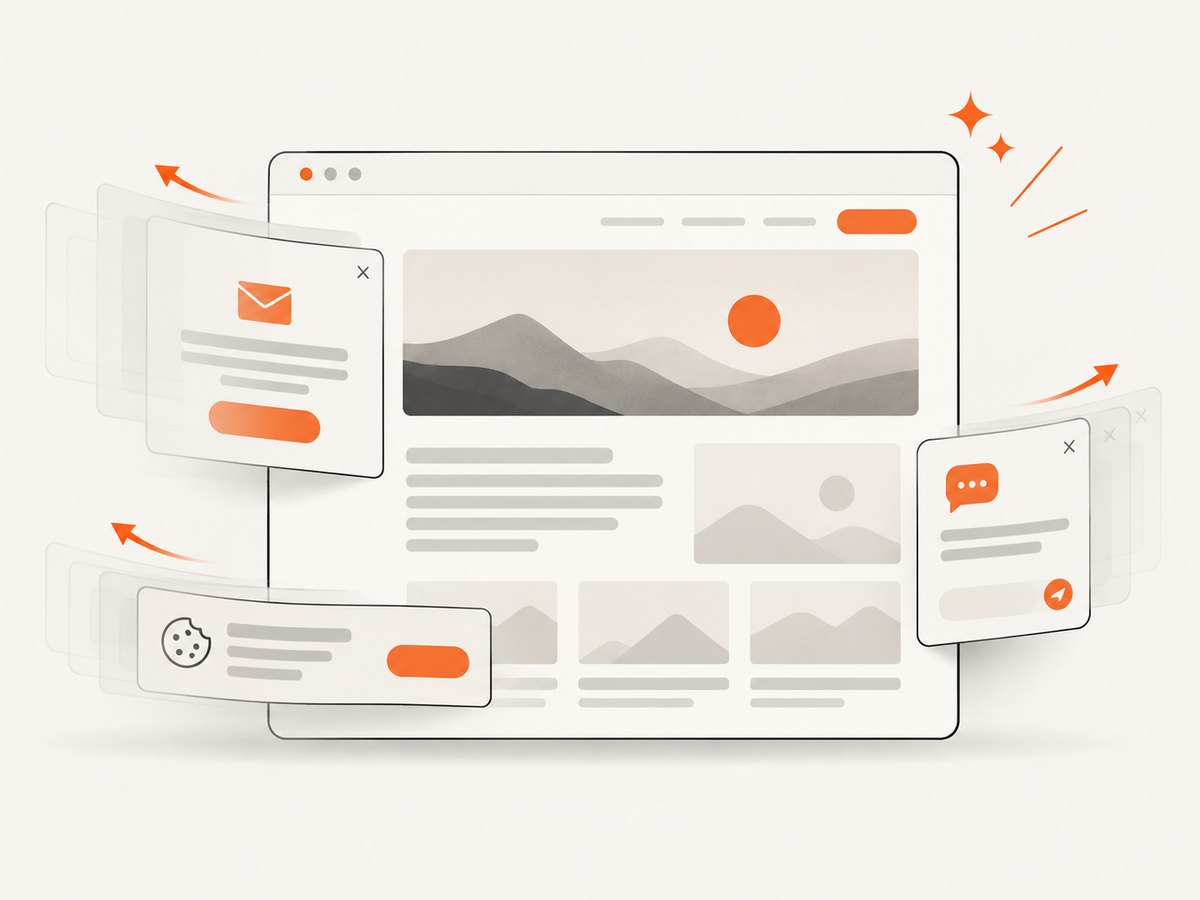
If your goal is to capture a page image after handling popups, ScreenshotNeo provides a single HTTP request instead of maintaining browser drivers and popup selectors. Its capture options include accepting cookie and consent banners, removing more than 60 known consent platforms plus newsletter popups and chat widgets, waiting for a selector or network idle, clicking an element, hiding selectors, loading lazy images, and capturing a full page or one CSS-selected element.
With the API, failed loads, bot checks or CAPTCHAs, blank pages, timeouts, and cache hits are not billed. The response identifies the result with X-Page-Verdict and X-Billed headers.
See the ScreenshotNeo API documentation for all options. A basic call is:
curl -G "https://api.screenshotneo.com/v1/shot" -d access_key=YOUR_API_KEY --data-urlencode url=https://stripe.com -o shot.webpimport requests
r = requests.get("https://api.screenshotneo.com/v1/shot", params={"access_key": "YOUR_API_KEY", "url": "https://stripe.com"}, timeout=90)
open("shot.webp", "wb").write(r.content)const q = new URLSearchParams({ access_key: 'YOUR_API_KEY', url: 'https://stripe.com' });
const res = await fetch(`https://api.screenshotneo.com/v1/shot?${q}`);Cookie banners, popups, and chat widgets are removed before the shot. Bot checks, blank pages, and failed loads are never billed. An MCP server lets AI agents such as Claude and Cursor call take_screenshot, get_page_info, and capture_pdf. The Free plan includes 1,000 screenshots each month with no card, and paid plans start at $5 for 3,000 shots. Create a free ScreenshotNeo account.
10. Performance, reliability, and cost considerations
Keep tests fast
- Use a stable selector instead of scanning all buttons by text.
- Wait for the specific popup state rather than using long global sleeps.
- Close extra windows after each test.
- Return to
defaultContent()after iframe interactions. - Use one setup step to reach the page under test, then isolate popup behavior in focused specs.
Make failures diagnosable
Include condition-specific timeout messages, record the current URL, and capture a screenshot or page source when a test fails. For native dialogs, record the alert text before accepting it. For HTML modals, log the selector and whether the container was present, visible, and clickable.
Choose the right capture approach
Protractor is appropriate when you are asserting application behavior, state changes, and accessibility in a browser session. An HTTP screenshot service is simpler when you need repeatable images for documentation, previews, monitoring, or reports. ScreenshotNeo supports PNG, JPEG, WebP, and PDF output, custom headers and cookies, user agents, timezone and geolocation, custom CSS and JavaScript, caching with a chosen TTL, asynchronous jobs with signed webhooks, bulk capture of up to 100 URLs per call, and signed links for public image tags. Its plans include every feature: Free 1,000 shots per month, Starter $5 for 3,000, Growth $15 for 15,000, Pro $39 for 60,000, Scale $99 for 250,000, and Business $249 for 1,000,000; yearly billing gives two months free.
11. Practical checklist
- Identify whether the popup is native, HTML, inside an iframe, or a new window.
- Use
alertIsPresent()before switching to a native dialog. - Use
accept()for OK,dismiss()for Cancel, andsendKeys()for prompts. - For HTML modals, scope the button locator to the visible popup.
- Prefer
id,data-testid, or an accessible identifier. - Wait for visibility and clickability before clicking.
- Switch into an iframe before locating its elements.
- Return to
defaultContent()after frame interactions. - Switch to a new window handle before locating elements there.
- Use explicit state-based waits instead of arbitrary sleeps.
FAQ
Can Protractor click the OK button of a JavaScript alert with CSS?
No. Native dialog controls are browser UI. Use browser.switchTo().alert().accept() after waiting for alertIsPresent().
Why does my modal button exist but remain unclickable?
The modal may still be animating, covered by an overlay, or duplicated in the DOM. Wait for the visible instance and elementToBeClickable, then use a selector scoped to that container.
Should I use XPath for every popup?
No. Use CSS, IDs, data attributes, or accessible locators when they are stable. XPath is useful when visible text is the only reliable property.
How do I test a popup that appears after an API response?
Trigger the action, then wait for the popup’s visibility or a unique child element. Avoid a fixed sleep because response and animation times vary.
When is ScreenshotNeo a better fit than Protractor?
Use ScreenshotNeo when you need page images or PDFs without maintaining browser setup. Use Protractor when the test must interact with application state and assert behavior inside the browser.


