How to Select and Capture SVG Elements in Playwright or Cypress
Select an SVG root or shape with stable CSS selectors, then capture it in Playwright or Cypress. Includes runnable examples, troubleshooting, and visual testing tips.
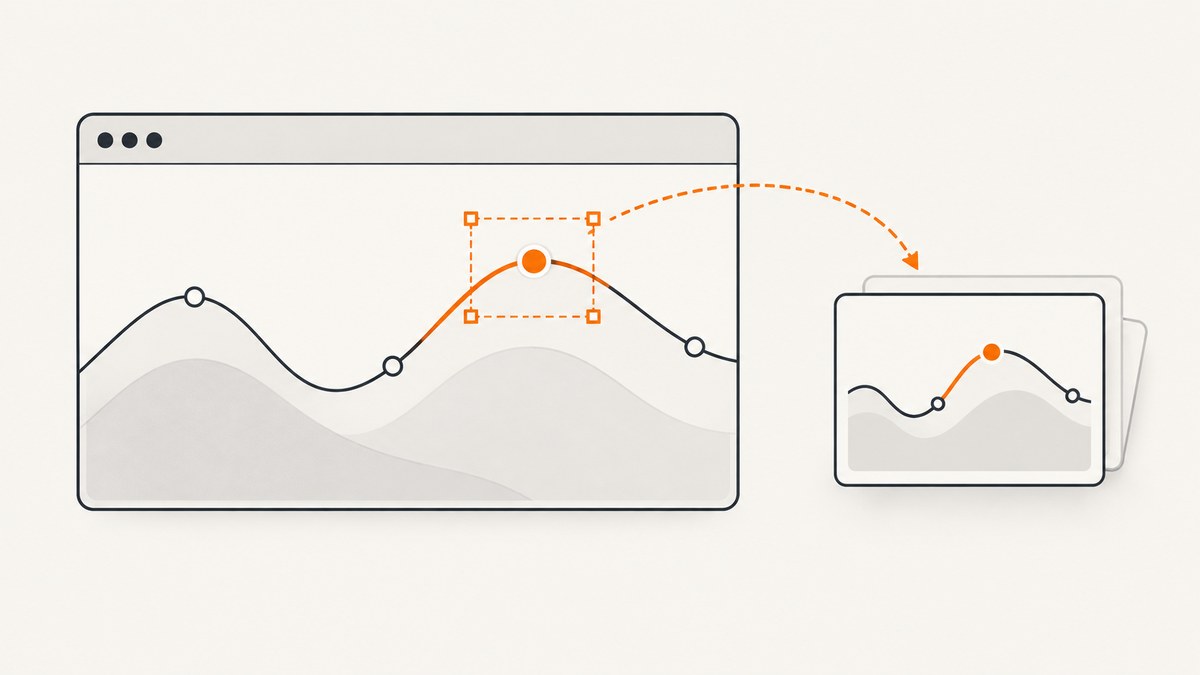
SVG roots and their descendants are regular DOM elements, so you can select them with CSS in both Playwright and Cypress. In Playwright, use page.locator('svg') and call locator.screenshot(); in Cypress, use cy.get('svg') and chain .screenshot() from the element query. For a particular path, give it a stable test attribute such as data-testid or data-cy, assert that the intended graphic is visible, then capture it.
This guide shows complete TypeScript examples for both frameworks, how to choose resilient selectors, what an element screenshot includes, and how to diagnose empty or unstable captures. It also separates saving an image for inspection from checking it against a visual baseline.
1. Select and capture an SVG in Playwright
Use an accessible role or label when the graphic has a meaningful user-facing name. For internal paths and shapes that do not have useful accessible names, use a deliberate test contract. The following test assumes the application marks its chart and series with test attributes.
import { test, expect } from '@playwright/test';

test('captures the sales chart series', async ({ page }) => {
  await page.goto('http://localhost:3000/dashboard');

  const chart = page.locator('svg[data-testid="sales-chart"]');
  const series = chart.locator('path[data-testid="series-a"]');

  await expect(chart).toBeVisible();
  await expect(series).toBeVisible();
  await series.screenshot({
    path: 'artifacts/series-a.png',
    animations: 'disabled',
  });
});
Run it with npx playwright test. The output path is relative to the test process working directory; ensure its parent directory exists if your setup does not create it. The locator is re-evaluated as the page changes, so it can represent a current match rather than a one-time element handle. Playwright performs actionability checks for a locator screenshot and scrolls the target into view. See the official locator guidance and Locator API.
Capture the whole SVG instead of one shape
To capture the graphic as a whole, use the SVG root locator:
const chart = page.locator('svg[data-testid="sales-chart"]');
await expect(chart).toBeVisible();
await chart.screenshot({ path: 'artifacts/sales-chart.png' });
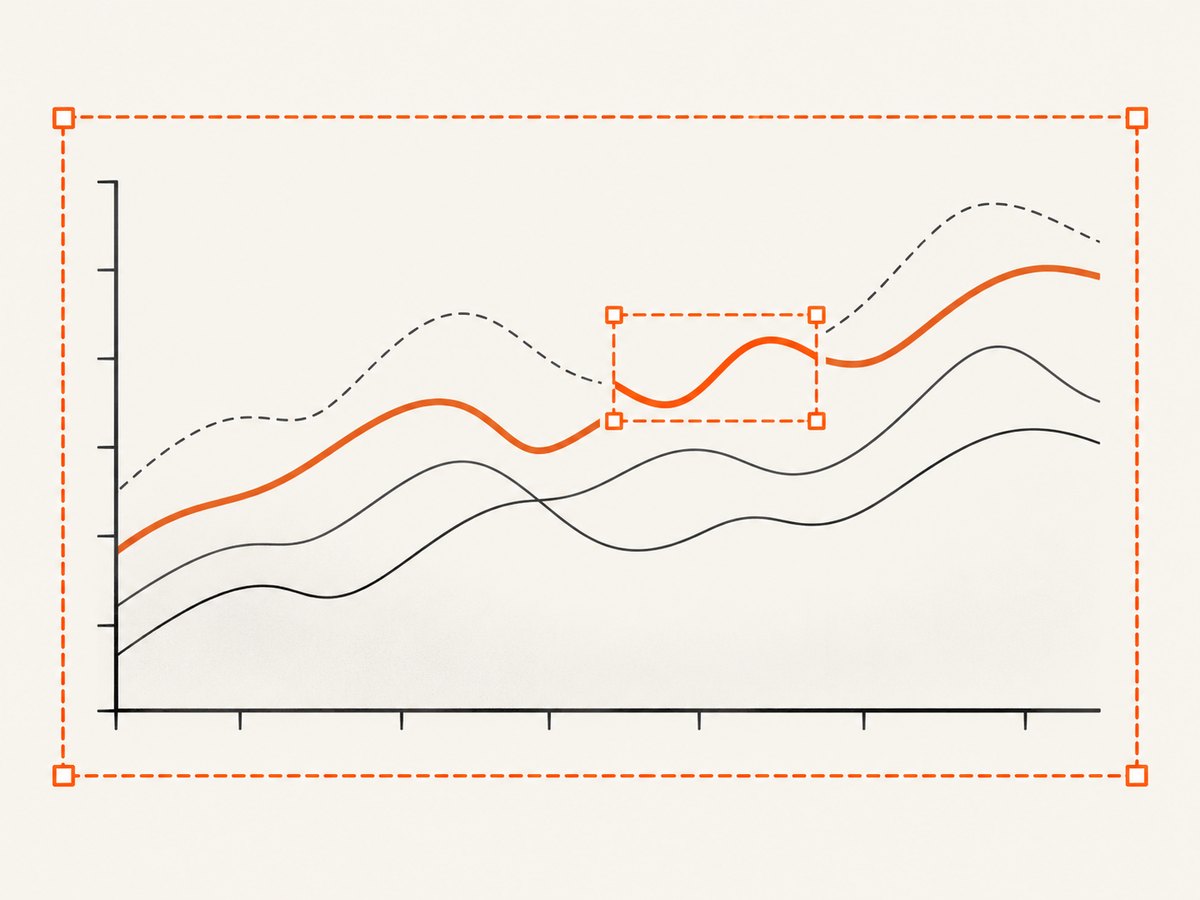
A root screenshot is usually the right choice for chart-level debugging because it includes the SVG’s rendered descendants. A path screenshot isolates that path’s rendered bounds. If the shape has a stroke, filter, marker, or shadow that extends outside its geometric path bounds, inspect the resulting crop; the selected element’s bounding box controls the element capture, and effects can be clipped at its edges.
Choose a resilient locator
- Use a user-facing locator when possible. If the graphic is exposed with a meaningful role and accessible name, prefer that contract. Playwright recommends user-facing attributes and explicit contracts.
- Use test attributes for structural parts. For example,
svg[data-testid="sales-chart"] path[data-testid="series-a"]. - Avoid incidental structure. Selectors such as
svg > g:nth-child(2) > path:nth-child(4)break when the chart library changes its emitted markup. - Avoid generated classes. Build-generated or library-generated class names may change without a user-visible change.
For an interactive SVG, a role-based locator may better reflect how a user finds it. For an internal shape, a test attribute makes the intended target explicit. CSS is not an SVG-only API; it is the regular DOM selection mechanism applied to SVG nodes.
2. Select and capture an SVG in Cypress
Cypress can start at the document with cy.get(), then scope a descendant query using .find(). Chain .screenshot() from a query that yields the one DOM element you intend to capture.
describe('sales chart', () => {
  it('captures one series', () => {
    cy.visit('http://localhost:3000/dashboard');

    cy.get('svg[data-cy="sales-chart"]')
      .should('be.visible')
      .find('path[data-cy="series-a"]')
      .should('be.visible')
      .screenshot('series-a');
  });
});
Run it with your project’s Cypress test command, for example npx cypress run. Cypress writes screenshots to its configured screenshot output directory. Check your project configuration if you need a different destination. The documented element screenshot API accepts a padding option, useful when the path’s tight crop needs context:
cy.get('svg[data-cy="sales-chart"]')
  .find('path[data-cy="series-a"]')
  .should('be.visible')
  .screenshot('series-a-with-context', { padding: 12 });
cy.get() retries its query until matching elements exist and chained assertions pass. .find() searches within the current subject. Cypress recommends dedicated data-* attributes for stable selectors. It does not descend into iframe contents with ordinary cy.get(); iframe content needs a separate approach. Review the official cy.get() documentation and screenshot API.
Capture the full SVG in Cypress
cy.get('svg[data-cy="sales-chart"]')
  .should('be.visible')
  .screenshot('sales-chart');
Keep the query constrained if a page contains several SVGs. A broad cy.get('svg') can match multiple charts, and an element screenshot is intended to be chained from a single DOM element. A specific test attribute makes the target clear and avoids accidentally capturing a legend icon or an unrelated inline SVG.
3. Prepare the page for a useful capture
A correct selector is only one part of a useful screenshot. First navigate to the intended route and establish the state you want to record: load the data, select the relevant filter, dismiss obstructing dialogs, and wait for the SVG to render. Then assert visibility and capture. The assertion is evidence that the target exists in the desired state; it does not prove that its pixels match the expected design.

- Mark the target. Add a stable test attribute to the SVG root and, when needed, the specific path or group.
- Set application state. Use the normal UI or the test’s supported setup to load the data and state under test.
- Wait on the target. Prefer a locator or retried query plus a visibility assertion over a fixed sleep where possible.
- Control motion. Disable animations in Playwright screenshots or rely on Cypress’s documented screenshot behavior, which disables timers and CSS animations by default.
- Capture one well-defined element. Choose the SVG root for the whole chart or a descendant for a focused diagnostic image.
Cypress screenshot capture is asynchronous, and the page can change in roughly the 100 ms before the image is taken. Assert the intended rendering state first, and avoid triggering another UI update immediately before capture. Cypress’s visual testing guidance also emphasizes controlling the rendering conditions when comparing images.
When saving an image is not enough
A screenshot command creates an image for evidence or inspection; it does not itself establish visual correctness. For regression checking, use your test framework’s supported visual assertion or comparison workflow and maintain an approved baseline. Playwright’s locator screenshot assertions wait for consecutive screenshots to stabilize before comparing with an expected image. Keep those baseline assertions distinct from a test that simply saves a diagnostic artifact.
For meaningful comparisons, hold the viewport and rendering environment steady. Use the same browser, fonts, device scale, data, and application state in the capture and baseline run. Avoid capturing during animation, before the application has completed its update, or while content is still shifting. Small environment differences can cause pixel changes unrelated to an SVG defect.
4. Selector patterns and SVG edge cases
| Goal | Selector or action | Notes |
|---|---|---|
| Any SVG root | svg |
Useful on a page with one graphic; scope it when there are several. |
| Named chart root | svg[data-testid="sales-chart"] |
Make the test contract explicit on the root. |
| One series path | svg[data-testid="sales-chart"] path[data-testid="series-a"] |
Use a stable attribute on the shape. |
| SVG group | g[data-testid="axis-labels"] |
Capture a group when several related elements should be inspected together. |
| Class-based shape | path.series-line |
Appropriate only when that class is a stable part of the application’s contract. |
Root, path, and group are different capture targets
An SVG root can include axes, labels, grid lines, and shapes. A path usually isolates one line or filled region. A group (g) can bundle related descendants. Select the smallest element that answers the debugging question, but include enough surrounding content to explain the issue. If the target’s appearance depends on neighboring elements, capture the root or group instead of a single path.
Clipping, scrolling, and coverage
Playwright scrolls the target into view for a locator screenshot, but a target covered by another element will not actually appear in the image. A scrollable target contributes only the content currently scrolled into view. If the capture is blank or incomplete, inspect overlays, clipping containers, scroll position, and whether the SVG is inside a hidden tab or collapsed panel. Make the intended region visible before capture.
Inline SVG versus embedded content
These examples target inline SVG elements in the page DOM. A graphic drawn to a canvas is not a path in the SVG DOM, and a raster image inside an <img> is not selectable as an SVG descendant. If the graphic lives inside an iframe, the framework must first work in the appropriate frame context; Cypress documents that cy.get() does not automatically enter an iframe. Cross-origin and application-specific frame restrictions may also affect test setup.
Dynamic and repeated graphics
Charts may generate several paths with the same tag or class. Add a stable attribute that identifies the series by application meaning, not its current draw order. If adding attributes is not practical, scope by a stable chart root and use a selector that reflects durable semantics. Avoid relying on the fourth path or the second group, since data, library versions, or responsive layouts may alter ordering.
5. Troubleshooting common capture problems
| Symptom | Likely cause | Fix |
|---|---|---|
| No element found | The selector is wrong, the app has not rendered yet, or the SVG is in a frame. | Inspect the live DOM, verify the test attribute, wait for the route/data state, and target the frame explicitly where supported. |
| More than one element matches | A broad selector found multiple inline SVGs or paths. | Scope under a named SVG root and add a stable attribute to the target series. |
| Element exists but is not visible | The chart is in a hidden tab, collapsed panel, or off-state layout. | Activate the view through the application and assert visibility before capture. |
| Image is blank | The selected path has no visible stroke/fill, data has not arrived, or another layer covers it. | Capture the root to inspect context, assert the data state, and check opacity, styles, overlays, and z-order. |
| Screenshot is cropped too tightly | A path’s bounding box excludes surrounding context or visual effects. | Capture its parent group/root, or use Cypress screenshot padding. |
| Capture changes between runs | Animation, changing data, responsive size, or delayed rendering. | Freeze test data and viewport, disable motion where available, and wait for the final state before capture. |
| SVG differs from expected pixels | Browser, font, device scale, or environment differs from the baseline. | Run comparison in a consistent rendering environment and update a baseline only after reviewing the intended design change. |
| Cypress captures a stale visual state | The page changed around the asynchronous screenshot operation. | Assert the final state immediately before capture and avoid initiating another update at that point. |
6. Reliability, performance, and cost
For browser tests, the main reliability improvement is a stable selector and a deterministic page state. Test attributes avoid coupling to styling; visibility assertions establish that the intended element is present; fixed viewport and data make captures easier to compare. Prefer condition-based waits over arbitrary long delays: a delay can slow every run and still fail when rendering takes longer than expected.
An element capture is a practical way to keep an artifact focused, while a root capture gives context at the cost of a larger image. Capture only the target needed for the test or debugging report. Visual baselines add review and maintenance work: intentional design changes need deliberate baseline updates, and environment drift can produce noisy diffs.
The do-it-yourself examples use the browser test runner you already use, so their direct service cost is your existing development and CI environment. Their operational cost is the browser setup, test runtime, and baseline management. For capturing arbitrary public pages outside your application test suite, a screenshot API can avoid maintaining browser capture code; see the option below.
7. Or skip the browser setup
For a public page, ScreenshotNeo provides a one-request website screenshot API. The examples below capture the page rather than a selector inside your app’s SVG DOM, so keep Playwright or Cypress when you need to target a specific path in a test.
See the ScreenshotNeo API documentation for request options.
curl -G "https://api.screenshotneo.com/v1/shot" \
  -d access_key=YOUR_API_KEY \
  --data-urlencode url=https://stripe.com \
  -o shot.webp
import requests
r = requests.get(
"https://api.screenshotneo.com/v1/shot",
params={"access_key": "YOUR_API_KEY", "url": "https://stripe.com"},
timeout=90,
)
open("shot.webp", "wb").write(r.content)const q = new URLSearchParams({
access_key: 'YOUR_API_KEY',
url: 'https://stripe.com',
});
const res = await fetch(`https://api.screenshotneo.com/v1/shot?${q}`);
if (!res.ok) throw new Error(`Screenshot request failed: ${res.status}`);
await import('node:fs/promises').then(fs => fs.writeFile('shot.webp', Buffer.from(await res.arrayBuffer())));ScreenshotNeo accepts consent banners as a visitor and removes more than 60 known consent platforms, newsletter popups, and chat widgets before capture; each step can be turned off. Bot checks/CAPTCHAs, blank pages, timeouts, failed loads, and cache hits cost nothing, and response headers report page verdict and billing status. Its MCP server exposes take_screenshot, get_page_info, and capture_pdf to Claude, Cursor, and other MCP clients. The free plan includes 1,000 shots per month without a card; paid plans start at $5 for 3,000 shots. Every feature is on every plan. Create a free account for 1,000 screenshots a month, with no card.
8. FAQ
Can I use XPath for an SVG path?
You can use selectors supported by the framework, but CSS plus a stable test attribute is usually easier to read and maintain for this case. The examples use CSS and avoid brittle position-based paths.
Should I screenshot the SVG or its parent container?
Screenshot the SVG when the graphic itself is the subject. Capture its parent when surrounding HTML labels, legends, or layout are necessary to interpret the result.
Does an element screenshot prove the chart is correct?
No. It creates an image. A visual assertion or comparison against a reviewed baseline is needed to check rendered output.
Can I capture a path that is currently outside a scrollable region?
Playwright scrolls the locator into view, but its documentation says a scrollable target contributes only its currently scrolled content. Bring the needed portion into view and verify the resulting crop.


