How to Select a Date from a Calendar Plugin with Appium and Selenium
Select dates reliably in HTML, custom web, and native calendar controls with Appium and Selenium, including contexts, locators, validation, and verification.
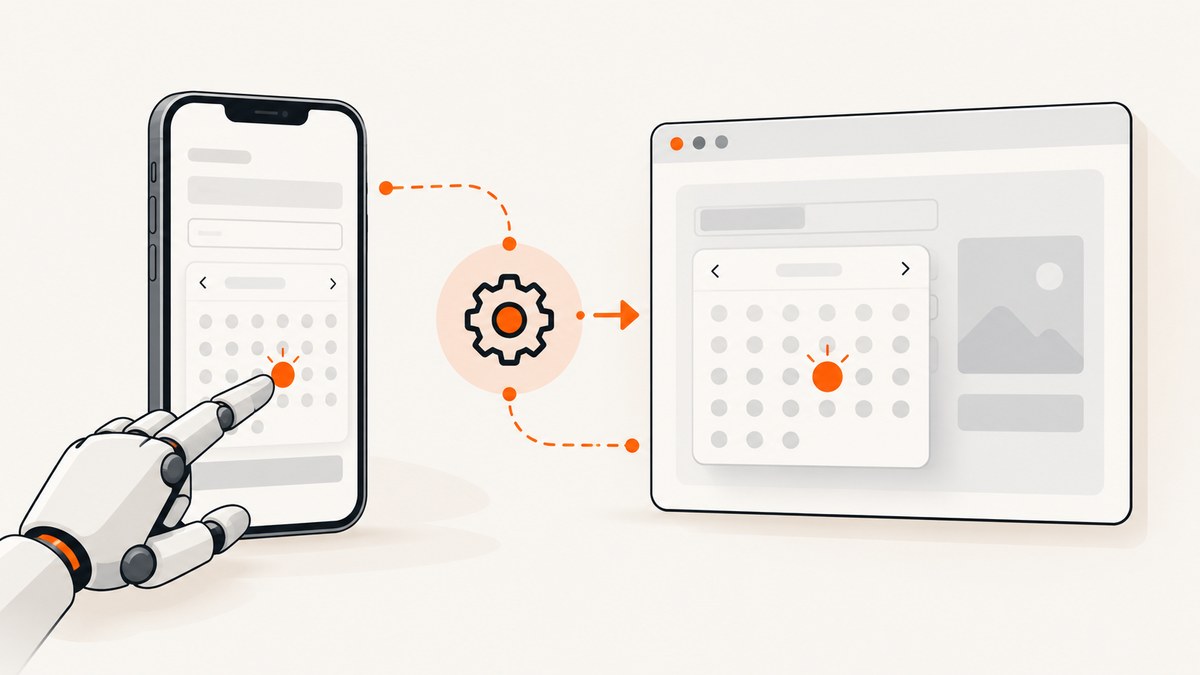
Selecting a date reliably depends on the control you are automating. An HTML <input type="date">, a JavaScript calendar plugin, a calendar inside an Android webview, and a native Android date picker expose different elements and require different interactions.
The dependable process is:
- Identify whether the control is HTML, custom web, webview, or native.
- Start Appium with the correct platform, browser, and driver.
- Choose stable application-owned locators.
- Use an interaction the real control supports.
- Assert the selected date or the resulting application state.
A click completing without an error does not prove that the intended date was accepted.
1. Identify the calendar control
| Control | Where it runs | Typical strategy | Best verification |
|---|---|---|---|
| HTML date input | Mobile browser or webview | Locate the input and enter a supported value, or use the browser picker | The input’s normalized value or submitted result |
| Custom web calendar | Web page or webview | Open the widget, navigate month/year controls, select a day | Selected state, input value, or application result |
| Native date picker | Native iOS or Android app | Use accessibility identifiers, resource IDs, labels, or the exposed calendar grid | Displayed date, accessibility state, or saved value |
Inspect the live DOM and accessibility tree before writing a locator. A calendar that looks identical to another plugin can have completely different markup. Avoid copying a CSS class or XPath from an unrelated implementation.
2. Configure Appium for the target environment
Appium mobile-web tests use normal WebDriver-style interactions. Appium’s mobile web guidance documents Safari with XCUITest on iOS and Chrome with UiAutomator2 on Android. Android Chrome must be installed, and the Chromedriver must be compatible with the Chrome version on the device. See the Appium mobile web documentation.
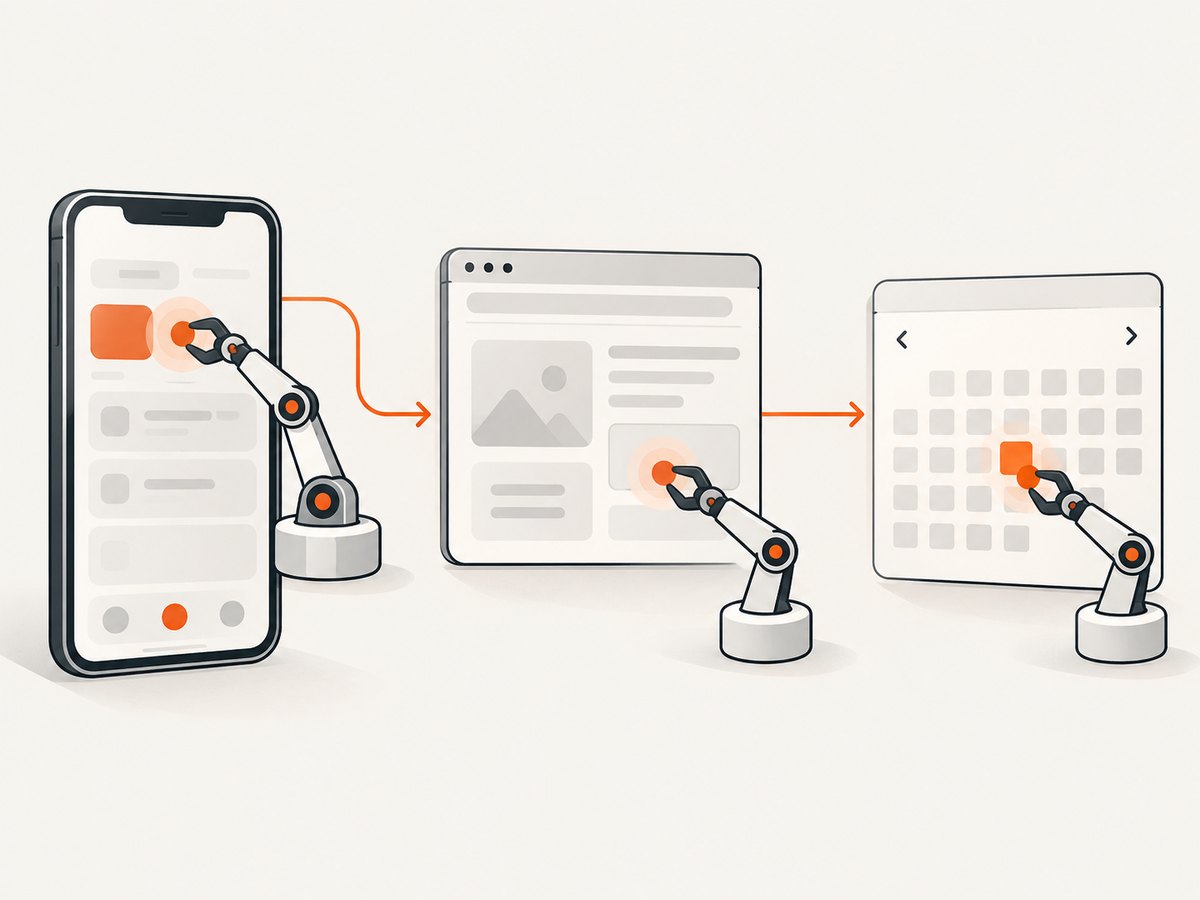
Android Chrome session (Python)
from appium import webdriver
from appium.options.android import UiAutomator2Options

options = UiAutomator2Options()
options.platform_name = "Android"
options.automation_name = "UiAutomator2"
options.browser_name = "Chrome"
options.device_name = "Android"
# Set this when your environment needs an explicit compatible driver.
# options.chromedriver_executable = "/path/to/chromedriver"

driver = webdriver.Remote("http://127.0.0.1:4723", options=options)
try:
    driver.get("https://example.test/booking")
finally:
    driver.quit()
iOS Safari session (Python)
from appium import webdriver
from appium.options.ios import XCUITestOptions

options = XCUITestOptions()
options.platform_name = "iOS"
options.automation_name = "XCUITest"
options.browser_name = "Safari"
options.device_name = "iPhone"
options.platform_version = "17.0"  # use a version available in your lab

driver = webdriver.Remote("http://127.0.0.1:4723", options=options)
try:
    driver.get("https://example.test/booking")
finally:
    driver.quit()
For an Android hybrid application, UiAutomator2 starts in the native context. Web elements become available only after you select the appropriate web context, and the webview must be discoverable and debuggable. Chromedriver compatibility with the embedded browser engine is required. The UiAutomator2 driver documentation describes context handling and selector support.
List and switch contexts
contexts = driver.contexts
print(contexts)

# Choose the actual web context reported by this device.
web_context = next((name for name in contexts if name.startswith("WEBVIEW")), None)
if web_context is None:
    raise RuntimeError(f"No web context available: {contexts}")
driver.switch_to.context(web_context)

# Return to native UI when the native picker is outside the webview.
# driver.switch_to.context("NATIVE_APP")
Do not assume the context name is always the same. Log the available contexts and select the one belonging to the page under test.
3. Select a date in an HTML date input
An HTML date input stores its value as YYYY-MM-DD, even if the visible control displays a localized format. The picker UI varies by browser and operating system. Assert the normalized value or the application result instead of assuming that a label such as “09/29/2026” is universal. See MDN’s documentation for date input values and constraints.
Direct entry when the browser allows it
from selenium.webdriver.common.by import By
from selenium.webdriver.support.ui import WebDriverWait
from selenium.webdriver.support import expected_conditions as EC

wait = WebDriverWait(driver, 15)
field = wait.until(EC.presence_of_element_located((By.CSS_SELECTOR, "input[name='start_date']")))
field.clear()
field.send_keys("2026-09-29")

actual = field.get_attribute("value")
assert actual == "2026-09-29", f"Unexpected date value: {actual!r}"
Selenium documents click, send_keys, and clear as basic element commands. send_keys requires a keyboard-interactable element, while clear is limited to editable or resettable controls. Read the element’s type, readonly state, and attributes before relying on this path. Source: Selenium element interactions.
Constraints you must handle
minrejects dates before the permitted range.maxrejects dates after the permitted range.stepcontrols the allowed day increment; the default is one day.
min_value = field.get_attribute("min")
max_value = field.get_attribute("max")
step_value = field.get_attribute("step")
print({"min": min_value, "max": max_value, "step": step_value})
If a date is rejected, inspect these attributes and the browser’s constraint-validation state. A displayed date can change while the form remains invalid.
4. Automate a custom calendar plugin
A custom plugin commonly combines a text input, a popup, previous and next month buttons, a month/year heading, and day buttons. Treat these as separate states:
- Open the calendar.
- Read the currently displayed month and year.
- Move forward or backward until the target month is displayed.
- Select a day using its semantic label or data attribute.
- Verify the field and any dependent state.
State-aware Python example
from datetime import date
from selenium.webdriver.common.by import By
from selenium.webdriver.support.ui import WebDriverWait
from selenium.webdriver.support import expected_conditions as EC

TARGET = date(2026, 9, 29)
wait = WebDriverWait(driver, 15)

open_button = wait.until(EC.element_to_be_clickable((By.CSS_SELECTOR, "button[data-testid='open-date']")))
open_button.click()

heading = (By.CSS_SELECTOR, "[data-testid='calendar-month']")
next_month = (By.CSS_SELECTOR, "button[aria-label='Next month']")
previous_month = (By.CSS_SELECTOR, "button[aria-label='Previous month']")

for _ in range(36):
    label = wait.until(EC.visibility_of_element_located(heading)).text.strip()
    # Parse the heading according to your plugin's documented format.
    # Example expected format: "September 2026".
    displayed = date.fromisoformat(driver.execute_script(
        "return document.querySelector('[data-testid=calendar-month]').dataset.month;"
    ) + "-01")
    if (displayed.year, displayed.month) == (TARGET.year, TARGET.month):
        break
    if (displayed.year, displayed.month) < (TARGET.year, TARGET.month):
        wait.until(EC.element_to_be_clickable(next_month)).click()
    else:
        wait.until(EC.element_to_be_clickable(previous_month)).click()
else:
    raise AssertionError("Target month was not reachable")

day = wait.until(EC.element_to_be_clickable((By.CSS_SELECTOR,
    f"button[data-date='{TARGET.isoformat()}']")))
day.click()

field = driver.find_element(By.CSS_SELECTOR, "input[name='start_date']")
assert field.get_attribute("value") == TARGET.isoformat()
The data-month attribute and selectors above are application-owned examples. Replace them after inspecting your plugin. If the widget exposes aria-label="September 29, 2026", an accessible-label locator may be more stable than a generated class. If days from adjacent months appear in the grid, require an exact date or verify the month before clicking.
When JavaScript is useful
Use JavaScript to read non-visible state for diagnostics, such as a data attribute or the input's value. Prefer real clicks for the user-facing interaction because JavaScript can bypass focus, validation, event ordering, and overlay behavior that your application depends on.
5. Select a date in a native Android picker
Stay in NATIVE_APP and inspect the live UI hierarchy. UiAutomator2 supports accessibility-id selectors, which map to Android content descriptions. Exact labels, resource IDs, and picker structure vary by Android version, device, locale, and application.
from appium.webdriver.common.appiumby import AppiumBy
from selenium.webdriver.support.ui import WebDriverWait
from selenium.webdriver.support import expected_conditions as EC

wait = WebDriverWait(driver, 15)
wait.until(EC.element_to_be_clickable(
    (AppiumBy.ACCESSIBILITY_ID, "Choose date")
)).click()

# Use identifiers actually exposed by your app's hierarchy.
# Example only: inspect labels and resource IDs before using them.
year_button = wait.until(EC.element_to_be_clickable(
    (AppiumBy.ID, "com.example:id/date_picker_header_year")
))
year_button.click()
wait.until(EC.element_to_be_clickable(
    (AppiumBy.ACCESSIBILITY_ID, "2026")
)).click()

wait.until(EC.element_to_be_clickable(
    (AppiumBy.ACCESSIBILITY_ID, "Tuesday, September 29, 2026")
)).click()
wait.until(EC.element_to_be_clickable(
    (AppiumBy.ID, "android:id/button1")
)).click()
The identifiers in this snippet are illustrative. Replace them with selectors visible in the tested app's hierarchy. Fixed coordinates are especially fragile across screen sizes, font scales, orientations, and locales.
6. Verification patterns that catch silent failures
- Read the HTML input's
valueafter selection. - Check
aria-selected="true"or the widget's selected class on the chosen day. - Assert the calendar heading still shows the intended month and year.
- Submit the form and verify the server-side or confirmation state.
- Confirm that dependent controls, such as available time slots, updated for the chosen date.
Use an explicit wait for the state change rather than a fixed sleep. A short delay may pass on one device and fail on a slower emulator or webview.
7. Troubleshooting common failures
| Symptom | Likely cause | Fix |
|---|---|---|
| “Element not found” | Wrong context or an unstable locator | Print driver.contexts, switch explicitly, and use an ID, accessible name, role, or application-owned data attribute. |
| Tap does nothing | Overlay, animation, or element outside the viewport | Wait for visibility and clickability; scroll the element into view; check for a consent or loading overlay. |
| Chromedriver session fails | Driver does not match Chrome or webview engine | Install a compatible Chromedriver and confirm the device's browser version. |
| Typed date is blank | Readonly wrapper or browser-native picker rejects text entry | Open the real picker and interact with its controls, or use an application-supported input path. |
| Date appears correct but form rejects it | min, max, or step constraint |
Read the attributes and choose a permitted date. |
| Wrong day selected | Adjacent-month day or locale-dependent label | Target an exact ISO date or verify the heading and selected state before continuing. |
| Webview is missing | Webview is not debuggable or context discovery is unavailable | Enable the supported debugging configuration and verify that the embedded engine and Chromedriver are compatible. |
| Test passes locally, fails in CI | Timing, device locale, timezone, or viewport differences | Set environment values deliberately, use state-based waits, and avoid coordinate or visible-text assumptions. |
8. Reliability and performance practices
- Use one page-object method such as
select_date(target)and keep locator details inside it. - Log the current context, calendar heading, target date, and final value on failure.
- Capture a screenshot and page source when a picker fails; these show whether the wrong UI was open.
- Keep retries narrow. Retry a stale element after re-locating it, but do not blindly repeat a date selection that may have submitted a form.
- Prefer semantic selectors over positional XPath and screen coordinates.
- Set a predictable timezone and locale when the application uses local dates. A date near midnight can otherwise cross a day boundary.
- For webviews, wait for the web context and page readiness before locating the calendar.
Calendar navigation can be made faster by selecting a year or month directly when the widget exposes those controls. If it only has next and previous buttons, cap the number of transitions and fail with the current heading in the error message.
9. Or skip the browser setup
If your goal is to capture a page after testing or to document a calendar state, ScreenshotNeo provides a one-call website screenshot API. It accepts the cookie or consent banner like a visitor and removes more than 60 known consent platforms, newsletter popups, and chat widgets before capture. Bot checks, blank pages, timeouts, failed loads, and cache hits are not billed, and the response identifies the result with X-Page-Verdict and X-Billed headers. Its MCP server also gives Claude, Cursor, and other MCP clients take_screenshot, get_page_info, and capture_pdf tools.

See the ScreenshotNeo API documentation for all options.
cURL
curl -G "https://api.screenshotneo.com/v1/shot" \
  -d access_key=YOUR_API_KEY \
  --data-urlencode url=https://example.test/booking \
  -o calendar.webp
Python
import requests

r = requests.get(
    "https://api.screenshotneo.com/v1/shot",
    params={"access_key": "YOUR_API_KEY", "url": "https://example.test/booking"},
    timeout=90,
)
r.raise_for_status()
open("calendar.webp", "wb").write(r.content)
Node.js
const q = new URLSearchParams({
  access_key: 'YOUR_API_KEY',
  url: 'https://example.test/booking'
});
const res = await fetch(`https://api.screenshotneo.com/v1/shot?${q}`);
if (!res.ok) throw new Error(`Screenshot failed: ${res.status}`);
const fs = await import('node:fs/promises');
await fs.writeFile('calendar.webp', Buffer.from(await res.arrayBuffer()));
ScreenshotNeo includes full-page capture with lazy images loaded, CSS-element capture, dark mode, device presets, custom viewport and retina scale, custom CSS and JavaScript, waits, request blocking, headers, cookies, user agents, timezone and geolocation, transparent backgrounds, resizing, selectable caching TTLs, signed image links, asynchronous jobs with signed webhooks, bulk capture for up to 100 URLs per call, usage APIs, and an OpenAPI specification. Every feature is available on every plan. The free plan includes 1,000 screenshots per month with no card; paid plans start at $5 for 3,000.
Create a free ScreenshotNeo account and get 1,000 screenshots each month without a card.
10. FAQ
Should I automate the visible calendar or set the input value?
Use the supported behavior of the actual control. Direct entry is efficient for an editable HTML date input; a custom or native picker usually needs its visible controls. Always verify the resulting value or state.
Why does the same date have different text on different devices?
HTML date inputs expose a normalized ISO value while browsers localize the visible presentation. Native pickers also follow device locale and formatting settings.
Can one locator work for every calendar plugin?
No. Plugin markup, accessibility labels, and state models differ. Build locators from the tested application's DOM or accessibility hierarchy.
When should a webview test switch back to native context?
Switch back when the picker or confirmation control belongs to the native application rather than the embedded page. Confirm the available contexts before switching.
What is the most important assertion?
Assert the exact selected date in the control or the application's resulting state. A successful tap command alone is not a meaningful postcondition.


