How to Select Options from a Div-Based Dropdown with Python Selenium
Learn how to open JavaScript div-based dropdowns, select an option reliably, wait for dynamic state changes, and verify the result with Python Selenium.

Use the rendered trigger and option elements directly. Selenium’s Select helper is only for native HTML <select> controls. A dropdown built from <div>, <button>, <ul>, or <li> needs a normal click sequence: wait for the trigger, open it, wait for the intended option, click it, and verify the widget’s changed state.
The selectors below are examples. Inspect the target page and replace them with stable attributes from its DOM, such as data-testid, an accessible role, or a documented component selector.
1. Complete Python Selenium example
from selenium import webdriver
from selenium.webdriver.common.by import By
from selenium.webdriver.support import expected_conditions as EC
from selenium.webdriver.support.ui import WebDriverWait
from selenium.common.exceptions import TimeoutException

URL = "https://example.com/form"

options = webdriver.ChromeOptions()
# options.add_argument("--headless=new")
driver = webdriver.Chrome(options=options)
wait = WebDriverWait(driver, 15)

try:
    driver.get(URL)

    # Replace this selector after inspecting the real page.
    trigger = wait.until(
        EC.element_to_be_clickable(
            (By.CSS_SELECTOR, "[data-testid='dropdown-trigger']")
        )
    )
    trigger.click()

    # Scope the search to the opened list when possible.
    option = wait.until(
        EC.element_to_be_clickable(
            (By.XPATH, "//*[normalize-space()='Desired option']")
        )
    )
    option.click()

    # Choose the assertion that matches the widget's markup.
    selected_value = wait.until(
        EC.visibility_of_element_located(
            (By.CSS_SELECTOR, "[data-testid='dropdown-trigger']")
        )
    )
    assert selected_value.text.strip() == "Desired option"

except TimeoutException as error:
    driver.save_screenshot("dropdown-timeout.png")
    raise RuntimeError("Dropdown did not reach the expected state") from error
finally:
    driver.quit()
Selenium’s select-list documentation explains that Select works with HTML select and option elements, not JavaScript overlays made from div or li. The Selenium waits documentation describes explicit waits for dynamic elements.
2. Inspect the dropdown before writing selectors
- Open browser developer tools and use the element picker on the visible dropdown label.
- Identify the element that receives the click. It may be a button, a div with
role="combobox", or a wrapper around an input. - Open the menu manually and inspect the option node. Look for
role="option",data-value, an item ID, or a stable test attribute. - Observe what changes after selection: visible text,
aria-selected="true", a selected CSS class, a hidden input value, or application content.
Tag names alone are not enough. Two div-based controls can have completely different markup, keyboard behavior, and state models.
Prefer stable locators
| Locator | Example | When to use |
|---|---|---|
| Test attribute | [data-testid='country-trigger'] |
Best when the application exposes a testing contract. |
| Accessible role | [role='option'][aria-selected='false'] |
Useful for correctly implemented ARIA widgets. |
| Value attribute | [data-value='us'] |
More stable than visible wording when labels are localized. |
| Exact text | //*[normalize-space()='United States'] |
Good when the text is the product’s stable user-facing value. |
| Position | li:nth-child(3) |
A last resort; breaks when ordering changes. |
3. The interaction sequence
Open, wait, select, verify
A click can create the option panel asynchronously. Do not locate and click an option immediately after clicking the trigger unless the page guarantees that the panel is already present. Wait for visibility or clickability first.
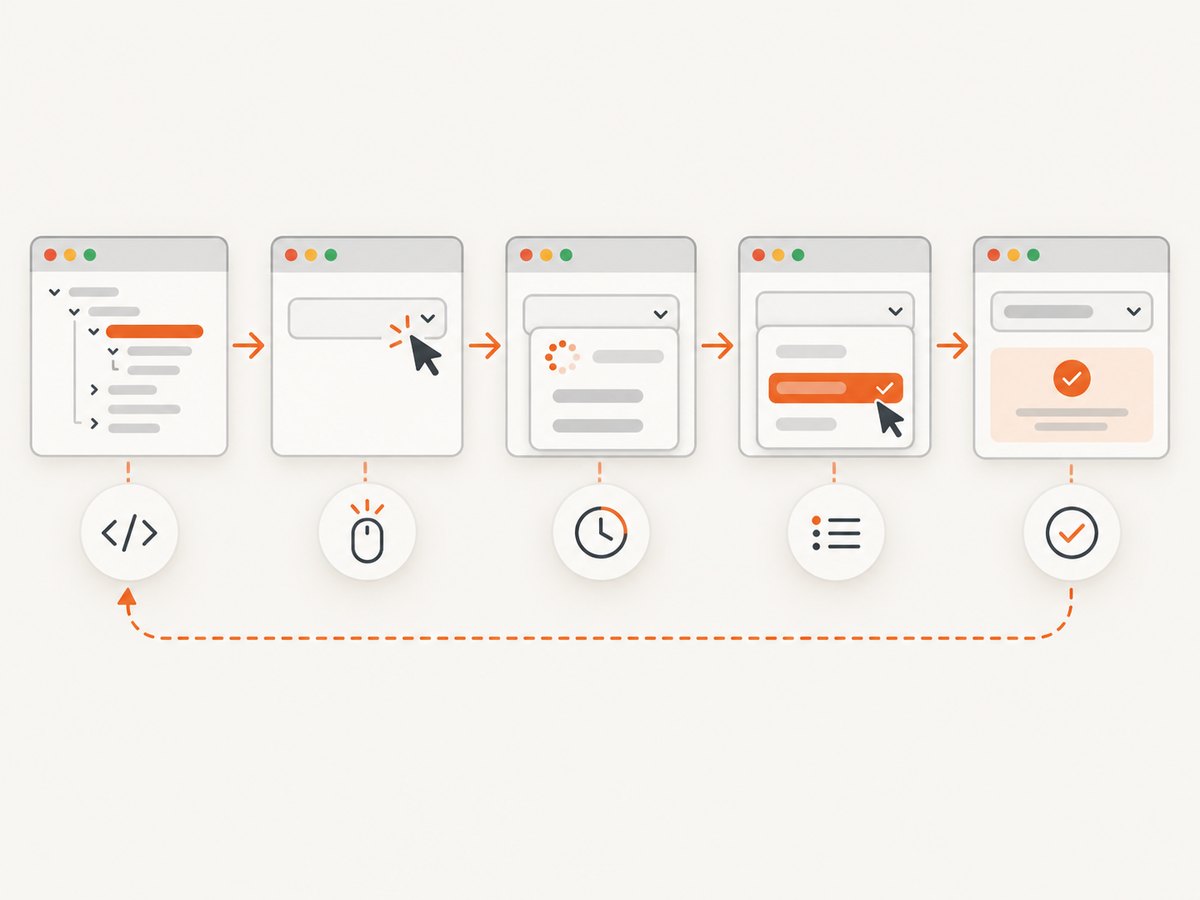
trigger = wait.until(EC.element_to_be_clickable((
    By.CSS_SELECTOR, "[role='combobox']"
)))
trigger.click()

menu = wait.until(EC.visibility_of_element_located((
    By.CSS_SELECTOR, "[role='listbox']"
)))

option = wait.until(EC.element_to_be_clickable((
    By.CSS_SELECTOR, "[role='option'][data-value='premium']"
)))
option.click()

wait.until(EC.text_to_be_present_in_element(
    (By.CSS_SELECTOR, "[role='combobox']"),
    "Premium"
))
element_to_be_clickable checks that an element is visible and enabled. Use a more specific condition when the component exposes one, such as aria-expanded='true' on the trigger or aria-selected='true' on the chosen option.
Scope options to the open menu
Many component libraries keep a hidden copy of the menu in the DOM, or render the open menu in a portal near body. First wait for the visible listbox, then search inside it:
menu = wait.until(EC.visibility_of_element_located((
    By.CSS_SELECTOR, "[role='listbox']:not([aria-hidden='true'])"
)))
option = menu.find_element(
    By.XPATH, ".//*[normalize-space()='Desired option']"
)
wait.until(lambda _: option.is_enabled())
option.click()
4. Native select versus a custom dropdown
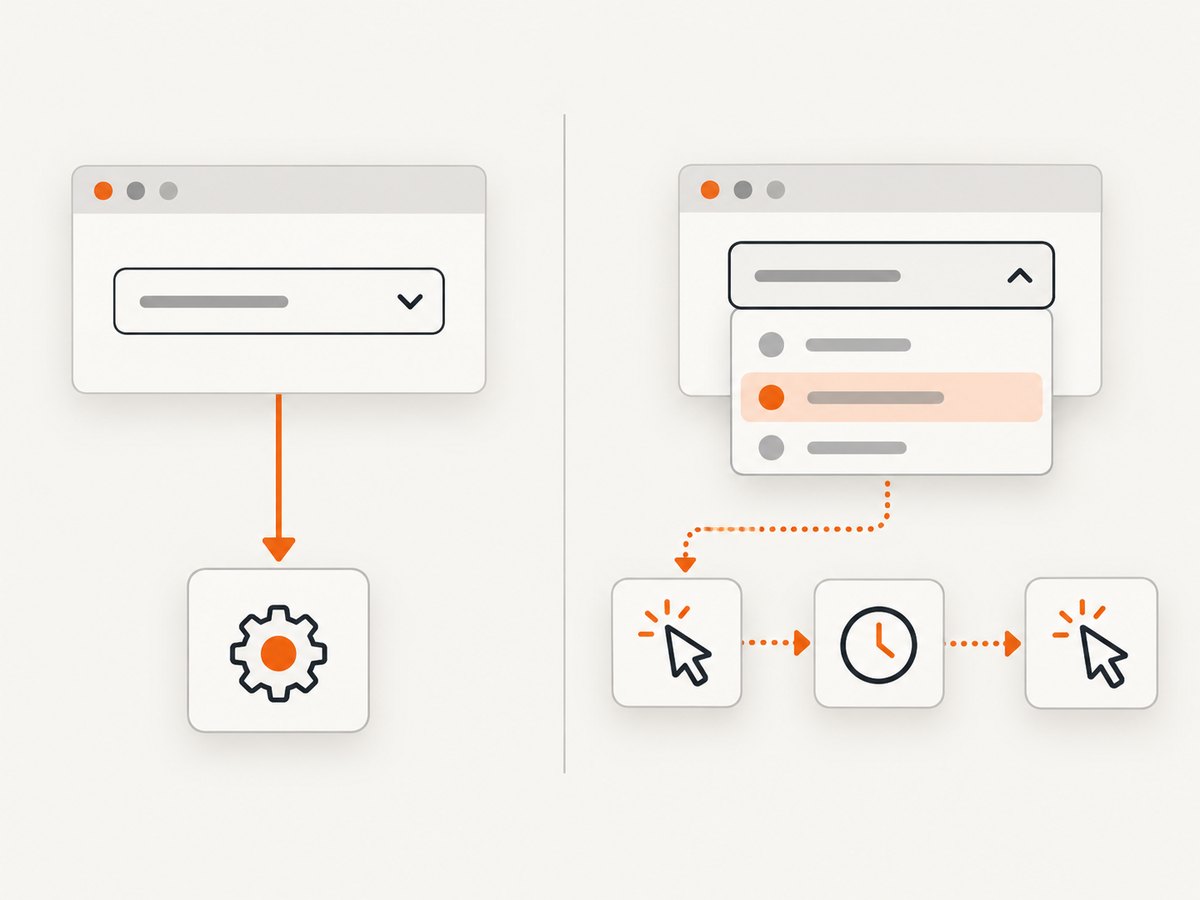
Use Select only after confirming the element is a real select:
from selenium.webdriver.support.ui import Select

native_select = wait.until(EC.presence_of_element_located((
    By.NAME, "country"
)))
Select(native_select).select_by_visible_text("United States")
# Other methods: select_by_value("us"), select_by_index(2)
For a custom control, calling Select(driver.find_element(...)) raises an error because the element is not a SELECT. Interact with the trigger and rendered options instead.
5. Single-select, multi-select, and searchable controls
Single-select
After clicking one option, wait for the menu to close or the trigger label to change. If the component sends a network request, verify the resulting page state rather than relying only on a CSS class.
Multi-select
trigger.click()
menu = wait.until(EC.visibility_of_element_located((By.CSS_SELECTOR, "[role='listbox']")))

for value in ("python", "selenium"):
    item = wait.until(EC.element_to_be_clickable((
        By.CSS_SELECTOR, f"[role='option'][data-value='{value}']"
    )))
    item.click()

# A multi-select may stay open. Close it deliberately if required.
trigger.send_keys("ESC")

selected = wait.until(lambda _: driver.find_elements(
    By.CSS_SELECTOR, "[role='option'][aria-selected='true']"
))
assert {item.get_attribute("data-value") for item in selected} >= {"python", "selenium"}
Searchable dropdown
Wait for the search input after opening, type a query, then wait for filtered options. Do not assume that the first result is the intended value.
trigger.click()
search = wait.until(EC.visibility_of_element_located((
    By.CSS_SELECTOR, "[role='listbox'] input[type='search']"
)))
search.send_keys("United")
option = wait.until(EC.element_to_be_clickable((
    By.XPATH, "//*[@role='option' and normalize-space()='United States']"
)))
option.click()
6. Keyboard and overlay edge cases
- Menu is covered: wait for the overlay and scroll the trigger into view. A click intercepted error usually means another element is covering it.
- Options are rendered in a portal: search from the document root or locate the visible listbox, not only inside the trigger’s parent.
- Virtualized options: type into the component’s search field or scroll the list until the desired row is rendered.
- Duplicate labels: scope by the open menu and use a value attribute rather than text alone.
- Animated menus: wait for visibility and, if needed, a stable attribute such as
data-state='open'. - Native browser select behavior: if the control really is a select, use
Selectinstead of trying to click its internal options. - Shadow DOM: access the component’s shadow root first, then locate the internal trigger. The exact approach depends on whether the shadow root is open.
- Frames: switch into the iframe before locating the dropdown and switch back afterward.
7. Waiting correctly
Use one synchronization strategy consistently. Explicit waits make the state you need visible in the test. Selenium warns that mixing implicit and explicit waits can produce unpredictable timeout durations.
# Keep the implicit wait at its default (zero) when using explicit waits.
wait = WebDriverWait(driver, 15, poll_frequency=0.2)

wait.until(EC.attribute_to_be(
    (By.CSS_SELECTOR, "[role='combobox']"),
    "aria-expanded",
    "true"
))
A short fixed sleep can hide a race condition and make a suite slower. Use it only when an animation has no observable DOM state, and keep it as a small, documented fallback.
8. Verification strategies
Choose an assertion that proves the application accepted the selection:
- Trigger text equals the selected label.
- The option has
aria-selected="true"or a documented selected class. - A hidden input contains the expected value.
- A dependent field becomes enabled or changes its options.
- A request-driven result, URL, or confirmation message reflects the choice.
# Hidden form value
value = wait.until(EC.presence_of_element_located((
    By.CSS_SELECTOR, "input[name='country']"
))).get_attribute("value")
assert value == "us"

# Accessible selected state
wait.until(EC.presence_of_element_located((
    By.CSS_SELECTOR, "[role='option'][data-value='us'][aria-selected='true']"
)))
9. Troubleshooting
| Error or symptom | Likely cause | Fix |
|---|---|---|
UnexpectedTagNameException |
Select was given a div-based widget. |
Use the trigger and option elements directly. |
NoSuchElementException |
The option is not rendered yet, is in a portal, or the selector is wrong. | Inspect the open DOM, scope to the visible menu, and add an explicit wait. |
ElementNotInteractableException |
The node is hidden, disabled, or covered by an animation. | Wait for clickability and target the visible duplicate. |
ElementClickInterceptedException |
An overlay, cookie banner, or another element receives the click. | Dismiss the overlay, wait for it to disappear, or use the component’s visible trigger. |
| Timeout after opening | The menu opens under a different selector, inside an iframe, or only after a hover/keyboard event. | Check frames, events, attributes, and the browser console; save a screenshot and page source on failure. |
| Selection appears but is not submitted | The widget updates display text without updating its form value. | Assert the hidden input, change event result, or server-side outcome. |
| Works locally, fails in headless mode | Different viewport, timing, or responsive markup. | Set a fixed window size, use explicit waits, and inspect the headless screenshot. |
10. Reliability, performance, and maintenance
- Use stable test IDs or accessible attributes owned by the application team.
- Keep one
WebDriverWaitpolicy and tune its timeout to the page’s realistic load time. - Reuse a browser session for related steps, but reset application state between tests.
- Capture the DOM, screenshot, URL, and console or network logs when a selection fails.
- Avoid JavaScript clicks as a first choice. They can bypass the real interaction path and miss focus or event behavior.
- For large suites, reduce unnecessary page reloads and wait for the narrowest state that proves readiness.
- Do not depend on option order, generated CSS classes, or animation timing.
Browser automation consumes more CPU and memory than an HTTP request because it starts a browser, executes JavaScript, lays out the page, and waits for network activity. If your goal is only a clean screenshot rather than an interaction test, an image capture API can remove that setup.
11. Or skip the browser setup
If you need a screenshot after the page has rendered, ScreenshotNeo provides a single GET request that returns PNG, JPEG, WebP, or PDF. Its consent step accepts cookie banners and removes more than 60 known consent platforms, newsletter popups, and chat widgets before capture; each step can be disabled. Bot checks, blank pages, timeouts, failed loads, and cache hits are not billed, and the response identifies the result with X-Page-Verdict and X-Billed headers.
See the ScreenshotNeo API documentation for all capture options.
cURL
curl -G "https://api.screenshotneo.com/v1/shot" -d access_key=YOUR_API_KEY --data-urlencode url=https://stripe.com -o shot.webpPython
import requests
r = requests.get("https://api.screenshotneo.com/v1/shot", params={"access_key": "YOUR_API_KEY", "url": "https://stripe.com"}, timeout=90)
open("shot.webp", "wb").write(r.content)
Node.js
const q = new URLSearchParams({ access_key: 'YOUR_API_KEY', url: 'https://stripe.com' });
const res = await fetch(`https://api.screenshotneo.com/v1/shot?${q}`);
ScreenshotNeo also offers an MCP server with take_screenshot, get_page_info, and capture_pdf tools for Claude, Cursor, and other MCP clients. It supports full-page and element capture, custom CSS and JavaScript, waits, blocking rules, headers, cookies, user agents, device presets, retina scale, caching, signed links, async jobs, bulk capture, and a usage API. The free plan includes 1,000 screenshots per month with no card; paid plans start at $5 for 3,000.
Create a free ScreenshotNeo account and start with 1,000 screenshots per month at no charge.
12. FAQ
Can I select a div-based dropdown with Selenium’s Select class?
No. Select requires a native select element. Click the custom trigger and its rendered option instead.
Should I use XPath or CSS selectors?
Either works. Choose the selector that expresses a stable contract; a test ID or data value is usually less fragile than a long positional XPath.
Why does the option exist in page source but Selenium cannot click it?
It may be hidden until the menu opens, rendered in a portal, outside the current iframe, or replaced by a virtualized row. Inspect the live DOM after opening the control.
How do I test a multi-select?
Click each intended option, verify each selected state or value, then close the menu if the component requires it.
When should I use an API instead of Selenium?
Use Selenium when you must exercise the user’s interaction and application behavior. Use a screenshot API when you need rendered images or PDFs and do not need to drive the dropdown itself.


