How to Select Dropdown Options by Text with C# and Selenium
Use Selenium’s SelectElement.SelectByText to choose a native HTML option by its visible label. See exact and partial matching, complete C# examples, common errors, and alternatives.

To select a dropdown option by its visible label in C# Selenium, locate the native HTML <select> element, wrap it in SelectElement, then call SelectByText:
using OpenQA.Selenium;
using OpenQA.Selenium.Support.UI;

IWebElement dropdown = driver.FindElement(By.Id("country"));
var select = new SelectElement(dropdown);
select.SelectByText("Canada");
Text matching is exact by default. To allow a substring match, pass partialMatch: true. This helper works with a real HTML <select>, not a custom dropdown built from buttons, list items, or other elements. See the Selenium .NET SelectElement API and ScreenshotNeo documentation.
1. What selecting by text means
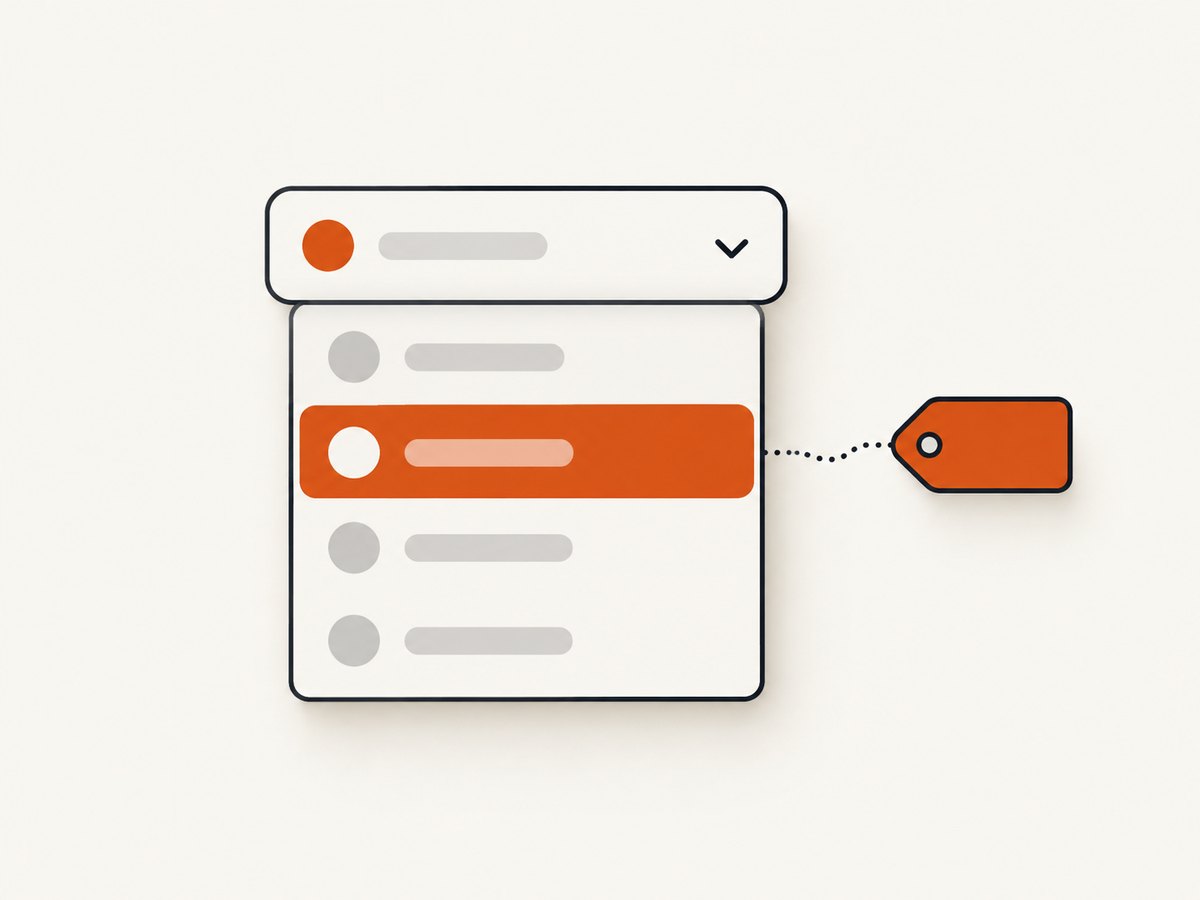
A native dropdown is represented in HTML by a <select> element containing <option> elements. Each option can have visible text and a separate value attribute. For example:
<select id="country" name="country">
  <option value="ca">Canada</option>
  <option value="us">United States</option>
</select>
SelectByText("Canada") targets what a visitor sees, even though the submitted value is ca. That is useful when your test requirement is expressed in user-facing language, or when option values are implementation details. If your requirement specifically names the submitted value, use SelectByValue instead.
Selenium’s .NET SelectElement is a convenience wrapper for manipulating options in an HTML select element. Its constructor expects a select element and documents an UnexpectedTagNameException when the wrapped element is another tag. API reference.
2. Set up a C# Selenium example
The following is a complete example for a project that already references the Selenium WebDriver and Selenium Support packages and has a compatible browser and driver available to its environment. The research sources do not specify package or browser versions, so this example does not claim a tested version combination.
using System;
using OpenQA.Selenium;
using OpenQA.Selenium.Chrome;
using OpenQA.Selenium.Support.UI;

class Program
{
    static void Main()
    {
        using IWebDriver driver = new ChromeDriver();
        driver.Navigate().GoToUrl("https://example.com/form");

        IWebElement dropdown = driver.FindElement(By.Id("country"));
        var select = new SelectElement(dropdown);
        select.SelectByText("Canada");

        Console.WriteLine(select.SelectedOption.Text);
    }
}
Replace the example URL and locator with the page and select element used by your application. Selenium WebDriver drives browsers natively, either locally or remotely, and is a W3C Recommendation. Selenium WebDriver overview.
Steps
- Navigate to the page containing the form.
- Locate the actual
<select>by a stable identifier such as an ID or name. - Construct
SelectElementwith the located element. - Call
SelectByTextwith the option’s displayed label. - When needed, inspect
SelectedOptionto confirm the selection state in your script.
The selection call is the important part: select.SelectByText("Canada");. Locating the right element and passing its actual displayed option text are the two details most likely to determine whether it succeeds.
3. Exact text, partial text, and whitespace
SelectByText(string text, bool partialMatch = false) uses an exact match by default. The API documents NoSuchElementException if no option matches, and ArgumentNullException if the supplied text is null. SelectByText API.
// Exact displayed-text match (default)
select.SelectByText("Canada");

// Explicitly request exact matching
select.SelectByText("Canada", partialMatch: false);

// Match an option whose text contains this substring
select.SelectByText("Can", partialMatch: true);
Partial matching can be convenient when the label includes changing detail, but it can also make a test ambiguous. If more than one option contains the substring, do not assume the partial text expresses a unique choice. Prefer the full label when it is stable and known.
Text means the displayed option text, not necessarily the value attribute. Check the actual rendered option when a match unexpectedly fails. Differences such as punctuation, added explanatory text, or whitespace can make the string you supply differ from the label Selenium sees. Avoid silently trimming or changing the label unless that is part of the requirement; make the expected text reflect the page content.
4. Choose the right selection method
| Method | Use it when | Example |
|---|---|---|
SelectByText |
The requirement identifies the visible option label. | select.SelectByText("Canada") |
SelectByValue |
The requirement identifies the option’s value attribute. | select.SelectByValue("ca") |
SelectByIndex |
The requirement explicitly identifies an option index. | select.SelectByIndex(0) |
Selenium documents all three methods and their missing-option exception behavior. SelectElement API. Selecting by index is tied to list position, so it is a poor durable stand-in for a known label when the option order may change.
// Label shown to the user
select.SelectByText("Canada");

// Underlying option value
select.SelectByValue("ca");

// Option position, when position is the requirement
select.SelectByIndex(0);
5. Check the selected option and multi-select state
SelectedOption returns the first selected option. AllSelectedOptions exposes all selected options, and IsMultiple tells you whether the select supports multiple selection. The API notes that deselection operations apply only to a multi-select. Selection properties and methods.
var select = new SelectElement(driver.FindElement(By.Id("country")));
select.SelectByText("Canada");

Console.WriteLine($"Is multi-select: {select.IsMultiple}");
Console.WriteLine($"Selected label: {select.SelectedOption.Text}");

foreach (IWebElement option in select.AllSelectedOptions)
{
    Console.WriteLine(option.Text);
}
Most ordinary form dropdowns allow only one selection, so SelectedOption is usually sufficient. A multi-select can have several selected entries; use AllSelectedOptions if the state of each selected option matters. Do not call a deselection method on a single-select and expect it to behave like a normal selection operation.
6. When the dropdown is a custom widget
Many pages display a dropdown-like control that is not a native <select>. It may be composed of a button, a listbox, and clickable options. SelectElement documents a select-only constructor contract; wrapping a button or div is the wrong interaction path and can raise UnexpectedTagNameException.
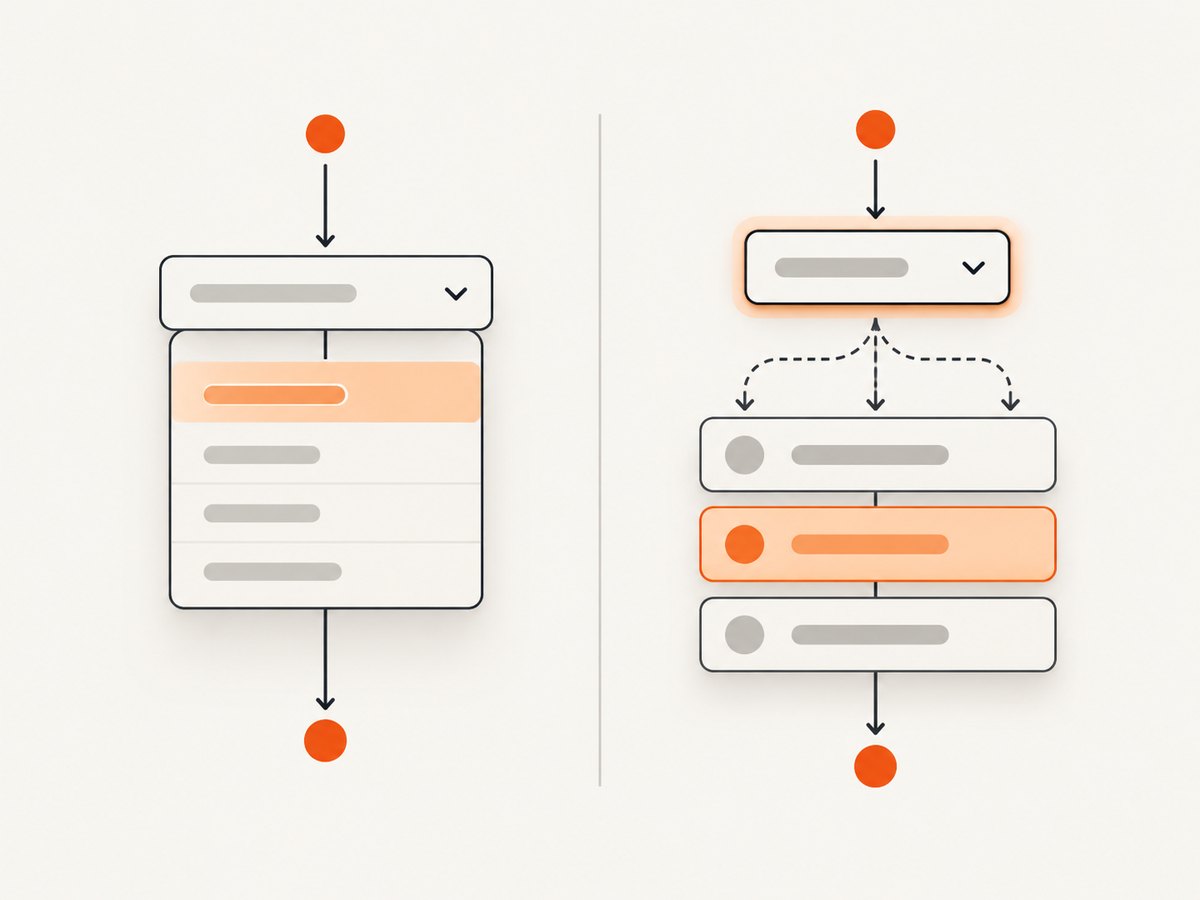
For a custom widget, inspect the page structure and automate the widget’s actual controls using ordinary WebDriver element interactions: open the widget, locate the intended option, and interact with it. The exact locator and sequence depend on the page’s markup and accessibility attributes, so there is no universal SelectByText replacement for every custom implementation. Keep the native-select and custom-widget paths distinct in the test.
7. Wait for a dynamically populated select
If the select or its options are added after an asynchronous page update, finding it immediately can fail or find a control before it contains the intended option. Use an explicit wait for the condition your page needs, then locate and select. For example, wait until the select is present before wrapping it:
var wait = new WebDriverWait(driver, TimeSpan.FromSeconds(10));
IWebElement dropdown = wait.Until(d =>
    d.FindElement(By.Id("country")));

var select = new SelectElement(dropdown);
select.SelectByText("Canada");
Presence of the select does not prove that a particular asynchronously loaded option is available. If the option arrives later, the selection can still report no match. In that case, wait for the page-specific condition that indicates options have loaded, then create or refresh the element reference and call SelectByText. Choose a timeout based on your application’s expected behavior rather than treating a longer timeout as a fix for a broken locator or missing option.
8. Troubleshooting common errors
| Symptom | Likely cause | What to do |
|---|---|---|
UnexpectedTagNameException |
The located element is not a native <select>. |
Inspect the DOM. Use the custom widget’s controls, or correct the locator to target the actual select. |
NoSuchElementException from selection |
No option matches the supplied text, value, or index. | Check the visible label, exact spelling, punctuation, and whether options have loaded. Use partial matching only when appropriate. |
NoSuchElementException from lookup |
The locator found no element at that point in the page lifecycle, or the locator is wrong. | Verify the selector and page state; wait for the relevant element when it is added asynchronously. |
ArgumentNullException |
The text passed to SelectByText is null. |
Pass a non-null option label and check how the expected value is constructed. |
| The wrong option appears selected | Partial matching may match an unintended label, or an index/value assumption is incorrect. | Use the complete visible label and inspect SelectedOption.Text after selection. |
| The helper rejects a dropdown-looking element | The page uses a custom widget rather than a native select. | Automate the widget’s actual clickable controls; SelectElement is for <select>. |
The exception behavior for null text, missing matches, and non-select elements is documented in Selenium’s .NET API. SelectElement reference.
9. Reliability and performance notes
- Prefer stable locators. An ID or name tied to the actual control is usually easier to maintain than a long positional selector.
- Match the test’s intent. Use displayed text for a label requirement, a value for a submitted-value requirement, and an index only when order is itself meaningful.
- Wait for the right state. A present select may still be empty while client-side code loads options.
- Verify when useful. Reading
SelectedOption.Textmakes the resulting state explicit in logs or assertions. - Keep the browser work focused. Waiting only for the condition needed by the test avoids unnecessary delay; increasing every timeout can hide a locator or application problem.
The cited API defines the selection semantics, but it does not establish timing benchmarks or browser-specific performance figures. Capture and browser startup time are separate from the cost of calling SelectByText; no universal numeric timing should be inferred from this API.
10. Or skip the browser setup
If your goal is to capture the page after automating a browser workflow, ScreenshotNeo offers a website screenshot API and MCP server. For this dropdown article, Selenium remains the way to interact with the control; ScreenshotNeo takes a screenshot of a URL and does not select a form option. For screenshot capture, one GET request returns an image or PDF. See the ScreenshotNeo API documentation.
curl -G "https://api.screenshotneo.com/v1/shot" -d access_key=YOUR_API_KEY --data-urlencode url=https://stripe.com -o shot.webpCookie banners are accepted and removed before the shot, along with known newsletter popups and chat widgets. Bot checks, blank pages, failed loads, timeouts, and cache hits are not billed. Its MCP server gives AI agents tools to take screenshots, get page information, and capture PDFs. The free plan includes 1,000 shots per month with no card; paid plans start at $5 for 3,000 shots. ScreenshotNeo is made by Yorker Media. Learn more at ScreenshotNeo.
Sign up free for 1,000 screenshots a month, with no card required.
11. FAQ
Does SelectByText submit the visible text?
It selects the option by displayed text. The selected option can have a different value attribute, which is the value used by the form.
Can I use SelectByText with an HTML datalist?
SelectElement is documented for an HTML <select>. A different control needs an interaction path matching its actual markup.
What if two options share similar labels?
Use the complete distinguishing label when possible. Partial matching is appropriate only when the substring identifies the intended option unambiguously.
How can I tell whether the element supports multiple choices?
Check IsMultiple. For the selected items, inspect AllSelectedOptions; SelectedOption represents the first selected item.


