How to Select Elements by Text in XPath
Learn exact, partial, whitespace-tolerant XPath text selectors with Selenium examples, debugging guidance, and production patterns.
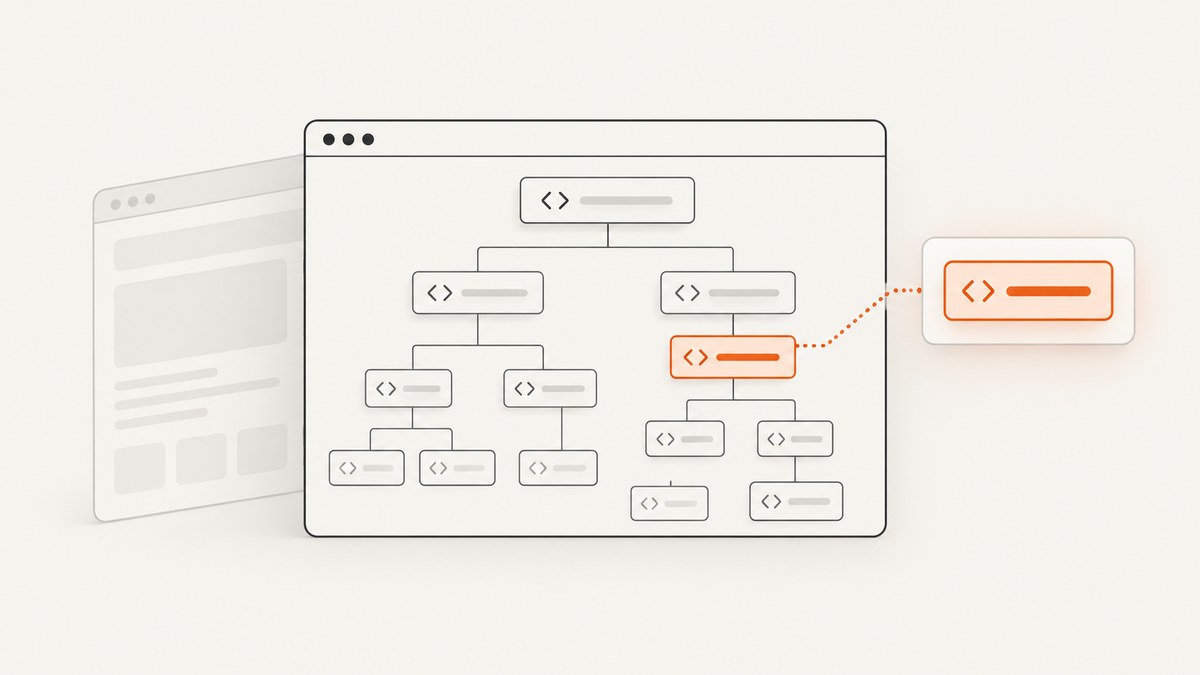
To select an element by its text in XPath, add a text predicate to the element path. Use //button[text()='Save'] for an exact direct text node, //*[normalize-space(.)='Save changes'] when whitespace may vary, and //button[contains(., 'Save')] for a stable substring. The choice depends on whether the label is split across nested elements, whether whitespace is predictable, and how strict the match must be.
XPath is a language for addressing nodes in XML and HTML documents with paths, node tests, and predicates. The expression is evaluated by the browser automation or XML engine you use, so confirm the XPath version and behavior supported by that engine. The W3C XPath specifications define the node and string-value rules behind these expressions (XPath 1.0, XPath 2.0).
Choose the right text predicate
| Goal | XPath | What it matches |
|---|---|---|
| Exact direct text | //button[text()='Save'] |
A button with a direct text node whose value is exactly Save. |
| Exact visible label with normalized whitespace | //button[normalize-space(.)='Save changes'] |
The element string value after leading, trailing, and repeated whitespace is normalized. |
| Substring anywhere in the element | //button[contains(., 'Save')] |
A button whose string value contains Save, including descendant text. |
| Exact nested label | //button[normalize-space(.)='Save changes'] |
A button whose text is split between child elements such as <span> nodes. |
| Case-insensitive comparison | //button[translate(normalize-space(.), 'ABCDEFGHIJKLMNOPQRSTUVWXYZ', 'abcdefghijklmnopqrstuvwxyz')='save'] |
ASCII text compared after converting both cases to lowercase. |
Use the narrowest expression that reflects the requirement. Exact equality avoids accidental matches when several controls contain the same word. contains() is useful when only part of a label is stable, but scope it with a tag, ancestor, class, or another predicate.
text() versus .
text() is a node test for text-node children. It does not mean “all text rendered inside this element.” For example:
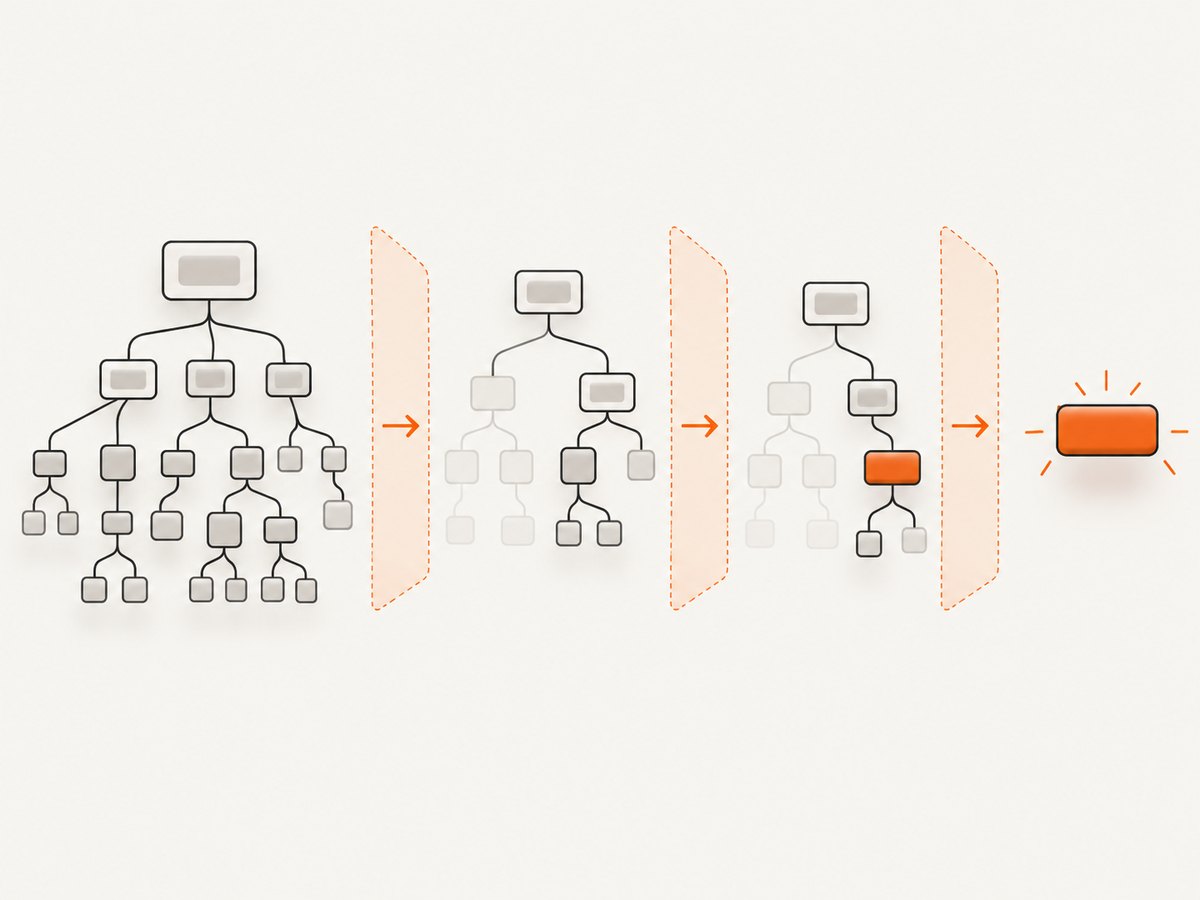
<button>Save <span>changes</span></button>The visible label is “Save changes,” but the button has separate text nodes. This expression can fail because no single direct text node equals the complete label:
//button[text()='Save changes']The element’s string value includes descendant text, so use a dot in the predicate:
//button[normalize-space(.)='Save changes']
//button[contains(., 'Save')]
This distinction follows XPath’s node and string-value model. Selenium’s Python API accepts XPath locators through By.XPATH; its documentation also provides exact and partial link-text strategies for links (Selenium Python API).
Exact text matching
Direct text nodes
Use direct equality when the element contains one predictable text node:
//button[text()='Save']
//a[text()='Documentation']
//label[text()='Email address']
Equality is case-sensitive and whitespace-sensitive. A newline or extra space can make an otherwise visible match fail. Inspect the actual DOM rather than relying only on what is painted on screen.
Normalized exact matching
normalize-space() trims leading and trailing whitespace and converts runs of whitespace to a single space:
//button[normalize-space(.)='Save changes']
//div[@role='heading' and normalize-space(.)='Account settings']
This is generally the best default for human-readable labels. It still performs a case-sensitive comparison and does not translate punctuation or non-ASCII case variants.
Combining text with structural predicates
Text alone may identify several nodes. Add attributes or an ancestor relationship to select the intended control:
//form[@id='checkout']//button[normalize-space(.)='Continue']
//nav//a[normalize-space(.)='Pricing']
//section[@aria-label='Billing']//button[contains(., 'Add')]
//label[normalize-space(.)='Email']/following-sibling::input[1]
When a page has repeated cards, anchor the search to the card containing a known heading:
//article[.//h2[normalize-space(.)='Pro plan']]//button[normalize-space(.)='Choose']Partial and flexible text matching
Substring matching with contains()
Use contains() when a stable fragment is known:
//button[contains(., 'Download')]
//a[contains(normalize-space(.), 'Learn more')]
//*[@role='tab' and contains(., 'Reports')]
A broad expression such as //*[contains(., 'Save')] can match a parent and every descendant that inherits the same string value. Restrict the element type or region whenever possible.
Case-insensitive ASCII matching
XPath 1.0 has no built-in lowercase function. The common workaround is translate():
//button[translate(normalize-space(.),
  'ABCDEFGHIJKLMNOPQRSTUVWXYZ',
  'abcdefghijklmnopqrstuvwxyz')='save']
This mapping handles the listed ASCII letters. For international text and full Unicode case folding, use a capability provided by your automation language or a newer XPath implementation, and verify support in the target engine.
Multiple acceptable labels
Combine alternatives with or when a UI legitimately uses different labels:
//button[normalize-space(.)='Save' or normalize-space(.)='Apply']If the alternatives represent different states, prefer a state attribute such as aria-label, data-testid, or a role plus state when one is available. Text is often changed by localization and copy edits.
Runnable Selenium examples
Python
from selenium import webdriver
from selenium.webdriver.common.by import By
from selenium.webdriver.support.ui import WebDriverWait
from selenium.webdriver.support import expected_conditions as EC

options = webdriver.ChromeOptions()
options.add_argument('--headless=new')
driver = webdriver.Chrome(options=options)

try:
    driver.get('https://example.com/account')
    wait = WebDriverWait(driver, 15)

    # Exact, whitespace-tolerant match.
    save = wait.until(EC.element_to_be_clickable((
        By.XPATH, "//button[normalize-space(.)='Save changes']"
    )))
    save.click()

    # Partial match scoped to navigation.
    docs = wait.until(EC.presence_of_element_located((
        By.XPATH, "//nav//a[contains(normalize-space(.), 'Documentation')]"
    )))
    print(docs.get_attribute('href'))
finally:
    driver.quit()
Java
WebDriver driver = new ChromeDriver();
WebDriverWait wait = new WebDriverWait(driver, Duration.ofSeconds(15));
try {
    driver.get("https://example.com/account");
    WebElement save = wait.until(ExpectedConditions.elementToBeClickable(
        By.xpath("//button[normalize-space(.)='Save changes']")
    ));
    save.click();
} finally {
    driver.quit();
}
JavaScript with Selenium WebDriver
const { Builder, By, until } = require('selenium-webdriver');

(async function () {
  const driver = await new Builder().forBrowser('chrome').build();
  try {
    await driver.get('https://example.com/account');
    const save = await driver.wait(
      until.elementLocated(By.xpath("//button[normalize-space(.)='Save changes']")),
      15000
    );
    await driver.wait(until.elementIsVisible(save), 5000);
    await save.click();
  } finally {
    await driver.quit();
  }
})();
Ruby
require 'selenium-webdriver'

driver = Selenium::WebDriver.for :chrome, options: Selenium::WebDriver::Chrome::Options.new(args: ['--headless=new'])
begin
  driver.navigate.to 'https://example.com/account'
  save = Selenium::WebDriver::Wait.new(timeout: 15).until do
    element = driver.find_element(xpath: "//button[normalize-space(.)='Save changes']")
    element if element.displayed? && element.enabled?
  end
  save.click
ensure
  driver.quit
end
Links, roles, and accessibility names
For a simple link, Selenium offers link-text strategies:
driver.find_element(By.LINK_TEXT, 'Documentation')
driver.find_element(By.PARTIAL_LINK_TEXT, 'Doc')
These are convenient for anchors, while XPath works across buttons, headings, labels, table cells, and custom controls. A visible label may differ from an accessibility name supplied by aria-label. If the interaction contract is the accessible name, select that attribute explicitly:
//button[@aria-label='Close']
//*[@role='button' and @aria-label='Open menu']
Dynamic pages and timing
An XPath can be correct while the lookup still fails because the element has not been inserted, is covered by a modal, or is outside the current frame. Prefer explicit waits over fixed sleeps:
wait.until(EC.visibility_of_element_located(
    (By.XPATH, "//button[normalize-space(.)='Save']")
))
wait.until(EC.element_to_be_clickable(
    (By.XPATH, "//button[normalize-space(.)='Save']")
))
For an iframe, switch into it before locating the element:
frame = wait.until(EC.presence_of_element_located((By.CSS_SELECTOR, 'iframe.payment')))
driver.switch_to.frame(frame)
button = wait.until(EC.element_to_be_clickable((
    By.XPATH, "//button[normalize-space(.)='Pay']"
)))
button.click()
driver.switch_to.default_content()
Shadow DOM boundaries require the component’s shadow-root API; ordinary XPath from the document context cannot cross a shadow root. Virtualized lists may not contain off-screen rows until you scroll or use the application’s data interface.
Debugging an XPath that finds nothing
- Check the DOM, not the screenshot. Inspect the live element and copy its text or HTML. Browser-rendered whitespace and hidden text can differ.
- Try a structural probe. Start with
//buttonor//a, count matches, then add predicates. - Normalize whitespace. Replace
text()='...'withnormalize-space(.)='...'. - Handle nested nodes. Replace
text()with.when spans or icons split the label. - Scope duplicates. Add a form, dialog, section, role, or stable attribute.
- Check frames and shadow roots. Switch context or use the component’s shadow-root interface.
- Wait for state. Locate the node first, then wait for visibility, enabled state, or clickability.
- Check XPath support. Engines differ in supported XPath versions and functions. Validate the expression in the tool that executes it.
| Symptom | Likely cause | Fix |
|---|---|---|
NoSuchElementException |
Text differs, element is late, or wrong frame. | Inspect live DOM, add an explicit wait, and switch frames. |
| Several elements match | Predicate is too broad. | Use a tag, ancestor, role, or exact normalized equality. |
| Exact match fails with visible text | Nested spans or whitespace nodes. | Use normalize-space(.). |
| Click intercepted | Overlay, animation, or sticky header covers the control. | Wait for the overlay to disappear and the element to be clickable. |
| Works locally, fails in CI | Different viewport, locale, timing, or browser engine. | Set deterministic options and verify the engine’s XPath behavior. |
Performance, reliability, and maintainability
XPath text searches can inspect many nodes, especially expressions beginning with //*. Scope from a stable container and select a specific element type. If the application can provide a stable id, data-testid, or accessible attribute, that selector is usually less sensitive to copy changes than visible text.
Keep text selectors readable and centralize them in page objects. Use exact matching for destructive actions, such as deleting or submitting, and partial matching only where the ambiguity is understood. Localization requires a strategy: select by translated text supplied by the test, use stable attributes, or test each locale deliberately.
Do not infer that an element is ready merely because it exists. Wait for the state required by the action, and record the resolved URL, frame, and relevant DOM fragment when a test fails. Avoid arbitrary long sleeps: they slow successful runs while still failing under slower conditions.
Or skip the browser setup
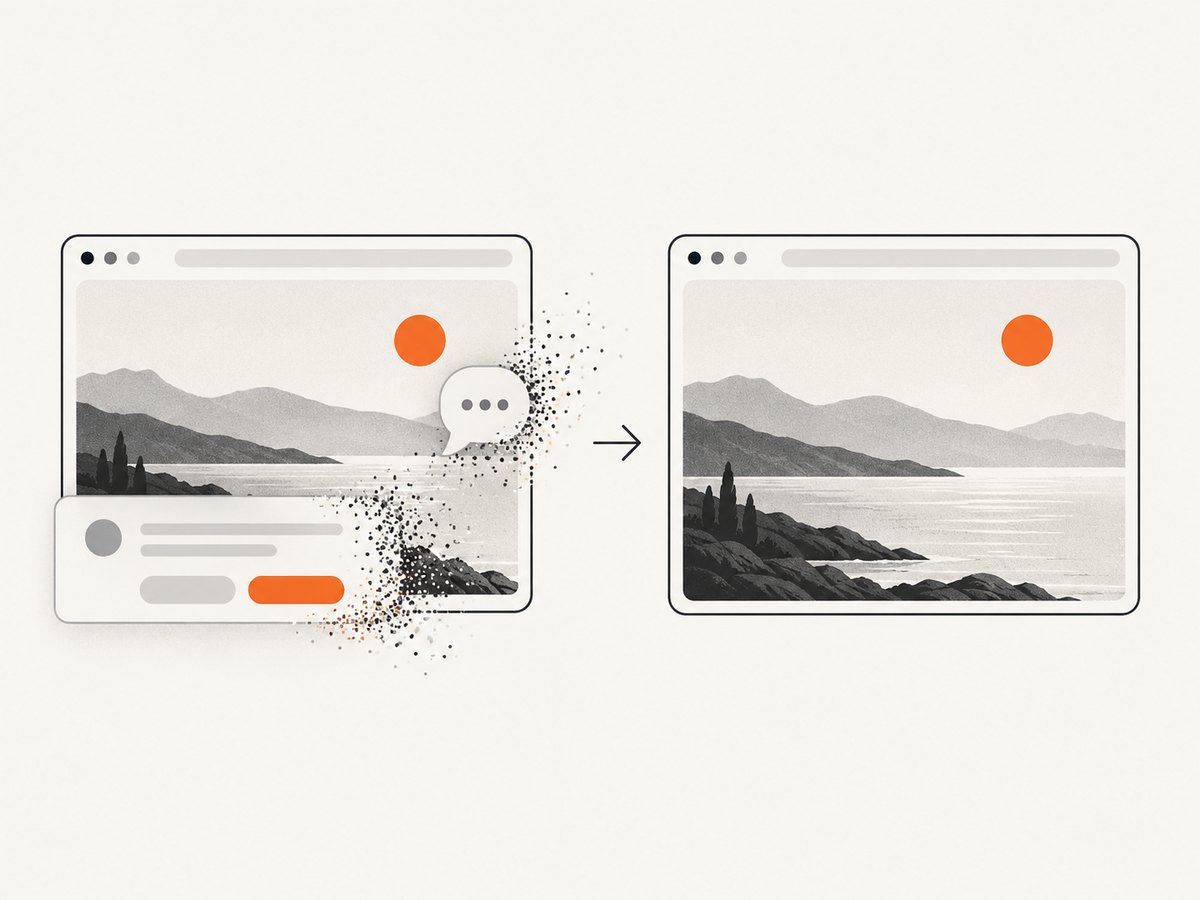
If your goal is a clean visual record of a page rather than an interaction with a particular DOM node, ScreenshotNeo provides a website screenshot API. Its capture flow accepts consent banners like a visitor and removes more than 60 known consent platforms, newsletter popups, and chat widgets before the shot; each step can be turned off. Bot checks or CAPTCHAs, blank pages, timeouts, failed loads, and cache hits are not billed, and the response reports the result through X-Page-Verdict and X-Billed headers.
See the ScreenshotNeo API documentation for all options. A one-call capture looks like this:
curl -G "https://api.screenshotneo.com/v1/shot" -d access_key=YOUR_API_KEY --data-urlencode url=https://stripe.com -o shot.webpimport requests
r = requests.get("https://api.screenshotneo.com/v1/shot", params={"access_key": "YOUR_API_KEY", "url": "https://stripe.com"}, timeout=90)
open("shot.webp", "wb").write(r.content)const q = new URLSearchParams({ access_key: 'YOUR_API_KEY', url: 'https://stripe.com' });
const res = await fetch(`https://api.screenshotneo.com/v1/shot?${q}`);ScreenshotNeo also offers full-page and element capture, dark mode, device presets or custom viewports, retina scale, custom CSS and JavaScript, clicks, waits, request blocking, headers, cookies, user agents, timezone and geolocation, resizing, chosen cache TTLs, signed links, asynchronous jobs with signed webhooks, bulk capture for up to 100 URLs per call, usage reporting, and PDF output. Its MCP server exposes take_screenshot, get_page_info, and capture_pdf for Claude, Cursor, and other MCP clients.
There are 1,000 screenshots per month on the free plan with no card. Paid plans start at $5 for 3,000 shots; every feature is available on every plan. Create your free ScreenshotNeo account.
ScreenshotNeo cost and reliability notes
- Only clean shots are billed; failed loads, blank pages, bot checks, timeouts, and cache hits cost nothing.
- Use a cache TTL when the source changes infrequently to reduce repeated capture work.
- Use asynchronous jobs and signed webhooks for long pages or batch workflows.
- Use bulk capture for up to 100 URLs per call when processing a collection.
- Inspect
X-Page-VerdictandX-Billedso your application can distinguish a successful billed image from an unsuccessful or cached response.
FAQ
Should I use text() or .?
Use text() for a direct text-node match. Use . when descendant elements may contribute to the visible label.
How do I ignore extra spaces?
Wrap the element string value in normalize-space(.).
How do I match part of a label?
Use contains(., 'stable fragment') and scope it to the correct element or container.
Can XPath select text inside an iframe?
Yes, after switching the WebDriver context into that iframe. A document-level XPath cannot see nodes in another browsing context.
Is text the best long-term locator?
It is useful for user-facing labels, but stable IDs, test attributes, roles, and accessible attributes usually survive copy and localization changes better.
Can ScreenshotNeo click a text-selected element?
ScreenshotNeo supports clicking an element before capture and selecting one element by CSS selector. XPath is used in your browser automation; ScreenshotNeo is useful when you need a rendered screenshot or PDF of the resulting page.


