How to Select an HTML Icon Based on Another Element in Cypress
Use Cypress find and closest to select the right HTML icon from a label, row, or card, with reliable selectors and troubleshooting.
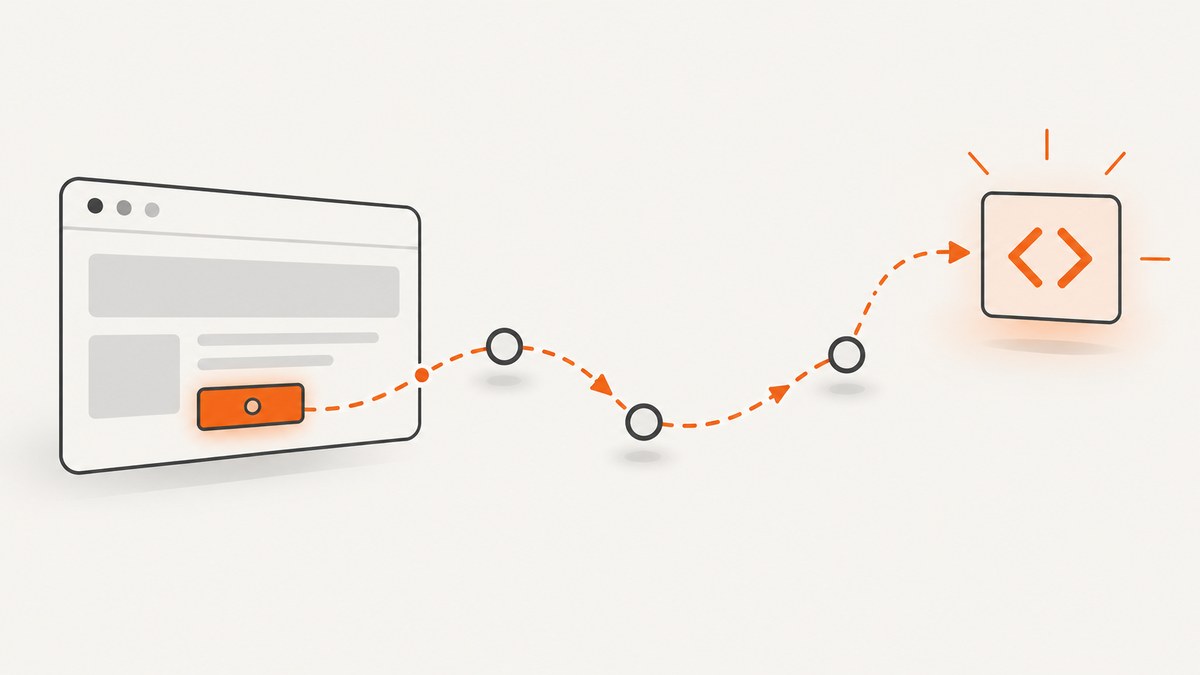
Direct answer: begin with the element that gives the test its meaning, then traverse according to the DOM relationship. If the icon is inside that element, chain .find(). If the text and icon are siblings in a card or row, locate the text, climb to the shared container with .closest(), and find the icon there. Use stable data-cy attributes or accessible names, then assert the property your test actually cares about.
Cypress queries are retryable, so a traversal chain waits for the matching element and its assertions instead of taking a one-time synchronous snapshot. The patterns below follow Cypress’s documented find, closest, contains, and within behavior.
1. Map the HTML relationship before writing the selector
“Select the icon based on another element” describes a relationship, not one universal selector. Inspect the rendered HTML and answer three questions:
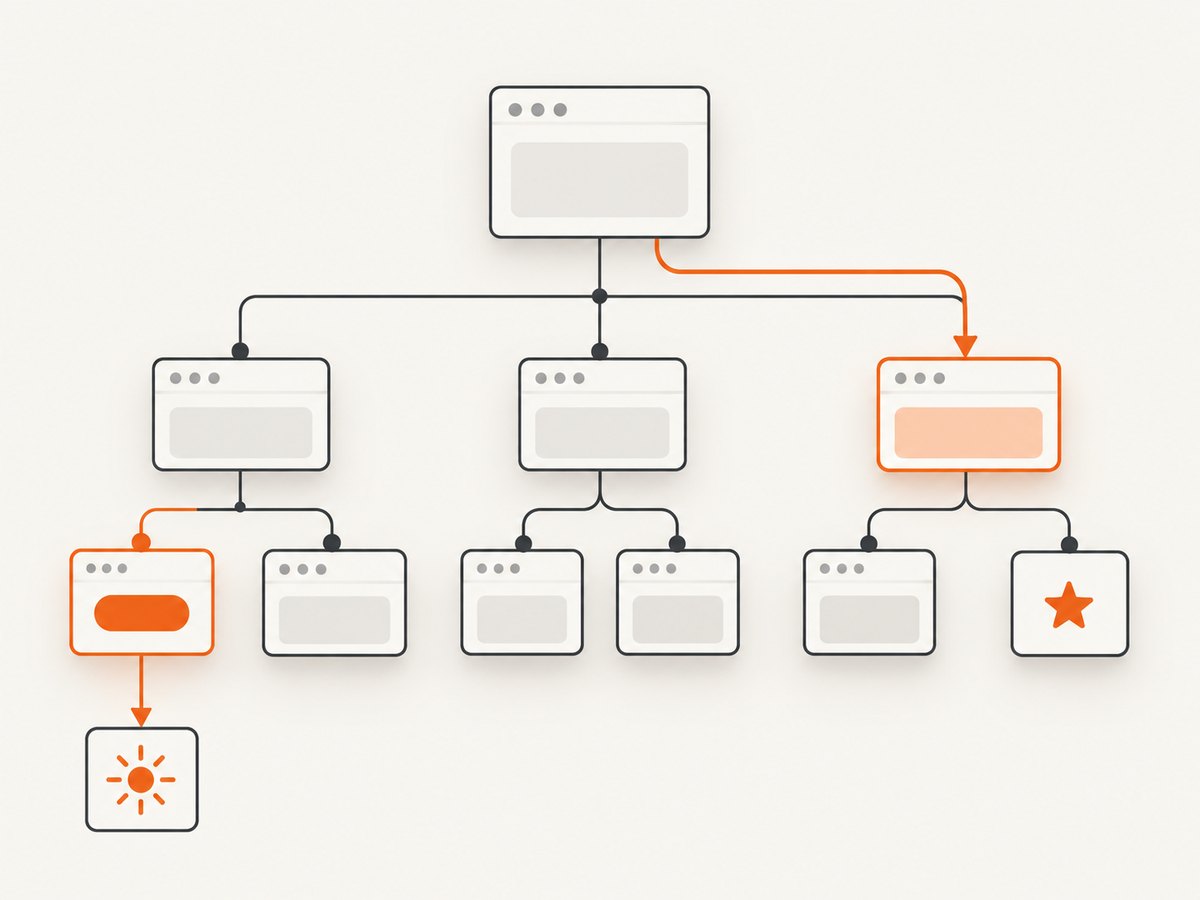
- What is the meaningful anchor: a button label, row text, heading, or stable test attribute?
- Is the icon a descendant of that anchor, or does both content live in a shared ancestor?
- Are you testing the icon’s rendering, or the behavior of an interactive control that happens to contain an icon?
<button data-cy="save-button">
  <span>Save</span>
  <svg data-cy="save-icon" aria-hidden="true">...</svg>
</button>

<div data-cy="product-row">
  <span>Product name</span>
  <svg data-cy="status-icon" aria-hidden="true">...</svg>
</div>
In the first case the button is the anchor and the SVG is a descendant. In the second case the visible text and SVG are siblings, so the row is the useful scope.
2. Descendant icon: use .find()
.find(selector) searches descendants of the current Cypress subject. Start with a semantic control or stable attribute, then narrow to the icon:
describe('save control', () => {
  it('shows the save icon on the Save button', () => {
    cy.contains('button', 'Save')
      .find('svg[data-cy="save-icon"]')
      .should('be.visible')
  })
})
This chain first finds a button containing the user-facing text “Save.” The subsequent .find() cannot escape that button. If your application has a stable attribute, it is often clearer:
cy.get('[data-cy="save-button"]')
  .find('[data-cy="save-icon"]')
  .should('have.attr', 'aria-hidden', 'true')
Use an assertion that represents the requirement. be.visible checks visibility; exist checks presence even when CSS hides the element; have.class or have.attr checks state; a length assertion catches duplicates.
3. Shared row or card: use .closest().find()
When the anchor and icon are siblings, move up to the nearest meaningful container, then search inside it:
cy.contains('[data-cy="product-row"]', 'Product name')
  .find('[data-cy="status-icon"]')
  .should('be.visible')
If you start from a nested heading or label, climb explicitly:
cy.contains('h2', 'Profile')
  .closest('[data-cy="profile-card"]')
  .find('svg[data-cy="edit-icon"]')
  .should('exist')
.closest() checks the subject and ancestors and yields the first matching element. Choose a container selector unique to the component; a generic div can match the wrong region.
4. Complete patterns for common markup
Rows with duplicate labels
If several rows contain the same text, identify the row by another stable value. Prefer a row-level attribute such as data-invoice-id over positional selectors:
cy.get('[data-cy="invoice-row"][data-invoice-id="104"]')
  .find('[data-cy="warning-icon"]')
  .should('have.attr', 'aria-hidden', 'true')
Icon state driven by a class or attribute
cy.contains('[data-cy="item-row"]', 'Invoice 104')
  .find('[data-cy="warning-icon"]')
  .should('have.class', 'is-active')

cy.get('[data-cy="item-row"][data-status="failed"]')
  .find('svg[data-cy="status-icon"]')
  .should('have.attr', 'data-state', 'error')
Icon-only interactive button
An icon-only button is a control, not merely a decorative SVG. Test the named control and its behavior:
cy.get('button[aria-label="Close"]')
  .should('be.visible')
  .click()

cy.get('button[aria-label="Close"]')
  .find('svg')
  .should('exist')
Cypress accessibility guidance recommends an accessible name for interactive controls. Keep a decorative SVG aria-hidden="true"; otherwise give it an appropriate role and name.
Using .within() for several assertions
cy.get('[data-cy="settings-card"]').within(() => {
  cy.contains('Notifications').should('be.visible')
  cy.get('[data-cy="enabled-icon"]').should('exist')
})
Inside .within(), Cypress scopes commands to the card. A direct .find() chain is usually clearer for one relationship.
5. Selector design and retry behavior
Choose selectors in this order: a stable test attribute, an accessible role/name for a control, meaningful user text, then structural CSS. Keep icon implementation details out of tests unless rendering the icon itself is the requirement. A generated CSS-module class or SVG path value is a poor contract.
cy.get() normally starts at the document. .find() starts from the current subject. .within() changes the root inside its callback. Cypress retries queries and chained assertions until they pass or the timeout expires. Avoid extracting a node synchronously and inspecting it outside the chain.
cy.contains('[data-cy="order-row"]', 'Order 1042')
  .closest('[data-cy="order-row"]')
  .find('[data-cy="paid-icon"]')
  .should('be.visible')
If text is localized, cy.contains('Save') couples the test to one locale. Prefer a stable attribute or localized fixture. Whitespace, nested elements, and case can affect matching.
6. A decision table
| Markup relationship | Starting query | Traversal | Typical assertion |
|---|---|---|---|
| Icon inside labeled button | cy.contains('button', label) |
.find(icon) |
button visible or icon exists |
| Text and icon in one row | cy.contains(row, text) |
.find(icon) |
state attribute or class |
| Nested heading inside card | cy.contains('h2', text) |
.closest(card).find(icon) |
icon count or visibility |
| Icon-only control | cy.get('button[aria-label]') |
act on button; optionally .find('svg') |
click result or control state |
7. Troubleshooting common failures
“Expected to find element, but never found it”
Cause: the selector does not match the rendered HTML, the component is outside scope, or the icon appears after a request. Fix: inspect the post-render DOM, verify attributes and ancestors, and keep the query chain retryable. Increase a timeout only after confirming the application needs more time.
The wrong row’s icon is selected
Cause: a global SVG query, generic class, or duplicate text returned multiple matches. Fix: scope to a row or card, add a unique row identifier, and assert the expected count.
.find() returns nothing
Cause: the icon is a sibling, not a descendant, or is rendered in a portal. Fix: use .closest(container).find(icon) for siblings. For a portal, query its root deliberately and connect it to the triggering control through observable state.
.closest() reaches the wrong ancestor
Cause: the selector is broad, such as div. Fix: add a component-level attribute like data-cy="product-row" and use it as the boundary.
Text matching is flaky
Cause: localization, changing whitespace, or text split across nodes. Fix: use a stable attribute, role/name query, or selector form of cy.contains to scope the match.
The icon is visible but the assertion fails
Cause: transitions, overlays, or an intentionally hidden SVG. Fix: assert the intended contract: exist, be.visible, or a state attribute/class. If the requirement is clicking, click the accessible button and assert the resulting user state.
8. Reliability and performance practices
- Give repeated components stable test hooks at their boundary and on meaningful icons.
- Keep chains short: anchor, scope, icon, assertion.
- Assert one user outcome per test where practical; rendering details can be a separate component test.
- Wait on application state through UI or network aliases instead of arbitrary sleeps.
- Use
.should('have.length', 1)when uniqueness matters, but allow multiple decorative paths when the design requires them. - Do not select SVG path geometry unless it is the product requirement.
Scoped queries reduce search work on pages with many SVGs. The largest reliability gain comes from a stable relationship and meaningful assertion, not micro-optimizing selector syntax.
9. Or skip the browser setup
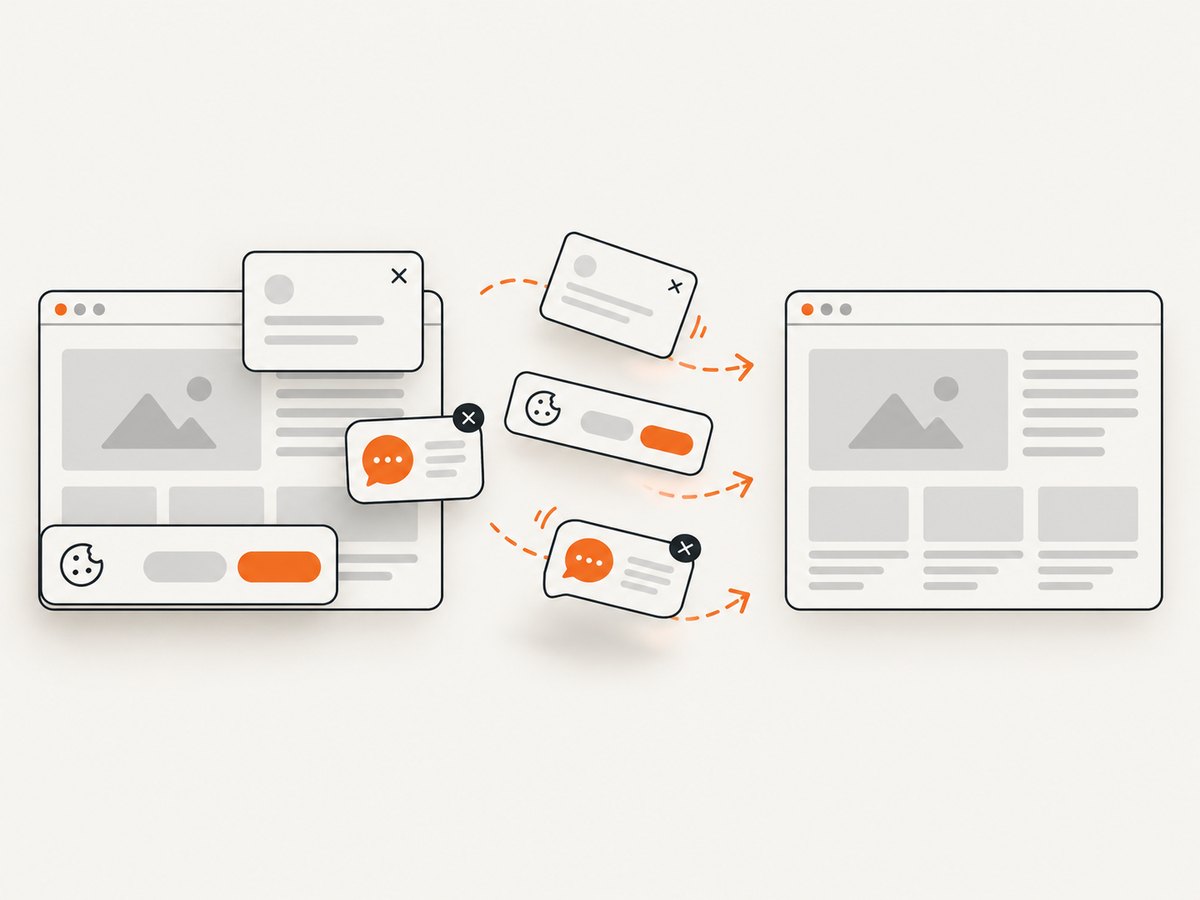
If your goal is a visual artifact rather than DOM interaction, ScreenshotNeo returns an image or PDF from one request. It accepts cookie or consent banners like a visitor and removes 60+ known consent platforms, newsletter popups, and chat widgets before capture; each step can be turned off. Bot checks, blank pages, timeouts, failed loads, and cache hits are not billed, and response headers report the page verdict and billing status. Its MCP server provides take_screenshot, get_page_info, and capture_pdf for Claude, Cursor, and other MCP clients.
See the ScreenshotNeo API documentation for all options. This call captures a clean WebP:
curl -G "https://api.screenshotneo.com/v1/shot" -d access_key=YOUR_API_KEY --data-urlencode url=https://stripe.com -o shot.webpimport requests
r = requests.get("https://api.screenshotneo.com/v1/shot", params={"access_key": "YOUR_API_KEY", "url": "https://stripe.com"}, timeout=90)
open("shot.webp", "wb").write(r.content)const q = new URLSearchParams({ access_key: 'YOUR_API_KEY', url: 'https://stripe.com' });
const res = await fetch(`https://api.screenshotneo.com/v1/shot?${q}`);ScreenshotNeo supports full-page captures with lazy images loaded, element selectors, dark mode, 12 device presets or custom viewports, retina scale, PDFs with paper size, margins, landscape and page ranges, HTML/CSS to image, custom CSS and JavaScript, clicks, selector/delay/network-idle waits, blocking ads/trackers/requests/resource types, custom headers/cookies/user agent/Authorization, timezone and geolocation, transparent backgrounds, resizing, chosen cache TTLs, signed links, async jobs with signed webhooks, bulk capture of 100 URLs per call, a usage API, and an OpenAPI specification. Parameter names used by other screenshot APIs also work.
Free includes 1,000 shots each month with no card. Starter is $5 for 3,000, Growth $15 for 15,000, Pro $39 for 60,000, Scale $99 for 250,000, and Business $249 for 1,000,000; yearly billing gives two months free, and every feature is on every plan. Create a free ScreenshotNeo account.
10. FAQ
Should I select the SVG or its button?
Select the button for clicking, focus, or accessible naming. Select the SVG only when its presence or visual state is the requirement.
Can I use cy.get() after cy.contains()?
Use .find() to continue from the subject returned by cy.contains(). A new cy.get() starts at the document unless inside .within().
What if the icon is rendered in a shadow root?
Enable Cypress shadow DOM traversal where appropriate and scope from the host component. Keep a stable attribute on the host or exposed control; do not rely on internal SVG paths.
How do I prove the icon belongs to the right data item?
Anchor on a unique item identifier, scope to that item’s container, then assert the icon state. A row-level data-id or accessible label makes the relationship explicit.
How do I capture the resulting page image for review?
Keep Cypress for interaction and assertions, then use ScreenshotNeo’s one-call API or MCP tools for a clean screenshot or PDF when you need an artifact without consent banners and overlays.


