How to Select Items in Dropdowns with Selenium
Use Selenium’s Select helper for native HTML dropdowns, and ordinary WebDriver interactions for custom JavaScript menus. Learn both approaches, with runnable examples.
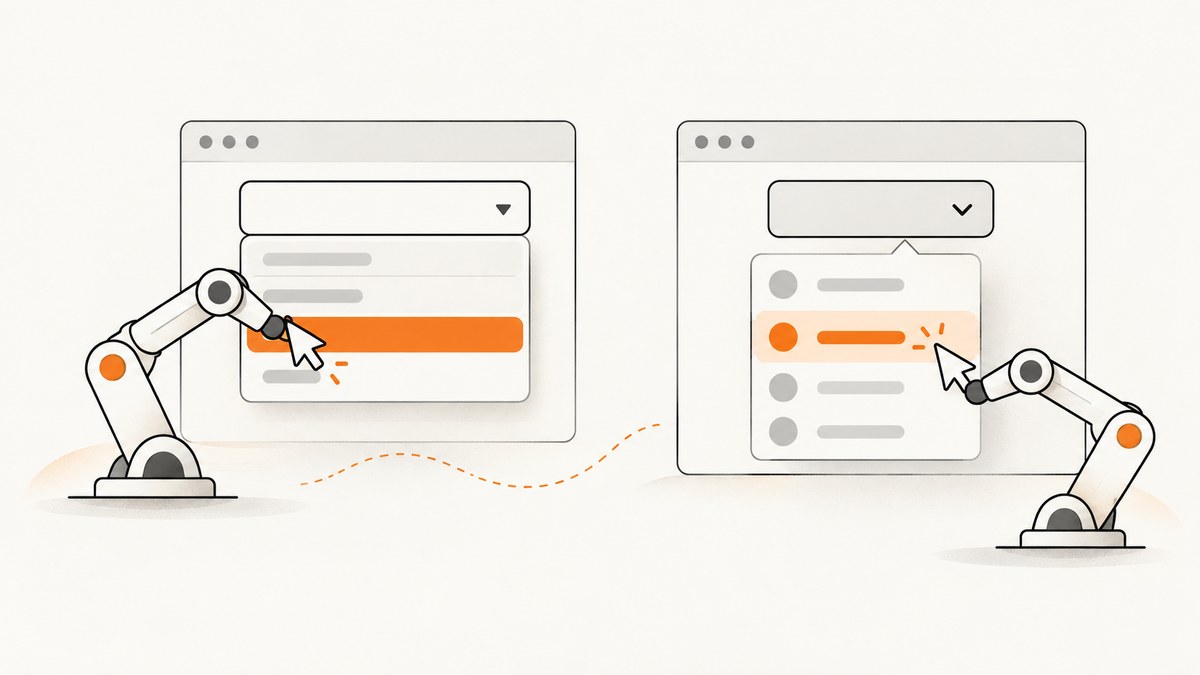
To select an item in Selenium, first check the page markup. If the control is a native HTML <select>, wrap it in Selenium’s Select helper and choose by visible text, value, or index. If it is a custom JavaScript dropdown built from elements such as div or li, locate and interact with its trigger and options as ordinary page elements. The Select helper only supports native select elements. Selenium’s select list guide documents these methods and their limits.
1. Identify the dropdown type
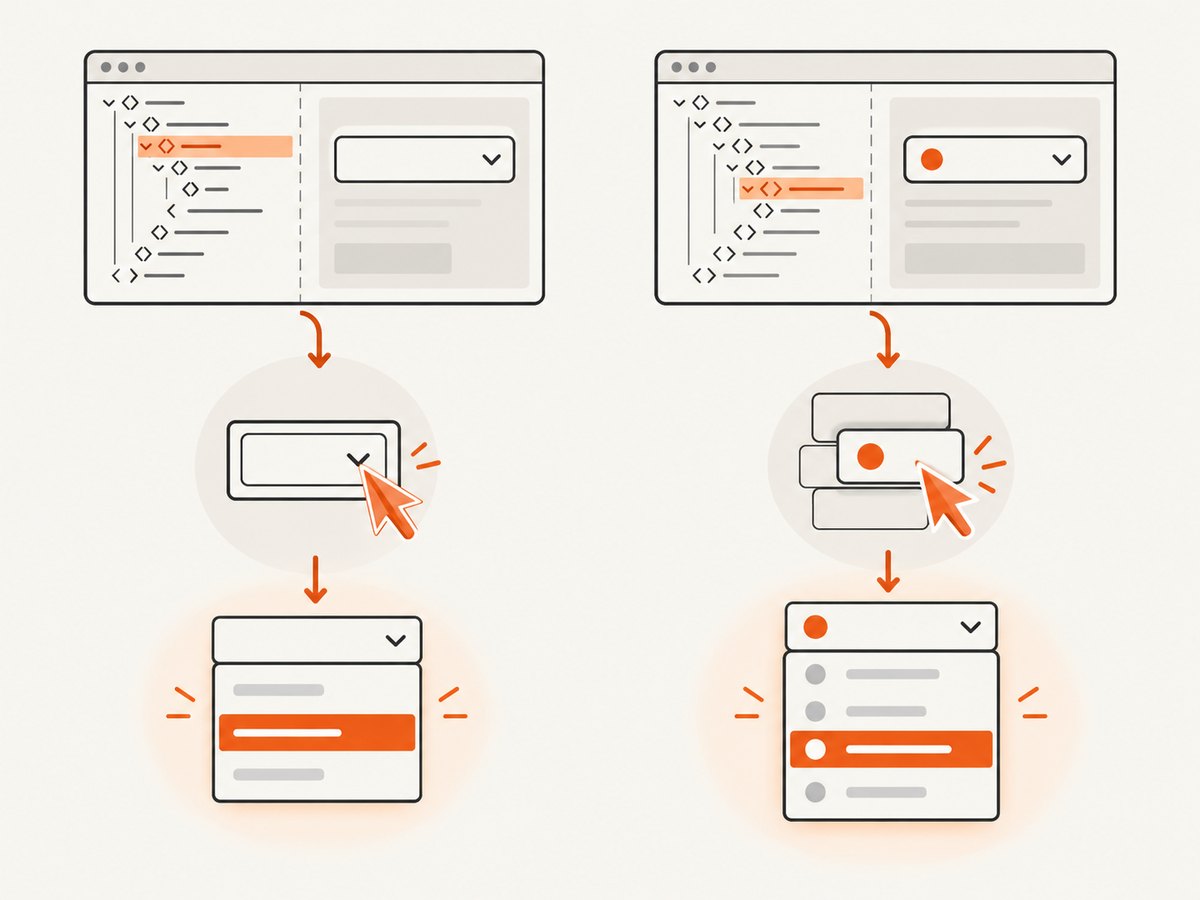
Before writing an interaction, inspect the page in browser developer tools or inspect the element through WebDriver. A native dropdown has a <select> element containing <option> elements. A custom dropdown may look like a field, but its markup is composed of buttons, inputs, div elements, list items, or other widgets.
| What you find | What to use |
|---|---|
<select><option> |
Selenium’s language-specific Select helper |
| Custom trigger and option elements | Normal locators, waits, and WebDriver interactions |
| Disabled select or option | Wait for an enabled state or correct the page/test setup; disabled choices cannot be selected |
This distinction is the key diagnostic. A custom widget may visually resemble a native select, but passing its trigger to Select will fail because it is not an HTML select element. Selenium’s locator guide describes locating page elements, and its interaction guide covers standard WebDriver actions. Locators · Interactions.
2. Select an item in a native dropdown with Python
Install Selenium in the Python environment used to run the test:
python -m pip install seleniumThe following example opens a page, finds a native select by its stable ID, selects an option by its visible label, waits until the selection is reflected in the DOM, and checks the result. Replace the URL and locator with those from your application. Selenium Manager can manage browser drivers for common setups; see the project’s installation guide for library setup.
from selenium import webdriver
from selenium.webdriver.common.by import By
from selenium.webdriver.support.ui import Select, WebDriverWait
from selenium.webdriver.support import expected_conditions as EC

URL = "https://www.selenium.dev/selenium/web/formPage.html"

with webdriver.Chrome() as driver:
    driver.get(URL)
    wait = WebDriverWait(driver, 10)

    select_element = wait.until(
        EC.element_to_be_clickable((By.ID, "selectInstance"))
    )
    dropdown = Select(select_element)
    dropdown.select_by_visible_text("Two")

    wait.until(EC.element_to_be_selected(
        (By.CSS_SELECTOR, "#selectInstance option[value='2']")
    ))
    assert dropdown.first_selected_option.text == "Two"
The example’s locator and option label must match the actual page. If you already have a reliable WebElement, construct Select around it directly. Selenium’s Python expected conditions include conditions for selected elements; these waits are useful when the page changes asynchronously. Python expected conditions API.
Choose by visible text, value, or index
Use the method that expresses the intended choice most clearly. Visible text matches what a user sees; value matches the option’s HTML value attribute; index refers to its position in the option list.
dropdown.select_by_visible_text("Two")
dropdown.select_by_value("2")
dropdown.select_by_index(1)
In Python, indexes are zero-based: index 1 means the second option. Check the binding’s method documentation if translating this example to another language. Prefer text or value when they identify the intended choice directly. An index can select the wrong item after an option is inserted or reordered.
3. Runnable examples in Java, C#, and JavaScript
The same native-select distinction applies across Selenium language bindings. These examples show the core interaction; adapt the URL and locator to the page under test. Install and configure the matching Selenium binding and browser before running them.
Java
import org.openqa.selenium.By;
import org.openqa.selenium.WebDriver;
import org.openqa.selenium.WebElement;
import org.openqa.selenium.chrome.ChromeDriver;
import org.openqa.selenium.support.ui.Select;

public class SelectDropdown {
    public static void main(String[] args) {
        WebDriver driver = new ChromeDriver();
        try {
            driver.get("https://www.selenium.dev/selenium/web/formPage.html");
            WebElement element = driver.findElement(By.id("selectInstance"));
            Select dropdown = new Select(element);
            dropdown.selectByVisibleText("Two");
            if (!dropdown.getFirstSelectedOption().getText().equals("Two")) {
                throw new AssertionError("Expected option Two to be selected");
            }
        } finally {
            driver.quit();
        }
    }
}
C#
The SelectElement support class is provided by Selenium.Support. The Selenium installation documentation shows Selenium.WebDriver and Selenium.Support packages; use versions compatible with your project. Selenium library installation.
using OpenQA.Selenium;
using OpenQA.Selenium.Chrome;
using OpenQA.Selenium.Support.UI;

using var driver = new ChromeDriver();
driver.Navigate().GoToUrl("https://www.selenium.dev/selenium/web/formPage.html");
var element = driver.FindElement(By.Id("selectInstance"));
var dropdown = new SelectElement(element);
dropdown.SelectByText("Two");
if (dropdown.SelectedOption.Text != "Two")
{
    throw new System.Exception("Expected option Two to be selected");
}
JavaScript
The JavaScript binding does not use the same Select helper pattern as Python and Java. For a native select, locate it and use WebDriver’s element interaction, then read the selected value to assert the result. Here is an ES module example using the Selenium JavaScript package:
import { Builder, By } from "selenium-webdriver";

const driver = await new Builder().forBrowser("chrome").build();
try {
  await driver.get("https://www.selenium.dev/selenium/web/formPage.html");
  const select = await driver.findElement(By.id("selectInstance"));
  await select.sendKeys("Two");
  const value = await select.getAttribute("value");
  if (value !== "2") {
    throw new Error(`Expected value 2, got ${value}`);
  }
} finally {
  await driver.quit();
}
Verify that the option text and value in this example match your page. For selection behavior and supported operations, consult the documentation for your binding and the Selenium support-features guide.
4. Work with a multiple-select list
A native select allows multiple selected values only when its markup has the multiple attribute. Confirm this in the DOM before using multiple-selection or deselection methods. In Python, select each desired option and inspect the selected options:
from selenium.webdriver.support.ui import Select

multi = Select(driver.find_element(By.ID, "colors"))
assert multi.is_multiple
multi.select_by_value("blue")
multi.select_by_visible_text("Green")
selected = [option.text for option in multi.all_selected_options]
assert set(selected) == {"Blue", "Green"}

multi.deselect_by_value("blue")
assert [option.text for option in multi.all_selected_options] == ["Green"]
Use is_multiple to check the control’s mode rather than assuming it. Deselect methods apply to multiple-select controls; calling them on a single-select control is invalid. If the expected selection has several choices, assert the complete selected set instead of checking just one option. That catches both missing and unexpected selections.
5. Handle a custom JavaScript dropdown
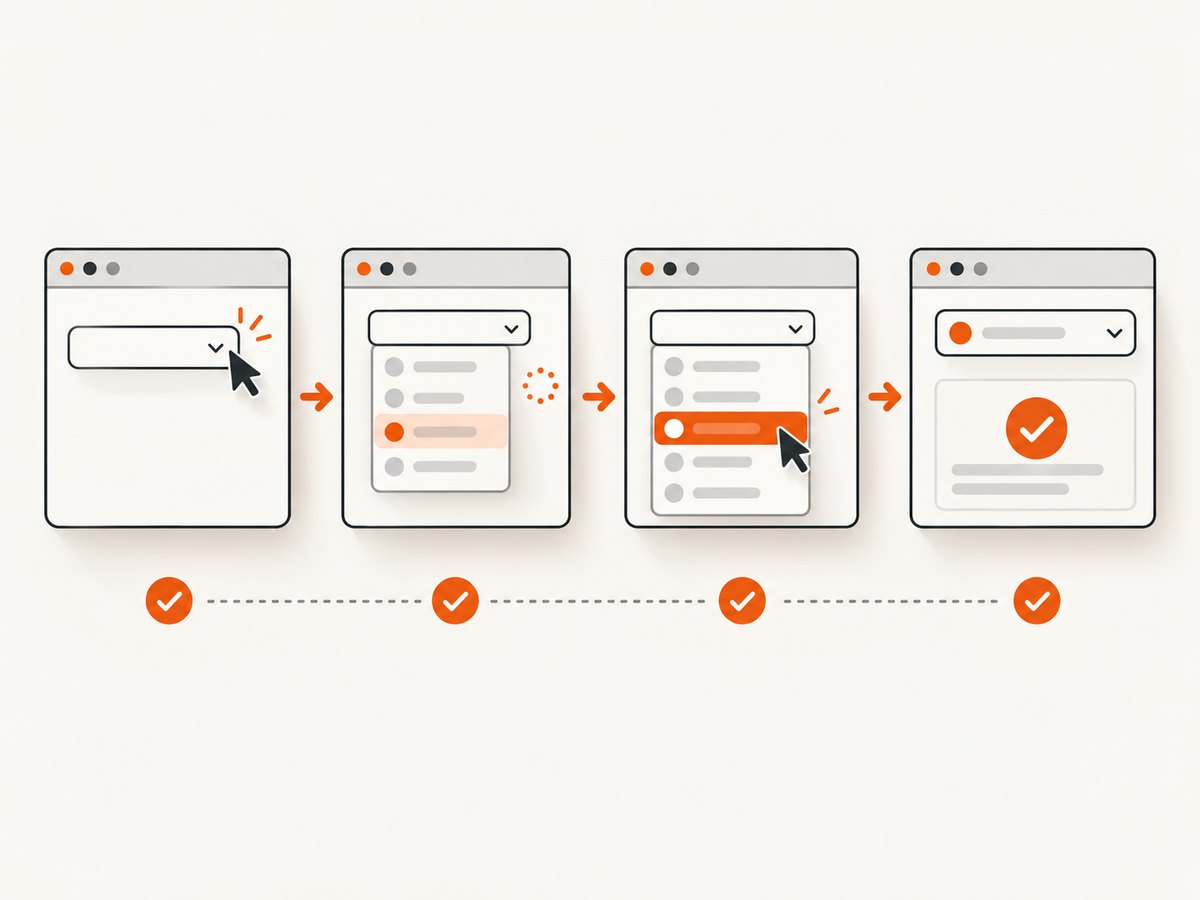
For a custom widget, use regular locators and actions. The sequence is usually: wait for the trigger, open the menu, wait for the desired option to appear, click it, and assert the resulting state. Choose selectors based on stable attributes such as accessible role, label, or a test ID when the application provides them.
from selenium.webdriver.common.by import By
from selenium.webdriver.support.ui import WebDriverWait
from selenium.webdriver.support import expected_conditions as EC

wait = WebDriverWait(driver, 10)
trigger = wait.until(EC.element_to_be_clickable(
    (By.CSS_SELECTOR, "[data-testid='country-dropdown']")
))
trigger.click()

option = wait.until(EC.element_to_be_clickable(
    (By.XPATH, "//*[@role='option' and normalize-space()='Canada']")
))
option.click()

wait.until(EC.text_to_be_present_in_element(
    (By.CSS_SELECTOR, "[data-testid='country-dropdown']"), "Canada"
))
This is an example locator pattern, not a claim about a particular site’s markup. Replace both selectors with the actual trigger and option locators. Some menus render options only after opening, attach them elsewhere in the document, or update through JavaScript after a click. Locate the option after opening the menu, and wait for a visible state that indicates the choice took effect. WebDriver interactions attempt to scroll an offscreen element into view and ensure it is interactable, but overlays or disabled controls can still prevent interaction. Element interactions.
6. Wait for the right state and verify selection
A selection call is an instruction, not proof that the application reached the expected state. Follow it with an assertion that checks the selected option, value, visible label, or application state relevant to the test. When updates are asynchronous, wait for that condition rather than sleeping for an arbitrary duration.
# Native select: wait for a specific option to be selected
wait.until(EC.element_to_be_selected(
    (By.CSS_SELECTOR, "#selectInstance option[value='2']")
))

# Or wait for a specific selected state
wait.until(EC.element_selection_state_to_be(
    (By.CSS_SELECTOR, "#selectInstance option[value='2']"), True
))
Python’s expected conditions expose both selected-element and selection-state waits. Java also provides support classes for explicit waits; use the condition appropriate to your binding. Avoid fixed long sleeps as a routine strategy: they slow successful runs and may still be too short on a slow page. Java support UI API.
7. Common errors and fixes
| Error or symptom | Likely cause | Fix |
|---|---|---|
UnexpectedTagNameException or invalid select element |
The element is a custom widget, not a native <select>. |
Inspect the DOM; interact with its trigger and option elements using ordinary locators and clicks. |
| Option text or value not found | Whitespace, capitalization, localization, a changed label, or a mismatched value. | Inspect the live option text and attributes. Use the exact visible text or value, and wait until options are populated. |
| Cannot create a Select for a disabled element | The select is disabled. Selenium’s documentation notes this restriction since Selenium 4.5. | Wait for the page to enable it or correct the test precondition. Do not try to select while disabled. |
| Target option cannot be selected | The option itself may be disabled, or the page has not finished updating. | Check the option’s disabled state and wait for the intended option to become available. Disabled options may not be selected. |
| Click intercepted or element not interactable | An overlay, animation, collapsed menu, or offscreen layout blocks the target. | Wait for the overlay or animation to finish; open the custom menu first; then locate and click the option. |
| Selection command succeeds but test fails later | The application updates asynchronously or the test asserted the wrong representation. | Wait for a selected state or dependent UI update, then assert the actual value or visible state. |
| Multi-select deselection fails | The control lacks the multiple attribute. |
Confirm the DOM and use deselection only with a multiple select. |
The Selenium select-list documentation contains the version note about disabled controls and describes selecting by text, value, and index. Tie version-sensitive behavior to the Selenium version used by the project. Select list support.
8. Reliability, speed, and test maintenance
- Use stable locators. Prefer IDs, labels, accessible roles, or application test attributes that represent the control’s purpose. Fragile positional XPath expressions tend to break when the page structure changes.
- Wait for state, not elapsed time. Use explicit waits for the select to be present or enabled, the custom menu option to appear, and the final selection to register.
- Choose semantic targets. Text or value usually describes the intended option more directly than an index. If the list is dynamic, an index makes tests sensitive to ordering.
- Keep assertions close to the action. Confirm the chosen value immediately so a later failure does not obscure whether dropdown selection worked.
- Account for page-specific behavior. Custom components may update other fields, fetch options remotely, or close after a selection. Wait for the application state your test actually depends on.
Dropdown selection itself is usually a small part of browser-test runtime; page loading, rendering, and asynchronous application work can dominate. Avoid optimizing by removing meaningful waits or assertions. A reliable condition-based wait gives the test a clear success condition and a bounded timeout.
9. Or skip the browser setup
If the goal is to capture what a page looks like after managing browser setup, a screenshot API can handle the capture request. ScreenshotNeo is a website screenshot API and MCP server for developers. Its API returns PNG, JPEG, WebP, or PDF; the request below captures a page directly. See the ScreenshotNeo API documentation for parameters and configuration.
curl -G "https://api.screenshotneo.com/v1/shot" -d access_key=YOUR_API_KEY --data-urlencode url=https://stripe.com -o shot.webpimport requests
r = requests.get(
"https://api.screenshotneo.com/v1/shot",
params={"access_key": "YOUR_API_KEY", "url": "https://stripe.com"},
timeout=90,
)
open("shot.webp", "wb").write(r.content)const q = new URLSearchParams({ access_key: 'YOUR_API_KEY', url: 'https://stripe.com' });
const res = await fetch(`https://api.screenshotneo.com/v1/shot?${q}`);
if (!res.ok) throw new Error(`Screenshot request failed: ${res.status}`);
await import('node:fs/promises').then(fs => fs.writeFile('shot.webp', Buffer.from(await res.arrayBuffer())));For local scripts and CI, keep the API key in an environment variable or secret store and substitute it for YOUR_API_KEY. ScreenshotNeo removes cookie banners, newsletter popups, and chat widgets before the shot. Bot checks, blank pages, and failed loads are never billed, and response headers identify the page verdict and billing status. Its MCP server gives AI agents tools for screenshots, page information, and PDF capture. The free plan includes 1,000 screenshots per month with no card; paid plans start at $5 for 3,000. Learn about ScreenshotNeo or sign up for 1,000 free screenshots a month, no card required.
10. FAQ
Can Selenium select a dropdown by its displayed label?
Yes. For a native select, use the binding’s visible-text method, such as Python’s select_by_visible_text or Java’s selectByVisibleText. For a custom widget, locate and click the matching option.
Can I use Select with a React or Vue dropdown?
Only if the rendered control is an actual HTML <select>. Framework choice does not decide the method; the rendered markup does.
Should I select by index?
Use an index when position is the requirement. For a named choice, text or value makes the test’s intent clearer and is less sensitive to option reordering.
How do I know if a select allows several choices?
Check for the HTML multiple attribute or the binding’s multiple-select property. Then assert all expected selected options.
Does a screenshot replace a Selenium interaction test?
No. Selenium exercises the control and verifies behavior. A screenshot captures page output; use the method that matches whether you need behavioral validation or an image of the page.


