How to Select Multiple Checkboxes with Selenium WebDriver
Select several checkboxes safely with Selenium WebDriver using scoped locators, state checks, explicit waits, and verification.
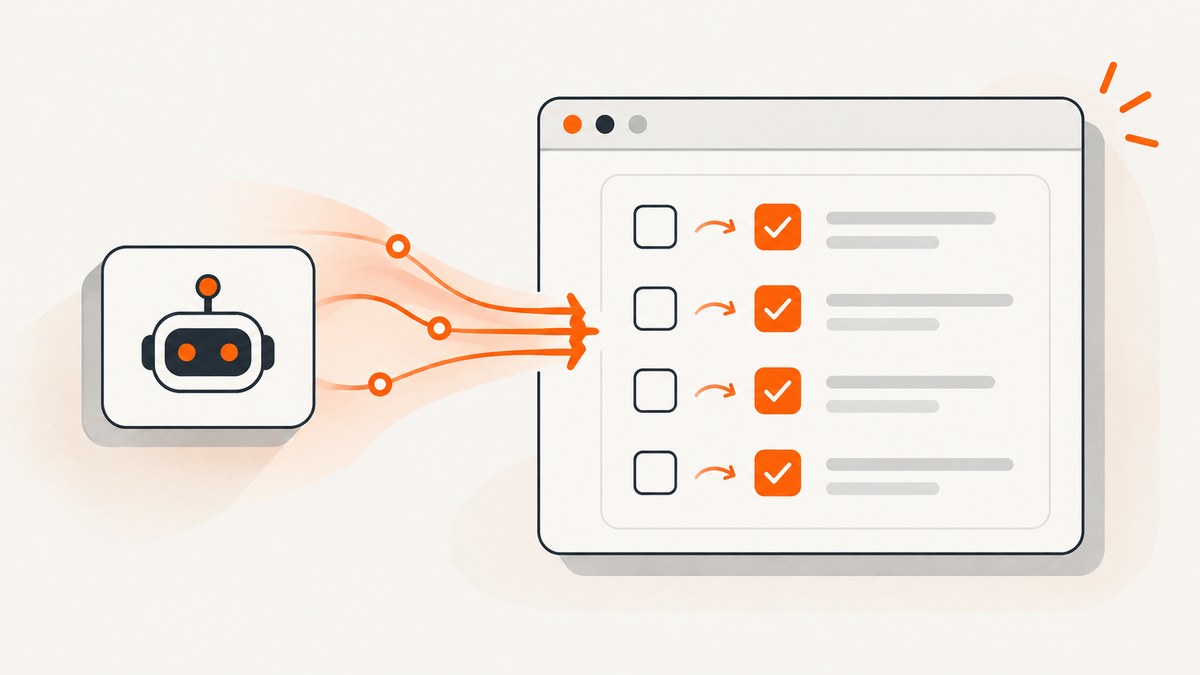
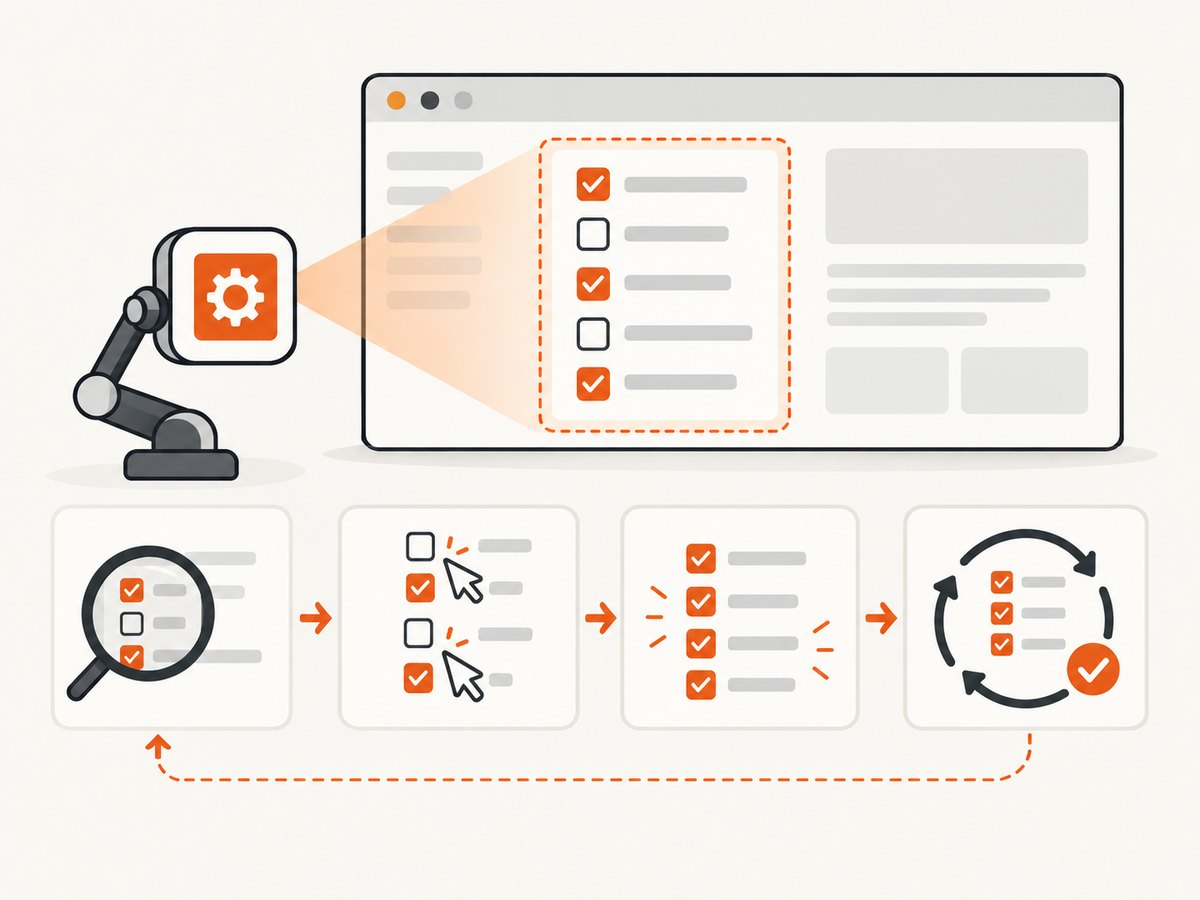
Direct answer: locate the checkbox inputs within the intended form or container, inspect each element’s current selected state, and click only the unchecked boxes. A checkbox click toggles its state, so blindly clicking every match can turn already-selected controls off.
from selenium.webdriver.common.by import By

boxes = driver.find_elements(
    By.CSS_SELECTOR,
    "#preferences input[type='checkbox']"
)

for box in boxes:
    if not box.is_selected():
        box.click()
Replace #preferences with a stable selector from the page under test. Selenium documents checkbox clicks and selected-state checks in its interaction guide, Java WebElement API, and Python WebElement API.
1. Identify the checkbox group
Do not start with a page-wide selector such as input[type='checkbox'] unless every checkbox belongs to the same test. Scope the locator to a form, fieldset, dialog, or other meaningful container.
| Locator | When to use it | Example |
|---|---|---|
| ID | The group has a stable container ID | #preferences input[type='checkbox'] |
| Name | Checkboxes share a meaningful field name | input[name='topics'] |
| CSS class | A documented component class identifies the group | .topic-options input[type='checkbox'] |
| XPath | You need relationship-based matching | //fieldset[@aria-label='Topics']//input[@type='checkbox'] |
Prefer stable IDs, names, data attributes, or meaningful CSS over positional XPath such as (//input[@type='checkbox'])[4]. Positional selectors break when the page adds or reorders controls.
2. Select only unchecked boxes
Python
from selenium import webdriver
from selenium.webdriver.common.by import By

 driver = webdriver.Chrome()
 driver.get("https://example.test/preferences")

 boxes = driver.find_elements(
     By.CSS_SELECTOR,
     "#preferences input[type='checkbox']"
 )

 for box in boxes:
     if box.is_enabled() and not box.is_selected():
         box.click()

 assert all(box.is_selected() for box in boxes)
 driver.quit()
Java
import java.util.List;
import org.openqa.selenium.By;
import org.openqa.selenium.WebDriver;
import org.openqa.selenium.WebElement;
import org.openqa.selenium.chrome.ChromeDriver;

WebDriver driver = new ChromeDriver();
driver.get("https://example.test/preferences");

List<WebElement> boxes = driver.findElements(
    By.cssSelector("#preferences input[type='checkbox']")
);

for (WebElement box : boxes) {
    if (box.isEnabled() && !box.isSelected()) {
        box.click();
    }
}

for (WebElement box : boxes) {
    if (!box.isSelected()) {
        throw new AssertionError("Checkbox was not selected");
    }
}

driver.quit();
JavaScript (Node.js Selenium WebDriver)
const { Builder, By } = require('selenium-webdriver');

(async function selectCheckboxes() {
  const driver = await new Builder().forBrowser('chrome').build();
  try {
    await driver.get('https://example.test/preferences');
    const boxes = await driver.findElements(
      By.css("#preferences input[type='checkbox']")
    );

    for (const box of boxes) {
      if (await box.isEnabled() && !(await box.isSelected())) {
        await box.click();
      }
    }

    for (const box of boxes) {
      if (!(await box.isSelected())) {
        throw new Error('Checkbox was not selected');
      }
    }
  } finally {
    await driver.quit();
  }
})();
3. Wait for dynamically rendered controls
If a framework renders the form after navigation, wait for the actual condition you need instead of using a fixed sleep. Selenium’s explicit waits poll until a condition is true.
from selenium.webdriver.common.by import By
from selenium.webdriver.support.ui import WebDriverWait
from selenium.webdriver.support import expected_conditions as EC

wait = WebDriverWait(driver, 15)
container = wait.until(
    EC.presence_of_element_located((By.ID, "preferences"))
)
boxes = wait.until(
    EC.presence_of_all_elements_located(
        (By.CSS_SELECTOR, "#preferences input[type='checkbox']")
    )
)

for box in boxes:
    wait.until(lambda d, element=box: element.is_displayed() and element.is_enabled())
    if not box.is_selected():
        box.click()

wait.until(lambda d: all(box.is_selected() for box in boxes))
Use presence_of_all_elements_located when the elements merely need to exist. Use visibility or clickability conditions when an overlay, animation, or disabled state can prevent interaction.
4. Select a specific subset
When only certain boxes should be checked, give each control a stable value, name, or data attribute and filter before clicking.
wanted = {"email", "sms"}
boxes = driver.find_elements(
    By.CSS_SELECTOR,
    "#notifications input[type='checkbox'][name='channel']"
)

for box in boxes:
    if box.get_attribute("value") in wanted and not box.is_selected():
        box.click()
To select boxes by their visible labels, locate the label text and then find its associated input. A robust page commonly uses <label for="..."> with a matching input ID:
labels = driver.find_elements(By.CSS_SELECTOR, "#preferences label")
for label in labels:
    if label.text.strip() in {"News", "Product updates"}:
        input_id = label.get_attribute("for")
        box = driver.find_element(By.ID, input_id)
        if not box.is_selected():
            box.click()
5. Custom visual checkboxes
Some applications hide the native input and expose a styled button, label, or element with an ARIA role. Inspect the markup before changing your locator. Selenium cannot guarantee that a hidden input is interactable; click the accessible, visible control used by the application and verify its state.
controls = driver.find_elements(
    By.CSS_SELECTOR,
    "#preferences [role='checkbox']"
)

for control in controls:
    if control.get_attribute("aria-checked") != "true":
        control.click()

assert all(
    control.get_attribute("aria-checked") == "true"
    for control in controls
)
If the widget exposes neither is_selected() nor aria-checked, verify the application’s observable result, such as a changed class, hidden input value, or submitted form payload.
6. Verify the result
Verification prevents false positives caused by intercepted clicks, validation rules, or JavaScript handlers that reject a selection.
for box in boxes:
    assert box.is_selected(), (
        f"Checkbox {box.get_attribute('name')} is not selected"
    )

# Optional: submit and verify the resulting page state.
driver.find_element(By.CSS_SELECTOR, "#preferences button[type='submit']").click()
WebDriverWait(driver, 10).until(
    EC.visibility_of_element_located((By.CSS_SELECTOR, ".save-success"))
)
Checkboxes versus multi-select lists
A group of independent checkbox inputs is different from a <select multiple> element. Selenium’s Select helper is for the latter; it does not replace the checkbox loop. The Selenium overview and interaction documentation describe these as separate control types.
from selenium.webdriver.support.ui import Select

select = Select(driver.find_element(By.ID, "countries"))
select.select_by_visible_text("Canada")
select.select_by_visible_text("Japan")
Common errors and fixes
| Error or symptom | Likely cause | Fix |
|---|---|---|
NoSuchElementException |
The selector is wrong or the form has not rendered. | Inspect the DOM, scope the locator correctly, and wait for the container or controls. |
ElementClickInterceptedException |
An overlay, cookie banner, sticky header, or animation covers the click point. | Dismiss the overlay, wait for it to disappear, scroll the control into view, and retry. Selenium documents that an obscured center point can produce this error. |
ElementNotInteractableException |
The matched input is hidden, disabled, or outside the widget’s interaction model. | Locate the visible label or ARIA control, wait for enabled state, and avoid JavaScript clicks that bypass real user behavior. |
| Selection is undone on rerun | The script clicks every checkbox without checking state. | Call is_selected() and click only when false. |
| Stale element reference | A framework rerender replaced the input after you found it. | Re-find the checkbox group after the rerender or after each operation that rebuilds the DOM. |
| Assertion fails after clicking | Validation, business rules, or an event handler rejected the change. | Check enabled state, inspect browser logs and resulting attributes, and verify the application’s success signal. |
Edge cases to handle
- Disabled boxes: skip them or assert that they are intentionally disabled. A disabled checkbox cannot be selected through normal interaction.
- Indeterminate state: parent “select all” controls can use an indeterminate visual state. Inspect the property or application state rather than assuming it is selected.
- Virtualized lists: only visible rows may exist in the DOM. Scroll through the list and collect or process each rendered batch.
- Frames: switch into the relevant iframe before locating controls, then switch back afterward.
- Shadow DOM: use Selenium’s shadow-root APIs where supported and locate the control inside the shadow tree.
- Consent dialogs: a modal can block every checkbox underneath it. Handle the dialog first, then locate the form again.
- Navigation after each click: reacquire elements after navigation because the previous references are no longer valid.
- Duplicate labels: scope label searches to the correct fieldset and use the label’s
forrelationship rather than text alone.
Performance and reliability
- Use one scoped
find_elementscall instead of repeatedly querying the entire document. - Prefer explicit waits tied to DOM or application state. Fixed sleeps make tests slower and still fail when rendering takes longer.
- Keep the operation idempotent: checking state before clicking makes retries safe.
- After a known rerender, reacquire the list rather than holding stale references.
- For large checkbox sets, record the number found and the values selected so failures identify the exact control.
- Use browser-native clicks for realistic coverage. JavaScript-triggered clicks can hide overlay and interactability defects.
Or skip the browser setup
If your goal is a clean visual record of the resulting page rather than browser interaction itself, ScreenshotNeo captures a URL through one HTTP request. Its capture options include custom JavaScript, clicks, waits, selectors, device presets, full-page shots, and PDF output. See the ScreenshotNeo API documentation.

cURL
curl -G "https://api.screenshotneo.com/v1/shot" -d access_key=YOUR_API_KEY --data-urlencode url=https://stripe.com -o shot.webpPython
import requests
r = requests.get("https://api.screenshotneo.com/v1/shot", params={"access_key": "YOUR_API_KEY", "url": "https://stripe.com"}, timeout=90)
open("shot.webp", "wb").write(r.content)
Node.js
const q = new URLSearchParams({ access_key: 'YOUR_API_KEY', url: 'https://stripe.com' });
const res = await fetch(`https://api.screenshotneo.com/v1/shot?${q}`);
Cookie banners, newsletter popups, and chat widgets are removed before the shot. Bot checks, blank pages, failed loads, timeouts, and cache hits are never billed, and the response identifies the result with X-Page-Verdict and X-Billed headers. An MCP server lets AI agents such as Claude and Cursor take screenshots. The free plan includes 1,000 screenshots each month with no card; paid plans start at $5 for 3,000 shots. Create a free ScreenshotNeo account.
Frequently asked questions
How do I check every unchecked checkbox?
Find the intended group, loop through it, and click only elements where is_selected() is false.
Can I use Selenium’s Select class for checkboxes?
No. Use Select only for a <select multiple> control. Checkboxes are independent inputs.
Should I click the label or the input?
Click the visible, interactable control exposed by the page. For custom widgets this may be a label or an element with role="checkbox"; verify the resulting state.
Why does the script work locally but fail in CI?
CI often exposes timing, viewport, overlay, and animation issues. Add condition-based waits, use stable selectors, ensure the required frame or shadow root is active, and capture diagnostics when a click is intercepted.
How can I make reruns safe?
Make the loop state-aware: inspect the current state and click only when the desired state is not already present.


