How to Select Text with Selenium WebDriver by Simulating a Mouse Drag
Select an exact text range in Selenium with a real pointer drag, element-relative offsets, viewport control, verification, and fixes for common failures.
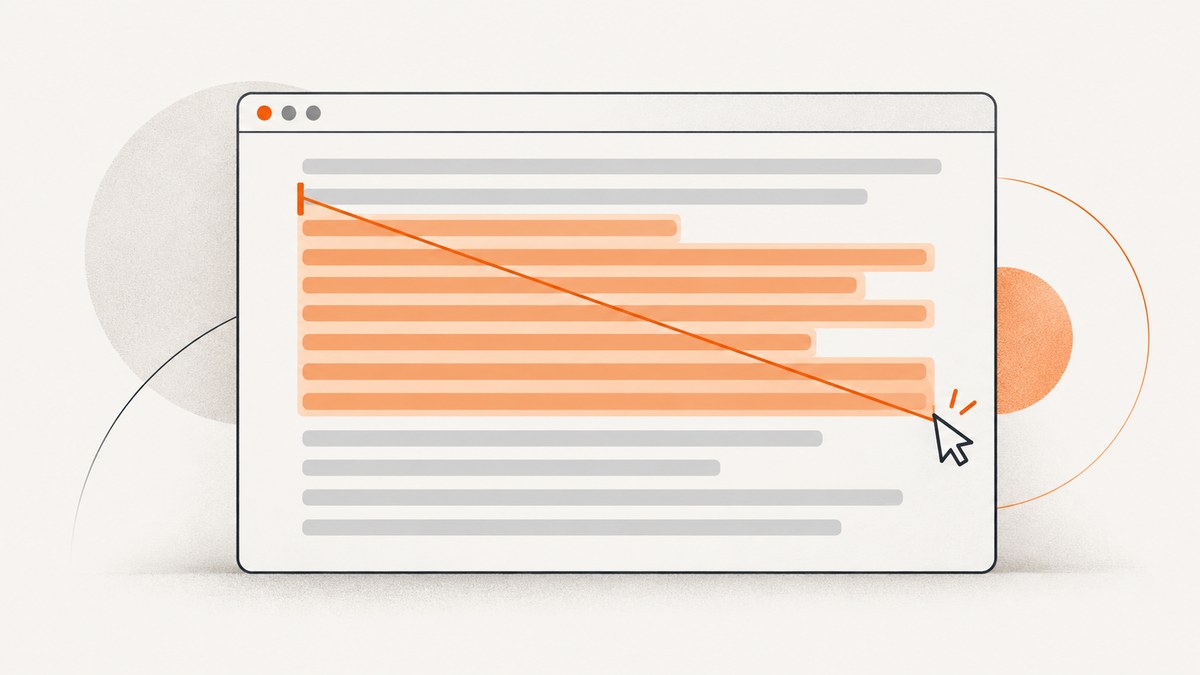
To select text with Selenium, perform one uninterrupted pointer sequence: move to the start point, press and hold the left mouse button, move to the end point, release, and call perform(). Use offsets when the desired character is not at an element’s center, scroll the target into view first, and verify the browser’s selection after the gesture.
Selenium represents mouse input as pointer movement, button press, and button release. Its official mouse documentation describes those three operations and the click-and-hold, move, release pattern used for dragging. Read the Selenium mouse-actions documentation for the binding-specific API details.
1. The basic drag-selection sequence
A text selection is not the same as dragging a slider or dropping one element onto another. You need the pointer to cross the rendered glyphs while the primary button remains down. The reliable sequence is:
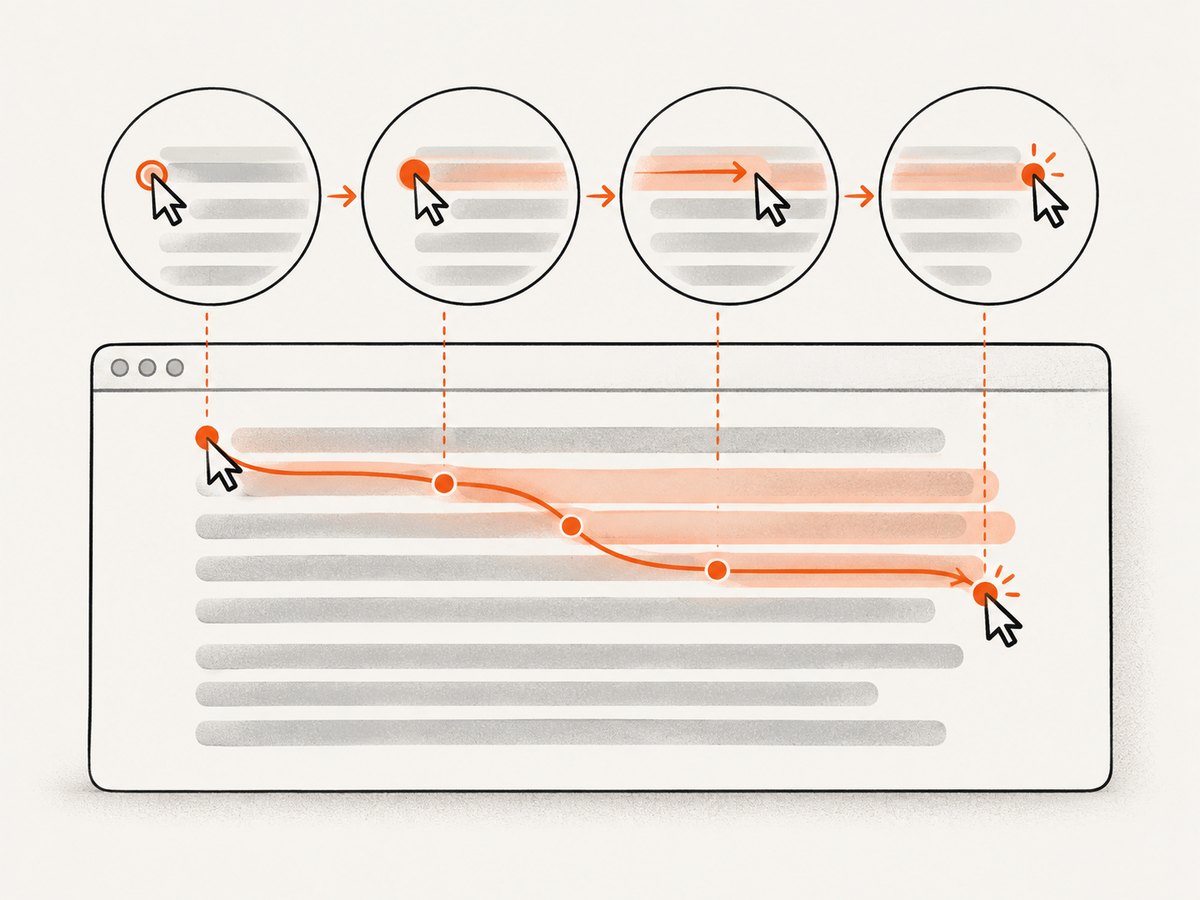
- Find a stable element containing the text.
- Scroll it into the viewport.
- Choose coordinates for the first character and the final character.
- Move to the start, press and hold, move to the end, release.
- Execute the action chain with
perform(). - Read
window.getSelection().toString()and assert the expected string.
moveToElement targets an element’s in-view center by default. That is useful for a rough gesture, but the center can be several words away from the intended boundary. Offset methods let you position the pointer relative to the element instead. Selenium’s Actions API documents pointer movement, press, release, and execution as separate actions. See the Actions API overview.
2. Complete Java example
The following JUnit-style example selects text inside a paragraph. The page supplies two child spans so the test can identify the start and end regions, while offsets place the pointer inside those regions. Adjust the offsets after inspecting the rendered layout.
import static org.junit.jupiter.api.Assertions.assertEquals;

import java.time.Duration;
import org.junit.jupiter.api.Test;
import org.openqa.selenium.By;
import org.openqa.selenium.JavascriptExecutor;
import org.openqa.selenium.WebDriver;
import org.openqa.selenium.WebElement;
import org.openqa.selenium.chrome.ChromeDriver;
import org.openqa.selenium.interactions.Actions;

class TextSelectionTest {
  @Test
  void selectsTextByDragging() {
    WebDriver driver = new ChromeDriver();
    try {
      driver.manage().timeouts().implicitlyWait(Duration.ofSeconds(5));
      driver.get("https://example.test/article");

      WebElement text = driver.findElement(By.cssSelector(".article-copy"));
      WebElement start = driver.findElement(By.cssSelector(".selection-start"));
      WebElement end = driver.findElement(By.cssSelector(".selection-end"));

      ((JavascriptExecutor) driver).executeScript(
          "arguments[0].scrollIntoView({block: 'center', inline: 'nearest'});", text);

      new Actions(driver)
          .moveToElement(start, 3, 8)
          .clickAndHold()
          .moveToElement(end, 3, 8)
          .release()
          .perform();

      String selected = (String) ((JavascriptExecutor) driver).executeScript(
          "return window.getSelection().toString();");
      assertEquals("text that should be selected", selected);
    } finally {
      driver.quit();
    }
  }
}
The two integer arguments to moveToElement are offsets from the element’s in-view center, rather than document coordinates. A positive horizontal offset moves right and a positive vertical offset moves down. If the endpoint is in a nested inline element, locate that inline element directly so its box gives you a more useful reference point.
3. Python with ActionChains
Python exposes the same model through ActionChains. The binding includes click_and_hold, move_to_element_with_offset, release, and perform. The example below keeps both endpoints in one text container.
from selenium import webdriver
from selenium.webdriver.common.by import By
from selenium.webdriver.common.action_chains import ActionChains
from selenium.webdriver.support.ui import WebDriverWait
from selenium.webdriver.support import expected_conditions as EC

options = webdriver.ChromeOptions()
options.add_argument("--window-size=1280,900")
driver = webdriver.Chrome(options=options)

try:
    driver.get("https://example.test/article")
    text = WebDriverWait(driver, 15).until(
        EC.visibility_of_element_located((By.CSS_SELECTOR, ".article-copy"))
    )
    start = driver.find_element(By.CSS_SELECTOR, ".selection-start")
    end = driver.find_element(By.CSS_SELECTOR, ".selection-end")

    driver.execute_script(
        "arguments[0].scrollIntoView({block: 'center'});", text
    )

    (ActionChains(driver)
        .move_to_element_with_offset(start, 3, 8)
        .click_and_hold()
        .move_to_element_with_offset(end, 3, 8)
        .release()
        .perform())

    selected = driver.execute_script("return window.getSelection().toString();")
    assert selected == "text that should be selected"
finally:
    driver.quit()
drag_and_drop_by_offset can be convenient when the source point and a relative displacement are known, but an explicit move, hold, move, release chain makes the intended start and end clearer for text selection. The Python binding reference is available at selenium.webdriver.common.action_chains.
4. Choosing coordinates that select the intended characters
Element center versus element-relative offsets
A center-based call such as moveToElement(paragraph) places the pointer at the paragraph’s center. It may begin in the middle of a line, select a later word, or land between lines. Use a start or end element and offsets when character precision matters.
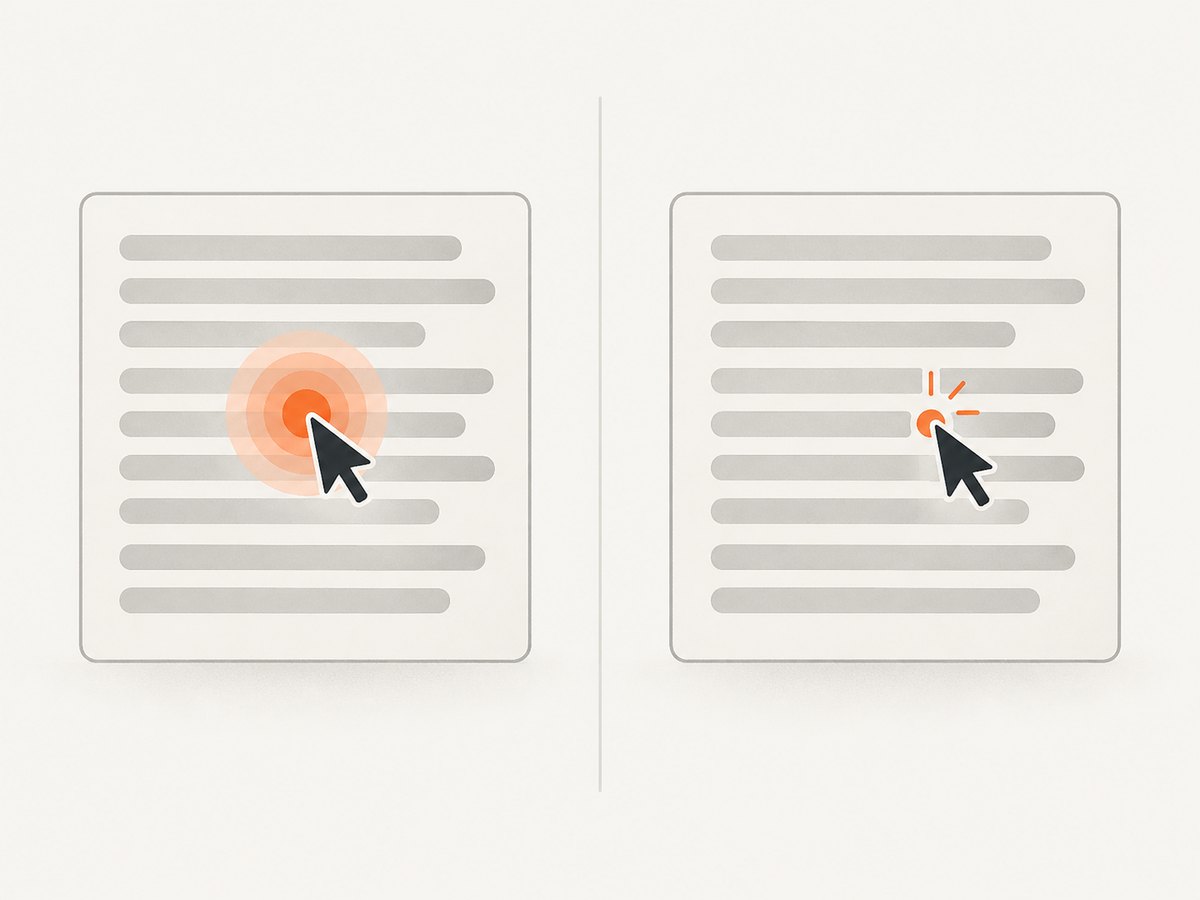
For a single text node with no useful child elements, get its bounding rectangle in JavaScript and calculate a point near the required line. This is still an approximation because a line can wrap differently at another viewport width.
Object rect = ((JavascriptExecutor) driver).executeScript(
    "const r = arguments[0].getBoundingClientRect();" +
    "return {left:r.left, top:r.top, width:r.width, height:r.height};", text);
When possible, add stable markup around the start and end text in the application under test. A selector such as [data-test='selection-start'] survives copy changes better than a hard-coded screen coordinate.
Offsets, zoom, and responsive wrapping
Offsets are measured in CSS pixels from the element’s center. Browser zoom, device scale, CSS transforms, font loading, and responsive breakpoints can change the relationship between an offset and a character boundary. Set a deterministic viewport, wait for fonts and content to finish loading, and avoid selecting by coordinates that were recorded on a different layout.
Dragging in either direction
Dragging from the end toward the beginning is valid. The resulting selection normally contains the same text, but the anchor and focus directions differ. Assert the selected string unless your test specifically needs to check direction through the Selection API.
5. Scroll and hit testing before the drag
Pointer movement is performed in the viewport. An element below the fold, covered by a sticky header, or outside the current scroll container can make the gesture fail or hit a different node. Scroll the intended container into view, then wait for it to be visible and unobscured.
driver.execute_script(
    "arguments[0].scrollIntoView({block:'center', inline:'nearest'});", text
)
# Optional: let layout settle after lazy content or font loading
time.sleep(0.2)
If the text lives inside a scrollable panel, scroll that panel rather than the document. A transparent overlay, cookie dialog, or selection-preventing event handler can intercept the pointer even when the target appears visible. Close or disable that UI in test setup.
6. Verify the browser selection
A successful action chain only proves that WebDriver dispatched the pointer events. It does not prove that the page selected the expected characters. Read the selection and assert its value:
String selected = (String) ((JavascriptExecutor) driver).executeScript(
    "return window.getSelection().toString();");
For a contenteditable editor, the page may maintain its own model and selection state. In that case, verify both the DOM selection and the editor’s observable state, such as a toolbar becoming enabled. Keep the assertion close to the drag so a later click cannot accidentally replace the selection.
7. Common failures and fixes
| Symptom | Likely cause | Fix |
|---|---|---|
| The pointer moves but no text is selected | The chain moved without a held button, or an overlay intercepted input. | Use clickAndHold()/click_and_hold(), release only at the end, and remove overlays. |
| The wrong words are highlighted | The pointer started or ended at an element center. | Use endpoint elements and element-relative offsets; assert the selected string. |
| Move fails with a target outside the viewport | The element was not scrolled into view. | Call scrollIntoView, center the target, and wait for visibility. |
| Selection changes between runs | Responsive wrapping, fonts, zoom, or lazy content changed geometry. | Fix the viewport, wait for fonts/content, and use stable endpoint selectors. |
| Only part of a line is selected | The endpoint landed above or below the glyph baseline. | Adjust the vertical offset toward the line’s middle and inspect the element rectangle. |
| Drag leaves later clicks stuck | The sequence was interrupted while the button was held. | Release the button in cleanup and reset input state using the binding’s available reset/clear method before the next action. |
| Works in one browser but not another | Hit testing and text layout differ between engines. | Keep coordinates inside the intended glyph area, test each supported browser, and avoid pixel-perfect assumptions. |
| JavaScript selection is empty | The page uses a custom editor or the gesture crossed separate browsing contexts. | Verify the active frame, switch into the correct iframe, and inspect the editor’s own selection API or state. |
8. JavaScript Range selection as a separate technique
If your goal is deterministic DOM selection rather than testing a user’s pointer path, a JavaScript Range can select text nodes directly. This avoids coordinate sensitivity but does not simulate mouse movement, button state, hit testing, or drag events. Use it when the product behavior depends on selection state alone; use Actions when you are testing the real gesture.
driver.execute_script("""
const root = document.querySelector('.article-copy');
const range = document.createRange();
const walker = document.createTreeWalker(root, NodeFilter.SHOW_TEXT);
const nodes = [];
while (walker.nextNode()) nodes.push(walker.currentNode);
range.setStart(nodes[0], 0);
range.setEnd(nodes[nodes.length - 1], nodes[nodes.length - 1].data.length);
const selection = window.getSelection();
selection.removeAllRanges();
selection.addRange(range);
""")
This method is useful for a focused unit-style test, but it cannot reveal that a sticky element blocks the drag or that a pointer event handler cancels selection.
9. Performance and reliability practices
- Prefer one complete action chain over many independent pointer commands. It preserves button state and reduces timing gaps.
- Use explicit waits for visibility and application readiness. Avoid arbitrary long sleeps; a short settling delay is only needed after known layout changes.
- Set a fixed window size and browser zoom for repeatable wrapping.
- Use selectors based on test attributes or semantic endpoints rather than brittle nth-child paths.
- Capture diagnostics on failure: viewport dimensions, element rectangles, current URL, and the selected string.
- Keep the drag duration consistent when the application reacts to intermediate move events. Selenium’s JavaScript Actions API generates incremental move events over the configured duration.
- Run the test with the same fonts and content state used in CI. Missing fonts can move line breaks and invalidate offsets.
There is no universal offset that maps to a character across every page. The browser’s layout engine, font metrics, nested inline boxes, transforms, and event handlers all participate in hit testing. Treat offsets as layout-dependent test data and keep the assertion as the source of truth.
10. Or skip the browser setup
If you need screenshots of the page state rather than an end-to-end test of the drag gesture, ScreenshotNeo returns a screenshot or PDF from one GET request. See the ScreenshotNeo API documentation for all options.
curl -G "https://api.screenshotneo.com/v1/shot" -d access_key=YOUR_API_KEY --data-urlencode url=https://stripe.com -o shot.webpimport requests
r = requests.get("https://api.screenshotneo.com/v1/shot", params={"access_key": "YOUR_API_KEY", "url": "https://stripe.com"}, timeout=90)
open("shot.webp", "wb").write(r.content)const q = new URLSearchParams({ access_key: 'YOUR_API_KEY', url: 'https://stripe.com' });
const res = await fetch(`https://api.screenshotneo.com/v1/shot?${q}`);Cookie banners, newsletter popups, and chat widgets are removed before the shot. Bot checks, blank pages, failed loads, timeouts, and cache hits are not billed, and response headers identify the page verdict and whether it was billed. An MCP server provides take_screenshot, get_page_info, and capture_pdf tools for Claude, Cursor, and other MCP clients. The Free plan includes 1,000 screenshots each month with no card; paid plans start at $5 for 3,000 shots. Create a free ScreenshotNeo account.
11. Short FAQ
Can Selenium select text without dragging?
Yes. A JavaScript Range can set selection state directly, but it does not exercise real pointer behavior. Choose it when determinism matters more than gesture fidelity.
Should I use screen coordinates?
Prefer element-relative offsets. Absolute screen coordinates are more sensitive to window position, viewport size, browser chrome, zoom, and responsive layout.
Why does the selected text include a newline?
Selection text follows the DOM and rendered line boundaries. Normalize whitespace only if line breaks are irrelevant to the behavior being tested; otherwise assert the exact expected value.
How do I select text inside an iframe?
Switch to the iframe before locating endpoints and performing the action. Switch back to the default content after the assertion.
Can I select text in a canvas?
Canvas pixels do not expose normal DOM text nodes. Test the application’s own selection model or use a real pointer gesture if the canvas implements one.
12. Practical checklist
- Locate stable start and end elements.
- Set a deterministic viewport and wait for layout.
- Scroll the target into view and remove overlays.
- Use offsets instead of assuming element centers are correct.
- Move, hold, move, release, then call
perform(). - Read
window.getSelection().toString()and assert it. - Reset input state after an interrupted drag.
- Run across supported browsers when layout-sensitive behavior matters.


