How to Convert HTML to PDF with Headers Using SelectPdf
Learn how to add visible, correctly spaced headers to SelectPdf HTML-to-PDF documents in .NET and REST, with troubleshooting and complete examples.
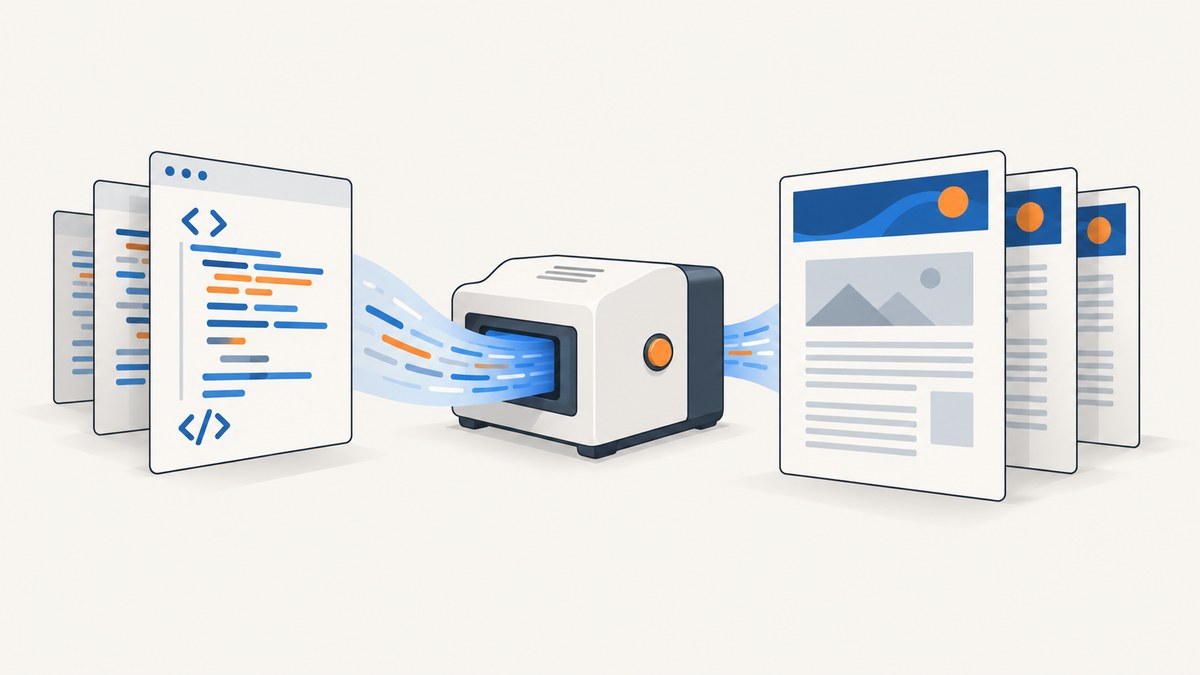
To convert HTML to PDF with a header in SelectPdf, enable the header explicitly, reserve its height, add header content, convert the HTML, then save and close the returned PdfDocument. The critical switch is converter.Options.DisplayHeader = true. If it remains false, SelectPdf ignores the header settings.
This guide covers the SelectPdf .NET library first, then the equivalent REST parameters, page visibility, relative assets, layout problems, edition limits, and an API alternative when you do not want to maintain a browser or PDF conversion runtime.
1. Minimal .NET example
The following pattern follows SelectPdf’s documented conversion lifecycle: create HtmlToPdf, configure it, convert an HTML string, save the document, and close it. The exact header-element overload can vary by SelectPdf package version, so check the current headers and footers documentation for your installed version before copying it into production.
using SelectPdf;

string html = @"<html>
  <body>
    <h1>Quarterly report</h1>
    <p>Revenue and operating notes.</p>
  </body>
</html>";

var converter = new HtmlToPdf();

// A header is invisible unless this is enabled.
converter.Options.DisplayHeader = true;

// Reserve vertical space for the header on every page.
converter.Header.Height = 50;

// Add header markup. Verify the constructor overload for your SelectPdf version.
converter.Header.Add(new HtmlToPdfElement(
    "<div style='font: 12px Arial; color: #444;'>Quarterly report</div>",
    ""));

PdfDocument document = converter.ConvertHtmlString(html);
document.Save("report.pdf");
document.Close();
The DisplayHeader flag, Header object, header height, and save/close lifecycle are described in SelectPdf’s header guide and getting-started guide.
2. How SelectPdf header layout works
Enable the header before conversion
converter.Options.DisplayHeader controls visibility. Setting a height or adding content without setting it to true does not display anything. This is the first check when a PDF has no header.
Reserve enough height
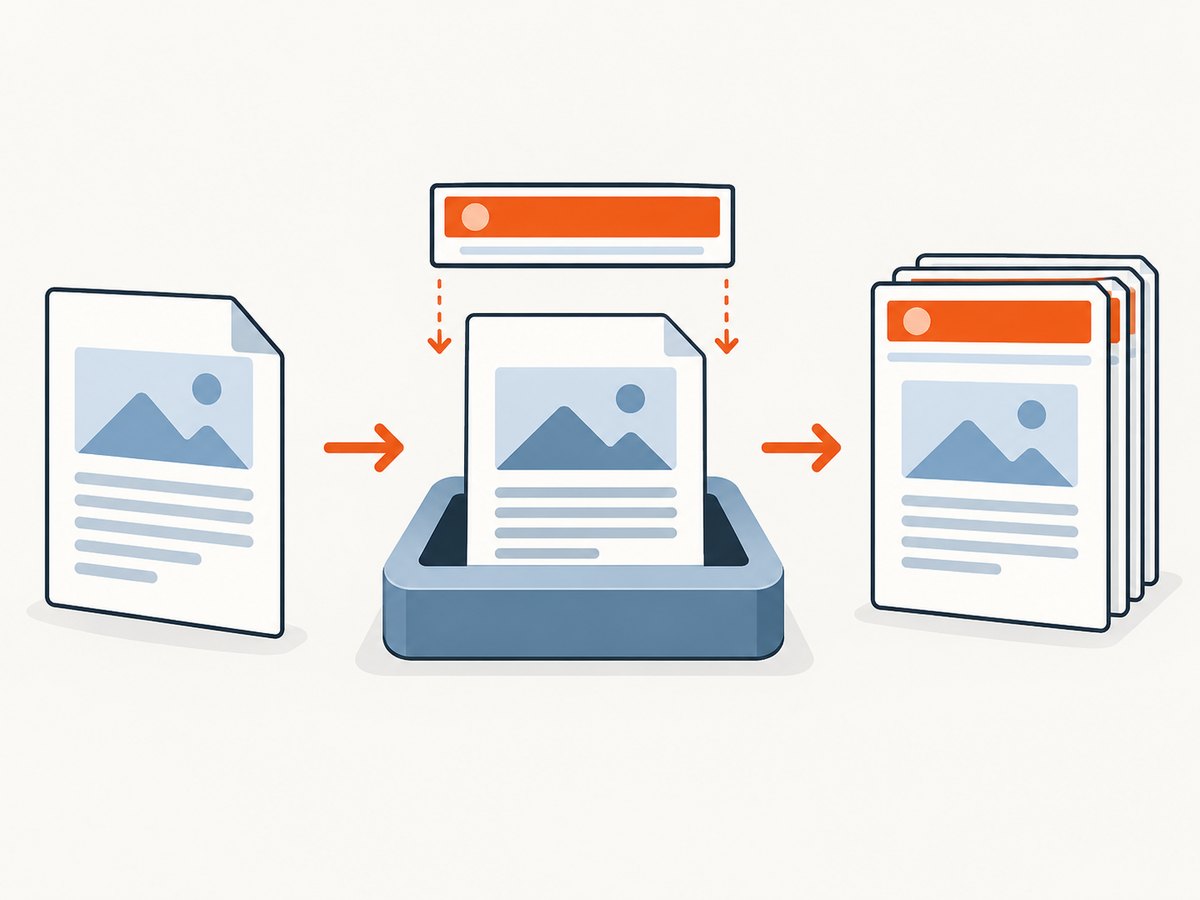
converter.Header.Height reserves a region at the top of each page. The header content is laid out inside that region. If the value is too small, content can be clipped or overlap the document body; if it is too large, the body starts farther down than expected. Increase the height for multi-line markup, larger logos, or generous padding.
Add HTML content
The header is a separate document region. Add an HtmlToPdfElement (or the equivalent element type in your package version) to converter.Header. Keep styles self-contained when possible so the header does not depend on the source page’s CSS.
Control page visibility
SelectPdf exposes header visibility options for the first page and for odd and even pages. Use these when a cover page needs no header, or when an alternating-page document has different left and right running heads. Set the visibility deliberately instead of assuming every page uses the same header.
3. Convert a URL or an HTML string
Convert an HTML string
Use ConvertHtmlString when your application already has the markup. If the HTML references relative images, fonts, stylesheets, or scripts, provide a base URL through the overload or configuration supported by your installed SelectPdf version.
var converter = new HtmlToPdf();
converter.Options.DisplayHeader = true;
converter.Header.Height = 42;
converter.Header.Add(new HtmlToPdfElement(
    "<div style='font: 11px Arial'>Internal use</div>", ""));

PdfDocument pdf = converter.ConvertHtmlString(
    html,
    "https://example.com/" // use the overload available in your package
);
pdf.Save("from-string.pdf");
pdf.Close();
Convert a web page URL
var converter = new HtmlToPdf();
converter.Options.DisplayHeader = true;
converter.Header.Height = 50;
converter.Header.Add(new HtmlToPdfElement(
    "<div style='font: 12px Arial'>Documentation</div>", ""));

PdfDocument pdf = converter.ConvertUrl("https://example.com");
pdf.Save("from-url.pdf");
pdf.Close();
For authenticated pages, redirects, client-side rendering, or custom request headers, consult the options for the SelectPdf version you have installed. Do not assume that a page requiring a browser session can be fetched with the same settings as a public URL.
4. REST API equivalent
SelectPdf’s REST API uses the same concepts with request parameters. Enable show_header=true, set header_height, and provide either header_html or header_url. When raw header HTML contains relative images or stylesheets, provide header_base_url. The API reference also documents first-page and odd/even-page visibility controls.
curl -G "https://selectpdf.com/api2/convert" \\
  --data-urlencode "url=https://example.com" \\
  --data "show_header=true" \\
  --data "header_height=50" \\
  --data-urlencode "header_html=<div style='font:12px Arial'>Report</div>" \\
  --data-urlencode "header_base_url=https://example.com/" \\
  -o report.pdf
Use the current SelectPdf REST parameter reference for authentication, the current endpoint, and the exact names for first-page and odd/even visibility in your API version.
5. Header patterns that work well
Single-line report title
converter.Header.Height = 32;
converter.Header.Add(new HtmlToPdfElement(
    "<div style='font: bold 12px Arial; padding: 8px 0'>Sales report</div>", ""));
Two-column header
converter.Header.Height = 44;
converter.Header.Add(new HtmlToPdfElement(
    "<table style='width:100%; font:11px Arial'>" +
    "<tr><td>Acme Ltd</td><td style='text-align:right'>Confidential</td></tr>" +
    "</table>", ""));
Different first-page treatment
For a cover page, configure the first-page visibility option so the running header starts on page two. The property name differs by library version; use the version-specific header guide rather than guessing a member name.
6. Header versus repeating table headings
A document header is a page region managed through converter.Header. An HTML table’s repeating heading row is part of the document body and repeats when a table flows across pages. They solve different problems. SelectPdf documents these repeating HTML table headers separately; do not substitute one for the other when you need a page-level title or running metadata.
7. Troubleshooting
| Symptom | Likely cause | Fix |
|---|---|---|
| No header appears | DisplayHeader or show_header is disabled. |
Set the visibility flag to true before conversion. |
| Header is clipped | The reserved height is smaller than the rendered markup. | Increase Header.Height; reduce padding or font size. |
| Body overlaps the header | The header region is too short or the content has oversized margins. | Reserve more height and simplify the header CSS. |
| Images or CSS are missing | Relative URLs cannot be resolved from the header context. | Use absolute URLs or set REST header_base_url; for .NET, use the supported base-URL overload. |
| Header appears on an unwanted page | First-page or odd/even visibility is enabled unintentionally. | Set the page-visibility options explicitly. |
| Conversion fails for a URL | The page needs authentication, blocks the converter, or has client-side dependencies. | Render an accessible URL, supply supported request settings, or convert prepared HTML instead. |
| Output is limited to a few pages | The Community Edition license limit applies. | SelectPdf’s Community Edition page states a five-page maximum per generated PDF; confirm current terms before production use. |
8. Performance, reliability and cost considerations
- HTML complexity: large DOMs, web fonts, scripts, and remote images increase conversion work. Remove unnecessary resources for batch jobs.
- Deterministic assets: self-host or version the CSS, fonts, and images used by headers so output does not change when a remote asset changes.
- Timeouts: set an application-level timeout around conversions and log the source URL, page count, and exception details.
- Concurrency: size parallel conversions to available CPU and memory. A converter that renders several heavy pages at once can exhaust process resources.
- Licensing: SelectPdf offers a Community Edition and commercial .NET and online API products. The Community Edition page-count limit and current commercial terms are vendor-controlled and can change, so review the current product pages before choosing an edition.
9. Community Edition or commercial product?
The SelectPdf Community Edition supports custom HTML headers and footers but documents a maximum of five pages per generated PDF. It can suit short examples and evaluation. For longer documents or commercial deployment, compare the current .NET library and online API terms on SelectPdf’s HTML-to-PDF product page.
10. Or skip the browser setup
If your goal is a rendered capture or PDF endpoint rather than maintaining a local HTML-to-PDF runtime, ScreenshotNeo provides a single HTTP request for a website screenshot or PDF. Cookie and consent banners are accepted and 60+ known consent platforms, newsletter popups, and chat widgets are removed before capture; each step can be turned off. Bot checks, blank pages, timeouts, failed loads, and cache hits are not billed, and the response identifies the result with X-Page-Verdict and X-Billed headers. It also provides an MCP server for AI agents with take_screenshot, get_page_info, and capture_pdf.

See the ScreenshotNeo API documentation for the available PDF options, including paper size, margins, landscape mode, and page ranges.
curl -G "https://api.screenshotneo.com/v1/shot" -d access_key=YOUR_API_KEY --data-urlencode url=https://stripe.com -o shot.webpimport requests
r = requests.get(
"https://api.screenshotneo.com/v1/shot",
params={"access_key": "YOUR_API_KEY", "url": "https://stripe.com"},
timeout=90,
)
r.raise_for_status()
open("shot.webp", "wb").write(r.content)const fs = require('node:fs/promises');
const q = new URLSearchParams({
access_key: 'YOUR_API_KEY',
url: 'https://stripe.com'
});
const res = await fetch(`https://api.screenshotneo.com/v1/shot?${q}`);
if (!res.ok) throw new Error(`HTTP ${res.status}`);
await fs.writeFile('shot.webp', Buffer.from(await res.arrayBuffer()));ScreenshotNeo has a free tier of 1,000 screenshots per month with no card. Paid plans start at $5 for 3,000 shots, and every feature is available on every plan. Create a free ScreenshotNeo account.
11. FAQ
Why does setting the header height alone do nothing?
The header is disabled until DisplayHeader (or REST show_header) is true.
Can I use a different header on odd and even pages?
Yes. SelectPdf documents first-page and odd/even visibility controls; configure the matching options for your package or REST API version.
Should a table heading use the page header feature?
No. Use an HTML table’s repeating heading row for tabular columns and converter.Header for page-level content.
Is the Community Edition suitable for a 20-page report?
The reviewed Community Edition page states a five-page maximum per generated PDF, so confirm the current license terms and choose a commercial option when the document exceeds that limit.
What should I do when relative header images are blank?
Use absolute asset URLs or provide the appropriate base URL, especially the REST API’s header_base_url parameter.


