How to Fit HTML Content on a Single Page with SelectPdf .NET Core
Set GenerateSinglePagePdf for a continuous, content-sized PDF in SelectPdf .NET Core, then handle width, margins, assets, hosting, and failures.

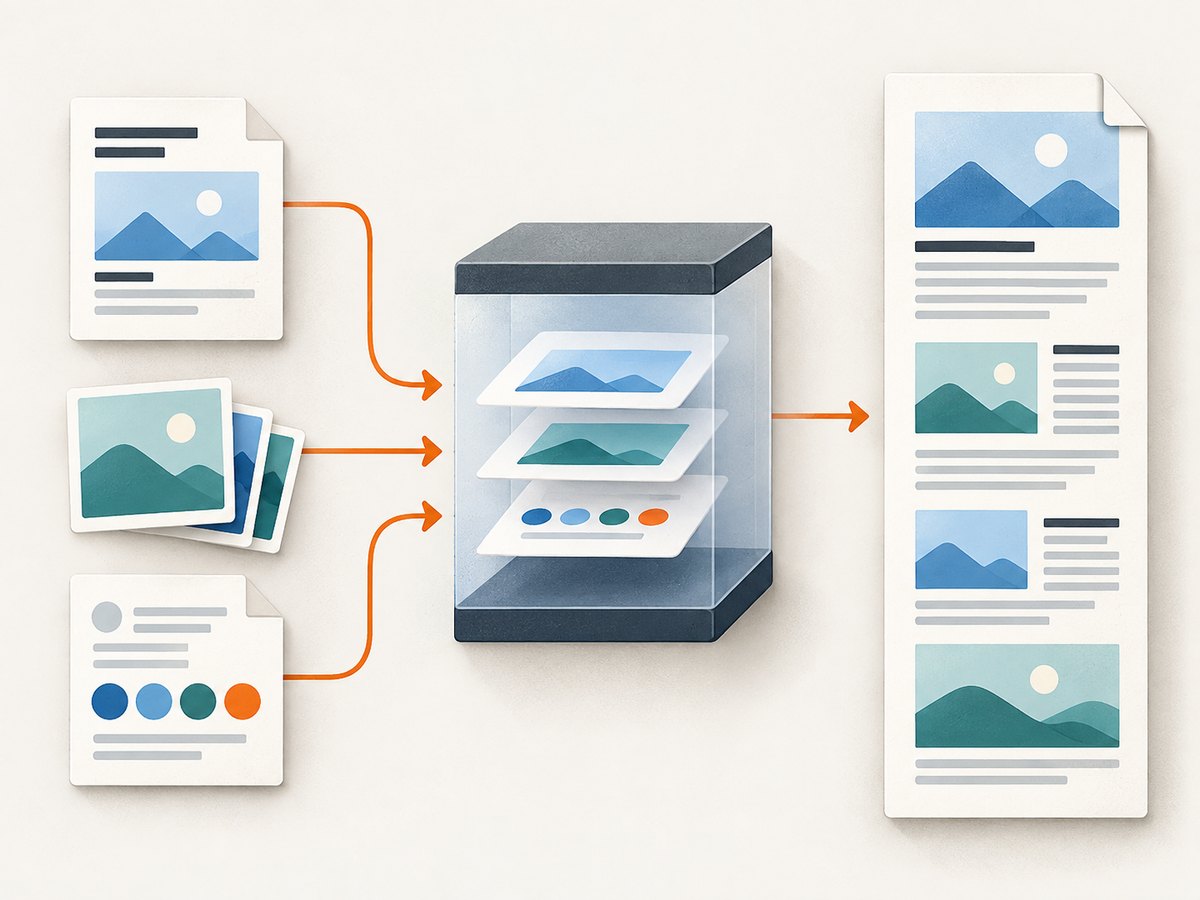
Direct answer: In the SelectPdf .NET library, set converter.Options.GenerateSinglePagePdf = true before conversion. This creates one continuous page whose height follows the rendered content, instead of inserting page breaks. SelectPdf documents this mode for receipts, tickets, and similar layouts. See the vendor’s HTML to PDF in C# guide.
What “fit on one page” means
There are two different layout problems:
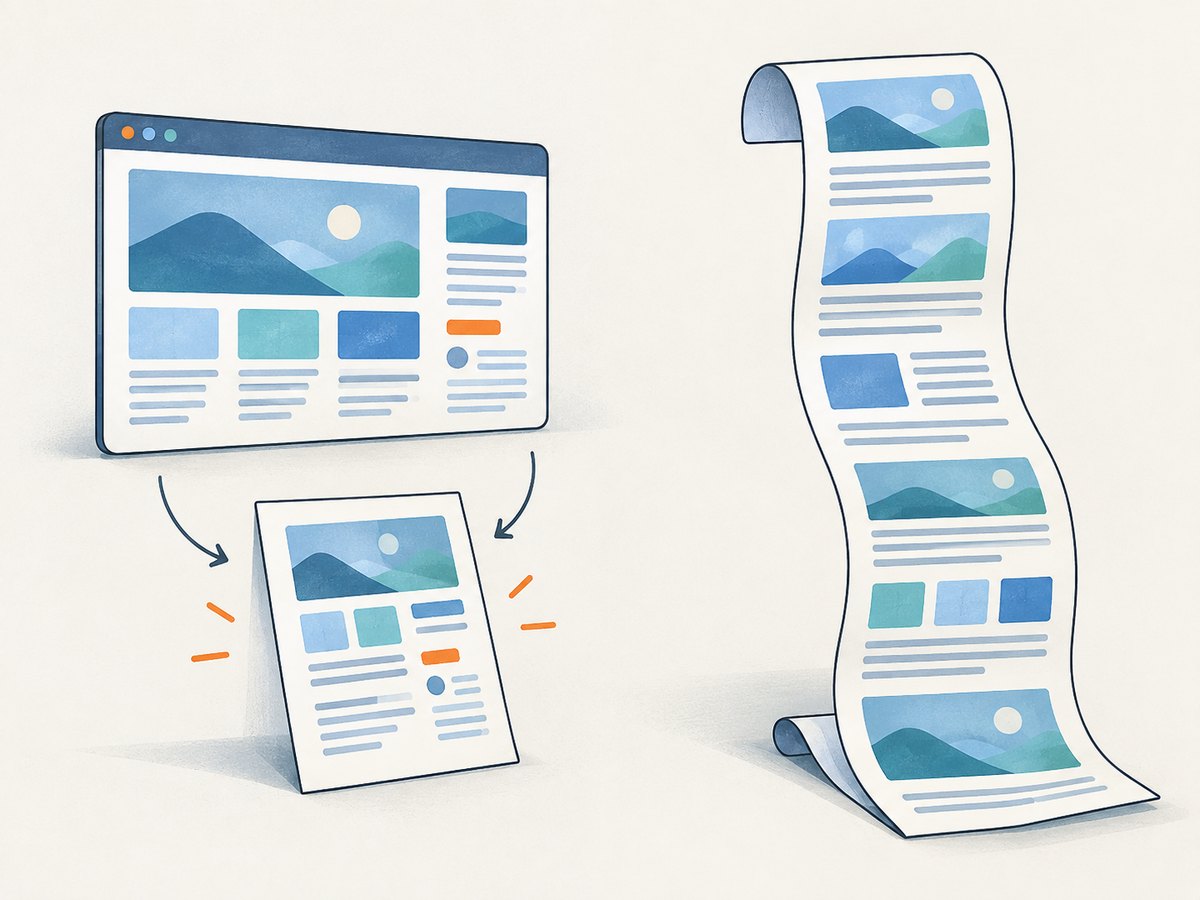
| Goal | SelectPdf setting | Result |
|---|---|---|
| One continuous vertical page | GenerateSinglePagePdf = true |
Page height expands to contain the content; no normal page breaks. |
| Make a wide layout fit a normal sheet | AutoFitWidth = HtmlToPdfPageFitMode.ShrinkOnly |
Wide content is reduced to the printable width. |
| Control paper geometry | PageSize, Orientation, margins |
Sets the conventional page dimensions around the rendered content. |
Do not use width shrinking when you need a tall receipt-style page. Shrinking a wide design onto A4 or Letter can make text difficult to read; choose the smallest change that matches your output.
Minimal .NET Core implementation
The following follows SelectPdf’s documented library pattern. Install the SelectPdf package and the companion Chromium package required by your selected rendering engine, then adapt the namespaces to the package version you use.
using SelectPdf;

string html = "<html><body><h1>Invoice</h1><p>All content is rendered on one continuous page.</p></body></html>";

var converter = new HtmlToPdf();
converter.Options.RenderingEngine = RenderingEngine.Chromium;
converter.Options.GenerateSinglePagePdf = true;

PdfDocument document = converter.ConvertHtmlString(html);
document.Save("output.pdf");
document.Close();
Set the option before ConvertHtmlString. Always save and close the returned PdfDocument so the file is finalized and native resources are released.
Converting a URL or HTML with relative assets
HTML strings that reference ./styles.css, relative images, fonts, or scripts need a base URL so the renderer can resolve those resources. Use the overload documented for your installed SelectPdf version and provide the directory or URL that contains the relative files.
using SelectPdf;

var converter = new HtmlToPdf();
converter.Options.RenderingEngine = RenderingEngine.Chromium;
converter.Options.GenerateSinglePagePdf = true;

// The base URL lets relative CSS, images, and fonts resolve.
string html = File.ReadAllText("templates/invoice.html");
PdfDocument document = converter.ConvertHtmlString(html, "https://example.com/invoices/");
document.Save("invoice.pdf");
document.Close();
For a live page, convert its URL with the URL conversion method from your package version. Confirm that the conversion process can reach the host and that authentication, robots rules, and private network access are configured for the runtime.
Keep a conventional page, but fit a wide layout
If your requirement is a normal A4, Letter, or landscape PDF, configure page geometry separately from single-page mode. SelectPdf’s guide shows setting a web page width and fixed size, then using shrink-only fitting.
using SelectPdf;

var converter = new HtmlToPdf();
converter.Options.RenderingEngine = RenderingEngine.Chromium;
converter.Options.WebPageWidth = 1200;
converter.Options.WebPageFixedSize = false;
converter.Options.AutoFitWidth = HtmlToPdfPageFitMode.ShrinkOnly;
converter.Options.PdfPageSize = PdfPageSize.A4;
converter.Options.PdfPageOrientation = PdfPageOrientation.Landscape;
converter.Options.MarginTop = 36;
converter.Options.MarginRight = 36;
converter.Options.MarginBottom = 36;
converter.Options.MarginLeft = 36;

PdfDocument document = converter.ConvertHtmlString(html);
document.Save("landscape-a4.pdf");
document.Close();
The guide notes that 72 points equal one inch, so 36-point margins are half an inch. Property names can vary by library release; check IntelliSense and the current SelectPdf documentation for your exact package.
Using the SelectPdf REST API
The REST API uses a different parameter name: single_page_pdf. Do not copy the .NET property name into REST requests. The official parameter reference describes single_page_pdf as resizing the PDF page to fit all content on one page.
curl -X POST "https://selectpdf.com/api2/convert/" \
  -H "Content-Type: application/json" \
  -d '{"url":"https://example.com/receipt","single_page_pdf":true}' \
  -o receipt.pdf
Use the authentication, endpoint, and request schema from your SelectPdf account and the current REST API parameter reference; the example illustrates the distinct parameter name rather than a complete account configuration.
CSS and document design for a reliable single page
- Let the page grow vertically; avoid a fixed
heighton the root container. - Use print CSS such as
@page { margin: 12mm; }only when it matches the PDF margins you set in SelectPdf. - Keep long unbreakable strings, huge images, and very wide tables under control with wrapping or explicit widths.
- Wait for fonts and images to load before conversion when your rendering-engine settings provide a delay or load-completion option.
- Use high-resolution source images and set their CSS dimensions; oversized bitmaps increase memory use without improving the PDF’s layout.
<style>
  @page { margin: 12mm; }
  html, body { margin: 0; padding: 0; }
  body { font-family: Arial, sans-serif; }
  table { width: 100%; border-collapse: collapse; table-layout: fixed; }
  th, td { overflow-wrap: anywhere; padding: 6px; border: 1px solid #ccc; }
</style>
Implementation checklist
- Create
HtmlToPdfand select a supported rendering engine. - Set
GenerateSinglePagePdf = truebefore conversion when you need one continuous page. - Provide a base URL for relative resources in HTML strings.
- Set page size, orientation, and margins only when conventional page geometry is required.
- Use
AutoFitWidthseparately for oversized horizontal layouts. - Save and close every returned document.
- Open the PDF in a viewer and inspect the bottom edge, fonts, images, and table widths.
Troubleshooting
| Symptom | Likely cause | Fix |
|---|---|---|
| Several pages are produced | GenerateSinglePagePdf was not set, was set after conversion, or the REST request omitted its parameter. |
Set the .NET property before conversion, or send REST single_page_pdf=true. |
| Text is tiny | A wide layout was shrunk to fit a conventional page. | Use continuous single-page mode, reduce content width, or choose landscape and larger paper. |
| CSS or images disappear | Relative URLs in an HTML string have no base URL. | Pass a base URL and verify the process can access each resource. |
| Fonts differ from the browser | The runtime cannot access the web font or the font is unavailable on the host. | Bundle or install the required font, use an accessible absolute URL, and verify the renderer’s font-loading behavior. |
| Conversion fails on Linux | The commercial .NET library’s documented platform support is Windows-only. | Host the library on Windows, or use SelectPdf’s online REST API for Linux PDF generation. Verify support for your exact release. |
| Azure App Service conversion fails | Chromium requirements are not met. | SelectPdf’s FAQ says Chromium v26.2+ requires the Basic plan or above; confirm current requirements before deployment. |
| Blank or partial output | Page scripts, network resources, authentication, or rendering timing are incomplete. | Make dependencies reachable, supply headers or credentials as supported, and configure an appropriate wait strategy. |
Performance, reliability, and cost considerations
Single-page output can create a very tall PDF. Long documents and large images require more memory and may be slower to open or print than paginated files. Set practical content limits in your application, compress or resize source images, and monitor conversion failures.
Rendering is environment-sensitive: Chromium version, installed fonts, network access, JavaScript timing, and the exact SelectPdf release all affect output. Pin package versions, keep a representative HTML fixture, and compare generated PDFs after upgrades. The research sources do not provide independent speed, uptime, or adoption benchmarks, so treat vendor examples as usage guidance rather than performance guarantees.
Licensing and page limits can vary by edition and release. SelectPdf’s guide mentions a five-page cap for its Community Edition and no page limit for the commercial library; verify the current licensing page before relying on those terms.
Or skip the browser setup
If your actual need is a screenshot or PDF of a web page rather than a locally controlled .NET conversion, ScreenshotNeo provides a GET API and an MCP server. The API accepts options for full-page capture, PDF paper size, margins, orientation, page ranges, custom CSS and JavaScript, waits, headers, cookies, user agents, blocking, caching, and more. Cookie banners, newsletter popups, and chat widgets are removed before the shot. Bot checks, blank pages, timeouts, failed loads, and cache hits are not billed, and response headers identify the page verdict and billing result.
Read the ScreenshotNeo API documentation for the complete parameter list.
curl -G "https://api.screenshotneo.com/v1/shot" -d access_key=YOUR_API_KEY --data-urlencode url=https://stripe.com -o shot.webpimport requests
r = requests.get("https://api.screenshotneo.com/v1/shot", params={"access_key": "YOUR_API_KEY", "url": "https://stripe.com"}, timeout=90)
open("shot.webp", "wb").write(r.content)const q = new URLSearchParams({ access_key: 'YOUR_API_KEY', url: 'https://stripe.com' });
const res = await fetch(`https://api.screenshotneo.com/v1/shot?${q}`);ScreenshotNeo also has an MCP server with take_screenshot, get_page_info, and capture_pdf tools for Claude, Cursor, and other MCP clients. The free plan includes 1,000 screenshots per month with no card; paid plans start at $5 for 3,000.
Create a free ScreenshotNeo account to start with 1,000 screenshots a month and no card.
FAQ
Does GenerateSinglePagePdf scale the content?
No. It produces a continuous page sized to the content. Use width fitting and page geometry settings when scaling or sheet size is the actual requirement.
Can I use the .NET property in a REST request?
No. The .NET library uses GenerateSinglePagePdf; the REST API uses single_page_pdf.
Is a single-page PDF suitable for printing?
It is useful for receipts and tickets, but a very tall page may be inconvenient on standard printers. Choose conventional pagination when physical printing is the priority.
What should I verify before production?
Check the current SelectPdf release’s platform, Chromium, package, and license requirements on the official documentation for your deployment target.


