How to Click an Arbitrary Position in a Web Browser with Selenium 2 and Python
Use Selenium 2 ActionChains to click a point in the browser viewport, understand offset origins, and troubleshoot coordinate-based interactions.
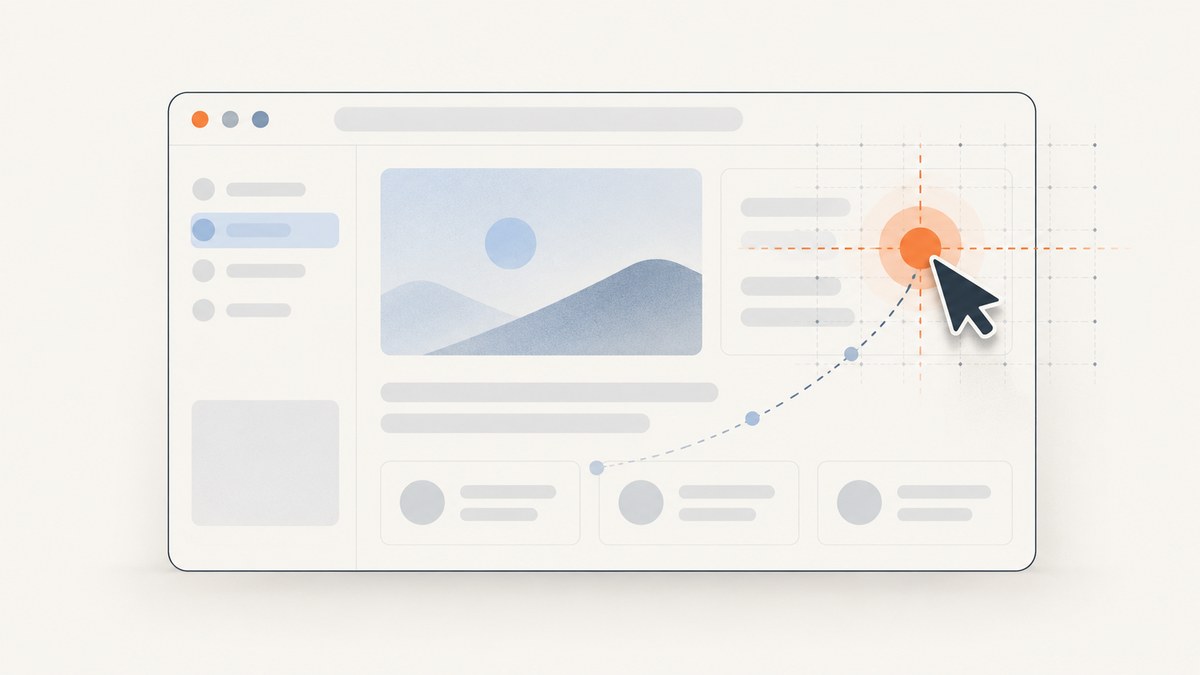
Selenium 2’s Python bindings can click a point in the browser viewport with ActionChains: move the pointer by an offset, queue a click at its current position, then call perform(). The offset is relative to the pointer’s current position, so this is not a command to click an absolute desktop pixel coordinate.
from selenium.webdriver.common.action_chains import ActionChains

# x and y are offsets from the pointer's current position.
ActionChains(driver).move_by_offset(x, y).click().perform()
If the target is a normal control that Selenium can locate, prefer element.click(). It expresses intent directly and avoids depending on where the pointer was previously left. Use coordinate actions when the interaction is genuinely point-based or the page provides no useful element target.
This guide focuses on the Selenium Python Bindings 2 API and its historical behavior. In particular, the Selenium 2.3 manual defines element-relative offsets from the element’s top-left corner. Current Selenium documentation describes different offset semantics, so code and advice for newer versions should not be applied to Selenium 2 without checking the version.
1. How coordinate clicks work in Selenium 2
An ActionChains object collects pointer and keyboard actions in a queue. Calling perform() dispatches the queued actions in order. The Selenium Python Bindings 2 documentation describes this queue-and-perform model in its Action Chains API documentation.
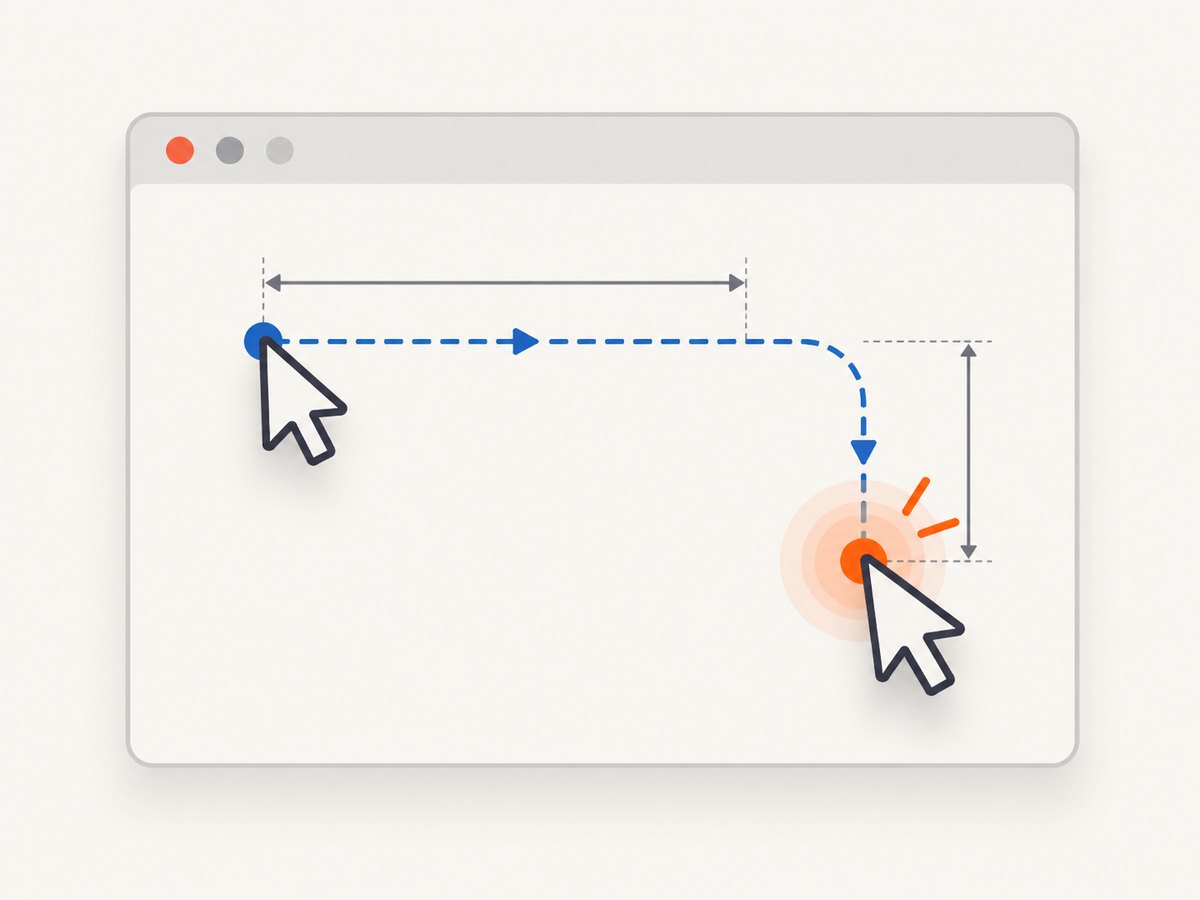
For a pointer-based click, the sequence is:
- Create an action chain for the active WebDriver.
- Move the pointer by an x/y offset from its current position.
- Queue
click()without an element argument, which clicks at the current pointer position. - Call
perform()to execute the queued actions.
| Method | Coordinate origin | Useful when |
|---|---|---|
move_by_offset(x, y) |
Pointer’s current position | You need a relative pointer movement and know the pointer’s starting position. |
move_to_element_with_offset(element, x, y) |
Element-relative; Selenium 2.3 documents the top-left corner | You can identify a containing element and need a point within it. |
element.click() |
The WebElement itself | The target is a normal identifiable control. |
The Selenium 2.3 manual documents click(on_element=None): when no element is supplied, it clicks at the current mouse position. That distinction is central: click() does not itself move the pointer to coordinates.
2. Complete runnable example: move from the current pointer
This example creates a browser session, opens a page, waits for a known target to appear, moves by an offset, and clicks. The sample target and offsets are illustrative; substitute a page and viewport where you can verify the intended point. Selenium 2 is an older API, and the exact browser and driver combination may affect interaction behavior.
from selenium import webdriver
from selenium.webdriver.common.action_chains import ActionChains
from selenium.webdriver.support.ui import WebDriverWait
from selenium.webdriver.support import expected_conditions as EC
from selenium.webdriver.common.by import By

# Start the driver configured for your Selenium 2 browser/driver setup.
driver = webdriver.Firefox()
try:
    driver.set_window_size(1280, 900)
    driver.get("https://example.com")

    # Wait for the document body so the page has loaded enough to inspect.
    WebDriverWait(driver, 10).until(
        EC.presence_of_element_located((By.TAG_NAME, "body"))
    )

    # This position is relative to the pointer's current location.
    x_offset = 120
    y_offset = 80
    ActionChains(driver).move_by_offset(x_offset, y_offset).click().perform()
finally:
    driver.quit()
For repeatability, explicitly control the window size and make sure the pointer’s starting point is understood. A relative movement is cumulative: a second call with the same offset moves another x/y distance from the pointer position left by the first action. If you need to begin from a known point, use an element-relative action or otherwise establish and verify the pointer location in your browser/driver combination.
Using an element-relative point in Selenium 2.3
When a container element is available, Selenium 2.3 documents move_to_element_with_offset(element, x, y) with offsets measured from that element’s top-left corner. For example:
from selenium.webdriver.common.action_chains import ActionChains
from selenium.webdriver.common.by import By
from selenium.webdriver.support.ui import WebDriverWait
from selenium.webdriver.support import expected_conditions as EC

canvas = WebDriverWait(driver, 10).until(
    EC.presence_of_element_located((By.ID, "drawing-surface"))
)
ActionChains(driver).move_to_element_with_offset(canvas, 35, 50).click().perform()
This is useful for a canvas, map, chart, or other surface that responds to pointer coordinates but does not expose individual clickable elements. Verify the target visually and in the actual Selenium 2 browser/driver setup. Do not assume the offset origin is the same in newer Selenium releases: the current API documentation describes offsets relative to the element’s in-view center point.
3. Choosing between coordinates and a regular element click
Coordinate clicking is lower level than locating and clicking a WebElement. It can be appropriate, but it creates extra assumptions about pointer position, layout, viewport, and timing.
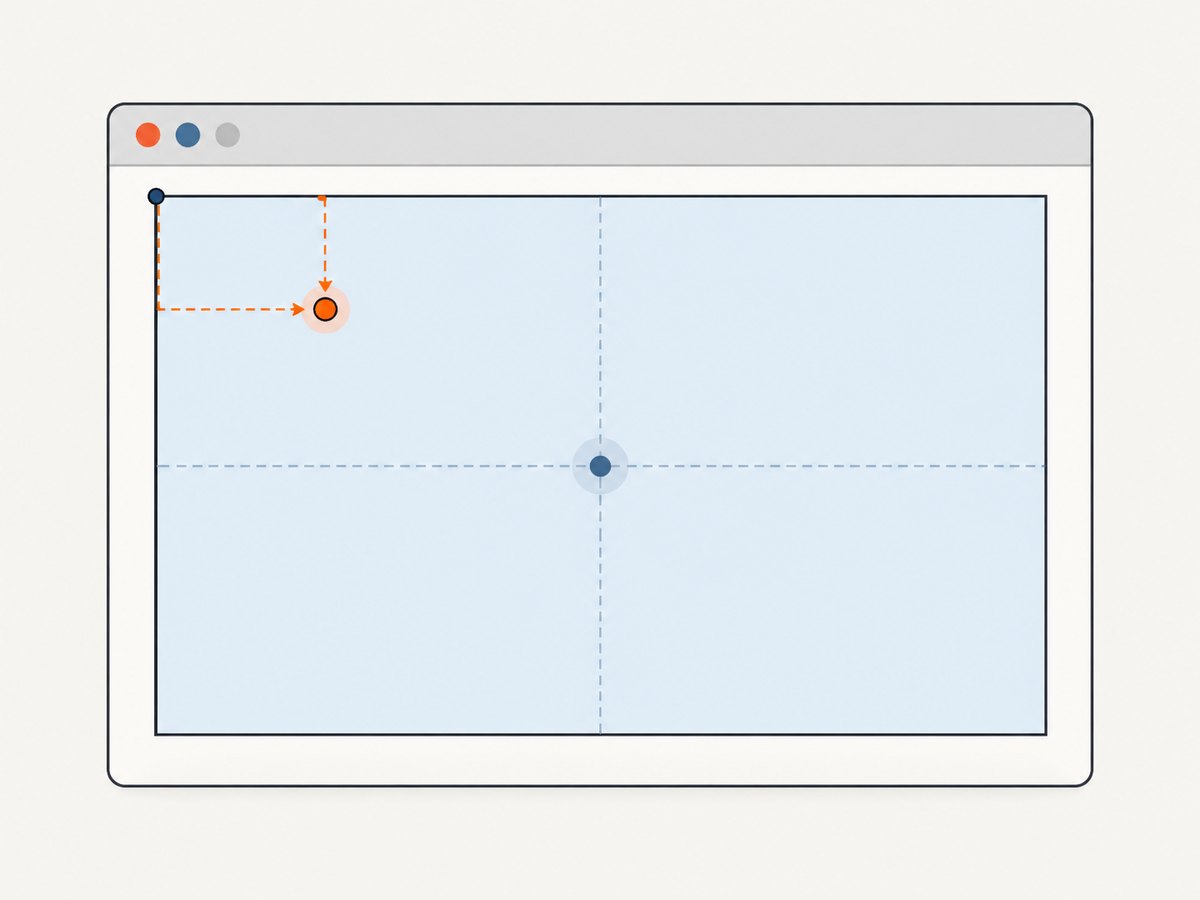
- Use
element.click()for buttons, links, and controls with stable locators. This communicates which control should receive the click. - Use
move_to_element_with_offset()when the target is a point inside a known element, such as a chart or canvas. For Selenium 2.3, calculate the offset from the element’s top-left as documented in that version’s manual. - Use
move_by_offset()when you need a pointer-relative movement and have a reliable starting position.
Do not treat either offset method as a universal desktop-coordinate API. The documented origins are the current browser pointer or a WebElement. These APIs do not, by themselves, define a conversion recipe for arbitrary screen pixels across browser chrome, page scroll, device scale, and driver versions.
4. Coordinate and viewport edge cases
Pointer position and repeated actions
move_by_offset() starts from the current pointer position. If earlier actions moved the pointer, your next offsets build on that position. A chain that works once can therefore land elsewhere if the page or test has changed the pointer’s starting state. Keep the sequence explicit and avoid treating offsets as absolute x/y coordinates.
Scrolling and page layout
A coordinate on a page is meaningful only in the current viewport and layout state. Scrolling, responsive reflow, a banner appearing, font loading, or an animation can shift the point you intend to hit. Wait for the relevant state, set a predictable window size, and calculate an element-relative point after the target container is present. If the page changes after the calculation, recalculate or wait for the change to finish.
Viewport boundaries
Keep the intended pointer target within the visible browser viewport. Current Selenium’s API documents an out-of-bounds error for pointer movement whose target offset lies outside the viewport; driver behavior and historical versions should be checked in the environment being used. When an offset fails, reduce it, inspect the viewport and pointer origin, and confirm that scrolling has not moved the target off-screen.
Overlays and hit targets
A point can be geometrically inside a control yet covered by a modal, sticky banner, tooltip, or another element. Wait for overlays to disappear or dismiss them through a stable locator. If a consent dialog intentionally covers the page, a coordinate click may dismiss the wrong control when the dialog layout changes. Prefer locating its button when possible.
5. Waiting, verification, and reliable test structure
Reliable coordinate interactions depend on the page being in the expected state before the pointer action. Avoid arbitrary sleeps as the only synchronization method. Wait for a known element or state, then perform the action and verify a meaningful outcome.
from selenium.webdriver.common.action_chains import ActionChains
from selenium.webdriver.common.by import By
from selenium.webdriver.support.ui import WebDriverWait
from selenium.webdriver.support import expected_conditions as EC

surface = WebDriverWait(driver, 10).until(
    EC.visibility_of_element_located((By.ID, "drawing-surface"))
)
ActionChains(driver).move_to_element_with_offset(surface, 35, 50).click().perform()

# Verify an outcome that indicates the click registered.
WebDriverWait(driver, 10).until(
    EC.visibility_of_element_located((By.ID, "selection-result"))
)
The final line needs a closing parenthesis in executable code; here is the corrected complete verification fragment:
WebDriverWait(driver, 10).until(
    EC.visibility_of_element_located((By.ID, "selection-result"))
)
In your own test, choose a postcondition that matches the application: a selected marker, updated text, a changed URL, or another observable result. Merely calling perform() proves that Selenium dispatched an action, not that the application handled it as intended.
6. Troubleshooting common failures
| Symptom | Likely cause | Fix |
|---|---|---|
| The click lands at the wrong point | The offset was assumed to be absolute, or the pointer already moved. | Remember that move_by_offset() is relative to the current pointer position. Use a WebElement-relative offset when suitable, and verify Selenium 2.3’s top-left origin. |
| No click occurs | The chain was built but not executed, or click() was expected to move the pointer. |
Call perform(). Queue an explicit move before the click if needed. |
| Click hits an overlay | A popup, modal, cookie banner, or sticky element covers the target. | Wait for or dismiss the overlay. Prefer clicking its located control rather than guessing a point. |
| Out-of-bounds movement error | The resulting pointer target is outside the visible viewport. | Inspect the window dimensions and offsets, scroll the target into view, and keep movement within the viewport. Current API docs describe this boundary error. |
| Element-relative click is displaced | Code may be using current Selenium’s center-origin semantics while running against Selenium 2, or vice versa. | Match the implementation to the installed version. Selenium 2.3 documents a top-left origin; current API documentation describes the in-view center. |
| Click is intermittent | Layout, animation, or loading changes before the action. | Wait for visibility and a stable application state, control viewport size, then verify a postcondition. |
| Click does not trigger the intended application behavior | The point is outside the true hit target, or the surface handles a different event/state. | Inspect the page and target geometry, confirm the correct element or canvas, and test the interaction in the same browser/driver combination. |
7. Performance, reliability, and cost notes
A coordinate action is a small browser interaction, but the reviewed documentation provides no measured speed or reliability comparison between these methods. Do not choose one based on a claimed benchmark. Choose the clearest action that matches the page: a regular element click for a control, and an offset action for genuinely point-based surfaces.
Most apparent slowness or flakiness in a coordinate click comes from page readiness, animations, overlays, and changing geometry rather than a reason to add repeated clicks. Wait for a relevant condition and verify the result. Avoid retrying blindly: repeating a click can toggle a selection, submit a form twice, or activate a different control after a layout change.
Browser automation also has setup and operating costs: a browser and compatible driver must be available, sessions need cleanup, and a local or hosted execution environment must be maintained. Keep one driver session scoped to a test or task and call quit() in cleanup code so failed actions do not leave browser processes behind.
8. Or skip the browser setup
If your goal is to capture a page rather than interact with it, ScreenshotNeo offers a website screenshot API and MCP server. One GET request returns a PNG, JPEG, WebP, or PDF. See the API documentation.
curl -G "https://api.screenshotneo.com/v1/shot" -d access_key=YOUR_API_KEY --data-urlencode url=https://stripe.com -o shot.webpimport requests
r = requests.get(
"https://api.screenshotneo.com/v1/shot",
params={"access_key": "YOUR_API_KEY", "url": "https://stripe.com"},
timeout=90,
)
open("shot.webp", "wb").write(r.content)const q = new URLSearchParams({ access_key: 'YOUR_API_KEY', url: 'https://stripe.com' });
const res = await fetch(`https://api.screenshotneo.com/v1/shot?${q}`);- Cookie banners are accepted and removed before the shot, along with known newsletter popups and chat widgets.
- Bot checks, blank pages, and failed loads are never billed; response headers report page verdict and billing.
- An MCP server lets AI agents use
take_screenshot,get_page_info, andcapture_pdf. - 1,000 screenshots a month are free with no card; paid plans start at $5 for 3,000.
Sign up for 1,000 free screenshots a month, with no card required.
9. FAQ
Can Selenium 2 click a point without locating an element?
Yes. Move the pointer with move_by_offset(x, y), queue click() without an element argument, and call perform(). The movement is relative to the current pointer position.
Does move_by_offset(100, 50) mean screen pixel 100, 50?
No. It means an offset from the current pointer position in the browser interaction context. It is not a general absolute desktop-coordinate command.
Are Selenium 2 element offsets measured from the center?
The Selenium 2.3 manual documents offsets from the element’s top-left corner. Current Selenium documentation describes offsets from the element’s in-view center, so check which API version your code uses.
When should I avoid coordinate clicks?
Avoid them for ordinary links, buttons, and inputs that have reliable locators. A WebElement click is clearer and less sensitive to viewport geometry.


