How to Take Screenshots with Selenium 3.6 and Java
Capture and save Selenium 3.6 screenshots in Java with runnable code, output choices, troubleshooting, full-page limits, and a browser-free API option.

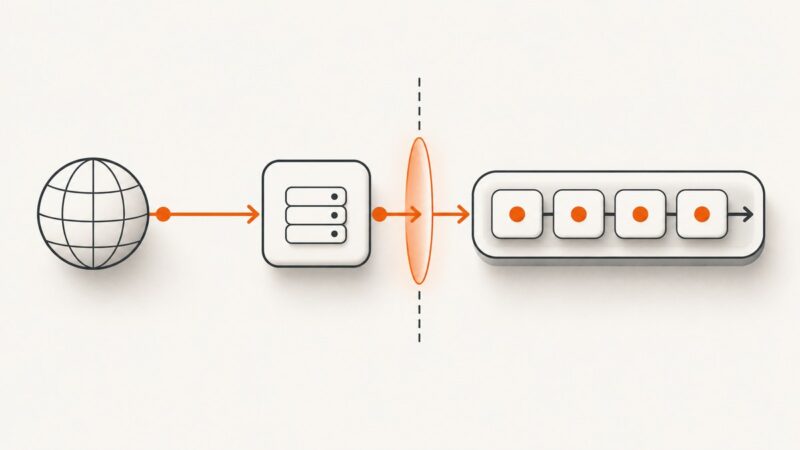
Selenium 3.6 takes a screenshot through the TakesScreenshot interface. Cast your WebDriver, call getScreenshotAs(OutputType.FILE), copy the temporary file to a destination you control, and close the driver in a finally block.
import java.io.File;
import java.io.IOException;
import org.apache.commons.io.FileUtils;
import org.openqa.selenium.OutputType;
import org.openqa.selenium.TakesScreenshot;
import org.openqa.selenium.WebDriver;
import org.openqa.selenium.chrome.ChromeDriver;

public class CaptureScreenshot {
    public static void main(String[] args) throws IOException {
        WebDriver driver = new ChromeDriver();
        try {
            driver.get("https://example.com");
            File temporaryScreenshot =
                ((TakesScreenshot) driver).getScreenshotAs(OutputType.FILE);
            FileUtils.copyFile(temporaryScreenshot, new File("screenshot.png"));
        } finally {
            driver.quit();
        }
    }
}
OutputType.FILE creates a temporary file. The copy to screenshot.png is the durable artifact; the temporary file may be deleted when the JVM exits. Selenium 3.6 includes both TakesScreenshot and OutputType in its Java package. See the TakesScreenshot API and OutputType API.
1. Set up Selenium 3.6 with Java
Use a Java project with Selenium 3.6.0 and a browser driver compatible with the browser installed on the machine. The following Maven dependencies match the API used in the example:
<dependencies>
  <dependency>
    <groupId>org.seleniumhq.selenium</groupId>
    <artifactId>selenium-java</artifactId>
    <version>3.6.0</version>
  </dependency>
  <dependency>
    <groupId>commons-io</groupId>
    <artifactId>commons-io</artifactId>
    <version>2.6</version>
  </dependency>
</dependencies>
The Commons IO dependency supplies FileUtils.copyFile in the official-style example. You can avoid that dependency with Java NIO:
import java.nio.file.Files;
import java.nio.file.Path;
import java.nio.file.StandardCopyOption;

File temporaryScreenshot =
    ((TakesScreenshot) driver).getScreenshotAs(OutputType.FILE);
Files.copy(
    temporaryScreenshot.toPath(),
    Path.of("screenshot.png"),
    StandardCopyOption.REPLACE_EXISTING
);
If your Java version predates Path.of, use Paths.get("screenshot.png"). The driver must be available through your system path or configured according to the browser-driver setup used by your Selenium 3.6 project.
2. Capture a screenshot step by step
- Create a
WebDriver, such asChromeDriver. - Navigate with
driver.get(url). - Cast the driver to
TakesScreenshot. - Call
getScreenshotAswith the output representation you need. - Persist the result before the temporary object is removed.
- Always call
driver.quit()in cleanup.
A complete version that creates its output directory and reports the saved path is:

import java.io.File;
import java.io.IOException;
import java.nio.file.Files;
import java.nio.file.Path;
import java.nio.file.StandardCopyOption;

import org.openqa.selenium.OutputType;
import org.openqa.selenium.TakesScreenshot;
import org.openqa.selenium.WebDriver;
import org.openqa.selenium.chrome.ChromeDriver;

public class CaptureScreenshot {
    public static void main(String[] args) throws IOException {
        WebDriver driver = new ChromeDriver();
        Path destination = Path.of("artifacts", "example.png");
        try {
            Files.createDirectories(destination.getParent());
            driver.get("https://example.com");

            File temporary =
                ((TakesScreenshot) driver).getScreenshotAs(OutputType.FILE);
            Files.copy(temporary.toPath(), destination,
                StandardCopyOption.REPLACE_EXISTING);

            System.out.println("Saved screenshot to " + destination.toAbsolutePath());
        } finally {
            driver.quit();
        }
    }
}
3. Choose FILE, BYTES, or BASE64
| Output type | Result | Use it when |
|---|---|---|
OutputType.FILE |
A temporary File |
You want to copy an image to disk or attach it to a test report. |
OutputType.BYTES |
Raw screenshot bytes | You will upload, hash, resize, or process the image in memory. |
OutputType.BASE64 |
A Base64-encoded string | The next system accepts encoded image data rather than a file. |
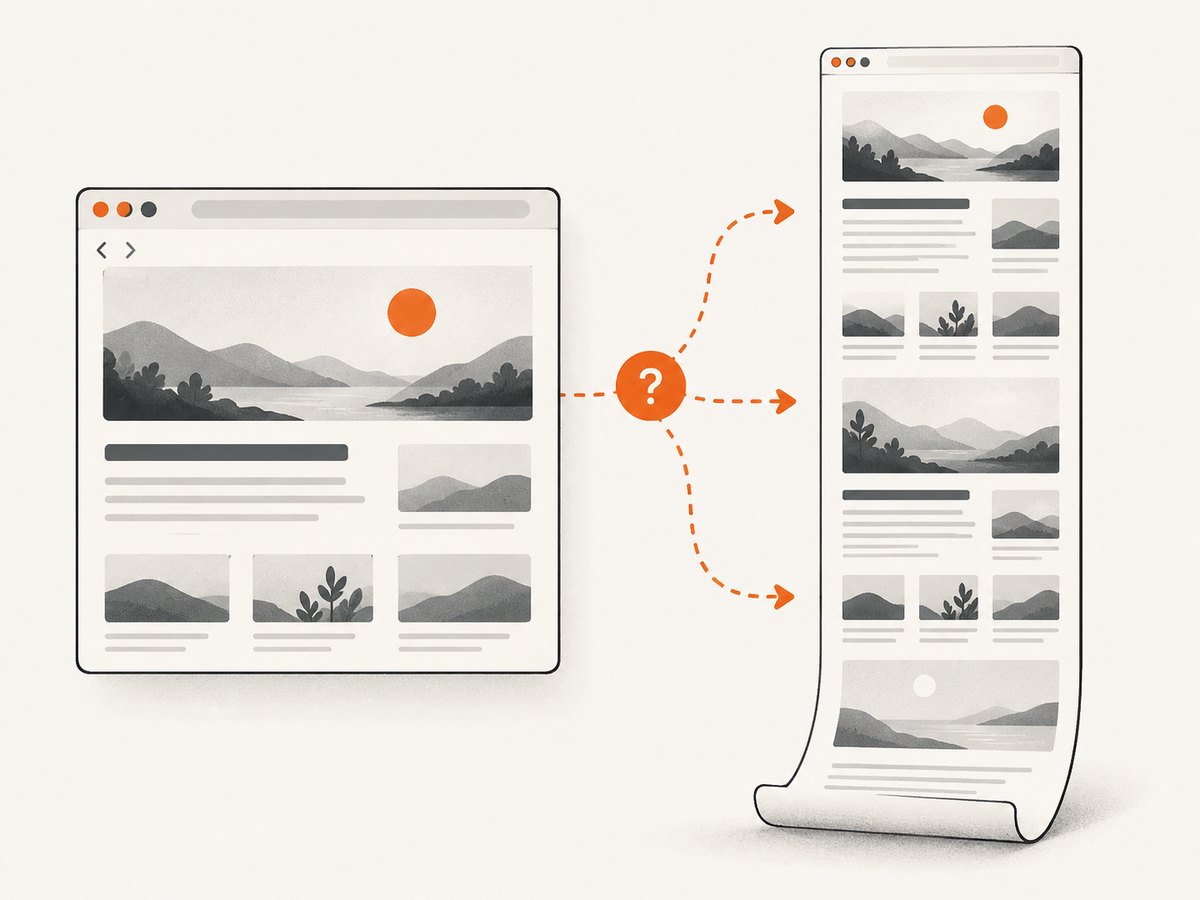
These options change the representation, not the screenshot scope. A simple driver screenshot captures the current browsing context. It does not automatically promise a complete page from the top of the document to the bottom.
Save bytes directly
byte[] image = ((TakesScreenshot) driver)
    .getScreenshotAs(OutputType.BYTES);
Files.write(Path.of("screenshot.png"), image);
Return Base64
String encoded = ((TakesScreenshot) driver)
    .getScreenshotAs(OutputType.BASE64);
System.out.println(encoded.length());
Use FILE when a named artifact matters, BYTES when avoiding temporary-file handling matters, and BASE64 when an API or database column requires that format.
4. Control timing before capture
driver.get waits according to the driver’s page-load behavior, but modern pages can continue rendering after navigation returns. If a screenshot must include a particular element, wait for that element instead of relying on a fixed sleep.
import java.time.Duration;
import org.openqa.selenium.By;
import org.openqa.selenium.support.ui.ExpectedConditions;
import org.openqa.selenium.support.ui.WebDriverWait;

WebDriverWait wait = new WebDriverWait(driver, 30);
driver.get("https://example.com/dashboard");
wait.until(ExpectedConditions.visibilityOfElementLocated(
    By.cssSelector("main.dashboard")));

File temporary = ((TakesScreenshot) driver)
    .getScreenshotAs(OutputType.FILE);
For animations, lazy images, cookie dialogs, or content loaded by JavaScript, wait for the state that makes the image meaningful. A fixed Thread.sleep can be useful for a quick diagnostic, but it increases runtime and remains unreliable when network speed changes.
5. Current viewport versus full-page screenshots
The basic Selenium screenshot call concerns the current browsing context. Whether it includes the entire document depends on the browser, driver, and protocol implementation. Selenium’s API describes screenshot support as best effort for implementations that do not fully conform to the expected protocol. Do not label the basic Selenium 3.6 call a cross-browser full-page solution without checking your exact combination.
If you need a viewport capture, set the window size before navigation or capture:
import org.openqa.selenium.Dimension;

driver.manage().window().setSize(new Dimension(1440, 900));
driver.get("https://example.com");
File image = ((TakesScreenshot) driver)
    .getScreenshotAs(OutputType.FILE);
For a full document, possible approaches include browser-specific DevTools commands, scrolling and stitching, or a dedicated screenshot service. Each adds browser-version and implementation details. Validate the resulting image for long pages, sticky headers, lazy-loaded content, fixed elements, and pages with internal scroll containers.
6. Capture after interacting with the page
Selenium can put the page into the state you want before calling the screenshot API. For example, click a consent button, open a menu, or scroll an element into view:
import org.openqa.selenium.By;

// Optional: dismiss a dialog if it exists in this test fixture.
driver.findElement(By.cssSelector("button.accept")).click();

driver.findElement(By.cssSelector("#pricing"))
      .submit(); // Use click() for a clickable element in your page.

File image = ((TakesScreenshot) driver)
    .getScreenshotAs(OutputType.FILE);
Replace selectors with ones from the page under test. Guard optional controls with an explicit wait or a presence check so a missing banner does not fail every capture. Selenium’s standard screenshot interface is attached to a driver or an HTML element, but support and behavior can vary by implementation; verify element-level capture with your browser and driver before depending on it.
7. Handle errors and make captures reliable
| Symptom | Likely cause | Fix |
|---|---|---|
ClassCastException |
The driver implementation does not implement TakesScreenshot. |
Use a screenshot-capable driver and check support before casting. |
WebDriverException |
The browser or driver failed while taking the image. | Check browser-driver compatibility, browser logs, process health, and available resources; retry only when the failure is transient. |
| Unsupported screenshot operation | The implementation does not provide the requested capture. | Use a supported browser/driver combination or another capture method. |
| File disappears after the run | OutputType.FILE is temporary. |
Copy it immediately to a durable path. |
| Permission denied | The process cannot write the destination. | Create the directory and choose a writable path; check container or CI permissions. |
| Blank or incomplete image | Capture happened before the page finished rendering. | Wait for a selector, image, network-driven state, or application-ready marker. |
| Wrong viewport | Window size differs between local and CI environments. | Set an explicit window size and record it with the artifact. |
| Stale or missing element | The DOM changed between lookup and interaction. | Wait for the current element state and locate it again immediately before use. |
Use a try/finally block even when the screenshot fails. driver.quit() releases the browser process and its resources. In a test suite, include the URL, browser, driver version, viewport, and failure exception alongside the image so a bad capture can be reproduced.
8. Performance, reliability, and storage considerations
- Browser startup: Creating a new driver is expensive. Reuse a driver for related captures when test isolation permits, and reset state between pages.
- Wait strategy: Condition-based waits usually finish sooner than a large fixed delay while avoiding early captures.
- Image size: Large viewports and high-density displays produce larger files. Choose a viewport that matches the requirement.
- Disk usage: Give artifacts unique names for parallel tests, or use a per-test directory. Overwriting one filename can hide failures.
- Parallelism: Each browser instance consumes CPU and memory. Increase concurrency only after checking the limits of the runner.
- Retries: Retry navigation or capture only for known transient failures. Retrying deterministic selector or permission errors increases runtime without fixing the cause.
- Cleanup: Close the driver after the final capture, and delete temporary or obsolete artifacts according to your CI retention policy.
9. Or skip the browser setup
If you need a clean image from a URL rather than browser automation, ScreenshotNeo provides a single HTTP request. Its capture service accepts the cookie or consent banner like a visitor and removes more than 60 known consent platforms, newsletter popups, and chat widgets before the shot. Each step can be turned off. Bot checks or CAPTCHAs, blank pages, timeouts, failed loads, and cache hits cost nothing, and the response identifies the result with X-Page-Verdict and X-Billed headers.
See the ScreenshotNeo documentation for authentication and options. The same endpoint can capture PNG, JPEG, WebP, or PDF output and supports full-page captures with lazy images loaded, CSS-selector element capture, dark mode, device presets, custom viewports, retina scale, custom CSS and JavaScript, clicks, selector or delay waits, network-idle waits, request blocking, headers, cookies, user agents, authorization, timezone, geolocation, transparent backgrounds, resizing, caching, signed links, asynchronous jobs, webhooks, bulk capture, usage reporting, and an OpenAPI specification.
cURL
curl -G "https://api.screenshotneo.com/v1/shot" \
  -d access_key=YOUR_API_KEY \
  --data-urlencode url=https://stripe.com \
  -o shot.webp
Python
import requests

r = requests.get(
    "https://api.screenshotneo.com/v1/shot",
    params={"access_key": "YOUR_API_KEY", "url": "https://stripe.com"},
    timeout=90,
)
r.raise_for_status()
open("shot.webp", "wb").write(r.content)
Node.js
const q = new URLSearchParams({
  access_key: 'YOUR_API_KEY',
  url: 'https://stripe.com'
});
const res = await fetch(`https://api.screenshotneo.com/v1/shot?${q}`);
if (!res.ok) throw new Error(`HTTP ${res.status}`);
const data = Buffer.from(await res.arrayBuffer());
require('fs').writeFileSync('shot.webp', data);
ScreenshotNeo also has an MCP server with take_screenshot, get_page_info, and capture_pdf tools for Claude, Cursor, and other MCP clients. Plans include 1,000 shots per month free with no card; paid plans start at $5 for 3,000 shots, and every feature is available on every plan. Create a free ScreenshotNeo account.
10. Selenium screenshot FAQ
Does Selenium 3.6 save the screenshot automatically?
No. getScreenshotAs returns a representation. With FILE, copy the temporary file to a location you own.
Can I use FirefoxDriver instead of ChromeDriver?
The interface is driver-facing, but screenshot support and extent depend on the specific browser and driver implementation. Verify the combination used by your project.
Which output type is best for CI?
FILE is straightforward for test artifacts. BYTES is convenient when your test framework uploads data directly.
Why is my screenshot only the visible area?
The basic call captures the current browsing context. Full-page behavior is implementation-dependent; use a method designed and verified for your browser and driver if the entire document is required.
Should I call close() or quit()?
Use quit() in cleanup to end the WebDriver session and release the browser resources.