Run Selenium Tests Against an Angular Application in Headless Chrome
Run Angular end-to-end tests with Selenium and headless Chrome. Configure ChromeDriver, wait for stable UI state, troubleshoot CI, and capture screenshots.
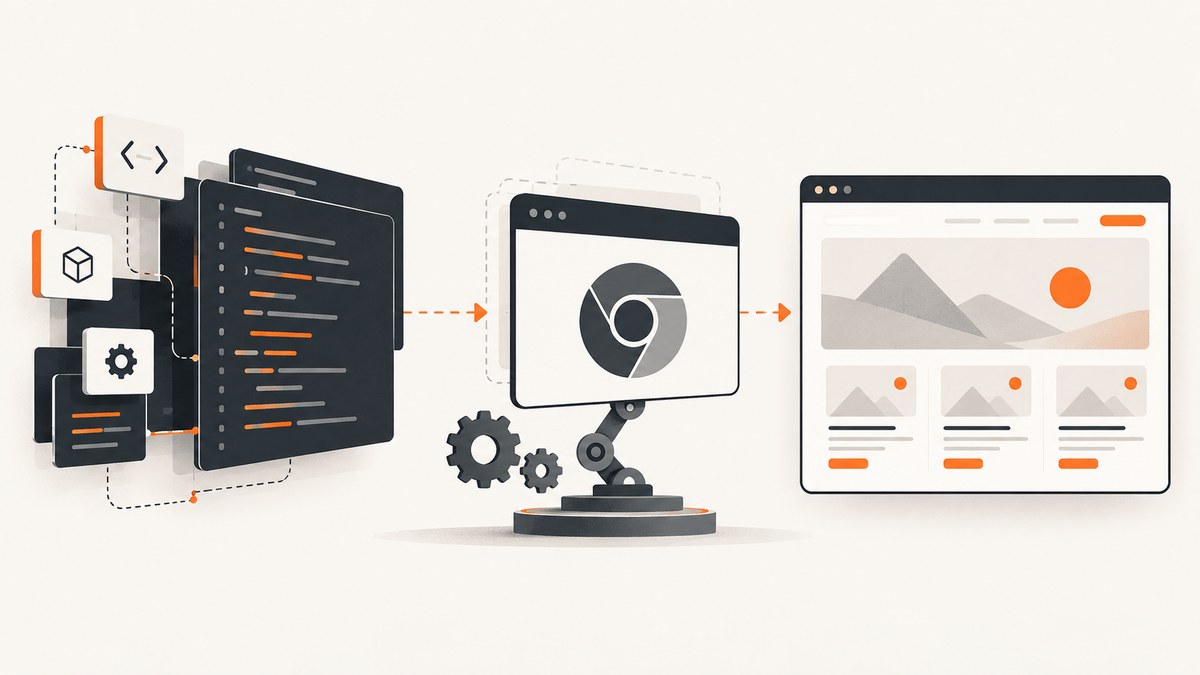
To run Selenium tests against an Angular application in headless Chrome, start the Angular app (or configure an end-to-end target), create a Selenium WebDriver with Chrome options that include --headless, wait for Angular-rendered elements before interacting, assert the result, and always call driver.quit() in teardown. In CI, use the same test command and a browser image with compatible Chrome and ChromeDriver versions.
This guide uses JavaScript with Selenium WebDriver because it gives a compact, runnable example. Selenium also supports other language bindings; the setup sequence is the same: install the binding, Chrome, and a compatible driver. The Selenium project describes WebDriver as a language-neutral browser-control API. Selenium: Getting started.
1. Choose how to start the Angular app
Angular CLI’s ng e2e command builds and serves the project, then runs the configured end-to-end builder. Older Angular projects may already have an e2e target. If yours does not, the CLI can offer supported integrations such as WebdriverIO; alternatively, start the dev server yourself and have Selenium navigate to its URL. Check your workspace configuration and installed CLI version before assuming a target exists. Angular CLI: end-to-end testing.
- Install the project’s dependencies with its package manager.
- Inspect
angular.jsonfor a project-levelarchitect.e2eor equivalent target. - If the target exists, use its documented command. If it does not, choose an integration or run the app separately.
- When starting the app separately, wait for the server to become ready and record the exact base URL, such as
http://localhost:4200.
# Example: start the Angular development server
npx ng serve --host 0.0.0.0

# In another terminal, run the configured e2e target if your project has one
npx ng e2e
The commands above illustrate the two separate jobs; your project’s scripts and builder may use different names. Avoid launching two servers on the same port. For CI, make server readiness an explicit step rather than relying on a fixed short sleep.
2. Install Selenium and prepare Chrome
For the JavaScript example, add Selenium WebDriver to the project:
npm install --save-dev selenium-webdriverInstall Chrome or Chromium in the environment where the test runs. Selenium needs a browser-specific driver to control it, and Chrome requires a compatible ChromeDriver. Modern Selenium installations can manage drivers in supported setups, but browser and driver availability still depends on the machine and version. Follow Selenium’s setup guidance for your platform and keep the browser/driver versions aligned. Selenium WebDriver setup.
Headless mode removes the need for a visible desktop display; it does not remove the need for Chrome libraries, fonts, certificates, writable temporary storage, and enough memory in the CI image. Keep the browser installation predictable by pinning or standardizing the CI image where practical.
3. Create a headless Selenium test
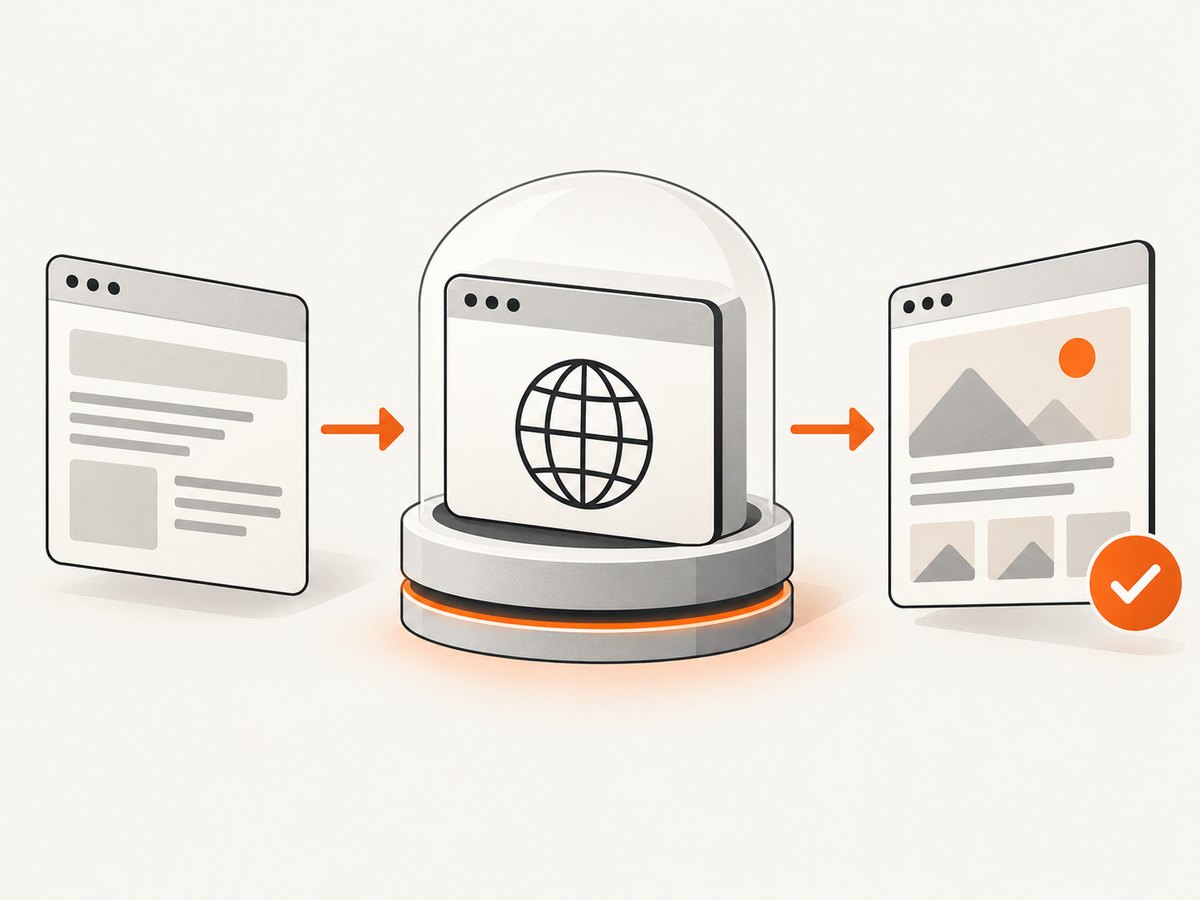
Save the following as e2e-smoke.js. It opens the app, waits for a stable test hook, checks visible output, and closes the browser even if navigation or an assertion fails. Replace the URL and selectors with elements from your Angular app.
const assert = require('node:assert/strict');
const { Builder, By, until } = require('selenium-webdriver');
const chrome = require('selenium-webdriver/chrome');

const baseUrl = process.env.BASE_URL || 'http://localhost:4200';
const options = new chrome.Options().addArguments('--headless');

async function main() {
  const driver = await new Builder()
    .forBrowser('chrome')
    .setChromeOptions(options)
    .build();

  try {
    await driver.manage().setTimeouts({
      implicit: 0,
      pageLoad: 30_000,
      script: 10_000,
    });

    await driver.get(baseUrl);
    const heading = await driver.wait(
      until.elementLocated(By.css('[data-testid="page-heading"]')),
      15_000,
      'Angular page heading did not appear'
    );
    await driver.wait(until.elementIsVisible(heading), 5_000);
    assert.equal(await heading.getText(), 'Welcome');

    const submit = await driver.findElement(By.css('[data-testid="save"]'));
    await submit.click();
    const status = await driver.wait(
      until.elementLocated(By.css('[role="status"]')),
      10_000,
      'Save confirmation did not appear'
    );
    await driver.wait(until.elementIsVisible(status), 5_000);
    assert.match(await status.getText(), /saved/i);
  } finally {
    await driver.quit();
  }
}

main().catch((error) => {
  console.error(error);
  process.exitCode = 1;
});
Run it after the app is available:
node e2e-smoke.jsChrome’s official guidance enables headless mode by adding --headless to Chrome options before creating the WebDriver. Chrome Headless mode. Add environment-specific flags only when the CI image requires them; copying a collection of flags from another project can hide a broken container configuration.
Why the test waits instead of sleeping
Angular rendering and network work finish at variable times. A fixed pause such as await new Promise(r => setTimeout(r, 5000)) wastes time on fast runs and may still be too short on slow ones. Selenium explicit waits poll for a condition, such as an element being located and visible. Use a condition tied to the state the next action needs.
Prefer stable selectors such as data-testid, meaningful labels, or accessible roles. Avoid selectors tied to generated CSS class names or deeply nested DOM structure; those tend to change during ordinary component refactors. Selenium’s examples demonstrate navigation, locating elements, interaction, timeouts, assertions, and teardown. Selenium examples.
4. Make the test repeatable in CI
- Install the same application dependencies as local development.
- Install or select an image containing Chrome/Chromium and a compatible ChromeDriver.
- Start Angular, then wait for an HTTP-ready check or equivalent server signal.
- Run the Selenium test with
BASE_URLset to the CI server address. - On failure, retain useful logs and screenshots before the browser is quit.
Angular’s browser-testing documentation notes that CI uses headless mode by default for its documented test setup, with explicit browser names such as chromeHeadless or chromiumHeadless depending on the provider. That setting concerns the Angular test runner; Selenium has its own Chrome options, as shown above. Angular testing guide.
If your project uses an Angular test runner rather than Selenium, configure that runner according to its own browser-provider instructions. Do not assume that setting a Karma browser name configures a separately launched Selenium Chrome session.
Capture diagnostics on failure
A screenshot and current URL often make a CI-only failure easier to diagnose. Add a catch around the test body or in your test framework’s failure hook:
const fs = require('node:fs/promises');

// Inside a catch/failure hook, before driver.quit():
const png = await driver.takeScreenshot();
await fs.writeFile('failure.png', Buffer.from(png, 'base64'));
console.error('Failed URL:', await driver.getCurrentUrl());
Write artifacts to a directory your CI system collects, and avoid capturing pages containing credentials or personal data unless the artifact access policy permits it.
5. Common options and edge cases
| Need | Approach | Consideration |
|---|---|---|
| Headless Chrome | new chrome.Options().addArguments('--headless') |
Set before build(). |
| Different app host | Read BASE_URL from the environment |
Use the address reachable from the Selenium process, not necessarily the host machine’s localhost. |
| Slow navigation | Set page-load timeout and explicit condition waits | Timeouts should reflect the operation; do not make every wait arbitrarily long. |
| Responsive layout | Set a window size through WebDriver management | Use the same viewport when comparing screenshots or layout behavior. |
| Delayed client rendering | Wait for a stable element or application-ready marker | Do not infer readiness solely from the initial document response. |
| Cross-browser or remote sessions | Use Selenium Grid or a hosted Selenium-compatible service | Account for network latency, session capacity, artifact collection, and provider configuration. |
For a controlled viewport, insert this after creating the driver:
await driver.manage().window().setRect({ width: 1365, height: 900 });For single-page applications, a successful driver.get() does not prove the desired route finished its data fetch or rendered its final state. Wait for a page-specific heading, loaded state, or result count. If the app uses animations, wait for the resulting state to settle before clicking. If an element is covered by a modal or overlay, resolve that state deliberately instead of repeatedly retrying clicks.
6. Troubleshooting
| Symptom | Likely cause | Fix |
|---|---|---|
| ChromeDriver cannot start or reports a session creation error | Chrome and ChromeDriver versions are incompatible, or the driver/browser is missing | Install a compatible pair in the runner and check the versions in CI logs. |
| Chrome exits immediately in CI | Missing browser libraries, restricted temporary directory, low memory, or container-specific launch needs | Use a maintained browser image, verify dependencies and writable temp storage, then add only flags required by that image. |
Connection refused at localhost:4200 |
The Angular server is not running, has not started yet, or localhost resolves inside another container | Wait for server readiness and use the hostname/address reachable from the Selenium process. |
| Element not found | Wrong selector, route, or app state; test ran before Angular rendered it | Check the current URL and page source, verify the selector, and wait for a state-specific element. |
| Element is not interactable | Element is hidden, disabled, covered, or outside the expected state | Wait for visibility/enabled state, dismiss the relevant overlay through the UI, and confirm the intended responsive layout. |
| Flaky test after a fixed delay | Machine load and network timing vary | Replace sleep with explicit waits for the next required condition. |
| Tests pass locally but fail in CI | Different browser version, base URL, environment data, viewport, fonts, or timing | Log versions and URL, standardize the environment, and preserve failure screenshots and console output. |
| Process hangs after a failure | Driver cleanup was skipped | Put driver.quit() in a finally block or framework teardown hook. |
7. Performance, reliability, and scaling
Headless mode removes the display requirement; it is not a guarantee of a particular speed. Runtime depends on application work, browser startup, network access, CI resources, test waits, and the number of sessions. No general benchmark applies across projects, so measure your own suite in the target environment.
Keep tests independent where possible, use explicit waits, and avoid repeating expensive setup for every assertion. Parallel execution can reduce elapsed time, but it also consumes more browser memory and can expose shared test data or port conflicts. Start with a stable serial run, then increase concurrency while checking resource pressure and test isolation.
Selenium Grid can place browser sessions on remote machines and support parallel runs. Hosted providers are another scaling option when you need managed machines or broader browser/OS coverage. Compare setup ownership, session capacity, CI reproducibility, artifact access, and cost before moving. Selenium Grid documentation.
Or skip the browser setup
If your task is to capture a page image or PDF rather than exercise interactive behavior, ScreenshotNeo provides a website screenshot API and MCP server. One GET request returns an image or PDF; it does not replace Selenium assertions or user-flow testing. See the ScreenshotNeo API documentation.
curl -G "https://api.screenshotneo.com/v1/shot" -d access_key=YOUR_API_KEY --data-urlencode url=https://stripe.com -o shot.webpimport requests
r = requests.get("https://api.screenshotneo.com/v1/shot", params={"access_key": "YOUR_API_KEY", "url": "https://stripe.com"}, timeout=90)
open("shot.webp", "wb").write(r.content)const q = new URLSearchParams({ access_key: 'YOUR_API_KEY', url: 'https://stripe.com' });
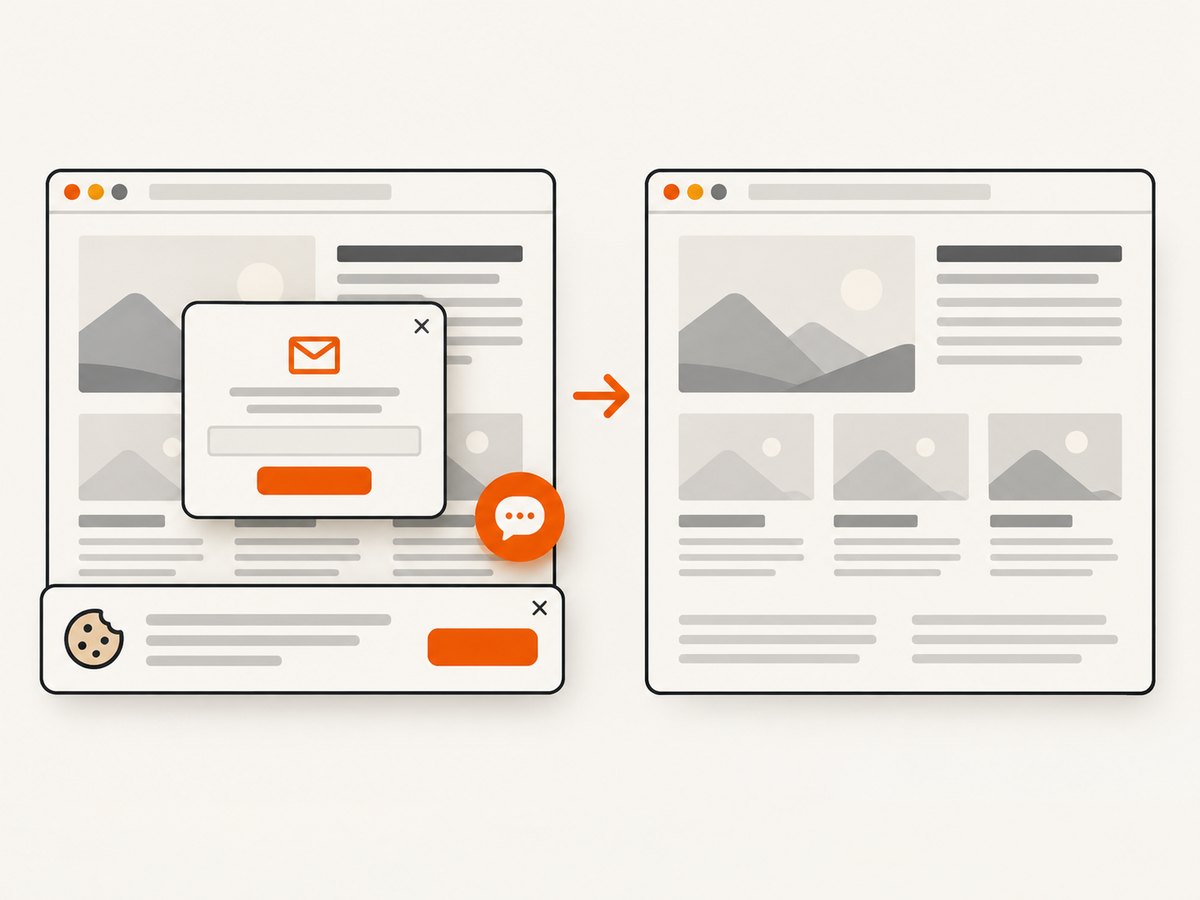
const res = await fetch(`https://api.screenshotneo.com/v1/shot?${q}`);- Cookie banners, newsletter popups, and chat widgets are removed before the shot; each cleanup step can be turned off.
- Bot checks/CAPTCHAs, blank pages, timeouts, failed loads, and cache hits are not billed. Responses identify the page verdict and billing status in headers.
- An MCP server lets Claude, Cursor, and other MCP clients use
take_screenshot,get_page_info, andcapture_pdf. - The free plan includes 1,000 screenshots per month with no card. Paid plans start at $5 for 3,000; every feature is on every plan.
Create a free ScreenshotNeo account and get 1,000 screenshots a month with no card.
FAQ
Does Angular require Selenium for end-to-end testing?
No. Angular CLI supports configurable end-to-end integrations. Selenium is one option when you need WebDriver-compatible browser automation or an existing Selenium suite.
Can I run this without installing a desktop environment?
Yes. Headless Chrome runs without a visible desktop display, provided the runner includes Chrome’s runtime dependencies and a compatible driver.
Does a screenshot test prove the Angular app works?
No. A screenshot can help inspect visual output, while Selenium should exercise the behavior and assert the relevant state. Use each for the question it answers.
When should I use Grid?
Use Grid when you need remote browser machines, parallel sessions, or broader browser and operating-system coverage than your local runner provides. First make a single local or CI session repeatable.


