Why Selenium Opens a Blank Firefox Window and How to Fix It
Firefox opening in Selenium does not mean the page loaded. Diagnose geckodriver, binary, version, profile, and container issues in order.
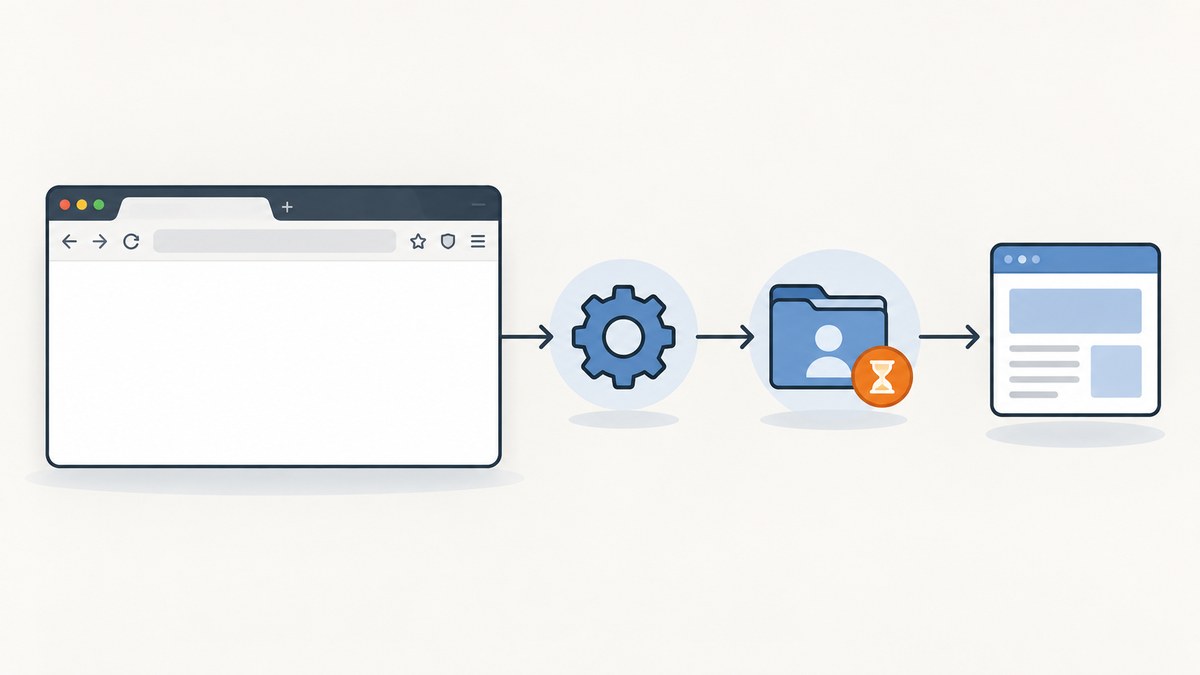
A blank Firefox window in Selenium means only that a browser process appeared. The WebDriver session may have failed before it could navigate, or the navigation itself may not have completed. Diagnose the driver, Firefox executable, versions, profile, and filesystem access before changing the target site or adding waits.
Start with a clean, minimal script that creates a driver, opens a known URL, records the browser state, and always calls quit(). Then apply the checks below in order. This guide uses Python for the main example; cURL and Node.js examples at the end show a way to capture a page without managing a local Firefox installation.
1. Separate browser startup from page navigation
WebDriver automation has several stages: locate geckodriver, negotiate a session with Firefox, create or load a profile, and navigate to the requested URL. Seeing a window confirms only that some browser process launched. It does not prove that session creation succeeded or that driver.get() reached the page.
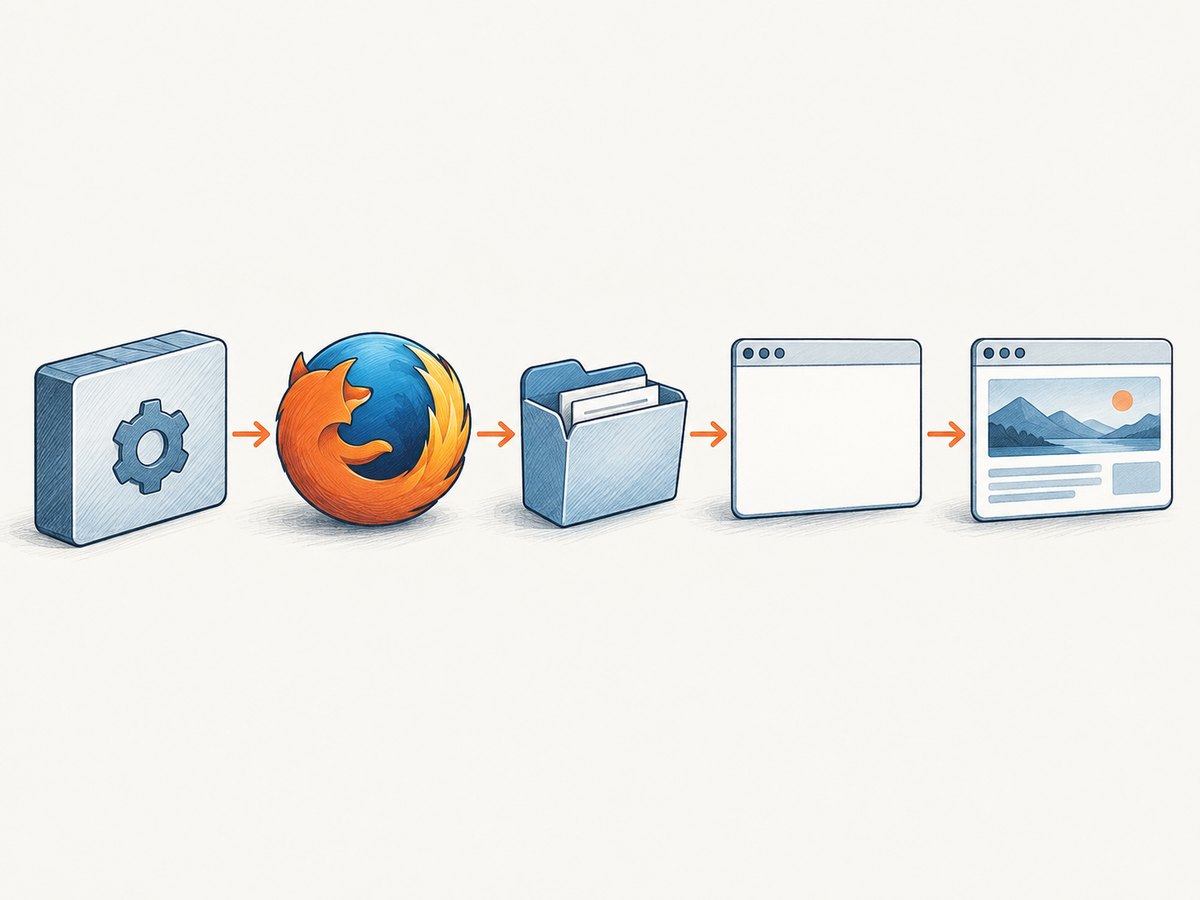
First establish exactly which stage failed. If driver construction raises an exception, investigate driver discovery, compatibility, binary launch, and profile access. If construction succeeds but the page stays blank, inspect navigation errors, logs, network access, and startup preferences. Do not treat a blank page as evidence that a site intentionally returned empty content.
2. Run a minimal Python reproduction
Use a public, known URL and a fresh default profile. Avoid extensions, custom preferences, proxies, and extra capabilities until this script works. Selenium Manager can resolve a driver in supported Selenium bindings; alternatively, provide a geckodriver path explicitly.
from selenium import webdriver
from selenium.webdriver.firefox.service import Service

# Option A: let Selenium Manager locate or obtain geckodriver.
driver = webdriver.Firefox()

# Option B: provide the executable path explicitly instead:
# service = Service(executable_path="/absolute/path/to/geckodriver")
# driver = webdriver.Firefox(service=service)

try:
    driver.get("https://example.com")
    print("URL:", driver.current_url)
    print("Title:", driver.title)
    print("Page source starts with:", driver.page_source[:300])
finally:
    driver.quit()
Install or update the Python binding with python -m pip install -U selenium. Keep the explicit service lines commented unless you need to control the driver path. If the window remains blank, keep the exception and logs: the error often identifies whether startup or navigation failed.
3. Check geckodriver discovery and permissions
geckodriver is the WebDriver component that connects Selenium to Firefox. If Selenium cannot find or execute it, a browser process may still be visible while the session is unusable. Selenium describes a missing executable as a driver-location problem.
- Check whether geckodriver is available: run
geckodriver --versionin the same environment where the script runs. - Check where it resolves: on macOS or Linux, use
which geckodriver; on Windows, usewhere geckodriver. - Verify the file is executable and readable by the account running Python. On Unix systems, inspect permissions with
ls -l /path/to/geckodriver. - If automatic management is unavailable or unsuitable, pass an absolute path through Selenium’s
Serviceobject, as in the example. - Record the resolved path in your run notes. A service started from an IDE, scheduled task, container, or CI runner may have a different
PATHfrom your terminal.
Do not download a random driver binary just to make the error disappear. Use Mozilla’s geckodriver project and its compatibility guidance, and ensure the binary matches the operating system and architecture.
4. Confirm Selenium can launch the Firefox binary
If Firefox is installed in a nonstandard location, tell Selenium which executable to use. Set binary_location only when the default lookup fails or selects the wrong installation.
from selenium import webdriver
from selenium.webdriver.firefox.options import Options

options = Options()
options.binary_location = "/usr/lib/firefox/firefox"  # Example only: use your actual executable.

driver = webdriver.Firefox(options=options)
try:
    driver.get("https://example.com")
    print(driver.title)
finally:
    driver.quit()
Use the actual Firefox executable, not necessarily the command or launcher users type in a shell. Mozilla warns that wrapper paths such as /snap/bin/firefox may be rejected because they are not themselves Firefox executables. For Snap installations, use the package’s supported binary and runtime environment rather than guessing a wrapper path.
5. Align Selenium, Firefox, and geckodriver versions
Old Selenium clients or mismatched browser and driver versions can fail during capability negotiation or launch. Mozilla’s documentation says Selenium users need version 3.11 or later for geckodriver. For current projects, update the Selenium binding and consult Mozilla’s compatibility guidance for the Firefox and geckodriver combination you intend to run.
- Record the Selenium version with
python -m pip show selenium. - Record geckodriver with
geckodriver --version. - Record Firefox’s version from
firefox --version, where that command reports the installed browser. - Check which binary your process actually uses; a system package and a manually installed browser can coexist.
Legacy instructions for the old FirefoxDriver should not be applied blindly to modern Firefox. If upgrading Selenium changes driver management, remove obsolete driver setup code and rerun the minimal example.
6. Rule out profile preferences and custom profile problems
Run once with Selenium’s default temporary anonymous profile. Selenium’s Firefox API supports temporary profiles, custom profiles, and binary selection; geckodriver normally creates a throwaway profile and removes it when the session ends. This clean run rules out stale cookies, extensions, startup preferences, and profile state.
A Firefox preference can deliberately force a blank startup page. Mozilla specifically notes that browser.startup.page in a user preference file or supplied preferences can override geckodriver’s recommended startup behavior. Remove custom preference settings first. If you need preferences, add them back one at a time and verify whether one changes startup or navigation behavior.
Only add a custom profile after the clean run works. Supply it through Selenium’s supported Firefox options, and ensure the profile directory is readable and writable by both Firefox and geckodriver. Avoid pointing concurrent sessions at the same mutable profile: locked or shared state can make failures intermittent.
7. Check Snap, Flatpak, containers, and headless mode
Packaged and containerized Firefox installations can see a different filesystem from the process that creates the WebDriver profile. Mozilla documents startup hangs and profile-access failures when Firefox inside a container cannot see the generated profile directory. The window may appear while the browser cannot read the profile it needs.
- Use Firefox and geckodriver from the same container or compatible package environment.
- Place the profile root on a path visible to both processes, with suitable read and write permissions.
- Check mount boundaries, sandbox restrictions, and temporary-directory configuration.
- For Snap or Flatpak, follow the packaging-specific runtime guidance and avoid assuming host paths are visible inside the sandbox.
Reproduce in headed mode first when possible, then compare with headless mode. If only one mode fails, preserve that distinction in the logs; it narrows the cause to display-server or mode-specific configuration rather than proving the site is responsible.
8. Turn on logs and isolate the failing stage
Reduce the script to driver creation, one get() call, a title or URL read, and quit(). Capture the exception, Selenium output, and geckodriver log. The Firefox service supports log levels, which help distinguish driver discovery, binary launch, profile creation, and navigation issues.
from selenium import webdriver
from selenium.webdriver.firefox.service import Service

service = Service(log_output="geckodriver.log", service_args=["--log", "debug"])
driver = webdriver.Firefox(service=service)
try:
    driver.get("https://example.com")
    print(driver.current_url, driver.title)
finally:
    driver.quit()
If your Selenium version uses different service arguments, check the Firefox service API documentation for that installed version. Keep the log file local: it can contain paths and session details. For a reproducible report, include operating system, package source, Python and Selenium versions, Firefox and geckodriver versions, binary paths, whether the run is headed or headless, and the minimal script.
9. Troubleshooting by symptom
| Symptom | Likely cause | What to try |
|---|---|---|
| Driver creation says geckodriver cannot be found | Driver is absent from the process PATH or not executable. | Check the path and permissions, use supported Selenium Manager, or set an explicit Service path. |
| Firefox opens, then session creation fails | Version mismatch, invalid binary, or profile startup failure. | Update Selenium, verify Firefox and geckodriver compatibility, and retry with the default profile. |
Firefox launches but get() leaves a blank page |
Navigation did not complete, a startup preference overrides behavior, or browser access is restricted. | Print the URL and title, inspect logs and exceptions, remove custom preferences, and try a known URL. |
| Works locally but hangs in a container | Firefox cannot access the profile path or the browser and driver run in different filesystem environments. | Use matching binaries and a profile directory mounted and writable for both processes. |
| Explicit Firefox path is rejected | The path points to a wrapper or launcher rather than the actual executable. | Find the package’s real Firefox binary and configure its supported runtime. |
| Works with a fresh profile only | Custom profile preferences, extensions, locks, or stale data interfere. | Keep the temporary profile for automation or rebuild the custom profile incrementally. |
| Fails only in headless mode | Headless-specific configuration or environment differs from headed runs. | Compare logs and versions, simplify options, and verify the environment needed by the headless browser. |
10. Reliability, runtime, and cost considerations
For stable automation, pin and document the browser environment, avoid shared writable profiles, and keep a minimal startup check in the same environment that runs the real job. A successful local desktop run does not establish that CI has the same binaries, paths, permissions, or network access. Log versions and paths with failures so environment drift is visible.
Startup time depends on browser launch, profile creation, page behavior, and the environment; there is no single reliable duration for all pages. A longer timeout will not fix a driver that cannot launch Firefox or a profile Firefox cannot read. Add waits only after navigation is working and the page genuinely needs time to render.
Firefox and geckodriver are software components rather than per-screenshot services in this setup. Costs depend on where the automation runs and how much browser compute it consumes. Account for the machine, container or CI capacity, maintenance, and retries. Avoid blind retry loops: they can multiply runtime without correcting a deterministic version or permission error.
11. Or skip the browser setup
If your task is to get an image or PDF of a URL rather than drive an interactive Firefox session, ScreenshotNeo provides a screenshot API and MCP server. One GET request returns PNG, JPEG, WebP, or PDF; see the API documentation for parameters.
curl -G "https://api.screenshotneo.com/v1/shot" -d access_key=YOUR_API_KEY --data-urlencode url=https://example.com -o shot.webpimport requests
r = requests.get(
"https://api.screenshotneo.com/v1/shot",
params={"access_key": "YOUR_API_KEY", "url": "https://example.com"},
timeout=90,
)
open("shot.webp", "wb").write(r.content)const q = new URLSearchParams({ access_key: 'YOUR_API_KEY', url: 'https://example.com' });
const res = await fetch(`https://api.screenshotneo.com/v1/shot?${q}`);
if (!res.ok) throw new Error(`Screenshot request failed: ${res.status}`);
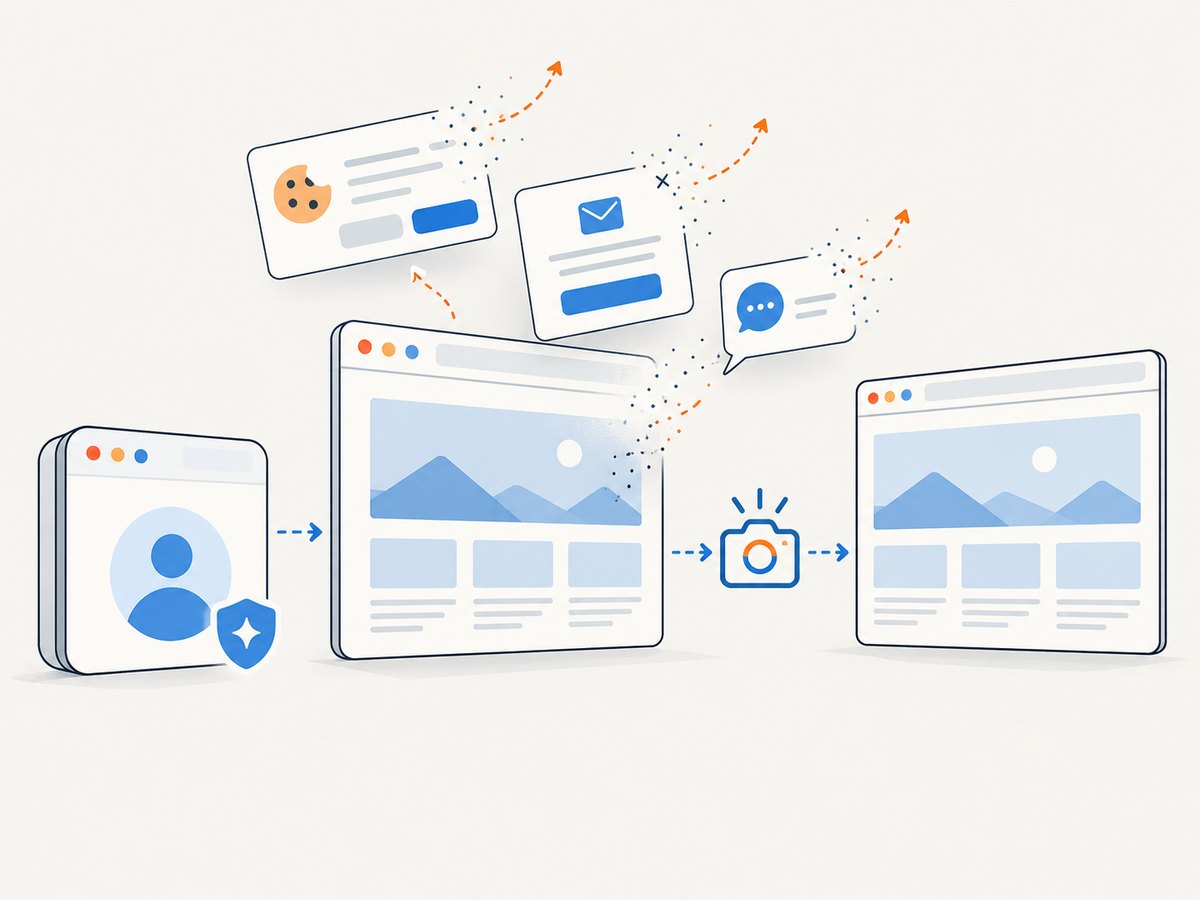
await Bun.write("shot.webp", res);Cookie banners, newsletter popups, and chat widgets are removed before the shot, and each step can be turned off. Bot checks, blank pages, failed loads, timeouts, and cache hits are never billed; response headers say the page verdict and whether the request was billed. An MCP server lets Claude, Cursor, or another MCP client take screenshots. The free plan includes 1,000 screenshots a month with no card; paid plans start at $5 for 3,000. Sign up for 1,000 free screenshots a month, with no card.
12. Frequently asked questions
Does a visible Firefox window mean Selenium connected successfully?
No. It shows a browser process started, but session creation and navigation can still fail. Check the driver call’s result, logs, and current URL.
Should I always set Firefox’s binary path?
No. Set it when automatic discovery selects the wrong installation or cannot find Firefox. A wrapper path can be invalid even when it works as a shell command.
Can I fix a blank window by adding a longer wait?
Only if navigation succeeds and the page needs additional time to render. A wait cannot repair an undiscoverable driver, rejected binary, incompatible versions, or inaccessible profile.
Why does the default profile work while mine does not?
The custom profile may contain startup preferences or extensions, or its directory may be locked or inaccessible. Add profile settings back in small steps and check permissions.


