Why Selenium Cannot Locate Twitter Elements and How to Fix It
Fix Selenium errors on Twitter/X by checking timing, selectors, browser context, shadow DOM, stale elements, overlays, and platform policy.
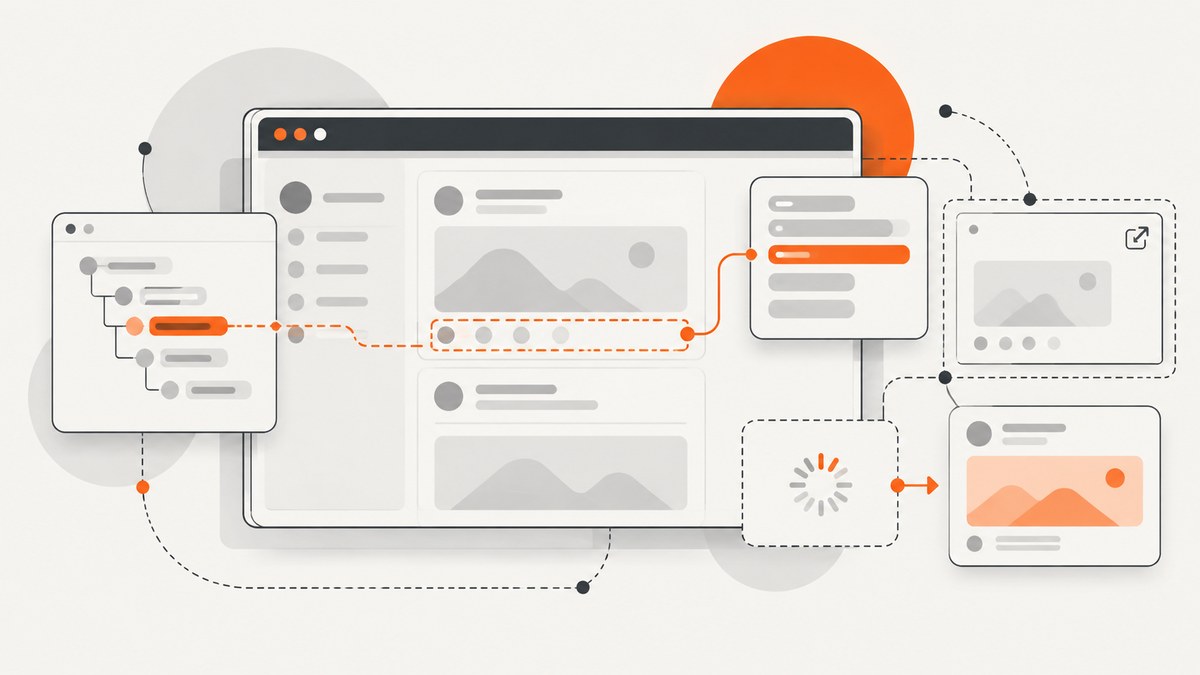
Selenium cannot locate a Twitter/X element when the element is not present in the DOM that Selenium is searching at that moment. On X, the usual causes are delayed client-side rendering, a changed selector, the wrong URL or browsing context, an iframe or shadow root, a stale reference after re-rendering, or an overlay that makes an existing element unusable.
Start by proving the browser state, then wait for the required condition, use a compact locator, search in the correct context, and locate the element again after every major DOM update. Do not “fix” a timeout by adding a large sleep or by copying a long XPath from DevTools.
1. Confirm what Selenium is actually viewing
A browser can show an X page while the driver is still on a redirect, consent screen, login route, or an earlier single-page application state. Selenium’s navigation wait only tells you that the document’s ready state changed; JavaScript can still be creating the target element. The first diagnostic step is to print the URL, title, window handle, and live page source immediately before the lookup.
from selenium import webdriver
from selenium.webdriver.chrome.options import Options

options = Options()
options.add_argument("--headless=new")
driver = webdriver.Chrome(options=options)

driver.get("https://x.com/")
print("URL:", driver.current_url)
print("Title:", driver.title)
print("Window:", driver.current_window_handle)
print(driver.page_source[:4000])
Check that:
- The final URL is the route you intended, rather than a login, consent, challenge, or error page.
- The expected account is authenticated if the workflow requires login.
- A preceding click or navigation actually completed before the next lookup.
- You are inspecting the same window and document that Selenium controls.
DevTools can mislead you when it is attached to a different tab, a different frame, or a later state than the automated run. Compare the driver’s live DOM at the point of failure.
2. Wait for a condition, not an arbitrary delay
An immediate find_element call has no waiting period. Selenium’s default implicit wait is zero, so a missing node raises NoSuchElementException immediately. Explicit waits let you describe the state needed for the next action: presence, visibility, or clickability. Selenium documents these waiting strategies and warns that mixing implicit and explicit waits can produce unpredictable timing. Read the Selenium waiting-strategy documentation.
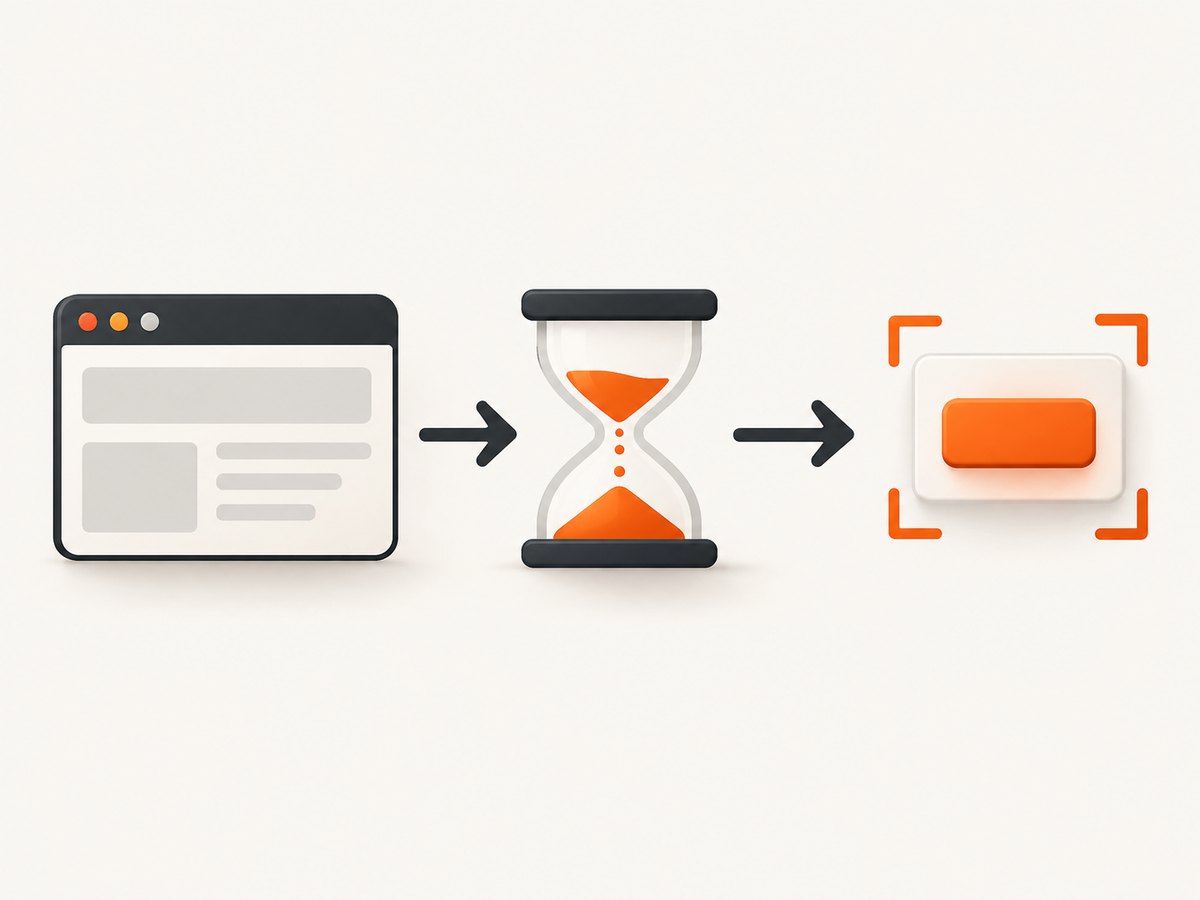
Presence, visibility, and clickability
| Condition | Use it when | What it proves |
|---|---|---|
| Presence | You need to read attributes or text | A matching node exists in the DOM |
| Visibility | You need to see or measure it | The node exists and is displayed with usable dimensions |
| Element to be clickable | You will click or send keys | The node is visible and enabled; an overlay can still intercept a pointer |
from selenium.webdriver.common.by import By
from selenium.webdriver.support.ui import WebDriverWait
from selenium.webdriver.support import expected_conditions as EC

wait = WebDriverWait(driver, 20)

# Replace this placeholder with a locator verified in the current live DOM.
target = wait.until(
    EC.element_to_be_clickable((By.CSS_SELECTOR, '[data-testid="..." ]'))
)
target.click()
Wait for the event that creates the element. If a tweet appears only after scrolling, wait for the scroll-triggered content. If a dialog appears after a route change, wait for the dialog’s presence after navigation. A fixed time.sleep(10) may still be too short on a slow run and wastes time on a fast run.
3. Choose a locator that can survive UI changes
X changes generated class names, attributes, markup, and component structure. A selector copied from one session can stop working after a deployment or experiment. Prefer, in order:
- A unique, predictable ID supplied for automation.
- A stable semantic attribute such as a verified
data-testid, when it exists in the current DOM. - A short CSS selector based on a stable attribute or relationship.
- A compact XPath only when CSS cannot express the relationship you need.
Avoid absolute XPath such as /html/body/div[1]/div[2]/main/..., chains of generated classes, broad tag searches such as every div, and selectors that assume a particular feed order. Selenium’s common-error guidance identifies changed locators as a direct cause of NoSuchElementException. See Selenium’s error guide.
# Compact examples; verify each against the live DOM first.
by_test_id = (By.CSS_SELECTOR, '[data-testid="verified"]')
by_role = (By.CSS_SELECTOR, '[role="button"][aria-label="More"]')
by_text = (By.XPATH, '//button[normalize-space()="Follow"]')

button = WebDriverWait(driver, 20).until(
    EC.visibility_of_element_located(by_role)
)
Do not promise that a particular X selector is permanent. Build a small locator-validation step that reports which candidate, if any, matched, and update it when the live DOM changes.
4. Check windows, frames, and search contexts
A locator is evaluated in the driver’s current search context. Opening a login popup or help window leaves the original tab behind; an iframe requires a frame switch; switching back is required before continuing in the main document.
# Switch to a newly opened window.
original = driver.current_window_handle
wait.until(lambda d: len(d.window_handles) == 2)
for handle in driver.window_handles:
    if handle != original:
        driver.switch_to.window(handle)
        break

# Search an iframe, then return to the top-level document.
frame = wait.until(EC.presence_of_element_located((By.CSS_SELECTOR, "iframe")))
driver.switch_to.frame(frame)
inside = wait.until(EC.presence_of_element_located((By.CSS_SELECTOR, "input")))
driver.switch_to.default_content()
If you know the frame name or ID, switch_to.frame("name-or-id") is also valid. A frame may be nested, so switch through each parent in order. When the workflow changes to another window, frame, or document, treat previously found elements as belonging to the old context.
5. Handle shadow DOM correctly
The Shadow DOM is an encapsulated DOM tree hidden inside an element. Searching the document root does not automatically search inside an open shadow root. Selenium 4 exposes shadow-root methods. Selenium’s element-finding documentation explains shadow-root searches.
host = wait.until(
    EC.presence_of_element_located((By.CSS_SELECTOR, "custom-widget"))
)
shadow = host.shadow_root
inside_shadow = shadow.find_element(By.CSS_SELECTOR, "button")
wait.until(lambda d: inside_shadow.is_enabled()).click()
This works only when the component exposes an accessible shadow root. Closed shadow roots cannot be queried directly with normal WebDriver locators; use a supported user interaction, an application test hook, or an official API instead of trying to pierce the boundary.
6. Re-find elements after React-style re-renders
A WebElement is a reference to a particular DOM node. Infinite scrolling, route transitions, dialogs, and feed refreshes can detach that node and create a replacement. Reusing the old object then raises StaleElementReferenceException.
from selenium.common.exceptions import StaleElementReferenceException

locator = (By.CSS_SELECTOR, '[data-testid="verified"]')
for attempt in range(3):
    try:
        element = WebDriverWait(driver, 10).until(
            EC.element_to_be_clickable(locator)
        )
        element.click()
        break
    except StaleElementReferenceException:
        if attempt == 2:
            raise
        # The next loop locates the replacement node.
Do not keep a page-wide cache of elements on a frequently updating feed. Store locators and fetch the element immediately before use. After a click that changes the route or replaces a panel, wait for the new state and then locate again.
7. Diagnose elements that exist but cannot be used
Finding a node does not mean a user could click it. The element may be hidden, outside the viewport, disabled, covered by a consent dialog, or replaced while Selenium is acting. Separate these cases from a missing-element error.
from selenium.common.exceptions import ElementClickInterceptedException

locator = (By.CSS_SELECTOR, '[role="button"]')
button = wait.until(EC.visibility_of_element_located(locator))
driver.execute_script(
    "arguments[0].scrollIntoView({block: 'center'});", button
)
try:
    wait.until(EC.element_to_be_clickable(locator)).click()
except ElementClickInterceptedException:
    print("An overlay or another element intercepted the click")
    print("Visible overlays:", driver.find_elements(By.CSS_SELECTOR, '[role="dialog"]'))
Dismiss a consent or login dialog through its visible controls, then wait for it to disappear. JavaScript click is a last-resort diagnostic, not a substitute for making the page genuinely interactable: it can bypass the pointer path your application needs to test.
8. A complete diagnostic workflow
- Capture
current_url, title, window handle, and a DOM excerpt. - Confirm authentication, consent, navigation, and any required preceding click.
- Check the current window and switch into the correct iframe or shadow root.
- Validate a short locator in the live DOM.
- Wait for presence, visibility, or clickability based on the next operation.
- Scroll or close an overlay when the node is present but blocked.
- After a route change, feed refresh, or scroll, discard old references and locate again.
- Save a screenshot and HTML snapshot on failure so the next selector change is evidence-based.
from pathlib import Path

try:
    target = WebDriverWait(driver, 20).until(
        EC.element_to_be_clickable((By.CSS_SELECTOR, '[data-testid="..."]'))
    )
    target.click()
except Exception:
    Path("failure.html").write_text(driver.page_source, encoding="utf-8")
    driver.save_screenshot("failure.png")
    print(driver.current_url, driver.title, driver.current_window_handle)
    raise
9. Common errors and fixes
| Error or symptom | Likely cause | Fix |
|---|---|---|
NoSuchElementException immediately |
Wrong URL, context, selector, or render state | Print state, switch context, validate the locator, then add an explicit wait. |
| Timeout waiting for presence | The element is created after a click, scroll, API response, or route transition | Wait for that transition first, then wait for the element. |
| DevTools finds it; Selenium does not | Different tab, frame, shadow root, or DOM state | Compare the driver’s live DOM and context with DevTools. |
StaleElementReferenceException |
The framework replaced the node | Discard the object, wait for the refreshed state, and locate again. |
ElementNotInteractableException |
Hidden, disabled, or outside the usable viewport | Wait for visibility and enabled state; scroll and inspect overlays. |
ElementClickInterceptedException |
Consent banner, dialog, sticky header, or another overlay covers it | Close the overlay and wait for it to disappear before clicking. |
| Works headed, fails headless | Different viewport, timing, permissions, or responsive layout | Set a realistic window size, log the DOM, and avoid viewport-specific selectors. |
10. Performance and reliability practices
- Use one explicit wait policy and short, purposeful timeouts. A 20-second upper bound is easier to diagnose than minutes of polling.
- Wait on state transitions, not repeated sleeps. This reduces idle time and makes slow runs observable.
- Keep selectors compact and centralize them so a DOM change is fixed in one place.
- Capture HTML, a screenshot, URL, title, and browser logs on failure.
- Use a fresh driver for isolated jobs when session state can leak between accounts or routes.
- Scroll incrementally on infinite feeds and stop when a stable end condition is reached; do not assume a fixed number of cards.
- Respect rate limits and avoid parallel activity that could trigger account security checks.
11. Check X’s automation policy
X’s official automation rules, updated in April 2026, list non-API-based scripting of the website among prohibited techniques and warn that violations may result in permanent suspension. The policy also describes authorized automation patterns and requires attention to consent, spam, privacy, and rate limits. Before automating an account or workflow, check the current rules and use an official API when it satisfies the requirement.
12. Or skip the browser setup
If your goal is a reliable image of an X page rather than browser-level interaction, ScreenshotNeo provides a single screenshot request. It accepts consent banners before capture and removes more than 60 known consent platforms, newsletter popups, and chat widgets. Each step can be disabled. Bot checks or CAPTCHAs, blank pages, timeouts, failed loads, and cache hits are not billed; response headers identify the page verdict and whether the shot was billed.
See the ScreenshotNeo API documentation for all options, including full-page screenshots with lazy images loaded, CSS-selector element capture, dark mode, device presets and custom viewports, retina scale, custom CSS and JavaScript, clicks, waits, blocked resources, headers, cookies, user agents, authorization, timezone, geolocation, transparent backgrounds, resizing, TTL caching, signed image links, asynchronous jobs, signed webhooks, bulk capture, usage data, and PDF output.
cURL
curl -G "https://api.screenshotneo.com/v1/shot" \
  -d access_key=YOUR_API_KEY \
  --data-urlencode url=https://x.com \
  -o shot.webp
Python
import requests

r = requests.get(
    "https://api.screenshotneo.com/v1/shot",
    params={"access_key": "YOUR_API_KEY", "url": "https://x.com"},
    timeout=90,
)
r.raise_for_status()
open("shot.webp", "wb").write(r.content)
print("billed:", r.headers.get("X-Billed"))
print("verdict:", r.headers.get("X-Page-Verdict"))
Node.js
const q = new URLSearchParams({
  access_key: 'YOUR_API_KEY',
  url: 'https://x.com'
});
const res = await fetch(`https://api.screenshotneo.com/v1/shot?${q}`);
if (!res.ok) throw new Error(`HTTP ${res.status}`);
const image = Buffer.from(await res.arrayBuffer());
await import('node:fs/promises').then(fs => fs.writeFile('shot.webp', image));
console.log('billed:', res.headers.get('X-Billed'));
console.log('verdict:', res.headers.get('X-Page-Verdict'));
ScreenshotNeo also includes an MCP server with take_screenshot, get_page_info, and capture_pdf tools for Claude, Cursor, and other MCP clients. The free plan includes 1,000 screenshots per month with no card; paid plans start at $5 for 3,000 shots. Create a free ScreenshotNeo account.
FAQ
Why does a selector work once and then fail?
X can re-render the component or change an experiment’s attributes. Locate immediately before use, wait for the required state, and keep selectors based on stable attributes.
Should I use an implicit wait?
Use one consistent strategy. Explicit waits give each operation a clear condition; Selenium warns that combining implicit and explicit waits can make total timing unpredictable.
Can XPath solve every Twitter locator problem?
No. XPath cannot repair a wrong frame, shadow root, URL, or render state. It is only another locator language and should remain short and maintainable.
What should I do when the page is behind a login challenge?
Confirm the account state and policy before proceeding. Do not attempt to bypass a security challenge; use an authorized flow or an official API.
Is a screenshot API suitable for clicking buttons?
No. Selenium is appropriate when you must interact with the browser. ScreenshotNeo is useful when the deliverable is a clean screenshot, page image, PDF, or page-state inspection.


