How to Capture the Active Screen Instead of the Full Page with Selenium C#
Capture Selenium’s current browser viewport in C#, switch tabs safely, avoid full-page shots, and troubleshoot driver and DevTools edge cases.
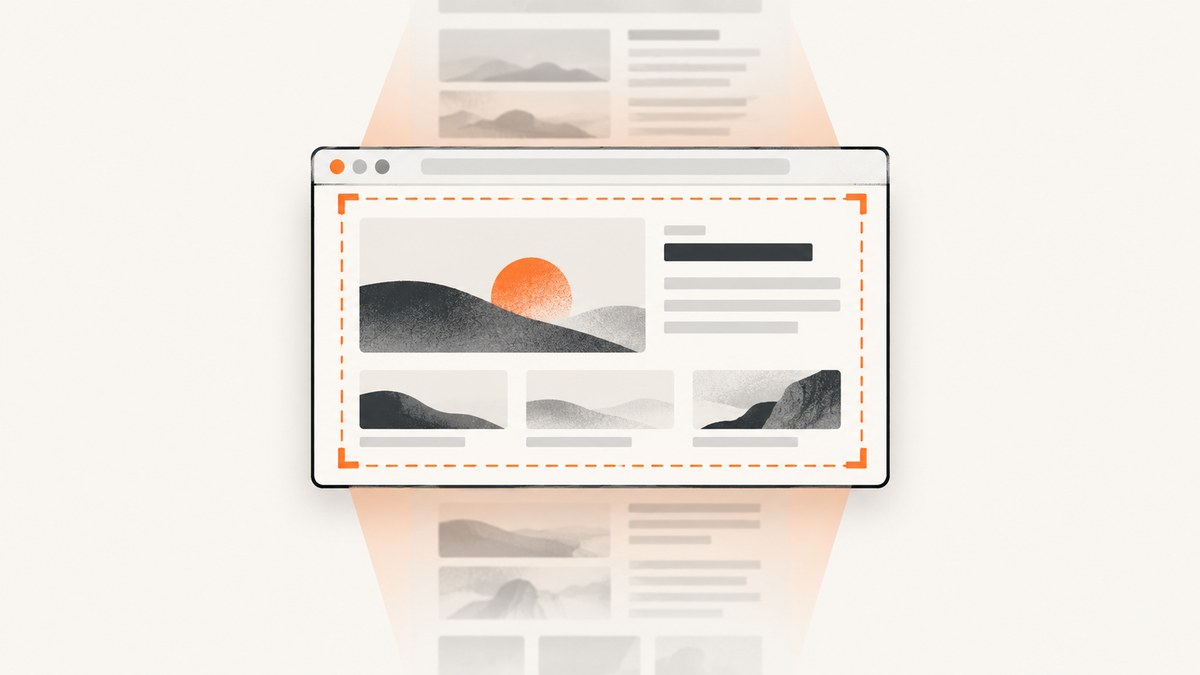
Use Selenium’s ITakesScreenshot.GetScreenshot() on the driver’s currently selected browsing context. It captures the page visible in that WebDriver context and saves the result as an image. If several tabs or windows are open, switch to the intended window handle first; Selenium cannot infer which operating-system window a person considers active.
using OpenQA.Selenium;
using OpenQA.Selenium.Chrome;

var driver = new ChromeDriver();
try
{
    driver.Navigate().GoToUrl("https://example.com");

    // GetScreenshot captures the currently selected tab/window.
    Screenshot screenshot = ((ITakesScreenshot)driver).GetScreenshot();
    screenshot.SaveAsFile("screenshot.png");
}
finally
{
    driver.Quit();
}
The standard WebDriver screenshot is a browser capture, not a physical desktop screenshot. Exact behavior depends on the browser driver. With a current W3C-conformant driver, viewport behavior is the predictable choice. See Selenium’s official screenshot documentation and the .NET API reference.
1. Select the tab or window you want to capture
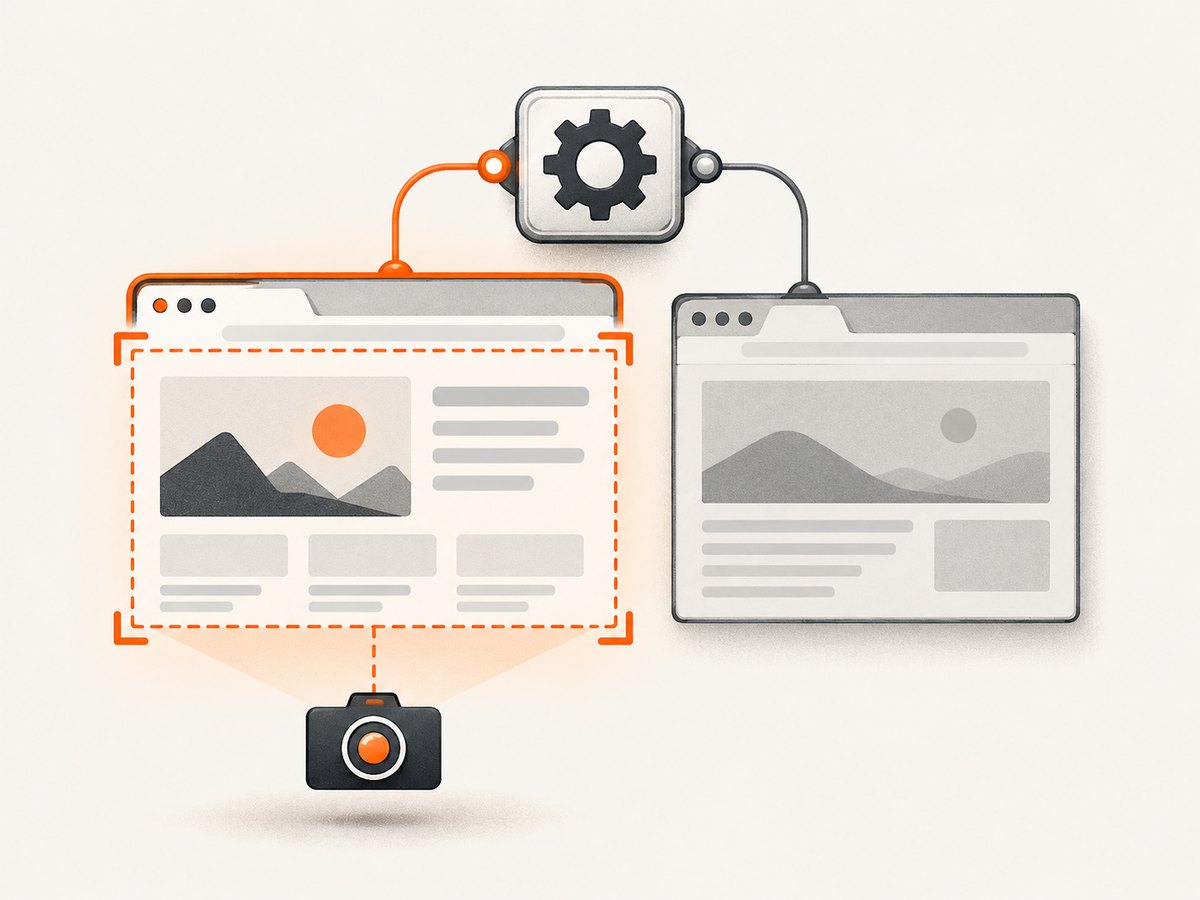
WebDriver works inside one browsing context at a time. Read the available handles, switch to the desired one, then call GetScreenshot().
using OpenQA.Selenium;
using OpenQA.Selenium.Chrome;

var driver = new ChromeDriver();
try
{
    driver.Navigate().GoToUrl("https://example.com");
    string original = driver.CurrentWindowHandle;

    // Example: open another tab through JavaScript.
    ((IJavaScriptExecutor)driver).ExecuteScript("window.open('https://example.org', '_blank');");

    string target = driver.WindowHandles.First(handle => handle != original);
    driver.SwitchTo().Window(target);

    var screenshot = ((ITakesScreenshot)driver).GetScreenshot();
    screenshot.SaveAsFile("target-tab.png", ScreenshotImageFormat.Png);
}
finally
{
    driver.Quit();
}
Do not use window-handle order as a permanent assumption. Store the handle when you create a tab, or inspect its URL/title after switching.
2. Make the capture represent the visible viewport
GetScreenshot() is the stable cross-version API for a normal viewport capture. Set the browser window size before navigation when a repeatable image is required.
var options = new ChromeOptions();
options.AddArgument("--window-size=1280,720");
using var driver = new ChromeDriver(options);
driver.Navigate().GoToUrl("https://example.com");

var shot = ((ITakesScreenshot)driver).GetScreenshot();
shot.SaveAsFile("viewport-1280x720.png", ScreenshotImageFormat.Png);
For Chrome DevTools screenshots through Selenium .NET, CaptureBeyondViewport controls whether the image extends outside the viewport and defaults to false. Leave it false for an active-screen image. Set it true only when you intentionally need a beyond-viewport or full-page result.
var settings = new OpenQA.Selenium.DevTools.V147.Page.CaptureScreenshotCommandSettings
{
    CaptureBeyondViewport = false
    // Clip = new Viewport { X = 0, Y = 0, Width = 1280, Height = 720 }
};
The DevTools namespace is tied to the browser protocol version installed with your Selenium package. Use the matching namespace for your browser, or use ITakesScreenshot when you need the least version-specific code.
3. Capture a specific visible rectangle
A clipped DevTools capture can restrict the image to a rectangle. This is useful for a panel or region of the viewport, but coordinates are in CSS pixels and must match the page state at capture time.
// Conceptual DevTools settings; use the Page namespace matching your Selenium version.
var settings = new OpenQA.Selenium.DevTools.V147.Page.CaptureScreenshotCommandSettings
{
    CaptureBeyondViewport = false,
    Clip = new OpenQA.Selenium.DevTools.V147.Page.Viewport
    {
        X = 0,
        Y = 0,
        Width = 800,
        Height = 600,
        Scale = 1
    }
};
For an element rather than a coordinate rectangle, locate the element and use Selenium’s element screenshot support where your driver implements it. An element screenshot is different from capturing the active screen: it can include content outside the current viewport depending on driver behavior.
4. Wait until the active screen is ready
Taking the screenshot immediately after navigation can capture a loading shell, a late image, or a transition. Wait for a specific condition instead of relying only on a fixed sleep.
using OpenQA.Selenium.Support.UI;

var wait = new WebDriverWait(driver, TimeSpan.FromSeconds(15));
wait.Until(d => ((IJavaScriptExecutor)d).ExecuteScript("return document.readyState")?.ToString() == "complete");
wait.Until(SeleniumExtras.WaitHelpers.ExpectedConditions.ElementIsVisible(By.CssSelector("main")));

((ITakesScreenshot)driver).GetScreenshot().SaveAsFile("ready.png", ScreenshotImageFormat.Png);
Animations, lazy-loaded content, cookie dialogs, and client-side route changes can still alter pixels after these checks. Disable animations with test CSS, wait for the relevant selector, or use a short delay only when the page has no observable readiness signal.
5. Common errors and fixes
| Symptom | Likely cause | Fix |
|---|---|---|
| Image shows the wrong tab | Driver remained on another window handle | Call SwitchTo().Window(handle) immediately before capture. |
| Image is full page | Driver-specific non-conformant behavior or DevTools capture beyond viewport | Use a current W3C driver, call ITakesScreenshot.GetScreenshot(), and keep CaptureBeyondViewport false. |
InvalidCastException |
Driver does not implement ITakesScreenshot |
Use a browser driver with screenshot support, such as ChromeDriver, and update Selenium. |
OpenQA.Selenium.WebDriverException about session or driver |
Browser and driver versions are incompatible, or the driver is unavailable | Update Selenium/browser, use Selenium Manager or a correctly configured driver, and verify the browser starts manually. |
| Screenshot is blank or half-rendered | Capture occurred before the app finished rendering | Wait for document.readyState plus an application-specific element or network completion signal. |
| DevTools type cannot be found | Namespace version does not match the installed Selenium package | Use the matching V### namespace, or fall back to the standard API. |
| File is missing or locked | Relative path points somewhere unexpected, or another process has the file open | Use an absolute writable path and ensure the output stream/process is closed. |
6. Reliability and performance considerations
- Reuse one driver session for related captures when isolation is not required; browser startup is usually more expensive than the screenshot call.
- Fix viewport dimensions, device scale, fonts, locale, and timezone when comparing images across runs.
- Capture after switching to the target handle and after the page reaches a deterministic state.
- Keep screenshots in memory or write directly to the required path; avoid unnecessary image conversions.
- For parallel jobs, use one independent WebDriver session per worker. Do not share a driver between threads.
- Viewport screenshots are smaller and faster than full-page captures because they do not rasterize the entire document.
- WebDriver screenshots require a browser and compatible driver, so account for browser startup, rendering, and network delays in timeouts.
7. Active screen versus desktop capture
Selenium captures the browser page in the selected WebDriver context. It does not capture other applications, the operating-system taskbar, or pixels hidden behind another physical window. If you need a real desktop image, use an operating-system screen-capture library instead of WebDriver.
Or skip the browser setup
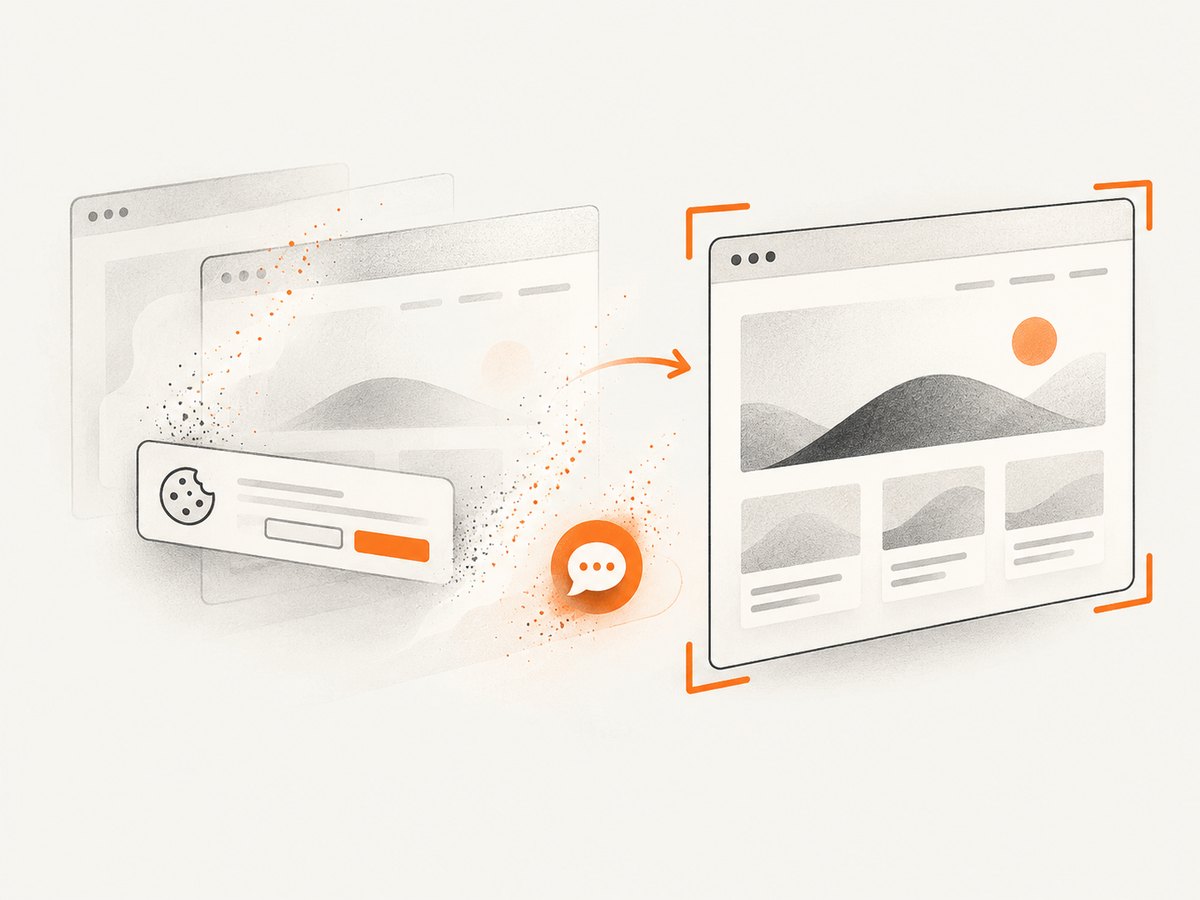
ScreenshotNeo provides a website screenshot API when you want an image without managing Selenium, Chrome, and drivers. It removes cookie and consent banners, newsletter popups, and chat widgets before capture. Bot checks, blank pages, failed loads, timeouts, and cache hits are not billed, and the response identifies the result with X-Page-Verdict and X-Billed headers. Its MCP server lets Claude, Cursor, and other MCP clients call take_screenshot, get_page_info, and capture_pdf.
See the ScreenshotNeo API documentation for all options. This one-call example captures a URL as WebP:
curl -G "https://api.screenshotneo.com/v1/shot" -d access_key=YOUR_API_KEY --data-urlencode url=https://stripe.com -o shot.webpimport requests
r = requests.get("https://api.screenshotneo.com/v1/shot", params={"access_key": "YOUR_API_KEY", "url": "https://stripe.com"}, timeout=90)
open("shot.webp", "wb").write(r.content)const q = new URLSearchParams({ access_key: 'YOUR_API_KEY', url: 'https://stripe.com' });
const res = await fetch(`https://api.screenshotneo.com/v1/shot?${q}`);Plans include 1,000 screenshots per month free with no card; paid plans start at $5 for 3,000 shots. Create a free ScreenshotNeo account.
FAQ
Does GetScreenshot() always exclude the page below the fold?
Use a current W3C-conformant driver for predictable viewport behavior. Driver implementations can differ, so verify the output and avoid beyond-viewport DevTools capture.
How do I capture the newly opened tab?
Save the original handle, identify the new handle from WindowHandles, then call SwitchTo().Window(newHandle) before capturing.
Can Selenium capture the monitor rather than the page?
No. Selenium captures the WebDriver browsing context. Use a desktop-capture library for the operating-system screen.
Should I use DevTools or ITakesScreenshot?
Use ITakesScreenshot for the stable, cross-version viewport case. Use DevTools when you need clipping or explicit beyond-viewport control.


