Can Selenium and Capybara Capture a Full-Page Screenshot?
Yes, but full-page capture depends on the browser driver. Learn the Firefox Selenium API, Capybara limitations, working code, troubleshooting, and alternatives.
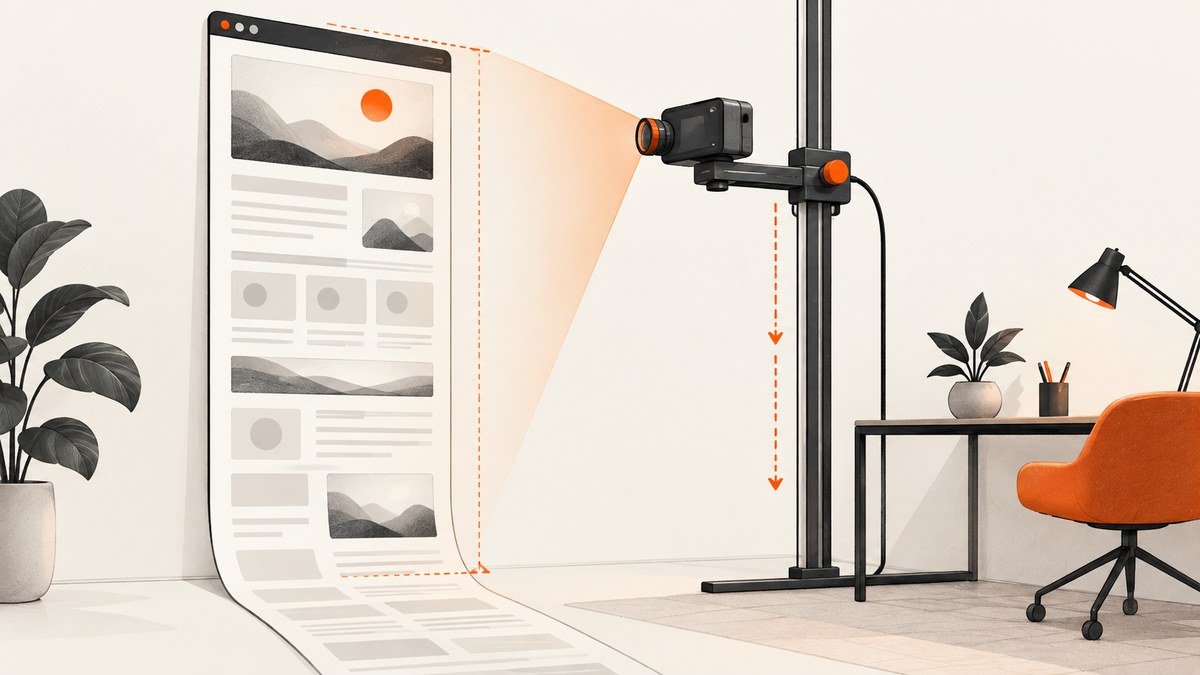
Yes. Selenium can capture a full-document screenshot when the configured browser and driver expose that capability. Selenium’s Firefox WebDriver has a documented full-page screenshot API. Capybara can save screenshots, but its generic page.save_screenshot method delegates to the active driver, so full-page behavior depends on that driver rather than Capybara alone.
For a Capybara session running on Selenium and Firefox, use the underlying Firefox driver’s explicit full-page method. Do not assume that a normal screenshot call captures content below the viewport, and do not assume Firefox’s method exists for Chrome, another browser, or every remote Grid configuration. Check the browser, Selenium binding, driver, and installed versions in your project.
What “full-page screenshot” means
A normal screenshot captures the current viewport: the pixels visible in the browser window. A full-page screenshot captures the document from its top through its rendered bottom, including content that would normally require scrolling. These operations are different at the WebDriver API level.
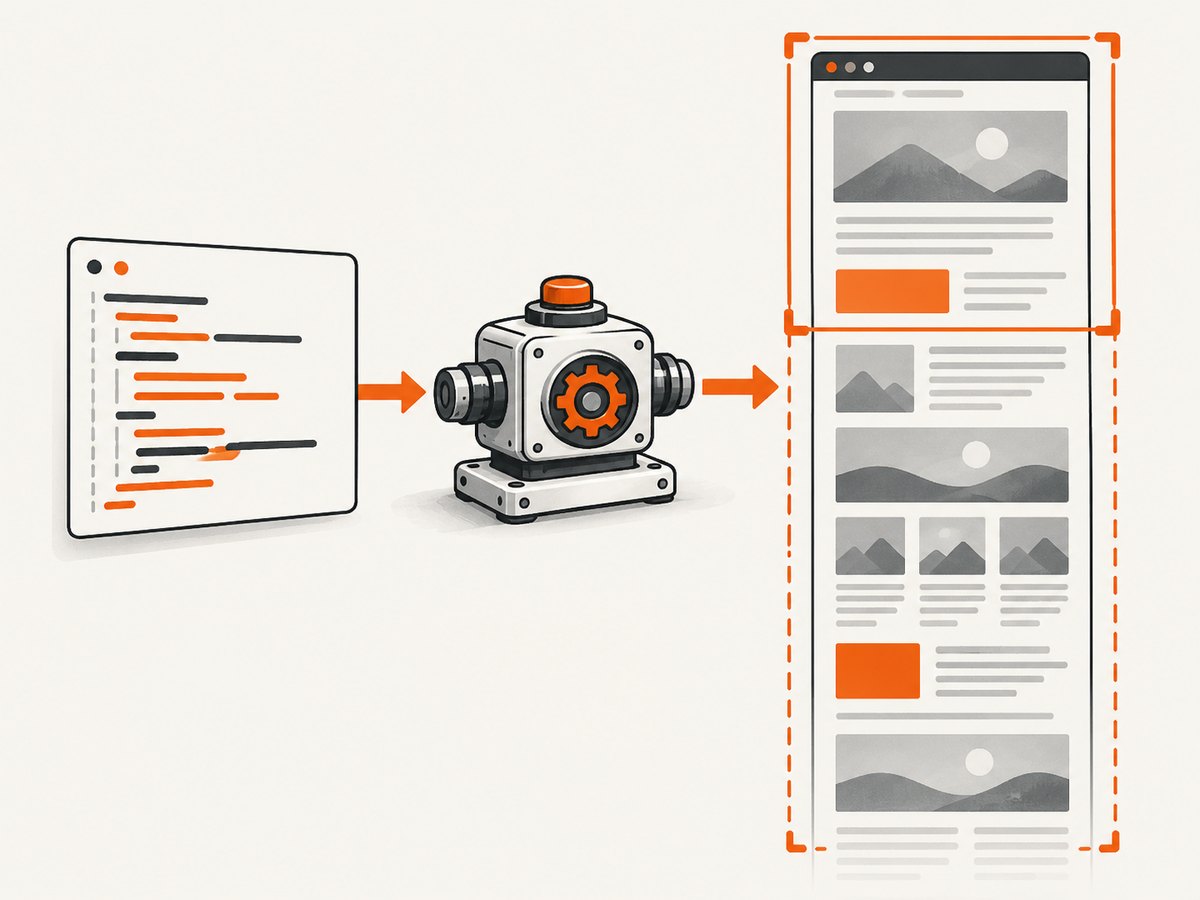
Selenium’s Firefox implementation documents a full-document screenshot operation. Selenium’s ordinary screenshot methods are generally viewport operations unless the binding and driver provide an explicit full-page extension. Capybara does not render screenshots itself; it asks the configured driver to perform the operation. The result therefore varies with the driver.
The official Selenium documentation describes Firefox’s operation as a full document screenshot. Capybara’s API and README describe screenshot availability as driver-dependent. See the Selenium documentation and the Capybara project documentation for the current API details.
Capability matrix
| Stack | Normal screenshot | Full-page route | What to verify |
|---|---|---|---|
| Selenium Python + Firefox | Viewport | driver.save_full_page_screenshot(path) |
Selenium and Firefox versions |
| Selenium Java + Firefox | Viewport | HasFullPageScreenshot#getFullPageScreenshotAs |
Binding and driver support |
| Selenium Ruby + Firefox | Viewport by default | Firefox full-page extension where exposed | Installed Ruby binding; extension API is documented as private |
| Capybara + Selenium + Firefox | page.save_screenshot delegates to driver |
Call the underlying Firefox browser object | How your Capybara version exposes page.driver.browser |
| Capybara with another driver | Driver-specific | Not guaranteed | Driver, browser, and version documentation |
Python: Selenium Firefox full-page screenshot
This is the most direct Selenium example. It opens a URL, waits for the page to load, and asks Firefox for a full-document image.
from selenium import webdriver
from selenium.webdriver.firefox.options import Options

options = Options()
# options.add_argument("-headless")  # Enable in CI if needed.

driver = webdriver.Firefox(options=options)
try:
    driver.get("https://example.com/long-page")
    driver.save_full_page_screenshot("full_page.png")
finally:
    driver.quit()
The method writes the image to the path you provide. If your binding exposes a bytes or base64 form of the full-page operation, use that when you need to upload the result instead of writing it locally. Confirm the exact method signature in the Selenium version installed by your project.
Waiting for content before capture
A page can report that navigation finished while JavaScript content, images, or fonts are still loading. Wait for a meaningful application condition before taking the screenshot.
from selenium import webdriver
from selenium.webdriver.common.by import By
from selenium.webdriver.support.ui import WebDriverWait
from selenium.webdriver.support import expected_conditions as EC

with webdriver.Firefox() as driver:
    driver.get("https://example.com/dashboard")
    WebDriverWait(driver, 30).until(
        EC.visibility_of_element_located((By.CSS_SELECTOR, "main"))
    )
    driver.save_full_page_screenshot("dashboard.png")
For pages that append content after the first render, wait for a selector that represents the finished state. A fixed sleep can work for a known demo page, but a condition is usually more reliable because it adapts to slower and faster runs.
Ruby and Capybara: use the underlying Firefox driver
Capybara’s generic call is useful for a viewport screenshot and keeps the output path handling in one place:
page.save_screenshot("viewport.png")That call delegates to the configured driver. With Selenium and Firefox, use the browser object’s full-page method where your installed Ruby Selenium binding exposes it:
require "capybara/rspec"
require "selenium-webdriver"

Capybara.register_driver :selenium_firefox do |app|
  options = Selenium::WebDriver::Firefox::Options.new
  # options.add_argument("-headless")
  Capybara::Selenium::Driver.new(app, browser: :firefox, options: options)
end

Capybara.default_driver = :selenium_firefox

session = Capybara::Session.new(:selenium_firefox)
session.visit("https://example.com/long-page")
session.find("main")

# The exact extension method depends on the installed Selenium Ruby version.
session.driver.browser.save_full_page_screenshot("full_page.png")
The Ruby Selenium documentation describes ordinary screenshots as viewport captures and full-page behavior as supported-only functionality. It also labels the Firefox extension API private. Treat the example as version-sensitive guidance: inspect the object returned by session.driver.browser, check your installed gem’s API, and verify the resulting image dimensions and content.
Java: Selenium Firefox full-document capture
In Java, FirefoxDriver implements Selenium’s HasFullPageScreenshot interface. The interface returns the image in the requested output form.
import java.io.File;
import org.openqa.selenium.WebDriver;
import org.openqa.selenium.firefox.FirefoxDriver;
import org.openqa.selenium.OutputType;
import org.openqa.selenium.firefox.HasFullPageScreenshot;

public class FullPageShot {
  public static void main(String[] args) {
    WebDriver driver = new FirefoxDriver();
    try {
      driver.get("https://example.com/long-page");
      File image = ((HasFullPageScreenshot) driver)
          .getFullPageScreenshotAs(OutputType.FILE);
      image.renameTo(new File("full_page.png"));
    } finally {
      driver.quit();
    }
  }
}
Use the output type that fits your pipeline, such as a file or byte array. Keep the cast guarded by the driver capability you selected; a different browser driver may not implement the interface.
Capybara configuration and driver checks
- Identify the active driver. Print or inspect
Capybara.current_driverand confirm it is the Selenium Firefox driver you expect. - Inspect the browser object. In a Capybara Selenium session,
page.driver.browseris the underlying Selenium browser object. Confirm that it exposes the full-page method in your installed version. - Separate viewport and document tests. Save one normal screenshot and one full-page screenshot during setup. Compare dimensions and inspect the bottom of the document.
- Pin compatible versions. Keep the Selenium binding, browser, and driver versions recorded in your build so an upgrade does not silently remove or change an extension method.
- Test the execution environment. Local Firefox and a remote Grid node can have different capabilities. Verify the exact node and browser used by CI.
Full-page edge cases
Lazy-loaded images
Some images load only after scrolling or after an intersection observer fires. A full-page API may capture the document layout without triggering every lazy-loading path. If images are missing, scroll through the page or trigger the application’s load condition before capture, then wait for the image selector.
Infinite scroll
There is no stable “bottom” for an infinite feed. Decide on a finite capture rule: load a known number of items, stop when a sentinel appears, or capture a bounded element instead of the entire document.
Sticky and fixed elements
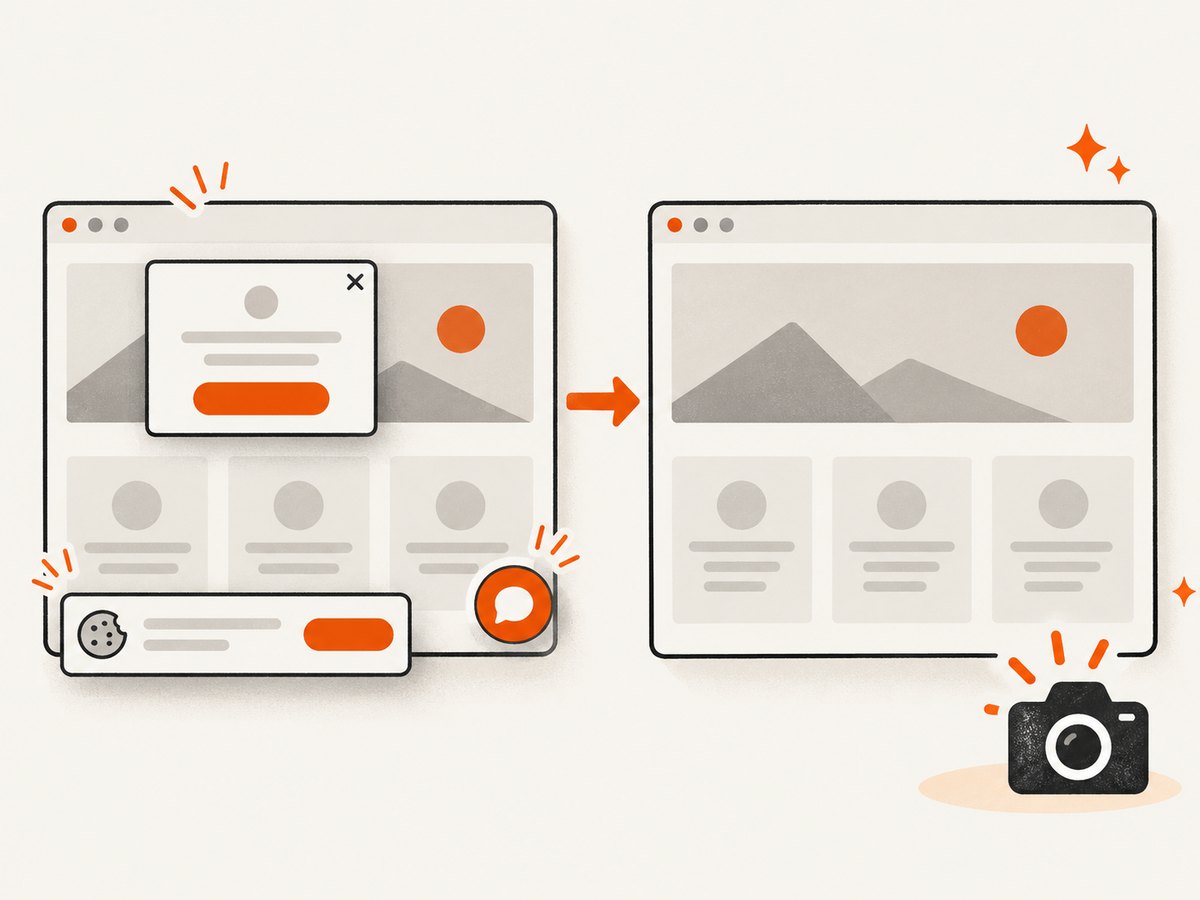
Headers, cookie controls, chat launchers, and floating buttons can appear repeatedly or cover content. Hide or dismiss them in application setup, or use a CSS rule before capture. Verify whether the browser’s full-page stitching preserves fixed elements as your design expects.
Animations and transitions
Animations can produce inconsistent frames. Prefer a page state with animations disabled, wait for a stable selector, and avoid capturing while a layout transition is running.
Very tall documents
A full-page image can be much larger than a viewport image. Memory limits, image encoding time, and downstream upload limits become relevant. Capture a specific element, split the document, or produce a PDF when a single extremely tall bitmap is impractical.
Cross-origin frames
An iframe from another origin may render successfully while preventing DOM inspection from the parent page. The screenshot can still include visible pixels, but your wait condition may need to target an element outside the frame or use frame switching supported by Selenium.
Options that affect capture quality
| Need | Approach | Trade-off |
|---|---|---|
| Entire document | Firefox full-page API | Driver-specific and potentially large output |
| One component | Locate an element and capture its region where supported | Requires stable selectors |
| Responsive layout | Set the window or viewport before navigation | Different widths can change content and height |
| Retina-like output | Use a device scale setting supported by your environment | More pixels and memory |
| Authenticated page | Log in through Selenium or configure the session’s cookies | Credentials and session state must be isolated |
| Deterministic image | Freeze data, disable animation, wait for a completion selector | Requires application-specific setup |
Troubleshooting
Only the viewport is saved
Cause: You called page.save_screenshot or a normal Selenium screenshot method. Fix: Use Firefox’s explicit full-page method, or access it through the underlying Capybara Selenium browser object.
NoMethodError for save_full_page_screenshot
Cause: The Ruby binding, browser, or driver does not expose that extension, or the object is not Firefox. Fix: Check the installed Selenium gem API and active driver. Upgrade or configure a documented compatible Firefox stack, or use a different capture path.
Java cast fails for HasFullPageScreenshot
Cause: The selected driver does not implement the interface. Fix: Use FirefoxDriver for this API, or fall back to the screenshot capability documented for your chosen driver.
The bottom of the page is blank
Cause: Lazy content, delayed JavaScript, or a timeout. Fix: Wait for a completion selector, trigger lazy loading, and inspect browser logs and network behavior.
Images or fonts differ between runs
Cause: The capture occurs before resources finish, or the page is data-dependent. Fix: Wait for resource-specific selectors, use stable test data, and disable animations.
It works locally but fails in CI
Cause: Different Firefox, driver, Selenium, display, or remote-node versions. Fix: Log versions and capabilities, run headless with the same browser image used in CI, and verify full-page support on the actual node.
Performance, reliability, and cost considerations
Full-page capture requires the browser to render the document, so page size and client-side work affect completion time. Waiting for network idle or application-specific selectors improves correctness but increases latency. A viewport capture is cheaper in memory; a full-page bitmap can stress the browser and image-processing pipeline. Reuse a browser session when taking several shots, but reset cookies and application state between unrelated pages.
For reliable automation, record the URL, viewport, browser version, driver version, wait condition, and output dimensions with each artifact. Retry navigation failures with a bounded policy, but do not blindly retry a deterministic application error. Validate that the output exists, has nonzero dimensions, and contains the expected bottom marker.
Or skip the browser setup
ScreenshotNeo provides a website screenshot API when you need a clean image without maintaining Selenium, Firefox, drivers, and CI browser setup. Its API supports full-page capture and many of the controls that commonly require browser scripting: lazy images, CSS element capture, device presets or custom viewports, retina scale, custom CSS and JavaScript, clicks, selector or network-idle waits, blocking ads and trackers, headers, cookies, user agents, authorization, timezone, geolocation, transparent backgrounds, resizing, caching, signed links, asynchronous jobs, webhooks, bulk capture, PDFs, HTML/CSS rendering, and a usage API.
Cookie and consent banners are accepted and removed before the shot, along with more than 60 known consent platforms, newsletter popups, and chat widgets; each cleanup step can be turned off. Bot checks, blank pages, timeouts, failed loads, and cache hits are not billed, and the response reports the page verdict and billing status in X-Page-Verdict and X-Billed headers. ScreenshotNeo also provides an MCP server with take_screenshot, get_page_info, and capture_pdf tools for Claude, Cursor, and other MCP clients.
See the ScreenshotNeo API documentation for the full parameter reference. A direct call looks like this:
curl -G "https://api.screenshotneo.com/v1/shot" -d access_key=YOUR_API_KEY --data-urlencode url=https://stripe.com -o shot.webpimport requests
r = requests.get("https://api.screenshotneo.com/v1/shot", params={"access_key": "YOUR_API_KEY", "url": "https://stripe.com"}, timeout=90)
open("shot.webp", "wb").write(r.content)const q = new URLSearchParams({ access_key: 'YOUR_API_KEY', url: 'https://stripe.com' });
const res = await fetch(`https://api.screenshotneo.com/v1/shot?${q}`);The free plan includes 1,000 screenshots each month with no card. Paid plans start at $5 for 3,000 shots, and every feature is available on every plan. Create a free ScreenshotNeo account.
FAQ
Does Capybara itself guarantee full-page screenshots?
No. Capybara delegates screenshot work to its configured driver, so support is driver-dependent.
Is Firefox required?
Firefox is the browser covered by Selenium’s documented full-document method discussed here. Other browsers and drivers must be checked individually.
Can I use a remote Selenium Grid?
Possibly, but the available documentation does not establish universal remote-grid behavior. Verify the exact browser, driver, Selenium binding, and Grid node combination.
Should I capture a full page or an element?
Capture the full document for archival or page review. Capture a stable element when the page is extremely tall, contains infinite scrolling, or you need one component for visual regression.
Why is my screenshot different on each run?
Resource timing, animation, dynamic data, lazy loading, and responsive layout can all change pixels. Use deterministic data and explicit readiness conditions.


