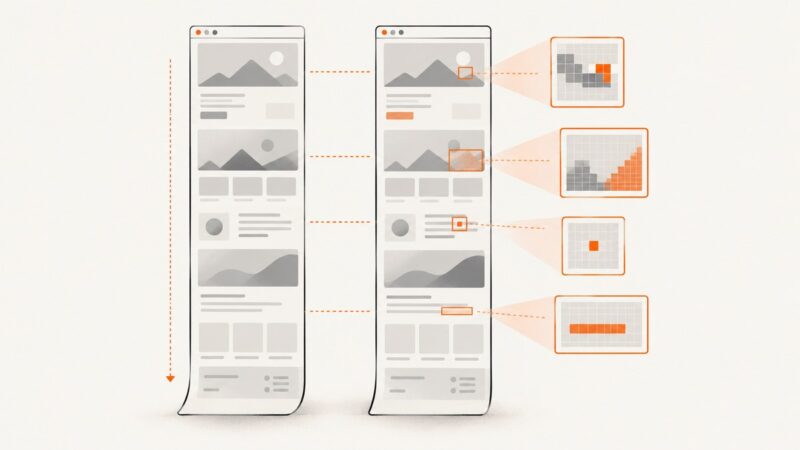
How to Capture Full-Page and Element Screenshots with Selenium WebDriver and Capybara in Ruby
Capture viewport, full-page, and element screenshots in Ruby with Selenium and Capybara, including fallbacks, debugging, and CI guidance.
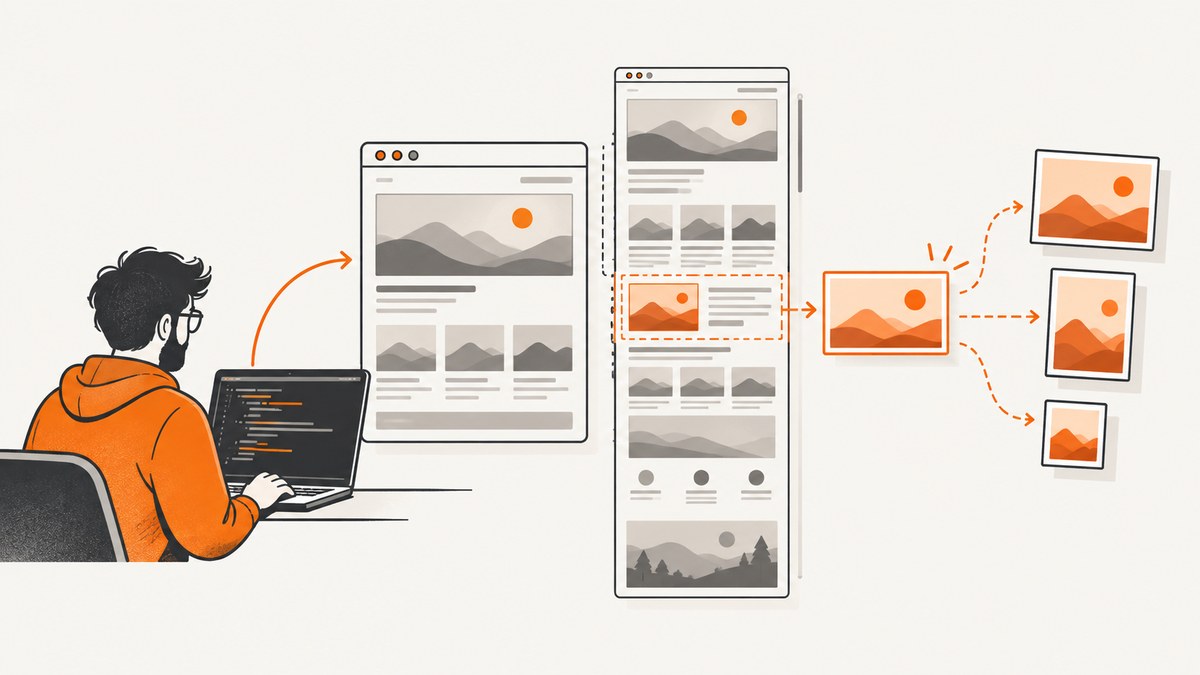
Use Capybara’s page.save_screenshot for a normal viewport image, pass full_page: true when your Selenium driver supports native full-page capture, and call save_screenshot on a matched element for an element-only image. The same API works in system tests, feature specs, and standalone Capybara scripts.
This guide shows a complete Selenium-backed Ruby setup, reliable waits, native and stitched full-page strategies, element capture, troubleshooting, CI practices, and a hosted alternative when maintaining a browser is unnecessary.
1. Set up Capybara with Selenium
Install Capybara and Selenium WebDriver in your bundle. Your browser and driver (for example, Chrome and ChromeDriver) must be compatible. Keep screenshots in a deterministic directory so local debugging and CI artifacts use the same paths.
# Gemfile
gem "capybara"
gem "selenium-webdriver"
bundle install
mkdir -p tmp/capybara
The following script registers a headless Chrome driver and opens a Capybara session. In an existing Rails or RSpec project, reuse its configured driver instead of registering a second one.
# screenshot_example.rb
require "capybara"
require "capybara/dsl"
require "selenium-webdriver"

Capybara.save_path = File.expand_path("tmp/capybara", __dir__)

Capybara.register_driver(:selenium_chrome_headless) do |app|
  options = Selenium::WebDriver::Chrome::Options.new
  options.add_argument("--headless=new")
  options.add_argument("--window-size=1440,1200")
  options.add_argument("--disable-gpu")
  options.add_argument("--no-sandbox")
  options.add_argument("--disable-dev-shm-usage")
  Capybara::Selenium::Driver.new(app, browser: :chrome, options: options)
end

Capybara.default_driver = :selenium_chrome_headless

session = Capybara::Session.new(:selenium_chrome_headless)
session.visit("https://example.com")
session.save_screenshot("viewport.png")
session.quit
Capybara.save_path is used when you provide a relative filename. You can also provide an absolute path. Capybara forwards screenshot options to the configured driver’s save_screenshot method, so Selenium-specific options remain available.
2. Capture a normal viewport screenshot
A viewport screenshot records the currently visible browser area. This is the most portable option and works with drivers that do not implement native full-page capture.
page.visit("https://example.com")
page.save_screenshot("tmp/capybara/viewport.png")
In an RSpec feature or system test, the same call is usually enough:
it "saves the rendered page" do
  visit "/dashboard"
  expect(page).to have_css("h1", text: "Dashboard")
  page.save_screenshot("dashboard.png")
end
Use a stable output name when a screenshot is an artifact for a particular example. Include the browser, viewport, or test name in the path when several jobs write to the same workspace.
3. Capture a full-page screenshot
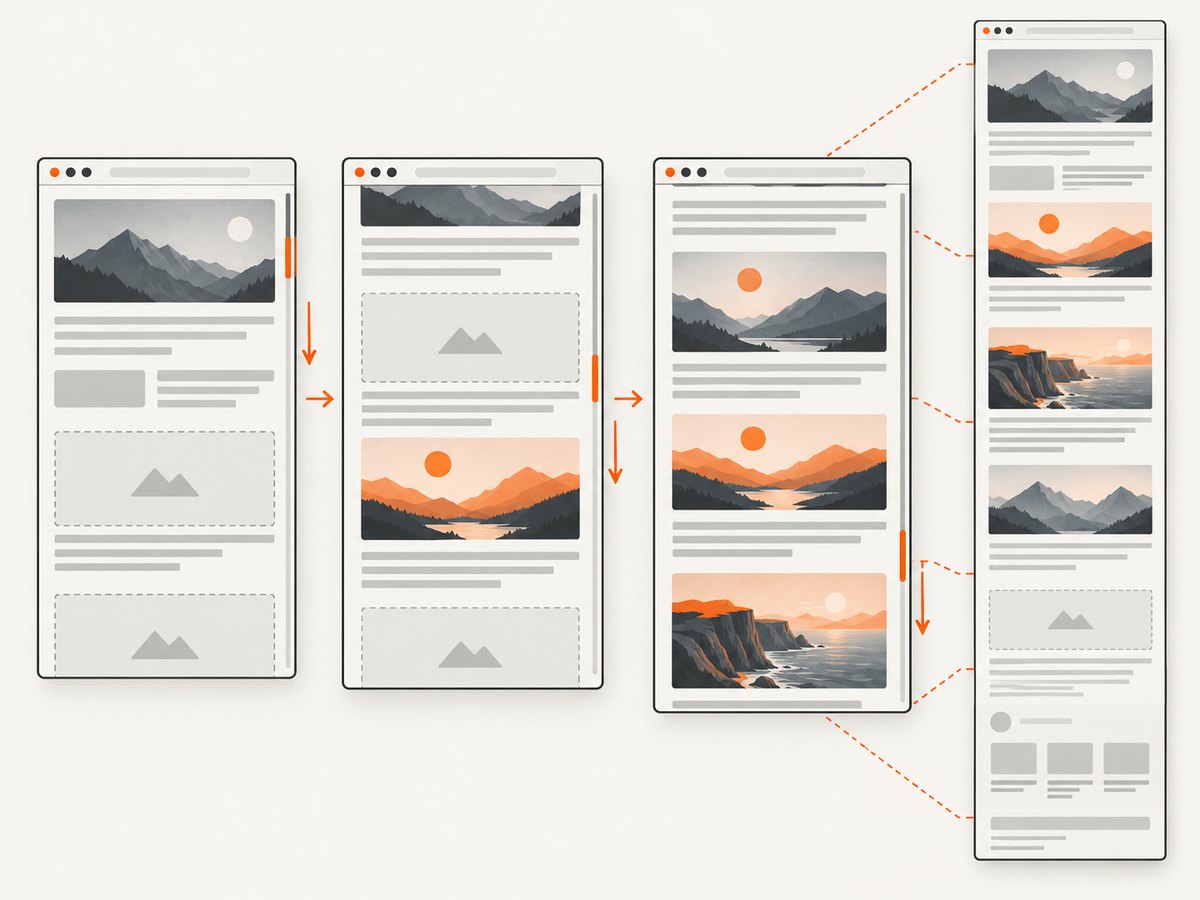
Selenium’s Ruby screenshot API accepts full_page: true, but only drivers that implement full-page capture support it. When supported, this is the shortest and usually the highest-fidelity approach:
page.visit("https://example.com/articles/long-page")
page.save_screenshot("tmp/capybara/full-page.png", full_page: true)
The option is not a guarantee that every browser and driver combination can produce a document-length image. If the driver does not support it, Selenium raises an unsupported-operation error. Treat that error as a capability issue and use a scrolling-and-stitching fallback or a browser/API service.
Prepare lazy content before a full-page attempt
Many pages load images and sections only after they approach the viewport. A full-page request can finish before those resources have been requested. Trigger lazy loading by scrolling through the document, then return to the top:
page.execute_script(<<~JS)
  (async () => {
    const step = Math.max(window.innerHeight, 400);
    for (let y = 0; y < document.body.scrollHeight; y += step) {
      window.scrollTo(0, y);
      await new Promise(resolve => setTimeout(resolve, 100));
    }
    window.scrollTo(0, 0);
  })();
JS

page.save_screenshot("tmp/capybara/full-page.png", full_page: true)
execute_script is useful for setup scripts that do not need a return value. The delay is deliberately small; choose a value that matches the page’s lazy-loading behavior rather than assuming every site loads at the same speed.
Scrolling and stitching fallback
When native full-page capture is unavailable, capture a sequence of viewport images while scrolling and stitch them in application code. The exact implementation depends on your image library, but the browser-side measurements are consistent:
metrics = page.evaluate_script(<<~JS)
  ({
    width: Math.max(document.documentElement.scrollWidth, document.body.scrollWidth),
    height: Math.max(document.documentElement.scrollHeight, document.body.scrollHeight),
    viewport_height: window.innerHeight
  })
JS

page.execute_script("window.scrollTo(0, 0)")

index = 0
position = 0
while position < metrics["height"]
  page.execute_script("window.scrollTo(0, arguments[0])", position)
  sleep 0.2
  page.save_screenshot("tmp/capybara/part-#{index}.png")
  position += metrics["viewport_height"]
  index += 1
end
Stitch the resulting files with an image-processing library after the browser loop. Account for the device-pixel ratio when converting CSS coordinates to image pixels. Overlap adjacent captures by a small region if your stitching algorithm needs seam detection.
Fixed headers, sticky navigation, cookie banners, and chat buttons can appear in every segment. Hide or disable those elements in test-only setup when that is acceptable. Animations can also create visible seams; pause them before capture:
page.execute_script(<<~JS)
  const style = document.createElement("style");
  style.textContent = `*, *::before, *::after {
    animation: none !important;
    transition: none !important;
    caret-color: transparent !important;
  }`;
  document.head.appendChild(style);
JS
4. Capture one element
Find the element with a semantic, stable selector and call save_screenshot on the element itself:
card = page.find('[data-testid="summary-card"]')
card.save_screenshot("tmp/capybara/summary-card.png")
Wait for the element to be present and visible before capturing. Capybara’s matchers wait up to its configured default maximum wait time, which is safer than an arbitrary sleep:
card = page.find(
  '[data-testid="summary-card"]',
  visible: true,
  wait: Capybara.default_max_wait_time
)
card.save_screenshot("tmp/capybara/summary-card.png")
For a dynamic component, wait for its final state as well:
expect(page).to have_css('[data-testid="summary-card"][data-state="ready"]')
page.find('[data-testid="summary-card"]').save_screenshot("summary-card.png")
Fallback when element screenshots are unsupported
Selenium’s screenshot module is available on both the driver and element in supported implementations. If your selected driver cannot capture an element directly, read the element geometry, scroll it into view, take a viewport screenshot, and crop it in application code.
element = page.find('[data-testid="summary-card"]')
page.execute_script("arguments[0].scrollIntoView({block: 'center', inline: 'nearest'})", element.native)
sleep 0.1

rect = page.evaluate_script(<<~JS, element.native)
  const r = arguments[0].getBoundingClientRect();
  ({x: r.x, y: r.y, width: r.width, height: r.height, dpr: window.devicePixelRatio});
JS

page.save_screenshot("tmp/capybara/element-source.png")
# Crop element-source.png using rect coordinates multiplied by rect["dpr"].
This fallback requires careful handling of scroll offsets, borders, transforms, and device-pixel ratio. Prefer a native element screenshot when the driver supports one.
5. Make captures deterministic
- Wait for content: assert the final heading, component state, or network-driven result before saving.
- Wait for fonts: use a browser-side check such as
document.fonts.readywhen font loading changes layout. - Freeze motion: disable CSS transitions and animations to prevent inconsistent frames.
- Control viewport: set a fixed window size and record it with the artifact.
- Control data: use stable fixtures and deterministic timestamps where visual comparison matters.
- Handle overlays: dismiss consent dialogs or hide test-only overlays before capture.
- Load lazy resources: scroll through long pages before a full-page shot.
- Keep paths predictable: configure
Capybara.save_pathand upload that directory as a CI artifact.
Record the browser version, driver version, viewport, device-pixel ratio, and whether the image was produced natively or by stitching. Those details explain many visual differences during debugging.
6. Complete Capybara example
require "capybara"
require "capybara/dsl"
require "selenium-webdriver"

Capybara.save_path = File.expand_path("tmp/capybara", __dir__)
Capybara.register_driver(:chrome) do |app|
  options = Selenium::WebDriver::Chrome::Options.new
  options.add_argument("--headless=new")
  options.add_argument("--window-size=1440,1000")
  Capybara::Selenium::Driver.new(app, browser: :chrome, options: options)
end

page = Capybara::Session.new(:chrome)
page.visit("https://example.com/catalog")

# Wait for the page's meaningful content.
page.find("h1", text: "Catalog")

# Ensure lazy sections have had a chance to load.
page.execute_script(<<~JS)
  window.scrollTo(0, document.body.scrollHeight);
JS
sleep 0.5
page.execute_script("window.scrollTo(0, 0)")

page.save_screenshot("viewport.png")

begin
  page.save_screenshot("full-page.png", full_page: true)
rescue Selenium::WebDriver::Error::UnsupportedOperationError
  warn "Native full-page screenshots are unavailable for this driver"
end

product = page.find('[data-testid="product-card"]', visible: true)
product.save_screenshot("product-card.png")
page.quit
7. Troubleshooting
| Symptom | Likely cause | Fix |
|---|---|---|
full_page: true raises an unsupported-operation error |
The selected Selenium driver does not implement native full-page capture. | Use viewport scrolling and stitching, switch to a driver with support, or use a hosted screenshot API. |
| The screenshot is only the visible viewport | The driver ignored the full-page option or the call omitted it. | Verify page.save_screenshot(path, full_page: true) and check driver capability. |
| Element screenshot fails | The element is missing, hidden, outside a supported implementation, or covered by another layer. | Use a stable selector, wait for visibility, scroll into view, and try the geometry-and-crop fallback. |
| Images or sections are missing | Lazy loading has not been triggered or network content is still pending. | Scroll through the document, wait for a loaded-state selector, and capture only after content is ready. |
| Text changes between runs | Fonts, animations, dates, ads, or asynchronous data are nondeterministic. | Wait for document.fonts.ready, freeze motion, use fixtures, and block or mock changing data where appropriate. |
| Repeated headers appear in a stitched image | A fixed or sticky element was captured in every viewport segment. | Hide it during capture or remove overlapping rows during stitching. |
| Crop is offset or the size is wrong | CSS pixels and image pixels differ because of device-pixel ratio, zoom, borders, or transforms. | Multiply geometry by window.devicePixelRatio and record the browser scale. |
Net::ReadTimeout or a blank capture |
The page did not finish loading, the environment cannot reach the host, or the app requires authentication. | Check connectivity, provide test credentials or cookies, increase the page wait appropriately, and save an error screenshot for diagnosis. |
| Chrome exits immediately in CI | Sandbox, shared-memory, or display limitations. | Use headless mode and the CI-appropriate Chrome flags, then verify browser and driver versions. |
8. Performance, reliability, and cost considerations
A viewport capture is normally cheaper in time and memory than a document-length capture. Full-page native capture avoids stitching work, while the fallback requires multiple screenshots and an image-composition step. Long pages also increase browser memory use, especially when images are decoded at a high device-pixel ratio.
For a test suite, capture only failure artifacts by default and reserve full-page images for visual checks or explicit debugging. Reuse a browser session where isolation permits, but create a fresh session when cookies, local storage, or page state could contaminate another example. Keep screenshots compressed and remove old artifacts from CI workspaces.
Native screenshots are tied to browser and driver capabilities. Pin compatible versions, run a small capability check at startup, and fail with a clear message when full-page support is required. For visual diffs, compare images produced with the same browser build, viewport, fonts, and device scale.
9. Or skip the browser setup
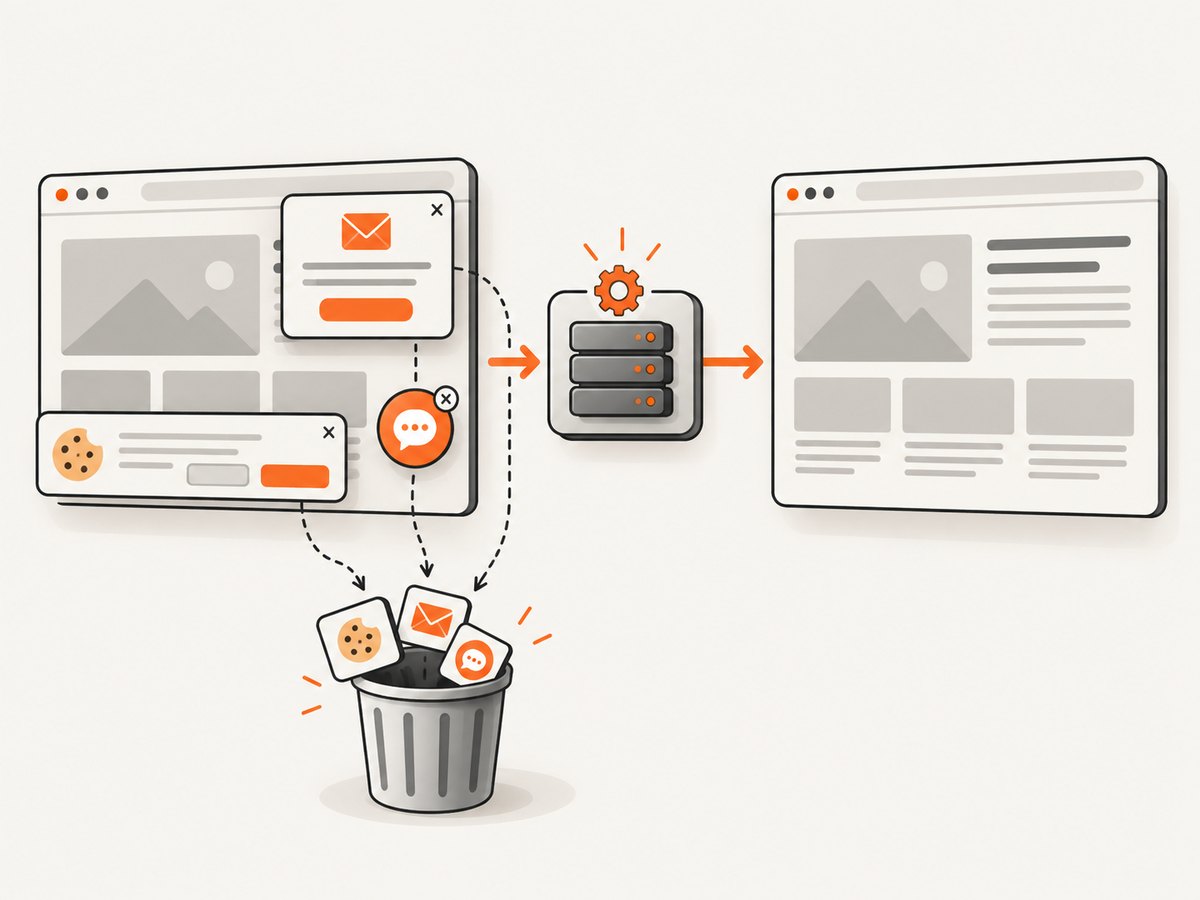
ScreenshotNeo provides a website screenshot API when you want one request instead of browser and driver maintenance. It accepts a URL and returns PNG, JPEG, WebP, or PDF. Cookie and consent banners, newsletter popups, and chat widgets are removed before the shot; bot checks, blank pages, timeouts, failed loads, and cache hits are not billed, and response headers identify the page verdict and billing result. Its MCP server lets Claude, Cursor, and other MCP clients call take_screenshot, get_page_info, and capture_pdf.
See the ScreenshotNeo API documentation for all options. A minimal call is:
curl -G "https://api.screenshotneo.com/v1/shot" -d access_key=YOUR_API_KEY --data-urlencode url=https://stripe.com -o shot.webpimport requests
r = requests.get("https://api.screenshotneo.com/v1/shot", params={"access_key": "YOUR_API_KEY", "url": "https://stripe.com"}, timeout=90)
open("shot.webp", "wb").write(r.content)
const q = new URLSearchParams({ access_key: 'YOUR_API_KEY', url: 'https://stripe.com' });
const res = await fetch(`https://api.screenshotneo.com/v1/shot?${q}`);
Options include full-page capture with lazy images loaded, CSS-selector element capture, dark mode, device presets or custom viewports, retina scale, PDF paper settings, custom CSS and JavaScript, clicks, waits, request blocking, headers, cookies, user agents, authorization, timezone, geolocation, transparent backgrounds, resizing, configurable caching, signed image links, asynchronous jobs with signed webhooks, bulk capture for up to 100 URLs per call, and a usage API. Existing parameter names used by other screenshot APIs also work to simplify migration.
The free plan includes 1,000 screenshots per month with no card. Paid plans start at $5 for 3,000 shots; yearly billing gives two months free. Create a free ScreenshotNeo account and try the API without adding a card.
10. Frequently asked questions
Does Capybara itself take the screenshot?
Capybara exposes the session API and forwards the call to the configured driver’s screenshot implementation. Selenium performs the browser capture.
Can I use Firefox instead of Chrome?
Yes, register a Selenium Firefox driver and use the same Capybara calls. Full-page and element capabilities depend on that driver implementation.
Should I use a CSS selector or XPath for an element?
Use the selector that is most stable in your application. A dedicated test identifier is usually less fragile than a layout-dependent selector.
Why does a full-page image contain a blank lower section?
The document may have a visual height larger than its loaded content, or lazy resources may not have been triggered. Scroll the page, wait for the content state, and inspect the document dimensions before capture.
When is an API preferable to Selenium?
Use Selenium when you need browser-level interactions inside an existing test. Use an API when you need repeatable URL capture, element or PDF output, bulk jobs, or a service that handles consent overlays and failed-page classification for you.