How to Run a Selenium Chrome Instance in the Background with Python
Run Selenium Chrome headlessly with Python using current Selenium 4 patterns, reliable waits, driver management, cleanup, and troubleshooting.

Use Selenium 4’s ChromeOptions, add --headless=new, and pass the options object to webdriver.Chrome. Always close the session with driver.quit(), and wait for dynamic page state before interacting with elements.
from selenium import webdriver

options = webdriver.ChromeOptions()
options.add_argument("--headless=new")
options.add_argument("--window-size=1440,1000")

driver = webdriver.Chrome(options=options)
try:
    driver.get("https://example.com")
    print(driver.title)
finally:
    driver.quit()
The --headless=new argument starts Chrome without displaying a normal browser window. The window-size argument is optional, but it makes responsive layouts and screenshots repeatable. Current Selenium guidance uses ChromeOptions and no longer recommends the older options.headless = True assignment. See the Selenium Chrome documentation and Python API documentation.
1. Install Selenium
Install Selenium into the same Python environment that will run your script:
python -m pip install seleniumSelenium includes Selenium Manager. When a driver is not already available, Selenium can use Manager to discover, download, and cache a compatible driver. The first resolution may require network access. Read the Selenium Manager documentation for proxy, offline, browser-version, and configuration details.
2. Create a headless Chrome session
Minimal background browser
from selenium import webdriver

options = webdriver.ChromeOptions()
options.add_argument("--headless=new")

driver = webdriver.Chrome(options=options)
try:
    driver.get("https://example.com")
    print(driver.title)
finally:
    driver.quit()
Set a predictable viewport
options = webdriver.ChromeOptions()
options.add_argument("--headless=new")
options.add_argument("--window-size=1440,1000")
driver = webdriver.Chrome(options=options)
Use a fixed size for visual regression tests, screenshots, and pages whose layout changes at breakpoints. Omit it when you want Chrome’s default behavior.

Select a custom Chrome binary
from selenium import webdriver

options = webdriver.ChromeOptions()
options.add_argument("--headless=new")
options.binary_location = "/path/to/chrome"

driver = webdriver.Chrome(options=options)
try:
    driver.get("https://example.com")
finally:
    driver.quit()
Usually you should leave binary_location unset and let Selenium find the installed browser or Selenium Manager manage it.
Use a manually managed driver
If your deployment pins a driver executable, use Selenium 4’s Service object:
from selenium import webdriver
from selenium.webdriver.chrome.service import Service

options = webdriver.ChromeOptions()
options.add_argument("--headless=new")
service = Service("/path/to/chromedriver")

driver = webdriver.Chrome(service=service, options=options)
try:
    driver.get("https://example.com")
finally:
    driver.quit()
Keep Chrome and ChromeDriver on the same major version. The old executable_path constructor argument is not the Selenium 4 pattern.
3. Wait for pages that render asynchronously
Headless mode does not make JavaScript content appear immediately. A completed navigation can still leave an application rendering data, images, or components.
Wait for a specific element
from selenium import webdriver
from selenium.webdriver.common.by import By
from selenium.webdriver.support.ui import WebDriverWait
from selenium.webdriver.support import expected_conditions as EC

options = webdriver.ChromeOptions()
options.add_argument("--headless=new")
driver = webdriver.Chrome(options=options)

try:
    driver.get("https://example.com/dashboard")
    heading = WebDriverWait(driver, 20).until(
        EC.visibility_of_element_located((By.CSS_SELECTOR, "h1"))
    )
    print(heading.text)
finally:
    driver.quit()
Choose a page-load strategy
options = webdriver.ChromeOptions()
options.add_argument("--headless=new")
options.page_load_strategy = "normal"  # default
# options.page_load_strategy = "eager"
# options.page_load_strategy = "none"
normal waits for the load event and is the conservative choice. eager returns at DOMContentLoaded. none returns after the initial page download. Faster strategies require explicit waits tied to the state your script actually needs; otherwise runs become flaky.
4. Build a production-safe script
from selenium import webdriver
from selenium.webdriver.common.by import By
from selenium.webdriver.support.ui import WebDriverWait
from selenium.webdriver.support import expected_conditions as EC

URL = "https://example.com"

options = webdriver.ChromeOptions()
options.add_argument("--headless=new")
options.add_argument("--window-size=1440,1000")
options.page_load_strategy = "normal"

driver = webdriver.Chrome(options=options)
try:
    driver.set_page_load_timeout(60)
    driver.get(URL)
    WebDriverWait(driver, 20).until(
        EC.presence_of_element_located((By.TAG_NAME, "body"))
    )
    print({
        "title": driver.title,
        "url": driver.current_url,
        "size": driver.get_window_size(),
    })
finally:
    driver.quit()
The finally block runs when navigation, waits, element lookup, or your own code raises an exception. This prevents abandoned browser processes.
5. Run it in CI, containers, and servers
- Ensure Chrome is installed, or allow Selenium Manager to download a supported browser and driver.
- Ensure the runtime can reach Selenium Manager’s download endpoints on first setup, including any required proxy configuration.
- Provide the Linux libraries and fonts required by the Chrome package used by your image. Exact dependencies vary by distribution and image.
- Keep browser and driver major versions aligned when you pin either one.
- Use explicit waits for application state instead of a single arbitrary sleep.
- Add environment-specific flags only when required. Do not copy broad flags such as
--no-sandboxautomatically; understand their security implications first.
6. Useful configuration choices
| Choice | Use it when | Trade-off |
|---|---|---|
--headless=new |
You need Chrome without a visible window | Required for the current headless workflow |
--window-size=1440,1000 |
Rendering or screenshots must be repeatable | Fixes one viewport instead of testing every responsive breakpoint |
normal page-load strategy |
You want conservative navigation completion | Can wait longer |
eager |
Your script can proceed after DOMContentLoaded | You must wait for application content yourself |
none |
You control all readiness checks | Highest responsibility for explicit waits |
| Automatic Selenium Manager | You want the simplest setup | Initial resolution needs compatible network access |
Manual Service |
You must pin an executable or offline environment | You own version matching and updates |
7. Troubleshooting
| Symptom | Likely cause | Fix |
|---|---|---|
| Chrome fails to start | Chrome, required libraries, or a managed browser is missing | Install a supported Chrome runtime or allow Selenium Manager to download one; verify the container’s system dependencies. |
This version of ChromeDriver only supports Chrome version … |
Chrome and ChromeDriver major versions differ | Remove the stale driver and let Selenium Manager resolve it, or provide a matching executable through Service. |
| A browser window appears | The headless option was not passed to the driver | Use options.add_argument("--headless=new") before constructing webdriver.Chrome. Do not use the removed options.headless = True form. |
| Browser processes remain after errors | quit() was skipped |
Create the driver before a try block and call driver.quit() in finally. |
| Elements appear intermittently | The page is still rendering after navigation | Use WebDriverWait for visibility, presence, or a page-specific condition. |
| Selenium Manager cannot resolve a driver | Blocked network, proxy, offline policy, custom browser path, or stale manual driver | Check outbound access and proxy settings, configure Selenium Manager, set the browser binary when necessary, or provide a matching Service. |
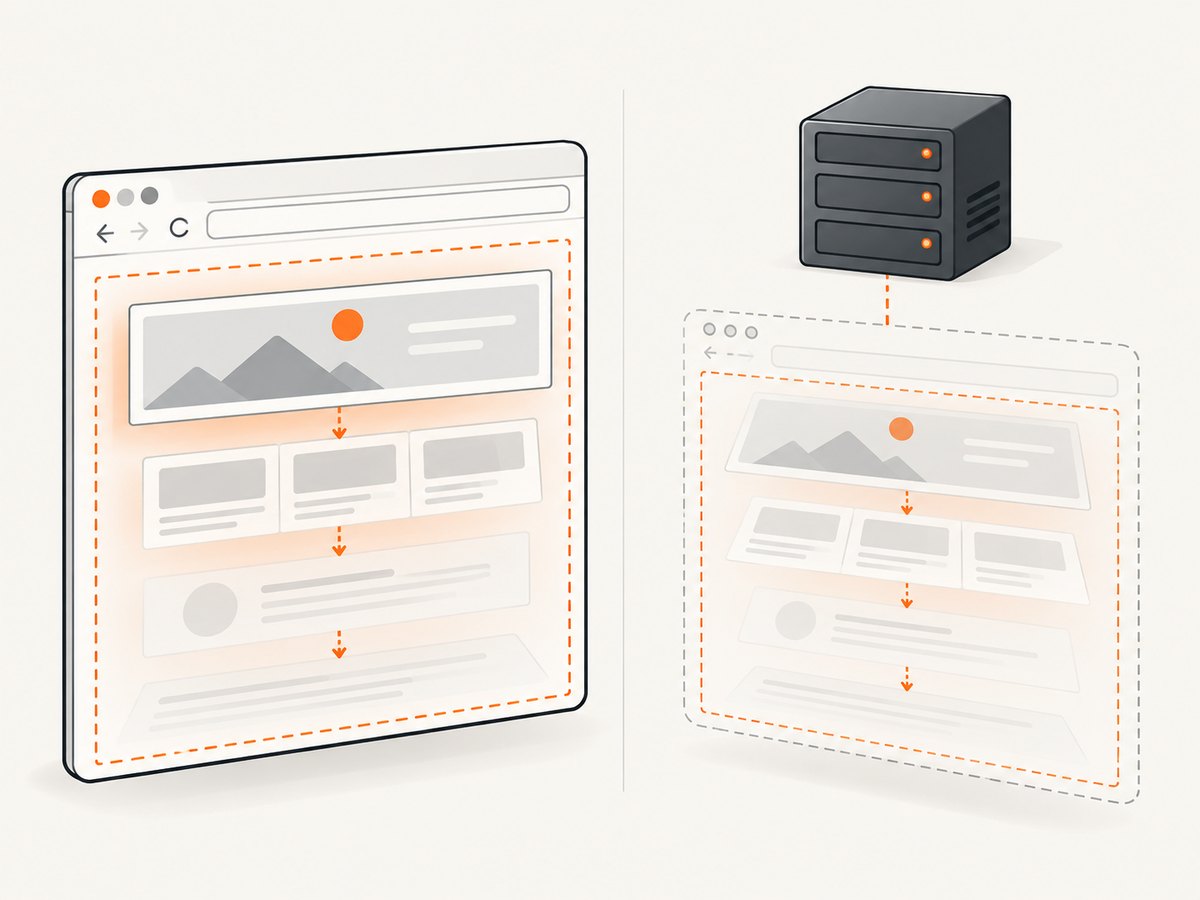
| Layout differs from headed runs | Different viewport or responsive breakpoint | Set --window-size explicitly and compare the same browser version and scale. |
8. Performance, reliability, and cost
Performance
- Reuse one driver for a related sequence of pages when isolation is not required; starting Chrome is more expensive than navigating an existing session.
- Use
eagerornoneonly with explicit readiness checks. - Set a realistic page-load timeout so a dead origin cannot hold a worker forever.
- Use a fixed viewport when you need deterministic screenshots; this also avoids accidental reflows caused by different default sizes.
Reliability
- Pin browser and driver versions together in controlled builds, or let Selenium Manager resolve them consistently.
- Wait for the condition your code depends on rather than sleeping for a guessed duration.
- Log the URL, exception, browser version, driver version, and selected options when diagnosing CI failures.
- Always clean up with
quit(), including error paths.
Cost
Selenium itself is a local automation library, but your runtime still consumes CPU, memory, storage, and network bandwidth. Selenium Manager may download browser assets on first use. If your requirement is simply to obtain website screenshots, running and maintaining Chrome workers can be unnecessary operational work.
Or skip the browser setup
ScreenshotNeo provides a website screenshot API and MCP server. One request returns a PNG, JPEG, WebP, or PDF. Before capture it accepts cookie and consent banners like a visitor, then removes more than 60 known consent platforms, newsletter popups, and chat widgets. Each step can be disabled.
Only clean shots are billed. Bot checks or CAPTCHAs, blank pages, timeouts, failed loads, and cache hits cost nothing, and response headers report the page verdict and whether the request was billed.
See the ScreenshotNeo API documentation for all options.
cURL
curl -G "https://api.screenshotneo.com/v1/shot" -d access_key=YOUR_API_KEY --data-urlencode url=https://stripe.com -o shot.webpPython
import requests

r = requests.get(
    "https://api.screenshotneo.com/v1/shot",
    params={"access_key": "YOUR_API_KEY", "url": "https://stripe.com"},
    timeout=90,
)
r.raise_for_status()
open("shot.webp", "wb").write(r.content)
Node.js
const q = new URLSearchParams({ access_key: 'YOUR_API_KEY', url: 'https://stripe.com' });
const res = await fetch(`https://api.screenshotneo.com/v1/shot?${q}`);
if (!res.ok) throw new Error(`Screenshot failed: ${res.status}`);
const fs = await import('node:fs/promises');
await fs.writeFile('shot.webp', Buffer.from(await res.arrayBuffer()));
ScreenshotNeo also supports full-page capture with lazy images loaded, CSS-selector element capture, dark mode, device presets and custom viewports, retina scale, custom CSS and JavaScript, clicks, selector or network-idle waits, request blocking, headers, cookies, user agents, authorization, timezone, geolocation, transparent backgrounds, resizing, chosen-TTL caching, signed image links, asynchronous jobs with signed webhooks, bulk capture for 100 URLs per call, usage reporting, and an OpenAPI specification. Its MCP server exposes take_screenshot, get_page_info, and capture_pdf for Claude, Cursor, and other MCP clients.
Free accounts include 1,000 screenshots per month with no card. Paid plans start at $5 for 3,000 screenshots, and every feature is available on every plan. Create a free ScreenshotNeo account.
FAQ
Does headless Chrome use a different browser engine?
It is still Chrome controlled through WebDriver; headless changes whether a normal browser window is displayed.
Can I use this with Firefox or Edge?
This guide targets Chrome. Other browsers have their own WebDriver options and driver-management details.
Should I add a fixed sleep after driver.get()?
Prefer an explicit wait for the element or state your script needs. A fixed delay can be too short on a slow run and waste time on a fast one.
When should I pin ChromeDriver manually?
Pin it when reproducible, offline, or centrally managed builds require explicit binaries. Otherwise Selenium Manager usually removes that maintenance step.
Can ScreenshotNeo replace Selenium for interactive browser automation?
ScreenshotNeo is designed for captures, page information, PDFs, and related capture controls. Use Selenium when you need a full local browser session with arbitrary interaction and application logic.