How to Take Screenshots with Selenium Chrome in Docker
Run Selenium Chrome in Docker, capture reliable screenshots, set viewport size, troubleshoot crashes, and compare a managed ScreenshotNeo option.
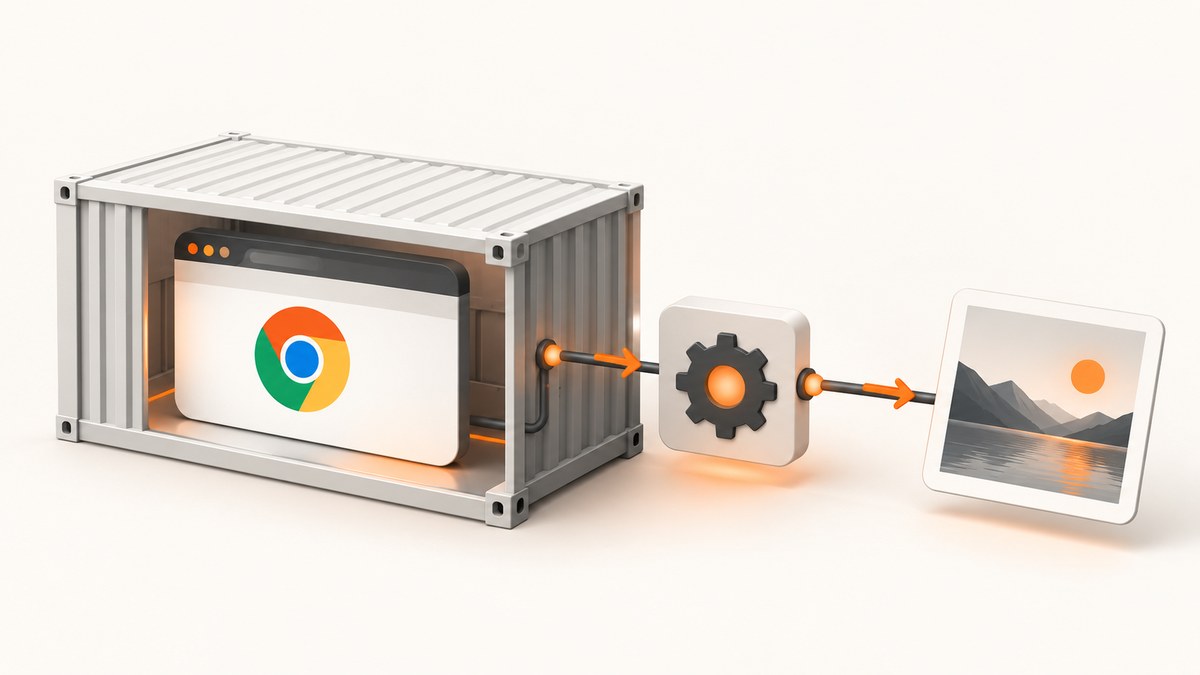
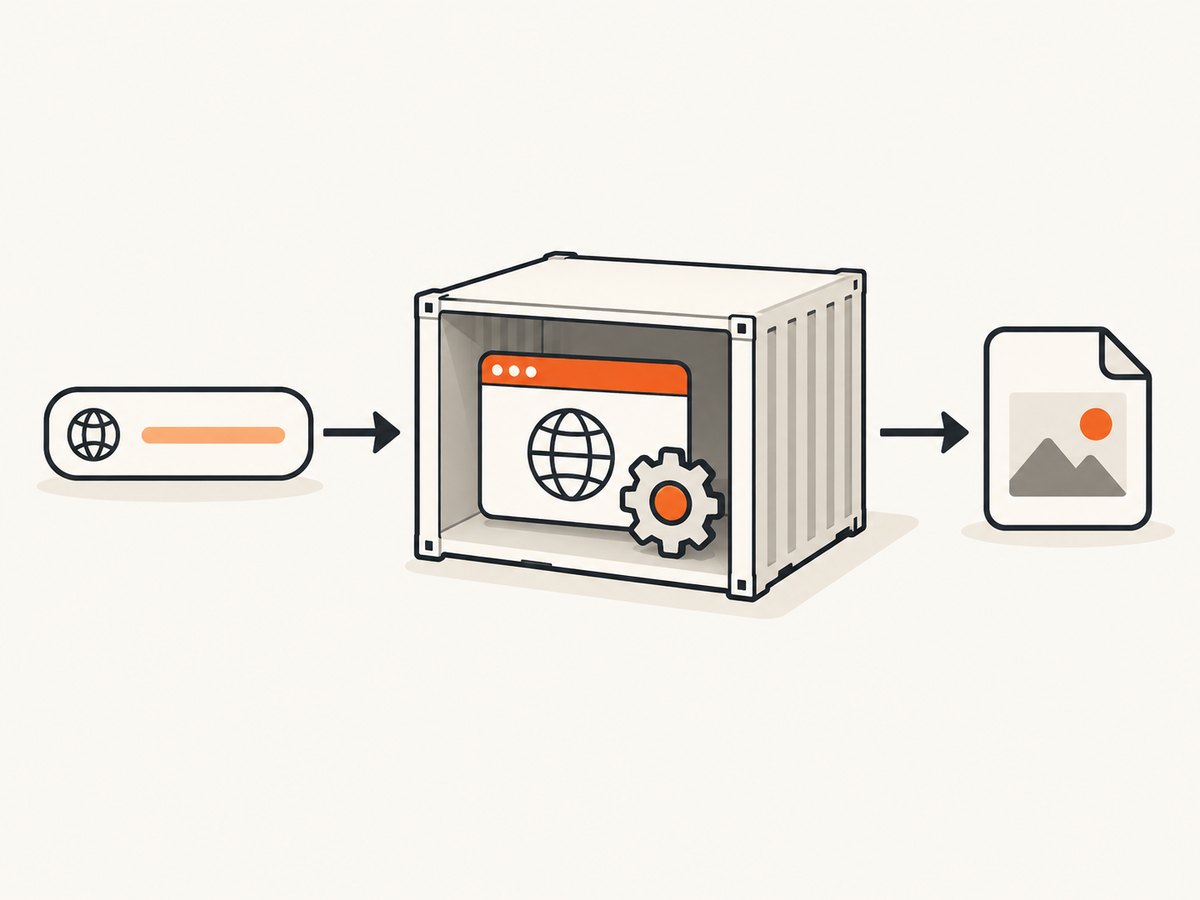
Direct answer: start a Selenium WebDriver session, open the page, call the binding’s screenshot method, and save the returned image. With Chrome in a Selenium Docker container, connect through the WebDriver endpoint (normally port 4444), set a deterministic screen size, and give Chrome enough shared memory.
This guide shows a local Python example, a remote Selenium Chrome container, equivalent JavaScript and cURL health checks, viewport and full-page considerations, troubleshooting, and an option that removes browser infrastructure.
1. How do I take a screenshot with Selenium in Docker?
Selenium’s screenshot endpoint captures the current browsing context and returns image data. In Python, the documented call is driver.save_screenshot("screenshot.png"). See the Selenium screenshot documentation.
Local Chrome in the same container
Use this when your test process and ChromeDriver run in one image:
from selenium import webdriver
from selenium.webdriver.chrome.options import Options

options = Options()
options.add_argument("--headless=new")
options.add_argument("--no-sandbox")
options.add_argument("--disable-dev-shm-usage")
options.add_argument("--window-size=1440,900")

driver = webdriver.Chrome(options=options)
try:
    driver.get("https://example.com")
    driver.save_screenshot("screenshot.png")
finally:
    driver.quit()
--headless=new runs without a visible desktop. Keep the Chrome and Selenium versions compatible with the image you choose. The Chrome headless guide covers Selenium usage and version-specific headless behavior: Chrome Headless mode.
Remote Chrome in a Selenium Docker container
The usual production layout is a test container (or host process) talking to a standalone Chrome container. The Selenium project documents the standalone image, port 4444, image tags, screen variables, and diagnostics in docker-selenium.
Start a pinned image and allocate shared memory:
docker run -d --name selenium-chrome \
  --shm-size=2g \
  -e SE_SCREEN_WIDTH=1440 \
  -e SE_SCREEN_HEIGHT=900 \
  -p 4444:4444 \
  -p 7900:7900 \
  selenium/standalone-chrome:4.35.0-20250909
Use the exact image tag that matches the browser and Grid version you require. An unqualified latest tag makes reproducing a capture harder. The --shm-size=2g value is operational guidance from the Selenium project, described as a known-to-work starting point that should be tuned to your workload.
Connect to the reachable WebDriver URL. From the host, use http://localhost:4444; from another container on the same Docker network, use the service name, such as http://selenium-chrome:4444.
from selenium import webdriver
from selenium.webdriver.chrome.options import Options

options = Options()
options.add_argument("--headless=new")
options.add_argument("--window-size=1440,900")

driver = webdriver.Remote(
    command_executor="http://localhost:4444",
    options=options,
)
try:
    driver.get("https://example.com")
    driver.save_screenshot("screenshot.png")
finally:
    driver.quit()
The output path belongs to the process that calls save_screenshot. If that process is itself in a container, bind-mount a host directory or copy the file out. A path inside the browser container is not automatically a host path.
2. A complete Docker Compose example
Compose gives the test process a stable service name and keeps the browser configuration in source control.
services:
  selenium:
    image: selenium/standalone-chrome:4.35.0-20250909
    shm_size: 2gb
    ports:
      - "4444:4444"
      - "7900:7900"
    environment:
      SE_SCREEN_WIDTH: "1440"
      SE_SCREEN_HEIGHT: "900"
      SE_SCREEN_DEPTH: "24"
      SE_SCREEN_DPI: "96"

  capture:
    build: .
    depends_on:
      - selenium
    environment:
      SELENIUM_URL: http://selenium:4444
    volumes:
      - ./screenshots:/out
    command: python capture.py
Dockerfile for the capture service:
FROM python:3.12-slim
RUN pip install --no-cache-dir selenium
WORKDIR /app
COPY capture.py .capture.py:
import os
from selenium import webdriver
from selenium.webdriver.chrome.options import Options

options = Options()
options.add_argument("--headless=new")
options.add_argument("--window-size=1440,900")

driver = webdriver.Remote(
    command_executor=os.environ.get("SELENIUM_URL", "http://selenium:4444"),
    options=options,
)
try:
    driver.get("https://example.com")
    driver.save_screenshot("/out/example.png")
finally:
    driver.quit()
docker compose up --build3. Set the screenshot dimensions correctly
Four settings can affect the pixels you receive:
| Setting | Where it is set | Effect |
|---|---|---|
| Container display | SE_SCREEN_WIDTH, SE_SCREEN_HEIGHT |
Size of the display exposed by docker-selenium. |
| Browser window | Chrome argument --window-size=W,H or WebDriver window APIs |
Viewport and layout dimensions seen by the page. |
| Device scale factor | Chrome/device emulation or image defaults | Physical pixel dimensions relative to CSS pixels. |
| Page height | Page content and screenshot method | A normal screenshot captures the current viewport; full-page behavior is binding and browser dependent. |
Set the display variables before the container starts, then verify the result:
width = driver.execute_script("return window.innerWidth")
height = driver.execute_script("return window.innerHeight")
print(f"viewport: {width}x{height}")
For a single element, use the element screenshot method supported by your Selenium language binding and version. Selenium documents element interactions separately; do not assume that a viewport screenshot is a full-page capture.
4. Wait for the page before capturing
A screenshot taken immediately after get() can contain a loading state. Prefer an explicit condition tied to the page you are capturing:
from selenium.webdriver.common.by import By
from selenium.webdriver.support.ui import WebDriverWait
from selenium.webdriver.support import expected_conditions as EC

# after driver.get(...)
WebDriverWait(driver, 30).until(
    EC.visibility_of_element_located((By.CSS_SELECTOR, "main"))
)
driver.save_screenshot("ready.png")
For pages that render after JavaScript completes, combine a selector wait with a short, justified delay. Avoid arbitrary long sleeps because they slow every capture and still do not prove that the correct content loaded.
5. JavaScript and cURL checks
Node.js with Selenium WebDriver
import { Builder } from "selenium-webdriver";
import chrome from "selenium-webdriver/chrome.js";
import { writeFile } from "node:fs/promises";

const options = new chrome.Options()
  .addArguments("--headless=new", "--window-size=1440,900");

const driver = await new Builder()
  .usingServer(process.env.SELENIUM_URL || "http://localhost:4444")
  .forBrowser("chrome")
  .setChromeOptions(options)
  .build();

try {
  await driver.get("https://example.com");
  const png = await driver.takeScreenshot();
  await writeFile("screenshot.png", png, "base64");
} finally {
  await driver.quit();
}
cURL: verify the Selenium endpoint
cURL does not replace WebDriver for taking the browser screenshot, but it is useful for checking that the Grid endpoint is reachable:
curl -sS http://localhost:4444/statusA failed status request usually means the port, hostname, Docker network, or container health is wrong. The Selenium session itself must still be created through a language binding or WebDriver-compatible client.
6. Headless mode, Xvfb, and visual debugging
Headless Chrome and display-backed Chrome are separate deployment choices. Chrome supports headless operation, while docker-selenium images may start Xvfb depending on their version and environment variables. Compare the image documentation with the Chrome version before changing SE_START_XVFB or removing display support.
For visual inspection during debugging, the standalone image documents port 7900. Use it only when the selected image and security setup permit it; keep normal automated captures headless when no visible desktop is needed.
7. Common errors and fixes
| Symptom | Likely cause | Fix |
|---|---|---|
SessionNotCreatedException |
Chrome, driver, Selenium image, or binding versions do not match. | Pin a complete Selenium image tag, check the browser version, and update the binding or image as one tested set. |
| Chrome exits or crashes in Docker | Insufficient shared memory. | Start with --shm-size=2g (or Compose shm_size: 2gb) and tune for concurrency and page size. |
| Driver service connection timeout | Incorrect headless/Xvfb configuration or a browser startup failure. | Review the image’s version-specific display settings and inspect logs. |
| Cannot connect to WebDriver | Wrong hostname or unpublished port. | Use the Docker service name from another container, or the published host address externally; verify port 4444. |
| Screenshot is blank | Capture occurred before rendering, navigation failed, or the page is blocked. | Wait for a meaningful selector, print the current URL and title, and inspect browser/container logs. |
| File is missing on the host | The path was written inside the test container. | Bind-mount an output directory or explicitly copy the file from the container. |
| Wrong dimensions | Display size, window size, scale factor, or responsive breakpoints differ. | Set both SE_SCREEN_* variables and Chrome window size, then log window.innerWidth and window.innerHeight. |
| Only part of a long page appears | Standard screenshot is viewport scoped. | Use a binding-supported full-page approach, or capture sections and stitch them; verify behavior for your browser and binding version. |
Start diagnosis with:
docker logs selenium-chrome
# or
 docker compose logs selenium
Record the Selenium image tag, Selenium binding version, Chrome version, viewport, device scale, URL, and whether the session is local or remote. Those details make intermittent failures reproducible.
8. Reliability and performance practices
- Reuse infrastructure, isolate sessions: keep a warm Selenium container, but create a clean WebDriver session for each capture when page state could leak.
- Limit concurrency: each Chrome session consumes CPU, memory, and shared memory. Increase resources gradually and watch container logs.
- Use explicit waits: selector-based waits reduce both premature screenshots and unnecessary fixed delays.
- Set timeouts: configure page-load and script timeouts so a dead origin cannot occupy a worker forever.
- Pin versions: image tags and dependency lockfiles prevent browser updates from changing pixels unexpectedly.
- Persist artifacts: write to a mounted directory and include the URL, timestamp, viewport, and image format in your capture metadata.
- Retry carefully: retry transient navigation or session failures, but do not blindly retry deterministic 404s or authentication failures.
9. Or skip the browser setup
ScreenshotNeo provides a website screenshot API and MCP server. One request returns PNG, JPEG, WebP, or PDF, so you do not maintain Chrome containers, WebDriver sessions, Xvfb settings, or screenshot file transfer.
See the ScreenshotNeo API documentation for all parameters. The basic call is:
cURL
curl -G "https://api.screenshotneo.com/v1/shot" -d access_key=YOUR_API_KEY --data-urlencode url=https://stripe.com -o shot.webpPython
import requests
r = requests.get("https://api.screenshotneo.com/v1/shot", params={"access_key": "YOUR_API_KEY", "url": "https://stripe.com"}, timeout=90)
open("shot.webp", "wb").write(r.content)
Node.js
const q = new URLSearchParams({ access_key: 'YOUR_API_KEY', url: 'https://stripe.com' });
const res = await fetch(`https://api.screenshotneo.com/v1/shot?${q}`);
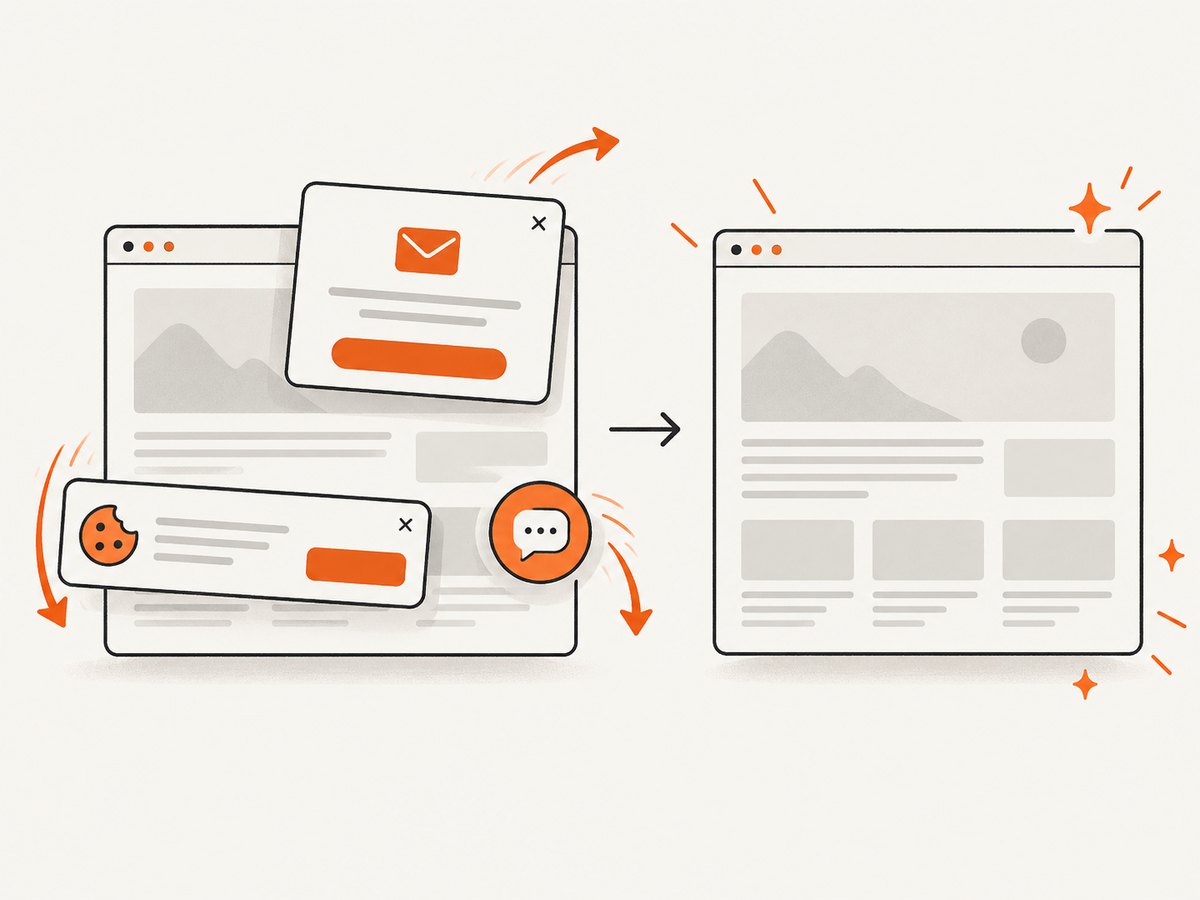
ScreenshotNeo removes cookie and consent banners, newsletter popups, and chat widgets before capture. Bot checks, blank pages, timeouts, failed loads, and cache hits are not billed, and response headers identify the page verdict and billing result. Its MCP server gives Claude, Cursor, and other MCP clients take_screenshot, get_page_info, and capture_pdf tools. You get 1,000 screenshots per month free without a card; paid plans start at $5 for 3,000 shots. Create a free ScreenshotNeo account.
10. FAQ
Can Selenium save a screenshot from a remote Docker browser?
Yes. The WebDriver client saves the returned image from its own process. Ensure the client can reach the remote endpoint and write the destination path where you expect it.
Does save_screenshot() capture the entire page?
The standard operation captures the current browsing context, normally the viewport. Full-page behavior depends on the binding, browser, and method you select.
Why does Docker need extra shared memory?
Chrome can crash when its shared-memory area is too small. The Selenium Docker project documents 2 GB as a known starting point and recommends tuning it for the workload.
Should I use --no-sandbox?
Many container examples include it, but your security model and image determine whether it is appropriate. Follow the selected image’s guidance and avoid adding flags without understanding their effect.
How can I make captures repeatable?
Pin the image and dependencies, fix the viewport and scale, wait for a deterministic selector, control fonts and authentication, and store the capture configuration with the artifact.


