How to Take a Full-Page Screenshot in Chrome with Selenium
Capture a full-page Chrome screenshot with Selenium using CDP, decode the PNG, and handle version, loading, and troubleshooting details.
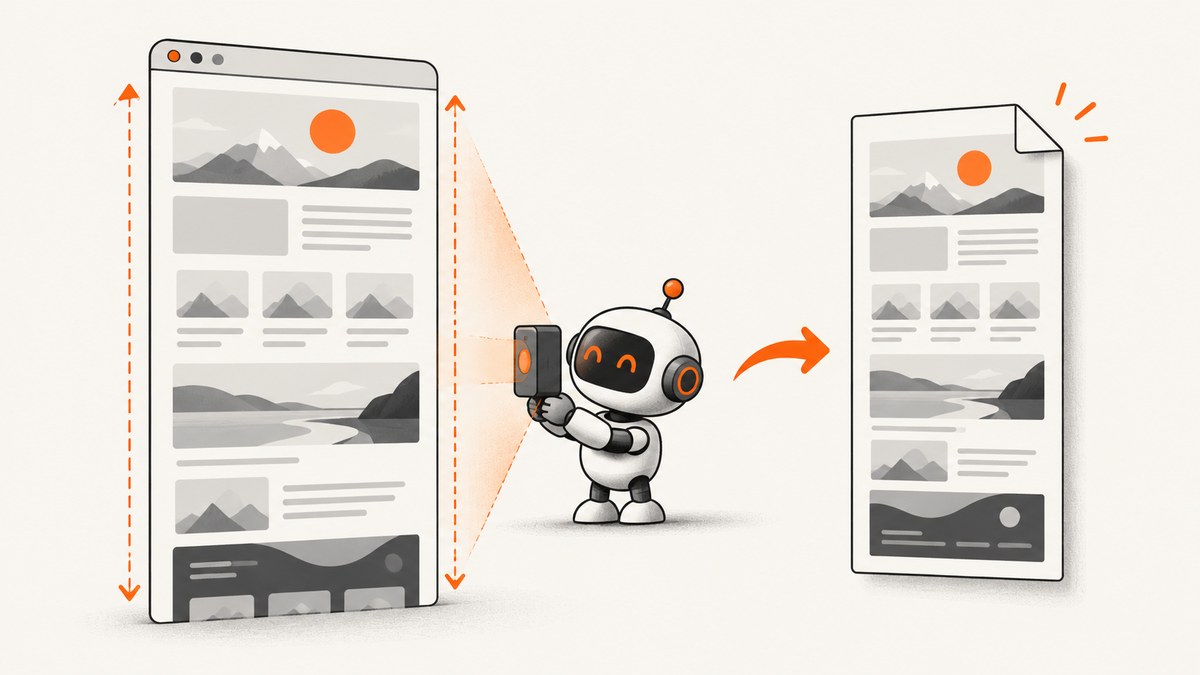
To take a full-page screenshot in Chrome with Selenium, use Chrome DevTools Protocol (CDP) command Page.captureScreenshot with captureBeyondViewport set to true. Decode the command’s base64 image data and save the resulting bytes as a PNG. Selenium’s ordinary screenshot methods typically capture the visible viewport; this CDP option is the relevant mechanism for capturing beyond it. The exact code path depends on your Selenium and Chrome versions, so verify it in your environment. ScreenshotNeo documentation covers an API alternative later in this guide.
1. What “full page” means in this method
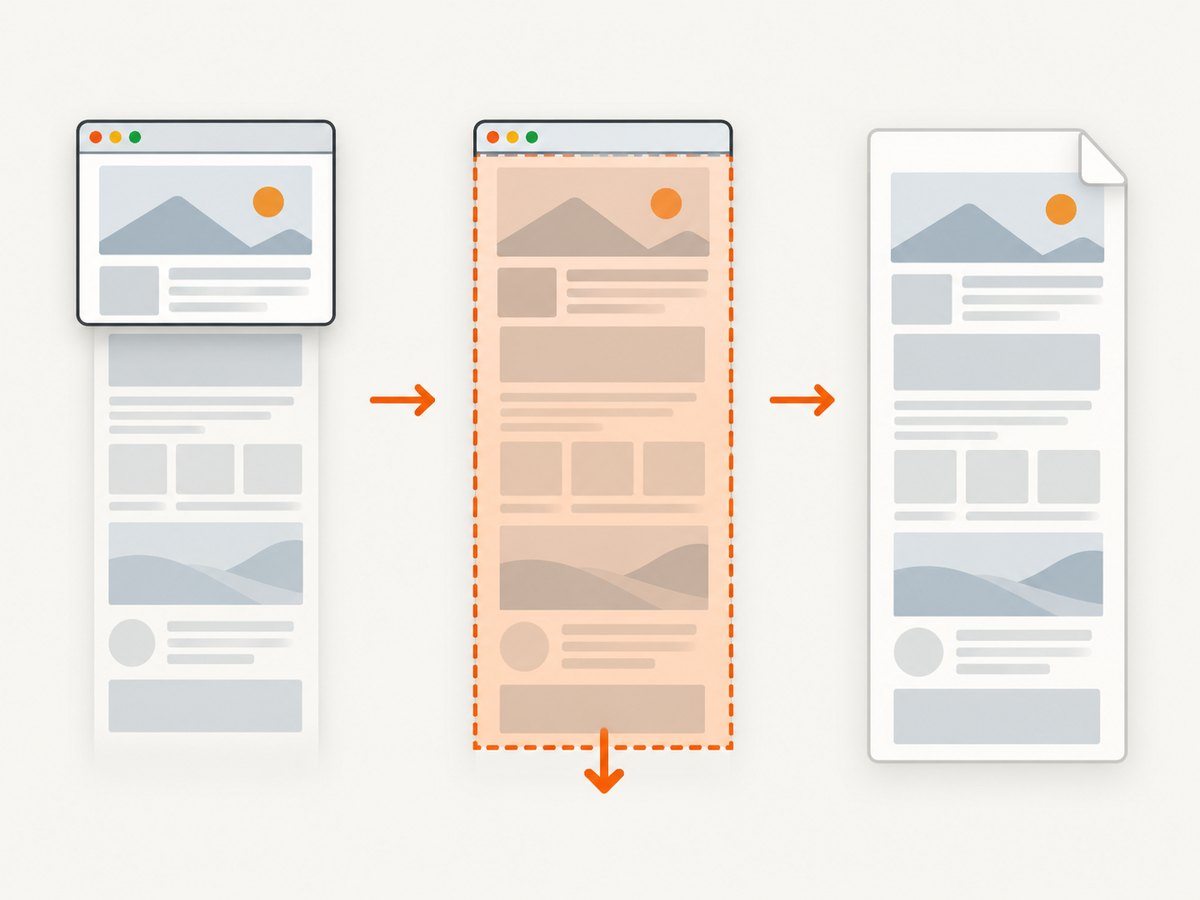
A viewport screenshot records the browser’s currently visible area. A full-page screenshot aims to include content beyond that area, down the document. CDP exposes that distinction through captureBeyondViewport; its documented default is false, so set it explicitly to true when you want capture beyond the viewport. The returned screenshot data is base64-encoded. [Chrome DevTools Protocol: Page.captureScreenshot]
This is a Chrome-specific route through Selenium’s basic CDP command support, not a guarantee that every browser, language binding, or version behaves the same. Selenium describes CDP as version-dependent and not designed as a stable testing API. The protocol’s tip-of-tree documentation also changes frequently and may not match the CDP version exposed by a particular Chrome release. [Selenium: Chrome DevTools Protocol]
2. Runnable Python example
Install Selenium and make sure a compatible Chrome browser and driver are available to your Selenium setup. This example opens a page, waits briefly for initial navigation to return, requests a PNG beyond the viewport, decodes it, and writes full-page.png.
import base64
from selenium import webdriver

options = webdriver.ChromeOptions()
# Uncomment to run without opening a visible browser window.
# options.add_argument("--headless=new")

driver = webdriver.Chrome(options=options)
try:
    driver.get("https://example.com")

    result = driver.execute_cdp_cmd(
        "Page.captureScreenshot",
        {
            "format": "png",
            "captureBeyondViewport": True,
        },
    )

    image_bytes = base64.b64decode(result["data"])
    with open("full-page.png", "wb") as image_file:
        image_file.write(image_bytes)
finally:
    driver.quit()
The code follows the documented CDP command shape and Selenium’s basic-CDP access model; it is an implementation pattern, not a claim of a tested compatibility matrix. Confirm that execute_cdp_cmd and the parameter are supported by the installed Selenium/Chrome combination. [Selenium CDP documentation]
Wait for the content you actually need
driver.get() returning does not prove that every page-specific asset or delayed component has reached the state you want to capture. If the page depends on client-side rendering, wait for a meaningful element or condition before calling CDP. For example:
from selenium.webdriver.common.by import By
from selenium.webdriver.support.ui import WebDriverWait
from selenium.webdriver.support import expected_conditions as EC

# After driver.get(url):
WebDriverWait(driver, 20).until(
    EC.visibility_of_element_located((By.CSS_SELECTOR, "main"))
)
Choose a selector that reflects the state your task needs. A visible main region may be enough for one site, while a page with asynchronous charts or images may need a more specific readiness condition. The protocol documentation defines screenshot parameters; it does not promise that a command waits for every page’s lazy images, animation, or application-specific work to finish.
3. Relevant CDP options
Page.captureScreenshot supports more than the minimal PNG call. These are the documented options most likely to matter for a Selenium capture:
| Parameter | What it controls | When to use it |
|---|---|---|
format |
Image format: png, jpeg, or webp. |
Use PNG for lossless output and text-heavy pages; select another format when your downstream workflow supports it. |
quality |
Quality setting for JPEG output. | Pass it when using JPEG and you need to control compression. It is not applicable to PNG. |
clip |
A rectangle describing a region to capture. | Use it when you want a specific portion rather than the full document. |
captureBeyondViewport |
Whether capture extends beyond the visible viewport; documented default is false. | Set true for the full-page use case described here. |
Refer to the protocol method reference for the full parameter and response definition. A clip is a region capture option; do not add it unless you specifically want to constrain the output.
Choose format and output filename together
Keep the requested format and file extension aligned. For example, requesting JPEG but saving the bytes with a .png suffix can confuse file viewers and later processing. For PNG, the minimal example needs no quality value. The protocol response’s data field remains base64 image data, so decode it before writing binary output.
4. Edge cases to account for
- Very long documents: a large full-page image can require substantial memory and produce a large file. If you only need a region, capture a clip or divide the task into appropriate regions in your own workflow.
- Lazy-loaded content: below-the-fold images may not be loaded until scrolled into view. CDP’s beyond-viewport parameter describes capture extent; it is not a guarantee that the page has loaded every deferred asset. Trigger the page behavior you need and validate the output.
- Sticky headers and fixed elements: these may render according to browser layout and positioning rules. Inspect the image for repeated or obscuring fixed elements if the page is long.
- Animations and changing content: the captured frame can reflect an intermediate state. If consistency matters, wait for a stable page-specific condition before capture.
- Responsive layout: viewport dimensions affect wrapping and page height. Set the browser window size before navigation or capture if reproducible dimensions matter.
- Headless versus visible Chrome: differences in browser setup can affect rendering. Reproduce the same options and dimensions when comparing captures.
These are practical validation concerns rather than protocol guarantees. The cited CDP and Selenium documentation specifies the command surface and its version caveats, not the behavior of every website.
5. Other Selenium languages and command-line alternatives
The exact Python example is useful because Selenium exposes execute_cdp_cmd in its Python Chrome driver API. Other Selenium language bindings may expose CDP through different APIs or generated DevTools interfaces, and the sources cited here do not establish compatibility for every binding. Do not paste Python method names into Java, JavaScript, or C# and assume an equivalent exists. Check the binding’s documentation for your installed version and confirm it can send the Page domain command.
For diagnosis, the underlying browser protocol request is conceptually:
Page.captureScreenshot({
  "format": "png",
  "captureBeyondViewport": true
})
This is a CDP command payload, not a standalone cURL endpoint. CDP communicates with the browser’s debugging interface, which Selenium manages. If you need a simple command-line screenshot and do not need Selenium’s browser automation, use a purpose-built screenshot API or a browser automation tool whose documented interface fits the task.
6. Reliability and version strategy
Selenium says its CDP support is temporary while WebDriver BiDi is implemented, and that CDP functionality depends heavily on browser version. Treat this screenshot technique as browser- and version-sensitive: pin or record the Selenium and Chrome versions used by automation, and validate captures when updating either dependency. [Selenium CDP documentation]
Selenium identifies WebDriver BiDi as its standards-based, cross-browser alternative, but its documentation describes support as limited or still under implementation. That makes BiDi a direction to evaluate, not an automatic drop-in replacement for this particular screenshot workflow. Before migrating, confirm the relevant screenshot capability exists in your target binding and browsers. [Selenium: WebDriver BiDi]
7. Troubleshooting
| Symptom | Likely cause | What to try |
|---|---|---|
execute_cdp_cmd is missing |
The active driver or Selenium binding does not expose the Python Chrome CDP method used in the example. | Confirm you are using Selenium’s Chrome driver and consult documentation for the installed binding and version. Do not assume the same interface exists across languages. |
| Unknown command or parameter | The browser’s CDP version and the command or parameter documented by tip-of-tree do not match. | Check the protocol surface for your Chrome version and Selenium version. The tip-of-tree reference can change and does not guarantee backward compatibility. |
| The image contains only the viewport | The capture request omitted captureBeyondViewport, set it false, or the invoked method is a standard viewport screenshot instead. |
Send Page.captureScreenshot with captureBeyondViewport: true and inspect the actual call path. |
| The output file is invalid or unreadable | The base64 string was written as text, decoding failed, or requested format and filename extension disagree. | Decode result["data"] with base64.b64decode, write bytes in binary mode, and match the extension to the requested format. |
| Parts of the page are blank or missing | Content may be lazy-loaded, delayed, blocked, or not yet in the desired application state. | Wait for a relevant condition, trigger required scrolling or interactions, then inspect the image. Screenshot capture does not itself guarantee every deferred asset is ready. |
| Captures change after an upgrade | CDP behavior is version-dependent, and protocol surfaces evolve. | Record the browser and Selenium versions, compare the command support, and validate a known page after upgrades. |
8. Performance and cost notes
A full-page PNG can be much larger than a viewport capture because it includes the document’s full rendered height. Long pages increase image dimensions, encoding work, memory use, and storage or transfer costs in your own pipeline. If you only need a small region, use the CDP clip parameter. If you need many pages, reuse a managed browser session where appropriate and avoid capturing the same unchanged page more often than the workflow requires.
The Selenium/CDP approach runs a browser you operate, so budget for browser compute, orchestration, storage, and maintenance. There is no screenshot-service fee inherent in the CDP call, but browser infrastructure and engineering time still have costs. Measure your own workload; the official sources reviewed provide no benchmark or universal speed estimate.
9. Or skip the browser setup
If you only need the screenshot artifact, ScreenshotNeo is a website screenshot API with a single GET request for PNG, JPEG, WebP, or PDF output. Its parameter names used by other screenshot APIs also work, which can make switching simpler. See the ScreenshotNeo API documentation.
curl -G "https://api.screenshotneo.com/v1/shot" -d access_key=YOUR_API_KEY --data-urlencode url=https://example.com -o shot.webpimport requests
r = requests.get(
"https://api.screenshotneo.com/v1/shot",
params={"access_key": "YOUR_API_KEY", "url": "https://example.com"},
timeout=90,
)
open("shot.webp", "wb").write(r.content)const q = new URLSearchParams({ access_key: 'YOUR_API_KEY', url: 'https://example.com' });
const res = await fetch(`https://api.screenshotneo.com/v1/shot?${q}`);
if (!res.ok) throw new Error(`Screenshot request failed: ${res.status}`);
const bytes = new Uint8Array(await res.arrayBuffer());
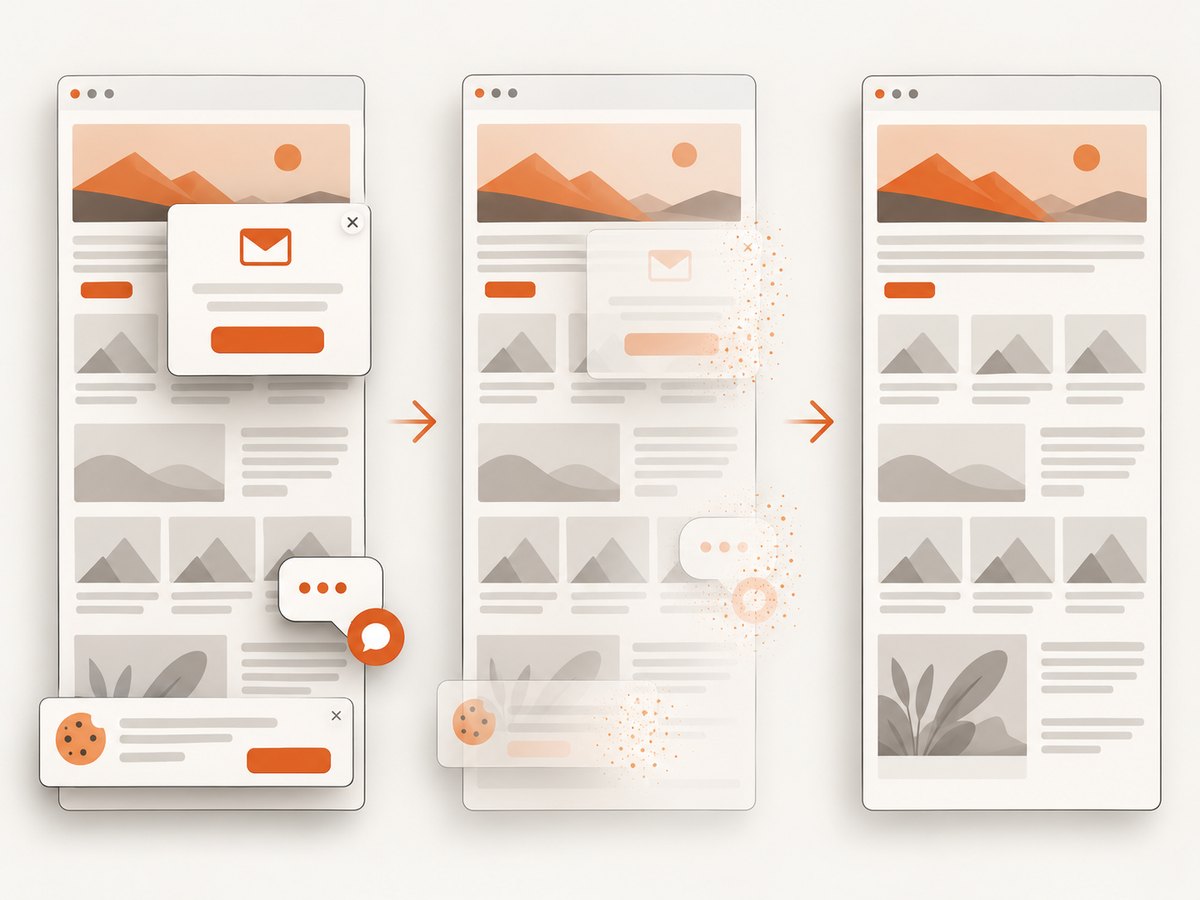
await import('node:fs/promises').then(fs => fs.writeFile('shot.webp', bytes));ScreenshotNeo accepts cookie or consent banners like a visitor and removes more than 60 known consent platforms, newsletter popups, and chat widgets before the shot; each step can be turned off. Bot checks and CAPTCHAs, blank pages, timeouts, failed loads, and cache hits cost nothing, and the response says which outcome occurred in X-Page-Verdict and X-Billed headers. An MCP server gives AI agents tools for screenshots, page information, and PDF capture. The free plan includes 1,000 shots a month with no card; paid plans start at $5 for 3,000 shots.
Sign up for 1,000 free screenshots a month, with no card required.
10. FAQ
Does this work in Firefox?
This method uses Chrome’s DevTools Protocol and the Selenium documentation describes the basic CDP route for Chrome and Edge. It is not a cross-browser Selenium API. Evaluate WebDriver BiDi support for your target browser and screenshot need before relying on it.
Is captureBeyondViewport enough to make every page complete?
No. It requests capture beyond the viewport. It does not assert that a site has finished rendering, loaded lazy images, or stopped changing. Wait for the state your workflow requires and inspect the resulting image.
Should I switch to WebDriver BiDi now?
Consider it when standards-based browser coverage matters, but verify the screenshot capability in the specific Selenium binding and browser versions you use. Selenium’s cited documentation describes BiDi as under implementation with limited support.
Can I save the returned data directly as text?
No. The response field is base64-encoded image data. Decode it to bytes and write the bytes to a binary file.


