Why Selenium Chrome Results Differ with the Headless Argument
Headless Chrome screenshots can differ from headed Chrome because of browser versions, headless implementation, host rendering, and page state. Here’s how to isolate the cause.
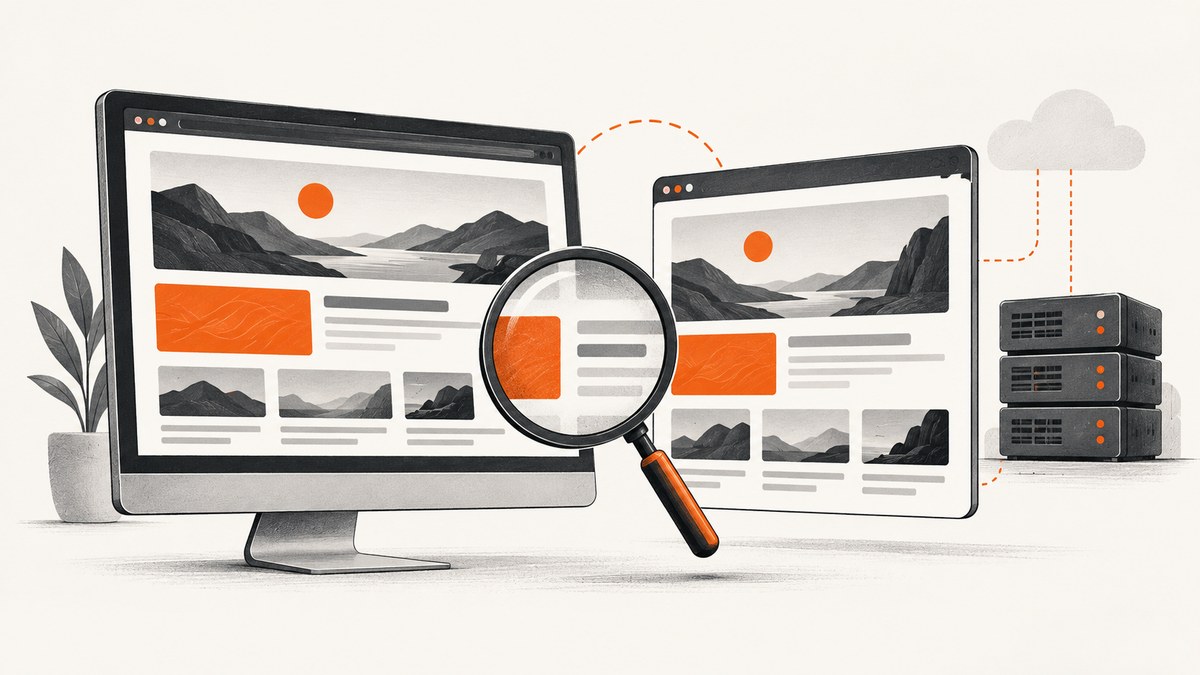
Selenium Chrome results can differ between headless and normal Chrome because the browser version, headless implementation, host rendering setup, viewport, or page readiness may differ. Chrome’s older headless implementation was separate from regular Chrome and could have its own bugs and features; Chrome 112 introduced a unified headless mode that shares Chrome functionality without opening platform windows. Start by recording the exact Chrome, ChromeDriver, Selenium, operating system, and launch arguments, then compare the same page under controlled conditions.
The argument itself has a history. Older Selenium guidance used a convenience method that selected the original headless implementation, while --headless=new selected the newer mode. Treat that guidance as historical: behavior depends on the Selenium binding and Chrome version installed. [Selenium’s migration note; Chrome’s Headless documentation]
1. Understand what the headless argument selects
Headless means Chrome runs without creating a visible platform window. It does not mean that every environmental influence disappears. The old Chrome headless implementation was a separate implementation, with its own bugs and features. Chrome 112 introduced unified Headless, which uses the same Chrome implementation as headed mode while omitting visible windows. From Chrome 132, the old implementation was removed from the Chrome binary and is available separately as chrome-headless-shell. [Chrome for Developers; Chromium Headless README]
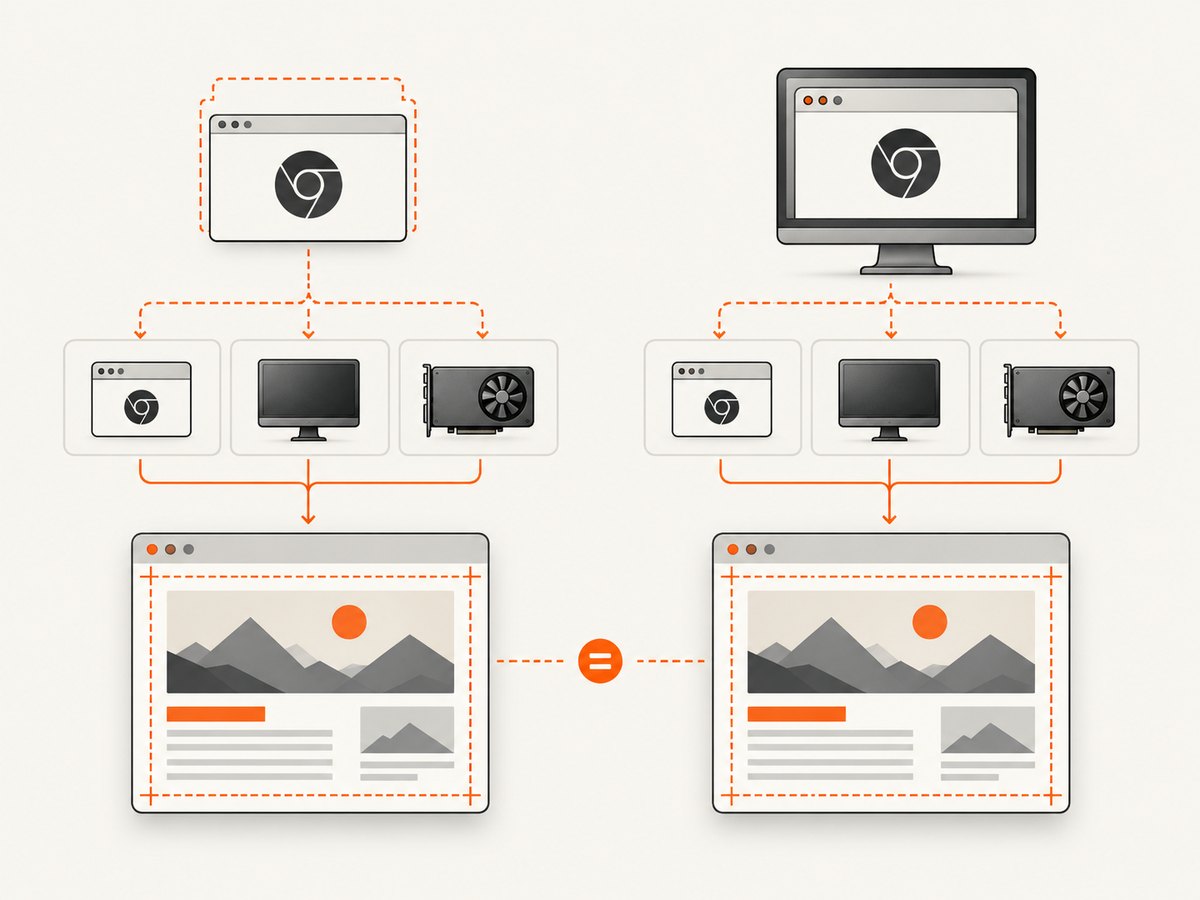
This explains why an old code sample can change results when reused with newer browser and driver versions. It does not establish that unified Headless produces pixel-identical results on every operating system, GPU, font setup, viewport, timing condition, or website. The official sources describe the implementation transition, not a guarantee of universal parity.
| Configuration clue | Why to check it |
|---|---|
| Chrome major version | Headless implementation and available flags changed over time. |
| ChromeDriver major version | Selenium documents that the ChromeDriver major version must match Chrome’s. |
| Selenium binding and version | Convenience methods and defaults can vary across versions. |
| Operating system and container | Fonts, display servers, GPU drivers, and installed libraries can change rendering conditions. |
| Arguments and viewport | They define the browser mode and layout dimensions being compared. |
2. Record versions and launch arguments
Before changing flags, make the run reproducible. Record versions from the same environment that executes Selenium. Chrome and ChromeDriver major versions should match. [Selenium Chrome documentation]
Python: inspect versions and compare modes
Install Selenium with python -m pip install selenium. Selenium Manager can locate or manage a compatible driver in supported setups. If your environment pins ChromeDriver itself, verify its major version against Chrome.
from selenium import webdriver
from selenium.webdriver.chrome.options import Options


def make_driver(headless: bool) -> webdriver.Chrome:
    options = Options()
    if headless:
        # For current Chrome, use the unified headless mode.
        options.add_argument("--headless=new")
    options.add_argument("--window-size=1440,1000")
    options.add_argument("--force-device-scale-factor=1")
    return webdriver.Chrome(options=options)


for mode in (False, True):
    driver = make_driver(mode)
    try:
        print("Capabilities:", driver.capabilities)
        driver.get("https://example.com")
        print("Mode:", "headless" if mode else "headed")
        print("URL:", driver.current_url)
        print("Title:", driver.title)
        print("Viewport:", driver.execute_script(
            "return {width: innerWidth, height: innerHeight, dpr: devicePixelRatio}"
        ))
        driver.save_screenshot(f"example-{'headless' if mode else 'headed'}.png")
    finally:
        driver.quit()
Run headed mode where a display is available. On a headless Linux server, headed mode may need an X server or another display setup; do not assume that a failed headed run is a meaningful comparison. Save the capabilities, logs, screenshots, and exact argument list with the results.
Node.js: inspect both runs
Install the Selenium JavaScript binding with npm install selenium-webdriver and make Chrome available in the execution environment.
const { Builder, Browser } = require('selenium-webdriver');
const chrome = require('selenium-webdriver/chrome');

async function capture(headless) {
  const options = new chrome.Options().windowSize({ width: 1440, height: 1000 });
  if (headless) options.addArguments('--headless=new');
  options.addArguments('--force-device-scale-factor=1');

  const driver = await new Builder()
    .forBrowser(Browser.CHROME)
    .setChromeOptions(options)
    .build();
  try {
    await driver.get('https://example.com');
    const details = await driver.executeScript(
      'return {url: location.href, title: document.title, width: innerWidth, height: innerHeight, dpr: devicePixelRatio}'
    );
    console.log(headless ? 'headless' : 'headed', details);
    require('node:fs').writeFileSync(
      `example-${headless ? 'headless' : 'headed'}.png`,
      Buffer.from(await driver.takeScreenshot(), 'base64')
    );
  } finally {
    await driver.quit();
  }
}

(async () => {
  await capture(false);
  await capture(true);
})().catch(error => {
  console.error(error);
  process.exitCode = 1;
});
These examples use the same URL, viewport, and device scale in each mode. For a real page, keep the browser profile, locale, cookies, network, and readiness condition consistent as well. The sample URL is deliberately simple; a site that depends on login, geolocation, client-side data, or consent state needs those inputs controlled.
3. Run a controlled comparison
- Pin the browser environment. Capture exact Chrome, ChromeDriver, Selenium, OS or container image versions. Record the complete Chrome arguments. Confirm Chrome and ChromeDriver major versions match.
- Identify the headless implementation. Check whether a legacy Selenium binding or Chrome build is selecting old Headless. Use version-specific documentation rather than copying an old
--headlessexample without checking its meaning. - Hold page inputs constant. Use the same URL, authenticated profile, cookies, locale, network route, viewport, device scale, and page data. Start from a clean profile if extensions or persisted state could change behavior.
- Wait for the same readiness condition. A navigation event does not guarantee that an application’s asynchronous content is ready. Wait for a meaningful selector or application state in both runs, rather than using different arbitrary sleeps.
- Compare progressively. Check redirects and final URL, browser logs and console errors, DOM content after readiness, computed layout and viewport, then screenshots. This helps distinguish content and timing changes from rasterization changes.
- Reduce the reproduction. If the mismatch persists, isolate the smallest page or component that reproduces it. Include versions, OS, arguments, display and GPU details with a bug report.
The list is a debugging method, not a documented guarantee that matching these settings makes every screenshot identical.
4. Check GPU and display behavior on Linux
Headless Chrome can use a local GPU in some circumstances. Chromium documents that GPU activation defers to driver autodetection; on Linux, default OpenGL detection requires an X11 server and a configured DISPLAY. Vulkan has worked on some Linux configurations. Therefore two machines both running “headless Chrome” may use different rendering paths. [Chromium: Using GPU Hardware in Headless Chrome]
- Record whether the process has access to X11 and the value or availability of
DISPLAY. - Capture GPU and graphics backend details from the same host where the mismatch occurs.
- Compare the same container image and GPU configuration before attributing a difference to the headless flag.
- Pay special attention to canvas, WebGL, video, and other GPU-sensitive output.
A flag that disables GPU rendering may help isolate a suspected GPU-path difference, but it changes the rendering conditions. Treat it as a diagnostic experiment and record it, not as proof of a universal fix. The cited Chromium guidance describes GPU use and host requirements; it does not promise identical output across backends.
5. Common symptoms and fixes
| Symptom | Likely cause | What to try |
|---|---|---|
| Chrome fails to start or reports a session creation error | ChromeDriver and Chrome major versions do not match, or the browser is unavailable in the runtime. | Check both versions in the execution environment and align their major versions. Inspect the full driver error and configured binary path. |
| An old snippet changes behavior after a browser upgrade | The Selenium helper or Chrome build may select a different headless implementation than the historical example. | Inspect Selenium and Chrome versions, set the intended headless argument explicitly when supported, and consult version-specific docs. |
| Text wraps differently or elements shift | Viewport dimensions, device scale, fonts, browser zoom, or page state differ. | Log innerWidth, innerHeight, devicePixelRatio; align viewport, fonts, and profile; compare DOM and computed styles before pixels. |
| Content is missing only in one run | Different readiness timing, failed requests, redirects, cookies, or application data. | Compare final URL, network and console evidence, cookies, and a shared selector-based readiness condition. |
| Canvas or WebGL output differs | GPU driver, backend, display server, or host autodetection differs. | Record GPU/backend and X11/DISPLAY setup; repeat on the same host and runtime image. |
| Headed mode will not launch on a server | The environment has no display server or configured display. | Run the headed comparison on a machine with a display, or configure the display environment. Do not compare a startup failure with a successful headless screenshot. |
| Images or fonts appear intermittently absent | Capture occurs before resource loading completes, or resources fail in the runtime. | Wait for the relevant element/resource state, inspect browser errors, and test with stable network access. Avoid relying on a fixed delay alone. |
6. Performance, reliability, and cost
Headless mode removes the visible window; it does not remove the need to manage browser startup, driver compatibility, page readiness, memory, network access, fonts, or host rendering dependencies. For repeated captures, reuse a browser session when the workload and isolation requirements allow it, and close sessions in a finally block so failures do not leave browser processes behind. Keep parallelism within the memory and CPU capacity of the host, and use isolated profiles where page state must not leak between jobs.
For reliable comparisons, save the versions, flags, viewport, final URL, logs, and screenshot together. A pixel diff is useful for locating changed regions, but it cannot tell whether the cause is a missing font, different DOM, timing, or GPU rasterization. Compare the DOM and page readiness before treating the pixel difference as a browser rendering defect.
Self-hosted Selenium cost depends on the compute, browser infrastructure, and engineering effort you operate; the research sources provide no benchmark or price comparison. If you need repeatable screenshots without maintaining browser setup, ScreenshotNeo offers a website screenshot API and MCP server. Its API can return PNG, JPEG, WebP, or PDF from a URL, and it reports page verdict and billing status in response headers.
7. Or skip the browser setup
For a one-call capture, use ScreenshotNeo’s API. See the ScreenshotNeo API documentation for the available parameters.
curl -G "https://api.screenshotneo.com/v1/shot" \
  -d access_key=YOUR_API_KEY \
  --data-urlencode url=https://stripe.com \
  -o shot.webp
import requests
r = requests.get(
"https://api.screenshotneo.com/v1/shot",
params={"access_key": "YOUR_API_KEY", "url": "https://stripe.com"},
timeout=90,
)
r.raise_for_status()
open("shot.webp", "wb").write(r.content)const q = new URLSearchParams({ access_key: 'YOUR_API_KEY', url: 'https://stripe.com' });
const res = await fetch(`https://api.screenshotneo.com/v1/shot?${q}`);
if (!res.ok) throw new Error(`Screenshot request failed: ${res.status}`);
const fs = await import('node:fs/promises');
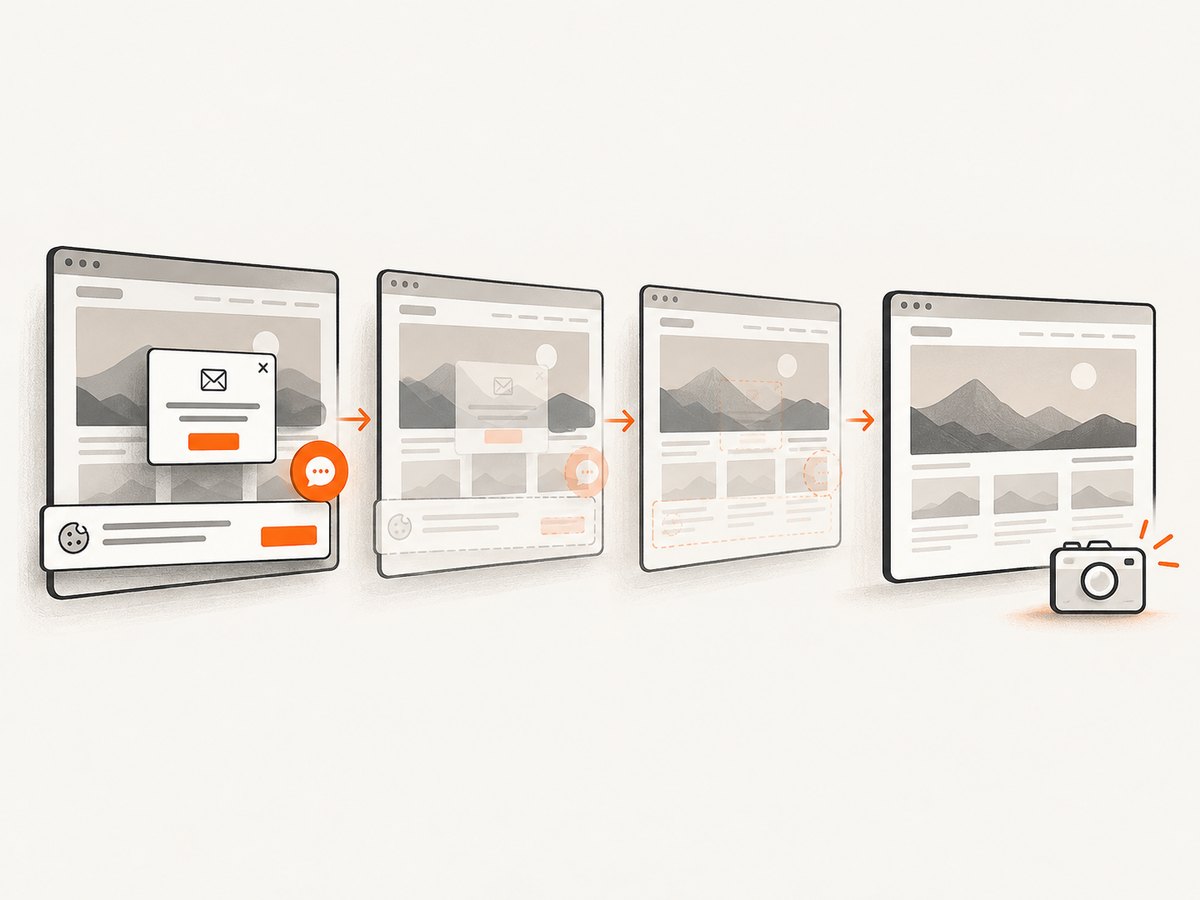
await fs.writeFile('shot.webp', Buffer.from(await res.arrayBuffer()));- Cookie banners are accepted and 60+ known consent platforms, newsletter popups, and chat widgets are removed before the shot; each step can be turned off.
- Bot checks, CAPTCHAs, blank pages, timeouts, failed loads, and cache hits cost nothing. Response headers identify the page verdict and billing status.
- An MCP server gives Claude, Cursor, and other MCP clients tools for screenshots, page information, and PDF capture.
- The Free plan includes 1,000 screenshots a month with no card; paid plans start at $5 for 3,000 shots. Every feature is on every plan.
Create a free ScreenshotNeo account for 1,000 screenshots a month with no card.
8. Further checks and reporting
When the mismatch remains reproducible, report the smallest case with the exact browser and driver versions, Selenium version, OS or container image, complete arguments, viewport and device scale, display-server availability, and GPU/backend details. Include whether both runs used the same profile, locale, cookies, network, and readiness condition. Chrome’s Headless documentation directs issue reports to the Chrome project. [Chrome for Developers]
FAQ
Does --headless=new guarantee the same screenshot as headed Chrome?
No such universal guarantee is established by the cited documentation. Unified Headless shares Chrome functionality, but host rendering, fonts, viewport, and page state can still differ.
Should I remove the headless flag to fix a rendering bug?
Use headed mode as a controlled comparison when the environment supports it. Removing the flag changes one condition; it does not identify whether the root cause is timing, versions, page state, or GPU configuration.
Is there a statistic for how often headless results differ?
The cited official sources document implementation history and rendering conditions, not a prevalence rate or typical pixel difference.
Can a screenshot service help isolate a Selenium issue?
It can provide a separate capture path for comparison, but a different service does not prove the Selenium result is incorrect. Compare the final URL, content, viewport, and page readiness before interpreting differences.


