Why Selenium Cannot Start Chrome in Headless Mode and How to Fix It
Diagnose ChromeDriver startup failures, DevToolsActivePort errors, version mismatches, Linux permissions, and CI issues with a repeatable troubleshooting process.
Short answer: Selenium cannot start Chrome in headless mode when Chrome exits before ChromeDriver can connect to it. The message DevToolsActivePort file doesn't exist describes that failed connection, but it does not identify the cause. Check the Chrome and ChromeDriver major versions, confirm the actual browser binary, reproduce the exact launch outside WebDriver, verify the execution user and environment, and use a headless flag supported by the installed Chrome version.
This guide gives you a repeatable diagnosis for local machines, Linux services, Docker containers, and CI workers. It also explains when Selenium Manager helps, why --no-sandbox is a poor default, and how to avoid running a browser at all when your goal is simply to capture a page.
1. What the startup error really means
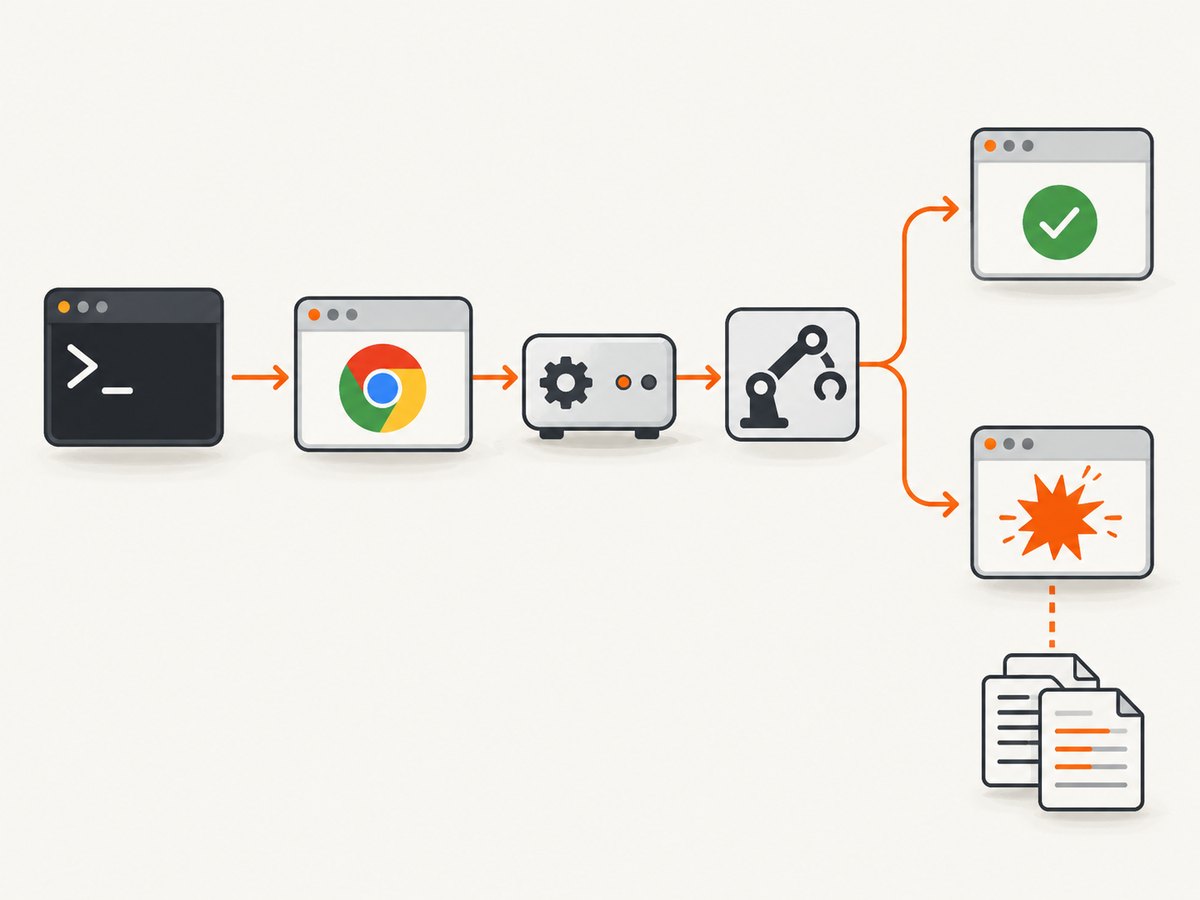
ChromeDriver starts Chrome with a command line, waits for Chrome’s DevTools endpoint, and then creates the WebDriver session. If Chrome crashes, cannot execute, rejects an option, or exits because of its environment, ChromeDriver never reaches that endpoint. Selenium then reports errors such as:
session not created: Chrome failed to start: exited abnormallyunknown error: DevToolsActivePort file doesn't existchrome not reachableUnable to obtain driver for chrome
Treat DevToolsActivePort as a symptom. The useful evidence is the browser version, driver version, selected executable, complete argument list, ChromeDriver log, and the account and environment that launched the process.
2. The fastest diagnostic decision tree
- Record versions and paths. Capture Selenium, Chrome, ChromeDriver, and the executable paths actually used.
- Compare major versions. Chrome 131 and ChromeDriver 130 are not a reliable pairing. Keep the major versions aligned.
- Enable ChromeDriver logging. Save the log so you can see the command line and startup failure.
- Run Chrome directly. Use the same binary, switches, user, working directory, and environment as the WebDriver run.
- Classify the result. If direct Chrome fails, repair the browser installation or operating environment. If it succeeds, reduce the WebDriver program and investigate driver resolution, service configuration, or account differences.
- Check headless syntax. Use an option supported by your installed Chrome; do not copy a flag from an unrelated version.
3. Check Selenium, Chrome, and ChromeDriver versions
ChromeDriver documentation recommends matching the browser and driver major versions. Selenium Manager can resolve a missing driver in supported Selenium 4 setups, but it cannot repair a broken Chrome installation or an unsuitable container, service account, or permission setup. Confirm what it selected instead of assuming that the first executable on PATH is being used.
Linux
google-chrome --version || chromium --version
chromedriver --version
python -c "import selenium; print(selenium.__version__)"
which google-chrome chromium chromedriver
macOS
/Applications/Google\ Chrome.app/Contents/MacOS/Google\ Chrome --version
chromedriver --version
python -c "import selenium; print(selenium.__version__)"
Windows PowerShell
& "$env:ProgramFiles\Google\Chrome\Application\chrome.exe" --version
chromedriver.exe --version
py -c "import selenium; print(selenium.__version__)"
Read the first number in each Chrome and ChromeDriver version. If they differ, install a compatible driver or upgrade Selenium so Selenium Manager can resolve the correct one. Selenium’s Chrome options examples are documented in the official Selenium documentation.
4. Capture the exact ChromeDriver command
Start with a minimal Python script and write ChromeDriver’s output to a file. A small harness makes it easier to distinguish a browser failure from application code, fixtures, extensions, or parallel-test setup.
from selenium import webdriver
from selenium.webdriver.chrome.service import Service
from selenium.webdriver.chrome.options import Options

options = Options()
options.add_argument("--headless")
options.add_argument("--window-size=1280,900")

service = Service(log_output="chromedriver.log")
driver = webdriver.Chrome(service=service, options=options)
try:
    driver.get("https://example.com")
    print(driver.title)
finally:
    driver.quit()
Open chromedriver.log and record the Chrome executable path and every argument. ChromeDriver’s own help page describes reproducing a crash by running the browser command directly. Use the same user and environment; a command that works in an interactive shell may fail under a systemd service or CI worker.
5. Reproduce the browser launch outside Selenium
Copy the binary and arguments from the log into a shell. Use a temporary profile so a locked or corrupted profile cannot affect the result:
/path/to/chrome \
  --headless \
  --window-size=1280,900 \
  --user-data-dir=/tmp/chrome-diagnostic-profile \
  --remote-debugging-port=0 \
  https://example.com
If this command exits immediately, inspect the terminal output and operating-system logs. Repair or reinstall Chrome, install missing shared libraries, fix filesystem permissions, or remove an invalid argument. If it stays running and opens the page, the browser itself is viable; return to the minimal Selenium script and compare users, environment variables, service settings, and driver selection.
6. Use the correct headless option for your Chrome version
Headless Chrome has changed over time:
- Chrome 112 changed headless so it creates platform windows without displaying them.
- Chrome 132.0.6793.0 removed the old headless implementation from the main Chrome binary. The old implementation is available as the separate
chrome-headless-shellbinary.
Current Chrome documentation uses --headless. Selenium examples also show --headless=new for versions that support that spelling. Do not assume either form works on every historical installation. Check the installed browser’s documentation and test one option at a time.
from selenium import webdriver
from selenium.webdriver.chrome.options import Options

options = Options()
# Prefer the syntax supported by your installed Chrome.
options.add_argument("--headless")
options.add_argument("--disable-gpu")
options.add_argument("--window-size=1280,900")

driver = webdriver.Chrome(options=options)
try:
    driver.get("https://example.com")
    driver.save_screenshot("example.png")
finally:
    driver.quit()
--disable-gpu is sometimes useful for older graphics stacks, but adding many flags at once hides the real cause. Start with the smallest set and add an option only when a documented environment requirement justifies it.
7. Linux users: check the account, sandbox, and dependencies
ChromeDriver identifies running Chrome as root on Linux as a common startup cause. Prefer a regular, non-root user for local, service, and container runs. ChromeDriver states that using --no-sandbox can work around root-related failures but is unsupported and highly discouraged. Treat it as a last-resort diagnostic signal, not a production configuration.
Run under the same identity as the failing job
id
whoami
printenv | sort
ls -ld /tmp /var/tmp
For a systemd service, test with the service’s User=. For CI, reproduce in the same image and step. Make sure the account can execute Chrome, create a temporary profile, write to its cache directory, and access required shared libraries.
Container checks
- Use a Chrome package built for the container’s CPU architecture.
- Install the libraries required by your distribution’s Chrome package.
- Provide writable locations for the profile and cache.
- Keep shared memory large enough for your workload; if your platform deliberately limits it, investigate the container’s shared-memory configuration before adding browser flags.
- Do not run the test as root simply because the container defaults to root. Create a regular user and run Chrome as that user.
8. Reduce the WebDriver program before changing flags
Remove extensions, profiles, custom preferences, proxy settings, remote debugging ports, and application fixtures. The following is a useful baseline:
from selenium import webdriver
from selenium.webdriver.chrome.options import Options

options = Options()
options.add_argument("--headless")
options.add_argument("--window-size=1280,900")

driver = webdriver.Chrome(options=options)
try:
    driver.get("data:text/html,<title>ok</title>startup")
    print(driver.title)
finally:
    driver.quit()
If this passes, add your real URL, then one custom option at a time. A failing extension, proxy, certificate setting, or stale user profile is easier to identify through incremental changes than through a collection of guessed switches.
9. Common errors and precise fixes
| Error or symptom | Likely cause | Fix |
|---|---|---|
DevToolsActivePort file doesn't exist |
Chrome exited before the DevTools connection. | Read the driver log, run the exact command directly, then check versions, binary path, user, permissions, and flags. |
Chrome failed to start: exited abnormally |
Browser crash, invalid option, missing dependency, or bad profile. | Use a temporary profile and minimal options; repair the browser or OS dependencies if direct launch fails. |
SessionNotCreatedException mentioning versions |
Chrome and ChromeDriver major versions do not match. | Install a matching driver or update Selenium and verify Selenium Manager’s selected executable. |
Unable to obtain driver for chrome |
Driver is missing, inaccessible, or cannot be resolved. | Upgrade Selenium, inspect PATH and permissions, or provide an explicit compatible driver service. |
| Works locally but fails in CI | Different user, image, Chrome binary, environment, or filesystem. | Print versions and paths in CI, enable logs, and run the direct browser command in the same job. |
| Works headed but not headless | Unsupported headless syntax, graphics dependency, or viewport-sensitive application behavior. | Use the installed Chrome’s supported headless flag and test with a fixed window size. |
| Only fails with an existing profile | Profile lock or corruption. | Use a fresh temporary --user-data-dir; do not share one profile across parallel sessions. |
| Chrome starts, then pages hang | Network, proxy, DNS, certificate, or application timeout. | Separate startup testing from navigation testing; inspect network and page-load logs after the session is created. |
10. A production diagnostic checklist
- Record Selenium, Chrome, and ChromeDriver versions.
- Record the absolute Chrome and ChromeDriver paths.
- Confirm browser and driver major versions match.
- Enable ChromeDriver logging and retain it with the failed job.
- Run Chrome directly with the exact arguments from the log.
- Use the same account, container image, environment, and working directory.
- Use a fresh temporary profile for each session.
- Verify that the headless flag is supported by the installed Chrome.
- Remove optional flags and add them back one by one.
- Prefer a regular Linux user; avoid treating
--no-sandboxas a routine fix.
11. Performance, reliability, and cost considerations
Headless mode reduces the need for a visible desktop session, but it does not remove browser startup cost. Reusing a controlled WebDriver session can be faster than launching Chrome for every URL, while isolated temporary profiles reduce cross-test contamination. Parallel sessions need separate profiles and enough CPU, memory, file descriptors, and shared memory. Record startup time, navigation timeout, and browser exit reason in your own environment; the cited Chrome and Selenium documentation does not provide a universal failure-rate or performance benchmark.
For reliability, pin a known browser image in CI, update Chrome and ChromeDriver together, and fail early when their major versions differ. Keep driver logs for failed jobs. A managed Selenium grid can provide remote browser coverage across real devices and browsers; BrowserStack documents a Selenium grid, and Sauce Labs provides Selenium quickstarts. These services can change where the browser runs, but they do not automatically repair a broken local browser setup.
12. Or skip the browser setup
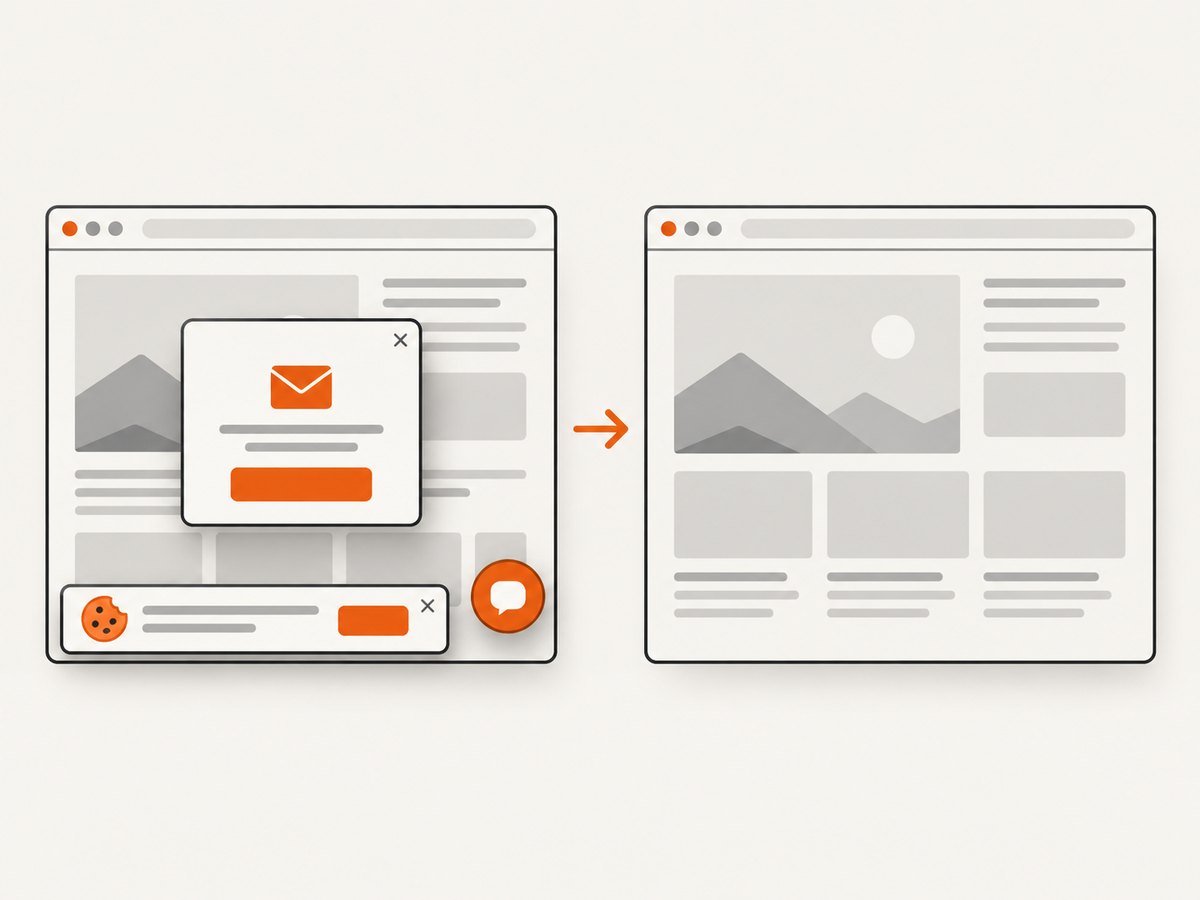
If your actual requirement is a screenshot or PDF rather than browser automation, ScreenshotNeo provides a website screenshot API and MCP server. One GET request returns PNG, JPEG, WebP, or PDF. Before capture it accepts consent banners and removes more than 60 known consent platforms, newsletter popups, and chat widgets; each step can be turned off. Bot checks, blank pages, timeouts, failed loads, and cache hits are not billed, and the response identifies the result with X-Page-Verdict and X-Billed headers.
See the ScreenshotNeo API documentation for all options. This call captures a page without installing Chrome or ChromeDriver:
curl -G "https://api.screenshotneo.com/v1/shot" -d access_key=YOUR_API_KEY --data-urlencode url=https://stripe.com -o shot.webpPython
import requests

r = requests.get(
    "https://api.screenshotneo.com/v1/shot",
    params={"access_key": "YOUR_API_KEY", "url": "https://stripe.com"},
    timeout=90,
)
r.raise_for_status()
open("shot.webp", "wb").write(r.content)
print(r.headers.get("X-Page-Verdict"), r.headers.get("X-Billed"))
Node.js
const q = new URLSearchParams({ access_key: 'YOUR_API_KEY', url: 'https://stripe.com' });
const res = await fetch(`https://api.screenshotneo.com/v1/shot?${q}`);
if (!res.ok) throw new Error(`Screenshot failed: ${res.status}`);
const bytes = Buffer.from(await res.arrayBuffer());
await require('node:fs').promises.writeFile('shot.webp', bytes);
console.log(res.headers.get('x-page-verdict'), res.headers.get('x-billed'));
ScreenshotNeo also supports full-page capture with lazy images loaded, CSS-selector element capture, dark mode, 12 device presets and custom viewports, retina scale, PDF paper and margin controls, custom CSS and JavaScript, clicks, selector or network-idle waits, request blocking, headers, cookies, user agents, authorization, timezone, geolocation, transparent backgrounds, resizing, configurable caching, signed image links, asynchronous jobs with signed webhooks, bulk capture for 100 URLs per call, a usage API, and an OpenAPI specification. An MCP server exposes take_screenshot, get_page_info, and capture_pdf to Claude, Cursor, and other MCP clients.
The Free plan includes 1,000 screenshots each month with no card. Paid plans start at $5 for 3,000 shots; every feature is available on every plan. Create a free ScreenshotNeo account.
13. FAQ
Is DevToolsActivePort always caused by --no-sandbox?
No. It can result from version mismatches, a wrong binary, unsupported flags, permissions, root execution, missing dependencies, a locked profile, or a CI environment difference. The direct-launch test identifies the category.
Should I always use --headless=new?
No. Headless syntax depends on the Chrome version. Current Chrome documentation uses --headless; use the spelling supported by the browser you installed.
Can Selenium Manager fix a Chrome crash?
No. It can manage driver resolution in supported setups. It does not repair Chrome, install missing OS libraries, change the execution user, or make an unsuitable container valid.
Does a remote Selenium provider fix every local failure?
No. A grid changes the browser environment and can provide managed coverage, but your test still needs compatible capabilities and reliable application access. Diagnose the local failure first when you need to understand its cause.
When should I use an API instead of Selenium?
Use an API when you need rendered screenshots or PDFs and do not need WebDriver interactions, browser assertions, or custom test orchestration. ScreenshotNeo removes common consent and overlay elements, reports whether a result was billable, and avoids maintaining a local Chrome installation.


