Why Selenium Chrome Headless Mode Stops Working and How to Fix It
Diagnose Selenium headless Chrome failures by checking versions, drivers, flags, binaries, permissions, libraries, and CI logs.
Selenium Chrome headless failures usually come from one of six things: Chrome and ChromeDriver major versions no longer match, a legacy headless assumption, a missing or undiscoverable driver, Chrome crashing during startup, Selenium Manager being blocked, or a Linux runtime missing required libraries. Record the exact exception and versions before changing flags.
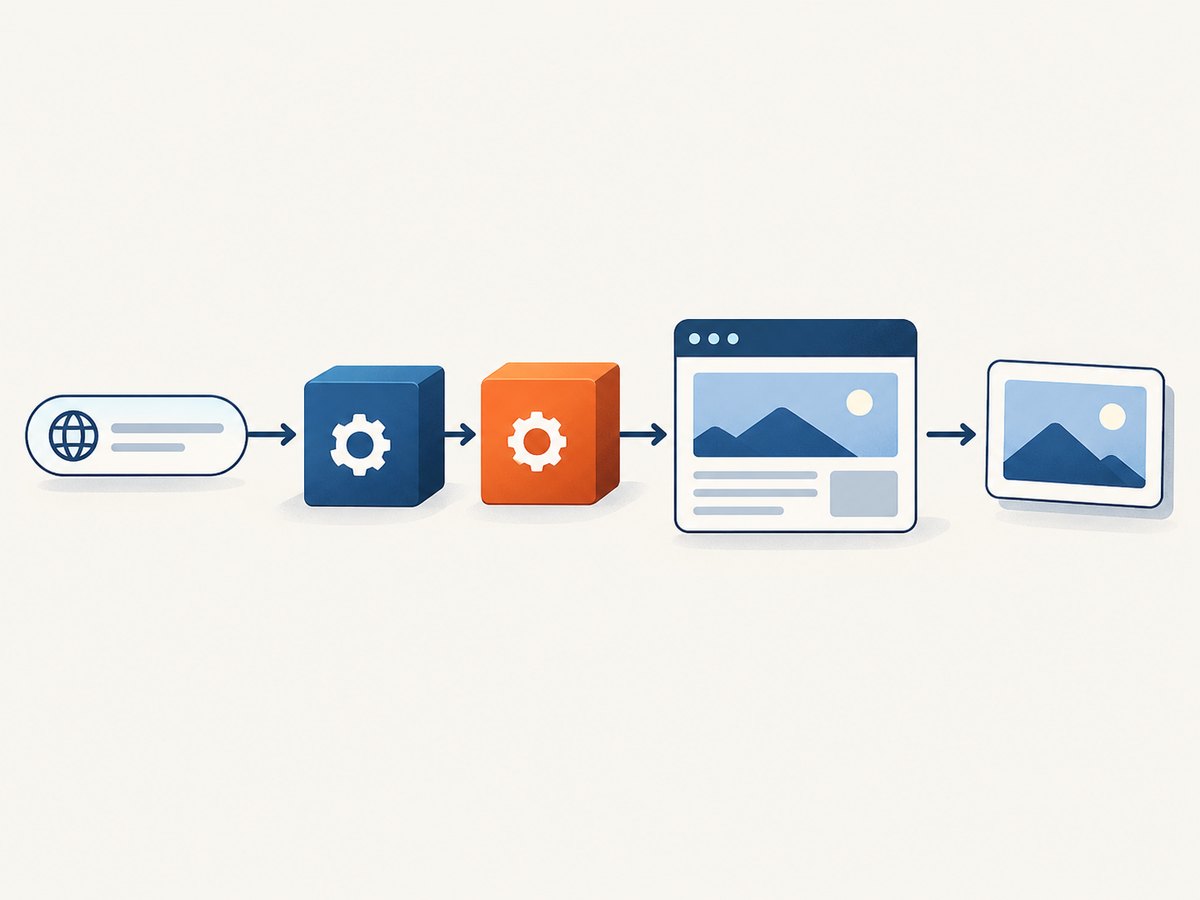
Selenium controls Chrome through ChromeDriver. The official Selenium documentation states: “Chromedriver and Chrome browser versions should match, and if they don’t the driver will error.” Read the Chrome-specific Selenium guidance.
1. Capture the facts before changing anything
Write down these values from the same machine or container where the failure occurs:
- Selenium language binding and version
- Chrome or Chromium version
- ChromeDriver version, if managed explicitly
- Operating system, architecture, and image version
- Whether the process runs locally, in CI, in Docker, as a service, or under a different user
- The complete exception and ChromeDriver log
These details distinguish a driver-discovery error from a browser-startup crash. A generic reinstall can hide the real cause and make CI builds less reproducible.
2. Check Chrome and ChromeDriver major versions
Compare the major number in both versions. For example, Chrome 132.x should use a ChromeDriver 132.x release. If Chrome auto-updated while a pinned driver remained at an older major version, ChromeDriver commonly exits with a message such as “only supports Chrome version …”.
Find the installed versions
# Linux
 google-chrome --version || google-chrome-stable --version || chromium --version
 chromedriver --version

# macOS (typical Chrome path)
 "/Applications/Google Chrome.app/Contents/MacOS/Google Chrome" --version
 chromedriver --version

# Windows PowerShell (typical paths)
 & "$env:ProgramFiles\Google\Chrome\Application\chrome.exe" --version
 chromedriver.exe --version
Fix a mismatch
- Choose whether the build should follow the installed browser or pin both browser and driver.
- Update the driver to the browser’s major version, or install the browser version required by the existing driver.
- In CI, pin the browser image and driver together so an unattended browser update cannot break the job.
- Run the version commands inside the actual container, service account, or runner where Selenium executes.
3. Use the current headless mode
Headless is a Chrome launch mode; it still requires a working Chrome binary, ChromeDriver, permissions, and system libraries. Selenium examples use Chrome options, including --headless=new.
Chrome’s current implementation is unified with headful Chrome. The official Chrome documentation says: “Chrome now has unified Headless and headful modes.” Since Chrome 132.0.6793.0, the old implementation is available only as the separate chrome-headless-shell binary. See Chrome Headless mode documentation.
Minimal Python example
from selenium import webdriver
from selenium.webdriver.chrome.options import Options

options = Options()
options.add_argument("--headless=new")

with webdriver.Chrome(options=options) as driver:
    driver.get("https://example.com")
    print(driver.title)
Remove old convenience calls or assumptions that depend on legacy headless behavior. If an application specifically needs the old implementation, provision chrome-headless-shell intentionally and verify that your tooling supports it.
4. Let Selenium Manager resolve the driver, or manage it explicitly
Selenium Manager is included with Selenium releases and acts as a fallback when you do not provide a driver. It discovers and downloads browser and driver assets from remote endpoints. Read Selenium Manager’s documented behavior and limitations.
Option A: Selenium Manager
from selenium import webdriver
from selenium.webdriver.chrome.options import Options

options = Options()
options.add_argument("--headless=new")
driver = webdriver.Chrome(options=options)
try:
    driver.get("https://example.com")
    print(driver.current_url)
finally:
    driver.quit()
This is convenient when the runner has DNS, HTTPS access, and a supported architecture. It can fail when a firewall or proxy blocks Chrome for Testing endpoints, when a custom Linux package uses a nonstandard browser binary, or when the platform is unsupported.
Option B: Provide a pinned driver path
from selenium import webdriver
from selenium.webdriver.chrome.options import Options
from selenium.webdriver.chrome.service import Service

options = Options()
options.add_argument("--headless=new")
options.binary_location = "/usr/bin/google-chrome"
service = Service("/opt/webdrivers/chromedriver")

driver = webdriver.Chrome(service=service, options=options)
try:
    driver.get("https://example.com")
    print(driver.title)
finally:
    driver.quit()
Use one management strategy at a time. Do not configure a conflicting driver-manager package, a hard-coded path, and Selenium Manager and then assume the selected binary is obvious.
5. Confirm that Chrome can start in the same environment
If ChromeDriver reports that Chrome exited or crashed immediately, test the browser binary directly under the same user and runtime. Preserve ChromeDriver logs and compare a local interactive run with the CI or service run.
/usr/bin/google-chrome \
  --headless=new \
  --no-first-run \
  --disable-gpu \
  --dump-dom https://example.com
--disable-gpu can help diagnose older or unusual Linux graphics setups, but it is not a universal fix. Add flags only when they match the failure and deployment context. Selenium’s documentation shows --no-sandbox as an example for some environments; using it changes the browser sandbox security model, so resolve the container or permission problem when possible instead of adding flags blindly.
6. Check Linux libraries, permissions, and architecture
A browser can be installed while still failing at launch because shared libraries are absent. Selenium Manager documents missing Linux libraries as a failure class and gives libatk-1.0.so.0 as an example; in that documented case, the relevant package is libatk-bridge2.0-0. Install the package appropriate to your distribution and image rather than copying a package name into every environment.
Also check:
- The Chrome binary exists at the path Selenium uses.
- The executing user can read and execute Chrome and ChromeDriver.
- The temporary profile directory is writable.
- The container has enough shared memory; constrained
/dev/shmcan cause renderer crashes. - The runner architecture is supported. Selenium Manager documents Linux arm64/aarch64 and some other architectures as unsupported for automatic management.
- Proxy, firewall, and DNS rules allow Selenium Manager downloads if you rely on it.
7. A complete diagnostic Python script
This script prints versions, enables a ChromeDriver log, and captures a minimal page load.
import os
import platform
import subprocess
from selenium import webdriver
from selenium.webdriver.chrome.options import Options
from selenium.webdriver.chrome.service import Service


def command_output(command):
    try:
        return subprocess.check_output(command, text=True, stderr=subprocess.STDOUT).strip()
    except Exception as exc:
        return f"unavailable: {exc}"

print("OS:", platform.platform())
print("Python:", platform.python_version())
print("Chrome:", command_output(["google-chrome", "--version"]))
print("Chromium:", command_output(["chromium", "--version"]))
print("ChromeDriver:", command_output(["chromedriver", "--version"]))

options = Options()
options.add_argument("--headless=new")
options.add_argument("--window-size=1280,900")
# Set this only when your environment requires it and you understand the trade-off.
# options.add_argument("--no-sandbox")

service = Service(log_output="chromedriver.log")
driver = None
try:
    driver = webdriver.Chrome(service=service, options=options)
    driver.get("https://example.com")
    print("Title:", driver.title)
    print("URL:", driver.current_url)
finally:
    if driver:
        driver.quit()

print("ChromeDriver log: chromedriver.log")
8. Troubleshooting by error message
| Error or symptom | Likely cause | Fix |
|---|---|---|
ChromeDriver only supports Chrome version N |
Chrome and driver major versions differ. | Inspect both versions in the failing environment and align their major versions. |
Unable to obtain driver for chrome |
Selenium Manager cannot download or locate a compatible driver. | Check DNS, proxy, firewall, architecture, browser discovery, and Selenium version; then provide a managed driver path if needed. |
Unable to locate driver executable |
The driver is not on a supported path and no resolver supplied it. | Install a matching driver and pass its path through Service, or remove the explicit path and use Selenium Manager. |
session not created: Chrome failed to start |
Chrome crashed, lacked permissions, could not create a profile, or missed libraries. | Run Chrome directly with the same user, inspect logs, verify writable temporary storage and libraries, and confirm the binary path. |
| Works locally but fails in CI | Different user, image, architecture, network, permissions, or installed versions. | Print versions in CI, preserve driver logs, and reproduce with the same container or service account. |
| Blank page or renderer crash | Resource pressure, shared-memory limits, page startup timing, or a site-specific browser failure. | Check container memory and /dev/shm, wait for a meaningful condition, and test the URL interactively in the same image. |
| Legacy headless behavior disappeared | Modern Chrome uses unified headless; the old implementation moved to chrome-headless-shell after Chrome 132. |
Use --headless=new or provision the standalone shell deliberately. |
9. Reliable CI configuration checklist
- Pin the Chrome or Chromium image version.
- Pin or deterministically resolve the matching ChromeDriver major version.
- Print browser, driver, Selenium, OS, and architecture versions at job start.
- Store ChromeDriver logs as CI artifacts.
- Use an explicit browser binary path when the image contains multiple browsers.
- Verify writable temporary storage and adequate memory.
- Allow Selenium Manager’s endpoints, or vendor the driver when outbound network access is restricted.
- Run the same command as the production service user.
- Keep the headless flag explicit and avoid copying unrelated flags from another image.
10. Performance, reliability, and cost considerations
Headless Chrome still consumes CPU, memory, startup time, and network bandwidth. Reusing a WebDriver session for related pages can avoid repeated browser startup, while isolated sessions provide cleaner state. Use explicit waits for a selector or document condition instead of arbitrary long sleeps. Capture logs only at the level needed for diagnosis because verbose logs increase storage and collection overhead.
For reproducibility, pin browser and driver versions together. For flexibility, Selenium Manager reduces manual downloads but depends on network access and supported platforms. Choose based on whether your build values automatic discovery or an offline, fully pinned toolchain.
11. Or skip the browser setup
If your goal is a clean screenshot rather than browser automation, ScreenshotNeo provides a single request to capture a URL as PNG, JPEG, WebP, or PDF. Its API accepts the cookie or consent banner like a visitor and removes more than 60 known consent platforms, newsletter popups, and chat widgets before capture. Each step can be turned off.
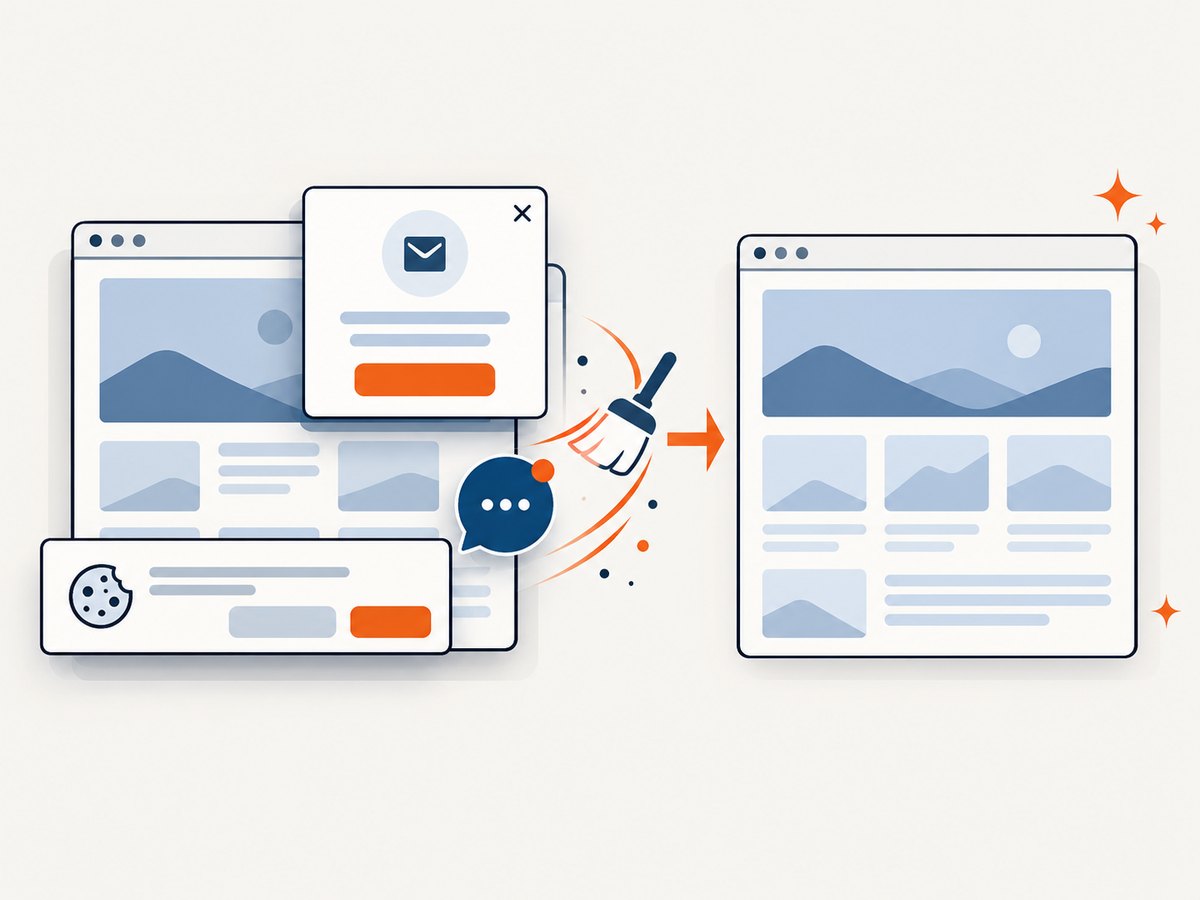
Only clean shots are billed. Bot checks or CAPTCHAs, blank pages, timeouts, failed loads, and cache hits cost nothing, and the response identifies the result with X-Page-Verdict and X-Billed headers. ScreenshotNeo also provides an MCP server with take_screenshot, get_page_info, and capture_pdf tools for Claude, Cursor, and other MCP clients.
See the ScreenshotNeo API documentation for all options.
cURL
curl -G "https://api.screenshotneo.com/v1/shot" -d access_key=YOUR_API_KEY --data-urlencode url=https://stripe.com -o shot.webpPython
import requests
r = requests.get("https://api.screenshotneo.com/v1/shot", params={"access_key": "YOUR_API_KEY", "url": "https://stripe.com"}, timeout=90)
open("shot.webp", "wb").write(r.content)
Node.js
const q = new URLSearchParams({ access_key: 'YOUR_API_KEY', url: 'https://stripe.com' });
const res = await fetch(`https://api.screenshotneo.com/v1/shot?${q}`);
ScreenshotNeo includes full-page capture with lazy images loaded, CSS element capture, dark mode, device presets, custom viewports, retina scale, PDF paper and margin controls, custom CSS and JavaScript, clicks, waits, request blocking, headers, cookies, user agents, authorization, timezone, geolocation, transparent backgrounds, resizing, selectable cache TTLs, signed links, asynchronous jobs, signed webhooks, bulk capture for up to 100 URLs per call, a usage API, and an OpenAPI specification.
Plans include 1,000 screenshots per month free with no card. Paid plans start at $5 for 3,000 screenshots, and every feature is available on every plan. Create a free ScreenshotNeo account.
12. FAQ
Does headless mode remove the need for ChromeDriver?
No. Selenium still needs a compatible driver and a launchable browser binary.
Should I always add --no-sandbox?
No. Use it only when your deployment requires it and after checking the underlying user, container, or permission issue.
Is Selenium Manager guaranteed to work offline?
No. Automatic discovery can require network access to download browser or driver assets. Use a pinned, explicitly supplied driver in restricted environments.
Can I keep using the old Chrome headless implementation?
Modern Chrome does not bundle it in the regular binary after the documented Chrome 132 threshold. Provision chrome-headless-shell separately if legacy behavior is a deliberate requirement.
What should I attach to a bug report?
Include the exact exception, Selenium binding version, Chrome and ChromeDriver versions, OS and architecture, execution environment, launch options, and the ChromeDriver log.


