Why Selenium Chrome Does Not Show the Save Password Dialog
Chrome’s save-password offer is separate from Selenium alerts. Diagnose the profile, Password Manager settings, policies, and login flow step by step.
Short answer: Selenium cannot summon Chrome’s save-password offer with driver.switch_to.alert or unhandledPromptBehavior. Those APIs handle JavaScript alert, confirm, prompt, and browser prompts such as beforeunload. Chrome’s save-password offer belongs to Google Password Manager. Check the Password Manager setting in the profile used by the test, the site’s declined-password state, enterprise policy, the Chrome profile and options actually launched, and whether the login flow looks like a new password to Chrome.
This guide explains why the dialog is absent, how to inspect each cause, and how to build a reliable Selenium diagnostic. The exact trigger can vary by Chrome version, operating system, profile, and site implementation, so no single Selenium flag guarantees that the offer will appear.
1. Understand which dialog you are looking for
Selenium’s alert API is for web-page dialogs generated by JavaScript. For example:
driver.switch_to.alert.accept()That call does not control Chrome’s own Password Manager surface. The save-password offer is browser UI displayed after Chrome recognizes a password entry or change. Selenium’s documented alert handling covers JavaScript alerts, confirms, prompts, and prompts such as beforeunload; it does not document a handler for the Password Manager offer. See the Selenium alert documentation.
Google’s Chrome help describes the normal behavior: when a user enters a new password on a site, Chrome can ask whether to save it. The setting is named Offer to save passwords and passkeys. See Google’s password-management help.
| Surface | Owner | Relevant Selenium API | What to inspect |
|---|---|---|---|
JavaScript alert, confirm, or prompt |
Web page | switch_to.alert |
Alert text and page JavaScript |
beforeunload prompt |
Browser/page navigation | Alert handling and prompt behavior | Navigation and unload handlers |
| Save-password offer | Chrome Password Manager | No supported alert handler | Profile setting, policy, declined site, login flow |
2. Confirm the Password Manager setting in the active profile
- Open the same Chrome profile used by the test.
- Navigate to Chrome’s Password Manager settings.
- Confirm Offer to save passwords and passkeys is enabled.
- Open the Declined sites and apps list.
- If the target site is listed, remove it and repeat the login or password-change flow.
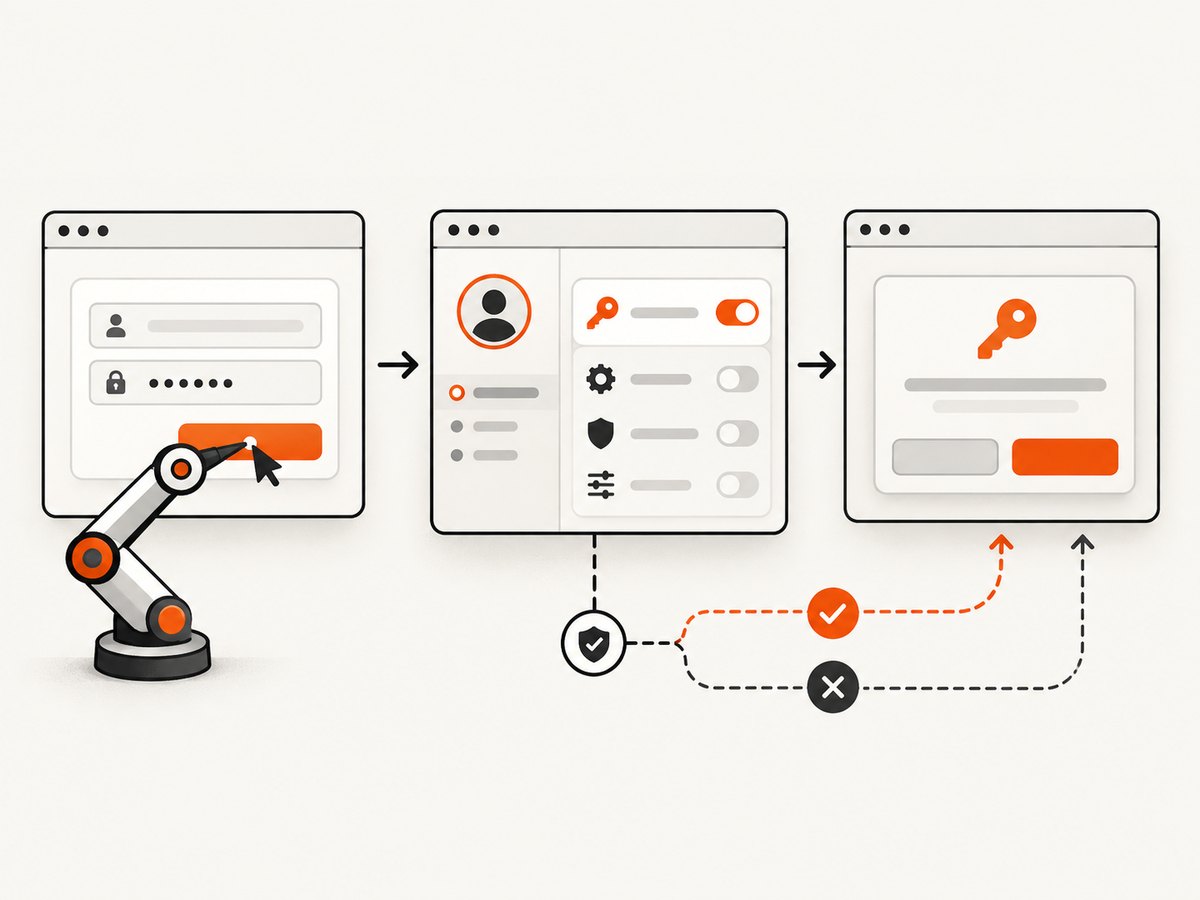
A common mistake is checking the setting in your everyday browser while Selenium launches another profile. Password settings are profile state. A clean temporary profile, a CI profile, and your interactive profile can all have different Password Manager values.
3. Inspect the profile Selenium actually launches
Selenium Chrome options can include a custom user-data-dir. That argument changes which profile directory Chrome reads and writes. Log the options in your test setup and check whether a framework, fixture, container image, or CI script supplies another directory.
Python diagnostic example
from pathlib import Path
from selenium import webdriver
from selenium.webdriver.chrome.options import Options

profile_dir = Path("/tmp/selenium-chrome-profile").resolve()

options = Options()
options.add_argument(f"--user-data-dir={profile_dir}")

# Keep this diagnostic run visible while investigating browser UI.
# Do not add headless mode until the profile and policy checks are complete.
driver = webdriver.Chrome(options=options)

print("Profile directory:", profile_dir)
print("Capabilities:", driver.capabilities)
print("Browser version:", driver.capabilities.get("browserVersion"))
print("Driver version:", driver.capabilities.get("chrome", {}).get("chromedriverVersion"))

try:
    driver.get("https://example.com")
finally:
    driver.quit()
Use a dedicated profile for repeatable tests. Do not point two simultaneous Chrome processes at the same profile directory; Chrome can lock it or produce state that is difficult to interpret. If you want to compare with an interactive profile, close the interactive Chrome process first, or create a copy for diagnosis.
Java example
ChromeOptions options = new ChromeOptions();
options.addArguments("--user-data-dir=/tmp/selenium-chrome-profile");

WebDriver driver = new ChromeDriver(options);
try {
    System.out.println(driver.getCapabilities());
    driver.get("https://example.com");
} finally {
    driver.quit();
}
The point of this code is to expose the profile choice. It does not force Chrome to display the offer.
4. Check for Chrome Enterprise policy
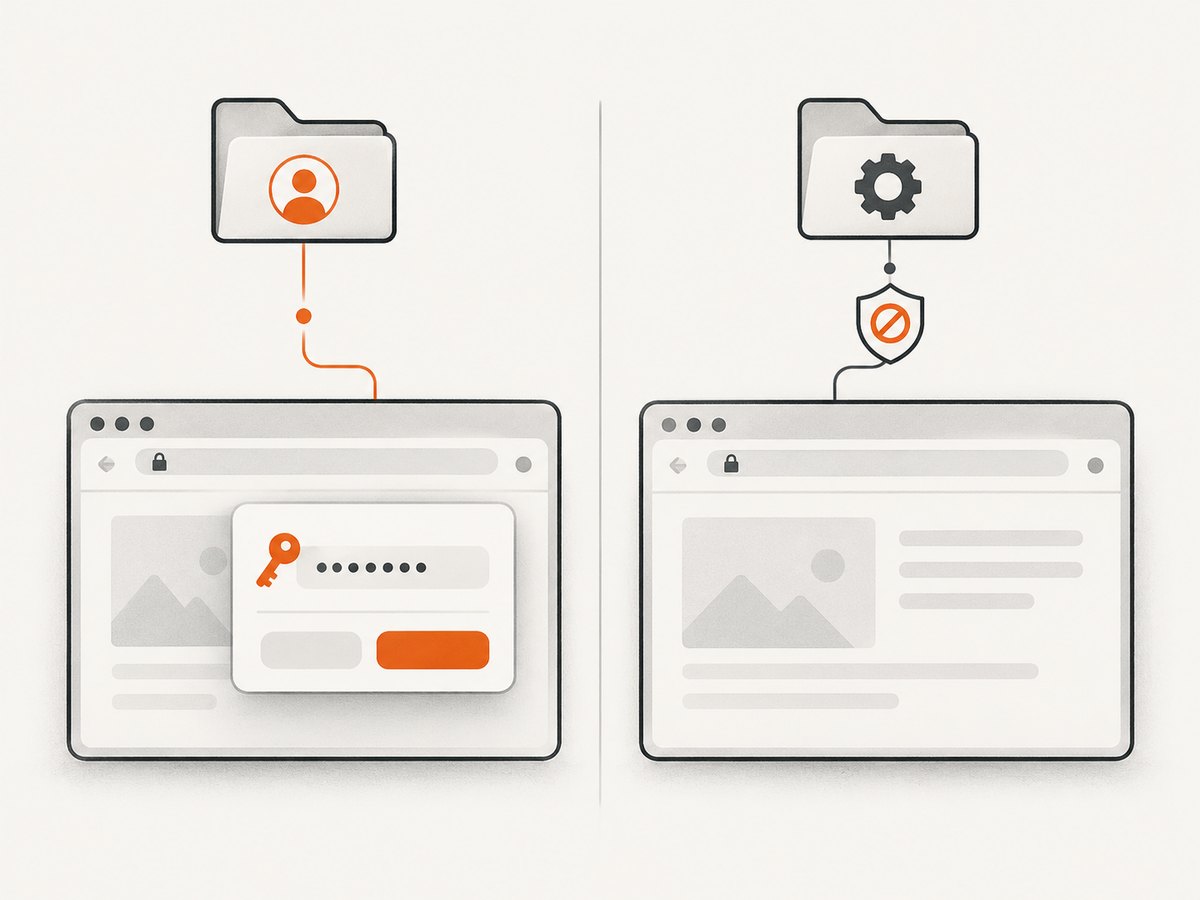
On managed computers, the PasswordManagerEnabled Chrome Enterprise policy controls whether Chrome can remember and save website passwords. If an administrator disables it, Chrome will not offer to save new passwords. Previously saved passwords can still work.
Check the effective policies page in the Chrome instance running your test, or ask the administrator which policies apply to the machine, user, container image, or organizational unit. The policy reference is available in the Chrome Enterprise policy documentation.
- Compare policy state in your normal Chrome and the automation environment.
- Check container and virtual-desktop images, where policy files may be baked into the image.
- Remember that changing a Selenium capability does not override an administrator policy.
5. Verify that the site flow is recognizable as a new password
Chrome’s documented behavior is conditional: it asks to save when a user enters a new password. The site must therefore present a flow Chrome recognizes as a credential creation or change. A login with an already saved credential may not produce a new offer. A password field populated by script, a custom authentication widget, an iframe, or an unusual password-change sequence can also behave differently across sites and browser versions.
Use the following checklist while reproducing the issue manually in the same profile:
- Is this a first-time password, or are you signing in with a credential already stored?
- Does the page contain a real password input rather than a custom text control?
- For a password change, are both the old and new password fields present in the submitted form?
- Does the page complete its navigation or success response after submission?
- Is the password field inside an iframe or a shadow-DOM component?
- Does the site redirect through another domain before the credential is processed?
- Are browser extensions, privacy tools, or test hooks changing the form?
The available Chrome help establishes the general trigger but does not promise a complete list of HTML conditions. Treat the checklist as a comparison method, not as a guaranteed recipe.
6. Build a minimal Selenium reproduction
Reduce the test to one visible browser, one profile, and one credential flow. Remove unrelated waits, alert handling, extensions, and parallel workers. Capture browser and driver versions so you can reproduce the same environment.
from selenium import webdriver
from selenium.webdriver.chrome.options import Options
from selenium.webdriver.common.by import By
from selenium.webdriver.support.ui import WebDriverWait
from selenium.webdriver.support import expected_conditions as EC

options = Options()
options.add_argument("--user-data-dir=/tmp/password-dialog-repro")
# Leave the browser visible during diagnosis.

driver = webdriver.Chrome(options=options)
wait = WebDriverWait(driver, 20)

try:
    driver.get("https://your-test-site.example/login")
    wait.until(EC.visibility_of_element_located((By.NAME, "username"))).send_keys("test-user")
    wait.until(EC.visibility_of_element_located((By.NAME, "password"))).send_keys("new-test-password")
    wait.until(EC.element_to_be_clickable((By.CSS_SELECTOR, "button[type=submit]"))).click()

    # This handles a page alert only. It is intentionally separate from
    # Chrome's Password Manager UI.
    try:
        alert = driver.switch_to.alert
        print("Page alert:", alert.text)
        alert.accept()
    except Exception:
        print("No JavaScript alert was present")

    input("Inspect Chrome's browser UI, then press Enter to close...")
finally:
    driver.quit()
Replace the example URL and selectors with your test application. Do not put real credentials in source control or logs.
7. Why common attempted fixes do not work
driver.switch_to.alert.accept()
This only targets a web alert. If no JavaScript alert exists, Selenium raises a no-alert-present error. It cannot accept Chrome’s Password Manager offer.
unhandledPromptBehavior
This WebDriver capability controls how unhandled JavaScript prompts are treated. It is not documented as a Password Manager control and should not be used as one.
Adding a historical password-saving flag
Older Chromium code reviews mention experimental automatic-saving work. That historical record is not current usage guidance. Do not rely on an old flag as a supported fix for modern Chrome.
Running headless and expecting to inspect a browser popup
Headless execution is useful for page automation, but it makes browser-level UI diagnosis harder. First reproduce with a visible browser and a known profile. Once you understand the behavior, decide whether your test needs to verify browser UI at all.
8. Selenium and Chrome version compatibility
Check the Chrome and ChromeDriver versions reported by the session. Selenium’s current browser documentation says their major versions should match. A mismatch can cause session creation failures or inconsistent behavior, although matching versions alone does not make the save-password offer appear.
| Observation | Likely area | Next action |
|---|---|---|
| Session fails before the page opens | Driver/browser compatibility or startup options | Record versions and simplify options |
| Page works but no offer appears | Profile, setting, policy, or site flow | Run the diagnostic sequence |
| Offer appears manually but not in Selenium | Different profile or startup configuration | Compare user-data-dir, extensions, and policy |
| Offer appears once, then disappears | Site was declined or credential is already saved | Inspect declined sites and stored credentials |
9. Troubleshooting checklist
“No alert present” from Selenium
Cause: The code is looking for a JavaScript alert, while the missing UI is Chrome Password Manager. Fix: Remove alert handling from this diagnosis and inspect the profile, setting, policy, and flow.
The setting is enabled, but the offer is still absent
Cause: Selenium may be using another profile, the site may be in the declined list, or the flow may not look like a new password. Fix: Print the profile path, remove the site from declined entries, and reproduce manually with the same flow.
It works locally but not in CI
Cause: CI often uses a clean profile, headless mode, a different Chrome build, or an enterprise policy. Fix: Compare versions and effective policy, then run a visible reproduction with a dedicated profile. Do not assume local profile state exists in CI.
The password is saved without a prompt
Cause: The profile or policy may be configured for automatic saving, or the credential may already be stored. Fix: Inspect Password Manager state and policy before treating this as a Selenium failure.
A login test needs to verify credentials, not browser UI
Cause: Browser UI is outside normal page DOM automation. Fix: Assert the authenticated page state, session cookie, or application response. Keep a separate manual or browser-level check if displaying the offer is itself a requirement.
10. Performance and reliability considerations
Password Manager behavior is stateful, so parallel Selenium tests can interfere with one another when they share a profile. Give each worker its own profile directory and clean or seed it deliberately. Reusing one profile can make the first run show an offer while later runs do not because the credential is now stored or the site was declined.
Keep startup options minimal during diagnosis. Every extension, custom preference, proxy, user agent, and automation wrapper is another variable. After isolating the cause, add required options back one at a time and record the resulting behavior.
Do not make a test depend on a browser popup that Chrome may change between releases. If the product requirement is password storage, test the application’s authenticated outcome and use a browser-specific check only when the prompt itself is part of the requirement.
11. Or skip the browser setup
If your goal is a clean image of a login page, documentation page, or test result rather than control of Chrome’s Password Manager UI, ScreenshotNeo provides a single screenshot request. Its API can accept consent banners before capture and remove more than 60 known consent platforms, newsletter popups, and chat widgets. Bot checks, blank pages, timeouts, failed loads, and cache hits are not billed; response headers identify the page verdict and billing state.
See the ScreenshotNeo API documentation for all options.
cURL
curl -G "https://api.screenshotneo.com/v1/shot" -d access_key=YOUR_API_KEY --data-urlencode url=https://stripe.com -o shot.webpPython
import requests
r = requests.get("https://api.screenshotneo.com/v1/shot", params={"access_key": "YOUR_API_KEY", "url": "https://stripe.com"}, timeout=90)
open("shot.webp", "wb").write(r.content)
Node.js
const q = new URLSearchParams({ access_key: 'YOUR_API_KEY', url: 'https://stripe.com' });
const res = await fetch(`https://api.screenshotneo.com/v1/shot?${q}`);
ScreenshotNeo also supports full-page capture with lazy images loaded, CSS-element capture, device presets and custom viewports, dark mode, retina scale, custom CSS and JavaScript, clicks, waits, hidden selectors, blocked requests and resource types, custom headers and cookies, timezone and geolocation, transparent backgrounds, resizing, TTL caching, signed image links, asynchronous jobs with signed webhooks, bulk capture, PDF output, usage data, and an OpenAPI specification. An MCP server provides take_screenshot, get_page_info, and capture_pdf for Claude, Cursor, and other MCP clients.
There is a free plan with 1,000 screenshots per month and no card. Paid plans start at $5 for 3,000 screenshots; every feature is available on every plan. Create a free ScreenshotNeo account.
12. FAQ
Can Selenium click the save-password offer?
Not through the documented WebDriver alert API. It is Chrome browser UI, not a page alert. Use a browser-UI automation tool only if your requirement truly demands clicking that surface.
Does disabling headless mode guarantee the offer?
No. A visible window makes diagnosis possible, but the profile setting, declined-site state, enterprise policy, and site flow still determine whether Chrome offers to save.
Will deleting cookies reset the offer?
Not necessarily. Password Manager state and declined-site entries are separate from ordinary site cookies. Inspect the Password Manager profile state directly.
Why does a password-change page behave differently from login?
Chrome decides whether the submitted flow represents a new or changed credential. Sites implement password changes in different ways, so the result can vary by page structure and browser version.
Should I add a Chrome preference to force saving?
Do not assume an undocumented or historical preference is supported. First verify the active profile and policy. If the test is about authentication, assert the authenticated result instead of relying on a browser prompt.
13. Practical diagnostic sequence
- Run Chrome visibly with a dedicated profile.
- Confirm Offer to save passwords and passkeys is enabled.
- Remove the site from Declined sites and apps, if present.
- Print Selenium capabilities and the actual
user-data-dir. - Check Chrome Enterprise
PasswordManagerEnabledpolicy. - Verify Chrome and ChromeDriver major versions match.
- Reproduce a genuine new-password or password-change flow manually.
- Keep JavaScript alert handling separate from Password Manager diagnosis.
- Decide whether the test needs browser UI or only an authenticated application result.
This sequence identifies the controllable causes without claiming that Selenium can force Chrome to display a Password Manager offer.


