How to Capture Full-Page Screenshots with Selenium ChromeDriver
Use Chrome DevTools Protocol with Selenium to capture a complete page, handle lazy content, avoid clipping, and troubleshoot common failures.
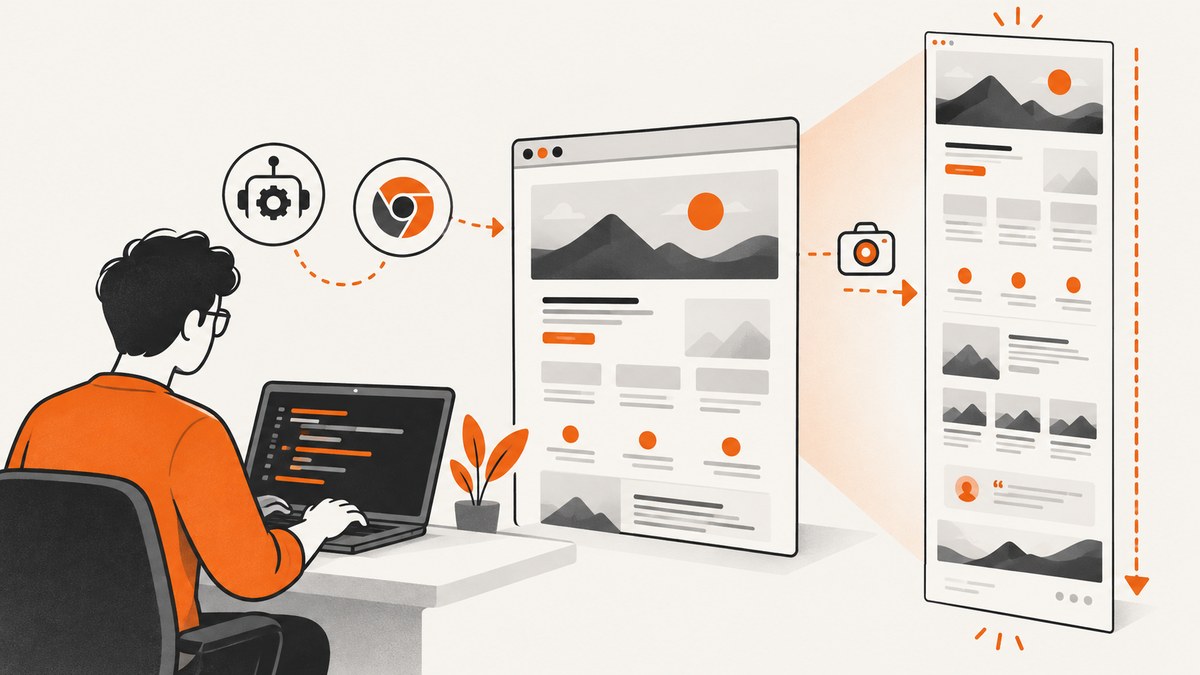
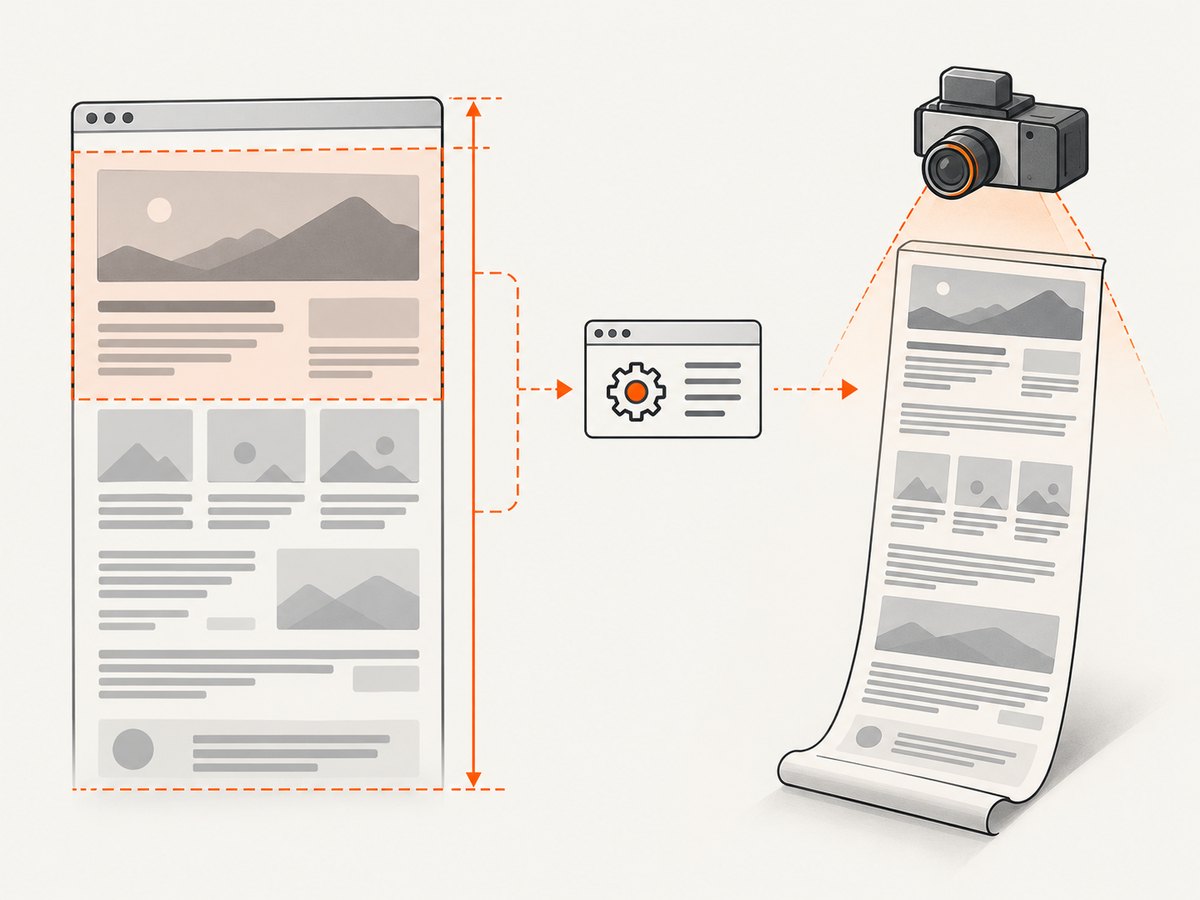
Direct answer: Selenium’s ordinary save_screenshot() method captures the current browser window, so it commonly stops at the viewport. For a full-document PNG in Chrome, use Selenium’s Chromium CDP bridge to call Page.getLayoutMetrics, read the page dimensions, then call Page.captureScreenshot with captureBeyondViewport: true. Decode the returned base64 data and write it to a file.
This approach is Chrome-specific and depends on the Chrome, ChromeDriver, Selenium, and DevTools Protocol versions in your environment. Selenium describes CDP support as version-dependent and warns that CDP is not a stable testing API. Check the protocol fields supported by the browser you actually run.
1. Why save_screenshot() usually captures only the viewport
Selenium documents a regular screenshot as a PNG of the current window or browsing context. That is useful for visual checks of what a user can currently see, but it does not promise one image containing the entire scrollable document. See the Selenium screenshot documentation.
A full-page capture has three separate dimensions:
- Viewport: the visible browser area.
- Document: the page’s full CSS layout, including content below the fold.
- Output image: the rasterized PNG, JPEG, or other format produced by the browser.
Calling driver.save_screenshot('page.png') addresses the first dimension. CDP lets you request the second and produce the third in one browser operation.
2. Complete Python implementation with ChromeDriver
Install Selenium in the environment that will run Chrome:
python -m pip install seleniumThe following pattern reads CSS content dimensions, enables beyond-viewport capture, and decodes the image returned by Chrome. cssContentSize is preferred when the installed protocol exposes it; the fallback handles protocol variants that return contentSize.
import base64
from pathlib import Path
from selenium import webdriver

options = webdriver.ChromeOptions()
# options.add_argument('--headless=new')  # Optional for server environments.
driver = webdriver.Chrome(options=options)

try:
    driver.get('https://example.com')

    metrics = driver.execute_cdp_cmd('Page.getLayoutMetrics', {})
    size = metrics.get('cssContentSize') or metrics['contentSize']

    result = driver.execute_cdp_cmd(
        'Page.captureScreenshot',
        {
            'format': 'png',
            'captureBeyondViewport': True,
            'fromSurface': True,
            'clip': {
                'x': 0,
                'y': 0,
                'width': size['width'],
                'height': size['height'],
                'scale': 1,
            },
        },
    )
    Path('full-page.png').write_bytes(base64.b64decode(result['data']))
finally:
    driver.quit()
Selenium’s Python Chromium driver exposes execute_cdp_cmd(cmd, cmd_args), which sends a DevTools command and returns its result. Chrome’s Page domain provides both getLayoutMetrics and captureScreenshot. The generated API documentation describes captureBeyondViewport as the switch that allows capture beyond the viewport and gives it a default of false. Consult the installed Selenium API reference and the Chrome DevTools Protocol Page domain when upgrading.
Use a known viewport when output must be repeatable
options.add_argument('--window-size=1440,900')The clip is based on document CSS dimensions, while fonts, responsive breakpoints, and media queries can still depend on the viewport. Set the window size before navigation if you compare screenshots over time.
Choose PNG, JPEG, or WebP deliberately
PNG is lossless and preserves text and sharp edges. JPEG can be smaller for photographic pages but introduces compression artifacts; when using it, check the protocol’s quality parameter for your Chrome version. Some protocol versions also expose WebP. The research references establish the PNG pattern above; verify additional format and quality fields against your installed Page domain.
3. Make dynamic pages ready before measuring them
Navigation finishing does not mean an application has finished rendering. Data may arrive after the initial document, images may be lazy-loaded, and fonts or animations may change the layout. Obtain metrics immediately before capture, after the page-specific state you need is present.
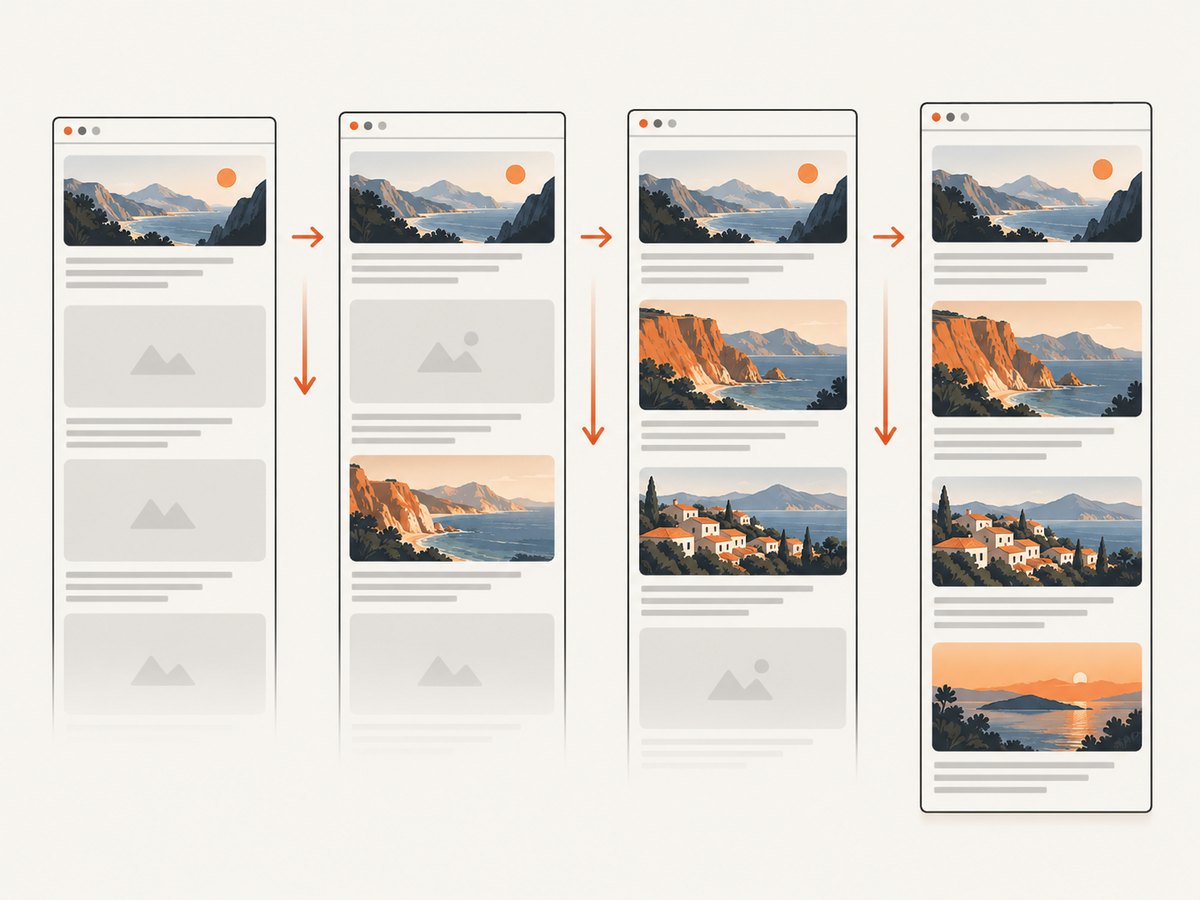
- Wait for an application condition. Prefer a meaningful element, such as a results container, over a fixed sleep.
- Wait for images or fonts when they affect layout. A page can expand after an image resolves.
- Scroll when the site loads content on scroll. Scroll through the document in increments, allow each section to settle, then call
Page.getLayoutMetricsagain. - Disable or finish animations where possible. Use page CSS or a test-mode flag when available; CDP does not automatically create a semantically stable visual state.
- Measure last. If content expands after you read the dimensions, the bottom can be clipped.
from selenium.webdriver.common.by import By
from selenium.webdriver.support.ui import WebDriverWait

wait = WebDriverWait(driver, 30)
driver.get('https://example.com/catalog')
wait.until(lambda d: d.find_element(By.CSS_SELECTOR, '[data-loaded="true"]'))

driver.execute_script('window.scrollTo(0, document.body.scrollHeight);')
# Add an application-specific wait here if scrolling triggers network work.
driver.execute_script('window.scrollTo(0, 0);')
There is no universal Selenium recipe for lazy loading, sticky headers, or animation timing. Treat these as site-specific stabilization work and inspect the resulting image.
4. Understanding the CDP options
| Option | Purpose | Practical guidance |
|---|---|---|
format |
Image encoding such as PNG. | Use PNG for text-heavy captures unless storage size requires another format. |
captureBeyondViewport |
Allows pixels outside the visible viewport. | Set true for a document capture; the documented default is false. |
fromSurface |
Captures from the browser’s rendered surface. | Keep true in the pattern above unless your protocol version documents a different requirement. |
clip |
Defines x, y, width, height, and scale. | Use the current document CSS dimensions and scale: 1; check limits for very tall pages. |
The protocol can change as Chrome evolves. Selenium’s CDP guidance says, “functionality is highly dependent on the version of the browser.” Keep Chrome and Selenium versions aligned, record them with your artifacts, and validate the command fields after upgrades.
5. Full-page capture approaches compared
| Approach | Best fit | Trade-off |
|---|---|---|
driver.save_screenshot() |
Simple viewport screenshots. | Selenium documents the current window, not a full document. |
CDP Page.captureScreenshot |
Chrome automation needing one image beyond the viewport. | Browser-specific, version-sensitive protocol. |
| Print to PDF | Paginated, printable output. | Produces a PDF rather than one tall PNG. |
| Manual stitched screenshots | Cases where browser limits prevent one huge image. | Requires scrolling, overlap, stitching, and handling sticky elements. |
6. Long pages, clipping, and browser limits
Extremely tall documents can exceed browser or image dimensions even when the CDP command is correct. The references do not define one universal maximum. Detect the problem by checking the decoded image dimensions and whether the bottom is present.
- Capture bounded vertical clips and stitch them in an image library when one raster is too large.
- Use a lower device scale or a smaller viewport width if your output does not require high pixel density.
- Keep the clip width and height in CSS pixels, then validate the resulting pixel dimensions.
- Capture after expansion has stopped; otherwise a correct clip can still become stale.
7. Troubleshooting common failures
Only the visible viewport appears
Cause: the regular WebDriver screenshot method was used, or captureBeyondViewport was omitted. Fix: call Page.getLayoutMetrics, set captureBeyondViewport: True, and provide a document-sized clip.
KeyError: 'cssContentSize'
Cause: your protocol result exposes contentSize instead. Fix: use metrics.get('cssContentSize') or metrics['contentSize'] and inspect the returned object when upgrading Chrome.
unknown command or invalid parameters
Cause: Chrome, ChromeDriver, Selenium, and the DevTools protocol are out of alignment, or a field is unavailable in that version. Fix: align versions, check the browser’s Page domain schema, and confirm the remote node is Chromium-based.
The bottom is missing
Cause: the page expanded after metrics were read, or lazy content was never triggered. Fix: wait for the application state, scroll if needed, read metrics again immediately before capture, and compare the image height with the expected document height.
Images are blank or layout jumps
Cause: images, fonts, or asynchronous data were still loading. Fix: wait for relevant selectors and resource state, reserve image space where the application controls the page, and avoid capturing during transitions.
Sticky headers repeat or cover content
Cause: fixed and sticky elements remain part of the rendered page while the document is captured. Fix: add capture-only CSS to make the element static or hidden, or accept the site’s visual behavior and test it explicitly. CDP does not remove sticky UI automatically.
Remote WebDriver works locally but fails on a grid
Cause: the remote browser may not be Chromium, or its driver may not expose the required CDP bridge. Fix: verify the node’s browser family and versions, then run a small command such as Page.getLayoutMetrics before attempting the full capture.
The file cannot be opened
Cause: the base64 payload was written as text or the wrong response field was decoded. Fix: decode result['data'] with base64.b64decode, write bytes, and verify the output begins with a valid PNG signature.
8. Reliability, performance, and cost considerations
Reliability: pin or record Chrome and Selenium versions, keep the CDP command schema under review, and retain a small regression set of representative pages. Treat screenshot dimensions and file validity as output checks.
Performance: one CDP capture avoids stitching many viewport screenshots, but page rendering remains the dominant cost. Waiting for application data, scrolling to trigger lazy content, and loading large images can take longer than the capture command itself. Reuse a driver for a controlled batch when isolation requirements allow it, and always quit it in a finally block.
Cost: Selenium and ChromeDriver are local automation components; your infrastructure cost comes from browser CPU, memory, storage, and any remote grid or hosted browser service. Large PNGs consume more storage and bandwidth than compressed formats.
9. Or skip the browser setup
ScreenshotNeo provides a website screenshot API when you want a clean capture without managing ChromeDriver. It accepts a URL and returns a PNG, JPEG, WebP, or PDF. Cookie and consent banners, newsletter popups, and chat widgets are removed before the shot. Bot checks, blank pages, timeouts, failed loads, and cache hits are not billed, and response headers identify the page verdict and billing status.
The API supports full-page capture with lazy images loaded, CSS-selector element capture, device presets or custom viewports, retina scale, dark mode, custom CSS and JavaScript, click actions, waits, request and resource blocking, headers, cookies, user agents, authorization, timezone, geolocation, transparent backgrounds, resizing, TTL caching, signed links, asynchronous jobs with signed webhooks, bulk capture of up to 100 URLs per call, usage reporting, and an OpenAPI specification. An MCP server exposes take_screenshot, get_page_info, and capture_pdf for Claude, Cursor, and other MCP clients.
See the ScreenshotNeo API documentation for current parameters. A minimal request looks like this:
curl -G 'https://api.screenshotneo.com/v1/shot' \
  -d access_key=YOUR_API_KEY \
  --data-urlencode url=https://stripe.com \
  -o shot.webp
import requests
r = requests.get(
'https://api.screenshotneo.com/v1/shot',
params={'access_key': 'YOUR_API_KEY', 'url': 'https://stripe.com'},
timeout=90,
)
r.raise_for_status()
open('shot.webp', 'wb').write(r.content)const q = new URLSearchParams({
access_key: 'YOUR_API_KEY',
url: 'https://stripe.com'
});
const res = await fetch(`https://api.screenshotneo.com/v1/shot?${q}`);
if (!res.ok) throw new Error(`HTTP ${res.status}`);
const data = Buffer.from(await res.arrayBuffer());
require('node:fs').writeFileSync('shot.webp', data);There is a free plan with 1,000 screenshots per month and no card. Paid plans start at $5 for 3,000 shots; yearly billing gives two months free, and every feature is available on every plan. Create a free ScreenshotNeo account.
10. FAQ
Can Selenium capture a full page without CDP?
Standard Selenium screenshots are documented for the current window. For Chrome, CDP is the direct way to request beyond-viewport capture. Other browsers may require different browser-specific APIs.
Should I use a full-page screenshot or PDF?
Use a full-page image for visual archives, previews, and pixel comparisons. Use print-to-PDF when pagination, paper size, margins, or selectable document content matter.
Why does the screenshot differ between headless and headed Chrome?
Viewport size, fonts, GPU behavior, device scale, and timing can differ. Set the same window size, browser versions, waits, and rendering conditions in both modes.
Is CDP stable enough for production?
It can be useful in production automation, but Selenium documents CDP as version-dependent rather than a stable testing API. Pin versions, check protocol changes, and keep a regression capture set.
How do I capture only one element?
Locate the element, read its bounding rectangle with JavaScript, and pass a matching clip if your protocol version supports it. ScreenshotNeo also supports capture by CSS selector when an API workflow is a better fit.


