Using Selenium with ChromeDriver on a GUI-Less Ubuntu Server
Run Selenium and ChromeDriver reliably on an Ubuntu server without a display, with headless setup, driver management, deployment checks, troubleshooting, and a hosted alternative.
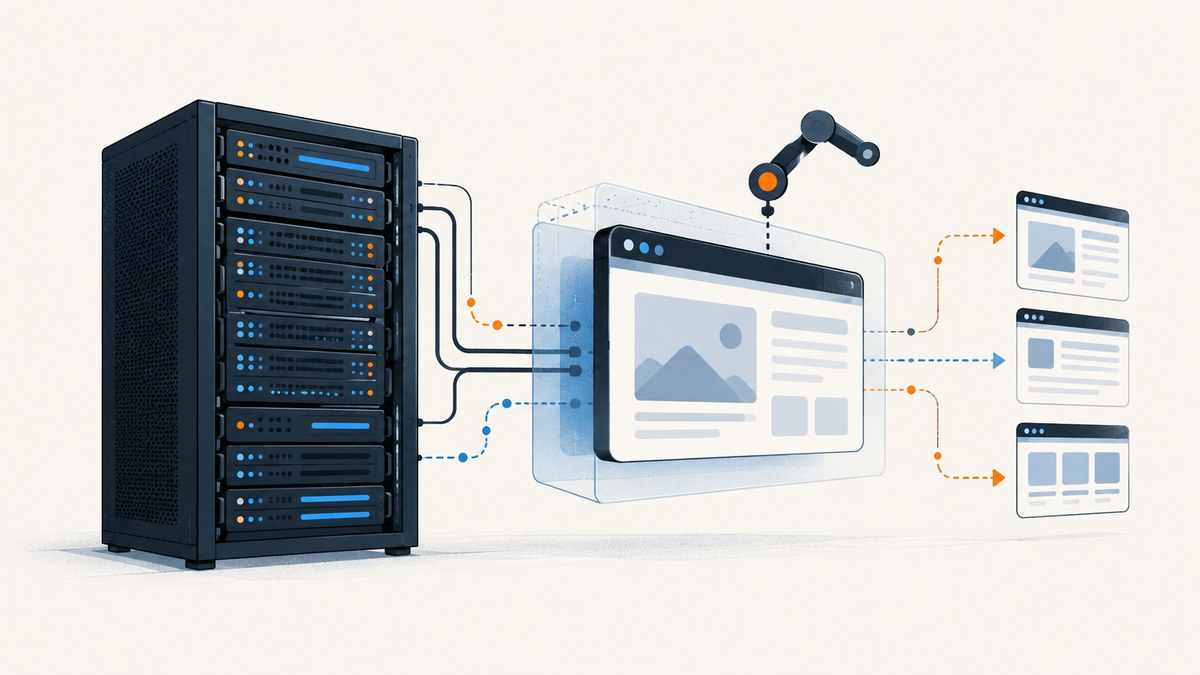
A GUI-less Ubuntu server can run Selenium and ChromeDriver without a desktop session. Configure Chrome with --headless=new, make sure Chrome’s system dependencies are present, let Selenium Manager resolve a compatible driver when practical, and always close the session with quit().
This guide shows a maintainable setup, explains how ChromeDriver version matching works, and covers the failures that commonly appear only on servers. The examples use Python, with a Node.js example for teams using JavaScript.
What headless Selenium changes
In headless mode, Chrome renders pages without opening a visible browser window. Selenium still creates a normal WebDriver session: it navigates, executes JavaScript, waits for elements, takes screenshots, and returns page data. The missing display is therefore a deployment detail, not a limitation in the WebDriver API.
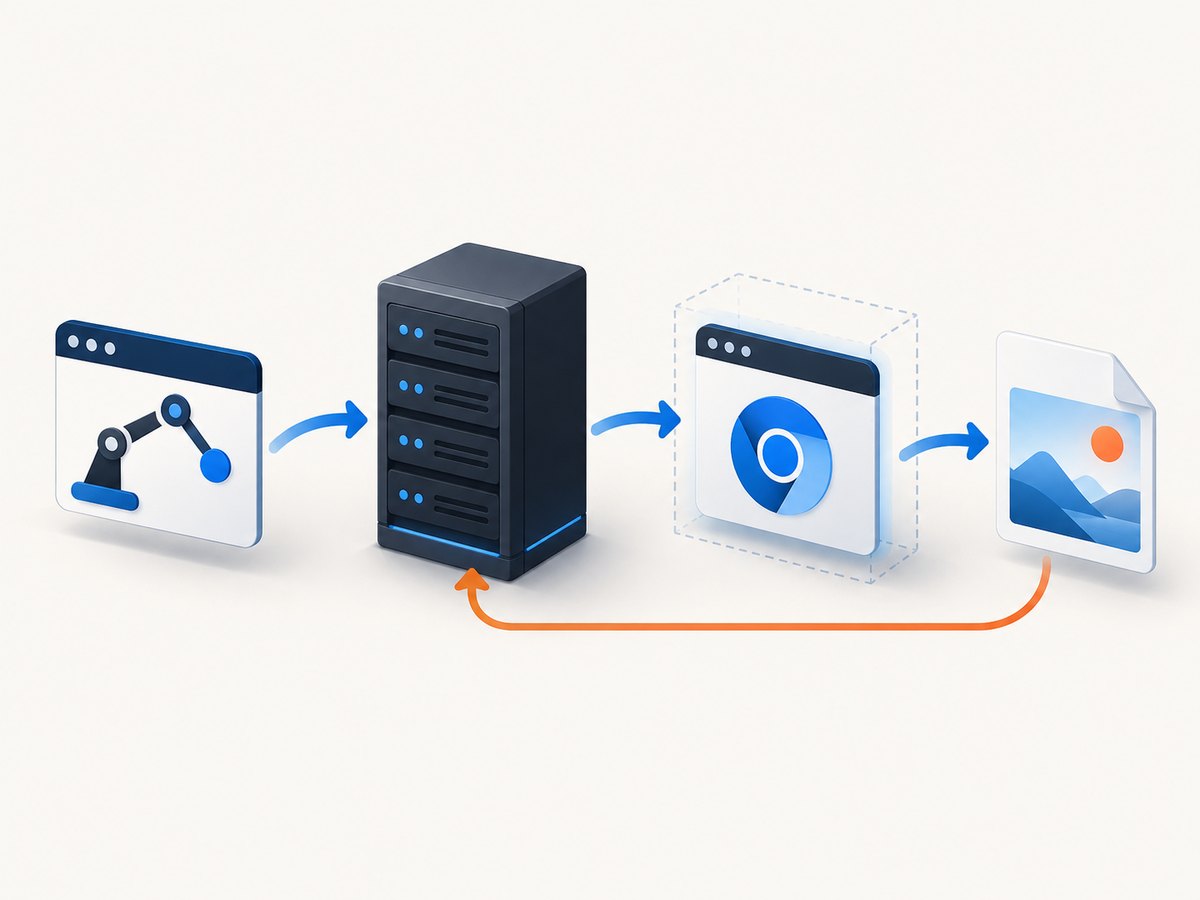
Use the current Chrome argument --headless=new. Older convenience methods and examples that call a binding-specific set_headless helper were deprecated and removed in recent Selenium releases. Selenium’s documentation describes headless execution and the modern argument in its Chrome guidance.
Prerequisites to verify on Ubuntu
- An Ubuntu release supported by your chosen Chrome package and Selenium binding.
- A working Chrome or Chromium installation. Record its exact version with
google-chrome --versionorchromium --version. - A current Selenium binding in your application environment.
- Permission for the process to launch Chrome and write its profile, cache, and temporary files.
- All shared libraries required by the specific browser build. Selenium tests mainly on Ubuntu, but there is no universal dependency list for every Ubuntu release and Chrome build; follow the browser vendor’s current installation instructions for your image.
Do not assume that a successful ChromeDriver download proves that Chrome can start. Driver resolution and browser system libraries are separate checks.
Install Selenium and inspect the browser
Python
python3 -m venv .venv
. .venv/bin/activate
python -m pip install --upgrade pip selenium

google-chrome --version
chromedriver --version  # optional: only if you installed a driver yourself
Node.js
npm install selenium-webdriverKeep the Selenium version current enough for Selenium Manager support in your binding. Selenium Manager is included in current Selenium bindings and can inspect the browser, resolve a suitable ChromeDriver, download it, and cache it locally. The first run may therefore need outbound network access.
Minimal Python script for a headless server
from selenium import webdriver
from selenium.webdriver.chrome.options import Options

options = Options()
options.add_argument("--headless=new")
options.add_argument("--no-sandbox")
options.add_argument("--disable-dev-shm-usage")
options.add_argument("--window-size=1365,768")

# Selenium Manager resolves ChromeDriver when no service executable is supplied.
driver = webdriver.Chrome(options=options)
try:
    driver.get("https://example.com")
    print(driver.title)
    driver.save_screenshot("example.png")
finally:
    driver.quit()
--no-sandbox is often needed when Chrome runs as root or in a restricted container. Prefer a dedicated unprivileged user in production and remove this flag if your environment permits it. --disable-dev-shm-usage makes Chrome use a temporary directory when the container’s shared-memory mount is too small. It can reduce crashes, although increasing the container’s shared memory is usually a better performance choice.
Node.js example with explicit cleanup
const { Builder } = require('selenium-webdriver');
const chrome = require('selenium-webdriver/chrome');

(async () => {
  const options = new chrome.Options();
  options.addArguments(
    '--headless=new',
    '--window-size=1365,768',
    '--disable-dev-shm-usage'
  );

  const driver = await new Builder()
    .forBrowser('chrome')
    .setChromeOptions(options)
    .build();

  try {
    await driver.get('https://example.com');
    console.log(await driver.getTitle());
    await driver.takeScreenshot().then(data => require('fs').writeFileSync('example.png', data, 'base64'));
  } finally {
    await driver.quit();
  }
})();
Both examples leave driver selection to Selenium Manager. If your organization requires a fully offline or reproducible build, pin the browser and driver deliberately instead.
ChromeDriver version management
Chrome and ChromeDriver versions move together. ChromeDriver distribution changed around Chrome versions 114 and 115, so old tutorials that construct a driver URL from a major version can be wrong for a current deployment. Check the official Chrome for Testing metadata and the exact browser version used by your server.
Option A: Selenium Manager
- Install a current Selenium binding.
- Do not pass a manually downloaded driver path to the constructor.
- Run once with network access so Selenium Manager can inspect Chrome and fetch a compatible driver.
- Persist or warm its cache in your image if repeated startup downloads are undesirable.
This is the simplest approach for a single host. It trades some setup determinism for automatic resolution.
Option B: Pin browser and driver
For CI, regulated workloads, or long-lived services, choose exact Chrome and ChromeDriver versions, install both during image creation, and verify compatibility against current official metadata. Treat the browser package, driver binary, Selenium binding, and Ubuntu base image as one tested unit. The dossier does not define one universal apt recipe because package names and dependencies vary by release and browser build.
from selenium import webdriver
from selenium.webdriver.chrome.options import Options
from selenium.webdriver.chrome.service import Service

options = Options()
options.add_argument("--headless=new")
service = Service("/opt/webdrivers/chromedriver")
driver = webdriver.Chrome(service=service, options=options)
try:
    driver.get("https://example.com")
finally:
    driver.quit()
Make the binary executable, ensure the service account can read it, and log both browser and driver versions at startup. A driver that worked last month can fail after an unattended Chrome update.
Useful Chrome options for server deployments
| Option | Use | Trade-off |
|---|---|---|
--headless=new |
Runs without a display. | Required for GUI-less execution. |
--window-size=1365,768 |
Sets a predictable viewport. | Responsive layouts may still change at other widths. |
--no-sandbox |
Works around restricted or root environments. | Reduces sandbox protection; prefer an unprivileged user. |
--disable-dev-shm-usage |
Avoids a small /dev/shm mount. |
Can be slower than increasing shared memory. |
--user-data-dir=/tmp/selenium-profile |
Provides an isolated profile. | Use a unique directory for concurrent sessions. |
--disable-gpu |
Sometimes helps on unusual graphics stacks. | Usually unnecessary with modern headless Chrome; add only when diagnostics justify it. |
Do not copy every flag from a container tutorial. Each one changes security, rendering, or performance. Start with headless mode and add a flag only for a demonstrated host problem.
Waiting for real page state
Headless Chrome can return before an application finishes rendering. Prefer explicit waits over arbitrary sleeps:
from selenium.webdriver.common.by import By
from selenium.webdriver.support.ui import WebDriverWait
from selenium.webdriver.support import expected_conditions as EC

wait = WebDriverWait(driver, 20)
driver.get("https://example.com/dashboard")
wait.until(EC.visibility_of_element_located((By.CSS_SELECTOR, "main")))
For pages that load data after document.readyState becomes complete, wait for a meaningful selector or application-specific condition. Set a page-load timeout so a broken upstream cannot hold a worker forever:
driver.set_page_load_timeout(45)
try:
    driver.get(url)
except Exception as exc:
    print(f"Navigation failed: {exc}")
Taking full-page and element screenshots
Viewport screenshots are portable across Chrome versions. Full-page capture depends on browser support and page layout. For a specific component, locate the element and call screenshot:
card = driver.find_element(By.CSS_SELECTOR, "article.product")
card.screenshot("product-card.png")
For a full-page image, Chromium's DevTools protocol can set a capture beyond the viewport, but the exact command differs by Selenium binding version. Validate it against the binding documentation you deploy, and watch for sticky headers, infinite scroll, and pages that change while being stitched.
Resource, profile, and concurrency considerations
- Each WebDriver session starts a browser process and consumes memory. Limit concurrent sessions to what the host can sustain.
- Use a separate temporary profile per session; sharing one profile causes locks and cross-test state.
- Reuse a session for related pages when isolation is not required. Recreate it after a browser crash or corrupted profile.
- Keep screenshots and downloaded files outside the application directory and clean temporary data after each job.
- For higher concurrency or stronger isolation, use remote WebDriver or Selenium Grid. The browser and its dependencies then live on the remote host, while your test client controls the session.
Reliability checklist
- Log Chrome, ChromeDriver, Selenium, Ubuntu, and kernel versions.
- Set page-load and script timeouts.
- Use explicit waits for application readiness.
- Wrap every session in
try/finallyand calldriver.quit(). - Capture browser logs and a diagnostic screenshot on failure.
- Pin versions for repeatable CI; otherwise monitor automatic browser updates.
- Test the exact production image, not only a developer laptop.
Common errors and fixes
| Error | Likely cause | Fix |
|---|---|---|
SessionNotCreatedException |
ChromeDriver and Chrome are incompatible. | Check both versions; update Selenium Manager, or pin a compatible pair using current Chrome for Testing metadata. |
DevToolsActivePort file doesn't exist |
Chrome failed to start, often because of sandbox, profile, shared-memory, or permission problems. | Run as an unprivileged user, use a unique writable profile, inspect /dev/shm, and add only the flags justified by the error. |
cannot find Chrome binary |
Chrome is absent or installed outside the expected path. | Install the browser supported by your image or set the binary location in Chrome options. |
WebDriverException: chrome not reachable |
Chrome crashed or was killed by the host. | Check memory limits, shared memory, process limits, and browser logs; reduce concurrency. |
| Timeout while navigating | Slow or blocked upstream page. | Set a bounded page-load timeout, retry transient failures, and capture diagnostics. |
| Blank or incomplete screenshot | Rendering was captured before asynchronous content loaded. | Wait for a content selector, network-dependent application state, or a known readiness flag. |
| Driver download fails | Restricted outbound network or unavailable cache. | Allow setup-time access, prewarm Selenium Manager's cache, or install a pinned driver in the image. |
When a hosted screenshot API is simpler
Maintaining Chrome, ChromeDriver, Ubuntu libraries, profiles, concurrency, and updates is worthwhile when you need browser interaction. If you only need a rendered image or PDF, a hosted API removes that setup.
Or skip the browser setup
ScreenshotNeo provides a website screenshot API and MCP server. One GET request returns PNG, JPEG, WebP, or PDF. See the ScreenshotNeo API documentation for the complete option list.
curl -G "https://api.screenshotneo.com/v1/shot" -d access_key=YOUR_API_KEY --data-urlencode url=https://stripe.com -o shot.webpimport requests
r = requests.get("https://api.screenshotneo.com/v1/shot", params={"access_key": "YOUR_API_KEY", "url": "https://stripe.com"}, timeout=90)
open("shot.webp", "wb").write(r.content)const q = new URLSearchParams({ access_key: 'YOUR_API_KEY', url: 'https://stripe.com' });
const res = await fetch(`https://api.screenshotneo.com/v1/shot?${q}`);Before capture, ScreenshotNeo accepts cookie and consent banners and removes more than 60 known consent platforms, newsletter popups, and chat widgets; each cleanup step can be disabled. Bot checks, blank pages, timeouts, failed loads, and cache hits are not billed, and the response identifies the result with X-Page-Verdict and X-Billed headers. Its MCP server provides take_screenshot, get_page_info, and capture_pdf tools for Claude, Cursor, and other MCP clients.
Other options include full-page capture with lazy images, CSS-selector element capture, dark mode, device presets and custom viewports, retina scale, PDF paper settings, custom CSS and JavaScript, clicks, waits, request blocking, headers, cookies, user agents, authorization, timezone, geolocation, transparent backgrounds, resizing, TTL caching, signed links, asynchronous webhooks, bulk capture of up to 100 URLs per call, and a usage API. Every feature is on every plan: 1,000 shots per month are free with no card; paid plans start at $5 for 3,000 shots.
Create a free ScreenshotNeo account and start with 1,000 screenshots each month at no charge.
FAQ
Can Selenium run without a display server?
Yes. Add --headless=new to Chrome options and run the session on the Ubuntu host.

Do I still need ChromeDriver in headless mode?
Yes. Headless changes Chrome's rendering mode; Selenium still uses WebDriver. Selenium Manager can resolve and cache the driver for supported current bindings.
Is quit() different from close()?
close() closes one browser window. quit() ends the WebDriver session and cleans up its browser processes; use it in teardown.
Should I use a virtual display such as Xvfb?
Only when an application specifically requires a display-backed workflow. Standard Chrome automation on a GUI-less server can use native headless mode.
When should I use remote WebDriver?
Use it when browser execution must scale beyond one host or when browser dependencies should be maintained on dedicated workers. The client then controls a session running elsewhere.


