How to Generate PDFs with Selenium ChromeDriver’s printToPDF
Generate reliable PDFs with Selenium and headless Chrome: print_page, Page.printToPDF, margins, page ranges, troubleshooting, and an API shortcut.
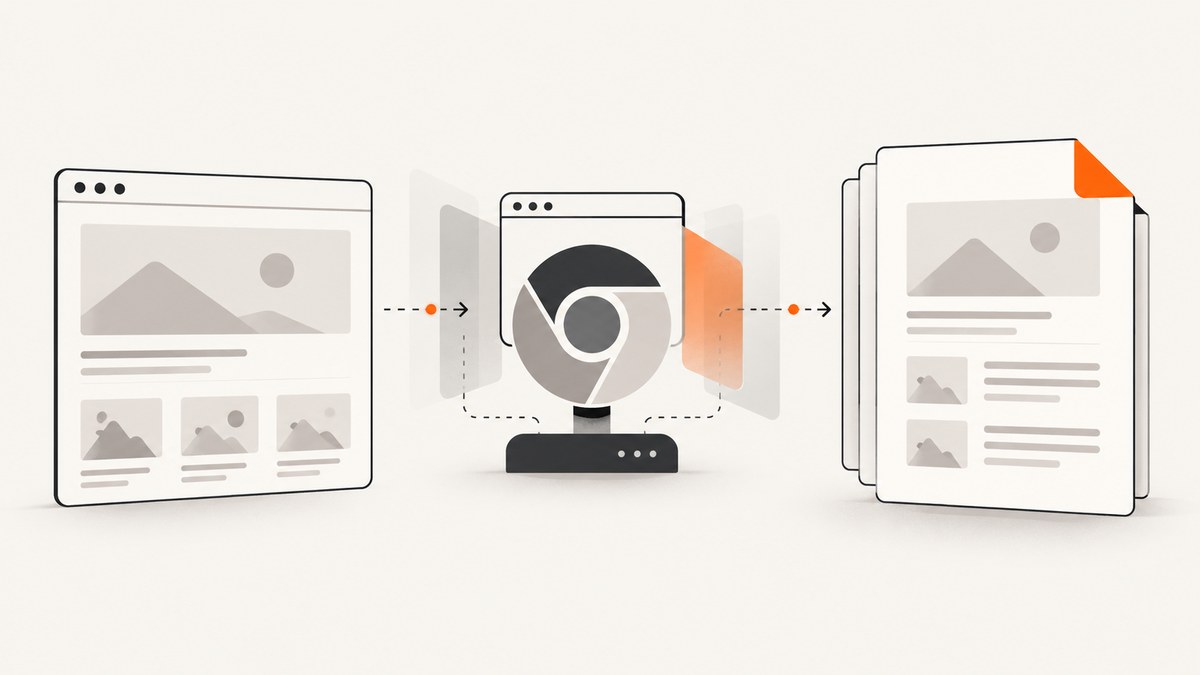
Direct answer: run ChromeDriver in headless Chromium, navigate to the page, call Selenium 4’s print_page() with PrintOptions, base64-decode the returned value, and write the bytes to a .pdf file. For Chrome-only controls such as print backgrounds, header and footer templates, CSS page-size preference, or tagged PDFs, send Chrome DevTools Protocol’s Page.printToPDF through Selenium’s CDP bridge.
This guide covers setup, page-size and margin controls, dynamic pages, Java and Python examples, failure diagnosis, and an API option when maintaining a browser fleet is unnecessary.
1. Prerequisites and compatibility
- Install Selenium 4, Chrome or Chromium, and a writable output directory.
- Use a ChromeDriver major version matching the installed Chrome major version. See Selenium’s Chrome WebDriver documentation.
- Run Chromium headless. Selenium’s print page documentation states that printing the current page requires a Chromium browser in headless mode.
- Install fonts used by the document, especially in Linux containers. Missing fonts change line wrapping and pagination.
Selenium Manager can discover a driver in current releases. In locked-down CI, pin Chrome and ChromeDriver yourself so an unattended browser update cannot change pagination.
2. Minimal Python implementation
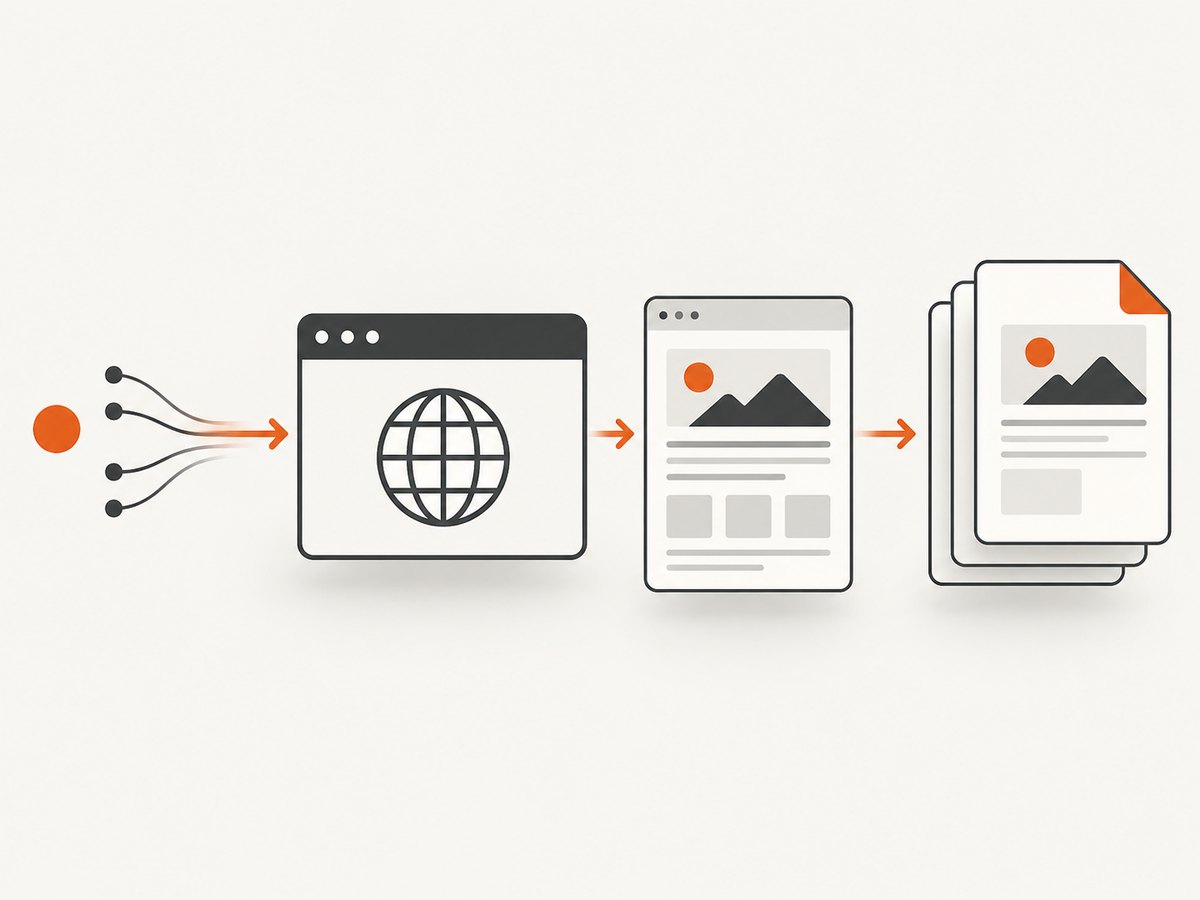
The high-level API is the normal path. Selenium returns a base64-encoded PDF string in Python; decode it before writing.
import base64
from selenium import webdriver
from selenium.webdriver.chrome.options import Options
from selenium.webdriver.common.print_page_options import PrintOptions

options = Options()
options.add_argument('--headless=new')
options.add_argument('--no-sandbox')
options.add_argument('--disable-dev-shm-usage')

driver = webdriver.Chrome(options=options)
try:
    driver.get('https://example.com')

    print_options = PrintOptions()
    print_options.orientation = 'portrait'
    print_options.page_ranges = ['1-3']

    pdf_base64 = driver.print_page(print_options)
    with open('page.pdf', 'wb') as output:
        output.write(base64.b64decode(pdf_base64))
finally:
    driver.quit()
print_page prints the current browsing context. It does not take a URL itself, so navigation, authentication, waits, and cookie handling happen before the call.
3. Wait for deterministic content
driver.get() waits for the navigation load event, but single-page applications often continue rendering afterward. Wait for a meaningful application condition instead of guessing with a long sleep.
from selenium.webdriver.common.by import By
from selenium.webdriver.support.ui import WebDriverWait

WebDriverWait(driver, 30).until(
    lambda d: d.find_element(By.CSS_SELECTOR, '[data-pdf-ready="true"]')
)

WebDriverWait(driver, 30).until(
    lambda d: d.execute_script('return document.readyState') == 'complete'
)
For charts, images, and web fonts, add an application-specific readiness marker after those resources finish. If you control the page, expose data-pdf-ready; it is more reliable than a fixed delay. You may also wait for network idle in your own harness, but the print call itself does not guarantee that late JavaScript has stopped.
4. Chrome DevTools Protocol: Page.printToPDF
Use CDP when the high-level Selenium options do not expose a setting you need. The command is Chrome-specific; Selenium provides the transport through execute_cdp_cmd. See the Selenium Python API and Chrome Page.printToPDF reference.
import base64
from selenium import webdriver
from selenium.webdriver.chrome.options import Options

options = Options()
options.add_argument('--headless=new')
driver = webdriver.Chrome(options=options)
try:
    driver.get('https://example.com')
    result = driver.execute_cdp_cmd('Page.printToPDF', {
        'printBackground': True,
        'displayHeaderFooter': False,
        'preferCSSPageSize': True,
        'paperWidth': 8.27,
        'paperHeight': 11.69,
        'marginTop': 0.4,
        'marginBottom': 0.4,
        'marginLeft': 0.4,
        'marginRight': 0.4,
        # 'pageRanges': '1-3',
    })
    with open('page.pdf', 'wb') as output:
        output.write(base64.b64decode(result['data']))
finally:
    driver.quit()
Important CDP options
| Option | Effect |
|---|---|
landscape |
Rotates output orientation. |
paperWidth, paperHeight |
Paper dimensions in inches. |
marginTop, marginBottom, marginLeft, marginRight |
Margins in inches; larger margins reduce printable width. |
printBackground |
Includes CSS background colors and images; this can increase file size. |
preferCSSPageSize |
Honors @page size rules instead of scaling to supplied paper dimensions. |
displayHeaderFooter |
Enables Chrome header and footer templates. |
headerTemplate, footerTemplate |
HTML snippets with Chrome placeholders such as page number and title. Use inline styles. |
scale |
Scales content; shrinking can avoid an extra page but reduces readability. |
pageRanges |
Prints ranges such as 1-3,5. |
generateTaggedPDF, generateDocumentOutline |
Requests accessibility tags or an outline where supported by the installed Chrome. |
Use print CSS to control breaks and remove screen-only controls:
@page {
  size: A4;
  margin: 16mm;
}

@media print {
  .screen-only { display: none !important; }
  h1, h2 { break-after: avoid; }
  .card { break-inside: avoid; }
}
Choose either CSS-driven sizing with preferCSSPageSize: true or explicit CDP paper dimensions and verify the result. Combining both can produce unexpected scaling.
5. Java implementation choices
Java’s Selenium DevTools binding exposes orientation, backgrounds, scale, dimensions, margins, ranges, templates, transfer mode, tagged PDFs, and outlines. Use the portable PrintsPage/PrintOptions API for a basic document, or CDP for Chrome-specific fields.
ChromeOptions options = new ChromeOptions();
options.addArguments("--headless=new");
ChromeDriver driver = new ChromeDriver(options);
try {
    driver.get("https://example.com");
    PdfPrintOptions print = new PdfPrintOptions.Builder()
        .withLandscape(false)
        .withPrintBackground(true)
        .withPreferCssPageSize(true)
        .withPaperWidth(8.27)
        .withPaperHeight(11.69)
        .withMarginTop(0.4)
        .withMarginBottom(0.4)
        .withMarginLeft(0.4)
        .withMarginRight(0.4)
        .build();
    String pdf = driver.print(print);
    Files.write(Path.of("page.pdf"), Base64.getDecoder().decode(pdf));
} finally {
    driver.quit();
}
Exact Java class names vary with Selenium version; consult the versioned Selenium Java API for the PrintsPage interface and DevTools Page.printToPDF command before compiling.
6. Authentication, cookies, and preparation
- Navigate to the origin before adding cookies; WebDriver only permits cookies for the current domain.
- Set cookies or an Authorization header, refresh, then wait for an authenticated-content marker.
- Close consent dialogs and overlays with a targeted click or script when they cover document content.
- Keep print CSS in the application. Hiding sticky navigation and chat controls in
@media printis more stable than editing PDF bytes afterward.
driver.get('https://example.com')
driver.add_cookie({'name': 'session', 'value': 'TOKEN', 'secure': True})
driver.refresh()
WebDriverWait(driver, 30).until(
    lambda d: d.find_element(By.CSS_SELECTOR, '[data-user-menu]')
)
Do not put credentials in URLs that may appear in logs. Clear the profile or quit the driver after each job when handling private documents.
7. Troubleshooting
| Symptom | Cause | Fix |
|---|---|---|
unknown command: Page.printToPDF |
Non-Chromium driver or incompatible browser. | Use Chrome/Chromium in headless mode and CDP only there; otherwise use Selenium’s portable API. |
| Blank or half-rendered PDF | Printing occurred before SPA data, images, or fonts finished. | Wait for an application readiness selector and verify image/font loading. |
| Chrome fails in CI | Sandbox or shared-memory restrictions. | Use container-compatible flags such as --no-sandbox and --disable-dev-shm-usage where policy allows, and allocate enough memory. |
| Margins or page size ignored | CSS @page rules override explicit dimensions, or CSS preference is disabled. |
Choose one sizing strategy and set preferCSSPageSize deliberately. |
| Backgrounds missing | Background printing is disabled. | Set printBackground: True in CDP and inspect print CSS. |
| Layout differs between machines | Different Chrome versions, fonts, locale, or scale. | Pin versions, install fonts, set locale/timezone, and compare PDFs in CI. |
| Unexpected extra page | Content exceeds printable height, margins are large, or a block cannot break. | Inspect print CSS, reduce margins or scale slightly, and use break-inside selectively. |
| Driver disconnects | Browser crash, timeout, or resource exhaustion. | Limit concurrent sessions, capture ChromeDriver logs, set timeouts, and retry idempotent jobs with a fresh session. |
8. Performance, reliability, and cost
A new Chrome process costs more than a plain HTTP request. Reuse a driver for a controlled batch, reset state between jobs, and cap batch length so memory leaks do not accumulate. Set navigation and readiness timeouts, stream bytes to storage, and record Chrome, ChromeDriver, Selenium, URL, options, and a content hash for reproducibility.
PDF size grows with embedded images and printed backgrounds. Disable backgrounds when they are not part of the document, avoid analytics and video on a print route, and use print-specific image sizes. Parallel sessions improve throughput until CPU, memory, or network saturation; measure queue time and failure rate before increasing concurrency.
Selenium and Chrome have no per-document API charge, but you pay in compute, browser maintenance, storage, and engineering time. A managed capture API can be useful when jobs are bursty or you need consistent cleanup of overlays and failed pages.
9. Or skip the browser setup
ScreenshotNeo provides a website capture API with PDF mode, so your application can make one request instead of provisioning ChromeDriver. Read the complete parameter reference in the ScreenshotNeo docs.
curl -G "https://api.screenshotneo.com/v1/shot" \
  -d access_key=YOUR_API_KEY \
  --data-urlencode url=https://stripe.com \
  -d format=pdf \
  -o page.pdf
import requests
r = requests.get(
"https://api.screenshotneo.com/v1/shot",
params={"access_key": "YOUR_API_KEY", "url": "https://stripe.com", "format": "pdf"},
timeout=90,
)
r.raise_for_status()
open("page.pdf", "wb").write(r.content)const q = new URLSearchParams({
access_key: 'YOUR_API_KEY',
url: 'https://stripe.com',
format: 'pdf'
});
const res = await fetch(`https://api.screenshotneo.com/v1/shot?${q}`);
if (!res.ok) throw new Error(`${res.status} ${await res.text()}`);
const fs = await import('node:fs/promises');
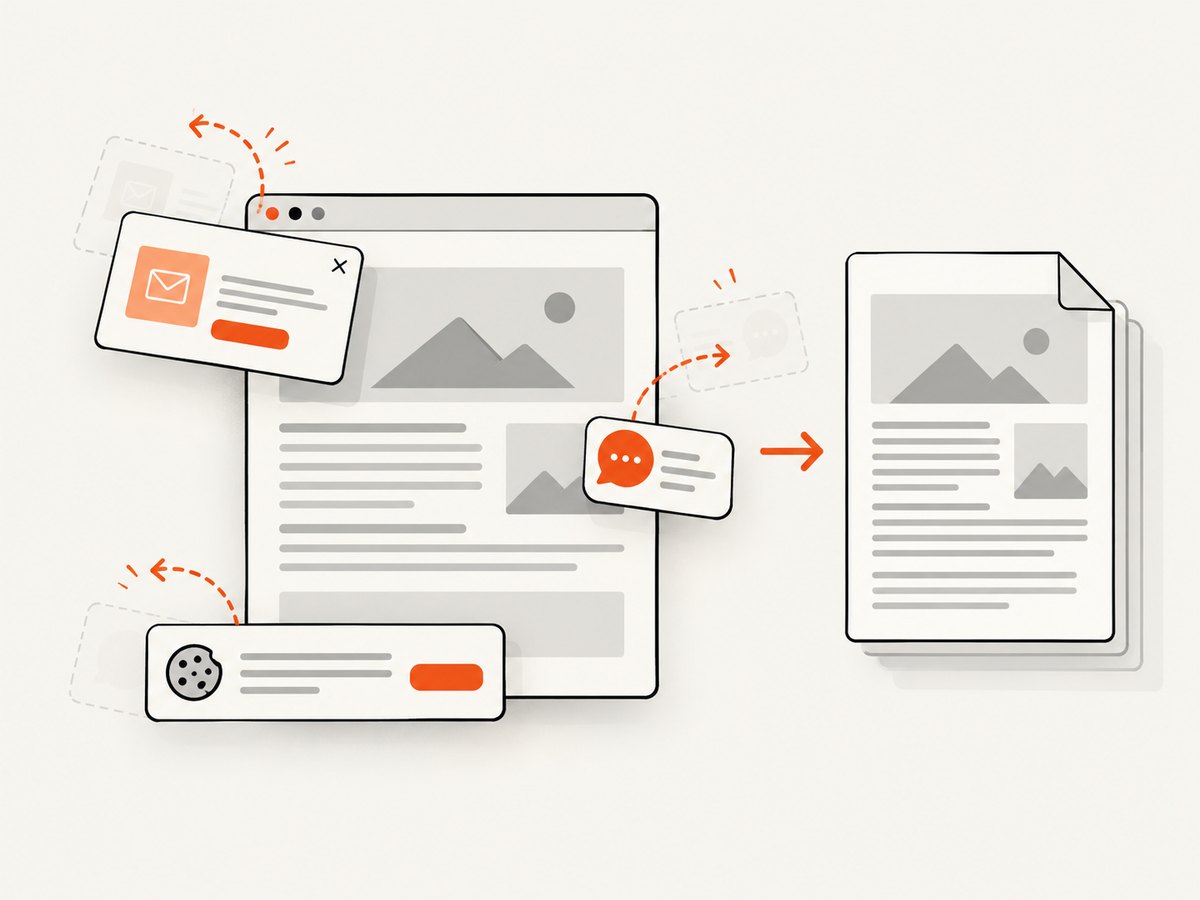
await fs.writeFile('page.pdf', Buffer.from(await res.arrayBuffer()));ScreenshotNeo can load lazy images, set paper size, margins, orientation and page ranges, and apply custom CSS or JavaScript. It can wait for a selector, delay, or network idle; set headers, cookies, user agent, Authorization, timezone, and geolocation; block ads, trackers, requests, or resource types; cache with a TTL; create signed links; run asynchronous jobs with signed webhooks; capture up to 100 URLs per bulk call; and expose usage and OpenAPI endpoints. Its clean-shot steps accept consent banners and remove more than 60 known consent platforms, newsletter popups, and chat widgets, with each step switchable.
Only clean shots are billed. Bot checks or CAPTCHAs, blank pages, timeouts, failed loads, and cache hits cost nothing, and X-Page-Verdict and X-Billed headers say what happened. An MCP server offers take_screenshot, get_page_info, and capture_pdf tools to Claude, Cursor, and other MCP clients. The Free plan includes 1,000 shots each month with no card; paid plans start at $5 for 3,000 shots, and every feature is on every plan. Create a free ScreenshotNeo account.
10. Short FAQ
Does Selenium create a real PDF or an image?
It creates PDF bytes from Chromium’s print pipeline, preserving selectable text where the page renders text.
Can I print selected pages?
Yes. Set page_ranges in Selenium’s print options or pageRanges in CDP, using ranges such as 1-3,5.
Why is headless mode required?
Selenium’s documented Chromium workflow requires headless mode for printing the current page.
Should every job use CDP?
No. Start with print_page; choose CDP for Chrome-specific templates, tags, outlines, or precise paper controls.
How do I improve accessibility?
Use semantic HTML and headings, preserve document order, and request tagged PDF generation through the Chrome DevTools option when supported by your Chrome version.


