How to Click a Button Only Clickable in Its Bottom Half with Selenium
Fix Selenium clicks that miss the working area: measure the element, target its clickable child, use pointer offsets, and handle overlays safely.
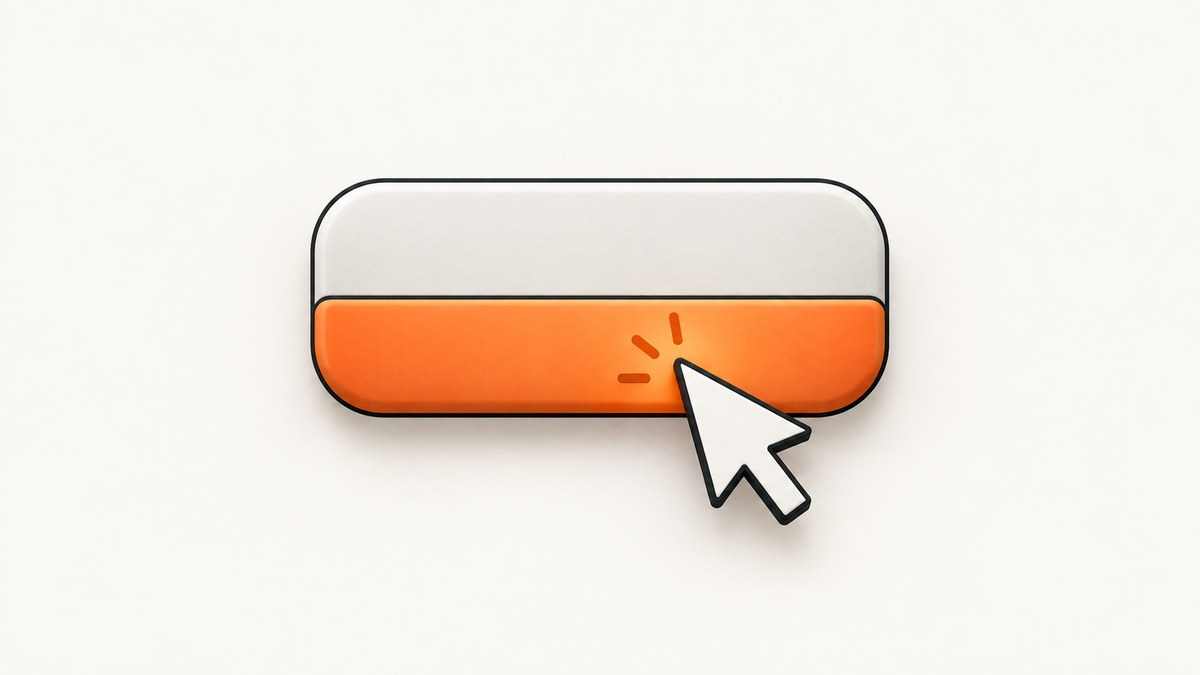
Selenium normally clicks the middle of an element’s first client rectangle. If only the lower part of a button responds, the center may be outside the real hit-testable region, a child element may own the event, or an overlay may be intercepting the point.
The reliable order is:
- Inspect which DOM node actually receives the click.
- Measure the rendered rectangle with
getBoundingClientRect(). - Check for fixed headers, footers, consent banners, modals, and animations.
- Click the real child element when one exists.
- Otherwise use a Selenium pointer offset aimed at the lower clickable band.
- Use JavaScript
click()only when you intentionally want programmatic activation instead of real pointer hit-testing.
Why Selenium misses the working part of the button
ChromeDriver simulates a mouse click in the middle of the element’s first client rectangle (or its bounding client rectangle when there is no first client rectangle). That midpoint is not guaranteed to be inside the shape or child that handles the event. A button can therefore work for a human clicking low on its surface while Selenium reports that the element is not clickable at the calculated point.
Common causes include:
- A nested
span,img, or link receives the event, while the parent’s center is outside that child. - A transparent or positioned element covers the center.
- A fixed header, footer, cookie banner, chat widget, or modal appears after Selenium scrolls the target into view.
- The target is moving because of an animation, lazy layout, font swap, or loading state.
- The visible shape is clipped or non-rectangular, so its geometric center is not clickable.
1. Inspect the real click target
In browser developer tools, inspect the button and watch the event target while clicking the working lower area. Look for a nested control or an overlay. You can also log the element under a point:
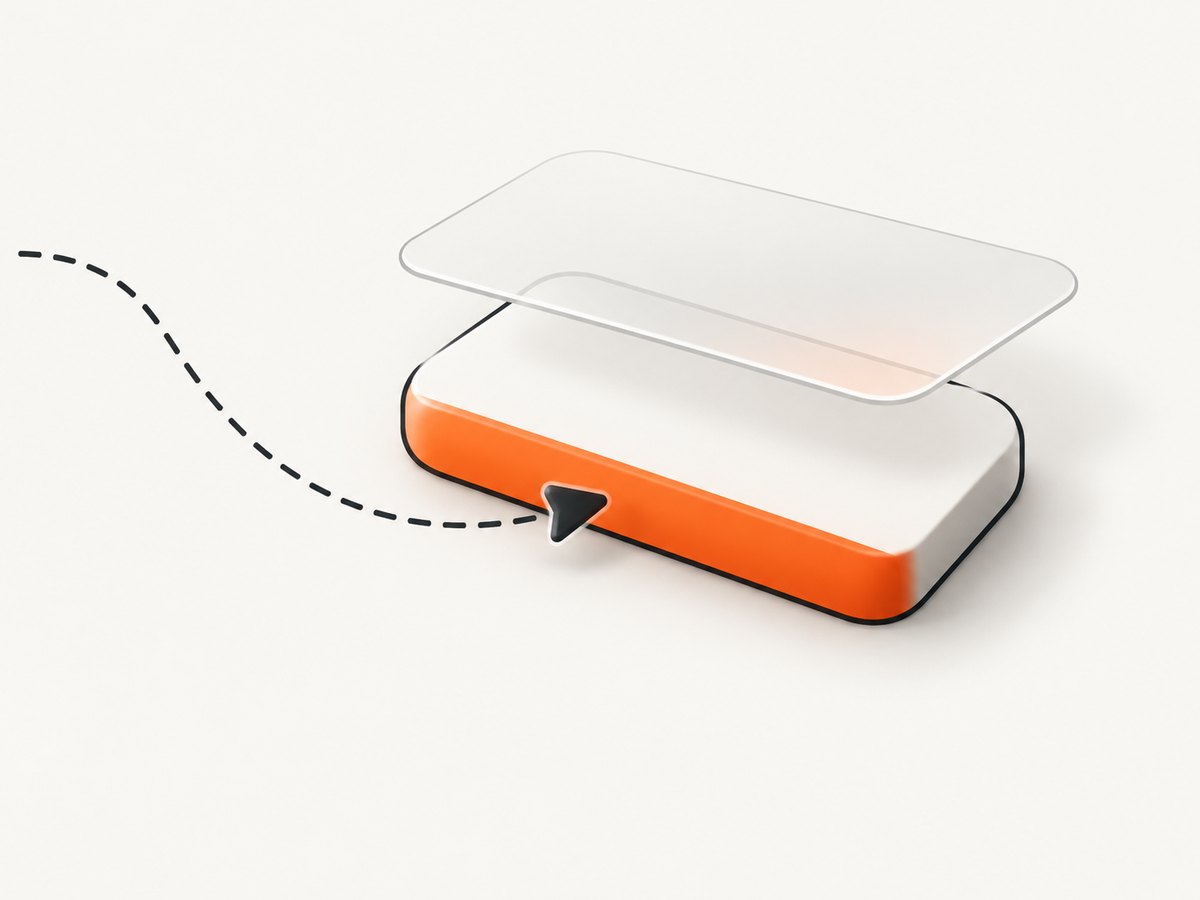
const r = document.querySelector('button#target').getBoundingClientRect();
const x = r.left + r.width / 2;
const y = r.top + r.height * 0.8;
console.log(document.elementFromPoint(x, y));
If that returns a child element, use a selector for the child. This is usually more stable than coordinates because it follows the DOM’s intended interaction model.
from selenium.webdriver.common.by import By

click_target = driver.find_element(By.CSS_SELECTOR, "button#target span.label")
click_target.click()
2. Measure the button and click its lower band
When the parent is the correct node but only its lower portion is hit-testable, calculate an offset from its rendered dimensions instead of guessing a screen coordinate.
Python
from selenium.webdriver.common.action_chains import ActionChains
from selenium.webdriver.common.by import By
from selenium.webdriver.support.ui import WebDriverWait
from selenium.webdriver.support import expected_conditions as EC

button = WebDriverWait(driver, 10).until(
    EC.presence_of_element_located((By.CSS_SELECTOR, "button#target"))
)

rect = driver.execute_script(
    "return arguments[0].getBoundingClientRect();", button
)

# Choose a point 30% down from the element's in-view center.
x_offset = 0
y_offset = int(rect["height"] * 0.30)

ActionChains(driver).move_to_element_with_offset(
    button, x_offset, y_offset
).click().perform()
Offset semantics differ between Selenium bindings and versions. The Python API above uses move_to_element_with_offset; verify how your binding defines the origin. Selenium’s mouse-actions documentation describes moving to an element and then by the supplied pixel offset, while Java’s moveToElement(element, xOffset, yOffset) is documented as offset from the element’s top-left corner. Keep the calculation tied to the measured rectangle and test at the viewport sizes you support.
Java
WebElement button = driver.findElement(By.cssSelector("button#target"));

new Actions(driver)
    .moveToElement(button, 0, 20)
    .click()
    .perform();
Replace 20 with an offset derived from the element’s measured height and the known clickable band. Avoid hard-coded page coordinates: browser zoom, viewport size, responsive CSS, and device scale can change them.
3. Make scrolling and overlays deterministic
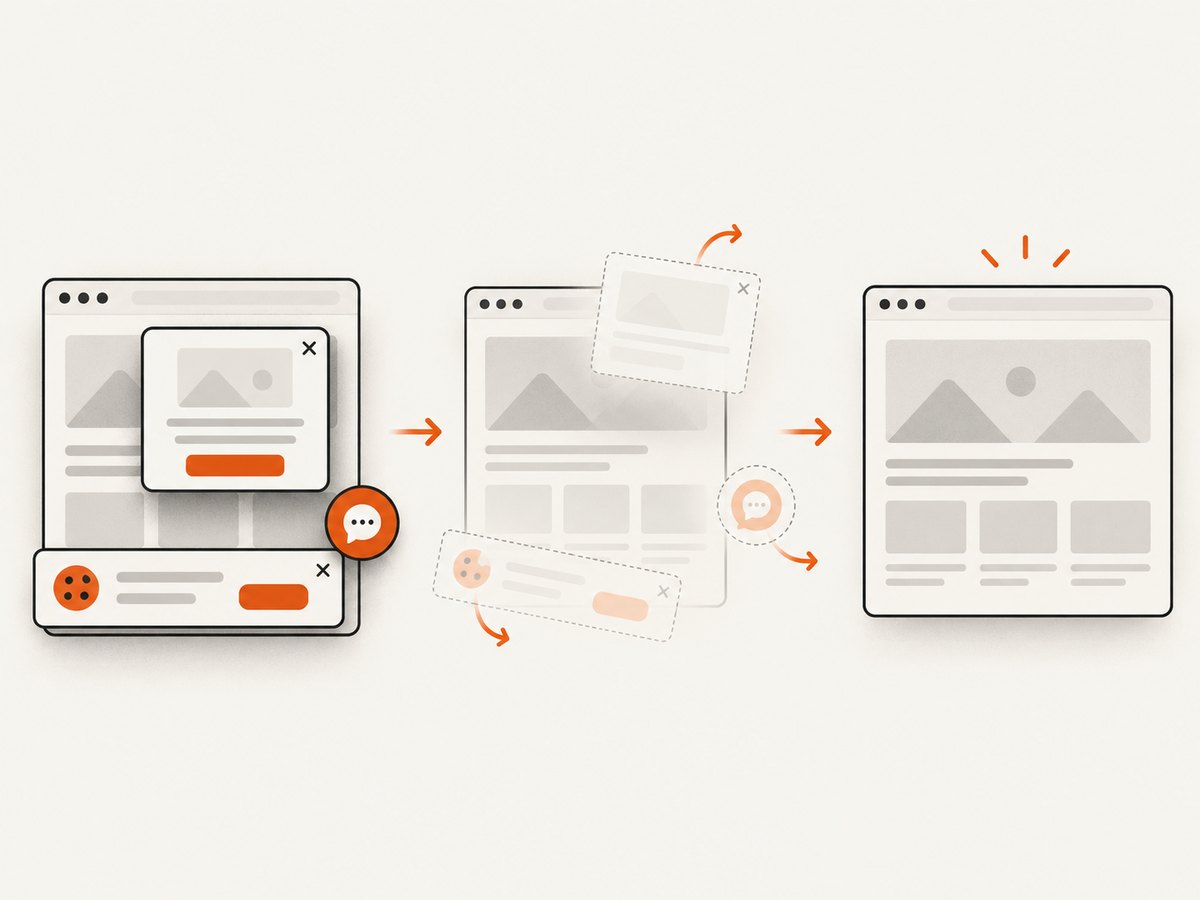
Selenium may scroll an element beneath a fixed header or footer before clicking. A consent banner, modal, or chat widget can then receive the pointer event. Reproduce the application’s intended test state by dismissing or removing that overlay, or scroll the target to a safe position.
driver.execute_script(
    "arguments[0].scrollIntoView({block: 'center', inline: 'nearest'});",
    button,
)
After scrolling, re-read getBoundingClientRect(); do not reuse coordinates captured before the scroll. If an overlay is expected, wait for it to disappear before measuring:
WebDriverWait(driver, 10).until(
    EC.invisibility_of_element_located((By.CSS_SELECTOR, ".cookie-banner"))
)
4. Wait for a stable layout
ChromeDriver does not guarantee a successful click while an element is moving. Wait for the state that makes the control stable, then measure and click in the same step. Useful signals include an enabled attribute, a loading class disappearing, a known animation ending, or a stable position sampled twice.
import time

first = driver.execute_script(
    "const r=arguments[0].getBoundingClientRect(); return [r.left,r.top,r.width,r.height];",
    button,
)
time.sleep(0.1)
second = driver.execute_script(
    "const r=arguments[0].getBoundingClientRect(); return [r.left,r.top,r.width,r.height];",
    button,
)
if first != second:
    raise RuntimeError("button is still moving")
5. JavaScript click: useful fallback, different behavior
driver.execute_script("arguments[0].click()", button)This invokes the DOM click handler without sending a real pointer through browser hit-testing. It can be appropriate when the behavior under test is programmatic activation. It does not prove that a user could click the lower band, so prefer a child selector or pointer offset for end-to-end interaction tests.
Choosing an approach
| Approach | Pointer fidelity | Layout dependence | Best use |
|---|---|---|---|
| Click the nested child | High | Low | The DOM identifies the true clickable node |
| Pointer offset | High | Medium | The parent is correct but only a region responds |
| Scroll and remove overlay | High | Medium | A fixed element intercepts the point |
JavaScript click() |
Low | Low | Testing deliberate programmatic activation |
Complete Python example
from selenium import webdriver
from selenium.webdriver.common.by import By
from selenium.webdriver.common.action_chains import ActionChains
from selenium.webdriver.support.ui import WebDriverWait
from selenium.webdriver.support import expected_conditions as EC

options = webdriver.ChromeOptions()
options.add_argument("--window-size=1280,900")
driver = webdriver.Chrome(options=options)

try:
    driver.get("https://example.com/form")
    wait = WebDriverWait(driver, 15)
    button = wait.until(EC.element_to_be_clickable((By.CSS_SELECTOR, "button#target")))

    driver.execute_script(
        "arguments[0].scrollIntoView({block: 'center', inline: 'nearest'});",
        button,
    )
    rect = driver.execute_script(
        "return arguments[0].getBoundingClientRect();", button
    )

    # Adjust this fraction to the verified lower clickable band.
    x_offset = 0
    y_offset = int(rect["height"] * 0.30)
    ActionChains(driver).move_to_element_with_offset(
        button, x_offset, y_offset
    ).click().perform()
finally:
    driver.quit()
Troubleshooting checklist
| Symptom | Likely cause | Fix |
|---|---|---|
ElementClickInterceptedException |
Overlay or fixed element covers the point | Inspect elementFromPoint, dismiss the overlay, and scroll to the center |
ElementNotInteractableException |
Hidden, disabled, zero-size, or off-screen element | Wait for visibility and enabled state; inspect computed style and dimensions |
| Click works only at the bottom | Child owns the event or center is outside the hit area | Select the child or use a measured pointer offset |
| Offset works locally but fails in CI | Different viewport, zoom, device scale, or responsive layout | Set a known window size and calculate offsets from the current rectangle |
| Intermittent failures | Animation or layout shift | Wait for a stable position and re-measure immediately before clicking |
| JavaScript click passes but user click fails | DOM activation bypassed hit-testing | Use Actions or the clickable child for a realistic test |
Performance, reliability, and maintenance
- Prefer semantic child selectors over repeated coordinate retries; they survive spacing and viewport changes better.
- Use explicit waits for state changes instead of long sleeps. A short stability check is safer than clicking while layout is moving.
- Keep viewport, zoom, and device scale consistent in CI, but still compute offsets from live geometry.
- Log the rectangle, chosen offset, and
elementFromPointresult when a click fails. This turns a visual symptom into actionable evidence. - Do not hide a product bug by adding JavaScript clicks unless programmatic activation is the behavior you intend to test.
Or skip the browser setup
If your goal is to capture the resulting page rather than test pointer hit-testing, ScreenshotNeo returns a screenshot or PDF through one request. It accepts consent banners like a visitor and removes more than 60 known consent platforms, newsletter popups, and chat widgets before capture. Bot checks, blank pages, timeouts, failed loads, and cache hits are not billed, and response headers identify the page verdict and billing status. Its MCP server lets Claude, Cursor, and other MCP clients call take_screenshot, get_page_info, and capture_pdf.
See the ScreenshotNeo API documentation for all options.
cURL
curl -G "https://api.screenshotneo.com/v1/shot" -d access_key=YOUR_API_KEY --data-urlencode url=https://stripe.com -o shot.webpPython
import requests
r = requests.get("https://api.screenshotneo.com/v1/shot", params={"access_key": "YOUR_API_KEY", "url": "https://stripe.com"}, timeout=90)
open("shot.webp", "wb").write(r.content)
Node.js
const q = new URLSearchParams({ access_key: 'YOUR_API_KEY', url: 'https://stripe.com' });
const res = await fetch(`https://api.screenshotneo.com/v1/shot?${q}`);
Every plan includes the features: 1,000 screenshots per month are free with no card, Starter is $5 for 3,000, and paid plans start at $5. Create a free ScreenshotNeo account.
FAQ
Should I offset from the top-left or the center?
That depends on the Selenium binding. Check its API documentation, then derive the value from the current rectangle and verify the actual point with elementFromPoint.
Can CSS make only the bottom half clickable?
Yes. Clipping, masks, positioned children, pseudo-elements, and overlays can make the visual center differ from the hit-testable region.
Why does a normal element.click() sometimes pass?
Bindings may scroll or calculate a point differently, and JavaScript-style element clicks can bypass pointer hit-testing. Confirm which interaction your test is exercising.
How do I test the exact lower boundary?
Measure the rectangle, sample several points with elementFromPoint, and choose a point inside the verified region with a small safety margin from its edge.


