Selenium Click Command: Complete Guide
Learn how Selenium’s click command works, write reliable clicks in Python, Java, and JavaScript, and fix intercepted or non-interactable clicks.
Selenium’s click command is usually simple: locate the interactive element, then call its click() method. Selenium scrolls an out-of-view element into view and clicks its center. If that center is covered, the click can fail with an intercepted-click error. A visibility-and-enabled wait helps, but cannot guarantee an overlay will not appear before the click.
This guide covers the WebDriver element click in Python, Java, and JavaScript, explicit waits, the Actions API, common failures, and ways to make click-dependent tests more reliable.
1. What Selenium’s click command does
click() is a command on a located WebElement. The usual sequence is: locate the intended control, then invoke its click method. Selenium’s high-level interaction flow scrolls an element outside the viewport into view, aligning its bottom with the viewport bottom, and checks that it is interactable. The click targets the center of the element. If another element obscures that point, Selenium may raise an element-click-intercepted error. [Selenium element interactions]
These details explain why “the element exists” is not enough. A matching node might be hidden, disabled, a non-interactive wrapper, or one of several duplicates. A sticky header, modal, popup, or animation can also cover the point Selenium intends to click. [Selenium troubleshooting]
Basic sequence
- Choose a locator for the actual button, link, checkbox, or other intended control.
- Find the element using the language binding’s WebDriver API.
- Wait for the needed page state when the application renders asynchronously.
- Call the element’s
click()method. - Verify the resulting state explicitly; do not assume the click means navigation or asynchronous work has finished.
2. Runnable Python example with an explicit wait
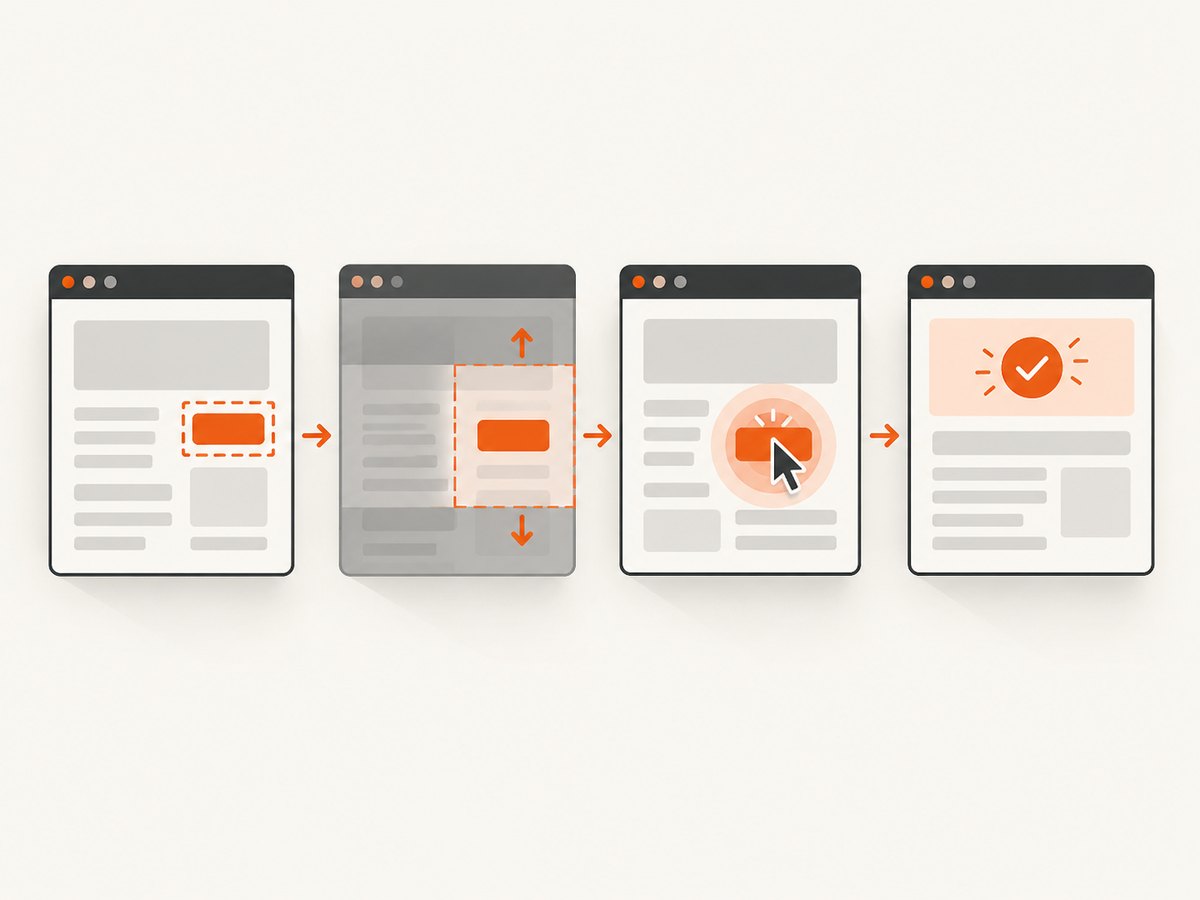
Install Selenium with python -m pip install selenium. This example opens a page, waits for a button to be visible and enabled, clicks it, and then waits for a result element. Replace the URL and CSS selectors with those from your application.
from selenium import webdriver
from selenium.webdriver.common.by import By
from selenium.webdriver.support.ui import WebDriverWait
from selenium.webdriver.support import expected_conditions as EC

options = webdriver.ChromeOptions()
# Uncomment to run without opening a visible browser window.
# options.add_argument("--headless=new")

driver = webdriver.Chrome(options=options)
wait = WebDriverWait(driver, 15)

try:
    driver.get("https://www.selenium.dev/selenium/web/web-form.html")
    submit = wait.until(
        EC.element_to_be_clickable((By.CSS_SELECTOR, "button"))
    )
    submit.click()

    # Verify the page's resulting state rather than assuming click() waits
    # for all application work to finish.
    result = wait.until(
        EC.visibility_of_element_located((By.ID, "message"))
    )
    print(result.text)
finally:
    driver.quit()
The Python expected condition element_to_be_clickable checks that an element is visible and enabled, then returns it. It is a useful precondition, not a guarantee against a separate overlay appearing between the wait and click. [Selenium Python expected conditions]
Locator choices
By.IDis a good choice when the page has a stable, unique ID.By.CSS_SELECTORis useful for a specific button or control, such asbutton[type='submit'].By.NAMEcan target form controls with stable name attributes.By.XPATHcan express relationships, but avoid selectors tied to fragile page structure when a semantic attribute is available.
If a locator matches multiple elements, narrow it until it identifies the intended interactive node. A button-looking wrapper or hidden duplicate can exist alongside the real control.
3. Java and JavaScript click examples
Java
With Selenium’s Java binding and a compatible browser driver available, an explicit wait can guard the click. Add the Selenium Java dependency using your project’s build system.
import java.time.Duration;
import org.openqa.selenium.By;
import org.openqa.selenium.WebDriver;
import org.openqa.selenium.WebElement;
import org.openqa.selenium.chrome.ChromeDriver;
import org.openqa.selenium.support.ui.ExpectedConditions;
import org.openqa.selenium.support.ui.WebDriverWait;

public class ClickExample {
    public static void main(String[] args) {
        WebDriver driver = new ChromeDriver();
        try {
            driver.get("https://www.selenium.dev/selenium/web/web-form.html");
            WebDriverWait wait = new WebDriverWait(driver, Duration.ofSeconds(15));
            WebElement submit = wait.until(
                ExpectedConditions.elementToBeClickable(By.cssSelector("button"))
            );
            submit.click();
            wait.until(ExpectedConditions.visibilityOfElementLocated(By.id("message")));
        } finally {
            driver.quit();
        }
    }
}
JavaScript
Install the JavaScript package with npm install selenium-webdriver. This async example waits for visibility and enabled state before clicking, then waits for the expected result.
const { Builder, By, until } = require('selenium-webdriver');

(async function clickExample() {
  const driver = await new Builder().forBrowser('chrome').build();
  try {
    await driver.get('https://www.selenium.dev/selenium/web/web-form.html');
    const button = await driver.findElement(By.css('button'));
    await driver.wait(until.elementIsVisible(button), 15000);
    await driver.wait(until.elementIsEnabled(button), 15000);
    await button.click();
    await driver.wait(until.elementLocated(By.id('message')), 15000);
  } finally {
    await driver.quit();
  }
})();
In all bindings, treat the click and the application outcome as separate events. Wait for a changed URL, a confirmation element, a completed status, or another observable condition relevant to the test. The exact navigation-wait behavior can vary by binding and page-loading strategy, so check the API for the Selenium version and language you use.
4. Wait for the right condition
A fixed sleep pauses for a duration whether the page is ready or not. An explicit wait polls for a meaningful condition and proceeds when it becomes true, up to a timeout. Prefer a condition tied to the intended interaction or resulting page state.
| Need | Useful condition | Limit |
|---|---|---|
| Element exists in DOM | Presence / element located | May still be hidden or disabled |
| Element can be seen | Visibility | May still be disabled or covered |
| Element is enabled and visible | Clickable condition (Python) or equivalent checks | An overlay may still intercept the center |
| Click produced expected outcome | Wait for changed URL, message, or state | Choose an application-specific signal |
Wait for a known obstructing modal or loading layer to disappear when one is expected. If the page rerenders after a wait, locate the target again rather than continuing with an old element reference.
5. When to use the Actions API
For a normal click on a single located element, use element.click(). Selenium’s Actions API is a lower-level interface for granular virtual pointer, keyboard, and wheel inputs. Use it when the test calls for a deliberate sequence such as moving to a target, pausing, holding a button, or combining pointer and key input. [Selenium Actions API]
// Java: a deliberate pointer sequence, for example hover then click
new Actions(driver)
    .moveToElement(element)
    .pause(Duration.ofMillis(300))
    .click()
    .perform();
Actions do not make an obscured target valid by themselves. Diagnose the page state and the hit target first. Avoid replacing every routine click with a longer input sequence; extra steps make the interaction harder to reason about and can add timing sensitivity.
6. Troubleshooting common click errors
| Error or symptom | Likely cause | Practical fix |
|---|---|---|
ElementClickInterceptedException |
Another element covers the target center: for example a sticky nav, modal, popup, or animation. | Wait for the obstruction or animation to clear. Recheck or relocate the target, then click. |
ElementNotInteractableException |
The node is hidden, disabled, outside a usable state, or the locator selected a wrapper instead of the control. | Inspect the matched element and target the visible interactive control. Wait for visibility and enabled state. |
| Click runs against the wrong item | The locator matches a duplicate, hidden template, or adjacent element. | Make the selector more specific and assert the target’s identifying text or attributes. |
| Element not found | The page has not rendered it yet, navigation is incomplete, or the locator is incorrect. | Wait for presence where appropriate, validate the selector, and confirm the expected frame or page. |
| Click succeeds but test fails immediately after | The application’s async update or navigation has not reached the asserted state. | Wait for the outcome, such as a confirmation, changed URL, or completed state. |
| Stale element reference | The DOM changed and replaced the element after it was located. | Wait for the new page state and find the element again; avoid retaining references across rerenders. |
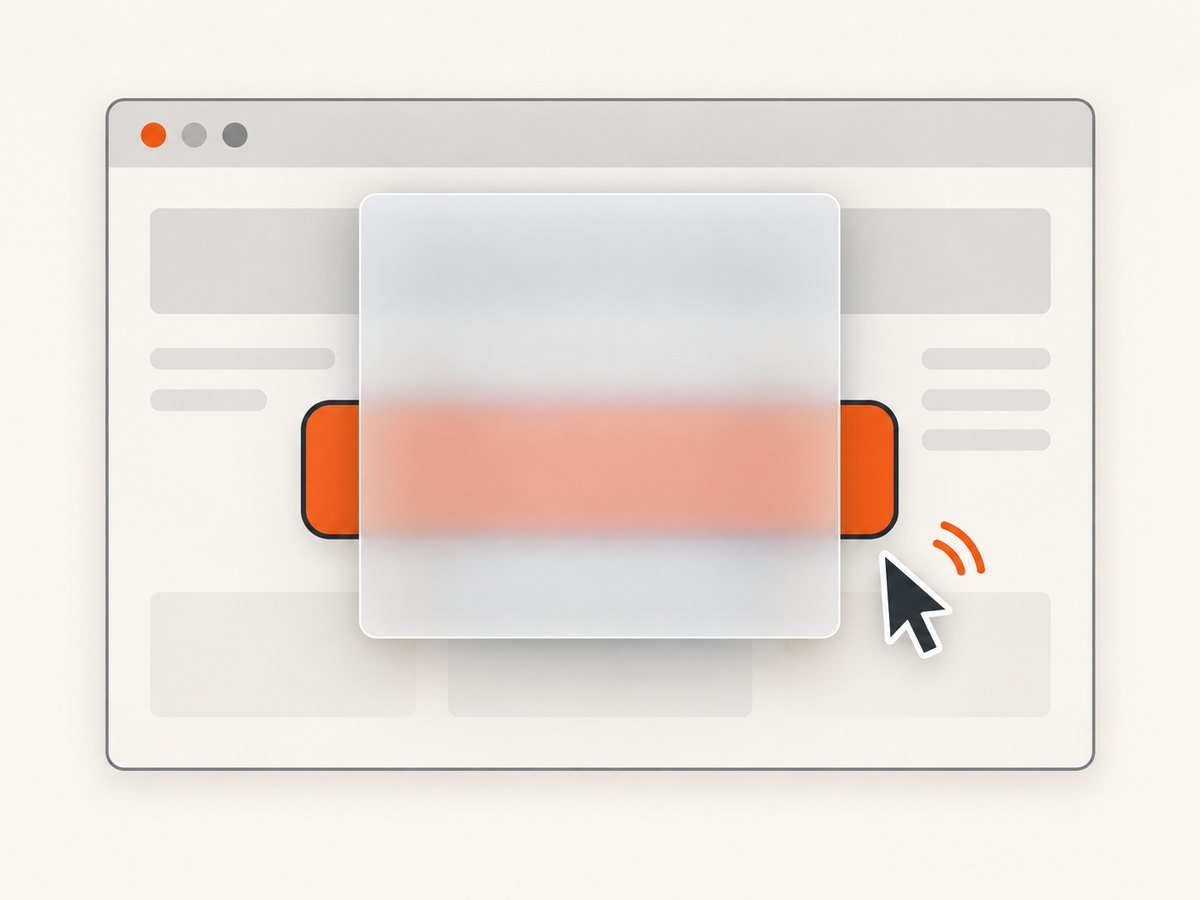
Selenium’s troubleshooting reference describes hidden elements, unsupported targets, multiple matches, and off-viewport conditions among causes of non-interactability. For intercepted clicks, inspect what occupies the point Selenium is trying to hit. [Selenium error guidance]
Debugging checklist
- Confirm the locator identifies the intended control, not a parent container or duplicate.
- Check that the element is visible and enabled at click time.
- Look for overlays, sticky bars, dialogs, cookie banners, and animations above the target.
- Wait for the obstructing state to end, then reacquire the element.
- After clicking, wait for a meaningful result instead of relying on an arbitrary pause.
7. Reliability, performance, and cost notes
Reliable click tests use specific locators, condition-based waits, and outcome assertions. Keep each wait bounded, with a timeout chosen for the application and test environment. A timeout that is too short creates intermittent failures under load; a very long timeout can make a genuinely broken test slow to report. Avoid mixing implicit and explicit waits without understanding how your binding handles their interaction.
For performance, do not add redundant waits after every command. Wait for the condition needed at that point, and use one clear assertion for the expected outcome. A browser click itself is only one part of test runtime; browser startup, page loading, scripts, and application services also contribute. The supplied Selenium sources provide no benchmark or cost figure, so measure your own suite in its target environment.
For reliability, ensure the driver is closed in a finally block (or the language’s equivalent), keep browser and driver versions compatible through your chosen setup, and capture useful failure context such as current URL, screenshot, and relevant DOM state in your test runner. Those diagnostics help distinguish a bad selector from a transient overlay or application delay.
8. Or skip the browser setup
If your task is to capture a page image rather than exercise an interactive workflow, ScreenshotNeo provides a website screenshot API and MCP server. Selenium remains the right tool when you need browser interactions such as clicking through a flow; for a screenshot, one request can return an image or PDF. See the ScreenshotNeo API docs.
curl -G "https://api.screenshotneo.com/v1/shot" -d access_key=YOUR_API_KEY --data-urlencode url=https://www.selenium.dev/ -o shot.webpimport requests
r = requests.get(
"https://api.screenshotneo.com/v1/shot",
params={"access_key": "YOUR_API_KEY", "url": "https://www.selenium.dev/"},
timeout=90,
)
open("shot.webp", "wb").write(r.content)const q = new URLSearchParams({
access_key: 'YOUR_API_KEY',
url: 'https://www.selenium.dev/'
});
const res = await fetch(`https://api.screenshotneo.com/v1/shot?${q}`);
if (!res.ok) throw new Error(`Screenshot request failed: ${res.status}`);
const fs = require('node:fs');
fs.writeFileSync('shot.webp', Buffer.from(await res.arrayBuffer()));- Cookie and consent banners, newsletter popups, and chat widgets are removed before the shot; each cleanup step can be turned off.
- Bot checks, blank pages, failed loads, timeouts, and cache hits are not billed. Response headers report the page verdict and billing status.
- An MCP server gives AI agents, including Claude and Cursor, screenshot tools.
- The free plan includes 1,000 screenshots a month with no card. Paid plans start at $5 for 3,000 screenshots.
Create a free ScreenshotNeo account to try 1,000 screenshots a month with no card.
9. Frequently asked questions
Does Selenium click the center of an element?
Yes. The documented element click targets the element center, which is why an overlay over that point can intercept it. [Selenium interactions]
Does click() scroll an element into view?
Selenium’s high-level element interaction scrolls an out-of-viewport element into view before checking interactability. It can still fail if the element remains unusable or obscured.
Is “clickable” the same as guaranteed to click?
No. The Python clickable expected condition checks visibility and enabled state. It does not prevent a separate element from covering the target when the click is issued.
Should I use JavaScript to force a click?
Start with WebDriver’s normal click and diagnose the page state. A forced DOM action can bypass the user-like interaction the test is intended to verify, so it is not a general fix for overlays or incorrect locators.
Should I use Actions for every click?
No. Use the element click for an ordinary click. Choose Actions when the test needs controlled pointer or keyboard input sequences.


