Why Python Selenium Click Fails Despite a 200 Server Response
A 200 HTTP response does not prove Selenium can click. Learn how to diagnose overlays, timing, stale elements, frames and interactability.
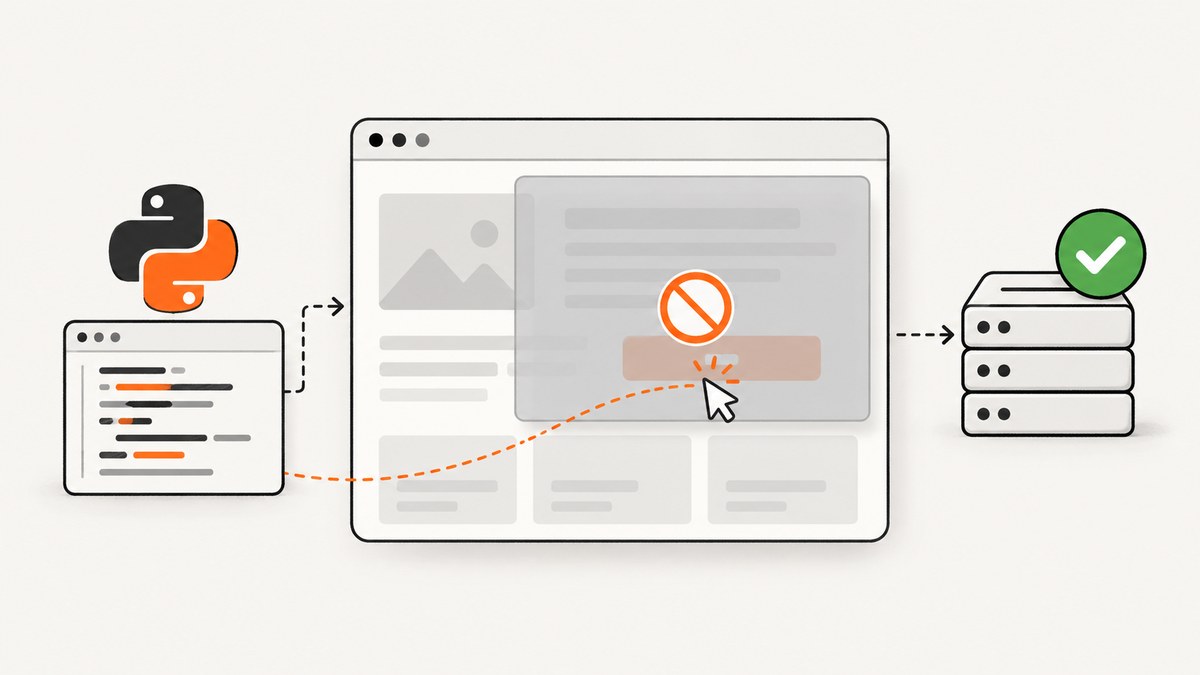
Short answer: HTTP 200 only describes an HTTP response. Selenium’s WebElement.click() is a separate browser interaction that must find the intended element in the current DOM, scroll it into view, confirm it is interactable, and click its center. If an overlay covers that center, the element is hidden, JavaScript has not finished updating the page, the element belongs to another frame, or your reference is stale, the click can fail even though a request returned 200.
Keep the network result and the WebDriver result as separate observations. Record the exact Selenium exception, inspect the current page and browsing context, wait for the state that matters, then assert the post-click result.
What a 200 response does—and does not—tell you
A successful HTTP response means a server answered a request with status 200. It does not prove that:
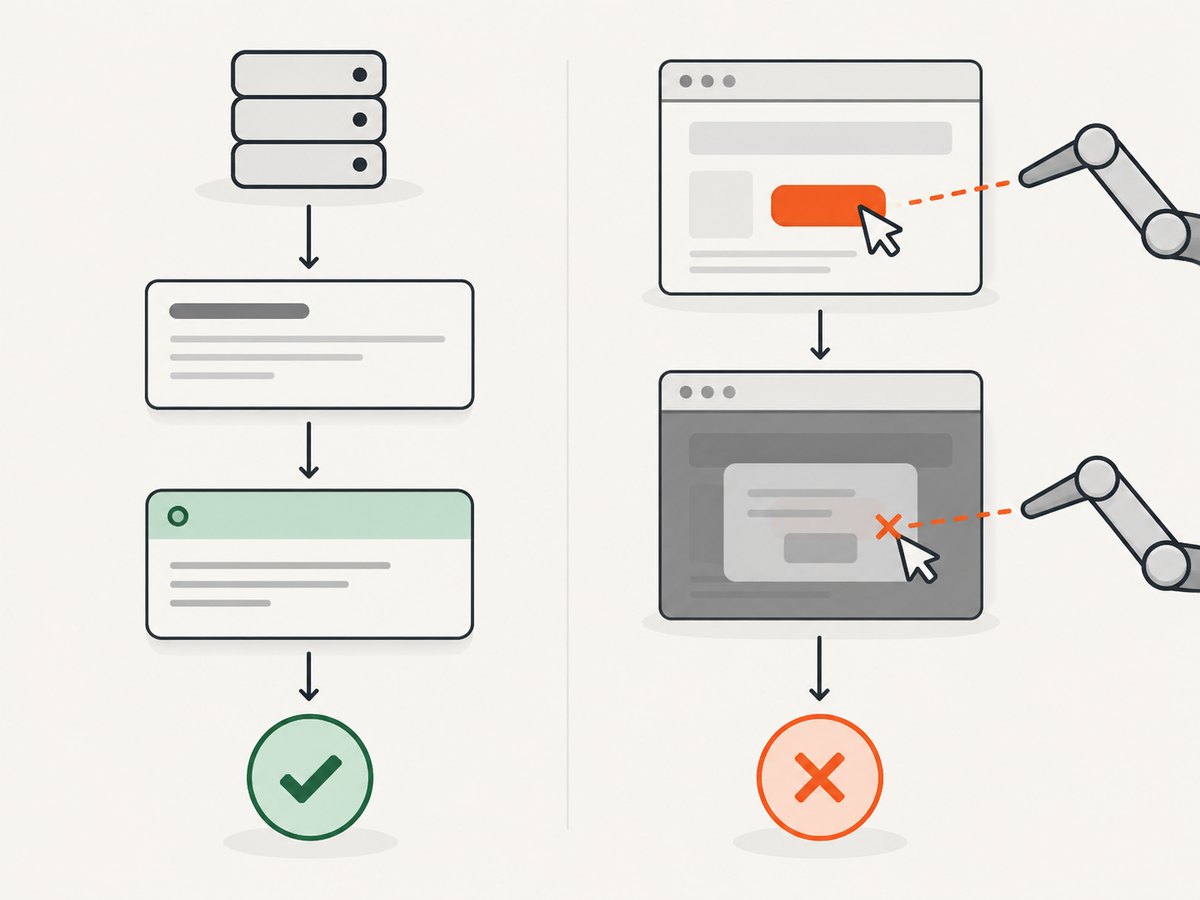
- the target element is visible;
- the target is enabled or pointer-interactable;
- the target is in the current viewport;
- the target’s center is unobscured;
- the page’s JavaScript has reached the expected state;
- you are in the correct window or iframe;
- the element reference still belongs to the current DOM; or
- the business action completed after the click.
Selenium documents that a click scrolls the element into view, checks interactability, and targets its center. When another painted element covers that point, Selenium raises an element-click-intercepted error. See Selenium element interactions.
Diagnose the failure in order
- Capture the actual exception. Save the exception class and message, locator, URL, browser and driver versions, window handles, frame path, and a screenshot or page source taken at failure time.
- Separate the 200 request from the click. Identify which request returned 200 and whether it was navigation, an API call, an image, or something else. Do not treat a network-panel status as a WebDriver result.
- Confirm the browsing context. Switch to the correct window and iframe before locating the element.
- Locate the current node. Find the element after navigation or a front-end render rather than reusing an old reference.
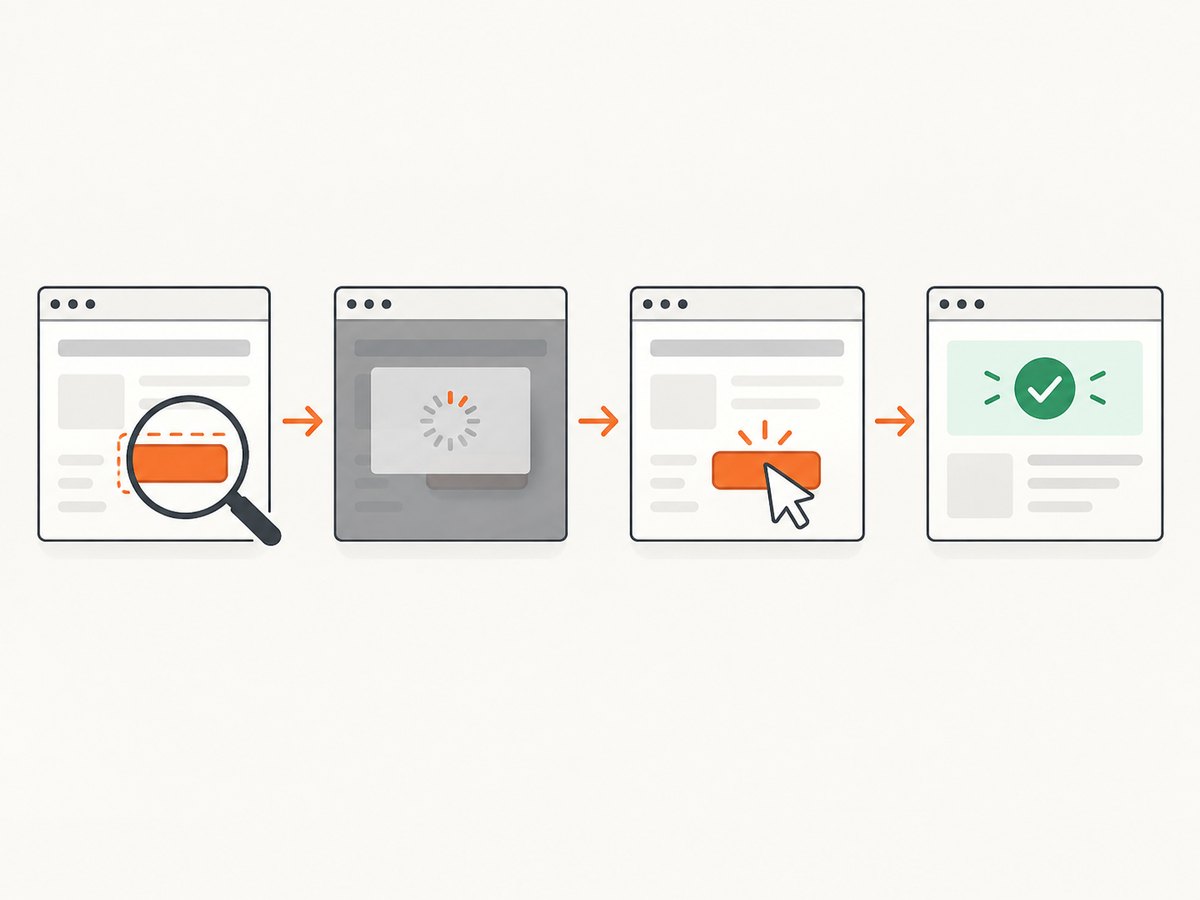
- Wait for the required state. Use an explicit expected condition for visibility, enabled state, frame availability, overlay disappearance, or the expected post-click result.
- Check the click point. For an intercepted click, inspect fixed headers, cookie banners, modals, animations, chat widgets and loading masks covering the element’s center.
- Assert the outcome. Wait for a URL change, a new element, a state attribute, or another observable result that proves the business action completed.
Complete Python example with explicit waits
The following example uses Selenium 4, Chrome and Python. Replace the URL and locators with those from your application.
from selenium import webdriver
from selenium.common.exceptions import (
    ElementClickInterceptedException,
    StaleElementReferenceException,
    TimeoutException,
)
from selenium.webdriver.common.by import By
from selenium.webdriver.support import expected_conditions as EC
from selenium.webdriver.support.ui import WebDriverWait

URL = "https://example.com/checkout"
TARGET = (By.CSS_SELECTOR, "button[data-testid='continue']")
OVERLAY = (By.CSS_SELECTOR, "[data-testid='cookie-banner']")
RESULT = (By.CSS_SELECTOR, "[data-testid='confirmation']")

options = webdriver.ChromeOptions()
options.add_argument("--headless=new")
options.add_argument("--window-size=1440,1000")

driver = webdriver.Chrome(options=options)
wait = WebDriverWait(driver, 20, poll_frequency=0.2)

try:
    driver.get(URL)

    # If the banner is part of this application, wait for it to disappear.
    try:
        wait.until(EC.invisibility_of_element_located(OVERLAY))
    except TimeoutException:
        # If it is optional, inspect it and close it with the site's real control.
        pass

    # Locate a fresh element and wait for visibility plus enabled state.
    button = wait.until(EC.element_to_be_clickable(TARGET))
    driver.execute_script(
        "arguments[0].scrollIntoView({block: 'center', inline: 'center'});",
        button,
    )

    # Retry once if a front-end render replaced the node between find and click.
    for attempt in range(2):
        try:
            wait.until(EC.element_to_be_clickable(TARGET)).click()
            break
        except StaleElementReferenceException:
            if attempt == 1:
                raise
        except ElementClickInterceptedException:
            # Re-check the blocker and let the next loop iteration use a fresh node.
            wait.until(EC.invisibility_of_element_located(OVERLAY))
            if attempt == 1:
                raise

    # A completed WebDriver command is not the assertion. Verify the application result.
    wait.until(EC.visibility_of_element_located(RESULT))
    print("Confirmation is visible")
finally:
    driver.quit()
element_to_be_clickable checks visibility and enabled state. It cannot guarantee that an animation or another element will not cover the center at the exact instant of the click, so intercepted-click handling is still necessary. Selenium’s waiting guidance explains why dynamic applications require state-based waits instead of arbitrary sleeps: waiting strategies.
Common exceptions and their fixes
| Failure clue | Likely cause | Fix |
|---|---|---|
ElementClickInterceptedException |
A modal, cookie banner, sticky header, animation, spinner or chat widget covers the target’s center. | Inspect the exception message and page screenshot. Close the blocker or wait for its invisibility, scroll the target to a safe position, then retry a normal WebDriver click. |
ElementNotInteractableException |
The matching node is hidden, outside the usable viewport, disabled, or otherwise not pointer-interactable. | Wait for visibility and enabled state. Check CSS visibility, size, disabled attributes, viewport position and whether you selected a hidden duplicate. |
StaleElementReferenceException |
Navigation, a React/Vue render, a refreshed iframe or another DOM replacement detached the node represented by your variable. | Discard the reference and locate the element again after the update. Do not cache WebElement objects across page transitions. |
| Flaky timing or a missing dynamic element | The command ran before asynchronous JavaScript populated or enabled the control. | Wait for a specific expected condition or post-action state. Avoid fixed sleeps except as a temporary diagnostic. |
| No exception, but no business result | The click command returned, but navigation, a request, validation or state update did not complete. | Wait for the resulting URL, element, attribute, alert, network-driven UI state or other application-level assertion. |
Overlays, cookie banners and intercepted centers
An element can be visible and enabled while its center is covered. Typical blockers include consent dialogs, newsletter popups, fixed navigation bars, loading masks, chat launchers and CSS transitions. Use browser inspection or a failure screenshot to identify the painted element at the click point.
from selenium.webdriver.common.by import By
from selenium.webdriver.support import expected_conditions as EC

# Close the site's consent dialog using its actual button.
close = wait.until(EC.element_to_be_clickable((By.CSS_SELECTOR, "button[data-testid='accept-cookies']")))
close.click()
wait.until(EC.invisibility_of_element_located((By.CSS_SELECTOR, "[data-testid='cookie-banner']")))

# Then locate and click the original target again.
wait.until(EC.element_to_be_clickable((By.CSS_SELECTOR, "button[data-testid='continue']"))).click()
Do not permanently hide arbitrary elements with JavaScript just to make a test pass. That can change the behavior being tested. Remove the real blocker through the user-visible control, configure the test environment to suppress it, or wait for it to finish.
Frames, windows and current DOM state
Switch into the correct iframe
from selenium.webdriver.common.by import By
from selenium.webdriver.support import expected_conditions as EC

frame = wait.until(EC.frame_to_be_available_and_switch_to_it(
    (By.CSS_SELECTOR, "iframe[data-testid='payment-frame']")
))
wait.until(EC.element_to_be_clickable((By.NAME, "cardnumber"))).send_keys("4242424242424242")
driver.switch_to.default_content()
An element inside an iframe cannot be located from the top-level document. After a frame refresh, switch again and reacquire its children.
Use the intended window
original = driver.current_window_handle
wait.until(lambda d: len(d.window_handles) == 2)
for handle in driver.window_handles:
    if handle != original:
        driver.switch_to.window(handle)
        break
wait.until(EC.element_to_be_clickable((By.CSS_SELECTOR, "button.confirm"))).click()
Reacquire after navigation or rendering
Finding an element before a route change and clicking that variable afterward is unsafe. Locate it after the URL change or after the component has rendered. A stale reference means the node is no longer attached to the current DOM; it does not automatically mean the locator is wrong.
Wait for the state that matters
Prefer a condition tied to the next action:
visibility_of_element_locatedwhen the element must be displayed;element_to_be_clickablewhen it must be visible and enabled;invisibility_of_element_locatedfor a known overlay;frame_to_be_available_and_switch_to_itfor iframe content;staleness_ofwhen an old node must disappear;url_containsorurl_to_beafter navigation; and- a custom lambda for an application-specific attribute or state.
# Wait for a disabled button to become enabled, then click it.
wait.until(lambda d: d.find_element(By.ID, "save").is_enabled())
wait.until(EC.element_to_be_clickable((By.ID, "save"))).click()

# Wait for the result of the action, not merely the click call.
wait.until(EC.url_contains("/complete"))
Use one explicit wait strategy consistently. Mixing a large implicit wait with explicit waits can make timeout behavior harder to reason about.
When JavaScript click is appropriate
driver.execute_script("arguments[0].click()", element) dispatches a DOM click and can bypass the normal pointer-interaction checks. That may be useful for diagnosing whether an event handler works, but it does not prove that a real user could click the control. Treat it as a last-resort diagnostic or an intentional application-specific action, and still assert the resulting state.
Performance and reliability practices
- Use a short polling interval and a bounded explicit timeout instead of long fixed sleeps.
- Set a realistic page-load and script timeout so a dead page fails clearly.
- Keep locators stable by preferring test IDs or accessible attributes over brittle absolute XPath.
- Capture a screenshot, HTML source and browser console output on failure.
- Log the current URL, frame, window handle and the exception message.
- Retry only transient conditions such as a stale node or a disappearing overlay; do not blindly repeat destructive actions.
- After a retry, verify idempotency and the final state so a double submission is not mistaken for success.
- Run with a fixed viewport when sticky headers and responsive breakpoints affect the click point.
These practices reduce flaky tests while preserving the distinction between a transport-level success and a completed browser action.
Or skip the browser setup
If your goal is to obtain a clean screenshot rather than test a user interaction, ScreenshotNeo provides a single HTTP request. Its capture flow accepts consent banners before the shot and removes more than 60 known consent platforms, newsletter popups and chat widgets. Bot checks, blank pages and failed loads are not billed, and each response reports its page verdict and billing status. It also offers an MCP server so Claude, Cursor and other MCP clients can take screenshots.
See the ScreenshotNeo API documentation for all options.
cURL
curl -G "https://api.screenshotneo.com/v1/shot" -d access_key=YOUR_API_KEY --data-urlencode url=https://stripe.com -o shot.webpPython
import requests
r = requests.get("https://api.screenshotneo.com/v1/shot", params={"access_key": "YOUR_API_KEY", "url": "https://stripe.com"}, timeout=90)
open("shot.webp", "wb").write(r.content)
Node.js
const q = new URLSearchParams({ access_key: 'YOUR_API_KEY', url: 'https://stripe.com' });
const res = await fetch(`https://api.screenshotneo.com/v1/shot?${q}`);
ScreenshotNeo includes full-page and element capture, device presets, custom viewport and retina scale, dark mode, custom CSS and JavaScript, headers, cookies, user agents, geolocation, request blocking, caching, signed links, PDFs, asynchronous jobs, bulk capture and usage reporting. The free plan includes 1,000 screenshots per month with no card; paid plans start at $5 for 3,000. Create a free ScreenshotNeo account.
FAQ
Does HTTP 200 mean the page is ready?
No. It only describes one HTTP response. JavaScript rendering, overlays and application state may still be changing.
Why does element_to_be_clickable still produce an intercepted click?
That condition checks visibility and enabled state. It does not guarantee that the target’s exact center is unobscured at click time.
Should I add time.sleep(5)?
Use a condition-based explicit wait. A fixed delay can be too short on a slow run and unnecessarily long on a fast one.
Is a stale element caused by a bad selector?
Usually it means the previously found node was detached or its browsing context changed. Reacquire the element after the update.
What information should I include in a bug report?
Include the exact exception and message, locator, URL, browser and driver versions, frame and window context, page screenshot, and the expected post-click result.


