How to Click Link Elements with Selenium and PhantomJS in Django
Learn how to click Django links with Selenium, choose reliable locators, wait for navigation, and replace obsolete PhantomJS with maintained headless browsers.
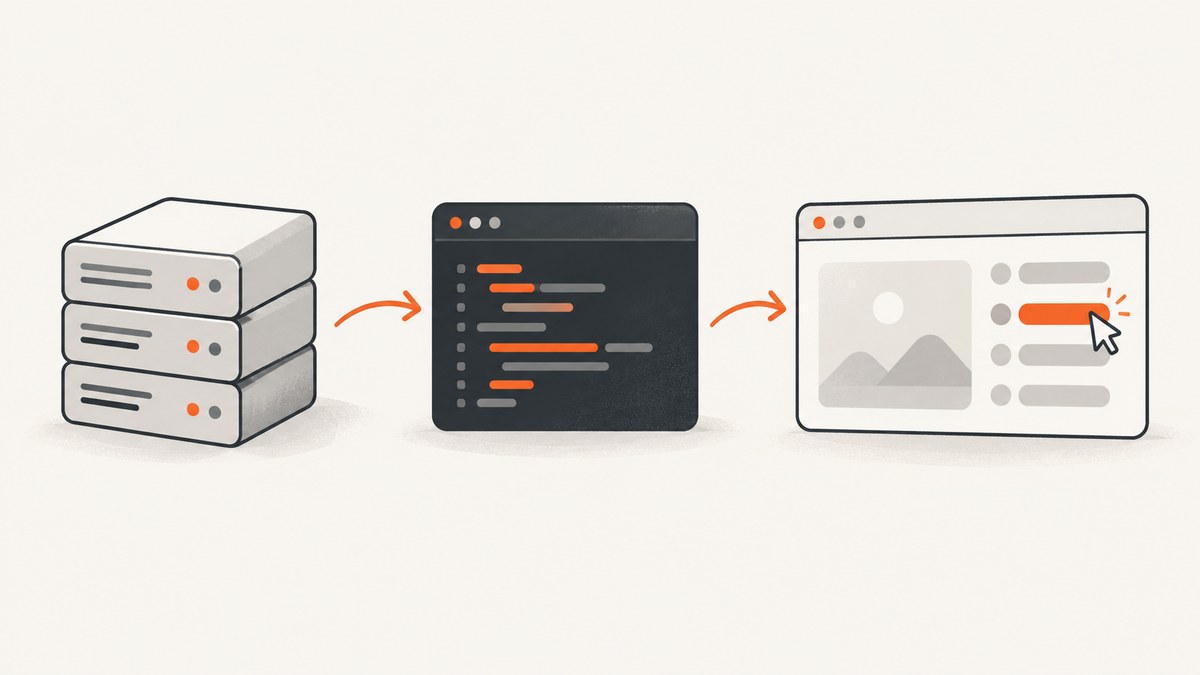
Direct answer: In a Django functional test, start a Selenium WebDriver, open self.live_server_url, find the anchor with a stable locator, call .click(), and wait for the URL or page state that proves navigation completed. Use StaticLiveServerTestCase when your test needs Django’s static files. PhantomJS is no longer a good choice for new work: its development is suspended, and Selenium removed native support in favor of maintained Chrome and Firefox drivers.
This guide shows the complete pattern, explains every practical locator, covers synchronization and CI, and then shows how to capture the resulting pages without maintaining a browser stack.
1. Install and configure the Django browser test
Install Django, Selenium, and a maintained browser driver. Selenium Manager can download or locate a compatible driver in current Selenium releases, but your CI image still needs a browser binary.
python -m pip install django seleniumUse StaticLiveServerTestCase for pages that load CSS, JavaScript, images, or other static assets. Use LiveServerTestCase when static-file serving is not part of the behavior under test. Django documents both classes as integration points for browser-level tests: Django testing tools.
2. A complete Selenium test that clicks a link
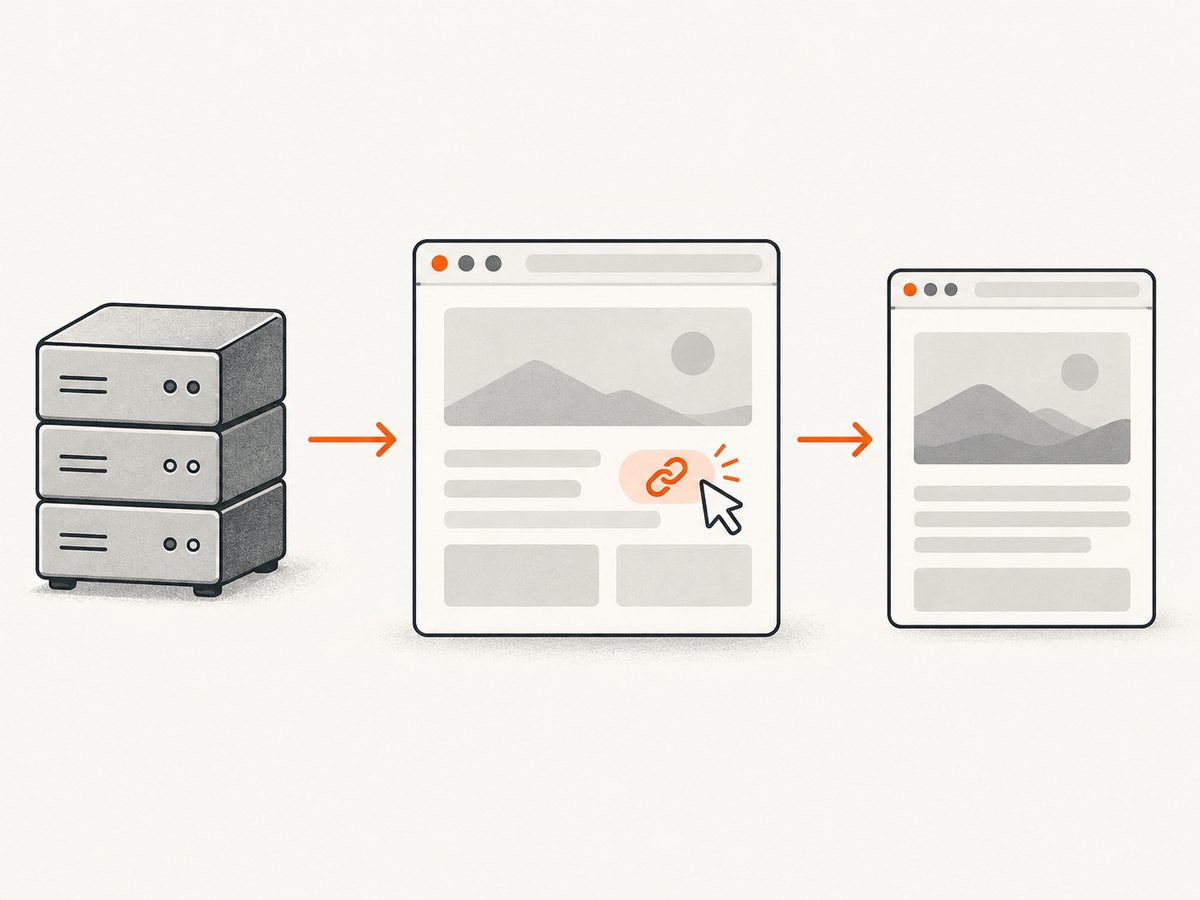
The following test uses a deliberately stable data-testid hook. Replace the URL and selector with values from your application.
from django.contrib.staticfiles.testing import StaticLiveServerTestCase
from selenium import webdriver
from selenium.webdriver.common.by import By
from selenium.webdriver.support.ui import WebDriverWait
from selenium.webdriver.support import expected_conditions as EC


class DetailsLinkTest(StaticLiveServerTestCase):
    @classmethod
    def setUpClass(cls):
        super().setUpClass()
        options = webdriver.ChromeOptions()
        options.add_argument('--headless=new')
        options.add_argument('--window-size=1440,1000')
        cls.selenium = webdriver.Chrome(options=options)

    @classmethod
    def tearDownClass(cls):
        cls.selenium.quit()
        super().tearDownClass()

    def test_details_link_navigates(self):
        self.selenium.get(f'{self.live_server_url}/')

        link = WebDriverWait(self.selenium, 10).until(
            EC.element_to_be_clickable(
                (By.CSS_SELECTOR, "a[data-testid='details']")
            )
        )
        link.click()

        WebDriverWait(self.selenium, 10).until(
            EC.url_contains('/details/')
        )
        heading = WebDriverWait(self.selenium, 10).until(
            EC.visibility_of_element_located((By.TAG_NAME, 'h1'))
        )
        self.assertEqual(heading.text, 'Details')
The test has four important parts:
- Start the live server. Django supplies a temporary server URL through
self.live_server_url. - Choose a locator. The selector identifies the intended anchor instead of relying on a fragile DOM position.
- Wait until clicking is possible. This handles elements that are present but still covered, disabled, or being rendered.
- Wait after clicking. A click event is not proof that the next page or application state is ready.
3. Choosing a locator for an anchor
Selenium exposes locator strategies through By. The Python API documents find_element(By.<strategy>, value) and the link-text strategies in its official API reference.
| Strategy | Example | Use it when | Risk |
|---|---|---|---|
| ID | (By.ID, 'details-link') |
The anchor has a unique semantic ID. | Breaks if IDs are generated or reused. |
| Exact link text | (By.LINK_TEXT, 'View details') |
Visible text is stable and unique. | Text must match exactly, including spacing and case behavior. |
| Partial link text | (By.PARTIAL_LINK_TEXT, 'details') |
You need a broader text match. | It may select the first of several matching links. |
| CSS | (By.CSS_SELECTOR, "a[data-testid='details']") |
You have a test hook, class, attribute, or scoped relationship. | Long selectors tied to layout are brittle. |
| XPath | (By.XPATH, "//a[@aria-label='Open details']") |
You need text, attributes, or an ancestor relationship. | Complex XPath becomes difficult to maintain. |
| Tag name | (By.TAG_NAME, 'a') |
Only one anchor exists in a constrained region. | Usually too broad on real pages. |
Exact and partial link text
exact = WebDriverWait(self.selenium, 10).until(
    EC.element_to_be_clickable((By.LINK_TEXT, 'View details'))
)
exact.click()

partial = WebDriverWait(self.selenium, 10).until(
    EC.element_to_be_clickable((By.PARTIAL_LINK_TEXT, 'details'))
)
partial.click()
Exact link text is readable when the product wording is part of the contract. Partial text is useful for dynamic labels, but scope it to a container if multiple links can match. Selenium’s locator documentation describes exact text as strict and partial text as broader: Selenium locators.
Scope repeated links
card_link = WebDriverWait(self.selenium, 10).until(
    EC.element_to_be_clickable(
        (By.CSS_SELECTOR, "article[data-id='42'] a.details")
    )
)
card_link.click()
Prefer a stable ID, data-testid, accessible label, or a selector scoped to a meaningful component. Avoid selectors such as div:nth-child(4) > a; a harmless layout change can break the test.
4. Synchronize navigation and dynamic pages
Django warns that a browser click may return before the response, JavaScript rendering, or database-visible state is ready. Modern applications also update parts of a page without a full navigation. Wait for the condition that proves the behavior you care about.
Wait for a URL
WebDriverWait(self.selenium, 10).until(
    EC.url_to_be(f'{self.live_server_url}/details/')
)
Use url_contains when query strings or IDs vary. Use url_changes when the destination is not known in advance.
Wait for an element or state
WebDriverWait(self.selenium, 10).until(
    EC.visibility_of_element_located((By.CSS_SELECTOR, '[data-testid="details-panel"]'))
)
WebDriverWait(self.selenium, 10).until(
    EC.text_to_be_present_in_element(
        (By.CSS_SELECTOR, '[data-testid="status"]'),
        'Saved'
    )
)
Handle live-server database concurrency
The browser runs in a different thread from the test code. With an in-memory SQLite database, both can touch a shared connection. A test can therefore observe a transient state while the response is still being committed. Wait for a rendered application condition, and avoid asserting immediately after click(). If a test still behaves intermittently, use a file-backed test database for the relevant suite or make the application expose a deterministic completion state.
When an anchor opens a new tab
old_handles = self.selenium.window_handles
link.click()
WebDriverWait(self.selenium, 10).until(
    lambda driver: len(driver.window_handles) > len(old_handles)
)
new_handle = next(h for h in self.selenium.window_handles if h not in old_handles)
self.selenium.switch_to.window(new_handle)
For a normal same-tab anchor, do not switch windows. For target='_blank', wait for the new handle before switching.
5. Common click failures and fixes
| Failure | Likely cause | Fix |
|---|---|---|
NoSuchElementException |
The selector is wrong, the page is not loaded, or the link is inside an iframe. | Confirm the selector in browser developer tools, wait for presence, and switch into the correct iframe. |
ElementNotInteractableException |
The anchor is hidden, disabled by CSS, or outside the viewport. | Wait for visibility or clickability, scroll it into view, and test the real user-visible control. |
ElementClickInterceptedException |
A cookie banner, modal, sticky header, or animation covers the anchor. | Dismiss the overlay, wait for it to disappear, or wait for the animation to finish. Do not make JavaScript clicks your default workaround. |
| Click returns but URL is unchanged | The link triggers JavaScript, validation, or an in-page update. | Wait for the resulting element, text, network-driven state, or expected browser event instead of assuming navigation. |
StaleElementReferenceException |
The DOM was re-rendered after the element was located. | Locate the link again inside a short, bounded retry or wait for the replacement element. |
| Intermittent timeouts | Fixed sleeps are masking variable rendering, slow CI, or an application race. | Replace sleeps with explicit expected conditions and capture screenshots or HTML on failure. |
| Works locally, fails in CI | Missing browser dependencies, different viewport, sandbox restrictions, or headless timing. | Install the browser in the CI image, set a fixed window size, collect driver logs, and run the same headless mode locally. |
6. PhantomJS: what to do with legacy suites
PhantomJS is a historical headless browser. Its official site states: “Important: PhantomJS development is suspended until further notice.” The project’s archival issue records that version 2.1.1 would remain the last known stable release. See PhantomJS and the project’s archival discussion.
Selenium removed native PhantomJS support because its WebDriver implementation was no longer actively developed, and its change history directs users toward headless Chrome or Firefox. Existing suites may remain pinned to an old Selenium package and PhantomJS binary, but that combination leaves you with an unmaintained browser engine, old JavaScript behavior, and increasingly difficult CI setup. Migrate new tests to Chrome or Firefox headless.
Modern Chrome and Firefox options
from selenium import webdriver

chrome_options = webdriver.ChromeOptions()
chrome_options.add_argument('--headless=new')
chrome_options.add_argument('--window-size=1440,1000')
driver = webdriver.Chrome(options=chrome_options)

firefox_options = webdriver.FirefoxOptions()
firefox_options.add_argument('-headless')
firefox = webdriver.Firefox(options=firefox_options)
Keep one driver per test class or test process according to your isolation needs, always quit it in teardown, and pin browser versions in CI when reproducibility matters.
7. Capturing the page without maintaining a browser
Functional tests are the right tool when you must exercise application behavior. If your goal is a rendered image or PDF of a URL, a screenshot API can remove browser installation, driver management, and waiting code.
Or skip the browser setup
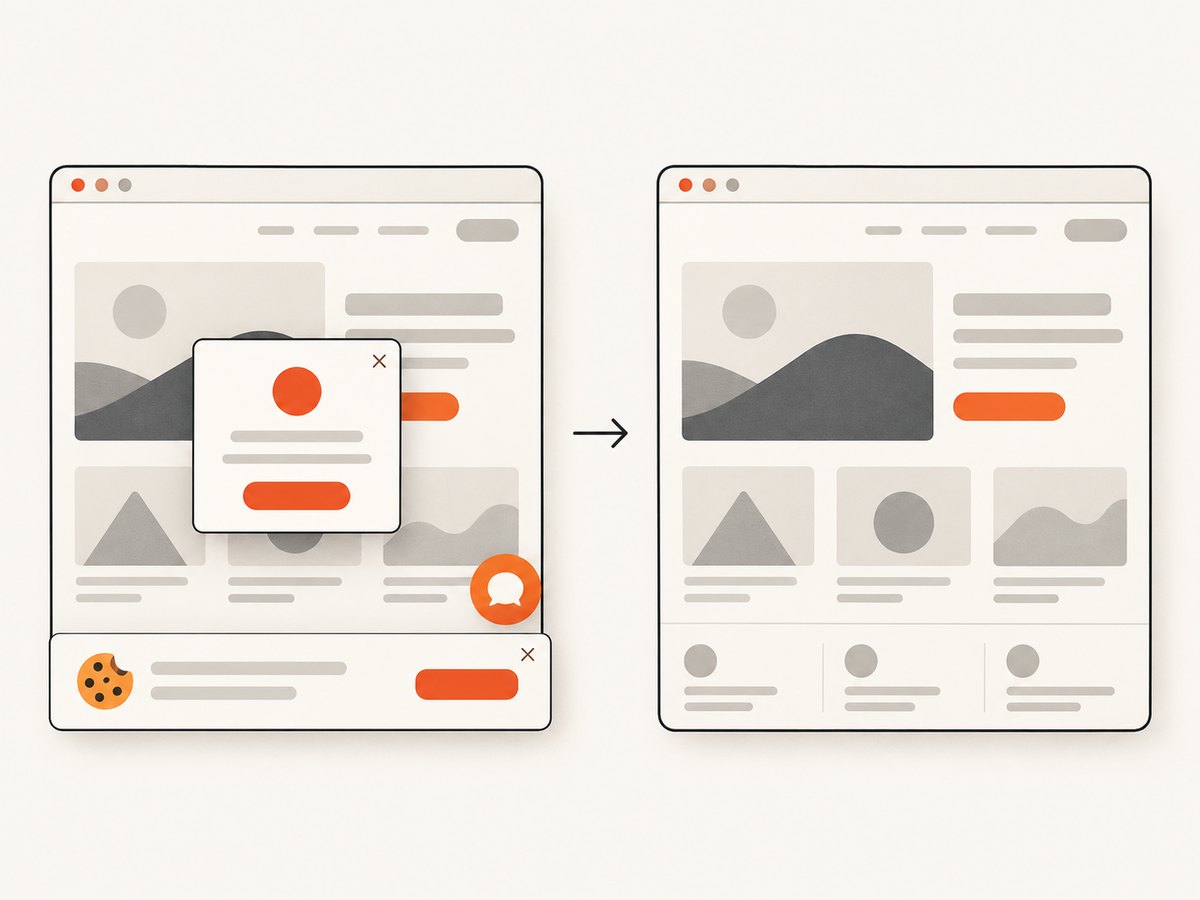
ScreenshotNeo returns a PNG, JPEG, WebP, or PDF from one GET request. Its clean-shot flow accepts cookie or consent banners like a visitor and removes more than 60 known consent platforms, newsletter popups, and chat widgets before capture. Bot checks or CAPTCHAs, blank pages, timeouts, failed loads, and cache hits are not billed; response headers identify the page verdict and billing result.
Basic cURL request (see the ScreenshotNeo API docs):
curl -G 'https://api.screenshotneo.com/v1/shot' -d access_key=YOUR_API_KEY --data-urlencode url=https://stripe.com -o shot.webpPython:
import requests

r = requests.get(
    'https://api.screenshotneo.com/v1/shot',
    params={'access_key': 'YOUR_API_KEY', 'url': 'https://stripe.com'},
    timeout=90,
)
r.raise_for_status()
open('shot.webp', 'wb').write(r.content)
Node.js:
const q = new URLSearchParams({ access_key: 'YOUR_API_KEY', url: 'https://stripe.com' });
const res = await fetch(`https://api.screenshotneo.com/v1/shot?${q}`);
if (!res.ok) throw new Error(`Screenshot failed: ${res.status}`);
const body = Buffer.from(await res.arrayBuffer());
await Bun.write('shot.webp', body);
ScreenshotNeo supports full-page capture with lazy images loaded, element capture by CSS selector, dark mode, 12 device presets or custom viewports, retina scale, PDF paper and margin settings, custom CSS and JavaScript, pre-capture clicks, hidden selectors, waits for selectors, delays or network idle, request and resource blocking, custom headers, cookies, user agents, Authorization, timezone, geolocation, transparent backgrounds, resizing, selectable cache TTLs, signed image links, asynchronous jobs with signed webhooks, bulk capture for up to 100 URLs per call, a usage API, and an OpenAPI specification. Parameter names used by other screenshot APIs also work, which helps when migrating.
An MCP server provides take_screenshot, get_page_info, and capture_pdf tools for Claude, Cursor, and other MCP clients. The Free plan includes 1,000 shots per month without a card; paid plans start at $5 for 3,000 shots. Create a free ScreenshotNeo account.
8. Performance, reliability, and cost notes
- Browser tests: Reuse a driver where isolation permits, keep selectors stable, and replace arbitrary sleeps with explicit waits. A shorter, condition-based timeout usually fails faster than a long sleep when the application is broken.
- Headless CI: Set a fixed viewport so responsive breakpoints do not change the link’s location or visibility. Save page source and a screenshot when a failure occurs.
- Screenshot capture: Full-page mode and lazy-image loading can take longer than a viewport shot. Use selector capture when only one component matters, cache stable URLs with a chosen TTL, and use asynchronous jobs or bulk capture for larger batches.
- Billing: ScreenshotNeo bills only clean shots. Failed loads, blank pages, bot checks, timeouts, and cache hits are free, with the outcome exposed in
X-Page-VerdictandX-Billedheaders. - Reliability: For tests, assert a business condition after navigation. For captures, inspect the response status and verdict headers, retry only transient failures, and use signed webhooks for asynchronous jobs.
9. A practical migration checklist
- Replace PhantomJS with headless Chrome or Firefox.
- Use
StaticLiveServerTestCasewhen static assets are part of the behavior. - Add a stable ID or
data-testidto important links. - Use
By.LINK_TEXTonly when exact visible wording is stable. - Scope partial text, CSS, and XPath selectors to the intended component.
- Wait for clickability before clicking and for a URL or application condition afterward.
- Account for iframes, new tabs, overlays, DOM re-renders, and live-server database timing.
- Capture diagnostics on CI failures.
- Use a screenshot API when the deliverable is an image or PDF rather than browser interaction.
10. FAQ
Should I use By.LINK_TEXT or CSS?
Use exact link text when wording is stable and unique. Use a stable ID or test hook when copy changes, translations are involved, or several links have similar labels.
Can Selenium click a link that has no visible text?
Yes. Locate it by ID, accessible attribute, CSS class or XPath. Prefer a semantic attribute or test hook over a generated class.
Is JavaScript arguments[0].click() a good fallback?
It can bypass an overlay or interaction limitation, but it does not reproduce a real user click. Fix the page state or locator first, and reserve JavaScript clicks for cases where that difference is intentional.
Do I need PhantomJS for headless testing?
No. Use maintained headless Chrome or Firefox drivers. PhantomJS development is suspended and Selenium no longer provides native support.
When should I use ScreenshotNeo instead of Selenium?
Use Selenium when you are testing behavior such as a click, form submission, or state transition. Use ScreenshotNeo when you need a clean screenshot or PDF from a URL without operating a browser in your project.


