Why Selenium Does Not Click Elements Reliably and How to Fix It
Selenium clicks fail when timing, context, locators, visibility, or overlays disagree. Diagnose the exact cause and apply the right fix.
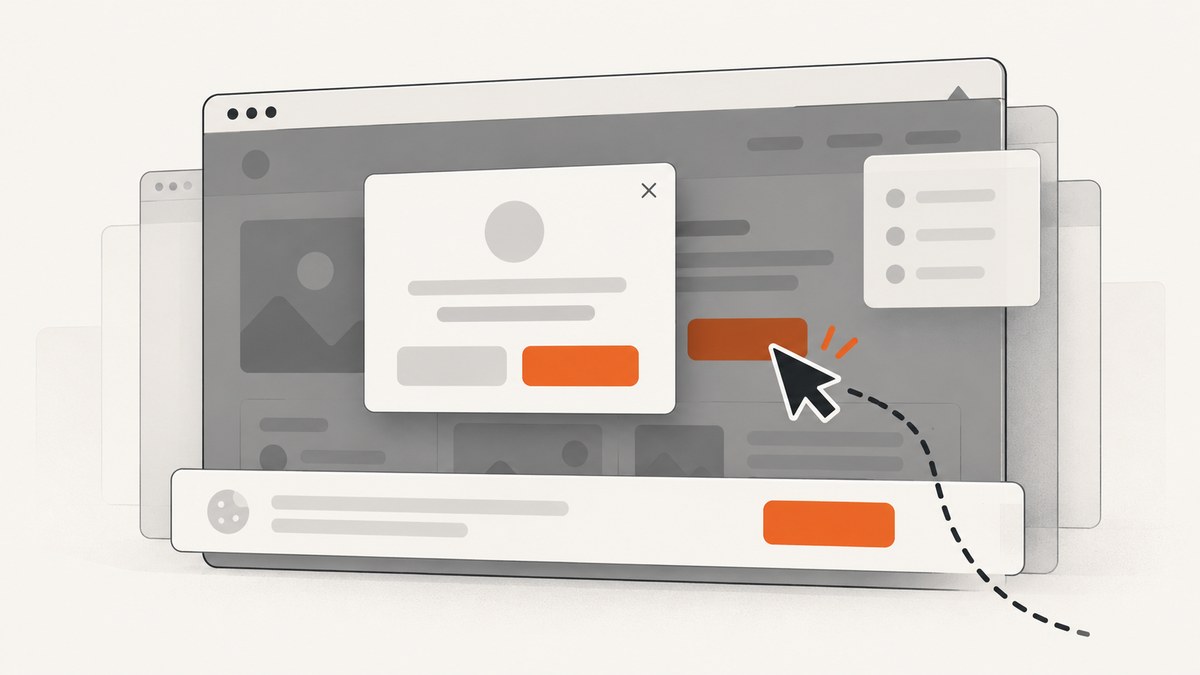
Short answer: Selenium clicks the center of the element in the current browsing context. A click becomes unreliable when your script reaches the wrong state, the locator identifies the wrong node, another element covers the target, the target is hidden or disabled, or the saved element reference is stale. Read the exception first, inspect the page at the failure point, then fix the matching cause. Adding a longer sleep or JavaScript-clicking everything hides these distinctions and often creates new failures.
Selenium’s own documentation describes this as a race between the automation script and a page that is still changing. A navigation can reach its load-ready state while JavaScript continues rendering controls. The WebDriver click command is also geometric: it acts at the target’s center, so an overlay at that point can intercept it. See the Selenium Project’s waiting strategies, element interactions, and common errors documentation.
1. Diagnose the failure before changing the click
| What you observe | Likely cause | Next step |
|---|---|---|
ElementClickInterceptedException |
Another element covers the target’s center: modal, cookie banner, sticky header, popup, or animation. | Inspect the covering element; wait for it to disappear or settle, then correct scrolling. |
ElementNotInteractableException |
Target is hidden, disabled, outside the usable viewport, unsupported for the operation, or the locator found the wrong node. | Verify the locator and state; wait for visibility and enablement, then scroll if required. |
StaleElementReferenceException |
The DOM, page, frame, or window changed after the element was located. | Restore the correct context and locate a fresh element. |
| Passes sometimes, fails sometimes | JavaScript and the test race each other. | Wait for the condition needed by the next action, not an arbitrary delay. |
| Click returns but nothing changes | The application response is asynchronous, or the wrong control was clicked. | Wait for and assert an observable post-click state. |
Capture evidence at the failure point: current URL, window handles, active frame, element HTML and attributes, bounding rectangle, displayed/enabled state, and a screenshot. Logging these values turns “flaky click” into a concrete diagnosis.
2. Timing races: wait for the state you need
Page load completion is not the same as application readiness. A single-page app may insert a button after an API response, replace a disabled button with an enabled one, or animate an overlay away after navigation. A fixed sleep can be too short on a slow run and waste time on a fast run. Selenium recommends explicit waits that poll until a condition succeeds or the timeout expires. Its documentation also warns that mixing a global implicit wait with explicit waits can produce unpredictable total wait times.
Use one deliberate wait strategy
Keep the implicit wait at zero (or use it consistently across a suite) and use explicit waits for meaningful conditions. In Python:
from selenium import webdriver
from selenium.webdriver.common.by import By
from selenium.webdriver.support.ui import WebDriverWait
from selenium.webdriver.support import expected_conditions as EC

options = webdriver.ChromeOptions()
options.add_argument("--headless=new")
driver = webdriver.Chrome(options=options)
wait = WebDriverWait(driver, 15, poll_frequency=0.2)

try:
    driver.get("https://example.com/account")
    submit = wait.until(
        EC.element_to_be_clickable((By.CSS_SELECTOR, "button[type='submit']"))
    )
    submit.click()
    wait.until(EC.visibility_of_element_located((By.CSS_SELECTOR, ".success")))
finally:
    driver.quit()
element_to_be_clickable means Selenium can find a displayed and enabled element; it does not prove that a separate overlay will not cover its center. Add a condition for that overlay when it is a known part of the UI:
wait.until(EC.invisibility_of_element_located((By.CSS_SELECTOR, ".loading-mask")))
button = wait.until(EC.element_to_be_clickable((By.ID, "save")))
button.click()
wait.until(EC.text_to_be_present_in_element((By.CSS_SELECTOR, ".status"), "Saved"))
For a custom application state, write a predicate that returns a truthy value:
def button_ready(driver):
    element = driver.find_element(By.CSS_SELECTOR, "button#checkout")
    return element if element.is_displayed() and element.is_enabled() else False

button = WebDriverWait(driver, 20).until(button_ready)
button.click()
3. Intercepted clicks: find what covers the center
Selenium’s click is executed at the center of the element. If another element occupies that point, WebDriver can return ElementClickInterceptedException. Common causes include cookie consent banners, modals, chat launchers, sticky navigation, dropdowns, and an animation that has not finished.
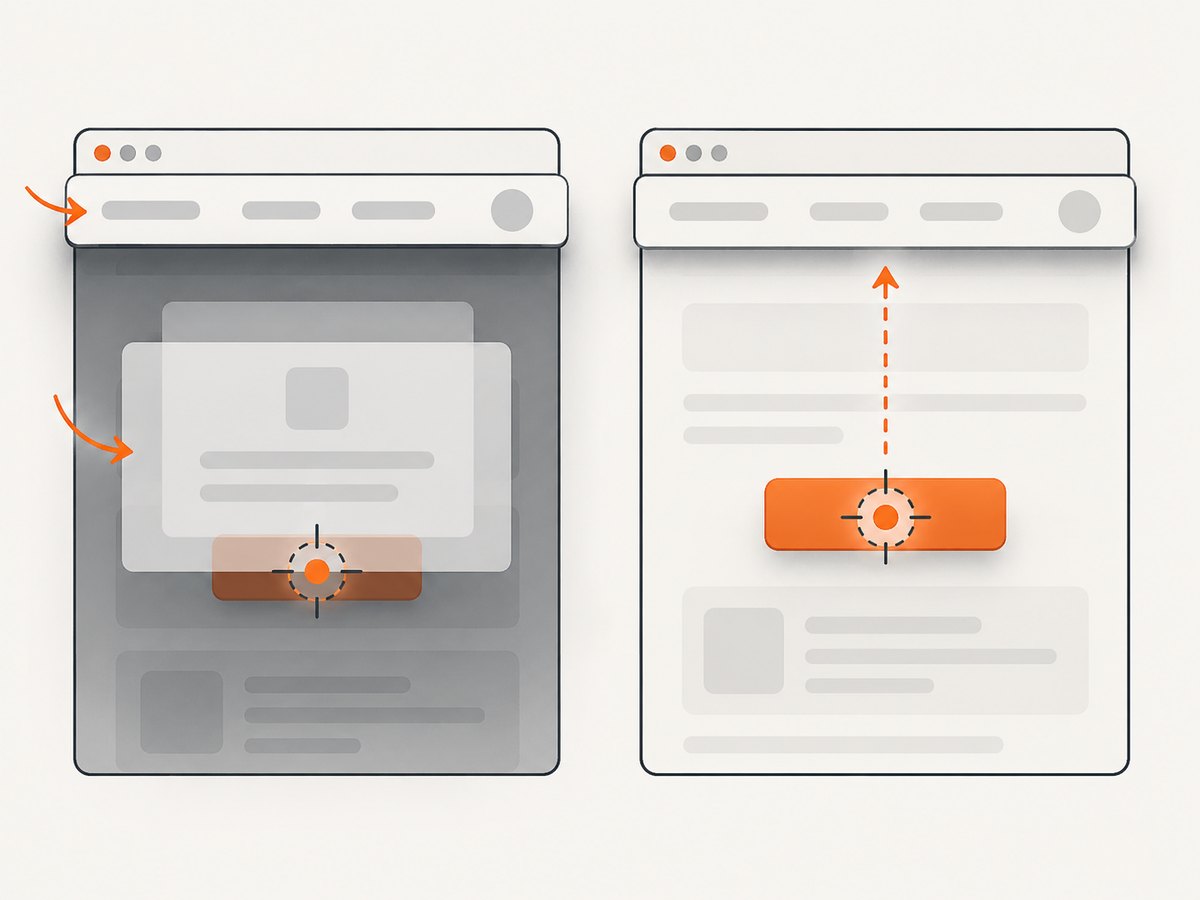
At the failure point, inspect the target’s rectangle and ask the browser which node is at its center:
target = driver.find_element(By.CSS_SELECTOR, "button#continue")
rect = driver.execute_script("""
const r = arguments[0].getBoundingClientRect();
return {left:r.left, top:r.top, width:r.width, height:r.height,
        centerX:r.left+r.width/2, centerY:r.top+r.height/2};
""", target)
covering = driver.execute_script("""
return document.elementFromPoint(arguments[0], arguments[1]);
""", rect["centerX"], rect["centerY"])
print(rect, covering.get_attribute("outerHTML") if covering else None)
Fix the real obstruction:
- Wait for a known modal or loading mask to become invisible.
- Close a consent or promotional panel through its normal control.
- Wait for an animation class to be removed or for a stable layout.
- Scroll so the target is not hidden beneath a sticky header.
A centered scroll can reduce sticky-header overlap:
driver.execute_script("arguments[0].scrollIntoView({block: 'center', inline: 'nearest'});", target)
wait.until(lambda d: target.is_displayed() and target.is_enabled())
target.click()
The Actions API is another way to move to a visible point while retaining normal pointer interaction:
from selenium.webdriver.common.action_chains import ActionChains
ActionChains(driver).move_to_element(target).click().perform()
Do not make JavaScript arguments[0].click() your default repair. It dispatches a DOM click without reproducing the browser’s normal pointer hit-testing, so it can bypass the very obstruction your test should detect. Use it only when the application intentionally exposes a programmatic control and you understand the behavior you are accepting.
4. Non-interactable targets: verify locator and state
ElementNotInteractableException is different from an intercepted click. The element may be hidden, disabled, outside the usable viewport, unsupported for the requested operation, or not the control you intended. A broad selector such as .button can match a hidden template copy, an off-canvas menu item, or a wrapper rather than the actual button.
Make locators unique and semantic. Prefer a stable ID, an accessible role/name, or a test-specific attribute over a long XPath tied to layout. Check how many nodes match:
matches = driver.find_elements(By.CSS_SELECTOR, "button[data-testid='continue']")
assert len(matches) == 1, f"Expected one continue button, found {len(matches)}"
button = matches[0]
assert button.is_displayed(), "Continue button is hidden"
assert button.is_enabled(), "Continue button is disabled"
button.click()
Presence in the DOM only proves that a node exists. Wait for visibility when it must be seen, enablement when it must accept input, and a post-click condition after the action. Selenium scrolls an out-of-view element into view as part of interaction, but the resulting position can still be unusable because of sticky content or overlays.
5. Stale references: reacquire after DOM or context changes
An element object is a reference to a particular DOM node in a particular page, frame, and window. Refreshes, navigation, framework re-rendering, and replacing a list can invalidate it. Switching windows or frames can also make the reference inaccessible.
# Locate again after the application re-rendered the row
wait.until(EC.presence_of_element_located((By.CSS_SELECTOR, "[data-row-id='42']")))
row = driver.find_element(By.CSS_SELECTOR, "[data-row-id='42']")
row.find_element(By.CSS_SELECTOR, "button.edit").click()
If a frame is involved, switch before locating and interacting:
driver.switch_to.default_content()
wait.until(EC.frame_to_be_available_and_switch_to_it((By.CSS_SELECTOR, "iframe.payment")))
wait.until(EC.element_to_be_clickable((By.NAME, "cardnumber"))).send_keys("4111111111111111")
driver.switch_to.default_content()
For a new window, select the handle after the action that opens it and wait until it exists. Never assume handle order is stable.
original = driver.current_window_handle
old_handles = set(driver.window_handles)
driver.find_element(By.LINK_TEXT, "Open details").click()
wait.until(lambda d: len(set(d.window_handles) - old_handles) == 1)
new_handle = (set(driver.window_handles) - old_handles).pop()
driver.switch_to.window(new_handle)
6. Verify the application result, not just the command
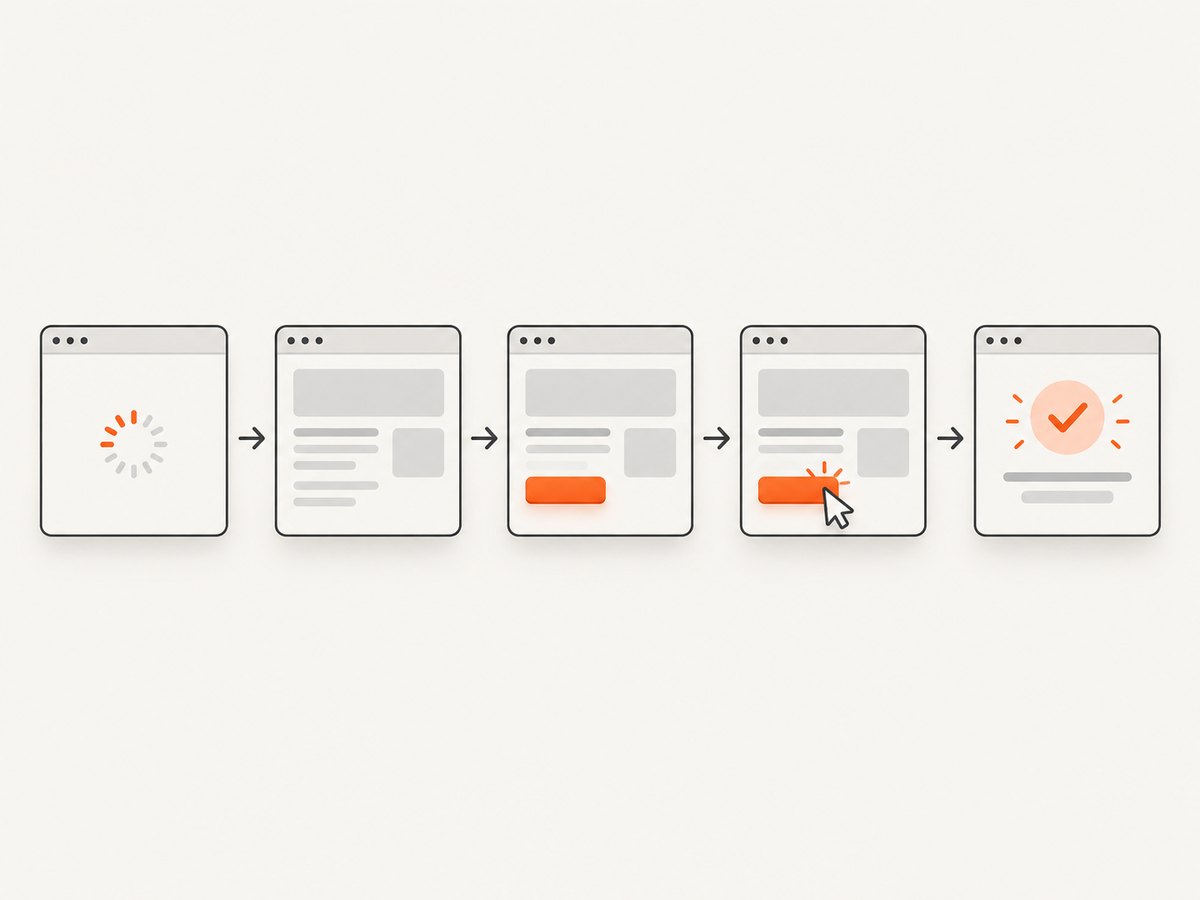
A successful WebDriver command means the browser accepted the interaction. It does not guarantee that the application finished its asynchronous work. After clicking, wait for a changed URL, a confirmation message, a changed button label, a new row, or another observable postcondition.
before = driver.current_url
wait.until(EC.element_to_be_clickable((By.CSS_SELECTOR, "button.save"))).click()
wait.until(EC.url_changes(before))
assert "/complete" in driver.current_url
If the URL does not change:
wait.until(EC.visibility_of_element_located((By.CSS_SELECTOR, "[role='alert'].success")))
message = driver.find_element(By.CSS_SELECTOR, "[role='alert'].success").text
assert "saved" in message.lower()
7. A repeatable repair workflow
- Read the exact exception. Interception, non-interactability, staleness, and timing require different repairs.
- Confirm the URL, active window, and frame at the failing step.
- Check that the locator matches one intended, visible control.
- Wait for the condition required by the next action.
- For interception, identify the node at the target center and remove or wait out the obstruction.
- After navigation or re-rendering, locate a fresh element.
- Click using normal WebDriver interaction.
- Wait for and assert the expected application state.
- On failure, save a screenshot, page source, console logs where available, and the diagnostic values above.
8. Reliability, performance, and cost considerations
Use short polling intervals with a realistic upper timeout for the operation, and keep waits local to the action that needs them. A global multi-second sleep multiplies across every test. Avoid retrying blindly: retrying a click can submit a form twice or hide a deterministic locator bug. If a retry is justified, make the action idempotent and re-check the page state between attempts.
Run the same synchronization rules in headless and headed browsers, but capture a headed diagnostic run when geometry is unclear. Browser, driver, viewport, zoom, device scale, fonts, network speed, and reduced-motion settings can change layout and timing. Stabilize those inputs where your test contract requires it.
9. Or skip the browser setup
If your goal is a reliable image of a page rather than a user interaction test, ScreenshotNeo provides a single screenshot request without maintaining Selenium, a browser driver, frames, or click timing. It accepts 63 options including full-page capture with lazy images loaded, CSS-element capture, device presets, retina scale, custom CSS and JavaScript, waits, request blocking, headers, cookies, user agent, timezone, geolocation, resizing, caching, signed links, asynchronous jobs, bulk capture, PDF output, and HTML/CSS rendering.
Or skip the browser setup:
curl -G "https://api.screenshotneo.com/v1/shot" -d access_key=YOUR_API_KEY --data-urlencode url=https://stripe.com -o shot.webpPython:
import requests
r = requests.get("https://api.screenshotneo.com/v1/shot", params={"access_key": "YOUR_API_KEY", "url": "https://stripe.com"}, timeout=90)
open("shot.webp", "wb").write(r.content)
Node.js:
const q = new URLSearchParams({ access_key: 'YOUR_API_KEY', url: 'https://stripe.com' });
const res = await fetch(`https://api.screenshotneo.com/v1/shot?${q}`);
if (!res.ok) throw new Error(`HTTP ${res.status}`);
const fs = await import('node:fs/promises');
await fs.writeFile('shot.webp', Buffer.from(await res.arrayBuffer()));
See the ScreenshotNeo API documentation for parameters and response handling. Cookie and consent banners, newsletter popups, and chat widgets are removed before capture; each can be turned off. Bot checks or CAPTCHAs, blank pages, timeouts, failed loads, and cache hits are not billed, and response headers report the page verdict and whether the request was billed. An MCP server provides take_screenshot, get_page_info, and capture_pdf tools for Claude, Cursor, and other MCP clients. The Free plan includes 1,000 screenshots per month with no card; paid plans start at $5 for 3,000 shots. Start with the free ScreenshotNeo account.
10. Troubleshooting checklist
- Intercepted: inspect
elementFromPoint, wait for the overlay, and center the scroll. - Not interactable: assert a unique locator, visibility, and enabled state.
- Stale: switch to the correct frame/window and locate again.
- Flaky: replace sleeps with an explicit condition tied to the next action.
- No outcome: wait for a post-click assertion.
- Timeouts grow unexpectedly: remove the accidental mix of implicit and explicit waits.
- Only headless fails: compare viewport, scale, fonts, and animation behavior; save a screenshot from the failing mode.
11. FAQ
Should I always use element_to_be_clickable?
Use it when displayed and enabled are the required conditions. Add overlay and application-specific conditions when those are separate risks.
Is JavaScript click faster?
It can bypass pointer hit-testing, which makes it a poor default for validating real user behavior. Fix the locator, state, context, or obstruction first.
How long should an explicit wait be?
Choose a limit based on the operation’s service-level expectation and environment. Selenium’s example values are instructional, not universal benchmarks.
Why does a click work locally but fail in CI?
CI may use a different viewport, browser mode, font set, network speed, or timing. Record those inputs and diagnose the same exception and geometry in both environments.
Can Selenium prove that a screenshot is clean?
Selenium can automate a browser, but removing consent platforms, popups, and chat widgets requires application-specific handling. ScreenshotNeo performs that cleanup before capture and reports billing and page verdict headers.


